Salesforce
Salesforce is a cloud-based CRM platform for managing leads, contacts, and opportunities across sales, marketing, and customer service teams. It's built on the Force.com platform and extends with a wide range of third-party marketplace apps and other Salesforce products.
Watch a quick video guide
Use cases
The Salesforce connector supports multi-app workflows that connect Salesforce to other business apps. For example:
- Display Salesforce account details directly in Slack with Workbot for Slack.
- Set up a workflow to track leads by creating a Salesforce task and adding a Snowflake row when new lead activity is detected in Marketo.
- Try a batch-sync solution that transfers data from MySQL to Salesforce.
- Ensure phone numbers are validated before syncing contacts from Salesforce to Snowflake.
Refer to Recipe use cases for more examples.
API version
The Salesforce connector uses Salesforce REST API version 65.0.
Supported editions and versions
The Salesforce connector works with all Salesforce editions, for example, Professional, Enterprise, Unlimited, and Developer, as well as the following Salesforce products:
- Salesforce Sales Cloud
- Salesforce Service Cloud
- Salesforce Partner Community
- Provide the community custom domain in Advanced settings to sign in.
- Salesforce Consumer Goods Cloud
- Salesforce Marketing Cloud
- SFMC has a separate connector
- Salesforce Data Cloud
- Available as a community connector built and supported by Workato
It also works with Force.com applications. Contact your Workato representative for other editions.
Connection setup
The Salesforce connector supports the following authentication types:
Refer to Required roles and permissions for information about prerequisite permissions.
OAuth 2.0 (Authorization Code Grant)
Use OAuth 2.0 (Authorization Code Grant) to connect to Salesforce by signing in and granting access through Salesforce's authorization flow. This method supports both production and sandbox environments.
Minimum and default scopes
Workato requests the following minimum scopes for OAuth 2.0 connections:
basic infomanage datamake requests at any time
Workato defaults to full (all permissions) if you leave the Requested permissions field in Advanced settings blank.
Connect to Salesforce using OAuth 2.0 (Authorization Code Grant)
Complete the following steps to set up an OAuth 2.0 (Authorization Code Grant) connection to Salesforce in Workato:
OAUTH RESTRICTIONS
As of early September 2025, Salesforce restricts the use of uninstalled Salesforce Connected Apps. Refer to OAuth restrictions for required actions if you encounter errors when you create a new connection. These steps are required for all new Salesforce connections starting September 17, 2025.
Click Create > Connection or press C twice.
Search for Salesforce and select it as your app.
Enter a name in the Connection name field.
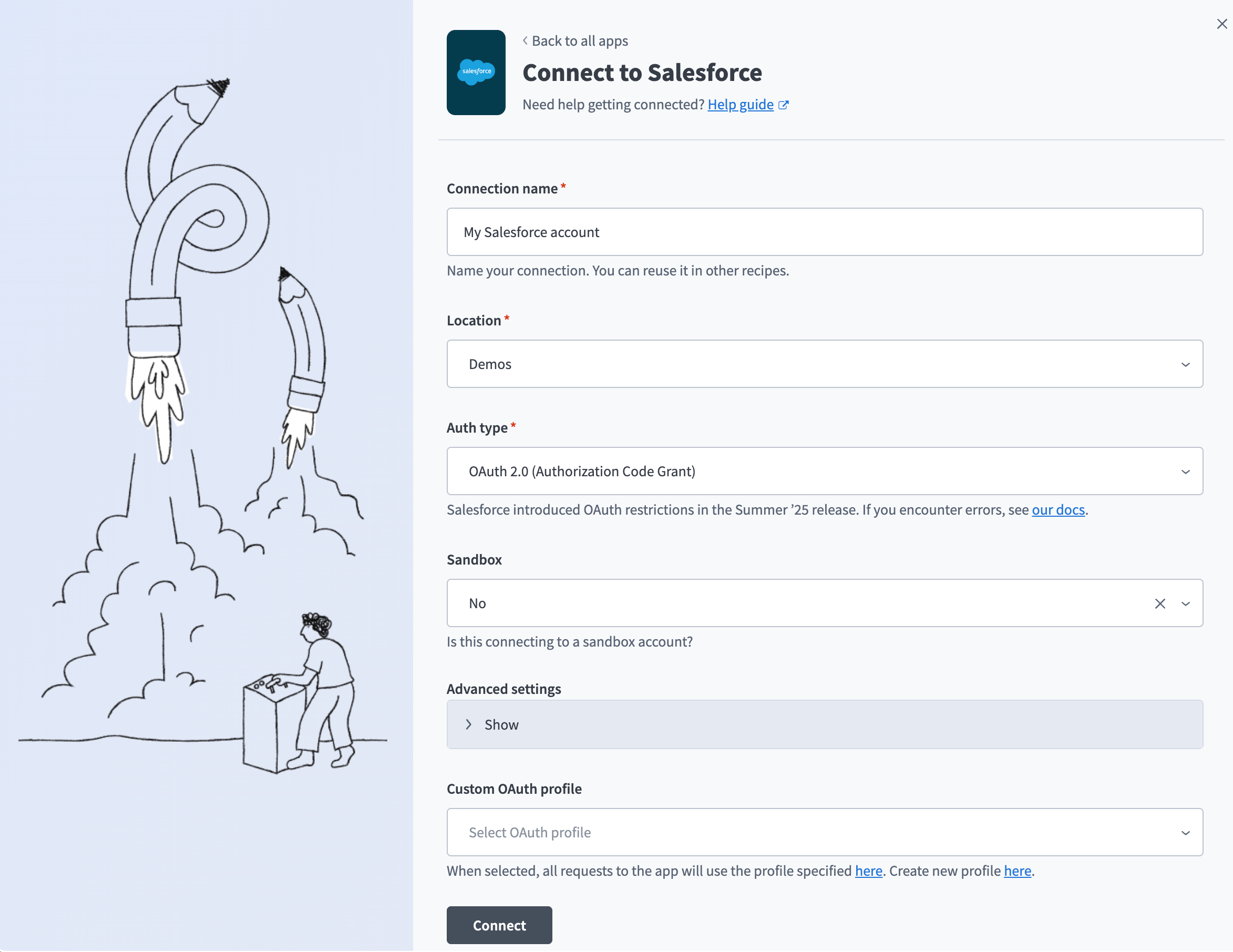 OAuth2.0 Salesforce connection setup
Use the Location drop-down menu to select the project where you plan to store the connection.
Use the Auth type drop-down menu to select OAuth 2.0 (Authorization Code Grant).
Use the Sandbox drop-down menu to specify whether the Salesforce account is a sandbox account.
Optional. Expand Advanced settings to configure the following options:
Advanced settings
- Organization/community custom domain URL: Enter the URL to your Salesforce community's custom domain. Required for community connections with unique domains.
- Requested permissions: Select permissions to request for this connection. Refer to Minimum and default scopes for the scopes Workato requests by default.
- Verified user access configuration: Configure custom auth for personal connections. Refer to Runtime user connections for more information.
REFRESH TOKEN SCOPE IS REQUIRED
The Perform requests at any time scope is one of Workato's minimum scopes for OAuth 2.0 connections, but whether Salesforce actually grants this scope depends on the Connected App's own OAuth policies, not on the Workato connection's settings. Refer to Salesforce connection disconnects repeatedly if your connection later disconnects when the access token expires. A Refresh Token Policy or IP Relaxation setting can cause the same symptom.
Optional. Use the Custom OAuth profile drop-down menu to select a custom OAuth profile for your connection. Refer to Create a custom OAuth profile for Salesforce for more information.
Click Connect.
Optional. If your Salesforce organization or community uses a custom domain, complete the following in the sign-in modal:
- Click Use Custom Domain.
- Enter your Custom domain, then click Continue.
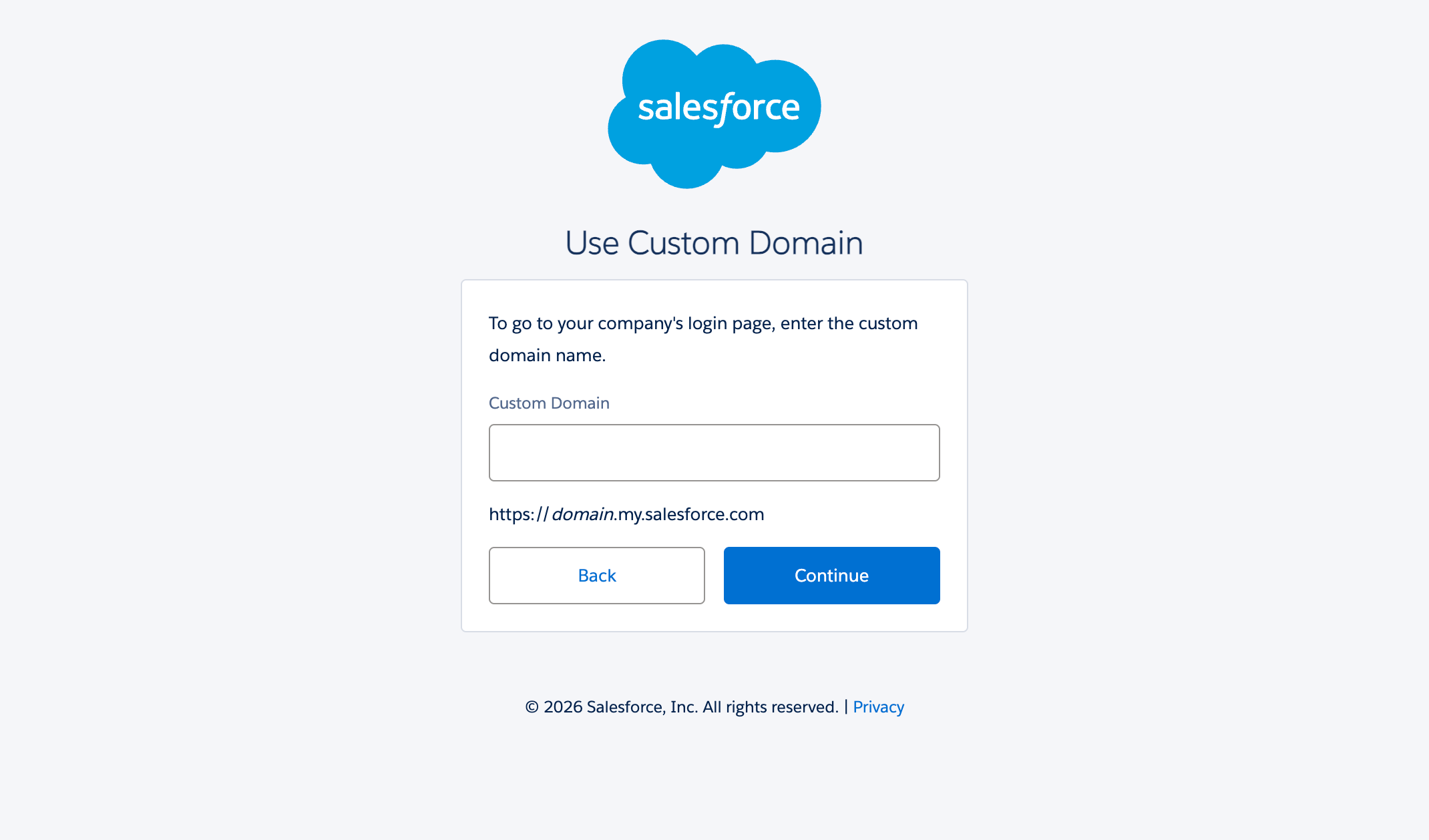 Enter your Custom domain.
Enter your Salesforce Username and Password.
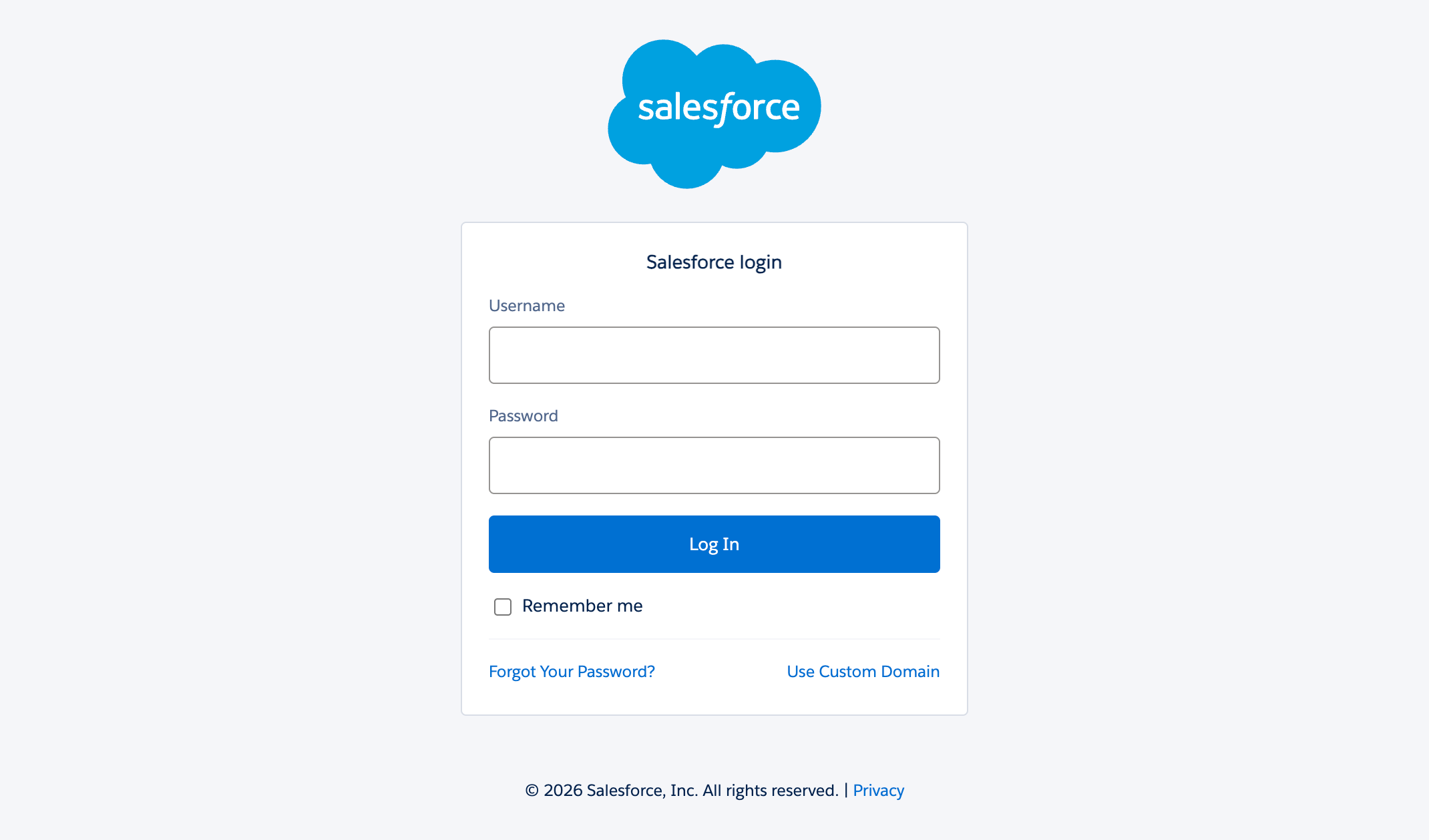 Log in to your Salesforce account
Click Log In to complete the setup.
OAUTH_APPROVAL_ERROR_GENERIC
If you see this error, Salesforce is restricting the Workato app because it isn't installed. A Salesforce admin must install the app in Connected Apps OAuth Usage or assign the Salesforce permissions. Refer to OAuth restrictions for details.
OAuth restrictions
Salesforce enforces restrictions on OAuth Salesforce Connected Apps in early September 2025. These restrictions affect only new Salesforce connections created in Workato. Existing connections and recipes continue to run. Refer to Salesforce's official announcement for more information.
If you already created a Salesforce connection in Workato: Your organization already displays the
Workato connectorin Connected Apps OAuth Usage. Existing connections keep working. If the app displays Install, a Salesforce admin must install it and configure OAuth policies to avoid errors when you create new connections. If the app displays Uninstall, the app is already installed and no further action is required.If this is your first Salesforce connection in Workato: Your organization doesn't display the
Workato connectoruntil a Salesforce admin creates a connection in Workato. After that, the app appears in Connected Apps OAuth Usage, where the admin can install it.
As an alternative, the admin can assign Salesforce permissions that allow OAuth without installation. This option is only recommended for trusted integration users, such as admins or developers. These include the following:
- Approve Uninstalled Connected Apps: Allows trusted users to self-authorize uninstalled apps. Available when API Access Control isn't enabled.
- Use Any API Client: Broader bypass permission that works when API Access Control is enabled.
Refer to Salesforce's documentation for details.
Token expiration
OAuth tokens may expire after a set amount of time, depending on their configuration in Salesforce. A connection that repeatedly shows Connection lost and requires reconnecting usually means Salesforce isn't returning a refresh token. A Refresh Token Policy or IP Relaxation setting can cause the same symptom.
Salesforce only issues a refresh token when your Salesforce app's OAuth policies explicitly grant the Perform requests at any time scope. Full access doesn't include this scope by default. Workato can't renew the expired access token without a refresh token, so the connection disconnects and requires manual reconnection.
Refer to Salesforce connection disconnects repeatedly to diagnose and resolve this.
JWT bearer
Use JWT bearer for server-to-server authentication without requiring a user to sign in. Choose this method for automated connections that can't complete an interactive sign-in, such as backend integrations running on a schedule.
ACTIONS ON BEHALF OF USER
JWT connections can perform actions on behalf of a user you specify using the On-behalf-of-user email field. Contact your Workato Customer Success Manager to enable this feature.
How it works
JWT bearer authentication connects using a digital certificate that signs a JWT request. Workato sends a JWT to the Salesforce OAuth token endpoint, where Salesforce processes the JWT and issues an access token based on prior approval of Workato in Salesforce.
Although JWT bearer skips interactive sign-in, Salesforce still evaluates every request against the permissions of the user specified in the connection and attributes any changes to that user. Use a dedicated integration user rather than a personal account.
Refer to Required roles and permissions for the Salesforce permissions the connected user needs.
Generate a private key and certificate
JWT bearer authentication requires a private key and a certificate. The following command generates both using OpenSSL. Replace the -subj values with your own:
openssl req -x509 -sha256 -nodes -newkey rsa:2048 \
  -keyout server.key \
  -out server.crt \
  -days 365 \
  -subj "/CN=Your App Name/O=Your Organization/C=US"
This generates two files:
| File | Description |
|---|---|
server.key | Your private key for Workato. Keep this secret. |
server.crt | Your public certificate for Salesforce. |
Refer to Salesforce's documentation for more information:
- OAuth 2.0 JWT Bearer Flow for Server-to-Server Integration: Details on how Salesforce uses this certificate to sign and validate JWTs.
- Create a Private Key and Self-Signed Digital Certificate: Other ways to generate a private key and certificate.
Create an external client app for JWT bearer
JWT bearer authentication also requires a registered external client app in Salesforce. Complete the following steps before creating your connection in Workato. Refer to Salesforce's Create an External Client App documentation for more information.
Sign in to Salesforce.
Go to Setup > Apps > External Client Apps > External Client App Manager.
Click New External Client App.
Enter a name in the External Client App Name field, such as Workato.
Enter a name in the API Name field that meets the following requirements:
- Contains only underscores and alphanumeric characters.
- Is unique.
- Starts with a letter.
- Doesn't include spaces.
- Doesn't end with an underscore.
- Doesn't contain consecutive underscores.
Enter the contact email address for your app in the Contact Email field.
Use the Distribution State drop-down menu to select either Local or Packaged.
Expand API (Enable OAuth Settings) and select the Enable OAuth checkbox. Refer to Salesforce's Configure the External Client App OAuth Settings documentation for more information.
Enter https://www.workato.com/oauth/callback in the Callback URL field.
Select your OAuth scopes in the OAuth Scopes field based on the actions and triggers you plan to use, then click the Move selection to Selected OAuth Scopes arrow to apply them.
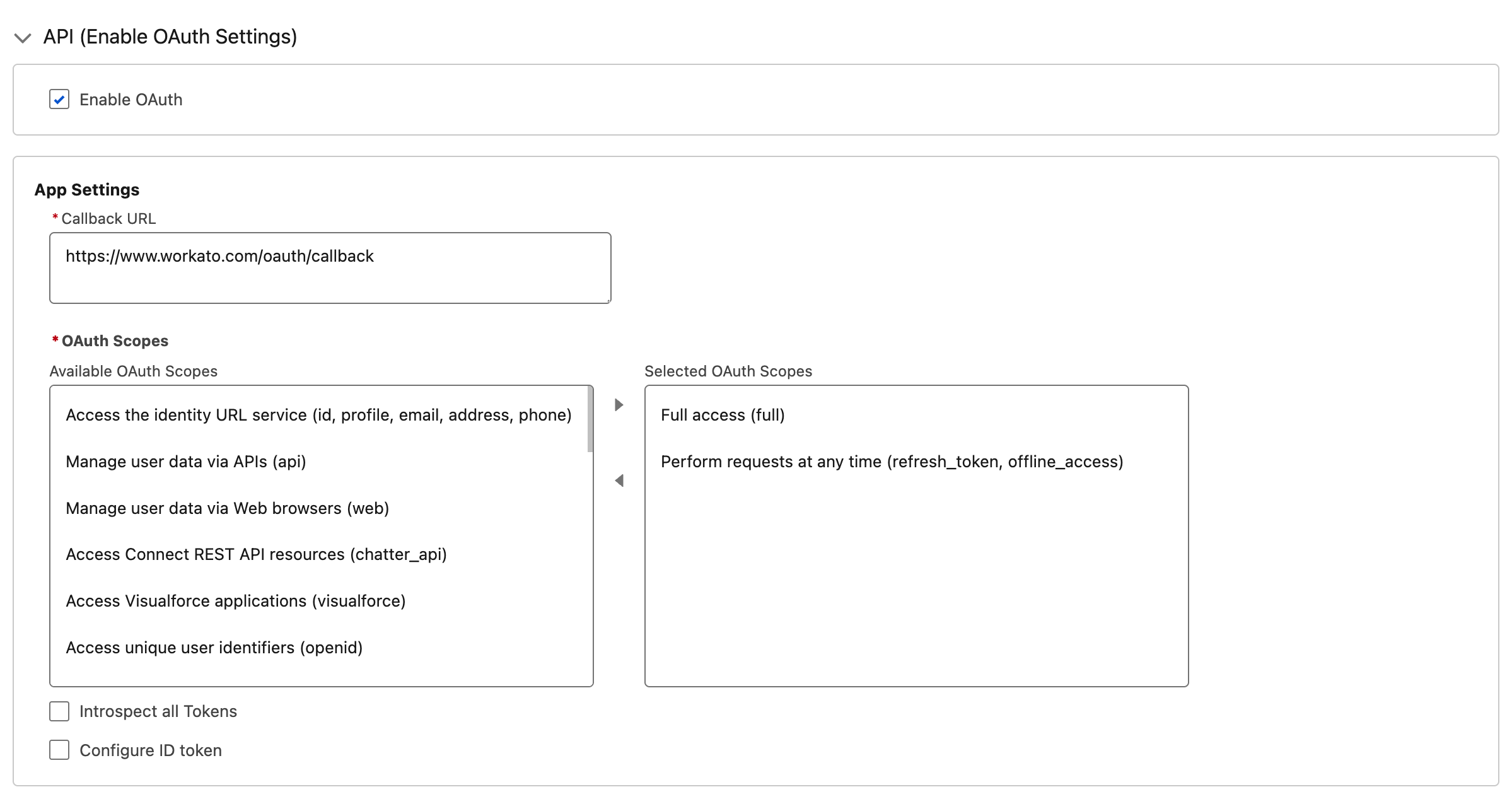 Configure scopes for your external client app
REFRESH_TOKEN SCOPE IS REQUIRED
If you see the error refresh_token scope is required and the connected app should be installed and preauthorized, add Perform requests at any time (refresh_token, offline_access) to your OAuth scopes. If you then see an invalid session error, also add Manage user data via APIs (api).
Select Enable JWT Bearer Flow in the Flow Enablement section. Refer to Salesforce's Configure a JWT Bearer Flow documentation for more information.
Upload server.crt as the digital certificate.
Click Create.
Click the Policies tab, then click Edit.
Expand the OAuth Policies section and set Permitted Users to Admin approved users are pre-authorized.
USER HASN'T APPROVED THIS CONSUMER
If you see this error when connecting, this step was likely missed.
Locate the App Policies section. Add either the profile or permission set assigned to the Salesforce user Workato connects as to the Select Profiles or Select Permission Sets list. Refer to Salesforce's Preauthorize User App Access Through External Client App Policies documentation for more information.
USER IS NOT ADMIN APPROVED TO ACCESS THIS APP
If you see this error when connecting, this step was likely missed.
Click Save.
Click the Settings tab for your external client app.
Expand the OAuth Settings section.
Click Consumer Key and Secret.
Verify your identity when prompted.
Copy the Consumer Key. You'll enter this as the Issuer when connecting in Workato.
Connect to Salesforce using JWT bearer
Complete the following steps to connect to Salesforce using JWT bearer authentication:
Click Create > Connection or press C twice.
Search for Salesforce and select it as your app.
Enter a name in the Connection name field.
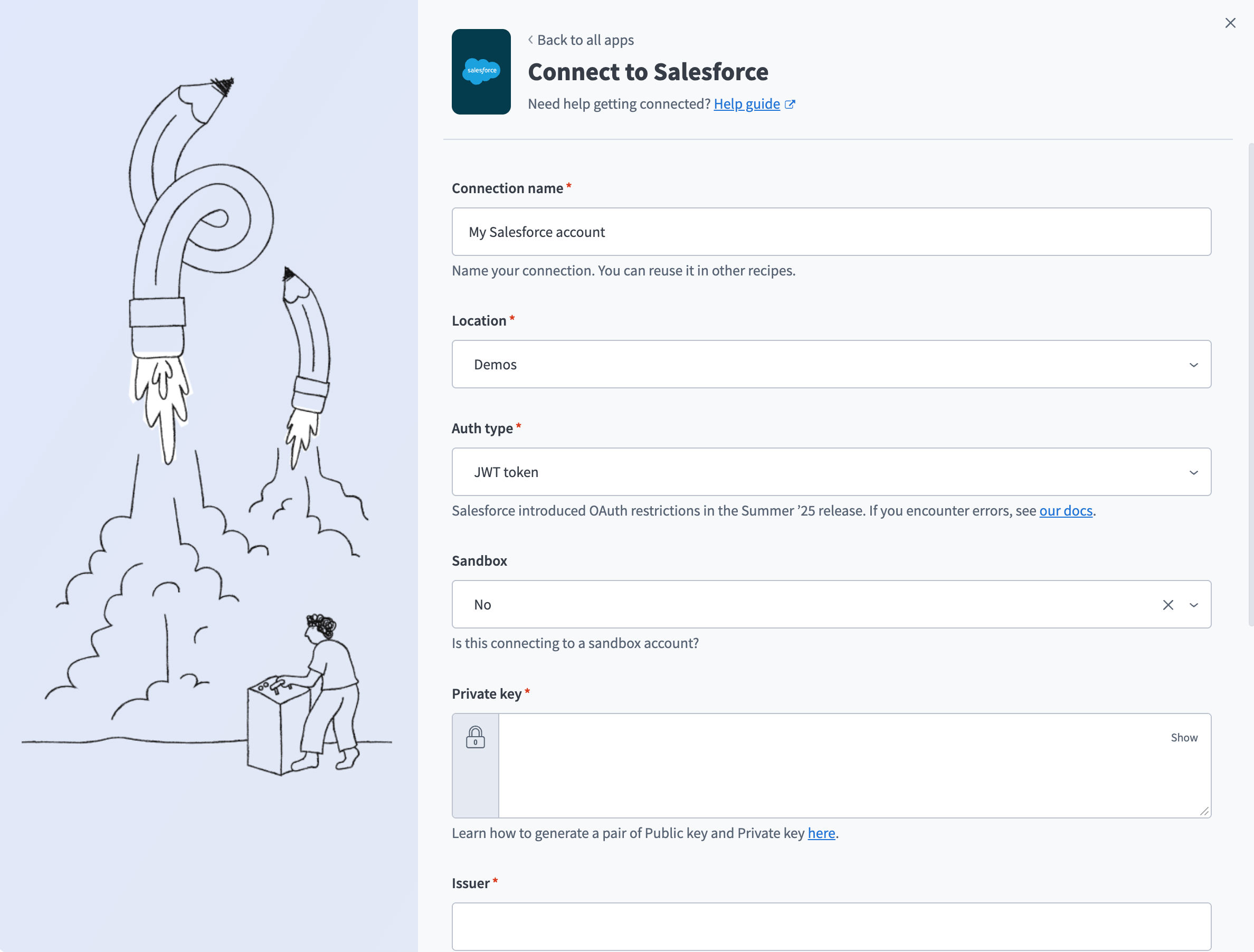 Configure Salesforce JWT Bearer connection
Use the Location drop-down menu to select the project where you plan to store the connection.
Use the Auth type drop-down menu to select JWT token.
Use the Sandbox drop-down menu to specify whether the Salesforce account is a sandbox account.
Paste the full contents of server.key in the Private key field, including the -----BEGIN PRIVATE KEY----- and -----END PRIVATE KEY----- lines.
Enter the Consumer Key from your external client app in the Issuer field.
Enter the Subject for the JWT connection. This is the username of the Salesforce user you want Workato to authenticate as, or a valid Experience Cloud username if you're connecting to an Experience Cloud site. You can use principal (prn) in place of subject (sub) for backward compatibility. If you specify both, Workato uses prn.
Enter your Salesforce Subdomain. For example, if your Salesforce URL is yourInstance.salesforce.com, the subdomain is yourInstance.
Optional. Use the Custom OAuth profile drop-down menu to select a custom OAuth profile for your connection. Refer to Create a custom OAuth profile for Salesforce for more information.
Click Connect.
Required roles and permissions
We recommend provisioning and assigning a dedicated Salesforce integration user. Salesforce connections in Workato inherit the permissions of the account used for authentication, including access to fields and objects.
User permissions and access settings control what users can do in your Salesforce organization:
Permissions: Define the actions a user can take, such as editing object records, accessing the Setup menu, permanently deleting items from the Recycle Bin, or resetting another user’s password.
Access settings: Control broader features, such as the visibility of apps, access to Apex classes, and more.
You can define user permissions and access settings using profiles and permission sets. Each user is assigned one profile, but can have multiple permission sets. Use profiles to assign the minimum required permissions for a specific group of users. Then use permission sets to add additional permissions as needed.
API Enabled permission
You must have the API Enabled permission in Salesforce to create a connection. Open Salesforce and go to Setup > Profiles to configure this permission. 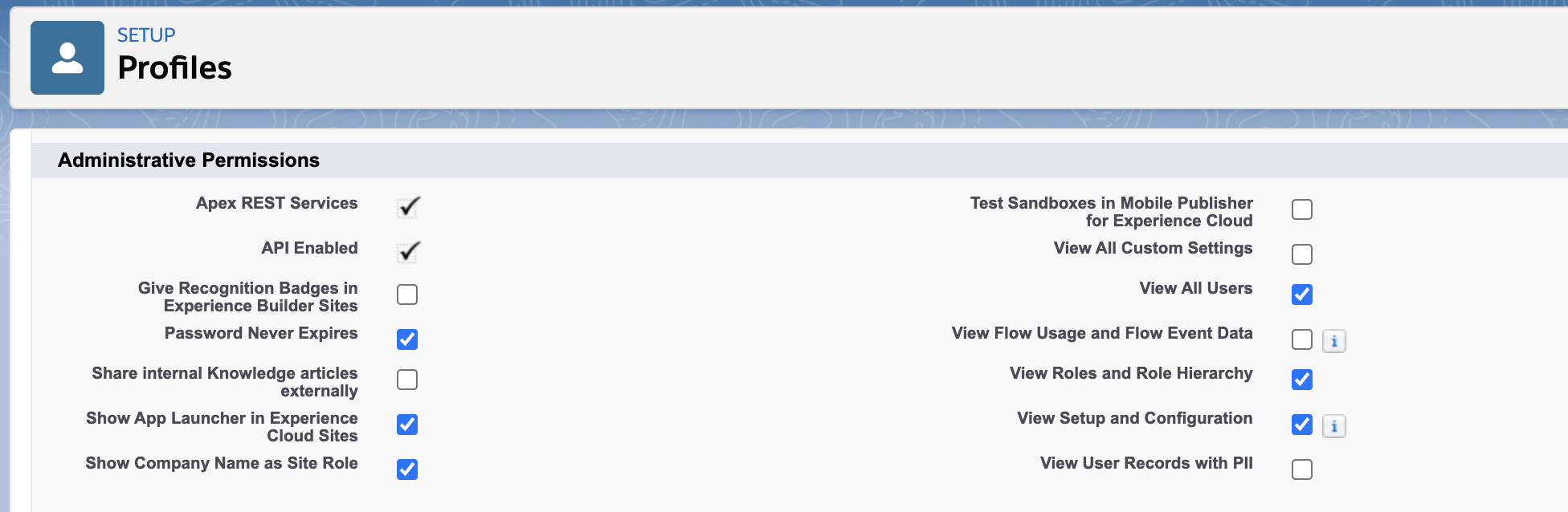 API enabled permission - profile setup
Standard and custom object permissions
We recommend that the connected user's account has read, create, edit, delete, view all, and modify all permissions for standard and custom objects in your Salesforce organization.
Refer to Salesforce's Object Permissions for details about the difference between standard object privileges and the View all and Modify all permissions.
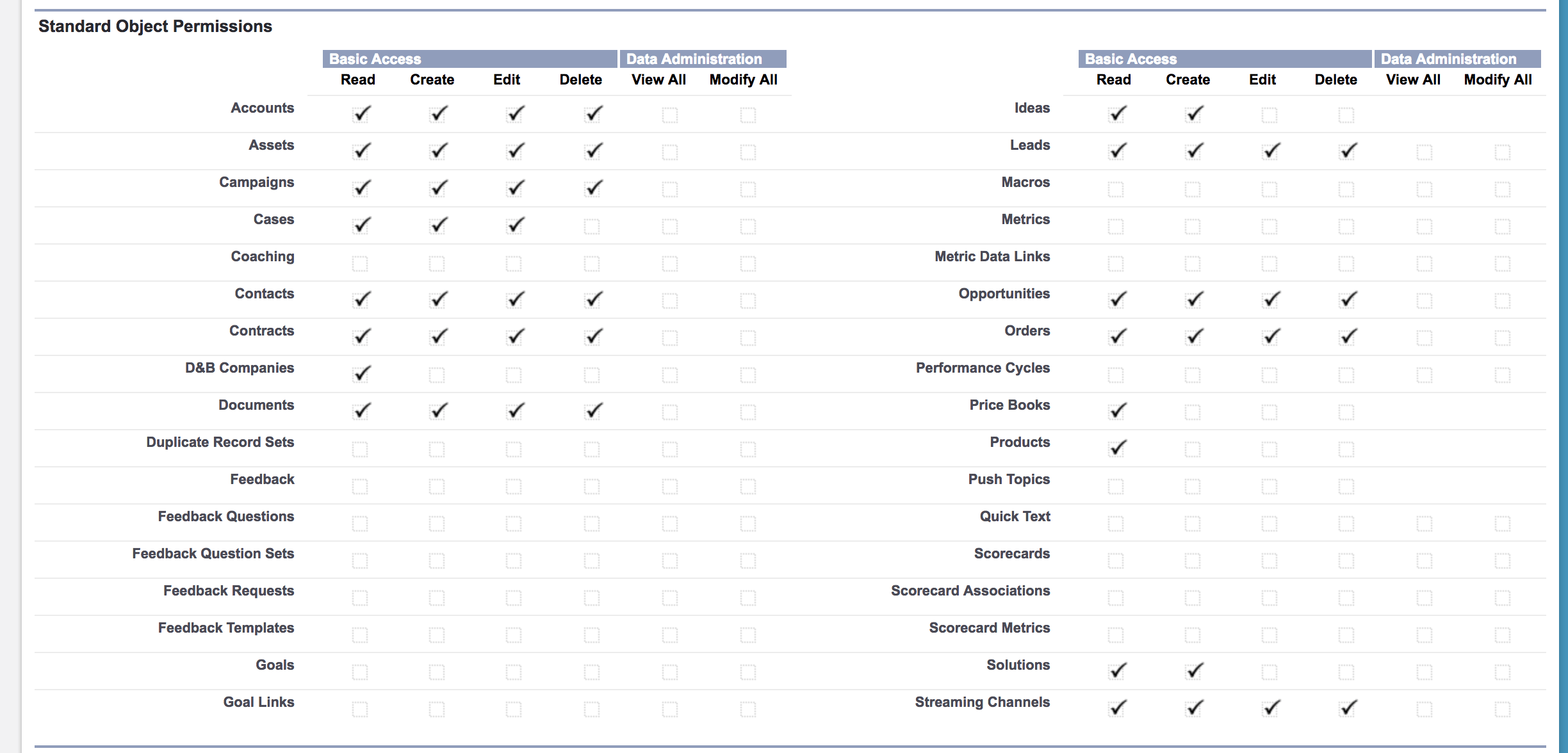 Salesforce standard object profile permissions setup
 Salesforce custom object profile permissions setup
Object-level security is the broadest way to control data access. It controls whether a user can view, create, edit, or delete records of a specific object type, such as leads or opportunities, and can hide objects and their tabs from users entirely.
MISSING OBJECTS
Object-level security settings prevent objects from appearing in Workato. Check with your Salesforce admin to confirm that the integration user can access all required objects.
Platform event permissions
Platform event triggers and actions require that platform events be enabled in your Salesforce organization. Additionally, the connected Salesforce account must have read and create permissions for platform events.
 Salesforce platform events permissions - profile setup
Real-time trigger permissions
Your Salesforce organization must have Workflow rules set up to use real-time triggers. The connected user doesn't need to be the user who creates these rules.
You need the Customize Application permission to create workflow rules. Open Salesforce and go to Setup > Permission sets to configure this permission.
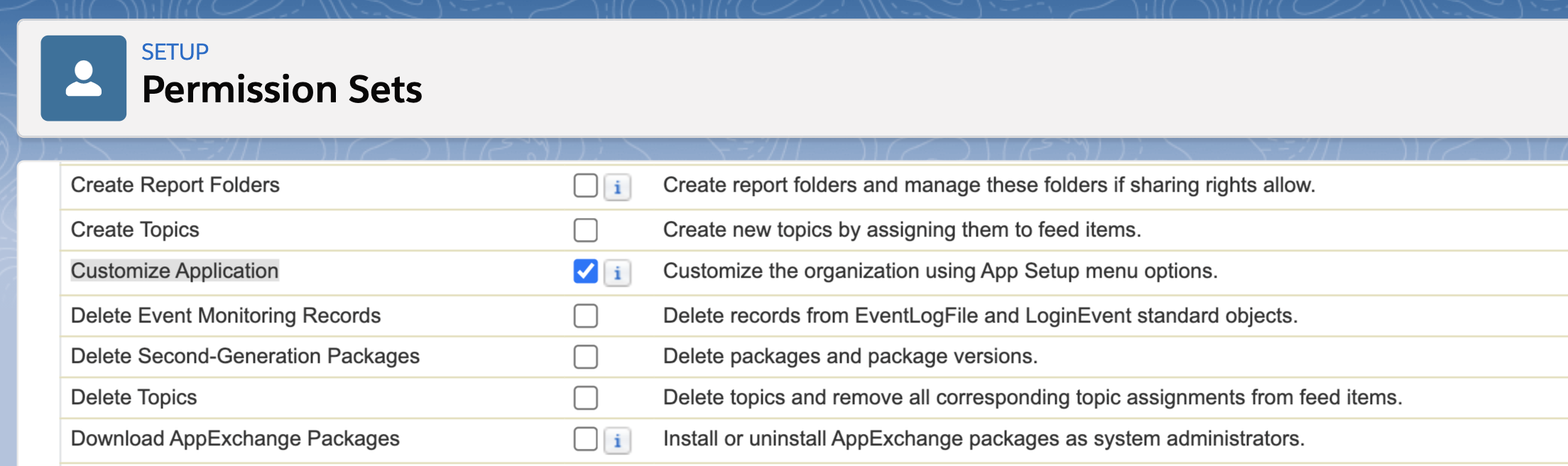 Customize application permission - profile setup
DEPRECATION NOTICE PERTAINING TO REAL-TIME TRIGGERS
Real-time triggers in Workato rely on Salesforce Workflow rules. Existing Workflow rules continue to work, but Salesforce has deprecated Workflow rules and Process Builder in favor of Flows, so Workato recommends using Salesforce Flows for all new recipes. Salesforce provides a migration tool to move Workflow rules into Flows.
The process shouldn't affect Workato recipes, because outbound messages configured in Salesforce remain the same. Test the migration in a Salesforce sandbox first to catch any unexpected issues.
Bulk/batch action permissions
Bulk actions require the Manage Data Integrations, View Setup and Configuration, and API Enabled permissions on the connected Salesforce account. Refer to Salesforce's Manage Bulk Data Load Jobs for more information.
Field-level security
Field-level security controls the visibility of fields in Salesforce, including related lists, list views, reports, and search results, and controls whether users can view or edit individual field values. This lets you protect sensitive data without hiding entire objects.
You can configure field-level security using permission sets and profiles.
MISSING FIELDS
Field-level security settings can prevent fields from appearing in Workato. Check with your Salesforce admin to confirm that the integration user can access all required fields.
Additional considerations
Multiple Salesforce accounts in a single recipe
You can connect to two Salesforce accounts in a single recipe using the Salesforce Secondary connector. Refer to Secondary connectors for more information.
Salesforce sandboxes
Use a sandbox account or test with non-essential data when you start using Workato with Salesforce. This prevents data loss, because actions performed through Workato can't be undone.
Salesforce sandboxes are isolated from your production organization, so actions in one don’t affect the other. Sandboxes are nearly identical to your production organization. Refer to Salesforce's Sandbox Setup Tips and Considerations for a list of differences.
Last updated: