Audit log streaming for Automation HQ
Enable an audit log streaming system for your entire organization. This includes all current and future workspaces that Automation HQ manages.
INFO
You can't modify log settings within managed workspaces.
Automation HQ adapts Audit log streaming to provide a single logging mechanism and destination for all workspaces in your organization.
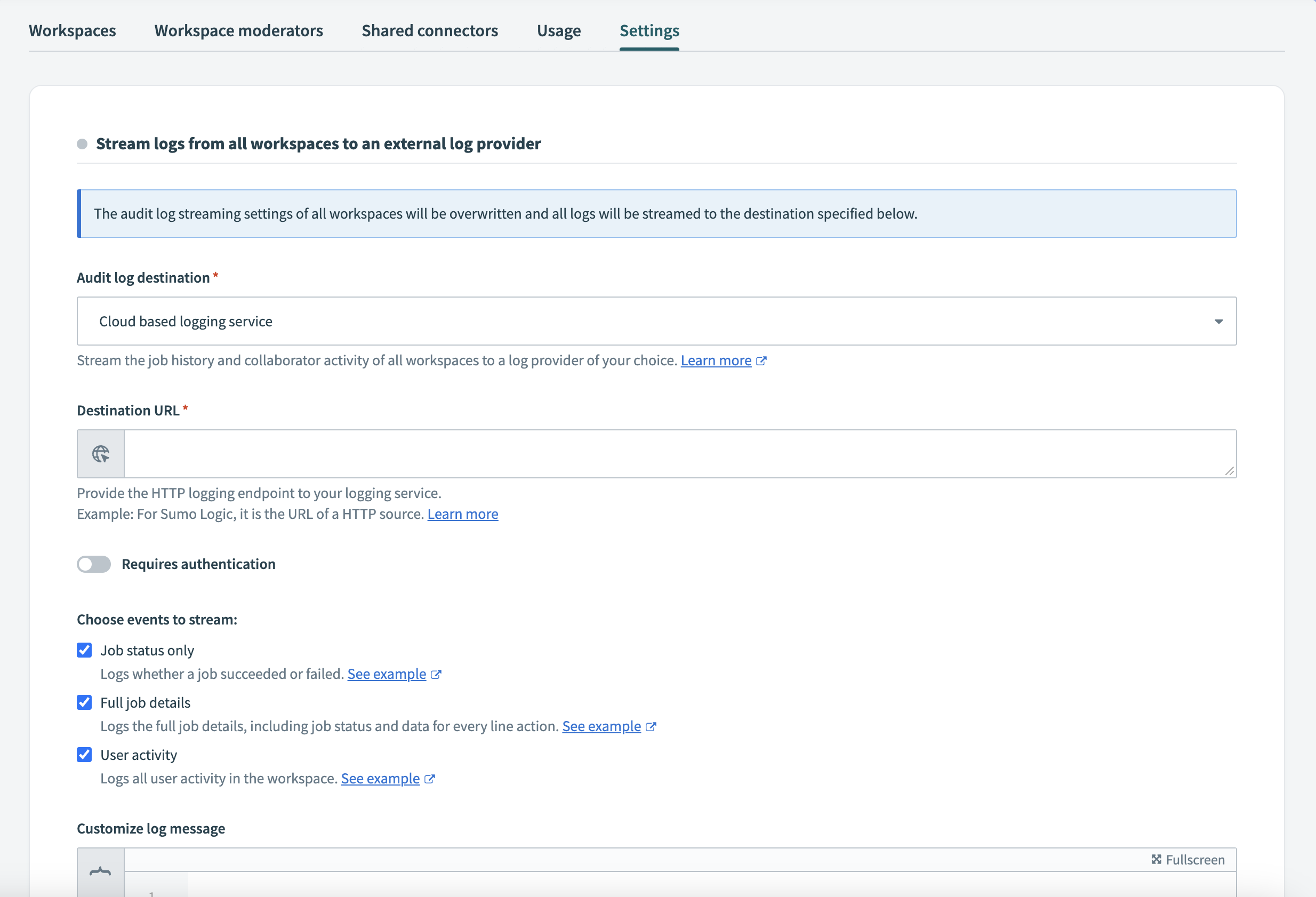 Automation HQ audit log streaming
Complete the following steps to enable audit log streaming:
Go to Automation HQ.
Click the Settings tab.
Click Set up audit log streaming. The Stream logs from all workspaces to an external log provider interface appears.
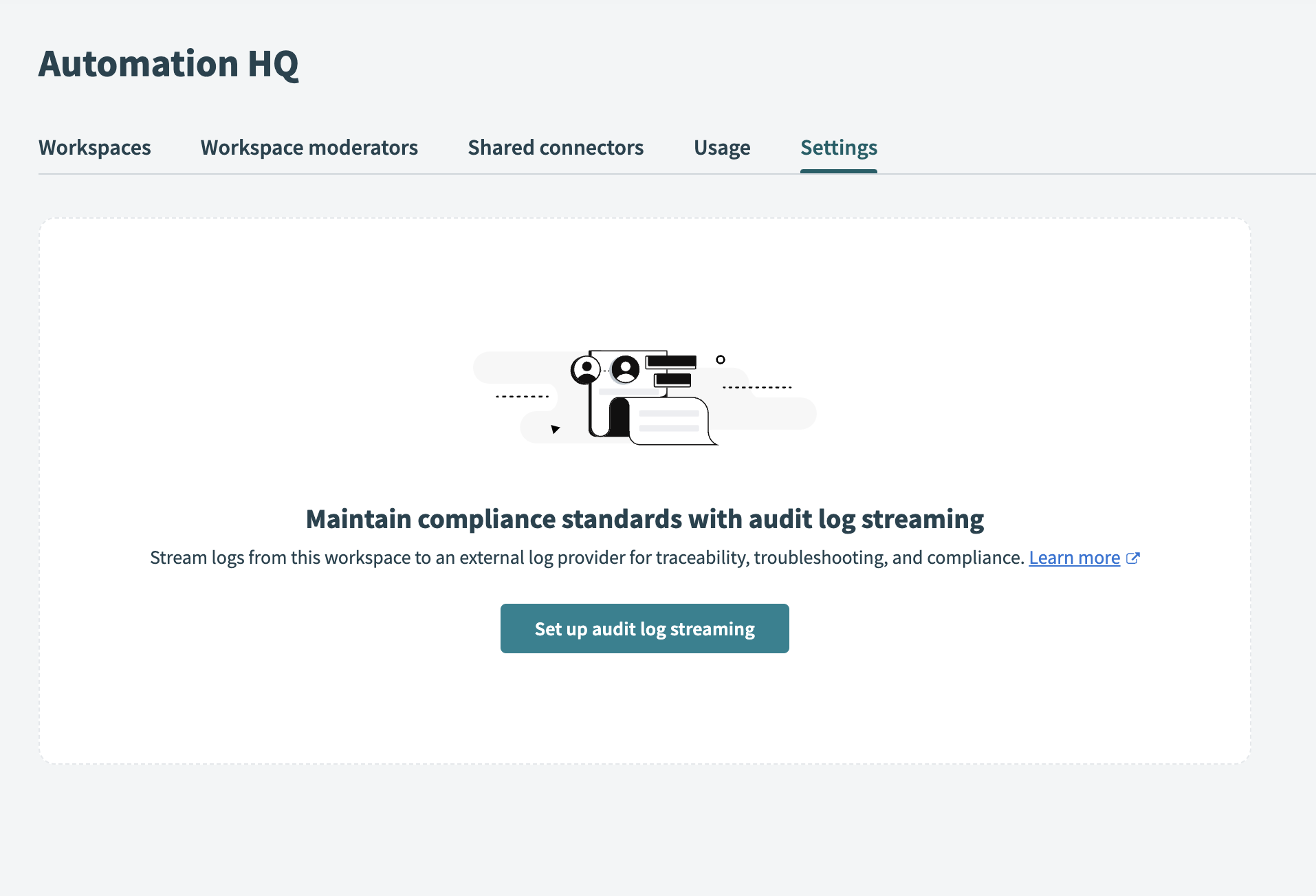 Set up audit log streaming
Choose an Audit log destination from the drop-down menu. Refer to Audit log streaming destinations for more information on destination types.
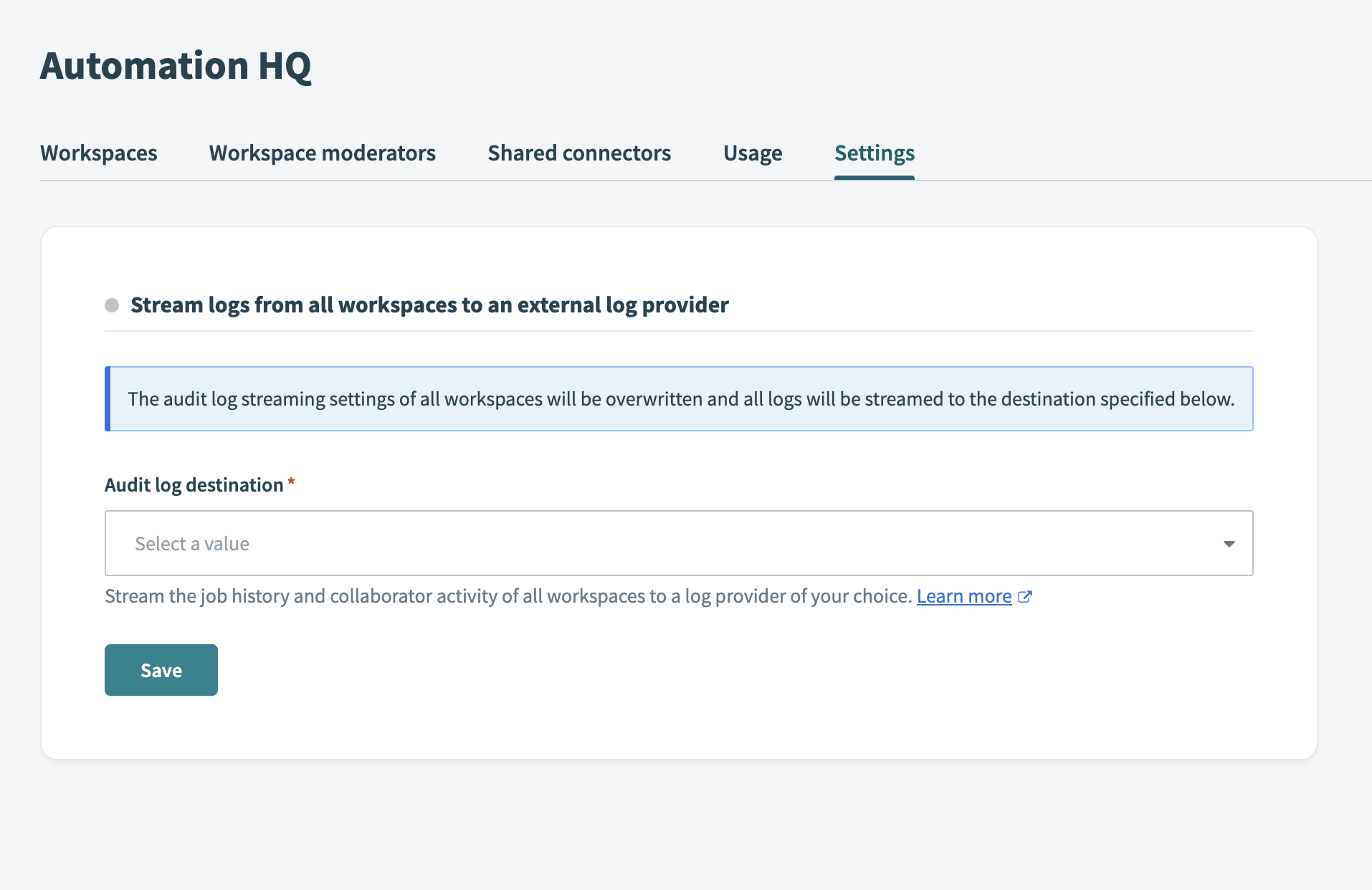 Choose audit log streaming destination
Use the following tabs to complete the steps for your selected destination:
Complete the following steps to configure Amazon S3 as your audit log destination:
Create a new connection for Amazon S3, or use an existing connection.
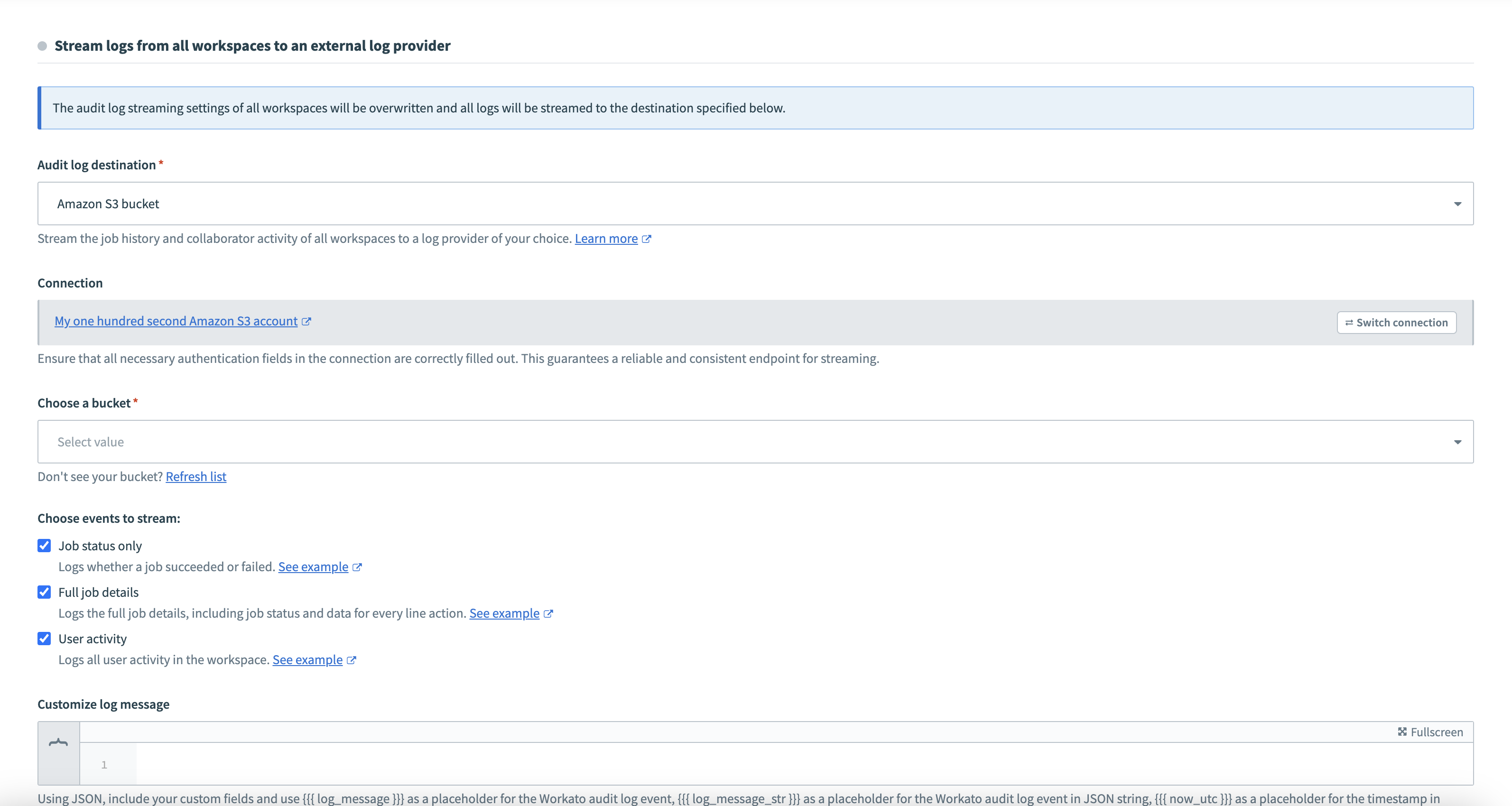 Configure Amazon S3 as your audit log destination
Use the Choose a bucket drop-down menu to select a bucket from your Amazon S3 instance.
Select the events to stream:
- Job status only: Logs whether a job succeeded or failed.
- Full job details: Logs job details, including status and data for each line action.
- User activity: Logs all user activity in the workspace.
- API platform logs: Logs all API requests handled by the API platform.
- Workato Log events: Logs all messages sent to the Workato logging service.
- Genie conversations: Logs the full details of genie conversations, including data for every response.
Additionally, select the Log types and Log levels to include if you plan to stream events from the Workato logging service.
Optional. Use the Customize log message field to define log messages using JSON format. You can add custom fields and structures. For more details, refer to the Customize log message documentation.
Click Save to enable streaming to the Amazon S3 bucket.
Complete the following steps to configure Azure Monitor as your audit log destination:
Use the Audit log destination drop-down menu to select Azure Monitor.
Click Set up connection. Note that the shared key authentication method uses the legacy HTTP Data Collector API, which is deprecated and will stop working in September 2026. Migrate to client credentials authentication instead.
Select an existing connection or refer to the Azure Monitor guide to create a new connection. Save the Immutable ID and the Data source name (stream name) from the Create a data collection rule and assign permissions step for later use if your authentication type is Client credentials.
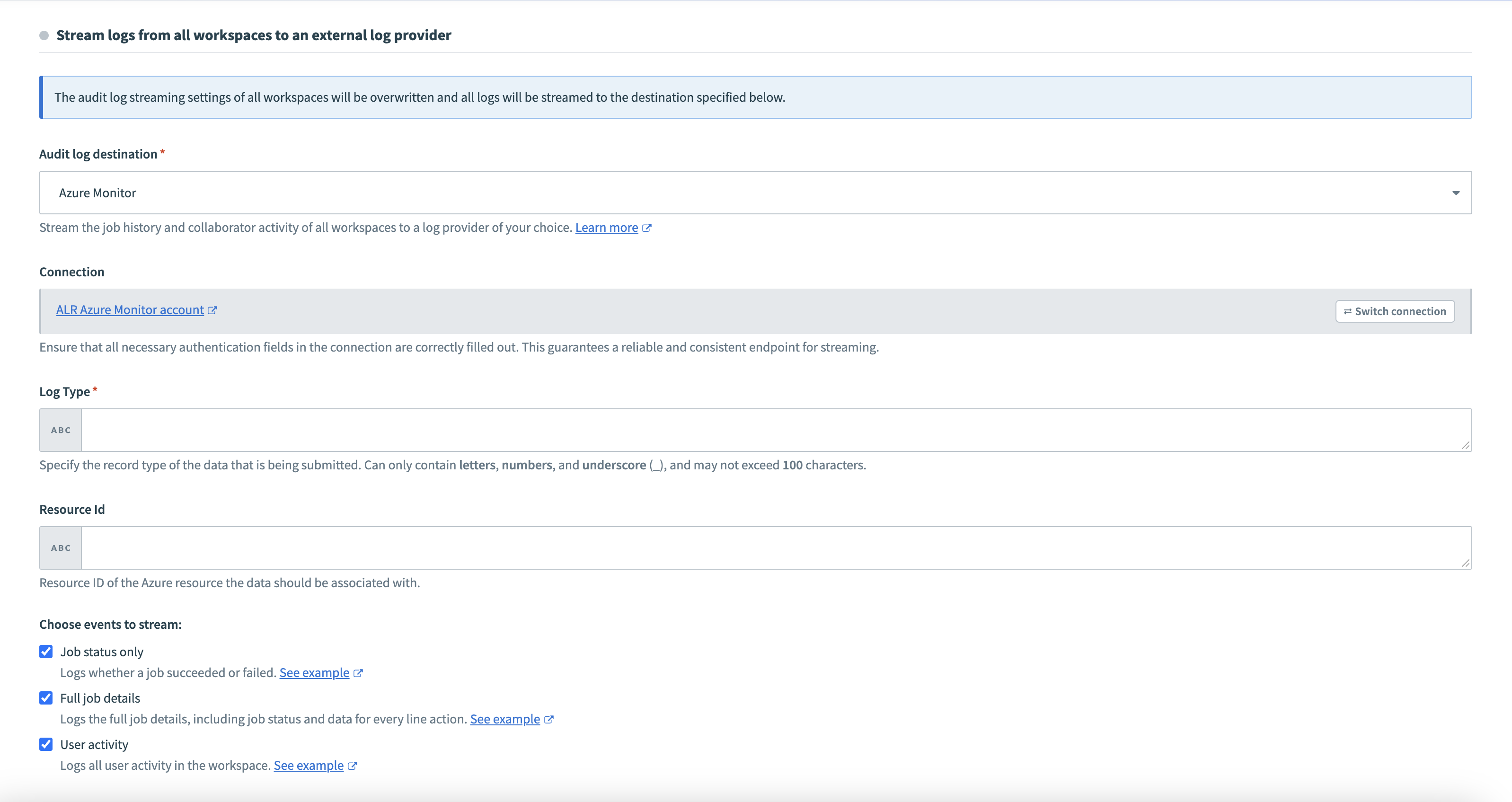 Configure Azure Monitor as your audit log destination
Complete the following steps if your authentication type is Client credentials:
Enter the Immutable ID of your workspace's data collection rule in the Azure Data Collection Rule ID field.
Enter the name of the stream your data collection rule uses as a data source in the Azure Stream Name field.
Enter a name in the Log Type field to automatically create a new table for the logs. This field only supports letters, numbers, and underscores (_), and may not exceed 100 characters. This field is optional for client credentials authentication.
Optional. Enter a Resource ID to associate the logs with a specific Azure resource.
Select the events to stream:
- Job status only: Logs whether a job succeeded or failed.
- Full job details: Logs job details, including status and data for each line action.
- User activity: Logs all user activity in the workspace.
- API platform logs: Logs all API requests handled by the API platform.
- Workato Log events: Logs all messages sent to the Workato logging service.
- Genie conversations: Logs the full details of genie conversations, including data for every response.
Additionally, select the Log types and Log levels to include if you plan to stream events from the Workato logging service.
Optional. Enter the logging message you plan to use in the Customize log message field. Refer to the Custom log messages guide for more information.
Click Save to apply your audit log streaming settings.
Ensure your Azure Monitor Workspace receives the audit logs by querying the specified log type.
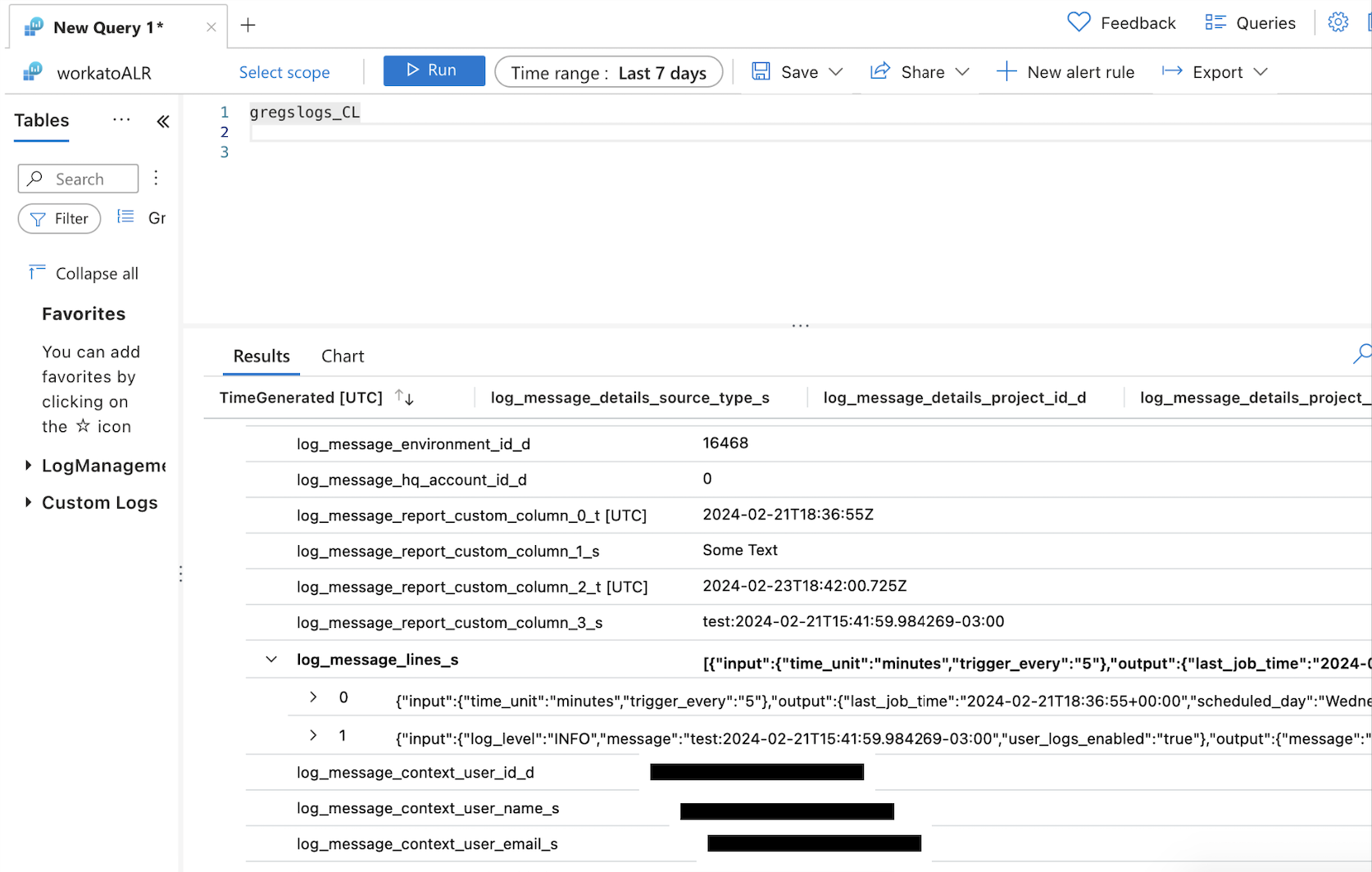 Verify your audit logs
Complete the following steps to configure Azure Blob Storage as your audit log destination:
Create a new connection for Azure Blob Storage, or select an existing connection.
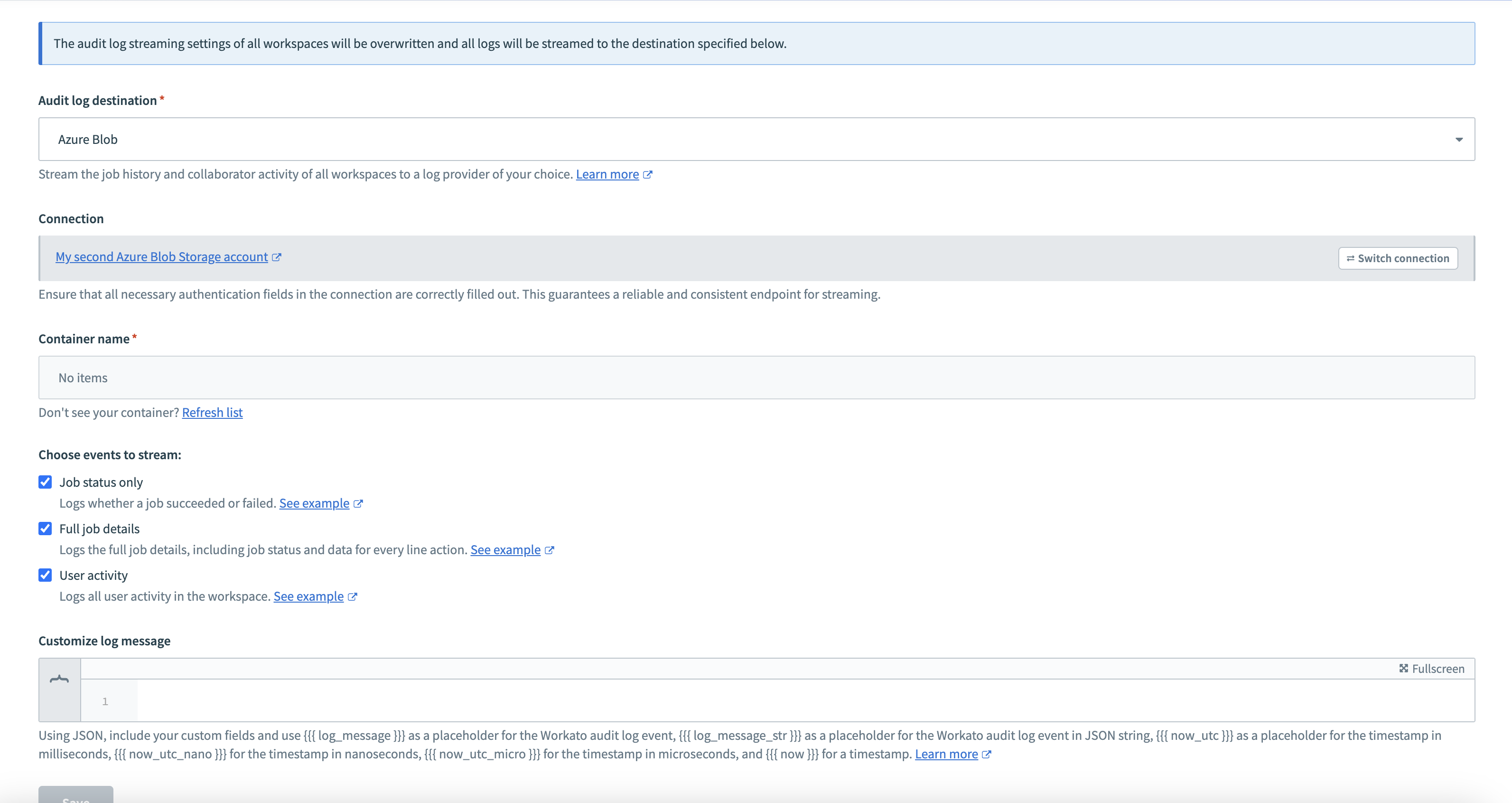 Configure Azure Blob Storage as your audit log destination
Use the Container name drop-down menu to select a container from your Azure Blob Storage instance. You can refresh the container list if your desired container isn't listed.
Select the events to stream:
- Job status only: Logs whether a job succeeded or failed.
- Full job details: Logs job details, including status and data for each line action.
- User activity: Logs all user activity in the workspace.
- API platform logs: Logs all API requests handled by the API platform.
- Workato Log events: Logs all messages sent to the Workato logging service.
- Genie conversations: Logs the full details of genie conversations, including data for every response.
Additionally, select the Log types and Log levels to include if you plan to stream events from the Workato logging service.
Optional. Use the Customize log message field to define log messages using JSON format. You can add custom fields and structures. For more details, refer to the Customize log message documentation.
Click Save to enable streaming to Azure Blob Storage.
Complete the following steps to configure a cloud based logging service as your audit log destination:
Provide the HTTP logging endpoint in the Destination URL field. For example, for Sumo Logic, this is the URL of an HTTP source.
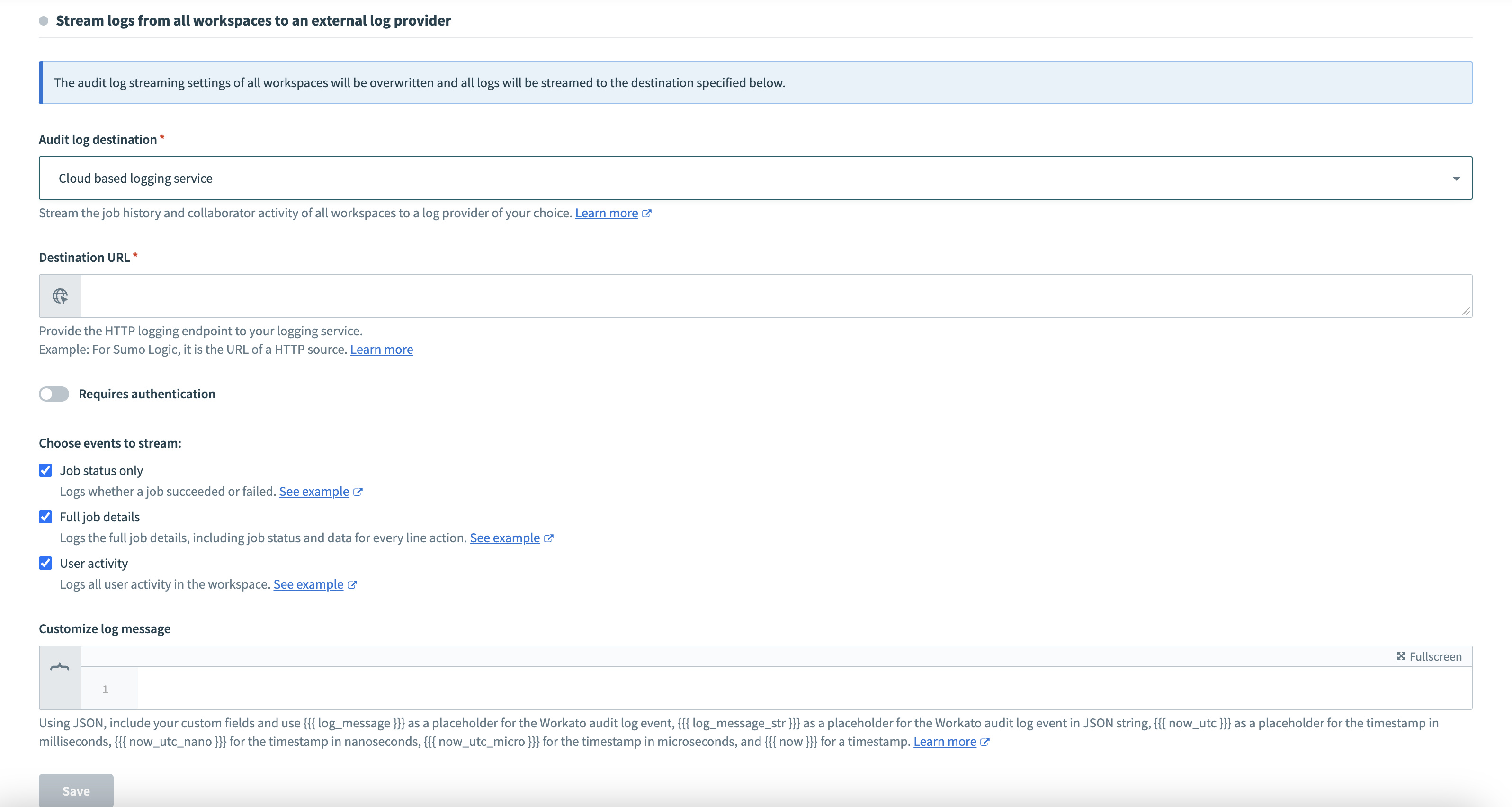 Configure a cloud based logging service
Enable the Requires authentication toggle if the endpoint requires authentication, and provide the necessary credentials.
Select the events to stream:
- Job status only: Logs whether a job succeeded or failed.
- Full job details: Logs job details, including status and data for each line action.
- User activity: Logs all user activity in the workspace.
- API platform logs: Logs all API requests handled by the API platform.
- Workato Log events: Logs all messages sent to the Workato logging service.
- Genie conversations: Logs the full details of genie conversations, including data for every response.
Additionally, select the Log types and Log levels to include if you plan to stream events from the Workato logging service.
Optional. Use the Customize log message field to customize log messages using JSON format. You can use custom fields and define the JSON structure. For more details, refer to the Customize log message documentation.
Click Save to enable streaming to your cloud based logging service.
Audit log streaming is now enabled and configured for all workspaces in Automation HQ.
Last updated: