Route builder
The route builder is a visual canvas where you configure how Model Gateway resolves each request to a provider and model. Every route opens in the route builder, and rule-based and intelligent routes use it to define rules. Instead of hardcoding a model in every application that calls an LLM, you configure the target once in the gateway and change it through configuration.
Rules evaluate in order. The first rule whose conditions match sets the provider and model for the request. When no rule matches, the request falls through to the route's default target.
Route types
Select a route type when you create a route. Model Gateway offers the following route types:
| Route type | Description | Supports rules |
|---|---|---|
| Direct | Routes requests directly to a selected model. | No |
| Rule-based | Routes requests based on the tags, keys, and parameters attached to the request. | Yes |
| Intelligent | Routes requests by complexity. | Yes |
A Direct route uses a single Provider and Model for every request. Rule-based and Intelligent routes use a Default provider and Default model instead, which serve any request that no rule matches.
Refer to Create a route to create a route and select its type. Define the rules for a rule-based or intelligent route after you create it.
Canvas
The route builder canvas displays the path a request takes through the route:
- Request: The entry point, labeled New LLM Call. This step displays the policy applied to the route, or No policy applied when the route has no policy.
- Rules: The steps that resolve the request to a provider and model. A direct route has a single Route to step. A rule-based or intelligent route lists its rules in evaluation order, and each rule displays as a statement in the format
IF <condition> ROUTE TO <provider> / <model>. - Default target: The final step on a rule-based or intelligent route, which routes any request that matches no rule to the route's default provider and model. This step is labeled Route to until you add a rule, and Else route to after that.
- End: The end of the route.
Use the zoom control to change the canvas scale, and click the code icon to switch between the canvas and the YAML view.
Click Edit on the route's details page to open the route builder, then click a step on the canvas to configure it. Click the New LLM Call step to change the policy, or a Route to step to change its provider and model. Refer to Edit a route.
Click Save to apply your changes, or Exit to leave the route builder.
Add a rule
Complete the following steps to add a rule:
Open the route you plan to edit, then click Edit to open the route builder.
Click the add icon (+) on the connector where you plan to insert the rule, then click Add rule.
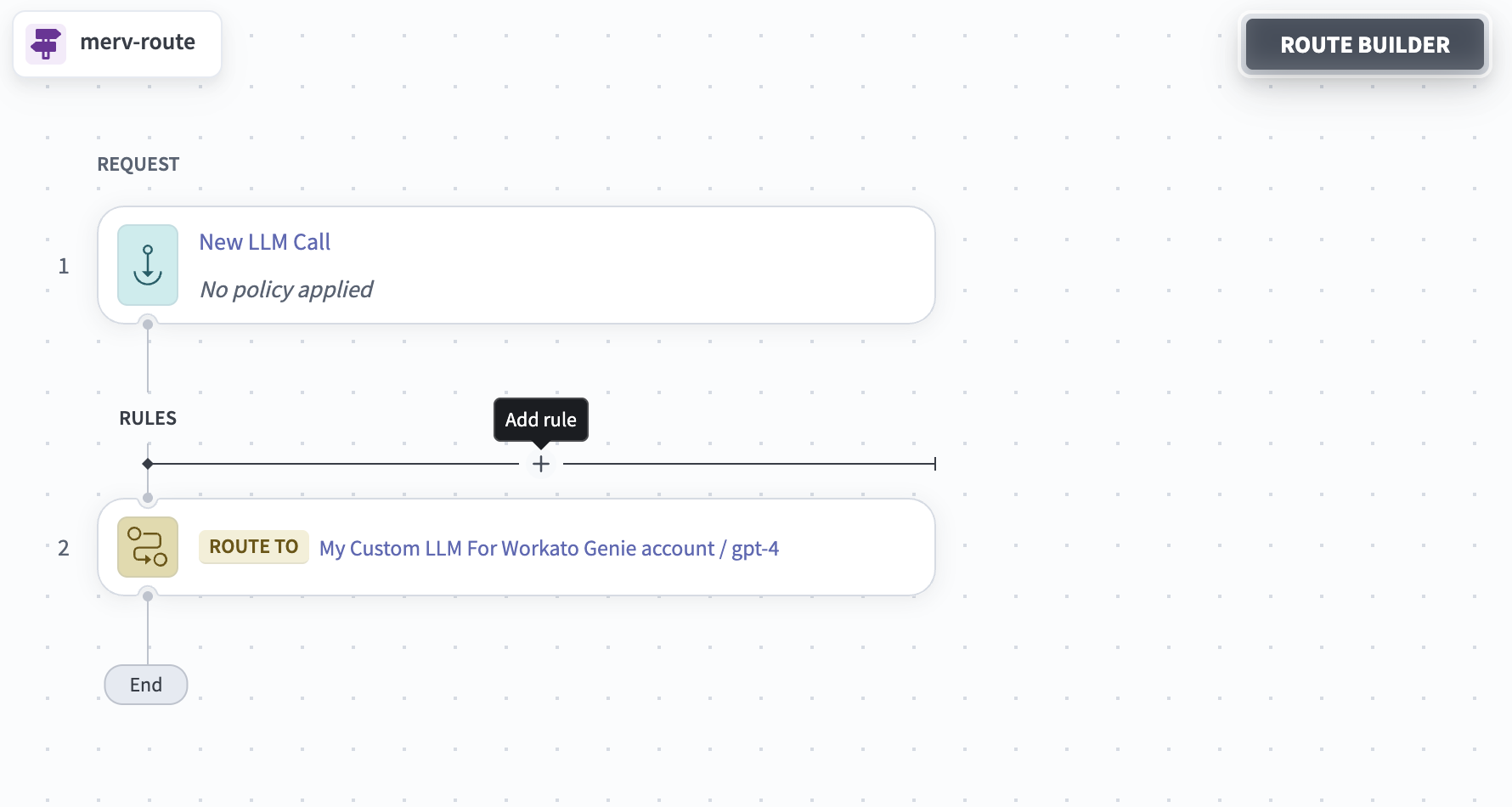 Add rule
Click the Rule step to open its configuration panel.
Use the Provider drop-down menu in the Model section to select the provider this rule routes to.
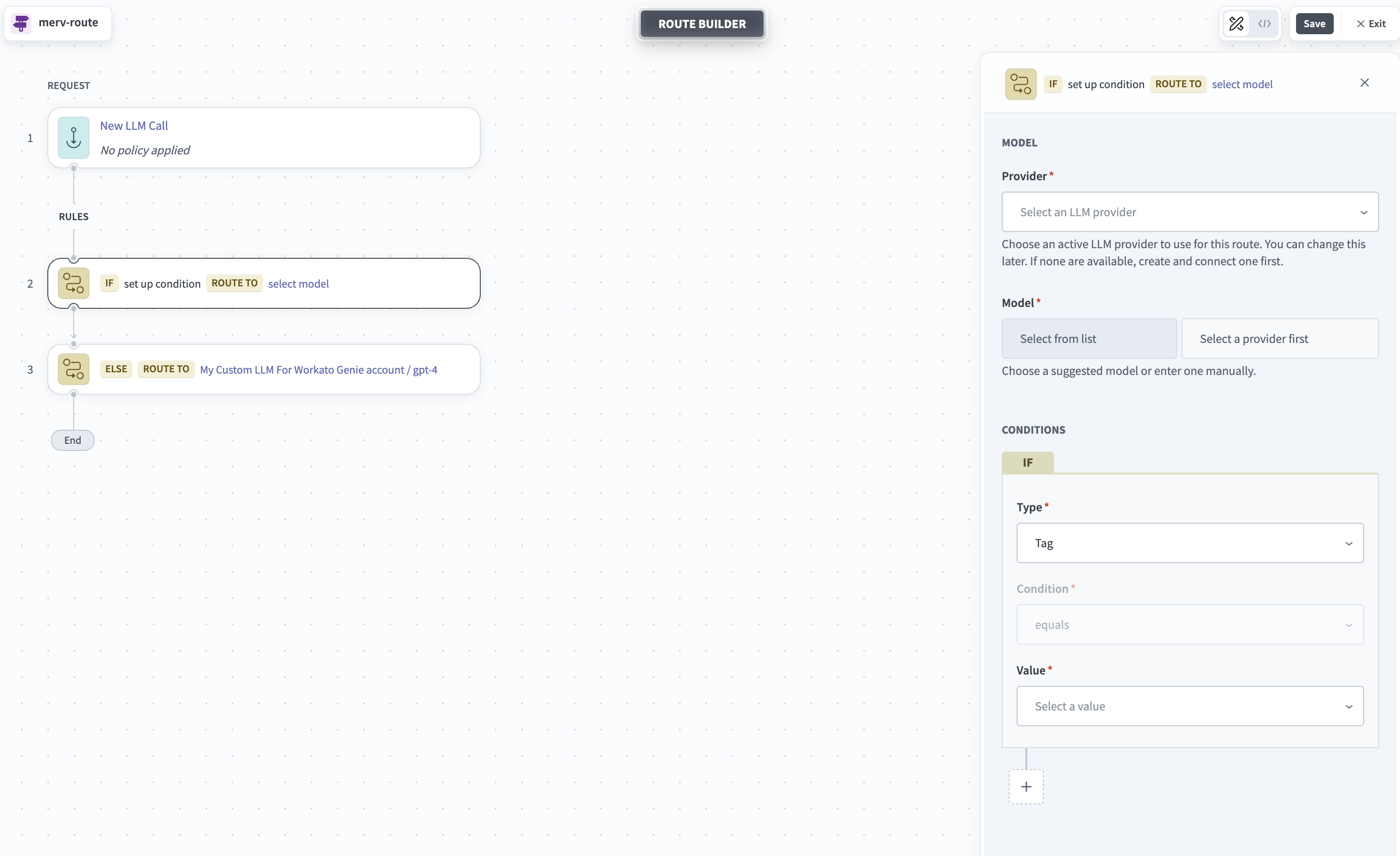 Configure rule
Use the Model drop-down menu to select the model this rule routes to.
Use the Type drop-down menu in the Conditions section to select what the rule matches on. Refer to Condition types for the available types.
Use the Value drop-down menu to select the value the condition matches. The Condition operator is equals.
Click Save.
Condition types
The Type drop-down menu offers the following condition types:
| Type | Route type | Matches on |
|---|---|---|
| Tag | Rule-based | A tag assigned to the access key that sent the request. |
| Key | Rule-based | The access key that sent the request. |
| Parameter | Rule-based | A parameter name and value configured on the access key. |
| Complexity | Intelligent | The complexity of the request. Available values are Simple, Medium, Complex, and Reasoning. |
Select Parameter to display an additional Parameter field, where you select the parameter name the rule matches. Assign tags and parameters to an access key when you create or edit the key.
Combine conditions
A rule can require more than one condition. Click the add icon at the bottom of the Conditions section to add a condition to the rule. All conditions must hold for the rule to match.
Click Delete next to a condition to remove it from the rule.
Change the default target
The default target serves any request that no rule matches.
Complete the following steps to change the default target:
Open the route you plan to edit, then click Edit to open the route builder.
Click the last step on the canvas. This step is labeled Route to on a route with no rules, and Else route to on a route with one or more rules.
Use the Provider and Model drop-down menus to select the new default target.
Click Save.
Assign a policy to a route
A policy applies to every request that passes through the route, including requests that match a rule.
Complete the following steps to assign a policy:
Open the route you plan to edit, then click Edit to open the route builder.
Click the New LLM Call step on the canvas.
Use the Policy drop-down menu to select a policy to assign to all requests. Click Create a new one if you need a policy that doesn't exist yet.
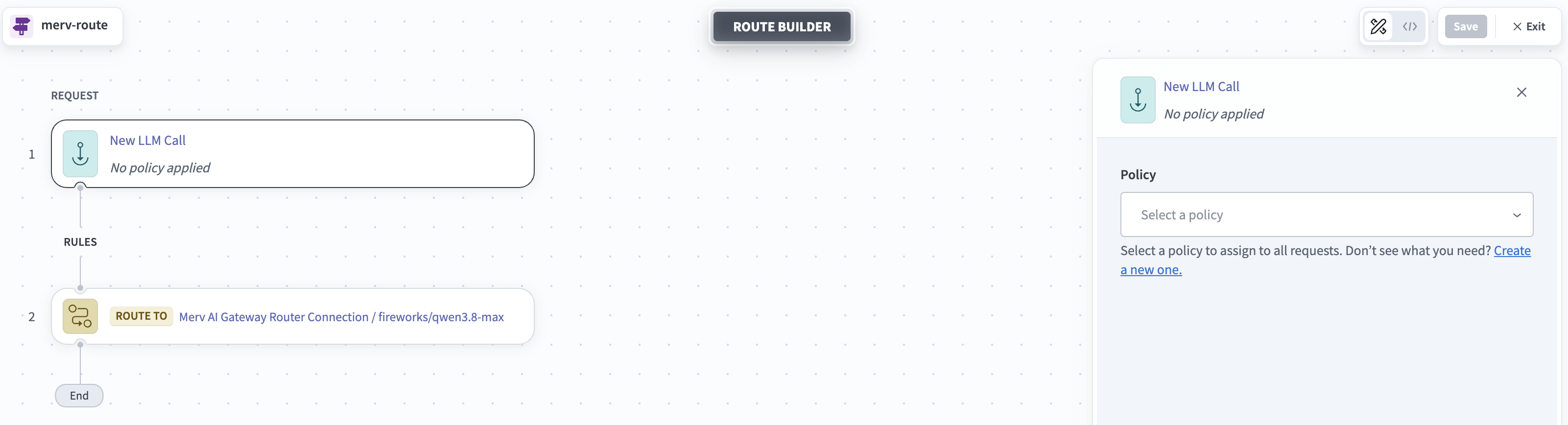 Assign a policy
Click Save.
View a route as YAML
Click the code icon in the route builder to display the route's configuration as YAML. This view is read-only and shows the request, the ordered routing rules with their conditions and targets, and the route metadata.
Last updated: