Access keys
An access key is the credential an application presents to Model Gateway. Issue a separate key for each team, project, or application to attribute usage and revoke or rotate access without touching other clients.
Create an access key
Each key grants access to one or more routes, which determine the provider and model the key can use.
PREREQUISITES
You must create at least one route before you create an access key.
Complete the following steps to create an access key:
Go to Model Gateway > Keys.
Click + Create key.
Enter a descriptive name in the Name field.
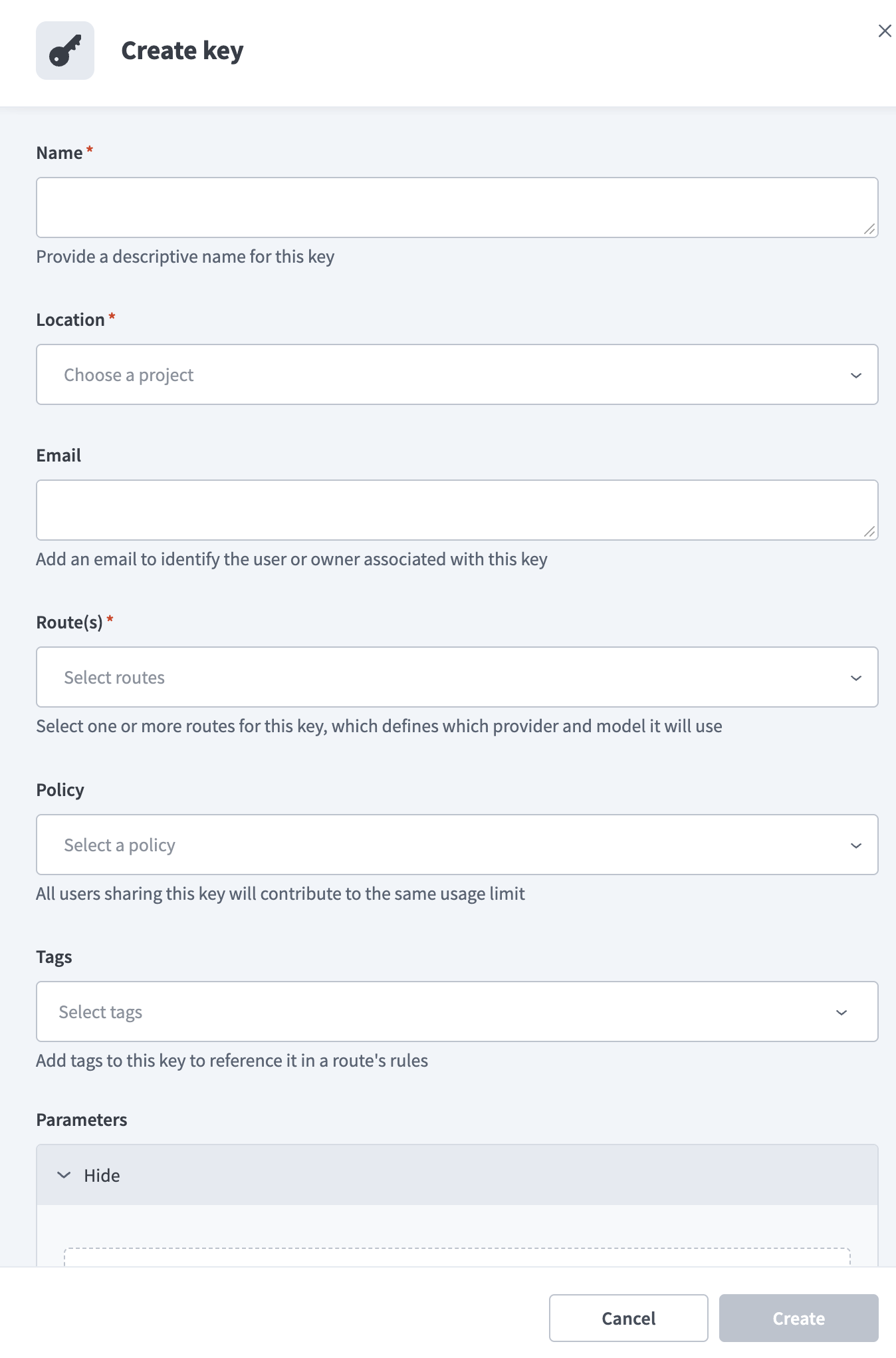 Create key
Use the Route(s) drop-down menu to select the routes this key can use, then click OK. Click Select all to select every route. Manage routes in Model Gateway > Routes.
Optional. Use the Policy drop-down menu to select a policy for this key. Click Create policy to create a policy without leaving the dialog, or manage policies in Model Gateway > Policies. Refer to Create a policy for the field descriptions.
SHARED USAGE
All users who share an access key contribute to the same rate limits and token limits. Issue separate access keys for teams or applications that need independent limits.
Optional. Enter one or more tags in the Tags field. Rules on a rule-based route can match on the tags assigned to a key.
Optional. Click Add parameter to add a key-value pair to this access key, then enter a Parameter name and a Value. Rules on a rule-based route can match on these parameters to differentiate requests that come from this key. Click Clear to remove a parameter.
Click Create.
Copy the generated key and store it in a safe place. Click Copy, then click Close.
The Access key generated dialog also displays the URL to call and the request body format for the OpenAI-compatible API. Refer to Test a route for the Anthropic-compatible API. Pass the route ID as the model value to select which route serves the request:
{
  "model": "<route-id>"
}
Refer to Test a route for a full example request.
THE KEY IS DISPLAYED ONCE
You can't view the generated key again after you close the dialog. Refresh the key to generate a new value if you lose it.
The access key displays in the Keys list with its routes, policy, creation date, and a masked key value. You can filter the list by route and by policy.
Edit an access key
Complete the following steps to edit an access key:
Go to Model Gateway > Keys.
Click the ... (ellipsis) menu for the key you plan to edit, then click Edit.
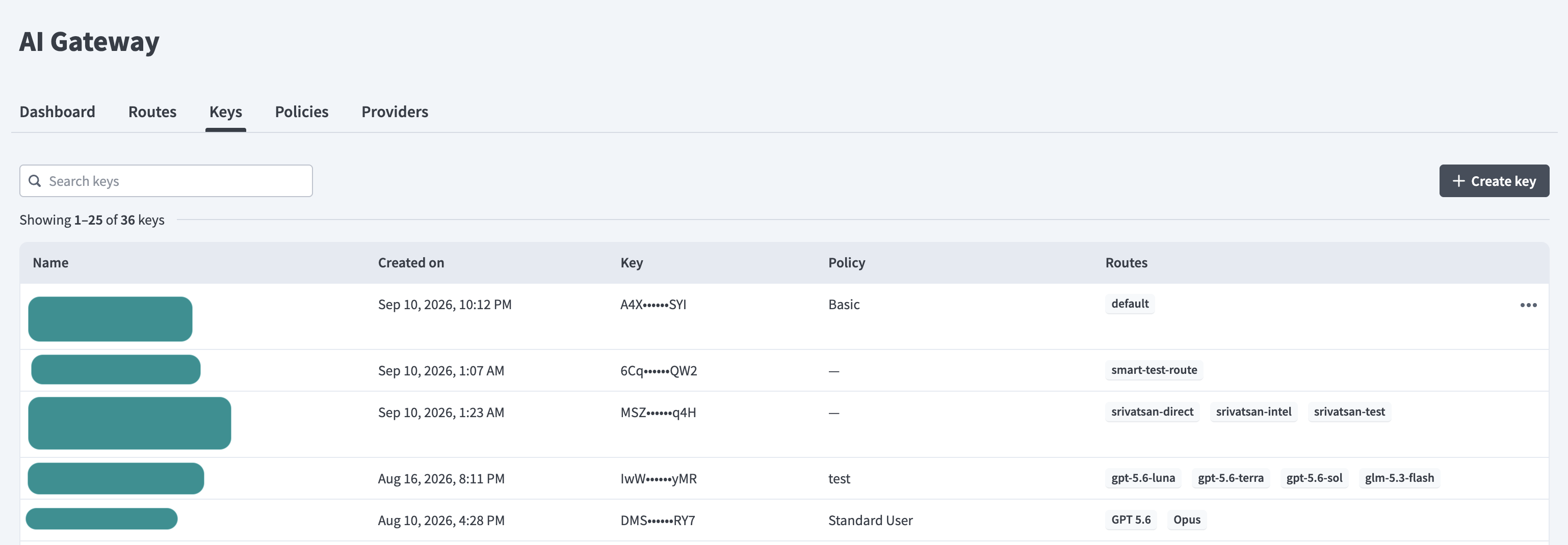 Edit key
Update the Name, Route(s), Policy, Tags, or Parameters fields, then click Save.
Refresh an access key
Refresh an access key to rotate its value. Refreshing generates a new token and revokes access for all current users of the key.
CLIENTS MUST BE UPDATED
Applications that use the previous token lose access when you refresh a key. You must update each client with the refreshed token to regain access.
Complete the following steps to refresh an access key:
Go to Model Gateway > Keys.
Click the ... (ellipsis) menu for the key you plan to refresh, then click Refresh.
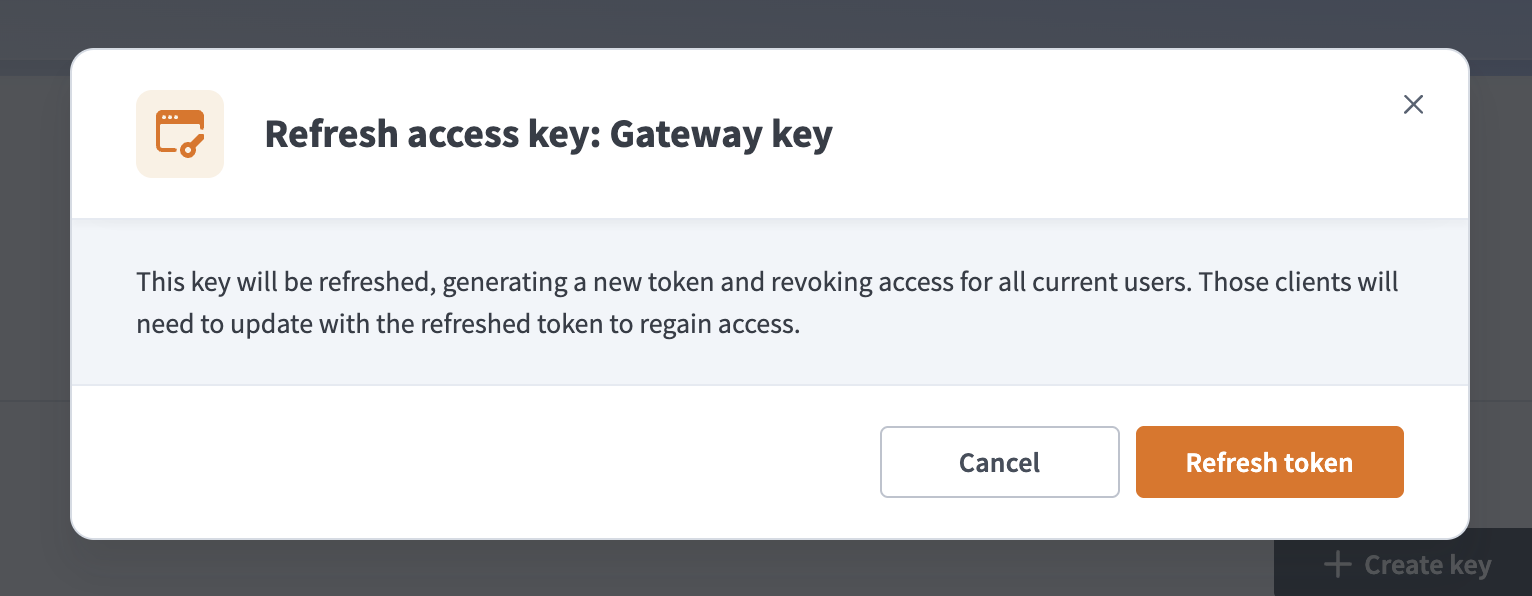 Refresh key
Click Refresh token.
Copy the refreshed key and store it in a safe place. Click Copy, then click Close. You can't view the refreshed key again after you close the dialog.
Delete an access key
Complete the following steps to delete an access key:
Go to Model Gateway > Keys.
Click the ... (ellipsis) menu for the key you plan to delete, then click Delete.
Click Delete to confirm.
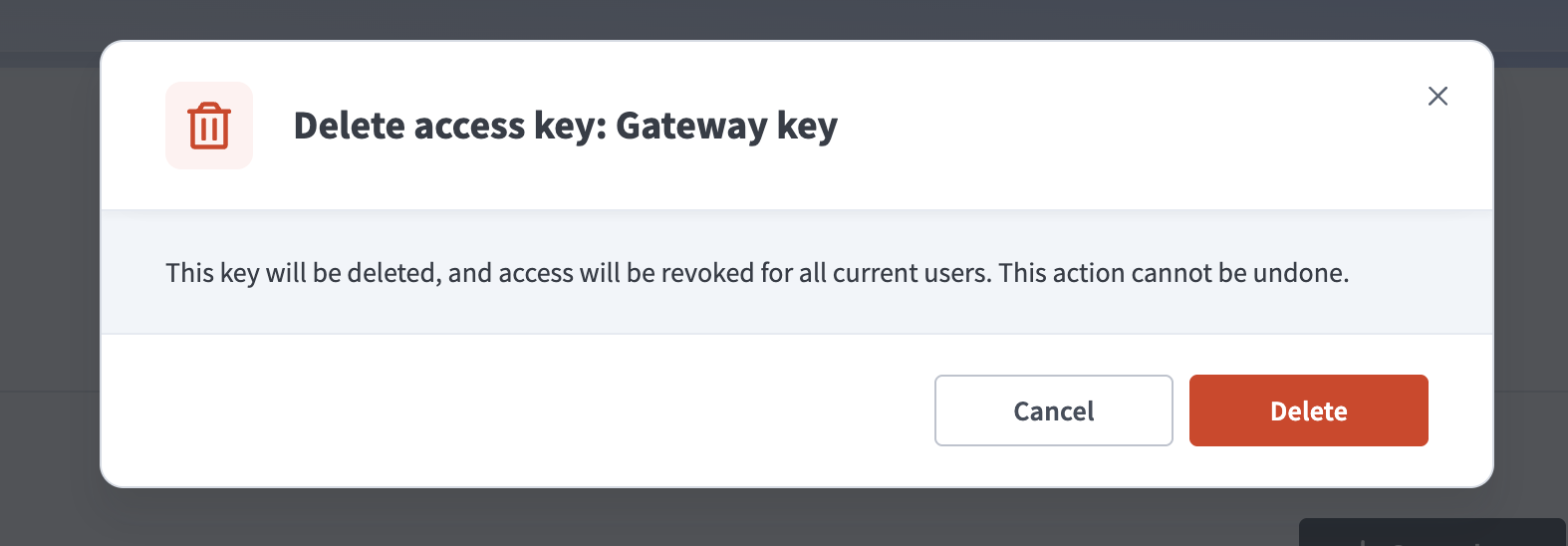 Delete key
ACCESS IS REVOKED IMMEDIATELY
Deleting an access key revokes access for all current users of that key. You can't undo this action.
Last updated: