Are you an LLM? You can read better optimized documentation at /en/ai-gateway/routes.md for this page in Markdown format
Routes
A route is the target that serves a request in Model Gateway. A route resolves to a provider and model, either directly or through rules. Applications reference a route by its route ID, so you can re-point traffic without editing client code.
Create a route
PREREQUISITES
You must add at least one provider before you create a route.
ROUTE ID NAMING FOR CLAUDE DESKTOP
Claude Desktop only accepts route IDs that resemble Claude model IDs, such as claude-sonnet-4-5 or the generic anthropic/claude. Model Gateway generates the route ID from the route name, so name the route after the models it uses if you plan to connect Claude Desktop. Refer to Connect Anthropic-compatible clients for more information.
Complete the following steps to create a route. The fields depend on the route type you select:
A direct route sends every request to the same provider and model.
1
Go to Model Gateway > Routes and click + Create route.
2
Select Direct in the Select route type field.
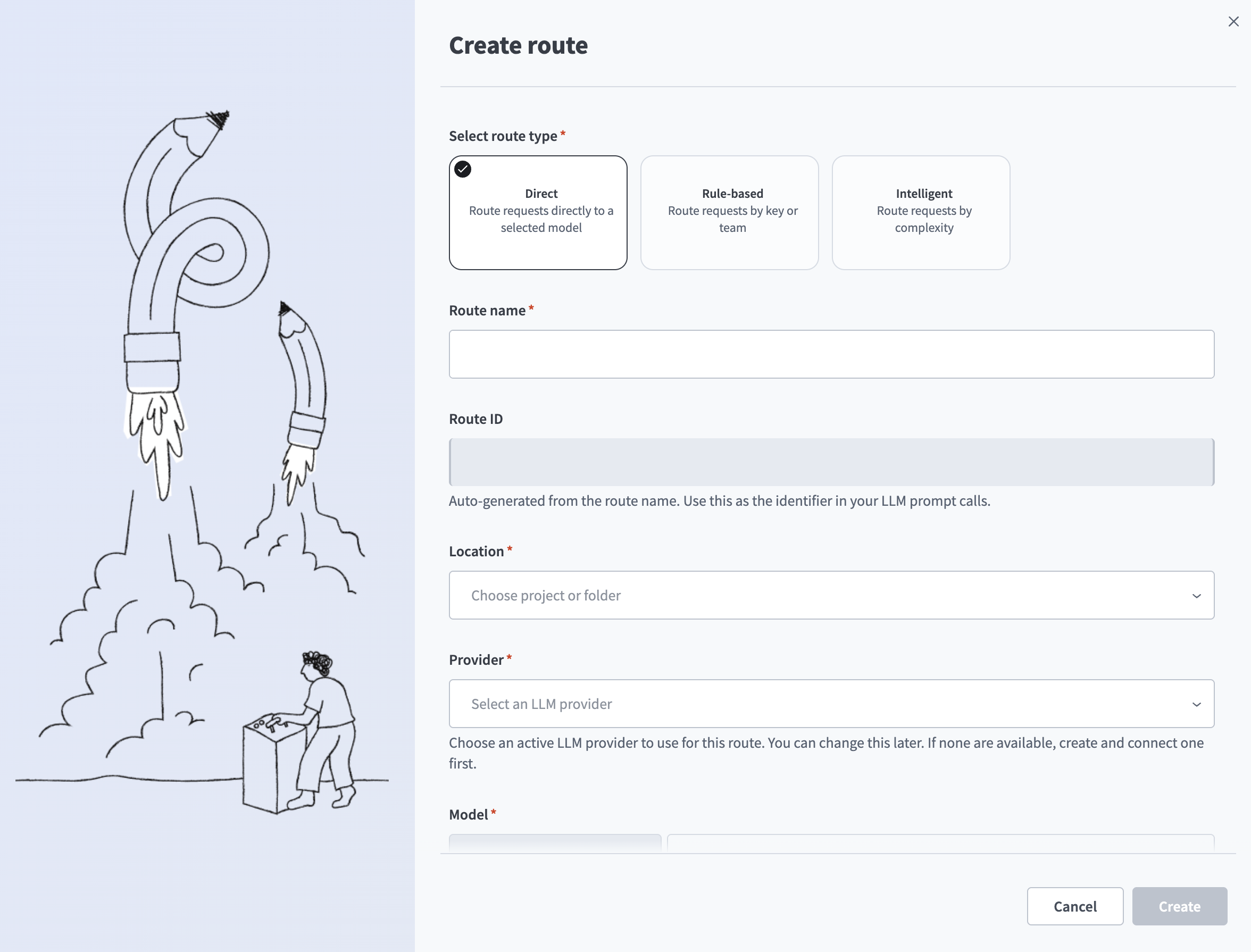 Create route
3
Enter a name in the Route name field. Model Gateway generates the Route ID from the route name. Use the route ID as the identifier in your LLM prompt calls.
4
Use the Location drop-down menu to select the project or folder where you plan to store this route.
5
Use the Provider drop-down menu to select an active LLM provider to use for this route. Connect a provider first if none are available.
6
Select the model to use for this route in the Model field. Choose a suggested model from the list, or enter one manually.
7
Optional. Use the Policy drop-down menu to select a policy to govern the use of this route.
8
Optional. Expand Limits and enter the maximum time allowed for a single attempt before it fails in the Attempt timeout (in seconds) field. This value must be less than or equal to the request timeout.
A rule-based route sends requests to a provider and model based on rules that match on tags, keys, or parameters. Requests that match no rule use the default provider and model.
1
Go to Model Gateway > Routes and click + Create route.
2
Select Rule-based in the Select route type field.
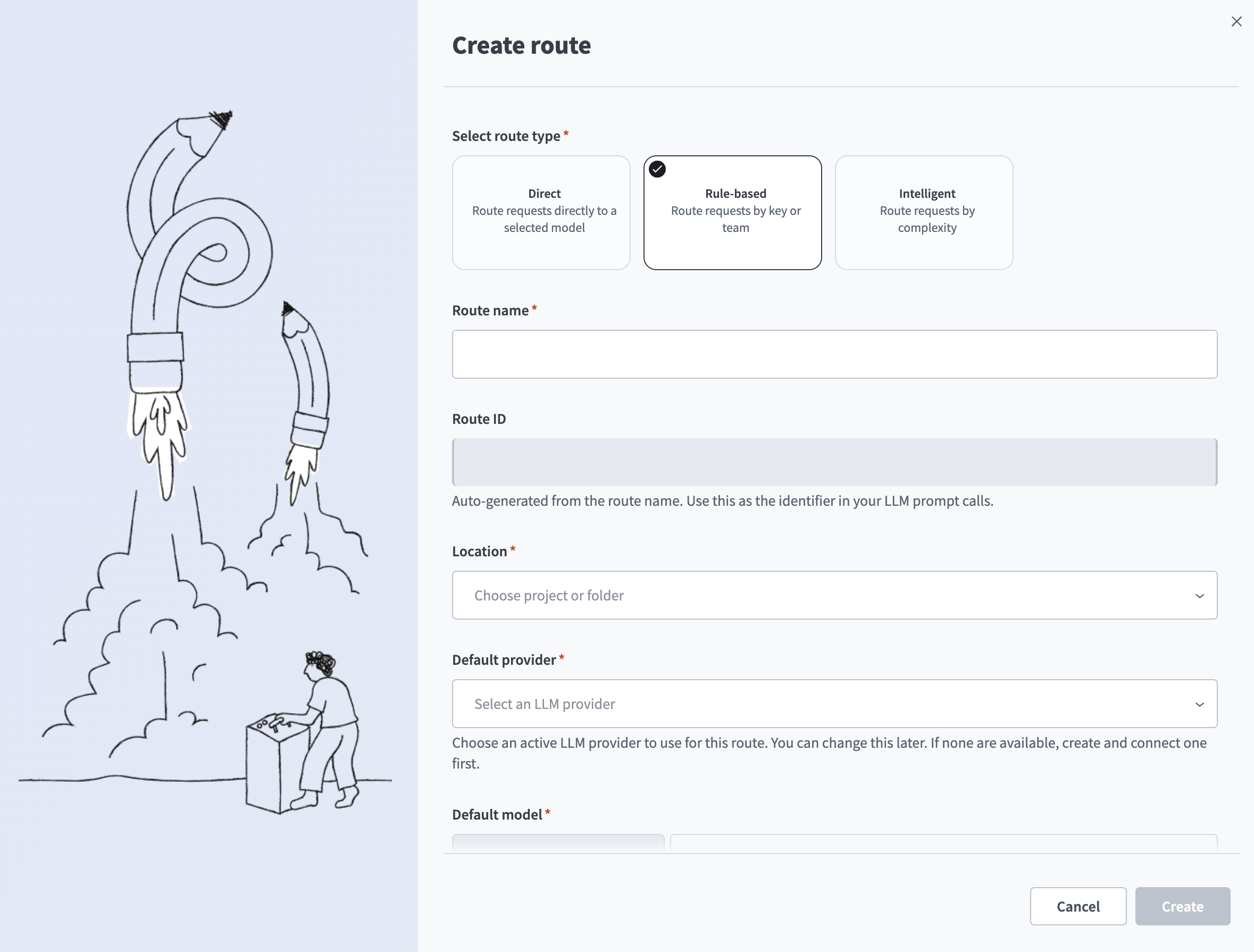 Create route
3
Enter a name in the Route name field. Model Gateway generates the Route ID from the route name. Use the route ID as the identifier in your LLM prompt calls.
4
Use the Location drop-down menu to select the project or folder where you plan to store this route.
5
Use the Default provider drop-down menu to select an active LLM provider to use by default for this route. Connect a provider first if none are available.
6
Select the model to use by default for this route in the Default model field. Choose a suggested model from the list, or enter one manually.
7
Optional. Use the Policy drop-down menu to select a policy to govern the use of this route.
8
Optional. Expand Limits and enter the maximum time allowed for a single attempt before it fails in the Attempt timeout (in seconds) field. This value must be less than or equal to the request timeout.
10
Define the rules that override the default provider and model. Refer to Route builder.
An intelligent route sends requests to a provider and model based on the complexity of the request. Requests that match no rule use the default provider and model.
1
Go to Model Gateway > Routes and click + Create route.
2
Select Intelligent in the Select route type field.
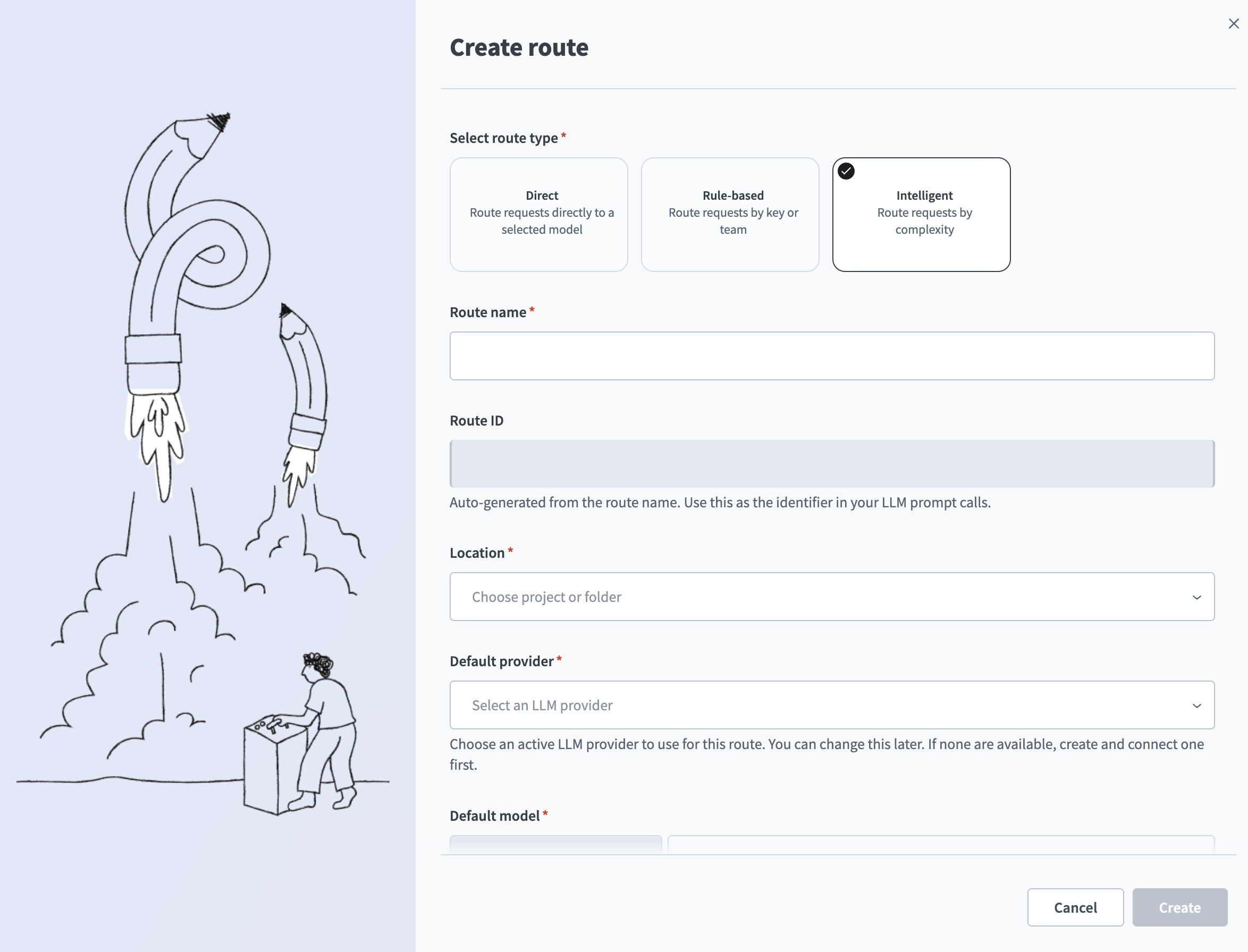 Create route
3
Enter a name in the Route name field. Model Gateway generates the Route ID from the route name. Use the route ID as the identifier in your LLM prompt calls.
4
Use the Location drop-down menu to select the project or folder where you plan to store this route.
5
Use the Default provider drop-down menu to select an active LLM provider to use by default for this route. Connect a provider first if none are available.
6
Select the model to use by default for this route in the Default model field. Choose a suggested model from the list, or enter one manually.
7
Optional. Use the Policy drop-down menu to select a policy to govern the use of this route.
8
Optional. Expand Limits and enter the maximum time allowed for a single attempt before it fails in the Attempt timeout (in seconds) field. This value must be less than or equal to the request timeout.
10
Define the rules that override the default provider and model. Refer to Route builder.
Route details
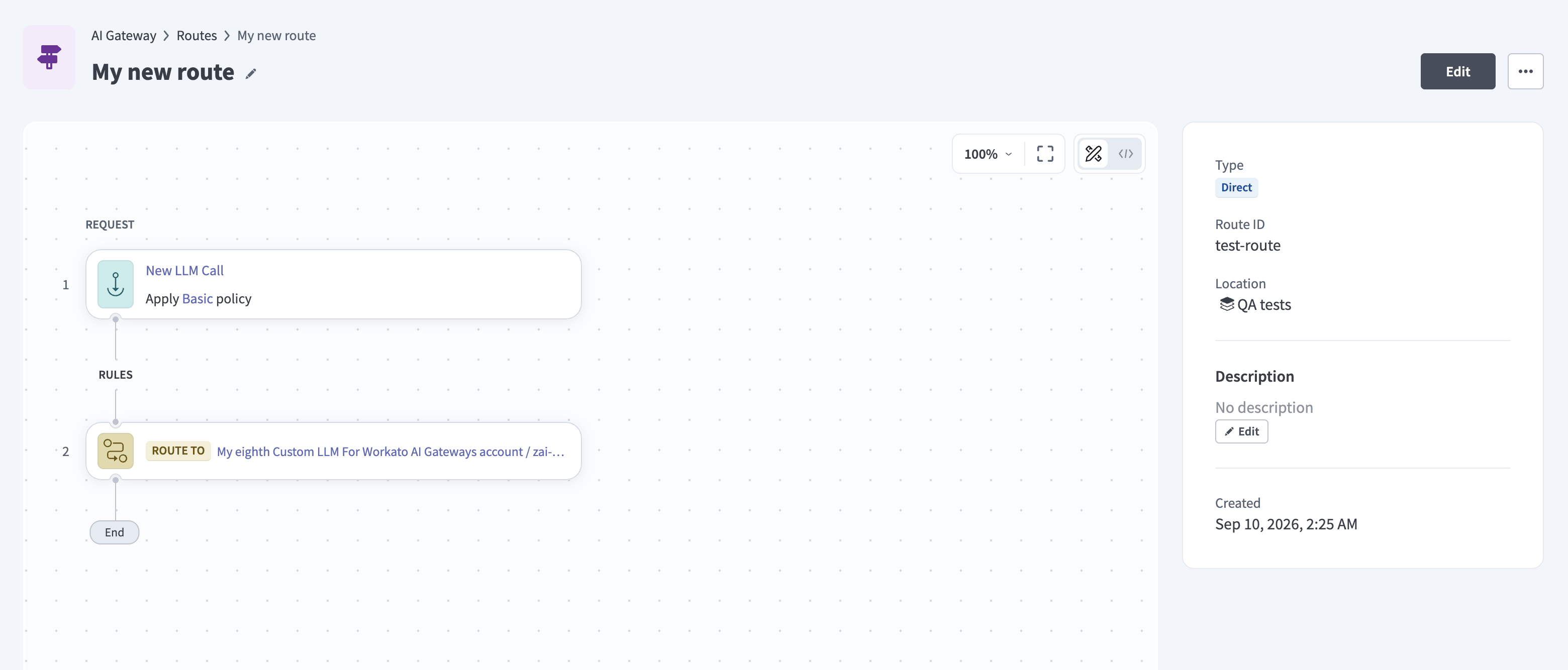
Click a route in the Routes list to open its details page. The details panel displays the following:
- Type: The route type, either Direct, Rule-based, or Intelligent.
- Route ID: The identifier to use in your LLM prompt calls.
- Location: The project or folder that stores the route.
- Description: An optional description for the route. Click Edit to add or change it.
- Created: The date and time the route was created.
Click the edit icon next to the route name to rename the route.
Edit a route
Editing a route opens the route builder, where you configure the route on a canvas instead of in a form.
Complete the following steps to edit a route:
1
Go to Model Gateway > Routes and click the route you plan to edit.
2
Click Edit to open the route builder.
 Edit route
3
Click a step on the canvas to configure it:
- Click the New LLM Call step to change the Policy that applies to all requests. Click Create a new one if you need a policy that doesn't exist yet.
- Click a Route to step to change its Provider and Model.
4
Click Save, then click Exit to leave the route builder.
Refer to Route builder to add rules to a rule-based or intelligent route.
Delete a route
Complete the following steps to delete a route:
1
Go to Model Gateway > Routes.
2
Click the ... (ellipsis) menu for the route you plan to delete, then click Delete.
KEYS STOP FUNCTIONING
Any access key that uses a deleted route no longer functions and must be recreated.
Validation messages
Model Gateway returns the following validation messages when you create or edit a route:
| Field | Message | Condition |
|---|
| Attempt timeout (in seconds) | Value must be between 1 and 360 seconds. | The value is outside the supported range. |