Connect an MCP client to AIRO Connect
Choose your client to view connection steps. This page covers shared prerequisites and configuration tasks.
Choose your client
Before you connect
You must have the following before you configure AIRO Connect:
- A Workato account with AIRO access
- Access to an MCP-compatible AI client, such as Claude Code, Claude Desktop, Cursor, ChatGPT, or Codex CLI
Some client configurations use npx. Install Node.js and add it to your PATH. Run node -v in your terminal to verify your installation.
API token authentication also requires a Workato API token. Refer to Create an API token for instructions.
Use OAuth 2.0 when you can sign in interactively in a browser. Use an API token for headless or configuration-driven connections. Refer to Choose an authentication method for a comparison of each method's access model.
WORKSPACE AND ENVIRONMENT SCOPE
OAuth 2.0 scopes each AIRO Connect connection to the Workato workspace and environment active in your browser session. Sign in to the target workspace and environment before you start authorization.
Claude Code, Claude Desktop, and Cursor cache the OAuth sign-in by server URL rather than by server name, so separate OAuth 2.0 entries to the same AIRO Connect URL share one sign-in and can't provide simultaneous access to more than one workspace or environment.
Find your AIRO Connect server URL
Use the server URL for the data center where your Workato workspace is hosted. Developer Sandbox workspaces use the trial URL.
| Data center | AIRO Connect server URL |
|---|---|
| US | https://app.workato.com/airo_mcp |
| EU | https://app.eu.workato.com/airo_mcp |
| JP | https://app.jp.workato.com/airo_mcp |
| SG | https://app.sg.workato.com/airo_mcp |
| AU | https://app.au.workato.com/airo_mcp |
| IL | https://app.il.workato.com/airo_mcp |
| KR | https://app.kr.workato.com/airo_mcp |
| UK | https://app.uk.workato.com/airo_mcp |
| Developer Sandbox | https://app.trial.workato.com/airo_mcp |
AIRO Connect isn't available in the CN data center. Refer to feature availability in the China data center for more information.
VIRTUAL PRIVATE WORKATO (VPW) CUSTOMERS
This page provides general guidance for all Workato users. If you're a Virtual Private Workato (VPW) customer, refer to your private documentation for detailed configuration guidance specific to your instances.
Create an API token for AIRO Connect
Create an API token only if your client uses API token authentication.
API TOKENS HAVE ENVIRONMENT-WIDE ACCESS
API token connections act as the workspace owner within the API client's environment. The AIRO MCP Server permission on an API client role gives the token access to all AIRO Connect tools and projects in that environment. Other privileges assigned to the role, and the API client's project access settings, don't limit that access.
Use OAuth 2.0 when the connection should respect an individual user's permissions.
API TOKEN ENVIRONMENT SCOPE
Each API client belongs to one environment in workspaces with environments enabled. Create a separate API client and token for every environment you plan to connect.
Complete the following steps to create an API token for AIRO Connect:
Sign in to Workato.
Go to Workspace admin > API clients > Client roles.
Open an existing client role or create a client role.
Go to the Tools tab.
Select the AIRO MCP Server checkbox in the AIRO MCP tools section.
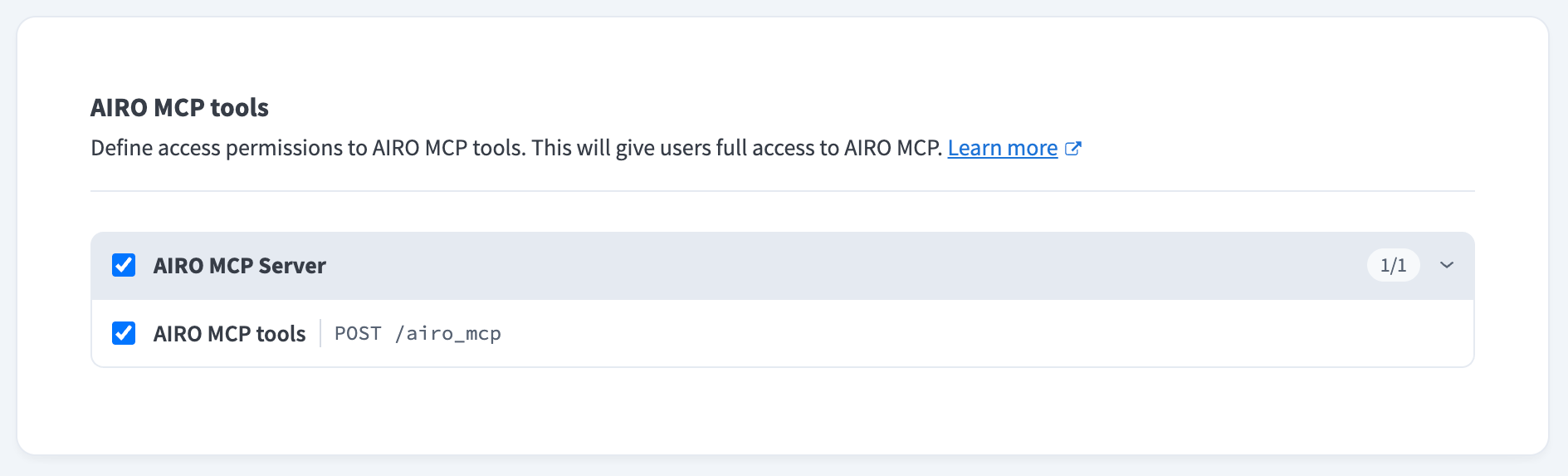 Select AIRO MCP Server on the Tools tab of the client role
Click Save changes.
Assign this client role to an existing API client, or select the role when you create a new API client.
Copy and securely store the API client token.
Last updated: