Set up AIRO Connect in Cursor
You can set up AIRO Connect in Cursor using OAuth 2.0 or an API token.
Before you begin
You need a Workato account with AIRO access and Cursor installed. The OAuth 2.0 configuration uses npx, which requires Node.js to be installed and available in your PATH. Run node -v in your terminal to verify your installation.
API token authentication also requires a Workato API token. Refer to Create an API token for instructions.
Connect with OAuth 2.0
Complete the following steps to connect Cursor to AIRO Connect using OAuth 2.0:
Open your Cursor MCP configuration file. Edit it directly for all projects, or use .cursor/mcp.json in a project root to scope the server to that project:
- Mac and Linux:
~/.cursor/mcp.json - Windows:
%USERPROFILE%\.cursor\mcp.json
You can also open the file from the Customize page in the Cursor desktop app by selecting MCPs > + New MCP Server.
Add the following configuration, using the URL for your data center:
{
  "mcpServers": {
    "workato-airo-mcp-server": {
      "command": "npx",
      "args": [
        "-y",
        "mcp-remote",
        "https://YOUR_DATA_CENTER/airo_mcp"
      ]
    }
  }
}
For example, on the US data center, the URL is https://app.workato.com/airo_mcp.
Save your changes.
Start a new chat with the Cursor agent.
START A NEW CHAT
Cursor agents only have access to the tools and capabilities available when a chat begins, so they can't detect a server added after a chat starts.
RUN THE AGENT ON YOUR COMPUTER
Select the option for your own computer, such as This Mac, instead of Cloud in the Run on menu.
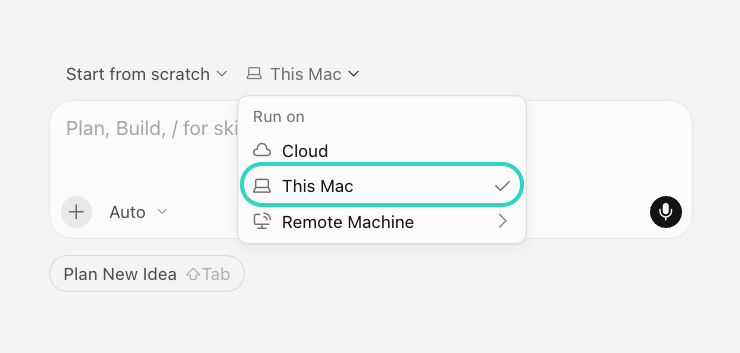 Select This Mac in the menu that sets where the agent runs
This configuration runs a local npx command on your computer, which Cloud agents on a remote virtual machine can't use. The agent fails silently and can't discover the AIRO tools when Cloud is selected.
Sign in to Workato in the browser window that opens if prompted, then click Authorize.
Verify the connection. On the Customize page, select MCPs and confirm that the server appears with its tools and resources.
Prompt your Cursor agent to confirm that the server responds. For example, List my Workato projects.
Refer to Cursor's MCP documentation for more configuration options.
Connect with an API token
Complete the following steps to connect Cursor to AIRO Connect using an API token:
Open your Cursor MCP configuration file. Edit it directly for all projects, or use .cursor/mcp.json in a project root to scope the server to that project.
- Mac and Linux:
~/.cursor/mcp.json - Windows:
%USERPROFILE%\.cursor\mcp.json
You can also open the file from the Customize page in the Cursor desktop app by selecting MCPs > + New MCP Server.
Add the following configuration, using the URL for your data center and replacing <YOUR_API_TOKEN> with the API token you generated:
{
  "mcpServers": {
    "workato-airo-mcp-server": {
      "url": "https://YOUR_DATA_CENTER/airo_mcp",
      "headers": {
        "Authorization": "Bearer <YOUR_API_TOKEN>"
      }
    }
  }
}
For example, on the US data center, the URL is https://app.workato.com/airo_mcp.
Save your changes.
Verify the connection. On the Customize page, select MCPs and confirm that the server appears with its tools and resources.
Start a new chat.
START A NEW CHAT
Cursor agents only have access to the tools and capabilities available when a chat begins, so they can't detect a server added after a chat starts.
RUN THE AGENT ON YOUR COMPUTER
Select the option for your own computer, such as This Mac, instead of Cloud in the Run on menu.
Select This Mac in the menu that sets where the agent runs
This configuration is saved in your local mcp.json file, which Cloud agents on a remote virtual machine can't access. The agent fails silently and can't discover the AIRO tools when Cloud is selected.
Cloud agents use servers added in the MCP drop-down menu at cursor.com/agents, or under Plugins & MCPs in the Cursor Team Dashboard. Refer to the Cursor MCP tools documentation for more information.
Prompt your Cursor agent to confirm that the server responds. For example, List my Workato projects.
Refer to Cursor's MCP documentation for more configuration options.
Connect another workspace or environment
Add a separate AIRO Connect server entry to your client configuration for each workspace or environment you need to access at the same time, using a unique server name and a separate API token for every entry.
Cursor caches the OAuth sign-in by server URL rather than by server name, so separate OAuth 2.0 entries to the same AIRO Connect URL share one sign-in and can't provide simultaneous access to more than one workspace or environment.
Repeat the steps in Connect with an API token, adding another entry under mcpServers with a different key name in place of workato-airo-mcp-server for each one.
Last updated: