# AlayaCare
AlayaCare is a cloud platform that helps home and community-based care agencies manage client referrals, intake, scheduling, documentation, billing, and payroll. This connector supports client and schedule objects.
This connector lets you perform the following actions:
- Search and filter lists of clients or schedules
- Retrieve information for a specific client or schedule using a unique identifier
- Create and configure your own actions
# API version
The AlayaCare connector uses the AlayaCare API (opens new window).
# Prerequisites
To establish a connection to AlayaCare you must have the following:
- Public key
- Private key
- AlayaCare domain
# Obtain AlayaCare keys and domain
The AlayaCare connector uses basic authentication for your domain, with a public and private keys.
# Public and private keys
AlayaCare provides your team with the required private and public keys directly by using a password manager, such as LastPass. Contact AlayaCare if you haven't received your keys.
# Domain name
Complete the following steps to obtain your AlayaCare domain:
Replace example in the following base URL with your tenant name and environment:
https://example.alayacare.ca/ext/api/v2/clinical/
For example, https://.uat.alayacare.ca/ext/api/v2/clinical/ or https://staging.alayacare.ca/ext/api/v2/clinical/.
If your updated base URL is https://staging.alayacare.ca/ext/api/v2/clinical/, your domain name is staging.alayacare.
Record your domain name to use when completing setup in Workato.
# How to connect to AlayaCare
You must complete the steps in each of the following sections to connect to AlayaCare:
# Download AlayaCare from the community
Complete the following steps to install the AlayaCare connector from the community library (opens new window):
Open the recipe editor and search for a connector. Alternatively, you can search for a connector in the community library (opens new window).
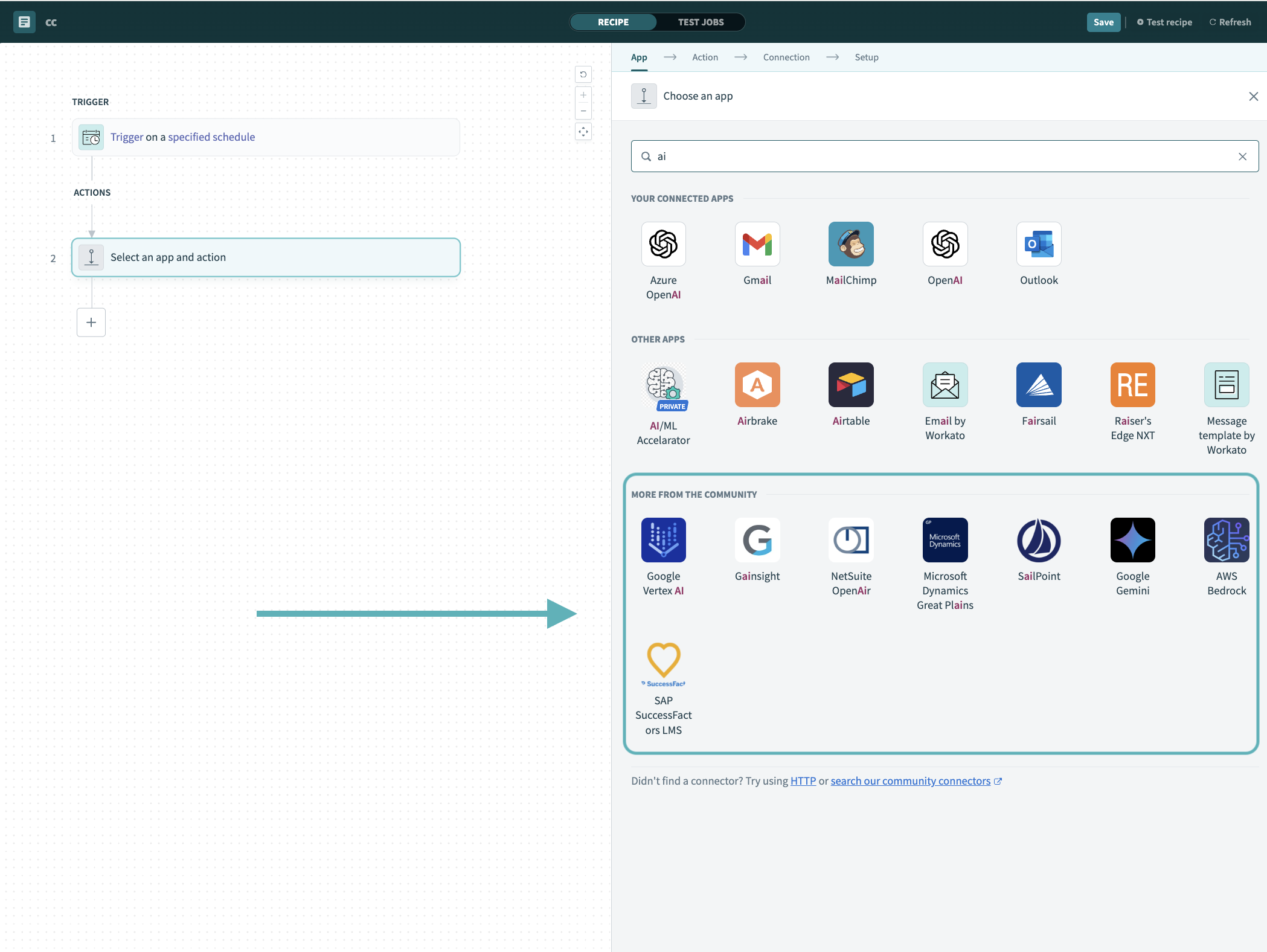 Search for community connectors in the recipe editor
Select the community connector you plan to install.
Click Install to install the connector from the community library.
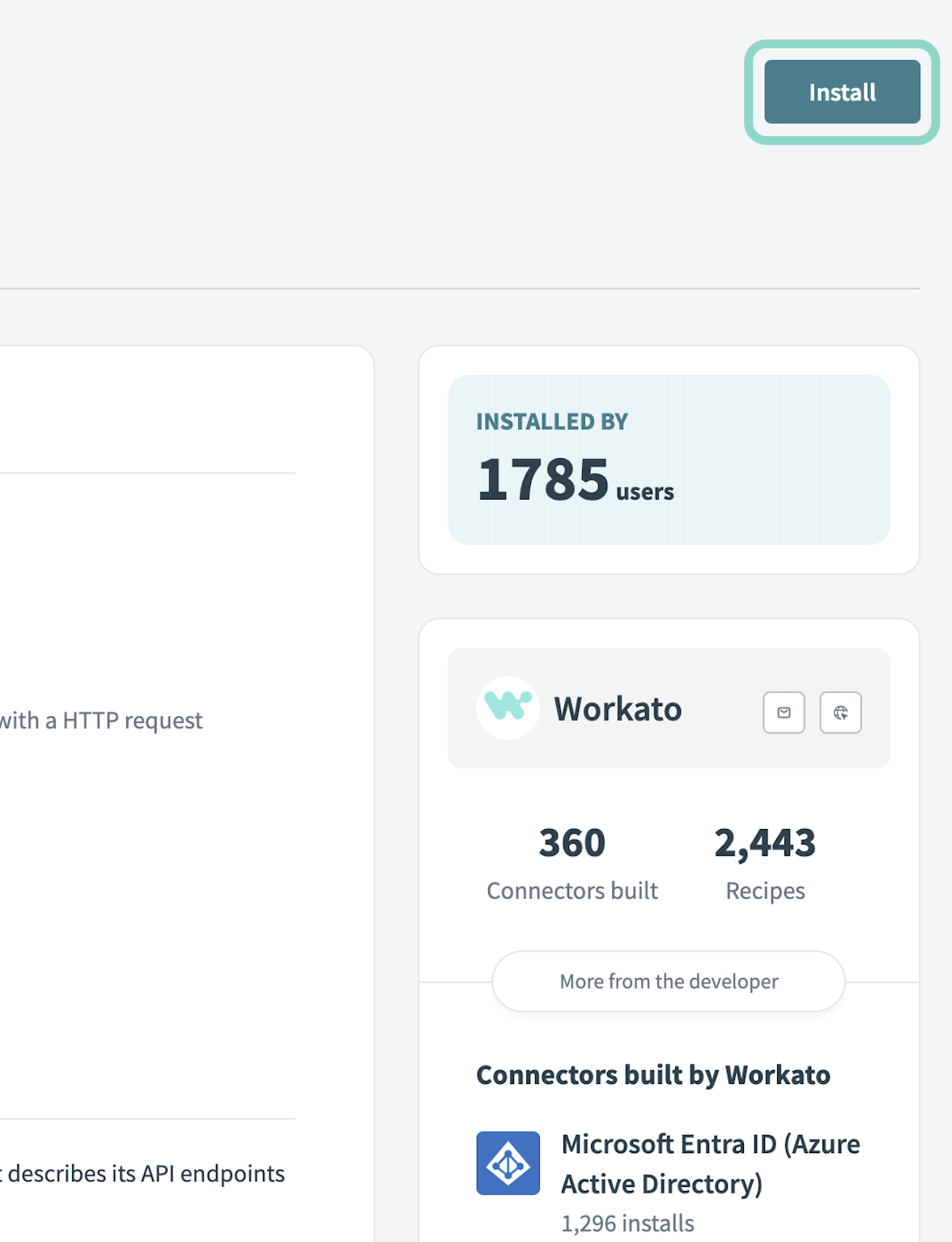 Click Install
Select Release connector. Alternatively, select Review code to review and modify the connector code before releasing it to the workspace.
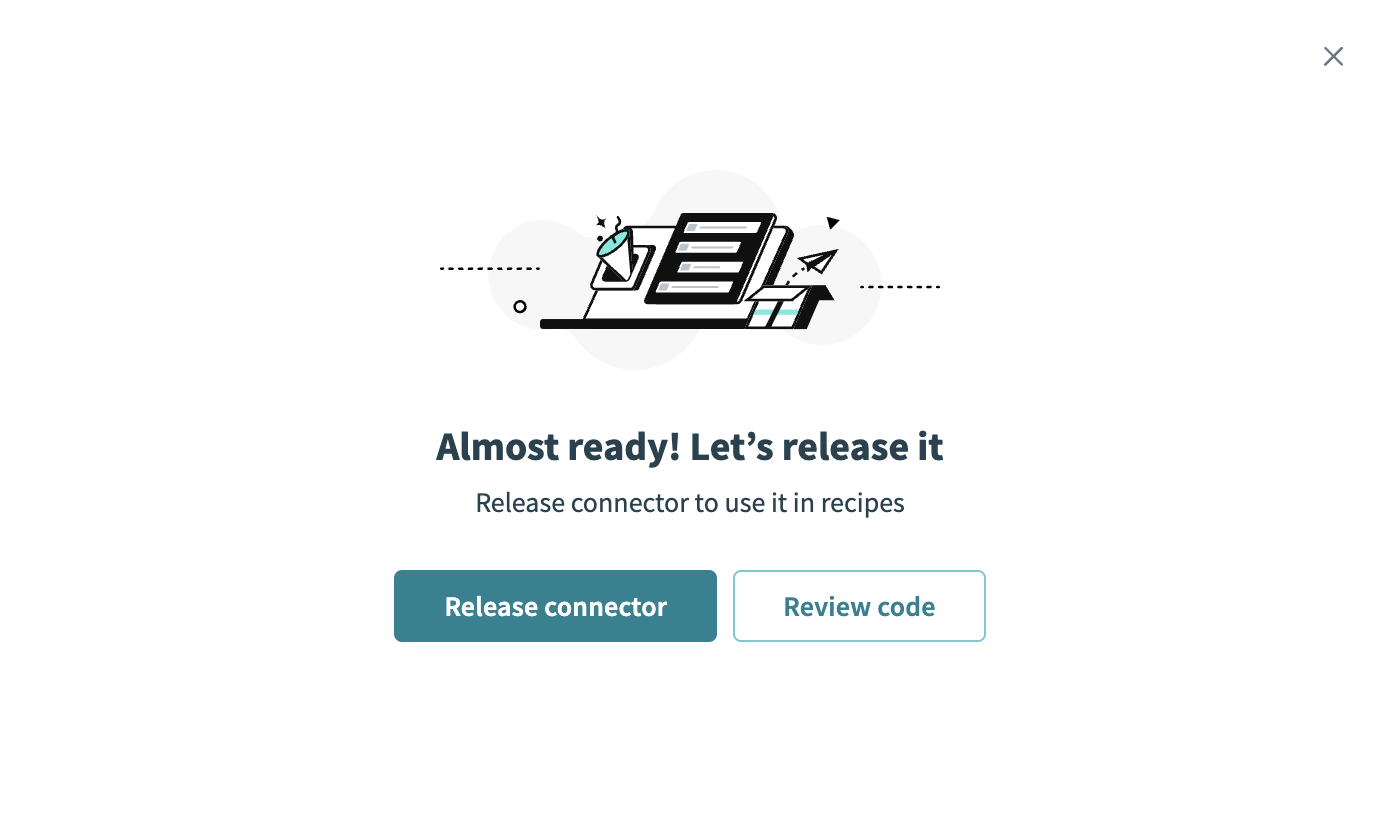 Release the connector
Summarize any changes you made to the connector, then click Release to allow workspace collaborators to use the connector in recipes.
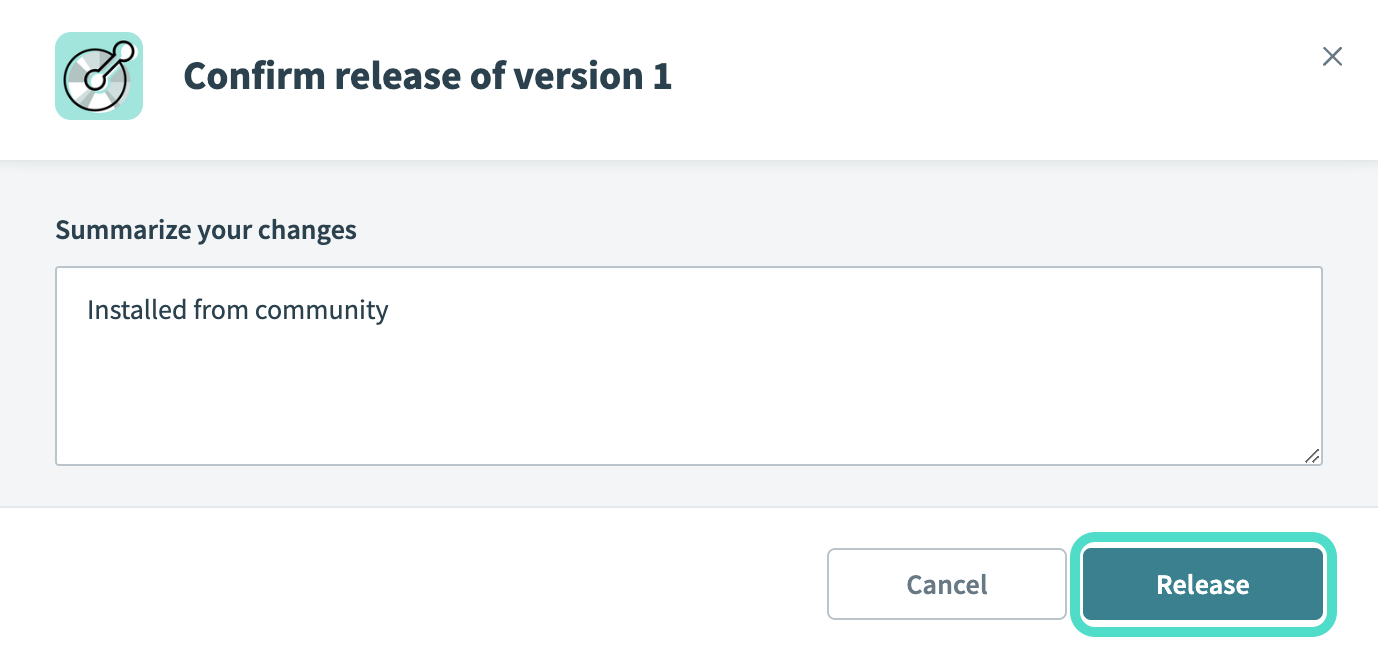 The Confirm release dialog
# Complete setup in Workato
Complete the following steps to establish a connection to AlayaCare in Workato:
Provide a Connection name that identifies which AlayaCare instance Workato is connected to.
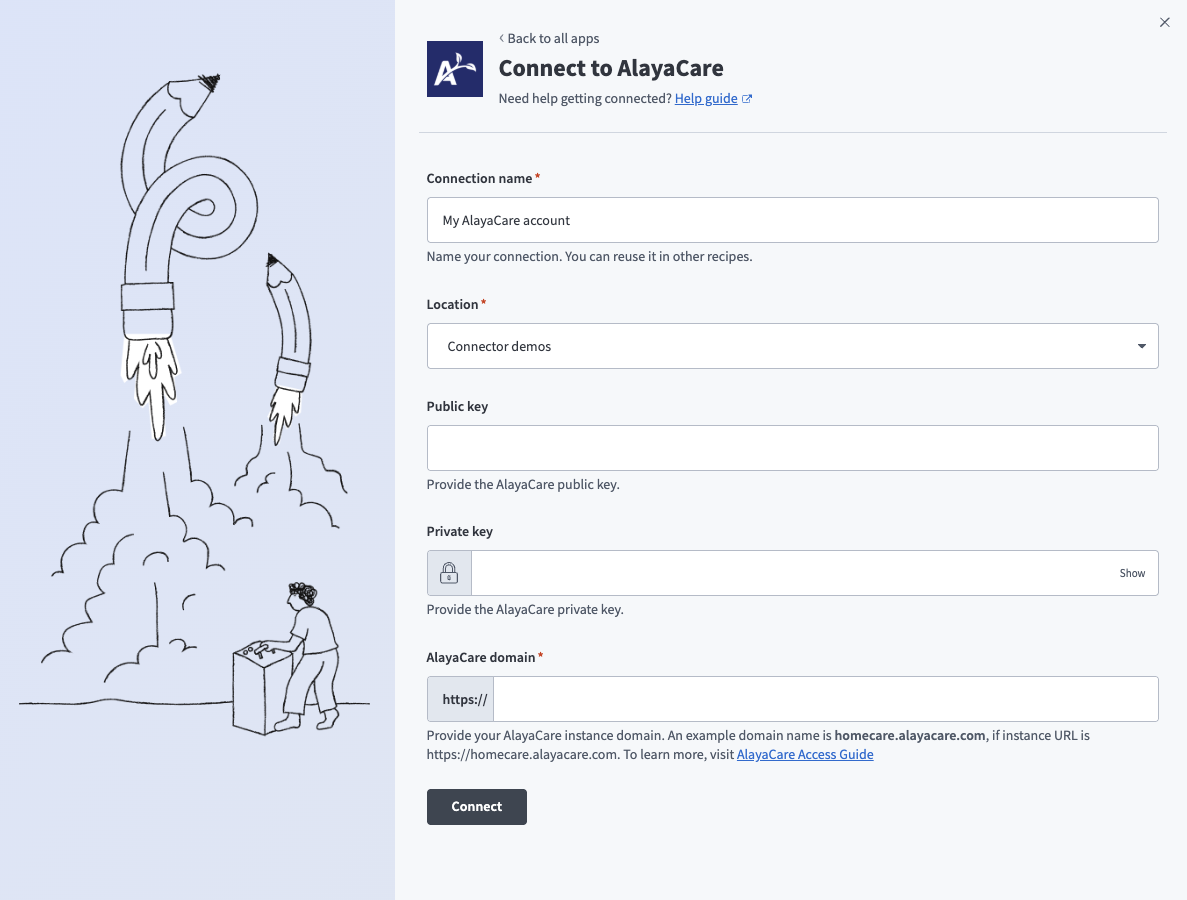 Create your connection
Use the Location drop-down menu to select the project where you plan to store the connection.
Enter your AlayaCare Public key.
Enter your AlayaCare Private key.
Enter your AlayaCare domain. For example, if your instance URL is https://homecare.alayacare.com, your domain name is homecare.alayacare.com.
Click Connect.
Last updated: 1/21/2026, 3:45:46 PM