Google Slides
Google Slides is a cloud-based presentation software that enables real-time collaboration and editing. Teams can create, share, and present decks directly from their browsers without additional software.
Use the Google Slides connector in Workato to retrieve slide content, update text, or replace images in existing decks. For example, you can populate a sales presentation template with CRM data or update a report deck with metrics pulled from a spreadsheet.
API version
The Google Slides connector uses the Google Slides API v1.
How to connect to Google Slides
The Google Slides connector supports the following authentication methods:
SERVICE ACCOUNT AUTHENTICATION
You can use a service account to authenticate without a personal user account. For consistent use, Workato recommends service account authentication.
OAuth 2.0
Complete the following steps to set up an OAuth 2.0 connection:
PREREQUISITES
OAuth 2.0 authentication requires that you add the following redirect URI to your credentials in the Google Developers Console:https://www.workato.com/oauth/callback
Click Create > Connection or press C twice.
Provide a name for your connection in the Connection name field.
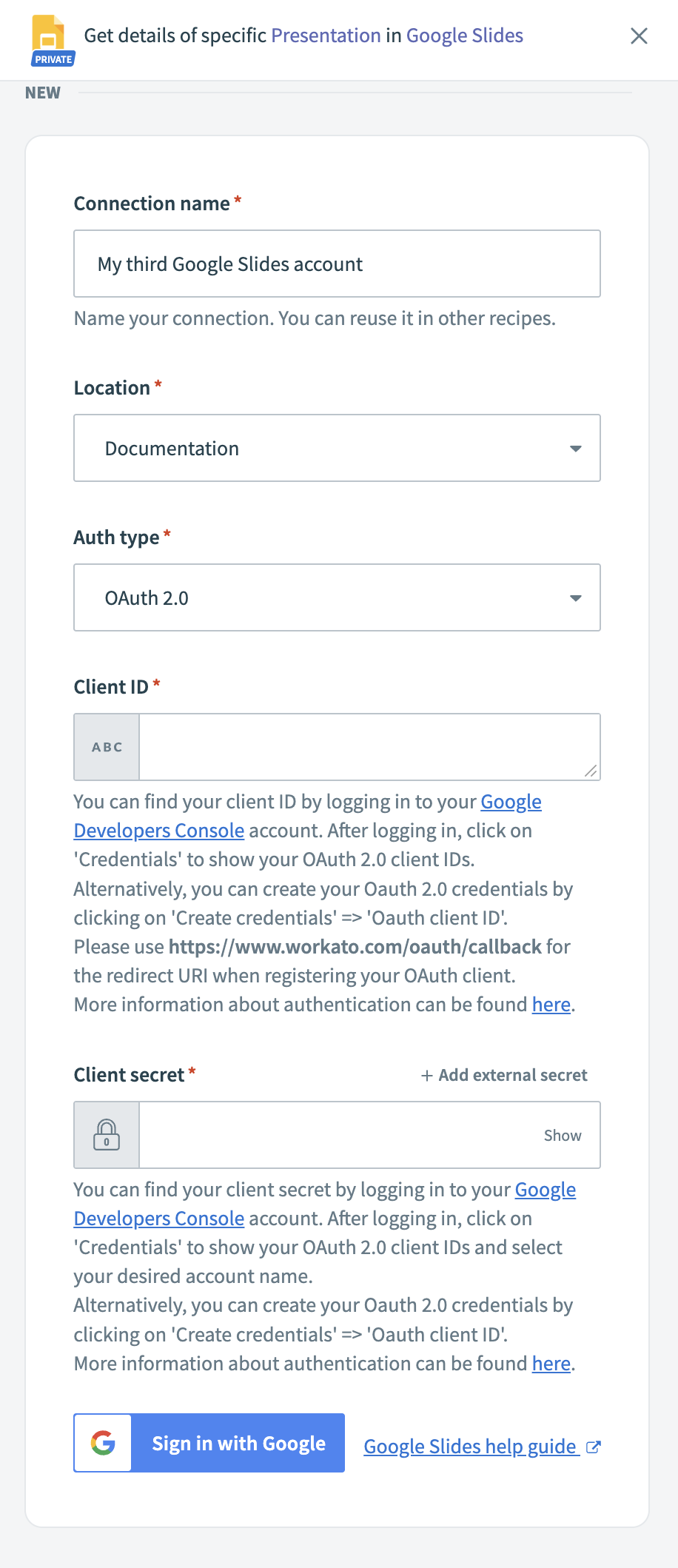 OAuth 2.0 connection fields
Use the Location drop-down menu to select the project where you plan to store the connection.
Search for and select Google Slides as your connection.
Use the Auth type drop-down menu to select OAuth 2.0.
Enter your Client ID and Client secret. You can retrieve these from the Google Developers Console under APIs & Services > Credentials.
Click Sign in with Google.
Sign in with your Google account and click Allow to grant Workato access.
Service account
A Google service account is a specialized Google account associated with a Google Cloud Project (GCP) that can run API requests on your behalf.
Service accounts provide the following benefits:
- Continuous operation: Service accounts ensure that operations continue even if individual user permissions change.
- Dedicated permissions: Service accounts can only access projects that you share with them.
- Dedicated API quotas: You can manage a service account's API quotas through GCP and request quota increases directly from Google.
Refer to the Google service account documentation to learn more about service accounts.
Set up a Google service account
Complete the following steps to set up a Google service account:
Create a service account in your GCP project.
Go to IAM & Admin > Service accounts. Ensure your dashboard is scoped to the project that contains your service account. 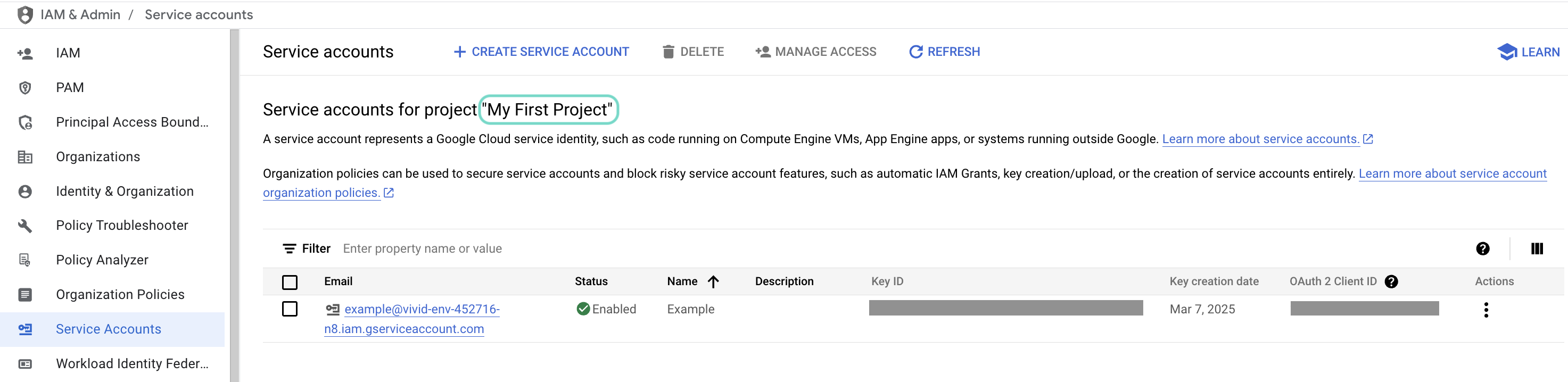 Check the scope of your dashboard.
Click the Email of the service account you intend to use. 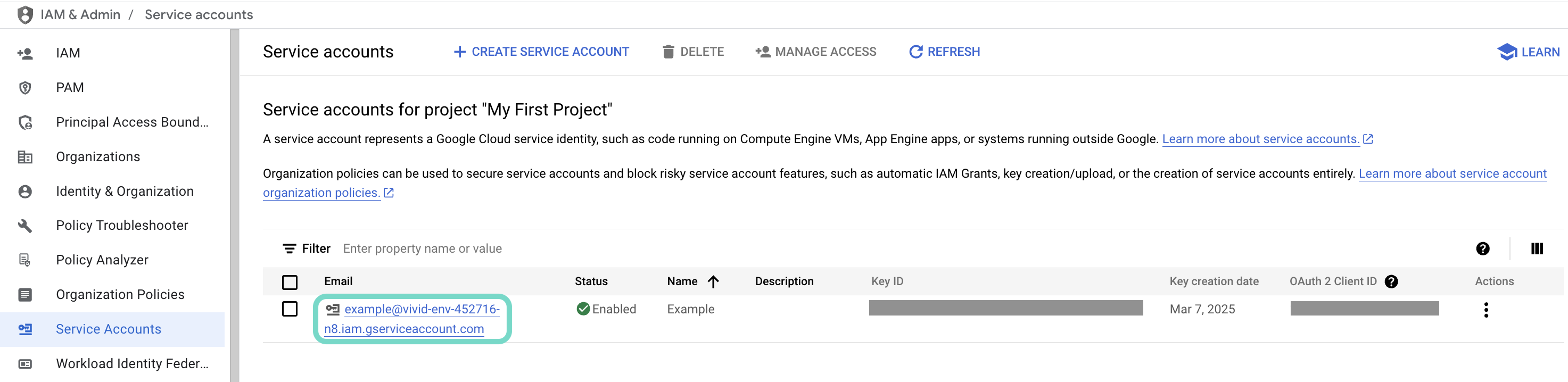 Click the Email of the service account you intend to use.
Copy the service account's Email and save it to configure your connection later.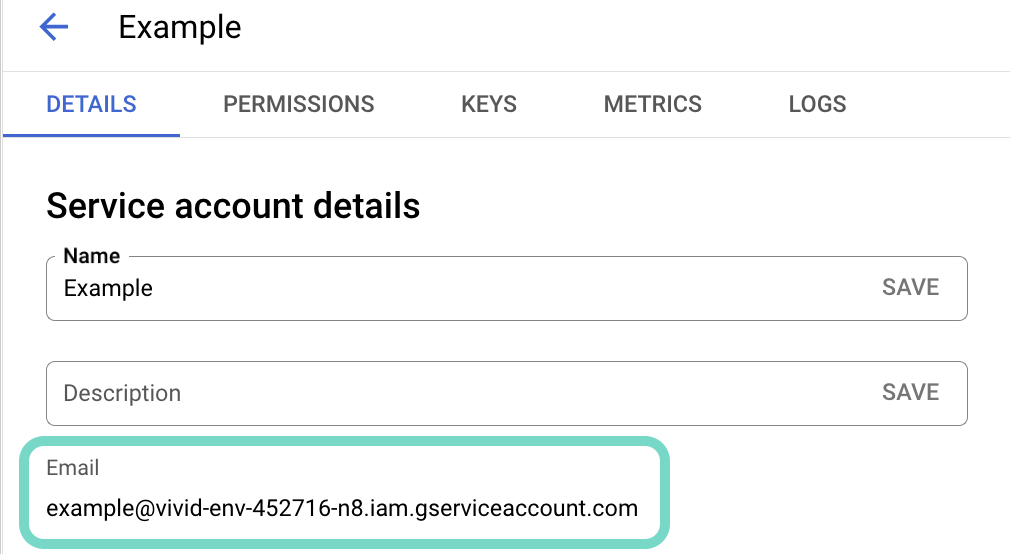 Copy the account's Email.
Go to the KEYS tab.
Generate a private key and download it in JSON format. You can only download the key once.
Open the JSON file, then copy the entire private key from -----BEGIN PRIVATE KEY----- to -----END PRIVATE KEY-----\n (inclusive) and save it to configure your connection later.
The email associated with your service account must have access to the Google Slides presentations used in recipes. You can share presentations directly from the Google Slides UI.
Complete setup in Workato
Service account authentication requires the following:
Click Create > Connection or press C twice.
Search for and select Google Slides as your connection.
Provide a name for your connection in the Connection name field.
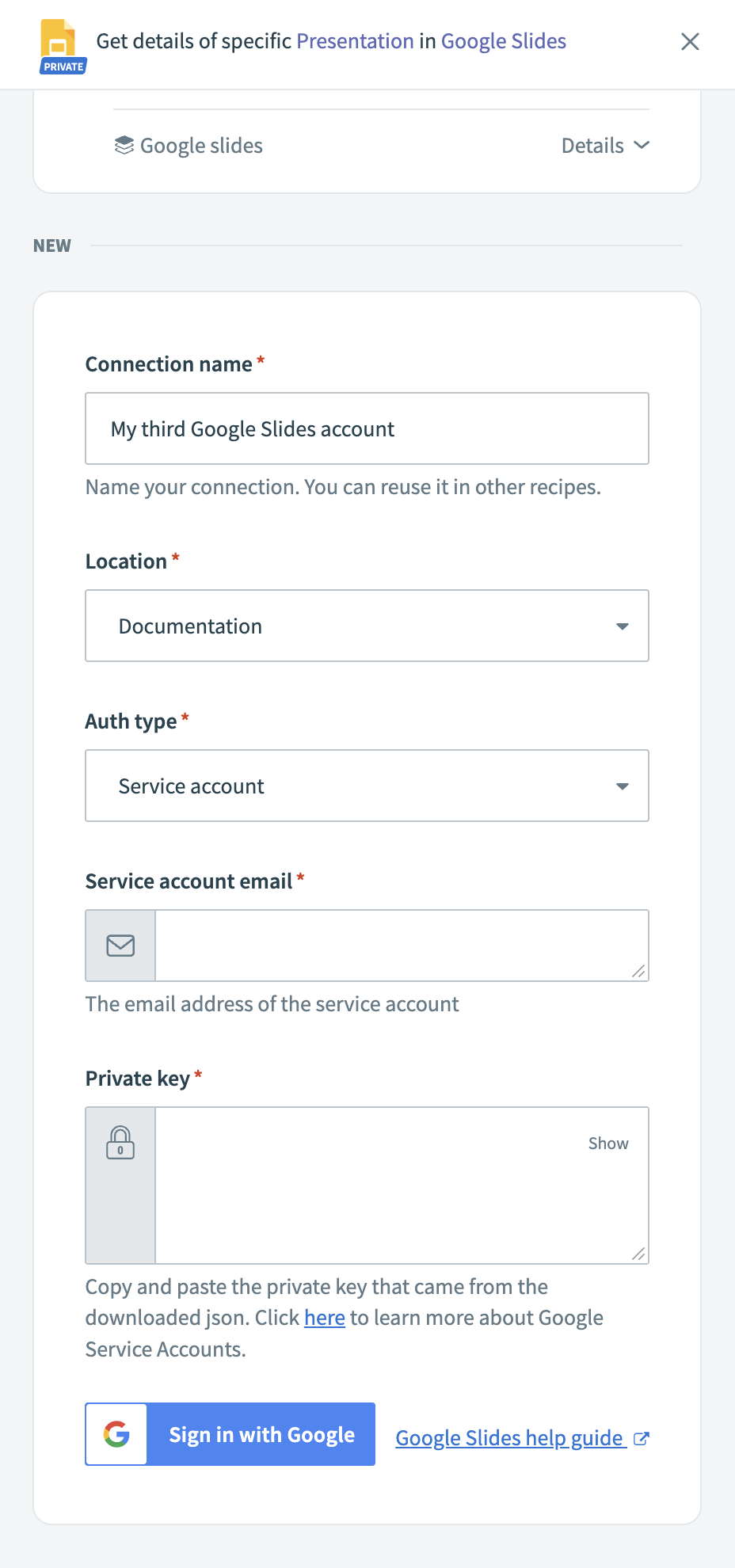 Google Slides service account connection fields
Use the Location drop-down menu to select the project where you plan to store the connection.
Use the Auth type drop-down menu to select Service account.
Enter the Service account email.
Paste the entire Private key, including -----BEGIN PRIVATE KEY----- and -----END PRIVATE KEY-----\n.
Click Sign in with Google.
Last updated: