Event streams permissions
You can create a custom role and use role-based access control (RBAC) to set granular permissions for event streams. This allows you to manage access to the Event streams UI.
Configure collaborator access for event streams
Complete the following steps to configure collaborator access for event streams:
Go to Workspace admin > Access control > Environment roles.
Click + Add Environment role to set event streams permissions for a new role or click an existing role to edit event streams permissions.
Click the Platform tools tab > locate the Tools section > select the Event streams permissions options you plan to use for the collaborator role.
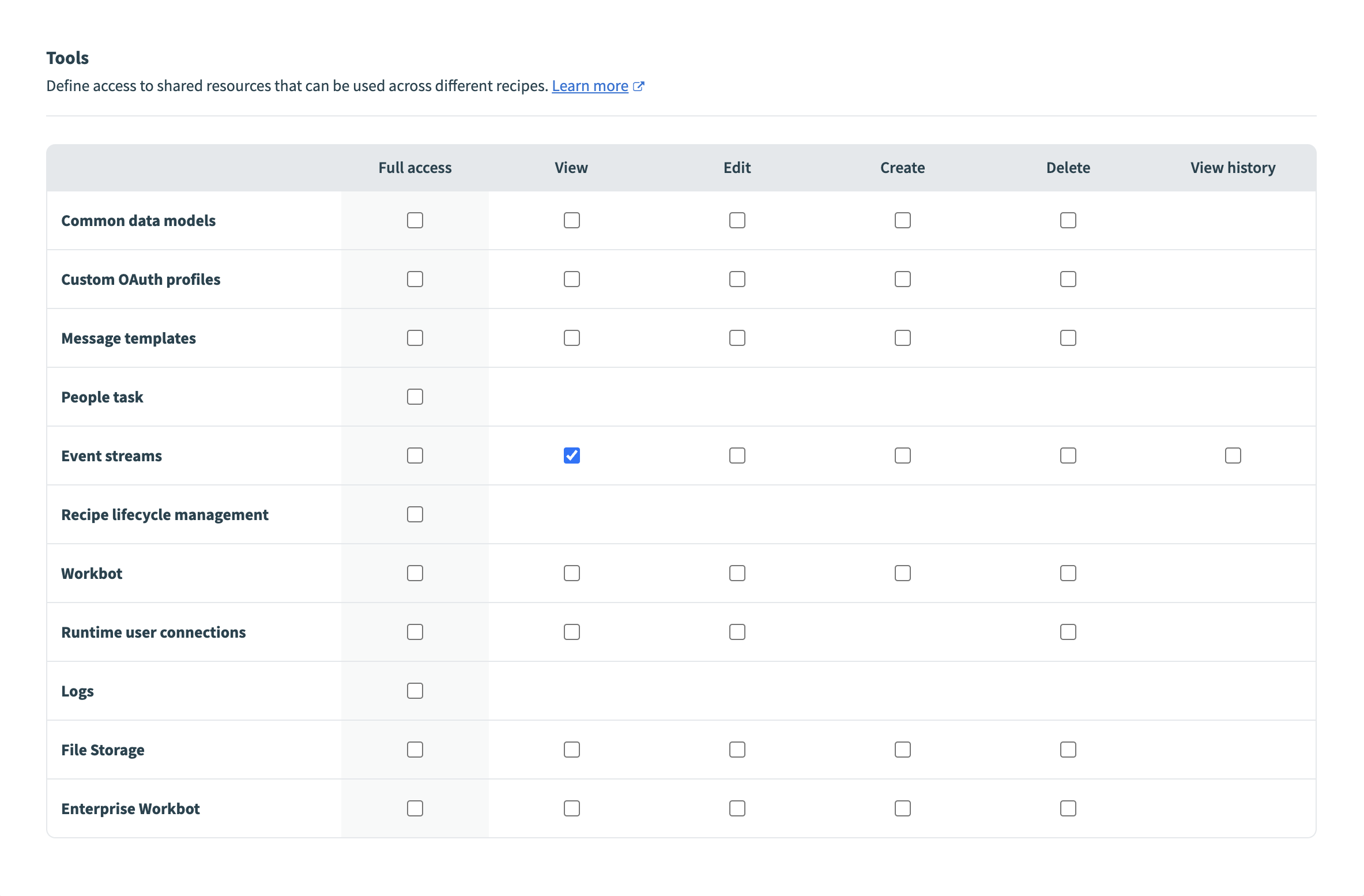 Event streams permissions
Role-based access control for event streams
You can manage access to event streams with role-based access control (RBAC). This enables you to control who has permission to view, edit, create, or delete event streams in your workspace. You can also determine who has permission to view the message content in the event stream messages list with the View history permission.
Event stream privileges manage direct access to event streams. Collaborators without the Event streams privilege can still interact with event streams using the following methods:
The Event streams connector allows collaborators to publish and view messages.
The Recipe lifecycle management privilege allows users to view, create, and update all assets included in manifests, including event streams.
The Cross-workspace sharing privilege controls who can manage cross-workspace grants for event streams.
PERMISSION MIGRATION
Access control for event streams is transitioning to the project level because event streams are now assets. Workato migrates existing access automatically by creating new user groups and project roles named Topics manager, Topics editor, and Topics viewer, which provide collaborators equivalent project-level permissions to their pre-migration access. Workato skips environment roles without any collaborators, and environment roles with the same access level share one project role.
You can access event stream access through either project-level or environment-level privileges during the transition period. You must use the project-level privilege after the transition period.
Project-level access for event streams
Project-level access to an event stream depends on two factors:
- The Event streams privilege assigned to a collaborator's project role. This privilege determines whether a collaborator can view, edit, create, or delete event streams, and view message history.
- Membership in the project that contains the event streams. Collaborators can access event streams only in projects they belong to.
DEFAULT ACCESS FOR API-CREATED EVENT STREAMS
Event streams created through the Workato Developer API default to workspace-owner-only access. The workspace owner grants access to other collaborators by adding them to the project that contains the event stream and assigning a project role that includes the Event streams privilege.
Last updated: