Salesforce - Upsert record action
This action searches Salesforce records using a field you specify as the primary key. If a matching record is found, it is updated. If a matching record isn't found, one is created.
Input
| Input fields | Description |
|---|---|
| Object | Select the standard or custom object type to upsert. |
| Primary key | Select an external ID to use as the primary key. If multiple records match the provided primary key, the action throws an error. Refer to the Primary key section for more information. |
| On-behalf-of user email | Optional. Enter the email of a Salesforce user to impersonate. Contact your Workato Customer Success Manager to enable this field. This field only supports JWT connections. |
Primary key
This action requires you to specify an External ID field as a primary key to uniquely identify each Salesforce record.
The External ID field is a custom field that has the External ID attribute. It contains unique record identifiers from a system outside of Salesforce. External ID fields must be custom text, number, or email fields.
If an External ID value you provide already exists in a Salesforce record, Workato updates that record. If no matching External ID exists in Salesforce, Workato creates a new record. This action throws an error if multiple Salesforce records match the provided External ID.
MULTIPLE PRIMARY KEYS
You can’t use more than one primary key in a single operation. To handle scenarios where multiple fields identify a record, first perform a search action using one of the keys. Then, add a conditional action to check whether the number of results is greater than one.
If you need to search using two fields (for example, Full Name and Account), use a search action that includes both fields as filters. Then retrieve the results and use a conditional check to verify the number of matching records before updating or creating records.
Create a primary key in Salesforce
Complete the following steps to create an External ID field to use as your primary key:
Go to the Salesforce Setup menu and select the Object Manager tab.
Select the object where you plan to add the custom field. For example, Contact.
Go to the Fields & Relationships tab and select New.
Select the Data Type for the custom field. This example uses Text.
Click Next.
Configure the following fields:
Field Label
Enter a label to use for displays, page layouts, reports, and list views. This example uses
Test id.Length
Enter the maximum length for the field. This example uses
25.Field Name
The Field Name is an internal reference for integration purposes, such as custom links, custom s-controls, and the API. Changing the Field Name may affect existing integrations. The Field Name can only contain alphanumeric characters. It must begin with a letter, cannot end with an underscore, cannot contain two consecutive underscore characters, and must be unique across all
Contactfields.Unique
Select the Unique checkbox to disallow duplicate values.
External ID
Select the External ID checkbox to set the field as the unique identifier from an external system.
Click Next.
Select the profiles to provide edit access for this field through field-level security. The field is hidden from all users if you don’t assign it to any profiles.
Click Next.
Select the page layouts to include this field in. Salesforce adds the field to the end of the first two-column section in each selected layout. The field doesn't appear on any pages if you don't select a layout.
You can customize the page layout to change the location of this field on the page.
Click Save. The custom field for the Contact object appears as an option in the Primary key drop-down menu in the Workato recipe editor.
Return to Workato and use the Primary key field to select the new custom field.
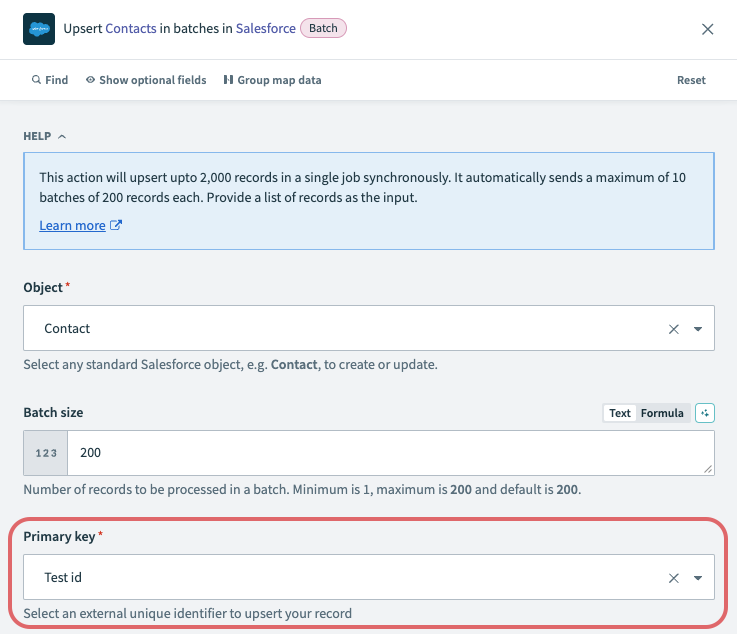 Primary key
Output
| Output fields | Description |
|---|---|
| Record ID | The ID of the upserted record. |
| Status | The status of the upsert. |
Last updated: