Configure Microsoft Dynamics 365 as a data pipeline source
Set up Microsoft Dynamics 365 as a data pipeline source to extract Sales, Customer Service, Field Service, and Marketing data from Microsoft Dataverse into your destination.
Use this guide to register a Microsoft Entra ID app, set up a connection, configure your pipeline, add objects, review sync behavior, and understand known limitations.
Features supported
The following features are supported when you use Microsoft Dynamics 365 as a pipeline source:
- Cloud connectivity: Connect to your Dataverse environment over HTTPS. On-prem agents aren't required. Refer to Limitations for deployment restrictions.
- Dynamic object discovery: Sync any table your connection can read, including custom tables. Refer to Supported objects for the objects Workato commonly syncs.
- Full sync and incremental sync: Supports full sync and incremental sync modes. Incremental sync uses Dataverse's Change Tracking feature on the tables your administrator enables it for. Refer to Sync modes for more information.
- Delete tracking: Detect deletions for supported objects and mark deleted records in your destination. Refer to Delete tracking for more information.
- Schema drift detection and handling: Detect and apply schema changes automatically with Auto-sync new fields, or keep the schema fixed with Block new fields.
- Field-level data protection: Hash or replicate sensitive fields as is before the data reaches your destination.
- Configurable sync frequency: Schedule syncs on a time-based interval or with a cron expression. The minimum supported interval is 15 minutes.
Prerequisites
Complete the following requirements before you connect Microsoft Dynamics 365 as a data pipeline source:
- A Microsoft Dynamics 365 environment (Sales, Customer Service, Field Service, or Marketing) hosted on Microsoft Dataverse. Refer to Limitations for deployment restrictions.
- A Microsoft Entra ID app registration, and credentials for your chosen authentication method:
- Client credentials: Client ID, Client secret, and Tenant ID from your app registration, plus an Application User in your Dataverse environment. Refer to Register the Workato app in the Azure Portal for setup steps.
- Authorization code grant: Client ID and Client secret from your app registration. Refer to Register the Workato app in the Azure Portal for setup steps.
REQUIRED PERMISSIONS
Assign a Dataverse security role with Read privilege, at the organization level, for every table you plan to sync:
- Client credentials: Assign the role to the Application User linked to your Entra app registration.
- Authorization code grant: Assign the role to the Dataverse user that completes sign-in.
GRANT ACCESS TO NEW TABLES MANUALLY
Workato can discover a newly licensed app's tables or a new custom table and display it in the object list right away. Your connection can't read its data, though, until your Dataverse administrator manually grants Read access to that table for your connection's security role. Dataverse doesn't support a wildcard grant that automatically covers tables added later.
Supported connection types
Microsoft Dynamics 365 data pipelines support the following authentication methods:
- Client credentials: Connect with a Microsoft Entra ID app registration and an Application User in your Dataverse environment. Workato recommends this method because pipelines run on an unattended schedule and don't depend on an interactive user session. Refer to Register the Workato app in the Azure Portal for setup steps.
- Authorization code grant: Connect interactively with a Microsoft Entra ID app registration that has delegated permission to your Dataverse environment. Refer to Register the Workato app in the Azure Portal for setup steps.
Resource owner password credentials grant, supported by the Microsoft Dynamics 365 workflow connector, isn't available for data pipelines. Microsoft is deprecating password-based grants because they can't satisfy mandatory multi-factor authentication requirements.
Register the Workato app in the Azure Portal
Register a Microsoft Entra ID app registration in the Azure Portal before you connect Microsoft Dynamics 365 as a data pipeline source. The steps vary based on your chosen authentication method:
Register the Workato app in the Azure Portal
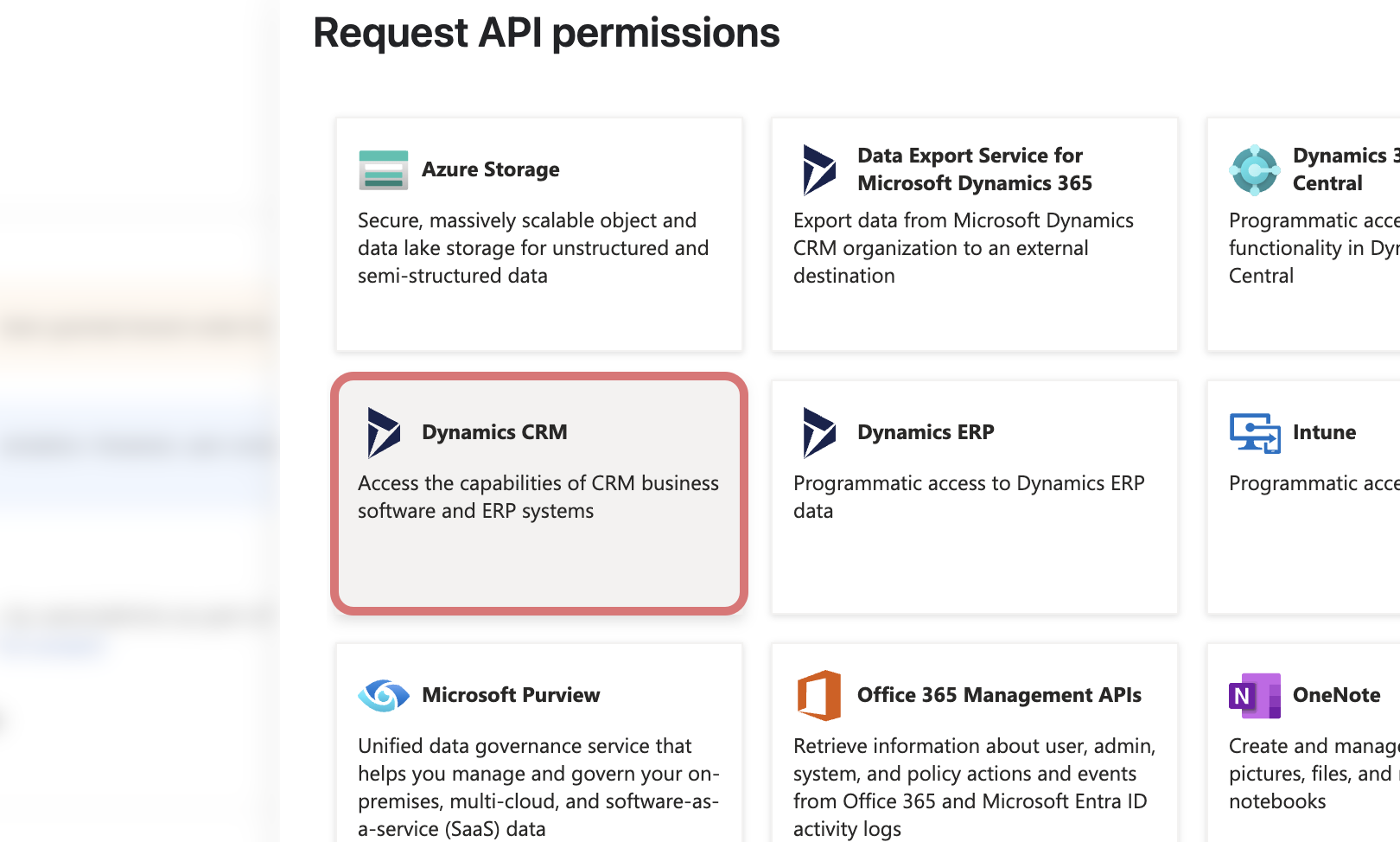 Select Dynamics CRM
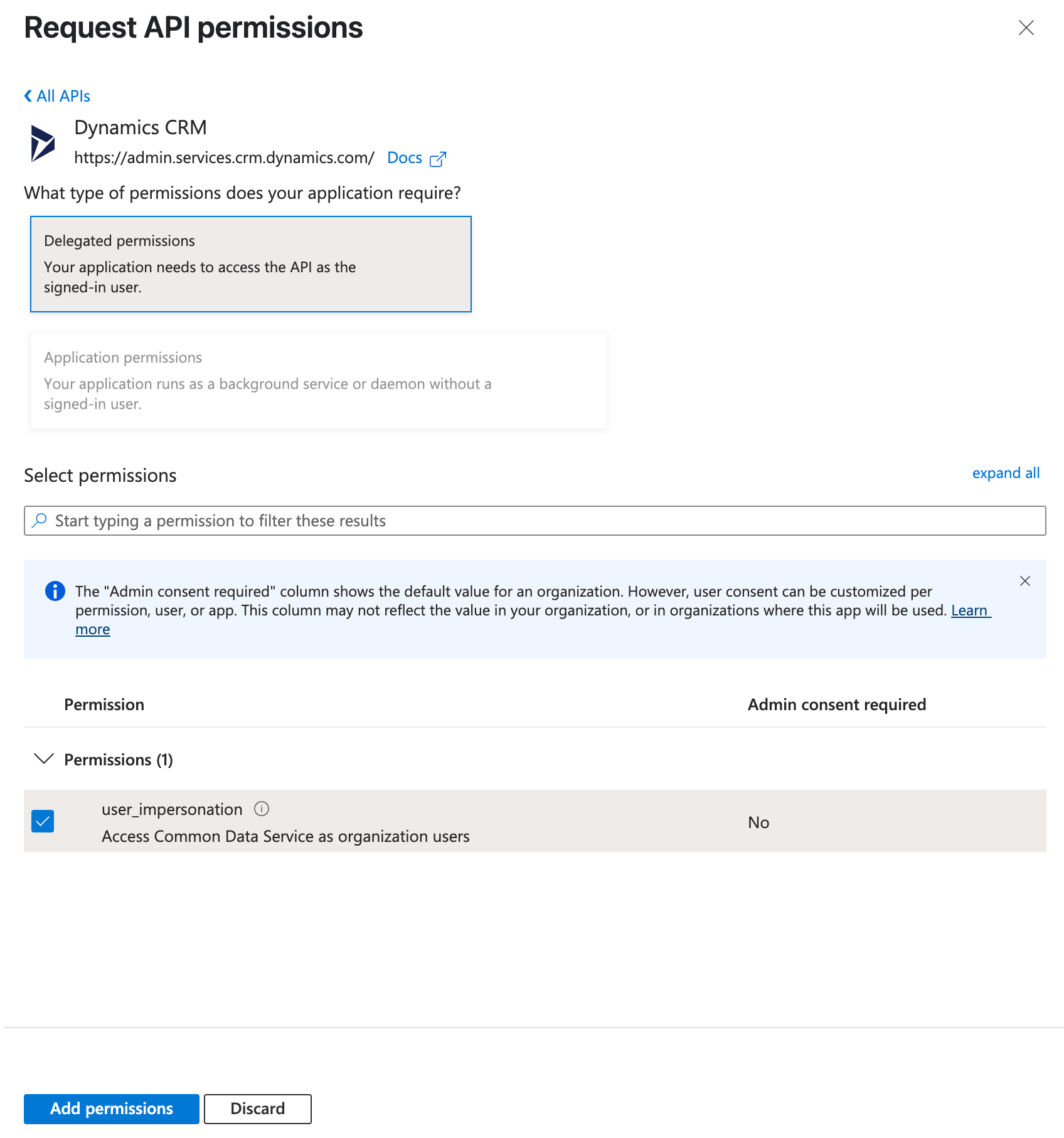 Select permissions
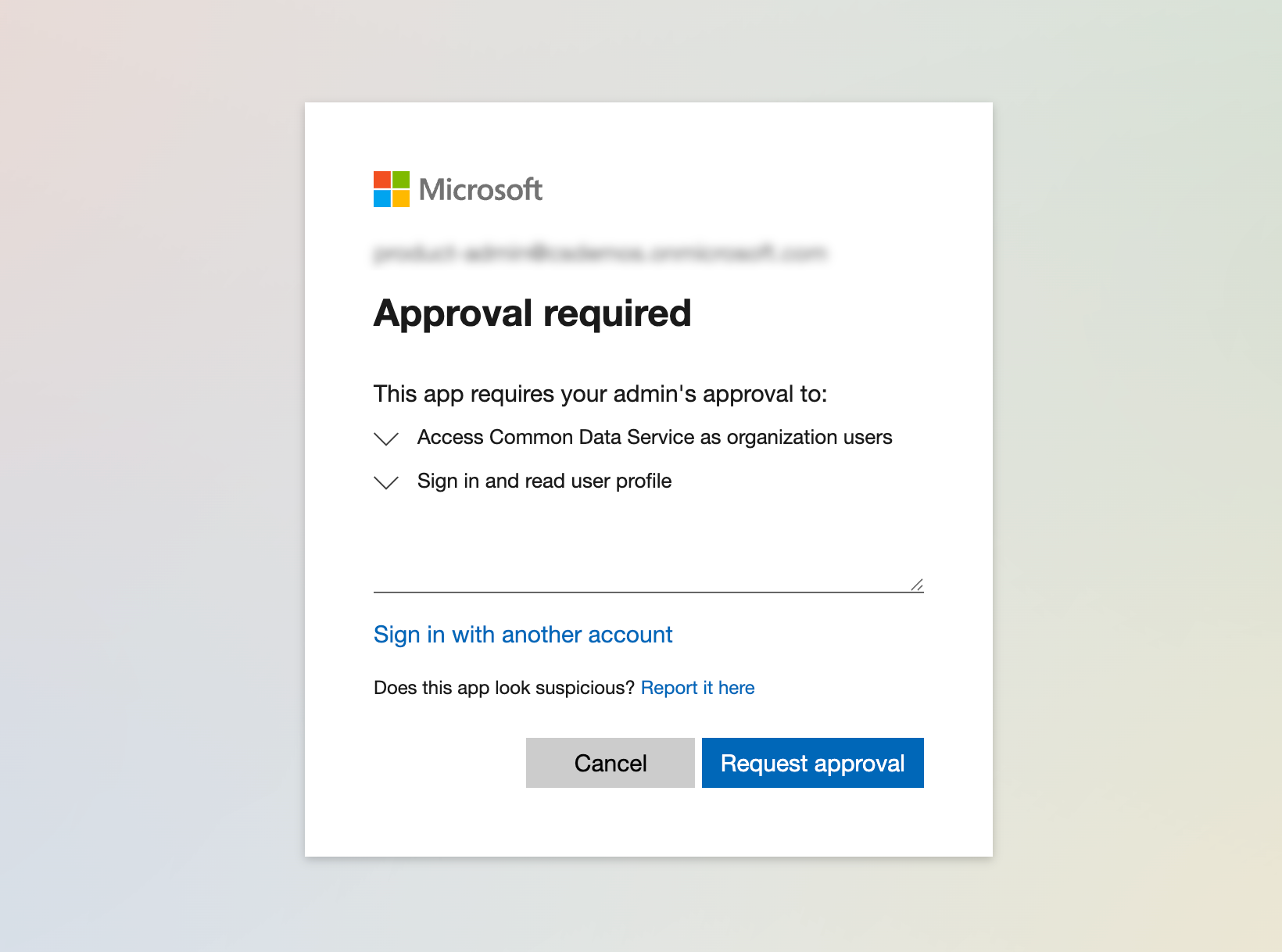 Admin consent screen
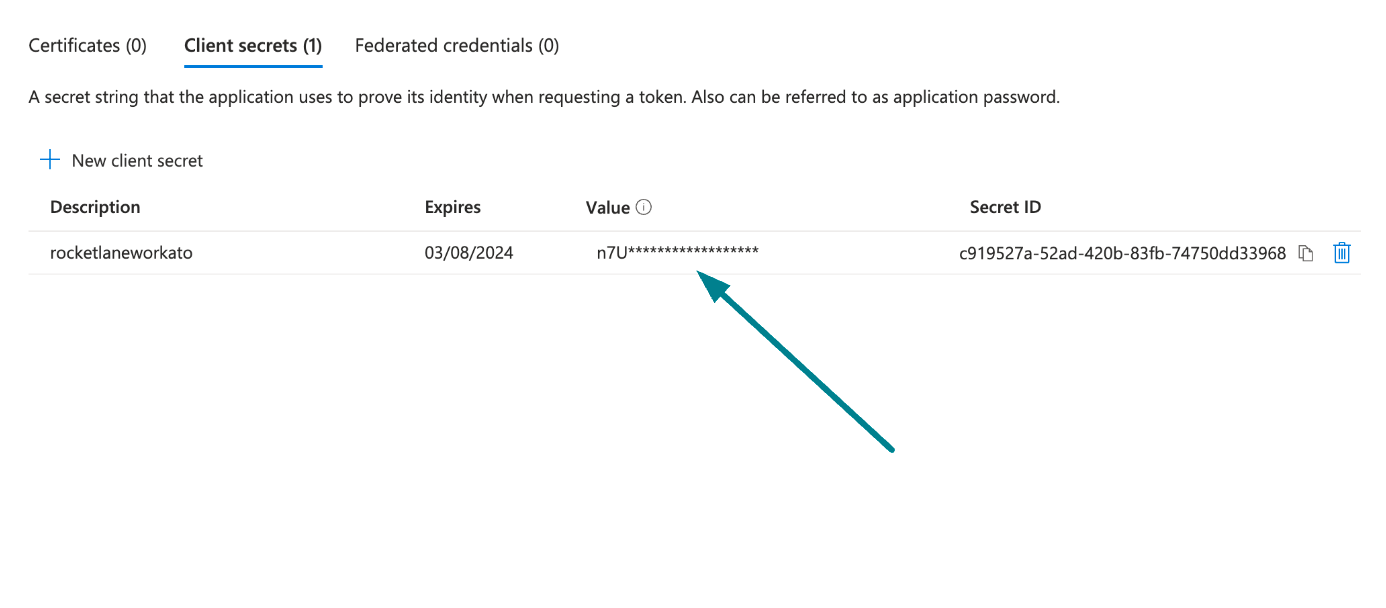 Copy and save the client secret value
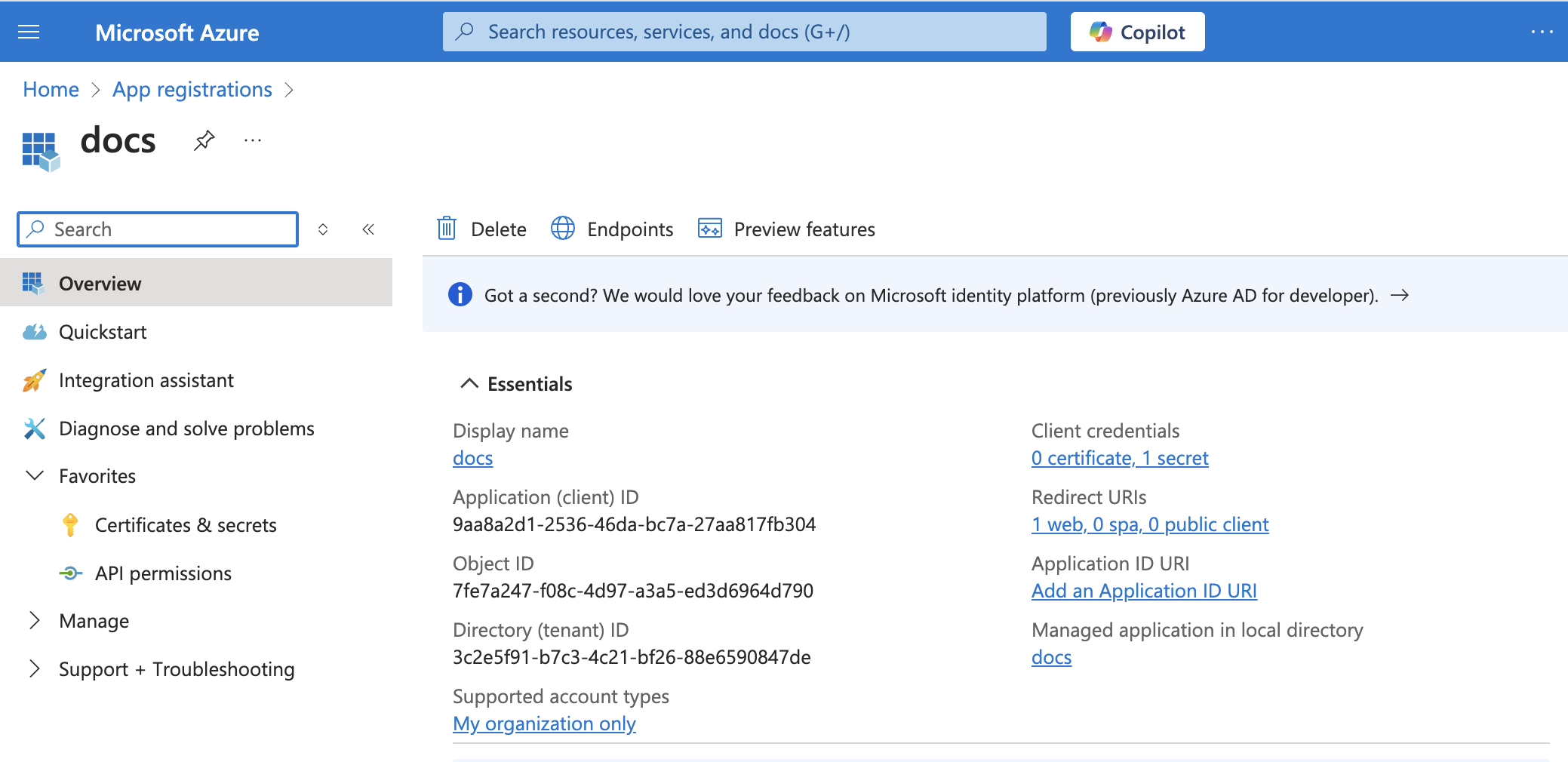 App details
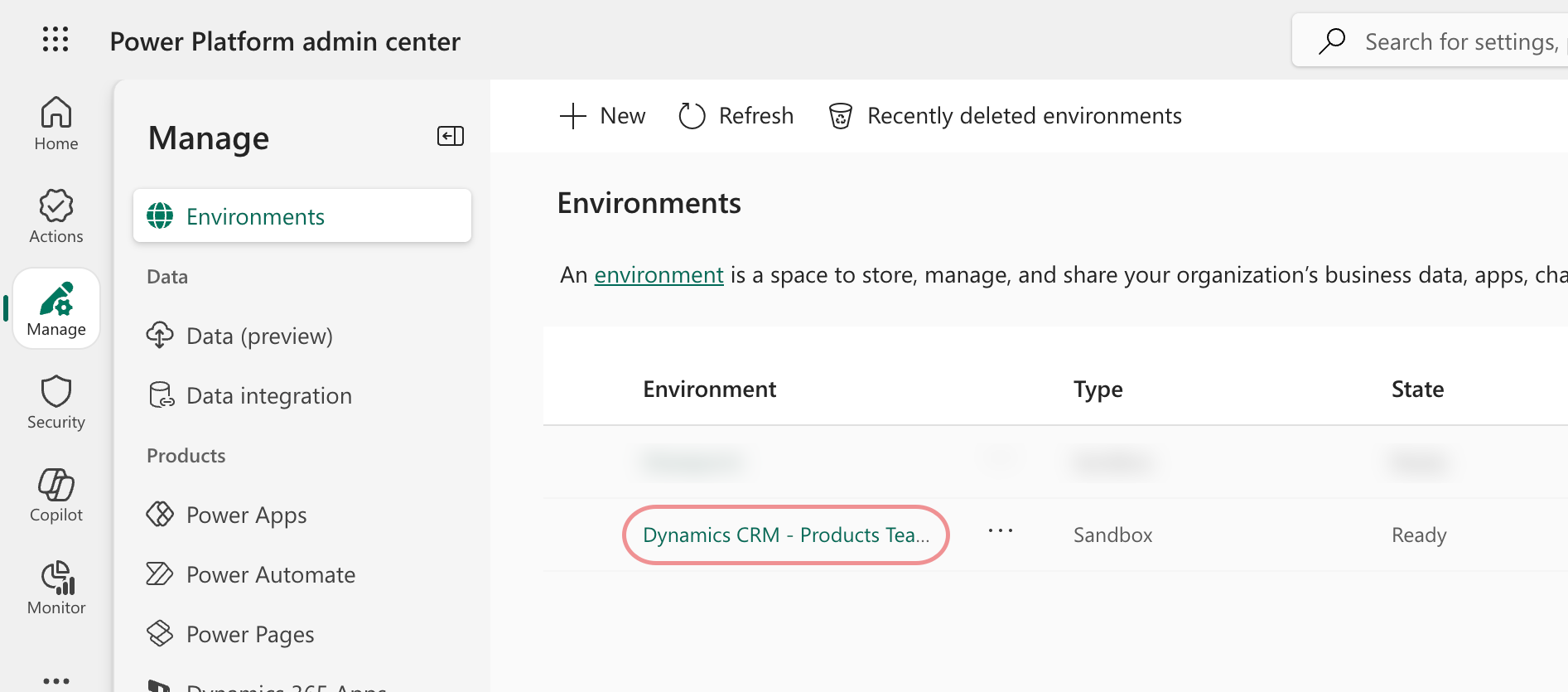 Select an environment
Return to Workato to finish setting up your connection.
Connect to Microsoft Dynamics 365
Complete the following steps to connect to Microsoft Dynamics 365:
Connect to Microsoft Dynamics 365
Configure the pipeline
Complete the following steps to configure Microsoft Dynamics 365 as your data pipeline source:
Select Create > Data pipeline or press C+I.
Enter a name for the data pipeline in the Data pipeline name field.
 Data pipeline setup
Use the Location drop-down menu to select the project where you plan to store the data pipeline.
Click Start building.
Click the Extract new/updated records from source app trigger. This trigger defines how the pipeline retrieves data from Microsoft Dynamics 365.
 Configure the Extract new/updated records from source app trigger
Use the Your Connected Source Apps drop-down menu to select Microsoft Dynamics 365.
Choose the Microsoft Dynamics 365 connection you plan to use for this pipeline. Alternatively, click + New connection to create a new connection.
Click Add object to open the Add new objects panel. Workato dynamically discovers the tables your connection can read and displays each one as its display name and logical table name, for example, Account (account).
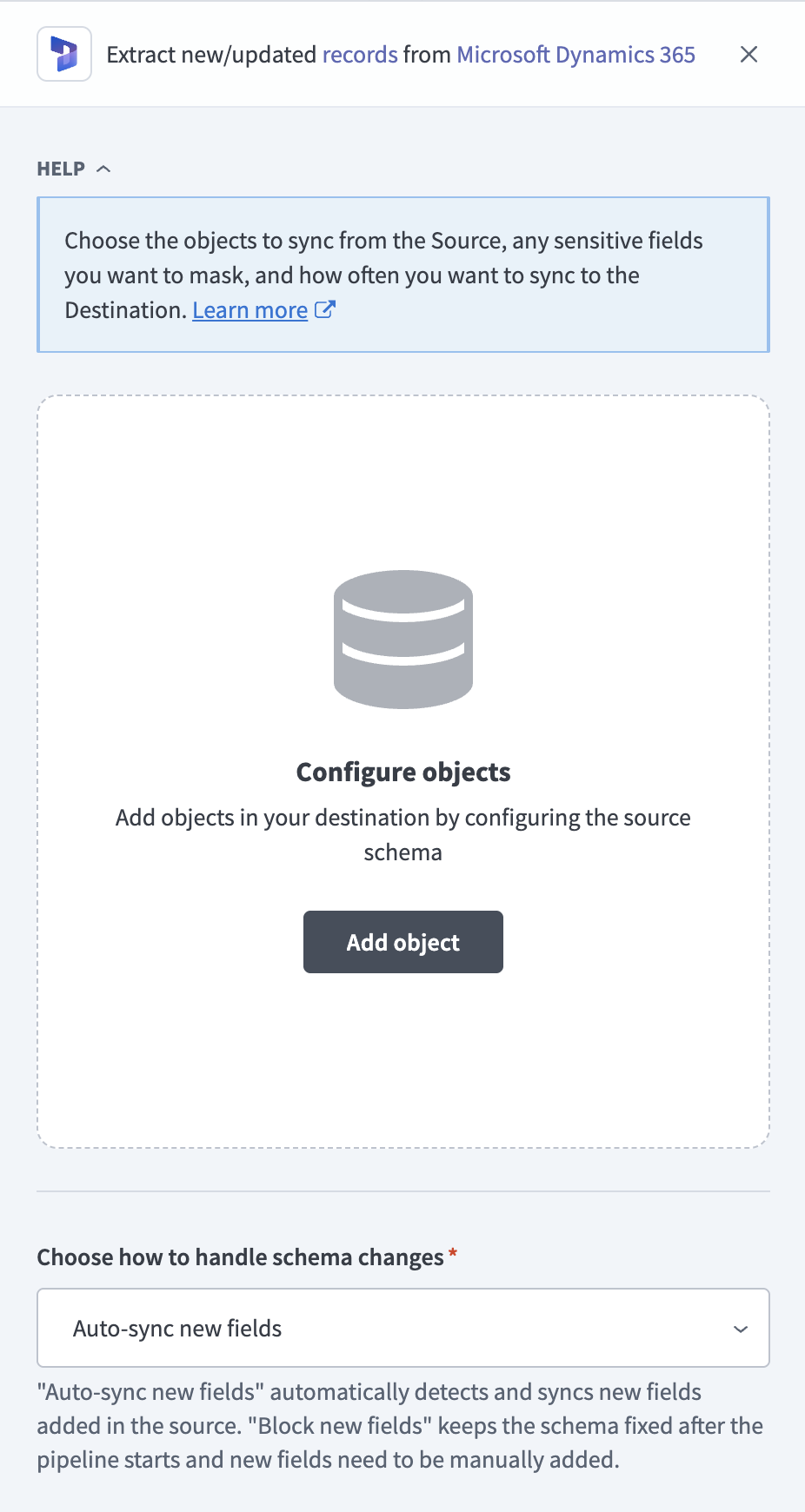 Add objects
Search or browse the list of available objects, select the objects you plan to sync, and click Add.
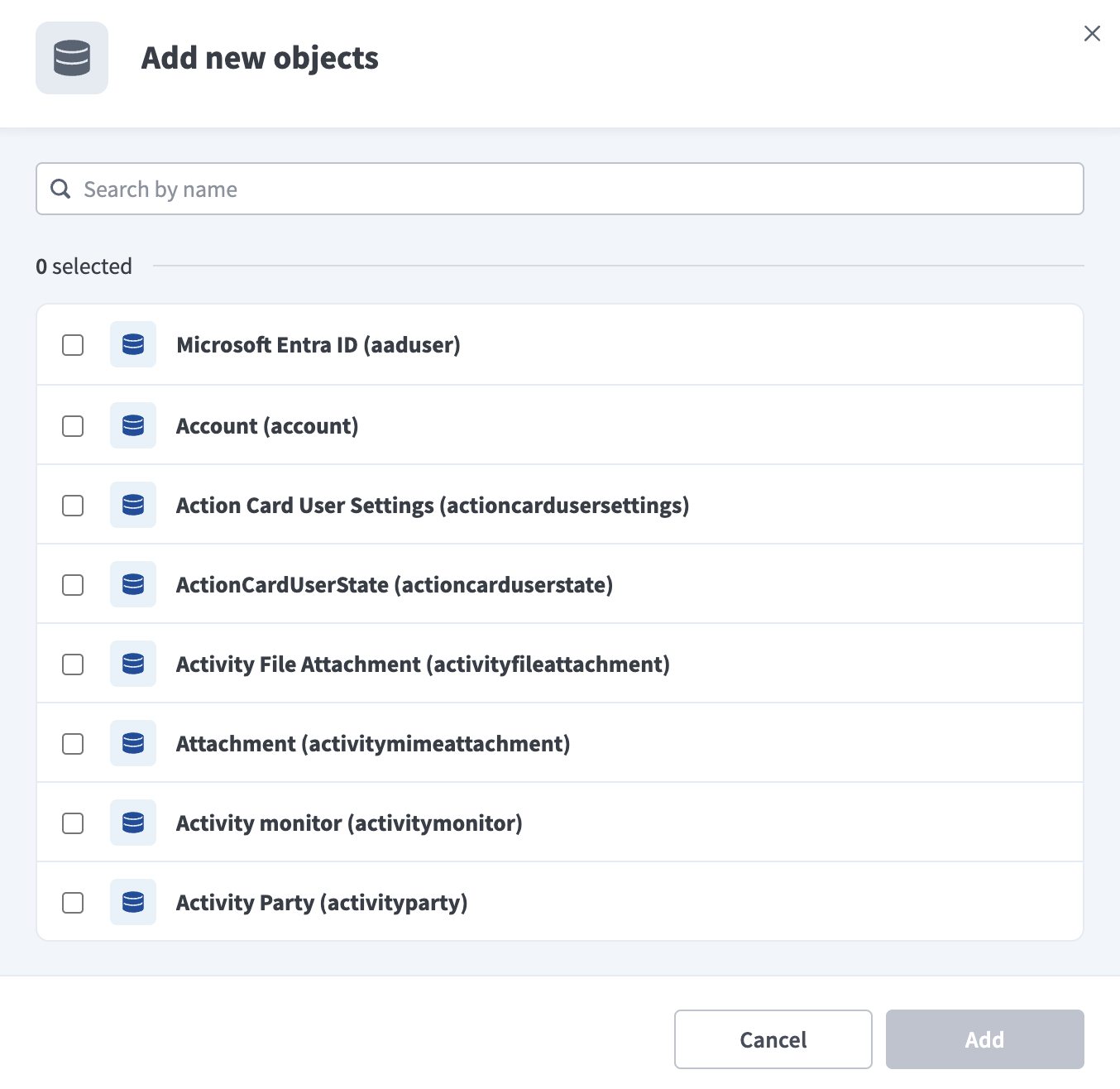 Select objects
Review and customize the schema for each selected object. The pipeline automatically fetches an object's schema when you select it. This ensures the destination matches the source.
Expand an object to view associated fields. Keep all fields selected to extract all available data, or deselect specific fields to exclude them from data extraction and schema replication.
Optional. Click the settings icon next to an object to configure how the object syncs. Use the Sync mode drop-down menu to select Full sync or Incremental. Workato defaults to full sync if it doesn't detect a Change Tracking cursor for the object. Refer to Sync modes for more information.
Optional. Expand an object to configure field-level data protection, then choose how to handle each field:
- Replicate as is: Data values at the source replicate identically to the destination.
- Hash: Hash sensitive data values in the field before they reach your destination.
Workato recommends you hash personally identifiable information (PII) and other sensitive fields. Refer to Sensitive data handling for a list of fields that commonly contain PII.
Click Add object again to add more objects. Repeat this step to include additional Microsoft Dynamics 365 objects in your pipeline.
Use the Choose how to handle schema changes drop-down menu to select a schema drift handling option:
- Auto-sync new fields: Automatically detects and syncs new fields added in the source.
- Block new fields: Keeps the schema fixed after the pipeline starts. You must add new fields manually. This option may cause the destination to fall out of sync if the source schema updates.
Refer to Schema replication and schema drift management for more information.
Workato recommends Auto-sync new fields because Dataverse administrators can add custom fields to any table at any time.
Optional. Enter a value in the Concurrency limit field to cap the number of concurrent operations. Leave the field blank to use the default quota set by Workato. The maximum value is 100.
Choose either a standard time-based schedule or define a custom cron expression in the Frequency field. This determines how often the pipeline syncs data from Dynamics 365 to the destination.
Supported objects
Microsoft Dynamics 365 data pipelines sync data from Microsoft Dataverse, the shared data platform behind Sales, Customer Service, Field Service, and Marketing (Customer Insights – Journeys). Workato dynamically discovers every table your connection can read, including custom tables, so you're not limited to the objects listed below. The following tables list commonly synced objects, grouped by app area. Each object syncs as a separate table in your destination.
TABLE CAPABILITIES VARY BY ENVIRONMENT
The available sync mode and delete tracking are determined for each table in your Dataverse environment. Incremental sync and delete tracking are available only when Change Tracking is enabled for that table. Permissions, licensing, and installed applications can also affect whether a listed table is available.
Shared across apps
| Object | Sync mode | Delete tracking | Notes |
|---|---|---|---|
| Account | Full sync, incremental | Yes (soft) | N/A |
| Contact | Full sync, incremental | Yes (soft) | N/A |
| Task | Full sync, incremental | Yes (soft) | Activity table |
| Full sync, incremental | Yes (soft) | Activity table | |
| Phone Call | Full sync, incremental | Yes (soft) | Activity table |
| Appointment | Full sync, incremental | Yes (soft) | Activity table |
| Note | Full sync, incremental | Yes (soft) | Attachments aren't synced. |
| User | Full sync, incremental | Yes (soft) | Typically deactivated rather than deleted |
| Team | Full sync, incremental | Yes (soft) | N/A |
| Business Unit | Full sync, incremental | Yes (soft) | Organization hierarchy |
Sales
| Object | Sync mode | Delete tracking | Notes |
|---|---|---|---|
| Lead | Full sync, incremental | Yes (soft) | N/A |
| Opportunity | Full sync, incremental | Yes (soft) | N/A |
| Opportunity Product | Full sync, incremental | Yes (soft) | Child of Opportunity |
| Quote | Full sync, incremental | Yes (soft) | N/A |
| Quote Detail | Full sync, incremental | Yes (soft) | Child of Quote |
| Order | Full sync, incremental | Yes (soft) | N/A |
| Order Product | Full sync, incremental | Yes (soft) | Child of Order |
| Invoice | Full sync, incremental | Yes (soft) | N/A |
| Invoice Detail | Full sync, incremental | Yes (soft) | Child of Invoice |
| Product | Full sync, incremental | Yes (soft) | N/A |
| Price List | Full sync, incremental | Yes (soft) | N/A |
| Price List Item | Full sync, incremental | Yes (soft) | Volume can exceed Product × Price List count |
| Competitor | Full sync, incremental | Yes (soft) | N/A |
| Goal | Full sync, incremental | Yes (soft) | Implements Dynamics 365 Sales Plans |
| Goal Metric | Full sync, incremental | Yes (soft) | N/A |
| Goal Rollup Query | Full sync | Yes (destination-inferred) | Child of Goal |
Customer service
| Object | Sync mode | Delete tracking | Notes |
|---|---|---|---|
| Case | Full sync, incremental | Yes (soft) | description frequently contains customer-disclosed PII |
| Queue | Full sync, incremental | Yes (soft) | N/A |
| Queue Item | Full sync, incremental | Yes (soft) | N/A |
| Entitlement | Full sync, incremental | Yes (soft) | N/A |
| SLA | Full sync, incremental | Yes (soft) | N/A |
| SLA Item | Full sync | Yes (destination-inferred) | N/A |
| Knowledge Article | Full sync, incremental | Yes (soft) | N/A |
| Case Resolution | Full sync, incremental | Yes (soft) | Created when a case is resolved |
| Social Activity | Full sync, incremental | Yes (soft) | Only present if social channels are configured |
Field service
Bookable Resource, Bookable Resource Booking, and Customer Asset ship with the base Universal Resource Scheduling capability. The remaining objects in this category require the Field Service app.
| Object | Sync mode | Delete tracking | Notes |
|---|---|---|---|
| Bookable Resource | Full sync, incremental | Yes (soft) | N/A |
| Bookable Resource Booking | Full sync | Yes (destination-inferred) | N/A |
| Customer Asset | Full sync, incremental | Yes (soft) | N/A |
| Work Order | Full sync, incremental | Yes (soft) | Requires the Field Service app |
| Work Order Incident | Full sync, incremental | Yes (soft) | Requires the Field Service app |
| Work Order Service | Full sync, incremental | Yes (soft) | Requires the Field Service app |
| Work Order Service Task | Full sync, incremental | Yes (soft) | Requires the Field Service app |
| Work Order Product | Full sync, incremental | Yes (soft) | Requires the Field Service app |
| Resource Requirement | Full sync, incremental | Yes (soft) | Requires the Field Service app |
| Work Order Type | Full sync | No | Reference data. Requires the Field Service app |
| Incident Type | Full sync | No | Reference data. Requires the Field Service app |
| Agreement | Full sync, incremental | Yes (soft) | Requires the Field Service app |
Marketing
Subscription List, Consent, Purpose, and Topic ship with base Dataverse. The remaining objects in this category require Customer Insights – Journeys (Marketing).
| Object | Sync mode | Delete tracking | Notes |
|---|---|---|---|
| Subscription List | Full sync, incremental | Yes (soft) | Labeled "Marketing List" in the Dynamics 365 UI |
| Consent | Full sync, incremental | Yes (soft) | Contact Point Consent: GDPR/CAN-SPAM opt-in and opt-out state |
| Purpose | Full sync, incremental | Yes (soft) | N/A |
| Topic | Full sync, incremental | Yes (soft) | Child of Purpose |
| Segment | Full sync, incremental | Yes (soft) | Requires Customer Insights – Journeys |
| Customer Journey | Full sync, incremental | Yes (soft) | Requires Customer Insights – Journeys |
| Marketing Email | Full sync, incremental | Yes (soft) | Requires Customer Insights – Journeys |
| Marketing Form | Full sync, incremental | Yes (soft) | Requires Customer Insights – Journeys |
| Event | Full sync, incremental | Yes (soft) | Requires Customer Insights – Journeys |
| Event Registration | Full sync, incremental | Yes (soft) | Requires Customer Insights – Journeys |
Marketing also writes to the shared Contact and Lead tables in the Shared across apps category rather than a separate marketing-only person record.
Custom tables and fields
Dataverse customers can create entirely new custom tables, not just custom fields on standard tables. Workato discovers custom tables the same way it discovers standard tables, and syncs them identically. Custom tables and fields use a publisher-defined prefix, such as new_ or cr123_. Workato preserves this prefix in the field and table names it syncs to your destination.
Sync modes
Microsoft Dynamics 365 data pipelines support full sync and incremental sync. The sync mode is configured per object when you add it to your pipeline.
Full sync
A full sync reads all available records for the selected object from Dataverse and overwrites the destination table. Objects without Change Tracking enabled always use full sync, because Dataverse doesn't provide a way to fetch only changed records for them.
Incremental sync
An incremental sync extracts only records created, updated, or deleted since the last successful run. Microsoft Dynamics 365 data pipelines use Dataverse's Change Tracking feature for incremental sync. The first sync requests a delta link for the object, and later syncs use that delta link to fetch only the changes since the previous run.
Change Tracking is a per-table setting your Dataverse administrator enables in the Power Apps maker portal, and it's permanent. Your administrator can't turn it off again. Workato uses full sync instead for any object without Change Tracking enabled, so expect some tables in the same environment to have it enabled and others not. This is normal.
Refer to the Supported objects tables for commonly synced objects, and to Microsoft's Change Tracking documentation to enable it for eligible tables.
FIRST SYNC READS EVERY RECORD ON INCREMENTAL OBJECTS
Dataverse requires Workato to read every available record on an incremental object's first sync, before it can establish the delta link used for later syncs. Your historical start date doesn't reduce this cost, though Workato still excludes older records from the destination. Large objects can take multiple sync cycles to complete their first sync.
Delete tracking
Delete tracking is per-object, and depends on the object's sync mode:
- Objects with incremental sync: Dataverse's Change Tracking feed includes a "removed" entry with the deleted record's ID whenever a tracked record is deleted. Workato marks these records as deleted in the destination and doesn't remove them.
- Objects with full sync: Dataverse doesn't expose a native delete signal for these objects. Workato compares each full sync against the previous run and marks records that no longer appear in Dynamics 365 as deleted in the destination, because it reads the complete object every time.
Refer to Synthetic columns for the destination column this sets, and to the Supported objects tables for which objects use each sync mode.
Schema and data type handling
The following considerations apply to schema and data types when you sync data from Microsoft Dynamics 365.
Custom fields
Custom fields appear identically to standard fields in the schema Workato discovers for each object. Select Auto-sync new fields in Configure the pipeline so new custom fields sync automatically. Dataverse administrators can add custom fields to any table at any time.
Picklist, State, and Status fields
Picklist, State, and Status fields sync as their underlying integer option value, not the display label shown in the Dynamics 365 UI. Look up the label for a specific value in your Dataverse environment's option set definitions if you need the corresponding text.
Lookup fields
Dataverse doesn't nest related records inside an object's data. A lookup field, including Customer and Owner fields, syncs as the GUID of the related record rather than an expanded object. Sync the parent object as its own table to look up the related record's details.
Money fields
Money fields sync as a single decimal value. The related transaction currency syncs separately, as a lookup field on the same record, rather than paired with each Money field.
Timestamps
Dataverse returns date and time fields in UTC through the Web API, regardless of the timezone shown in the Dynamics 365 UI. Workato preserves these values as returned.
Synthetic columns
Workato adds the following synthetic column to destination tables for objects that use incremental sync:
| Column | Type | Purpose |
|---|---|---|
_workato_is_deleted | Boolean | Set to true for records Dataverse's Change Tracking feed reports as removed. Refer to Delete tracking for more information. |
Sensitive data handling
Microsoft Dynamics 365 objects can contain significant personally identifiable information (PII), and Customer Service and Field Service objects can contain health or safety-adjacent information. The following objects commonly contain sensitive fields:
| Object | Sensitive fields |
|---|---|
| Contact | fullname, emailaddress1, emailaddress2, emailaddress3, telephone1, telephone2, mobilephone, address1_*, address2_*, birthdate |
| Account | address1_*, telephone1, and other billing contact details |
| Lead | fullname, emailaddress1, telephone1, companyname |
| Case | description, which frequently contains customer-disclosed PII |
| Email, Phone Call, Appointment | Body and description fields may contain any PII shared in correspondence |
| Work Order | msdyn_instructions, service address, and linked Contact or Account PII |
| Customer Asset | Installed-equipment address and site-access details |
| Consent, Subscription List | Consent or subscription status tied to an identifiable Contact or Lead |
| User | Internal employee name, email, and phone |
Use the Hash option in field-level data protection during pipeline configuration to protect PII before it reaches your destination. Refer to the Configure the pipeline steps for more information.
Limitations
The following limitations apply when you use Microsoft Dynamics 365 as a data pipeline source:
Cloud-hosted Dataverse only
Microsoft Dynamics 365 data pipelines connect to cloud-hosted Dataverse environments only. On-premises Dynamics 365 deployments that use AD FS for authentication, supported by the Microsoft Dynamics 365 workflow connector, aren't supported as a data pipeline source.
Marketing engagement data is not synced
Segment and Customer Journey definitions sync as ordinary tables, but most engagement data isn't available through the Dataverse Web API, including who's in a segment, email opens, clicks, page views, form fills, and journey-step events. This applies whether your environment uses legacy outbound marketing or real-time marketing (Customer Insights – Journeys). The pipeline can still sync segment and journey definitions, consent records, email and form templates, and Marketing's writes into the shared Contact and Lead tables.
Calculated, formula, and rollup fields can go stale between syncs
Values in these fields can lag behind their true value until the object's next full sync, on objects configured for incremental sync. Updates to the data these fields are based on don't reliably trigger a Change Tracking event. Configure a periodic full sync for objects where these fields matter.
Minimum sync frequency
The minimum supported sync interval is 15 minutes.
Last updated: