Configure Freshdesk as a data pipeline source
Set up Freshdesk as a data pipeline source to extract tickets, contacts, companies, and related customer support data into your destination.
Use this guide to generate a Freshdesk API key, set up a connection, configure your pipeline, add objects, review sync behavior, and understand known limitations.
Features supported
The following features are supported when you use Freshdesk as a pipeline source:
- Cloud connectivity: Connect to your Freshdesk account over HTTPS through your account's subdomain. On-prem agents aren't required.
- Full sync and incremental sync: Supports full sync and incremental sync modes. Incremental sync uses time-based cursors on the objects that support them. Refer to Sync modes for more information.
- Object-level selection: Select Freshdesk objects to sync as separate tables in your destination. Refer to Supported objects for the full list.
- Delete tracking: Detect deletions for supported objects and mark deleted records in your destination. Refer to Delete tracking for the list of objects.
- Schema drift detection and handling: Detect and apply schema changes automatically with Auto-sync new fields, or keep the schema fixed with Block new fields.
- Field-level data protection: Hash or replicate sensitive fields as is before the data reaches your destination.
- Configurable sync frequency: Schedule syncs on a time-based interval or with a cron expression. The minimum supported interval is 15 minutes.
Prerequisites
Complete the following requirements before you connect Freshdesk as a data pipeline source.
- A Freshdesk account and the subdomain for your helpdesk. For example, if you sign in at
https://acme.freshdesk.com, your Helpdesk name isacme. - An API key generated from an Administrator-level Freshdesk agent account. Refer to Generate a Freshdesk API key for setup steps.
REQUIRED PERMISSIONS
Freshdesk API keys aren't scoped to specific permissions. Access depends on the role of the agent the key belongs to. Generate the key from an Administrator account so the connection can access every supported object. A key generated from a non-administrator agent account returns a permission error on agents, groups, roles, business_hours, sla_policies, and mailboxes.
Supported connection types
Freshdesk data pipelines support the following authentication method:
- API key: Provide the API key generated from an Administrator agent account, along with your Freshdesk Helpdesk name. Freshdesk's API doesn't support OAuth 2.0.
Generate a Freshdesk API key
View Retrieve API key in Freshdesk steps
Complete the following steps to retrieve your Freshdesk API key:
Sign in to the Freshdesk portal.
Go to Profile Settings and click View API Key.
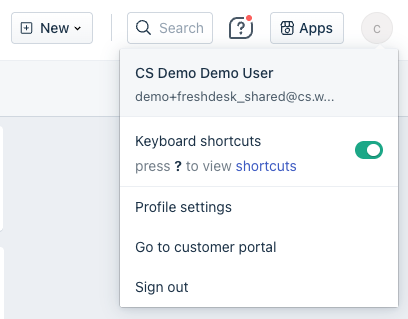 Freshdesk View API Key
Copy the API Key and store it securely for later use.
Connect to Freshdesk
View Connect to Freshdesk on Workato steps
Complete the following steps to connect your Freshdesk account to Workato:
Click Create > Connection.
Search for and select Freshdesk as your connection on the New Connection page.
Provide a unique name for the connection in the Connection name field.
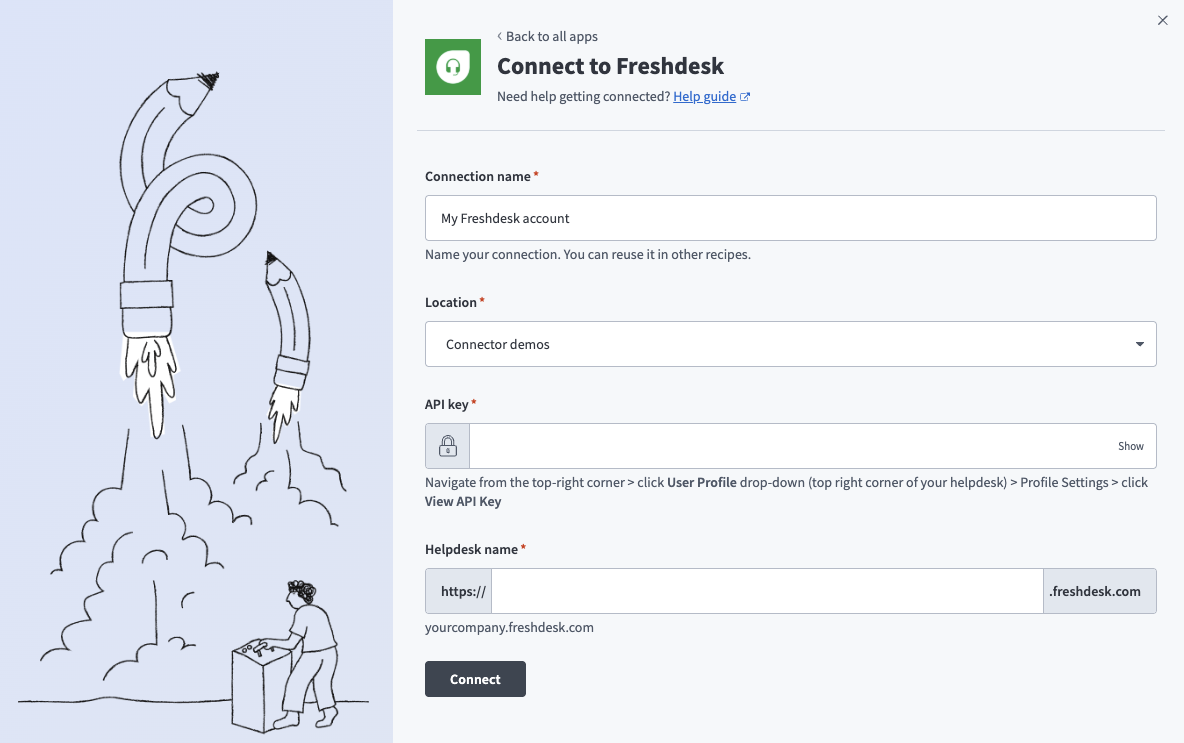 Freshdesk_Connection
Use the Location drop-down menu to select the project where you plan to store the connection.
Enter the Freshdesk API key. Refer to Retrieve API key in Freshdesk to obtain this value.
Enter your Freshdesk instance subdomain in the Helpdesk name field.
Click Connect.
Configure the pipeline
Complete the following steps to configure Freshdesk as your data pipeline source:
Select Create > Data pipeline or press C+I.
Enter a name for the data pipeline in the Data pipeline name field.
 Data pipeline setup
Use the Location drop-down menu to select the project where you plan to store the data pipeline.
Click Start building.
Click the Extract new/updated records from source app trigger. This trigger defines how the pipeline retrieves data from Freshdesk.
 Configure the Extract new/updated records from source app trigger
Use the Your Connected Source Apps drop-down menu to select Freshdesk.
Choose the Freshdesk connection you plan to use for this pipeline. Alternatively, click + New connection to create a new connection.
Click Add object to open the Add new objects panel.
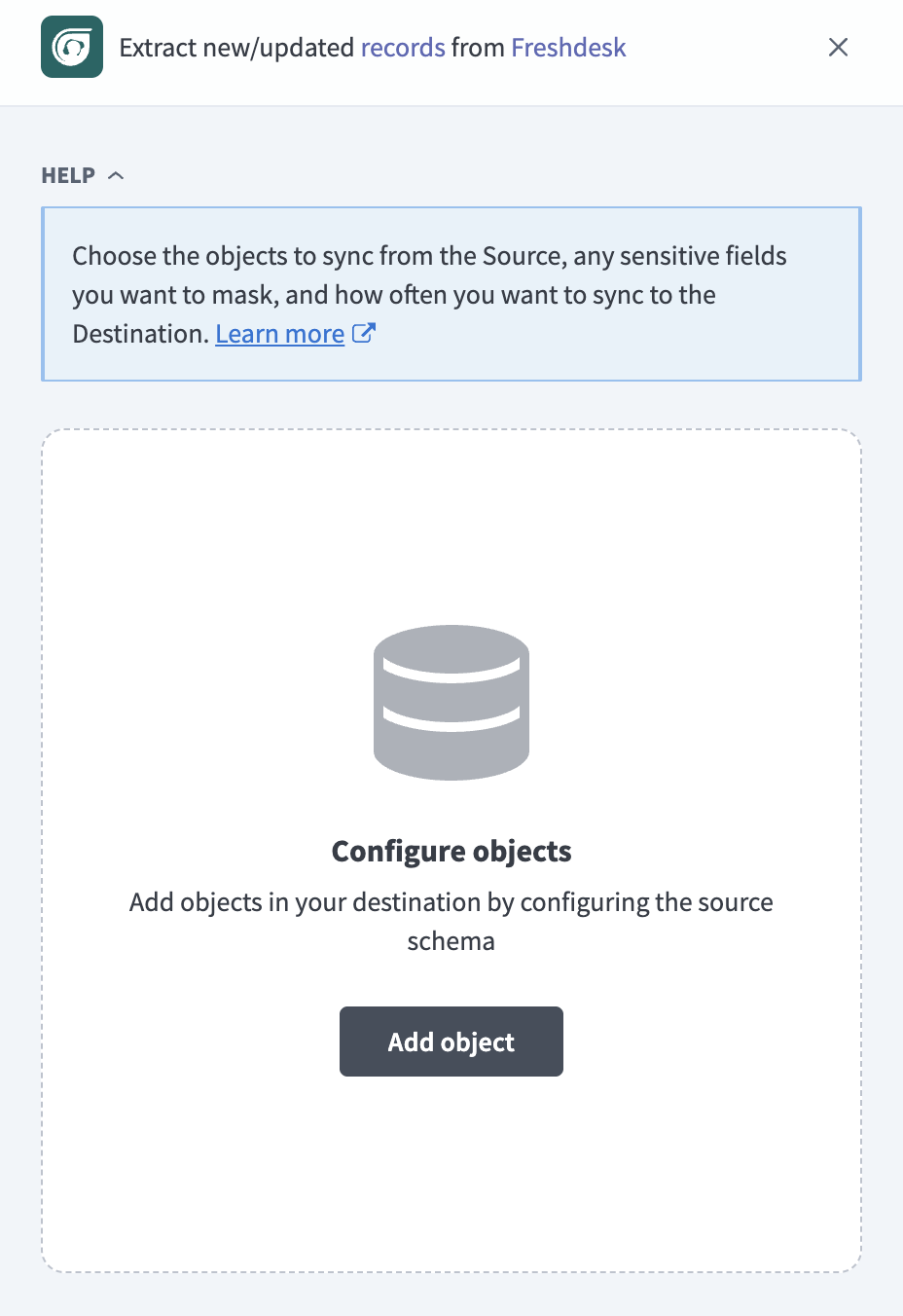 Add objects
Search or browse the list of available Freshdesk objects, select the objects you plan to sync, and click Add.
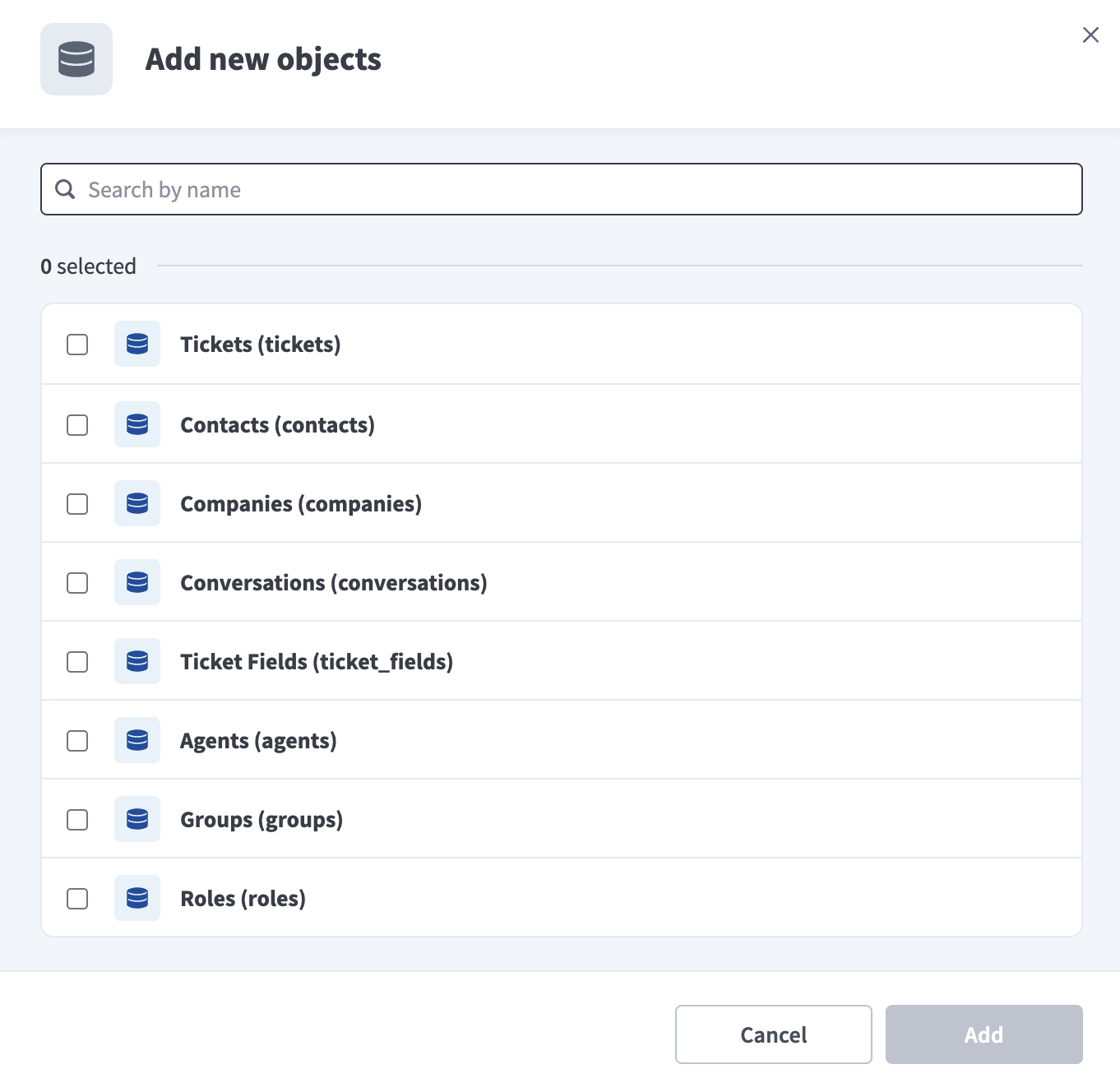 Select Freshdesk objects
Optional. Click the settings icon next to an object to configure how the object syncs. Use the Sync mode drop-down menu to select a sync mode. The object defaults to full sync if Freshdesk doesn't provide a timestamp for it. Refer to Sync modes for more information.
Review and customize the schema for each selected object. The pipeline automatically fetches an object's schema when you select it. This ensures the destination matches the source.
Expand an object to view associated fields. Keep all fields selected to extract all available data, or deselect specific fields to exclude them from data extraction and schema replication.
Optional. Configure field-level data protection by expanding an object and choosing how to handle each field:
- Replicate as is: Data values at the source replicate identically to the destination.
- Hash: Hash sensitive data values in the field before syncing to your destination.
Workato recommends hashing personally identifiable information (PII) and other sensitive fields. Refer to Sensitive data handling for a list of fields that commonly contain PII.
Click Add object again to add more objects. Repeat this step to include additional Freshdesk objects in your pipeline.
Use the Choose how to handle schema changes drop-down menu to select a schema drift handling option:
- Auto-sync new fields: Automatically detects and syncs new fields added in the source.
- Block new fields: Keeps the schema fixed after the pipeline starts. You must add new fields manually. This option may cause the destination to fall out of sync if the source schema updates.
Refer to Schema replication and schema drift management for more information.
Optional. Enter a value in the Concurrency limit field to cap the number of concurrent operations. The maximum value you can enter is 100. Workato also applies source, user, and scheduler quotas, and Freshdesk pipelines currently run at no more than 5 concurrent operations regardless of the value you enter here.
Choose either a standard time-based schedule or define a custom cron expression in the Frequency field. This determines how often the pipeline syncs data from Freshdesk to the destination.
Supported objects
Freshdesk data pipelines sync data from the Freshdesk REST API v2. The following tables list the supported objects, grouped by category. Each object syncs as a separate table in your destination.
Tickets and conversations
| Object | Sync mode | Delete tracking | Notes |
|---|---|---|---|
tickets | Full sync, incremental | Yes (soft) | NA |
conversations | Full sync | Yes (destination-inferred) | Child of tickets |
ticket_tags | Full sync | Yes (destination-inferred) | Derived from the tags array on tickets |
ticket_fields | Full sync | Yes (destination-inferred) | NA |
Contacts and companies
| Object | Sync mode | Delete tracking |
|---|---|---|
contacts | Full sync, incremental | Yes (soft) |
companies | Full sync, incremental | Yes (destination-inferred, full sync only) |
contact_fields | Full sync | Yes (destination-inferred) |
company_fields | Full sync | Yes (destination-inferred) |
Agents and workspace configuration
Freshdesk returns a permission error for the objects in this category unless the connection uses an Administrator-level API key.
| Object | Sync mode | Delete tracking |
|---|---|---|
agents | Full sync | Yes (destination-inferred) |
groups | Full sync | Yes (destination-inferred) |
roles | Full sync | Yes (destination-inferred) |
business_hours | Full sync | Yes (destination-inferred) |
sla_policies | Full sync | Yes (destination-inferred) |
mailboxes | Full sync | Yes (destination-inferred) |
Knowledge base
| Object | Sync mode | Delete tracking | Notes |
|---|---|---|---|
solution_categories | Full sync | Yes (destination-inferred) | NA |
solution_folders | Full sync | Yes (destination-inferred) | Child of solution_categories |
solution_articles | Full sync | Yes (destination-inferred) | NA |
canned_response_folders | Full sync | Yes (destination-inferred) | NA |
canned_responses | Full sync | Yes (destination-inferred) | Child of canned_response_folders |
Sync modes
Freshdesk data pipelines support full sync and incremental sync. The sync mode is configured per object when you add it to your pipeline.
Full sync
A full sync reads all available records from Freshdesk for the selected object and overwrites the destination table. Objects that don't support incremental sync, such as agents and ticket_fields, use full sync because Freshdesk doesn't expose a modified-time filter for them. Objects that support incremental sync can still be configured for full sync if you need a complete snapshot on each run.
Incremental sync
An incremental sync extracts only records that changed since the last successful run. tickets, contacts, and companies support incremental sync using Freshdesk's updated_since filter as the cursor.
solution_articles uses full sync. Freshdesk's solution articles endpoint rejects the updated_since filter, so Workato can't sync this object incrementally.
Refer to the Supported objects tables to see the sync mode for each object.
Delete tracking
Delete tracking is per-object, and depends on whether Freshdesk exposes a native delete signal for the object:
ticketsandcontacts: Freshdesk exposes a nativedeletedfield for both objects. Workato marks deleted records in the destination rather than removing them, regardless of sync mode.- All other objects: Freshdesk doesn't expose a native delete signal. Because these objects sync in full, Workato compares each full sync against the previous run and marks records that no longer appear in Freshdesk as deleted in the destination. This applies to
companiesonly when you sync it with full sync. Deletions aren't detected if you synccompaniesincrementally.
Refer to Synthetic columns for the destination column this sets, and to the Supported objects tables to see which objects support delete tracking.
Schema and data type handling
The following considerations apply to schema and data types when you sync data from Freshdesk.
Integer-coded fields
Freshdesk represents tickets status, priority, and source, as well as solution_articles status, as integers rather than strings. Workato preserves these values as integers in the destination.
| Field | Value mapping |
|---|---|
status | 2=Open, 3=Pending, 4=Resolved, 5=Closed. Values 6 and above are custom statuses defined by your account, so their meaning varies by tenant. |
priority | 1=Low, 2=Medium, 3=High, 4=Urgent |
source | 1=Email, 2=Portal, 3=Phone, 4=Forum, 5=Twitter, 6=Facebook, 7=Chat, 9=Feedback Widget, 10=Outbound Email |
solution_articles status | 1=Draft, 2=Published |
Timestamps
Freshdesk returns timestamps as ISO 8601 strings in UTC, for example 2026-01-15T10:30:00Z. Workato preserves these values as timestamps with timezone in the destination.
Synthetic columns
Workato adds the following synthetic columns to every destination table:
| Column | Type | Purpose |
|---|---|---|
_workato_run_id | String | Identifies the pipeline run that last wrote the row. |
_workato_synced_at | Timestamp | Records when Workato last synced the row. |
_workato_is_deleted | Boolean | Set to true for records Workato detects as deleted. Present on every full-sync object, and on incremental objects only when the object carries its own delete signal. Refer to Delete tracking for more information. |
Sensitive data handling
Freshdesk objects can contain significant PII, including customer support conversations and contact information. tickets, conversations, contacts, agents, and companies commonly contain sensitive fields. The following objects have specific fields confirmed:
| Object | Sensitive fields |
|---|---|
tickets | description, description_text |
conversations | body, body_text |
contacts | name, email, phone, mobile, address, twitter_id, facebook_id |
agents | contact_name, contact_email, contact_phone, contact_mobile |
conversations carries the highest PII risk, because it stores the full text of every customer support interaction on a ticket.
Use the Hash option in field-level data protection during pipeline configuration to protect PII before it reaches your destination. Refer to the Configure the pipeline steps for more information.
Limitations
The following limitations apply when you use Freshdesk as a data pipeline source:
Administrator-level API key required for full object coverage
An API key generated from a non-administrator agent account returns a permission error on agents, groups, roles, business_hours, sla_policies, and mailboxes. Refer to Generate a Freshdesk API key for setup steps.
Minimum sync frequency
The minimum supported sync interval is 15 minutes.
Last updated: