Configure GitHub as a data pipeline source
Set up GitHub as a data pipeline source to extract repositories, issues, pull requests, commits, and related development records from the GitHub REST and GraphQL APIs and sync them to your destination.
Use this guide to review the features and prerequisites, connect GitHub as a data pipeline source, configure the pipeline, and understand the supported objects, sync modes, schema handling, sensitive data handling, and limitations.
Features supported
The following features are supported when you use GitHub as a pipeline source:
- Cloud and self-hosted connectivity: Connect to GitHub.com and GitHub Enterprise Cloud over https. Route the connection through an on-prem agent to connect to a self-hosted GitHub Enterprise Server instance.
- Organization-scoped syncing: Select one or more GitHub organizations when you configure the pipeline. Workato syncs every repository in those organizations that your connection can access.
- Object-level selection: Select the objects you plan to sync as separate tables in your destination. Refer to Supported objects for the full list.
- Full sync and incremental sync: The
Issue,IssueComment,Commit, andReviewCommentobjects support incremental sync using GitHub'ssinceparameter. Every other object syncs in full on each run. Refer to Sync modes for more information. - Delete tracking: Workato compares each full sync against the previous run and marks records that no longer exist in GitHub as deleted in your destination.
- Schema drift detection and handling: Detect and apply schema changes automatically with Auto-sync new fields, or keep the schema fixed with Block new fields.
- Field-level data protection: Hash or replicate sensitive fields as is before the data reaches your destination.
- Configurable sync frequency: Schedule syncs on a time-based interval or with a cron expression. The minimum supported interval is 15 minutes.
Prerequisites
Connecting GitHub as a data pipeline source requires:
- A GitHub.com, GitHub Enterprise Cloud, or GitHub Enterprise Server account with access to the organizations and repositories you plan to sync
- One or more GitHub organization logins to scope the pipeline to
- An on-premises agent, if you connect to a self-hosted GitHub Enterprise Server instance
- Credentials for your chosen authentication method:
- OAuth App: A GitHub account with permission to authorize Workato's registered OAuth App
- Personal access token: A classic or fine-grained personal access token generated from your GitHub account
Required permissions
Grant only the read-level permissions needed to sync your selected objects:
| GitHub permission category | Classic OAuth App / personal access token scope | Fine-grained personal access token permission | Workato objects |
|---|---|---|---|
| Repository contents and metadata | repo | Contents: Read-only, Metadata: Read-only | Repository, Branch, BranchCommitRelation, Tag, Commit, CommitComment, CommitFile, RepositoryTopic, RepositoryLanguage |
| Issues | repo | Issues: Read-only | Issue, IssueComment, IssueLabel, IssueAssignee, IssueEvent, Label, Milestone |
| Pull requests | repo | Pull requests: Read-only | PullRequest, PullRequestCommit, PullRequestReview, ReviewComment, RequestedReviewerHistory |
| Actions | repo | Actions: Read-only | Workflow, WorkflowRun, WorkflowRunJob, CommitStatus |
| Actions check runs | repo | Actions: Read-only, plus Checks: Read-only | CommitCheckRun |
| Deployments | repo | Deployments: Read-only | Deployment, DeploymentStatus |
| Organization members and teams | read:org | Members: Read-only (organization level) | Team, TeamMember, RepositoryTeam, User, Collaborator |
| Account identity | read:user | Not applicable | Required for the connection check only |
| Dependabot alerts | security_events | Dependabot alerts: Read-only | SecurityAlert |
DON'T GRANT THE WORKFLOW SCOPE
The workflow scope authorizes writing to Actions workflow files. A data pipeline connection only reads data and doesn't need this scope.
Supported connection types
GitHub data pipelines support two authentication methods:
- OAuth App: Authorize Workato's registered GitHub OAuth App through the standard browser redirect flow. OAuth tokens are long-lived and don't expire unless you revoke the authorization or the OAuth App is deleted.
- Personal access token: Provide a classic or fine-grained personal access token generated from your GitHub account. Workato recommends this method for server-to-server setups where an interactive OAuth flow isn't practical.
Connect to GitHub
Complete the following steps to connect GitHub as a data pipeline source:
Connect to GitHub
OAuth authentication
Complete the following steps to connect your GitHub to Workato using OAuth authentication:
Sign in to your Workato account and go to the project where you plan to add your GitHub connection.
Click Create > Connection (or press C twice), then select GitHub as your connection.
Provide a Connection name that identifies which GitHub instance Workato is connected to.
Use the Location drop-down menu to select the project where you plan to store the connection.
Use the Authentication type drop-down menu and select OAuth App.
Optional. Click Advanced configuration to display the Host name field.
Optional. Enter a Host name. This is applicable when using Github Enterprise Server. Enter your Github subdomain. For example, if your host URL is https://github.example-organisation.com, the subdomain is github.example-organisation.com.
Click Connect. Workato redirects you to GitHub. The OAuth App requests authorization to access your GitHub account.
Personal access token authentication
Retrieve your personal access token from GitHub to connect your GitHub account to Workato using a personal access token:
Retrieve personal access token
Go to Github account > Settings > Developer settings > Personal access tokens > Generate new token.
Click Generate new token.
Copy the token. Enter this token in Workato to authenticate the connection.
Complete setup in Workato
Complete the following steps to set up your GitHub connection using a personal access token:
Sign in to your Workato account and go to the project where you plan to add your GitHub connection.
Click Create > Connection (or press C twice), then select GitHub as your connection.
Provide a Connection name that identifies which GitHub instance Workato is connected to.
Use the Location drop-down menu to select the project where you plan to store the connection.
Use the Authentication type drop-down menu and select Personal Access Token.
Optional. Click Advanced configuration to display the Host name field.
Optional. Enter a Host name. This is applicable when using Github Enterprise Server. Enter your Github subdomain. For example, if your host URL is https://github.example-organisation.com, your subdomain is github.example-organisation.com.
Enter your Personal Access Token.
Optional. Enter a Custom OAuth profile. This ensures all requests to the app use the specified profile.
Click Connect.
Configure the pipeline
Complete the following steps to configure GitHub as your data pipeline source:
Select Create > Data pipeline or press C+I.
Enter a name for the data pipeline in the Data pipeline name field.
 Data pipeline setup
Use the Location drop-down menu to select the project where you plan to store the data pipeline.
Click Start building.
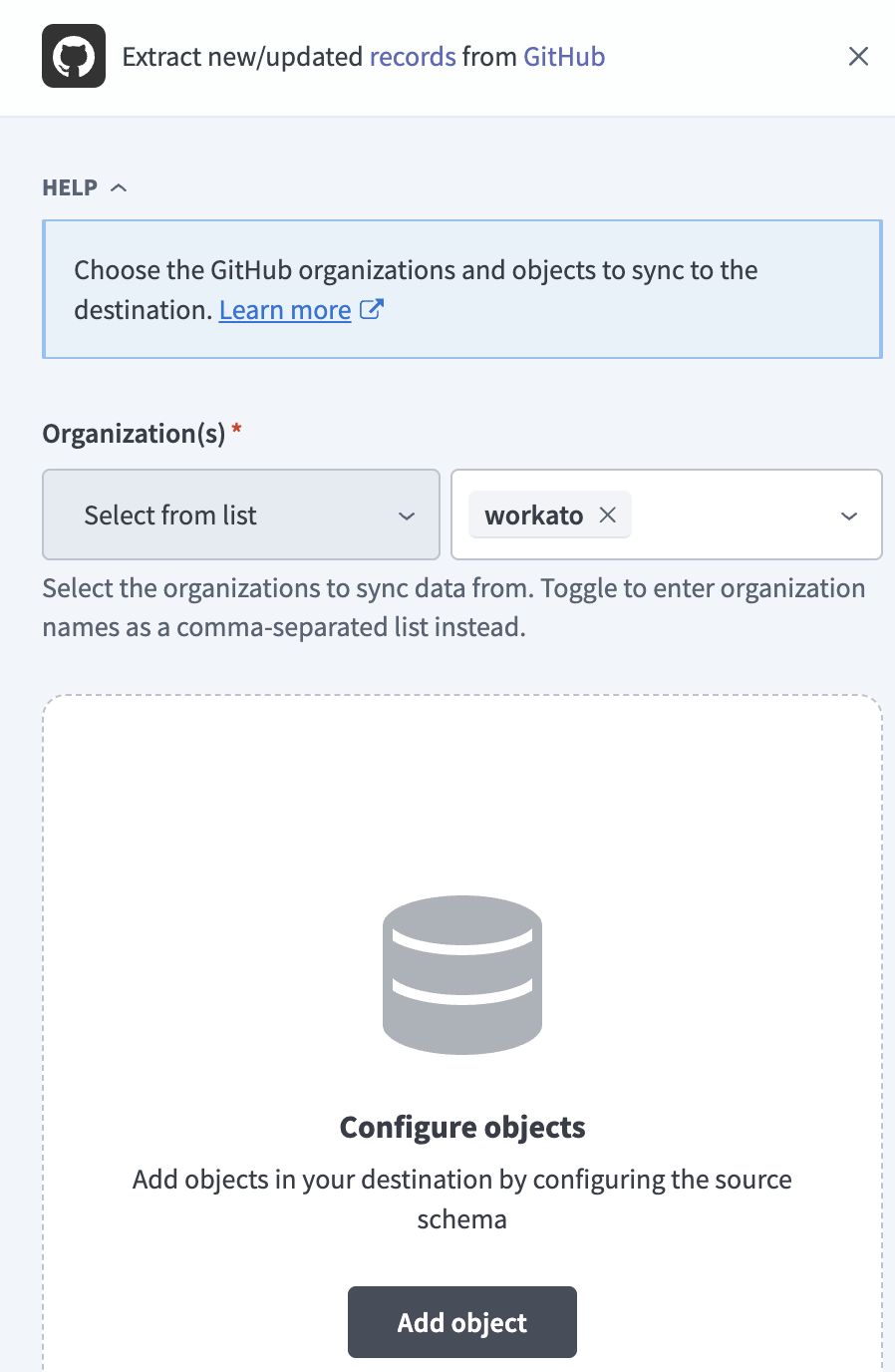
Click the Extract new/updated records from source app trigger. This trigger defines how the pipeline retrieves data from GitHub.
 Configure the Extract new/updated records from source app trigger
Use the Your Connected Source Apps drop-down menu to select GitHub.
Choose the GitHub connection you plan to use for this pipeline. Alternatively, click + New connection to create a new connection.
Enter one or more GitHub organization logins, separated by commas, in the Organizations field. Workato syncs only the repositories in these organizations that your connection can access, and doesn't expand the scope beyond the organizations you enter here.
Click Add object to open the Add new objects panel.
 Add objects
Search or browse the list of available GitHub objects, select the objects to sync, and click Add.
HIGH-VOLUME OBJECTS
The CommitFile and BranchCommitRelation objects re-read commit-level data in full on every sync and can generate a very large number of rows for repositories with long commit histories. Refer to High-volume objects require careful sync planning before you add either object.
Review and customize the schema for each selected object. The pipeline automatically fetches an object's schema when you select it. This ensures the destination matches the source.
Expand an object to view associated fields. Keep all fields selected to extract all available data, or deselect specific fields to exclude them from data extraction and schema replication.
Optional. Configure field-level data protection by expanding an object and choosing how to handle each field:
- Replicate as is: Data values at the source replicate identically to the destination.
- Hash: Hash sensitive data values in the field before syncing to your destination.
Workato recommends hashing personally identifiable information (PII) and other sensitive fields. Refer to Sensitive data handling for a list of fields that commonly contain PII.
Click Add object again to add more objects. Repeat this step to include additional GitHub objects in your pipeline.
Use the Choose how to handle schema changes drop-down menu to select a schema drift handling option:
- Auto-sync new fields: Automatically detects and syncs new fields added in the source.
- Block new fields: Keeps the schema fixed after the pipeline starts. You must add new fields manually. This option may cause the destination to fall out of sync if the source schema updates.
Refer to Schema replication and schema drift management for more information.
Optional. Enter a value in the Concurrency limit field to cap the number of concurrent operations. Leave the field blank to use the default quota set by Workato. The maximum value is 100.
Choose either a standard time-based schedule or define a custom cron expression in the Frequency field. This determines how often the pipeline syncs data from GitHub to the destination.
Supported objects
GitHub data pipelines sync data from the GitHub REST API, and from the GraphQL API for pull request reviews and releases. The following tables list the supported objects, grouped by category. Each object syncs as a separate table in your destination:
Organizations, repositories, and access
| Object | Sync modes | Delete tracking |
|---|---|---|
Repository | Full sync | Yes |
Team | Full sync | Yes |
TeamMember | Syncs with the parent Team object | Yes |
RepositoryTeam | Full sync | Yes |
User | Full sync | Yes |
Collaborator | Full sync | Yes |
Issues and pull requests
GitHub returns issues and pull requests from the same endpoint. Workato distinguishes them by checking for a pull_request field on each record, so the Issue object excludes any row shaped like a pull request:
| Object | Sync modes | Delete tracking |
|---|---|---|
Issue | Full sync, incremental | No |
IssueComment | Full sync, incremental | No |
IssueLabel | Syncs with the parent Issue object | No |
IssueAssignee | Syncs with the parent Issue object | No |
IssueEvent | Full sync | Yes |
Label | Full sync | Yes |
Milestone | Full sync | Yes |
PullRequest | Full sync | Yes |
PullRequestCommit | Syncs with the parent PullRequest object | Yes |
PullRequestReview | Syncs with the parent PullRequest object | Yes |
ReviewComment | Full sync, incremental | No |
RequestedReviewerHistory | Syncs with the parent PullRequest object | Yes |
Commits and repository content
| Object | Sync modes | Delete tracking |
|---|---|---|
Commit | Full sync, incremental | No |
CommitComment | Full sync | Yes |
CommitStatus | Syncs with the parent Commit object | No |
CommitCheckRun | Syncs with the parent Commit object | No |
Branch | Full sync | Yes |
BranchCommitRelation | Syncs with the parent Branch object | Yes |
Tag | Full sync | Yes |
RepositoryTopic | Syncs with the parent Repository object | Yes |
RepositoryLanguage | Syncs with the parent Repository object | Yes |
CommitFile | Syncs with the parent Commit object | No |
CommitFile and BranchCommitRelation are opt-in, high-volume objects. Refer to High-volume objects require careful sync planning before you add either object.
CI/CD and releases
| Object | Sync modes | Delete tracking |
|---|---|---|
Workflow | Full sync | Yes |
WorkflowRun | Full sync | Yes |
WorkflowRunJob | Syncs with the parent WorkflowRun object | Yes |
Deployment | Full sync | Yes |
DeploymentStatus | Syncs with the parent Deployment object | Yes |
Release | Syncs with the parent Repository object | Yes |
Engagement and security
| Object | Sync modes | Delete tracking |
|---|---|---|
Stargazer | Full sync | Yes |
SecurityAlert | Full sync | Yes |
SecurityAlert requires Dependabot to be enabled on the repository and the appropriate permission granted to your connection. Refer to Dependabot alerts require repository and permission setup for more information.
Sync modes
GitHub data pipelines support full sync and incremental sync. Refer to Supported objects to see the sync mode for each object.
Full sync
A full sync reads all available records from GitHub for the selected object on every run and overwrites the destination table.
Incremental sync
An incremental sync extracts only records GitHub reports as created or updated since the last successful run, using GitHub's since parameter as the cursor. Only Issue, IssueComment, Commit, and ReviewComment support incremental sync. Every other object, including objects that sync alongside a parent object such as IssueLabel or WorkflowRunJob, syncs in full.
Delete tracking
Workato compares each full sync against the previous run and marks records that no longer exist in GitHub as deleted in your destination. This applies to every full-sync object.
GitHub's since parameter doesn't report deletions, so Issue, IssueComment, Commit, and ReviewComment don't track deletes during incremental sync. A record deleted in GitHub remains in your destination for these objects until you run a full sync. Refer to Incremental objects do not track deletions for more information.
Schema and data type handling
The following considerations apply to schema and data types when you sync data from GitHub:
Nested fields
GitHub responses include nested objects and arrays, such as the base and head branch references on a pull request or the raw commit metadata on a commit. Workato stores these as JSON columns rather than flattening them into individual columns.
Workato syncs JSON fields to the destination's native JSON type, such as VARIANT in Snowflake. Workato serializes JSON fields as strings if the destination doesn't support a native JSON type.
Custom properties are not synced
GitHub Enterprise Cloud and GitHub Enterprise Server support repository-level custom properties. Workato doesn't sync custom properties in this release. Only the standard fields listed for each object are available.
Sensitive data handling
GitHub objects can contain personally identifiable information (PII). The following objects commonly contain sensitive fields:
| Object | Sensitive fields |
|---|---|
Commit | commit.author.name, commit.author.email, commit.committer.name, commit.committer.email |
Issue | user.login, body, assignees |
IssueComment | user.login, body |
PullRequest | user.login, body, head.label, merge_commit_sha |
ReviewComment | user.login, body |
User | login, name, email, avatar_url |
Collaborator | login, email |
The body field on Issue, IssueComment, PullRequest, and ReviewComment is free text. Contributors can paste account information, credentials, or other customer data into issue descriptions, pull request descriptions, and comments, so these fields carry the highest risk.
Use the Hash option in field-level data protection during pipeline configuration to protect PII before it reaches your destination. Refer to the Configure the pipeline steps for more information.
Limitations
The following limitations apply when you use GitHub as a data pipeline source:
Incremental objects do not track deletions
Issue, IssueComment, Commit, and ReviewComment sync incrementally using GitHub's since parameter, which doesn't report deletions. A record deleted in GitHub remains in your destination for these objects until you run a full sync. Refer to Delete tracking for more information.
You can't filter to specific repositories
The pipeline syncs every repository within your selected organizations that your connection can access. You can't include or exclude individual repositories. Personal repositories that don't belong to an organization aren't synced.
High-volume objects require careful sync planning
The CommitFile and BranchCommitRelation objects can generate a high volume of records. CommitFile requires one API call per commit to retrieve file-level diff data, with no bulk endpoint available.
Dependabot alerts require repository and permission setup
The SecurityAlert object syncs Dependabot security alerts. It returns no rows for repositories where Dependabot is disabled, and the sync fails for that object if your connection lacks the required permission. Refer to Required permissions for the scope you need to grant.
GitHub Enterprise Server version differences
GitHub Enterprise Server can run several versions behind GitHub.com. Some objects and fields available on GitHub.com may not be available on your GitHub Enterprise Server instance until you upgrade.
Minimum sync frequency
The minimum supported sync interval is 15 minutes.
Last updated: