Configure Google Analytics as a data pipeline source
Set up Google Analytics as a data pipeline source to extract prebuilt Google Analytics 4 (GA4) report data and account and property metadata from the Google Analytics Data API and Admin API and sync it to your destination.
Use this guide to review the features and prerequisites, connect Google Analytics as a data pipeline source, configure the pipeline, and understand the supported objects, sync modes, schema handling, sensitive data handling, and known limitations.
Features supported
The following features are supported when you use Google Analytics as a pipeline source:
- Cloud connectivity: Connects to the Google Analytics Data API and Admin API over HTTPS. An on-prem agent isn't required.
- Report-based sync: Objects are prebuilt Google Analytics 4 (GA4) reports, aggregated results grouped by dimensions such as date, rather than row-level records. Refer to Supported objects for more information.
- Automatic multi-property sync: Every GA4 property your connection can access syncs automatically. There's no property picker in Workato. Refer to Prerequisites for more information.
- Object-level selection: Choose from the supported prebuilt reports and account and property metadata tables. Refer to Supported objects for the full list.
- Incremental sync: All report tables sync incrementally by constraining the report's date range. Refer to Sync modes for more information.
- Schema drift detection and handling: Detect and apply schema changes automatically with Auto-sync new fields, or keep the schema fixed with Block new fields.
- Field-level data protection: Hash or replicate sensitive fields as is before the data reaches your destination.
- Configurable sync frequency: Schedule syncs on a time-based interval or with a cron expression. The minimum supported interval is 15 minutes.
Prerequisites
Complete the following requirements before you connect Google Analytics as a data pipeline source.
- A Google Cloud project with the Google Analytics Data API and Google Analytics Admin API enabled, an OAuth 2.0 client for that project, and a custom OAuth profile built from that client's ID and secret. Google Analytics data pipelines don't support a default Workato-managed app, so a custom OAuth profile is required, not optional. Refer to Connect to Google Analytics for setup steps.
- A Google account with at least Viewer access to every GA4 property you want to sync, granted in Google Analytics under Admin > Property Access Management. Workato automatically discovers and syncs every property this account can access. You can't select individual properties in Workato. Refer to Every accessible property syncs automatically for more information.
REQUIRED PERMISSIONS
Workato requests the https://www.googleapis.com/auth/analytics.readonly scope. This single read-only scope covers both the Data API and Admin API.
SEPARATE FROM THE GOOGLE ANALYTICS RECIPE CONNECTOR
The Google Analytics data pipeline source is a distinct connector from the Google Analytics connector you use in recipes, even though both connect to the same Google Analytics account. The recipe connector uses a Workato-managed OAuth app, and you authorize it by entering a Client ID and Client secret directly on the connection. The data pipeline source doesn't support a Workato-managed app, so you must register your own Google Cloud OAuth app and build a custom OAuth profile from it, even if you already have a working Google Analytics recipe connection.
Supported connection types
Google Analytics data pipelines support OAuth 2.0 authentication:
- OAuth 2.0: Authorize Workato using a custom OAuth profile built from a Google Cloud OAuth app that you create. Google Analytics data pipelines don't support a default Workato-managed app, so you must register your own OAuth client and create a custom OAuth profile before you connect. Refer to Create a Google Cloud OAuth app for setup steps.
Connect to Google Analytics
Complete the following steps to connect Google Analytics as a data pipeline source.
Connect to Google Analytics
Create a Google Cloud OAuth app
You must create a Google Cloud OAuth app and a Workato custom OAuth profile before you connect Google Analytics as a data pipeline source.
Sign in to your Google Cloud Console and select or create a project.
Use API & Services > Library to search for and enable the Google Analytics Data API and the Google Analytics Admin API.
Go to API & Services > Credentials and click Create Credentials > OAuth Client ID.
If prompted, configure the OAuth consent screen, then select Web application as the Application type.
Enter https://www.workato.com/oauth/callback in the Authorized redirect URIs field, then click Create.
Copy the Client ID and Client secret and store them securely.
Go to Tools > Custom OAuth profiles in Workato and click + New custom profile.
Select Google Analytics as the connector, enter your client ID and client secret, and save the profile. Refer to Custom OAuth profiles for more information.
Connect to Google Analytics with OAuth 2.0
Select Create > Connection or press C twice.
Search for and select Google Analytics on the New connection page.
Enter a name in the Connection name field.
Use the Location drop-down menu to select the project where you plan to store the connection.
Use the Custom OAuth profile drop-down menu to select the custom OAuth profile you created for Google Analytics. This field is required. Google Analytics data pipelines don't support a default Workato-managed app.
Select Connect to open Google's sign-in window.
Enter your credentials in the Google sign-in window to authenticate your account.
Review the permissions that Workato requests, then select Continue to approve them and complete the connection. Workato displays a success message when the connection is established.
Configure the pipeline
Complete the following steps to configure Google Analytics as your data pipeline source:
Select Create > Data pipeline or press C+I.
Enter a name for the data pipeline in the Data pipeline name field.
 Data pipeline setup
Use the Location drop-down menu to select the project where you plan to store the data pipeline.
Click Start building.
Click the Extract new/updated records from source app trigger. This trigger defines how the pipeline retrieves data from Google Analytics.
 Configure the Extract new/updated records from source app trigger
Use the Your Connected Source Apps drop-down menu to select Google Analytics.
Choose the Google Analytics connection you plan to use for this pipeline. Alternatively, click + New connection to create a new connection.
Click Add object to open the Add new objects panel.
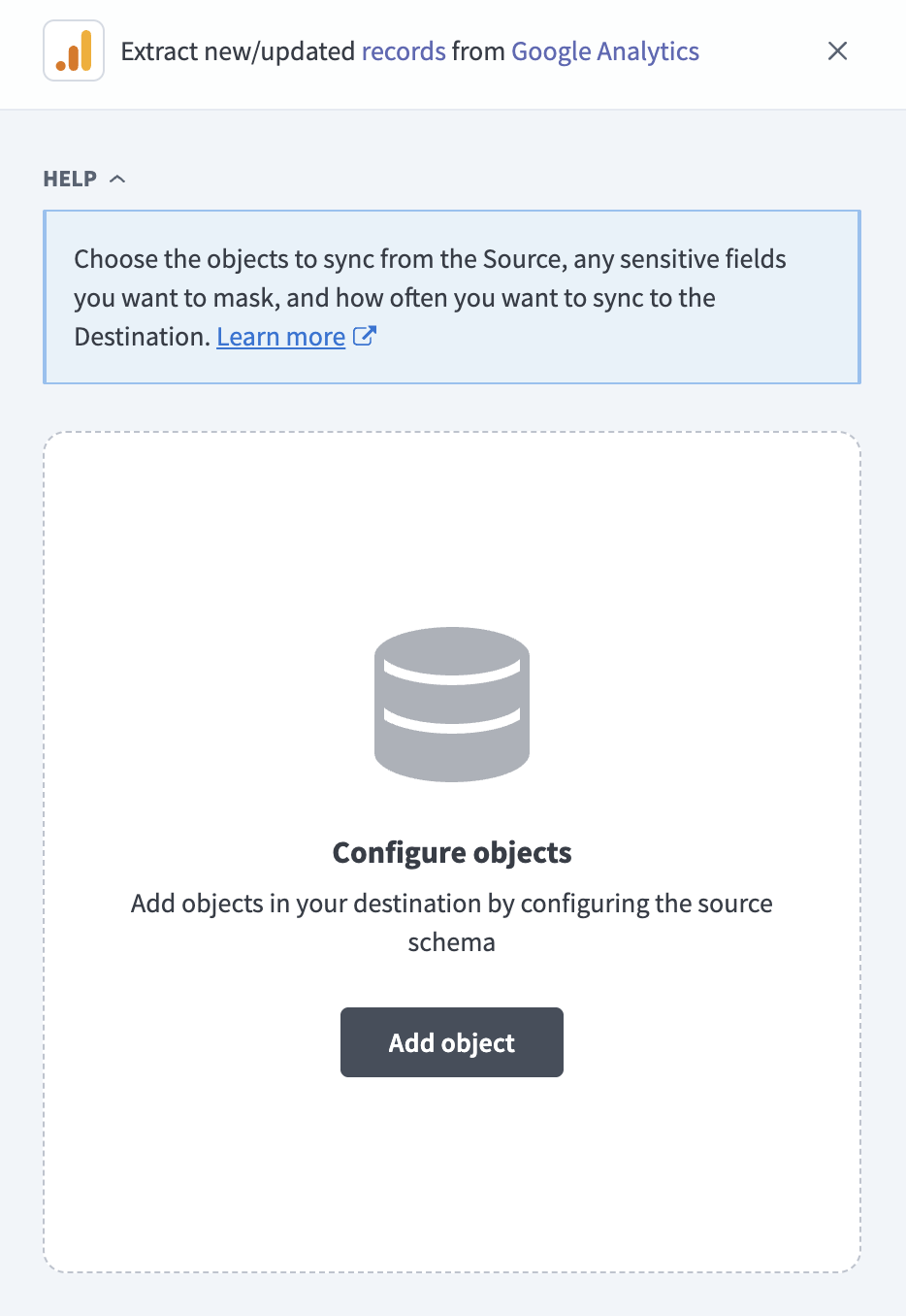 Add Google Analytics objects
Search or browse the list of available prebuilt reports and account and property metadata tables, select the objects you plan to sync, and click Add.
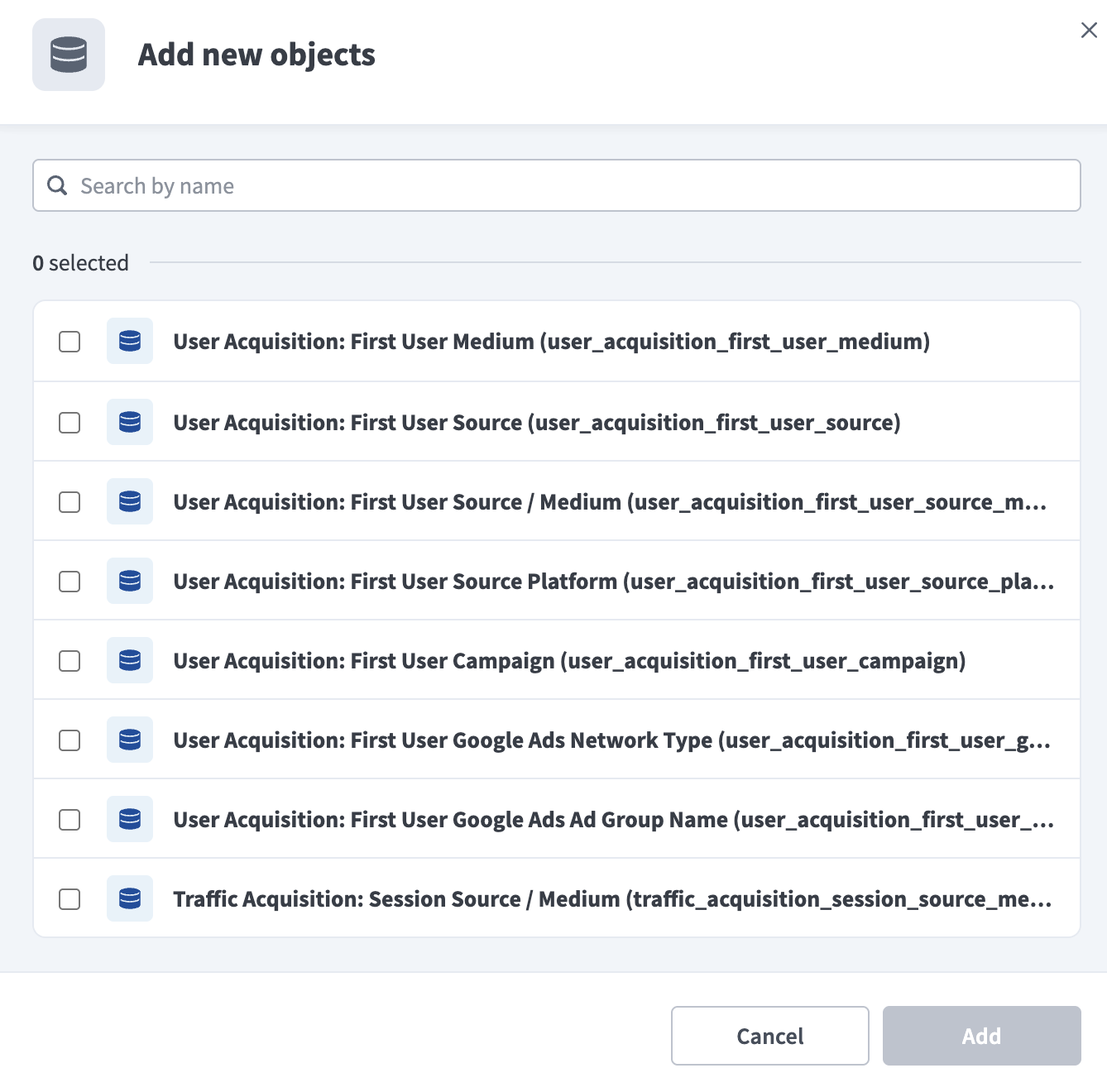 Select Google Analytics objects
CUSTOM REPORTS AREN'T AVAILABLE
You can only select from the prebuilt reports and metadata tables listed in Supported objects. You can't define your own combination of dimensions and metrics.
Review and customize the schema for each selected object. The pipeline automatically fetches an object's schema when you select it. This ensures the destination matches the source.
Expand an object to view associated fields. Keep all fields selected to extract all available data, or deselect specific fields to exclude them from data extraction and schema replication.
Optional. Configure field-level data protection by expanding an object and choosing how to handle each field:
- Replicate as is: Data values at the source replicate identically to the destination.
- Hash: Hash sensitive data values in the field before syncing to your destination.
Workato recommends hashing personally identifiable information (PII) and other sensitive fields. Refer to Sensitive data handling for a list of fields that commonly contain PII.
Click Add object again to add more objects. Repeat this step to include additional Google Analytics objects in your pipeline.
Use the Choose how to handle schema changes drop-down menu to select a schema drift handling option:
- Auto-sync new fields: Automatically detects and syncs new fields added in the source.
- Block new fields: Keeps the schema fixed after the pipeline starts. You must add new fields manually. This option may cause the destination to fall out of sync if the source schema updates.
Refer to Schema replication and schema drift management for more information.
Optional. Enter a value in the Concurrency limit field to cap the number of concurrent operations. Leave the field blank to use the default quota set by Workato. The maximum value is 100.
Google Analytics pipelines run at no more than 5 concurrent operations regardless of this setting, so a value above 5 has no further effect.
Choose either a standard time-based schedule or define a custom cron expression in the Frequency field. This determines how often the pipeline syncs data from Google Analytics to the destination.
Supported objects
Google Analytics data pipelines sync data from the Google Analytics Data API (prebuilt GA4 reports) and Admin API (account and property metadata). The following tables list the supported objects, grouped by category. Each object syncs as a separate table in your destination.
Every report table also includes a property column identifying which GA4 property the row belongs to, because a single pipeline syncs every property your connection can access. Refer to Synthetic columns for more information.
User acquisition reports
The following reports break down new users by their first-touch acquisition channel.
| Object | Sync mode | Delete tracking |
|---|---|---|
User Acquisition: First User Medium | Incremental | No |
User Acquisition: First User Source | Incremental | No |
User Acquisition: First User Source / Medium | Incremental | No |
User Acquisition: First User Source Platform | Incremental | No |
User Acquisition: First User Campaign | Incremental | No |
User Acquisition: First User Google Ads Network Type | Incremental | No |
User Acquisition: First User Google Ads Ad Group Name | Incremental | No |
User Acquisition: First User Google Ads Network Type and User Acquisition: First User Google Ads Ad Group Name only return data for properties linked to a Google Ads account.
Traffic acquisition reports
The following reports break down sessions by the channel that generated them, regardless of when the user was first acquired.
| Object | Sync mode | Delete tracking |
|---|---|---|
Traffic Acquisition: Session Source / Medium | Incremental | No |
Traffic Acquisition: Session Medium | Incremental | No |
Traffic Acquisition: Session Source | Incremental | No |
Traffic Acquisition: Session Campaign | Incremental | No |
Traffic Acquisition: Session Default Channel Grouping | Incremental | No |
Traffic Acquisition: Session Source Platform | Incremental | No |
Engagement reports
The following reports cover event, conversion, and page-level engagement.
| Object | Sync mode | Delete tracking |
|---|---|---|
Engagement: Events Report | Incremental | No |
Engagement: Key Events Report | Incremental | No |
Engagement: Pages by Title and Screen Class | Incremental | No |
Engagement: Pages by Path Report | Incremental | No |
Engagement: Pages by Title and Screen Name | Incremental | No |
Engagement: Content Group | Incremental | No |
Engagement: Pages by Path Report has a high cardinality of unique page_path values, which increases the volume of data returned for properties with many distinct URLs.
Ecommerce reports
The following reports break down ecommerce activity by item.
| Object | Sync mode | Delete tracking |
|---|---|---|
Ecommerce: Item Name | Incremental | No |
Ecommerce: Item ID | Incremental | No |
Ecommerce: Item Category (Combined) | Incremental | No |
Ecommerce: Item Category | Incremental | No |
Ecommerce: Item Brand | Incremental | No |
Publisher Ads reports
The following reports return AdSense and Ad Manager revenue data. They only return data for properties linked to an AdSense or Ad Manager account.
| Object | Sync mode | Delete tracking |
|---|---|---|
Publisher Ads: Ad Unit | Incremental | No |
Publisher Ads: Page Path | Incremental | No |
Publisher Ads: Ad Format | Incremental | No |
Publisher Ads: Ad Source | Incremental | No |
Demographics reports
The following reports break down users by location, language, age, and gender.
| Object | Sync mode | Delete tracking |
|---|---|---|
Demographics: Country | Incremental | No |
Demographics: Region | Incremental | No |
Demographics: City | Incremental | No |
Demographics: Language | Incremental | No |
Demographics: Age | Incremental | No |
Demographics: Gender | Incremental | No |
Demographics: Age and Demographics: Gender depend on Google Signals and are subject to additional thresholding. Refer to Demographic data may be incomplete without Google Signals for more information.
Technology reports
The following reports break down users by the browser, device, and operating system they used.
| Object | Sync mode | Delete tracking |
|---|---|---|
Technology: Browser | Incremental | No |
Technology: Device Category | Incremental | No |
Technology: Operating System | Incremental | No |
Technology: Platform | Incremental | No |
Technology: App Version | Incremental | No |
Account and property metadata
The following tables sync configuration metadata rather than analytics data. Workato uses this metadata to resolve identifiers such as custom dimension names in report data.
| Object | Sync mode | Delete tracking |
|---|---|---|
Accounts | Full sync | Yes (destination-inferred) |
Properties | Full sync | Yes (destination-inferred) |
Data Streams | Full sync | Yes (destination-inferred) |
Custom Dimensions | Full sync | Yes (destination-inferred) |
Custom Metrics | Full sync | Yes (destination-inferred) |
Key Events | Full sync | Yes (destination-inferred) |
Google Ads Links | Full sync | Yes (destination-inferred) |
Sync modes
Google Analytics data pipelines support full sync and incremental sync. Report tables and the account and property metadata tables use different sync mechanisms.
Full sync
A full sync re-reads the complete list and replaces the destination table on every run. Accounts, Properties, Data Streams, Custom Dimensions, Custom Metrics, Key Events, and Google Ads Links use full sync, because the Google Analytics Admin API doesn't expose a way to filter these resources by last-modified time.
Incremental sync
Google Analytics 4 (GA4) report tables aren't row-level records with a modified-time field. Each report is a query over Google's reporting data, and incremental sync means constraining the query's date range rather than filtering by a per-record cursor:
- Processing lookback: GA4 can take 24–72 hours to finalize a day's data, so every sync stops 3 days short of today. Each date syncs only after it ages past that floor.
- Rollback window: Every recurring incremental sync also re-fetches roughly 30 days of data immediately before the previous sync's cutoff date, to capture later attribution updates, because GA4 can keep crediting conversions to earlier dates as its attribution models process new data. Metric values for recent dates can change between runs as a result. This window doesn't apply to the first, historical sync.
- Historical sync: The first sync walks backward one day at a time from your configured historical start date up to three days before the current date. Refer to Historical data retention for how far back GA4 can return data.
Refer to the Supported objects tables to see the sync mode for each object.
Delete tracking
Report tables don't support delete tracking. They're aggregated and immutable after they're finalized, so there's no concept of a deleted row.
Accounts, Properties, Data Streams, Custom Dimensions, Custom Metrics, Key Events, and Google Ads Links sync in full on every run. Because these are full-sync objects, the destination compares each run against the previous one and marks records that no longer appear as deleted, even though the Admin API itself exposes no deletion signal for them.
Schema and data type handling
The following considerations apply to schema and data types when you sync data from Google Analytics.
Metric data types
GA4 classifies each metric as an integer or a decimal type, and Workato maps them accordingly: integer-classified metrics (such as sessions, engaged_sessions, and event_count) sync as whole numbers, and all other metrics sync as decimals. key_events is classified as a decimal metric type in the GA4 API even though it represents a count, so it syncs as a decimal column, not a whole number.
Sentinel dimension values
GA4 can return (not set) when a dimension has no recorded value, and (other) when a report has more unique dimension combinations than Google returns individually. Workato preserves both values as-is in the dimension column. (other) rows still carry valid, aggregated metric totals, so don't exclude them from downstream calculations.
Dates
The date dimension returns from the GA4 API as YYYYMMDD. Workato converts it to a YYYY-MM-DD date column in your destination.
Synthetic columns
Workato adds the following synthetic columns to destination tables: Google Analytics report data is aggregated. GA4's Data API doesn't expose individual user-level records. However, the following objects commonly contain sensitive or potentially identifying fields:
| Column | Type | Purpose |
|---|---|---|
pk | String | Synthetic primary key for report tables, generated from the GA4 property ID and every dimension value in the row, because GA4 report responses don't return a natural per-row identifier. |
property | String | The GA4 property ID the row belongs to. Added to every report table because a single pipeline syncs every property your connection can access. Refer to Every accessible property syncs automatically for more information. |
_workato_is_deleted | Boolean | Set to true for Accounts, Properties, Data Streams, Custom Dimensions, Custom Metrics, Key Events, and Google Ads Links records that no longer appear in a later full sync. Refer to Delete tracking for more information. |
_workato_run_id | String | Identifies the run that inserted each record. Use this column to trace unexpected data, isolate specific runs, and correlate data with logs. |
Sensitive data handling
Google Analytics report data is aggregated. GA4's Data API doesn't expose individual user-level records. However, the following objects commonly contain sensitive or potentially identifying fields:
| Object | Sensitive fields |
|---|---|
Demographics: Age | user_age_bracket |
Demographics: Gender | user_gender |
Engagement: Pages by Path Report | page_path (can embed personally identifiable information in URL query strings) |
user_age_bracket and user_gender are subject to Google's thresholding. Refer to Demographic data may be incomplete without Google Signals for more information.
Use the Hash option in field-level data protection during pipeline configuration to protect PII before it reaches your destination. Refer to the Configure the pipeline steps for more information.
Limitations
The following limitations apply when you use Google Analytics as a data pipeline source.
Every accessible property syncs automatically
Workato discovers and syncs every GA4 property that the connection's Google account can access. You can't limit a pipeline to specific properties in Workato. To exclude a property from syncing, remove the connection's access to that property in Google Analytics under Admin > Property Access Management.
Historical data retention
A historical start date beyond your GA4 property's data retention window doesn't return an error. GA4 returns empty rows for dates outside the retention window instead. Workato recommends a historical start date no more than 13 months in the past.
Real-time reporting is not available
Google Analytics pipelines sync on the schedule you configure. They don't use GA4's real-time reporting API, so data always reflects the processing lookback and rollback window described in Incremental sync.
Demographic data may be incomplete without Google Signals
The Demographics: Age and Demographics: Gender reports depend on Google Signals data. Google enforces a separate rate limit of 120 requests per hour for these dimensions, and can withhold values entirely for a property that falls below Google's reporting threshold.
Minimum sync frequency
The minimum supported sync interval is 15 minutes.
Last updated: