Configure Klaviyo as a data pipeline source
Set up Klaviyo as a data pipeline source to extract audience, campaign, flow, catalog, and engagement records into your destination.
Use this guide to generate a Klaviyo private API key, set up a connection, configure your pipeline, add objects, review sync behavior, and understand known limitations.
Features supported
The following features are supported when you use Klaviyo as a pipeline source:
- Cloud connectivity: Connect to Klaviyo over HTTPS through
https://a.klaviyo.com. On-prem agents aren't required. - Full sync and incremental sync: Supports full sync and incremental sync modes, configured per object. Incremental sync uses a per-object timestamp cursor. Refer to Sync modes for more information.
- Object-level selection: Select from 33 Klaviyo objects, including
Profile,Event,Campaign,Flow, catalog, tag, and reporting objects, to sync as separate tables in your destination. Refer to Supported objects for the full list. - Schema drift detection and handling: Detect and apply schema changes automatically with Auto-sync new fields, or keep the schema fixed with Block new fields.
- Field-level data protection: Hash or replicate sensitive fields as is before the data reaches your destination.
- Configurable sync frequency: Schedule syncs on a time-based interval or with a cron expression. The minimum supported interval is 15 minutes.
Prerequisites
Connecting Klaviyo as a data pipeline source requires:
- A Klaviyo account
- Credentials for your chosen authentication method:
- API key: A Klaviyo private API key with read permission for the resources you plan to sync. Refer to Generate a Klaviyo private API key for setup steps.
- OAuth 2.0: A Klaviyo integration you manage that Workato can authenticate through.
REQUIRED PERMISSIONS
Workato recommends using a Read-only private API key, or a Custom key scoped to read-only access for the resources you plan to sync, if you use API key authentication. Klaviyo private keys default to Full access, which includes write permissions Workato doesn't need for data pipeline source configuration.
Refer to Recommended permissions for the full list of scope categories.
Supported connection types
Klaviyo data pipelines support the following authentication methods:
- API key: Provide a private API key generated from your Klaviyo account. Refer to Generate a Klaviyo private API key for setup steps.
- OAuth 2.0: Connect through a Klaviyo integration you manage. Klaviyo supports Custom OAuth only for OAuth 2.0 authentication. You must configure a Klaviyo OAuth app and a Custom OAuth profile before you connect. Workato doesn't provide a managed Klaviyo OAuth app.
Generate a Klaviyo private API key
Generate the key in Klaviyo before you create the connection in Workato, if you connect with API key authentication. Skip this section if you connect using OAuth 2.0 authentication.
Generate a Klaviyo private API key
Sign in to your Klaviyo account.
Go to Settings > Account > API Keys and click Create Private API Key.
Enter a name for the key.
Select Read-only to grant read access, or select Custom and grant Read permission for the categories listed in Recommended permissions.
Click Create, then copy the generated key immediately and store it in a secure location. You need this value to create the Workato connection.
Klaviyo private API keys begin with pk_.
COPY THE KEY IMMEDIATELY
Klaviyo doesn't let you view a private API key again after you create it.
Refer to Klaviyo's Create a private API key guide for more information.
Recommended permissions
Grant Read access for the following categories in the scope picker to sync the supported Klaviyo objects:
| Klaviyo scope category | Workato objects |
|---|---|
| Accounts | Account |
| Campaigns | Campaign, Campaign Message, Campaign Tracking UTM Param, Campaign Values Report |
| Catalogs | Catalog Item, Catalog Variant, Catalog Category |
| Coupons | Coupon, Coupon Code |
| Data Privacy | Global Exclusion, List Exclusion |
| Events | Event |
| Flows | Flow, Flow Action, Flow Message, Flow Series Report |
| Forms | Form, Form Version |
| Lists | List, List Membership |
| Metrics | Metric |
| Profiles | Profile |
| Reviews | Review |
| Segments | Segment, Segment Membership |
| Tags | Tag, Tag Group, Campaign Tag, Flow Tag, List Tag, Segment Tag |
| Templates | Email Template |
Campaign Tag, Flow Tag, List Tag, and Segment Tag also need read access to their parent object's category (Campaigns, Flows, Lists, or Segments) to look up the parent records.
Global Exclusion and List Exclusion also need the Profiles category, because Klaviyo retrieves them through the Profiles API.
Klaviyo doesn't have a dedicated reporting category: Campaign Values Report uses the Campaigns category, and Flow Series Report uses the Flows category.
Connect to Klaviyo
Complete the following steps to connect Klaviyo as a data pipeline source:
Connect to Klaviyo
Configure the pipeline
Complete the following steps to configure Klaviyo as your data pipeline source:
Select Create > Data pipeline.
Enter a name for the data pipeline in the Data pipeline name field.
Use the Location drop-down menu to select the project where you plan to store the data pipeline.
Click Start building.
Click the Extract new/updated records from source app trigger. This trigger defines how the pipeline retrieves data from Klaviyo.
Use the Your Connected Source Apps drop-down menu to select Klaviyo.
Choose the Klaviyo connection you plan to use for this pipeline. Alternatively, click + New connection to create a new connection.
Click Add object to open the Add new objects panel.
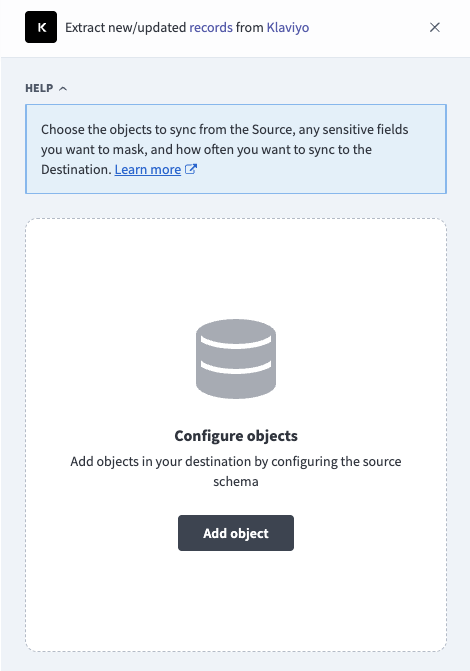 Add objects
Search or browse the list of available Klaviyo objects, select the objects you plan to sync, and click Add.
FULL SYNC ONLY OBJECTS
Objects without a reliable timestamp field, such as Campaign and Metric, are labeled Full sync in the object list and always sync in full. Refer to Sync modes for more information.
Optional. Click the gear icon next to an object to open its Sync mode settings. Use the Sync mode drop-down menu to select Full sync or Incremental, then click Save.
The sync mode defaults to Full sync for objects without a usable cursor. Refer to Sync modes for more information.
Review and customize the schema for each selected object. The pipeline automatically fetches an object's schema when you select it. This ensures the destination matches the source.
Expand an object to view associated fields. Keep all fields selected to extract all available data, or deselect specific fields to exclude them from data extraction and schema replication.
Optional. Configure field-level data protection by expanding an object and choosing how to handle each field:
- Replicate as is: Data values at the source replicate identically to the destination.
- Hash: Hash sensitive data values in the field before syncing to your destination.
Workato recommends hashing personally identifiable information (PII) and other sensitive fields. Refer to Sensitive data handling for a list of fields that commonly contain PII.
Click Add object again to add more objects. Repeat the preceding steps for each additional object to configure its sync mode, schema, and field-level data protection.
Use the Choose how to handle schema changes drop-down menu to select a schema drift handling option:
- Auto-sync new fields: Automatically detects and syncs new fields added in the source.
- Block new fields: Keeps the schema fixed after the pipeline starts. You must add new fields manually.
Optional. Enter a value in the Concurrency limit field to cap the number of concurrent operations. Klaviyo extraction is effectively serialized to protect your shared API quota, so a higher concurrency value doesn't speed up this source.
Choose either a standard time-based schedule or define a custom cron expression in the Frequency field. This determines how often the pipeline syncs data from Klaviyo to the destination.
Supported objects
Klaviyo data pipelines sync data from Klaviyo's REST API. The following tables list the supported objects, grouped by category. Each object syncs as a separate table in your destination. Klaviyo custom objects and custom object records aren't currently supported.
Audience objects
| Object | Sync mode(s) | Delete tracking |
|---|---|---|
Profile | Full sync, incremental | No |
List | Full sync, incremental | No |
List Membership | Full sync, incremental | No |
Segment | Full sync, incremental | No |
Segment Membership | Full sync, incremental | No |
Global Exclusion | Full sync, incremental | N/A |
List Exclusion | Full sync, incremental | N/A |
List Membership and Segment Membership sync each profile's membership in a List or Segment. Global Exclusion and List Exclusion sync a profile's suppression from email marketing account-wide or for a specific list.
Campaigns and flows
| Object | Sync mode(s) | Delete tracking |
|---|---|---|
Campaign | Full sync | No |
Campaign Message | Syncs with the parent Campaign object | No |
Campaign Tracking UTM Param | Syncs with the parent Campaign object | No |
Flow | Full sync, incremental | No |
Flow Action | Full sync, incremental | No |
Flow Message | Full sync, incremental | No |
Email Template | Full sync, incremental | No |
Catalog objects
| Object | Sync mode(s) | Delete tracking |
|---|---|---|
Catalog Item | Full sync, incremental | No |
Catalog Variant | Syncs with the parent Catalog Item object | No |
Catalog Category | Full sync | No |
Coupon objects
| Object | Sync mode(s) | Delete tracking |
|---|---|---|
Coupon | Full sync | No |
Coupon Code | Syncs with the parent Coupon object | No |
Tag objects
| Object | Sync mode(s) | Delete tracking |
|---|---|---|
Tag | Full sync | No |
Tag Group | Full sync | No |
Campaign Tag | Syncs with the parent Campaign object | No |
Flow Tag | Syncs with the parent Flow object | No |
List Tag | Syncs with the parent List object | No |
Segment Tag | Syncs with the parent Segment object | No |
Forms and reviews
| Object | Sync mode(s) | Delete tracking |
|---|---|---|
Form | Full sync | No |
Form Version | Full sync, incremental | No |
Review | Full sync, incremental | No |
Reporting objects
Campaign Values Report and Flow Series Report are opt-in. Configure one or more Klaviyo metric IDs on your connection to enable these objects. Workato syncs empty tables for both objects, without calling Klaviyo's Reporting API, if you don't configure any metric IDs.
| Object | Sync mode(s) | Delete tracking |
|---|---|---|
Campaign Values Report | Full sync | N/A |
Flow Series Report | Full sync | N/A |
Refer to Limitations for the account-wide request cap that applies to these objects.
Account and engagement objects
| Object | Sync mode(s) | Delete tracking |
|---|---|---|
Account | Full sync | No |
Event | Append-only | N/A |
Metric | Full sync | No |
Account always syncs a single record for your Klaviyo account.
Sync modes
Klaviyo data pipelines support full sync and incremental sync. The sync mode is configured per object when you add it to your pipeline.
Full sync
A full sync reads all available records for the selected object from Klaviyo and replaces the record set in your destination table.
Incremental sync
An incremental sync extracts only new or changed records since the last successful run, using a per-object timestamp cursor, such as updated on Profile or joined_group_at on List Membership. Objects without a reliable timestamp field, such as Campaign, Metric, and the other objects marked Full sync in the Supported objects tables, sync only in full sync mode. Event is append-only. Workato applies a 30 minute overlap on each incremental run to capture late-arriving events, so events in that overlap window can be re-emitted. Your destination's upsert behavior deduplicates re-emitted events by event ID.
Delete tracking
Workato doesn't currently detect deleted records for any Klaviyo object. A record deleted in Klaviyo still appears in your destination until you remove it manually or reload the object with a full sync.
Global Exclusion and List Exclusion are an exception to this general behavior. Each record represents a profile's current suppression from email marketing, so the record itself is the signal, rather than a separate delete event.
Schema and data type handling
The following considerations apply to schema and data types when you sync data from Klaviyo:
Nested and list-type fields
Klaviyo objects with nested attributes or arrays, such as Profile.properties, Event.event_properties, Campaign.tracking_options, Catalog Item.custom_metadata, and the statistics and date_times fields on the reporting objects, are stored as a single JSON column in your destination. Workato doesn't flatten these into individual columns.
Workato syncs JSON fields to the destination's native JSON type, such as VARIANT in Snowflake. Workato serializes JSON fields as strings if the destination doesn't support a native JSON type.
Tenant-specific custom attributes on Profile and Event stay inside the packed properties and event_properties JSON columns. They don't surface as newly discovered top-level columns, even with Auto-sync new fields enabled.
Timestamps
Klaviyo returns timestamps in ISO 8601 format (UTC). Workato preserves these values as-is in the destination.
Sensitive data handling
Klaviyo objects can contain personally identifiable information (PII). The following objects commonly contain sensitive fields:
| Object | Sensitive fields |
|---|---|
Profile | email, phone_number, first_name, last_name, location, organization |
Global Exclusion | email, phone_number, first_name, last_name, location, organization |
List Exclusion | email, phone_number, first_name, last_name, location, organization |
Review | email, author |
Account | contact_information |
Use the Hash option in field-level data protection during pipeline configuration to protect PII before it reaches your destination. Refer to the Configure the pipeline steps for more information.
Limitations
The following limitations apply when you use Klaviyo as a data pipeline source:
Delete tracking isn't currently supported
Workato doesn't detect deleted records for any Klaviyo object. Reconcile or remove the corresponding row in your destination manually after you delete a record in Klaviyo. Refer to Delete tracking for more information.
Some destination tables include a _workato_is_deleted column for schema compatibility with other Workato connectors. This column is always false in the current release. Deletion inference isn't available yet.
Archived flows aren't synced
The Flow object excludes archived flows, matching Klaviyo's own default behavior. Reactivate a flow in Klaviyo if you need it to appear in your pipeline.
Predictive analytics fields aren't included on Profile
Profile doesn't include Klaviyo's predictive analytics fields, such as predicted lifetime value or churn probability.
Custom objects aren't supported
The Klaviyo data pipeline source doesn't currently support Klaviyo custom objects or custom object records. This limitation doesn't apply to custom attributes stored in the Profile.properties and Event.event_properties JSON columns.
Reporting objects share Klaviyo's account-wide reporting cap
Klaviyo enforces an account-wide cap of approximately 225 reporting requests per day. This cap is shared with any other tool that calls Klaviyo's Reporting API from the same account, including other integrations. Campaign Values Report and Flow Series Report consume this cap. Refer to Reporting objects for setup requirements.
Minimum sync frequency
The minimum supported sync interval is 15 minutes.
Last updated: