Configure Pendo as a data pipeline source
Set up Pendo as a data pipeline source to extract and sync product analytics records, such as visitors, accounts, guides, and usage events, to your destination.
Use this guide to set up a connection, configure your pipeline, add objects, review sync behavior, and understand known limitations.
Features supported
The following features are supported when you use Pendo as a pipeline source:
- Cloud connectivity: Connect to the Pendo API over HTTPS. On-prem agents aren't required.
- Regional data centers: Connect to Pendo subscriptions hosted in the US, US1, EU, Japan, or Australia data centers.
- Full sync: All objects sync in full sync mode. Refer to Sync modes for more information.
- Object-level selection: Select Pendo objects to sync as separate tables in your destination. Refer to Supported objects for the full list.
- Delete tracking: Detect deleted records for objects that have a primary key. Refer to Delete tracking for more information.
- Custom field discovery: Automatically syncs visitor and account metadata fields, including custom fields. Refer to Visitor and account metadata fields for more information.
- Schema drift detection and handling: Detect and apply schema changes automatically with Auto-sync new fields, or keep the schema fixed with Block new fields.
- Field-level data protection: Hash or replicate sensitive fields as is before the data reaches your destination.
- Configurable sync frequency: Schedule syncs on a time-based interval or with a cron expression. The minimum supported interval is
15minutes.
Prerequisites
Connecting Pendo as a data pipeline source requires:
- A Pendo subscription with integration keys enabled. Pendo subscription admins can enable this feature.
- A Pendo integration key with Allow Write Access enabled. You must have Pendo subscription admin permissions and integration key access to create a key. Refer to the Pendo integration keys documentation for setup steps.
- The region that hosts your Pendo subscription
REQUIRED PERMISSIONS
The integration key must have Allow Write Access enabled. Pendo requires this setting for Aggregation API queries, which the connector uses to read visitors, accounts, applications, product areas, and events. The connector only reads data and never writes to your Pendo subscription.
Supported connection types
Pendo data pipelines support one authentication method:
- Integration key: Provide a Pendo integration key and the region that hosts your Pendo subscription. Refer to Prerequisites for setup requirements.
Connect to Pendo
Complete the following steps to connect Pendo as a data pipeline source:
Connect to Pendo
Select Create > Connection or press C twice.
Search for Pendo and select it as your app.
Enter a name in the Connection name field.
Use the Location drop-down menu to select the project where you plan to store the connection.
Use the Region drop-down menu to select the region that hosts your Pendo subscription. The region must match the URL you use to sign in to Pendo. For example, select the EU region if you sign in at app.eu.pendo.io.
Paste your Pendo integration key into the Integration Key field.
Select Connect to verify and save the connection. Workato displays a success message when the connection is established.
Configure the pipeline
Complete the following steps to configure Pendo as your data pipeline source:
Select Create > Data pipeline or press C+I.
Enter a name for the data pipeline in the Data pipeline name field.
 Data pipeline setup
Use the Location drop-down menu to select the project where you plan to store the data pipeline.
Click Start building.
Click the Extract new/updated records from source app trigger. This trigger defines how the pipeline retrieves data from Pendo.
 Configure the Extract new/updated records from source app trigger
Use the Your Connected Source Apps drop-down menu to select Pendo.
Choose the Pendo connection you plan to use for this pipeline. Alternatively, click + New connection to create a new connection.
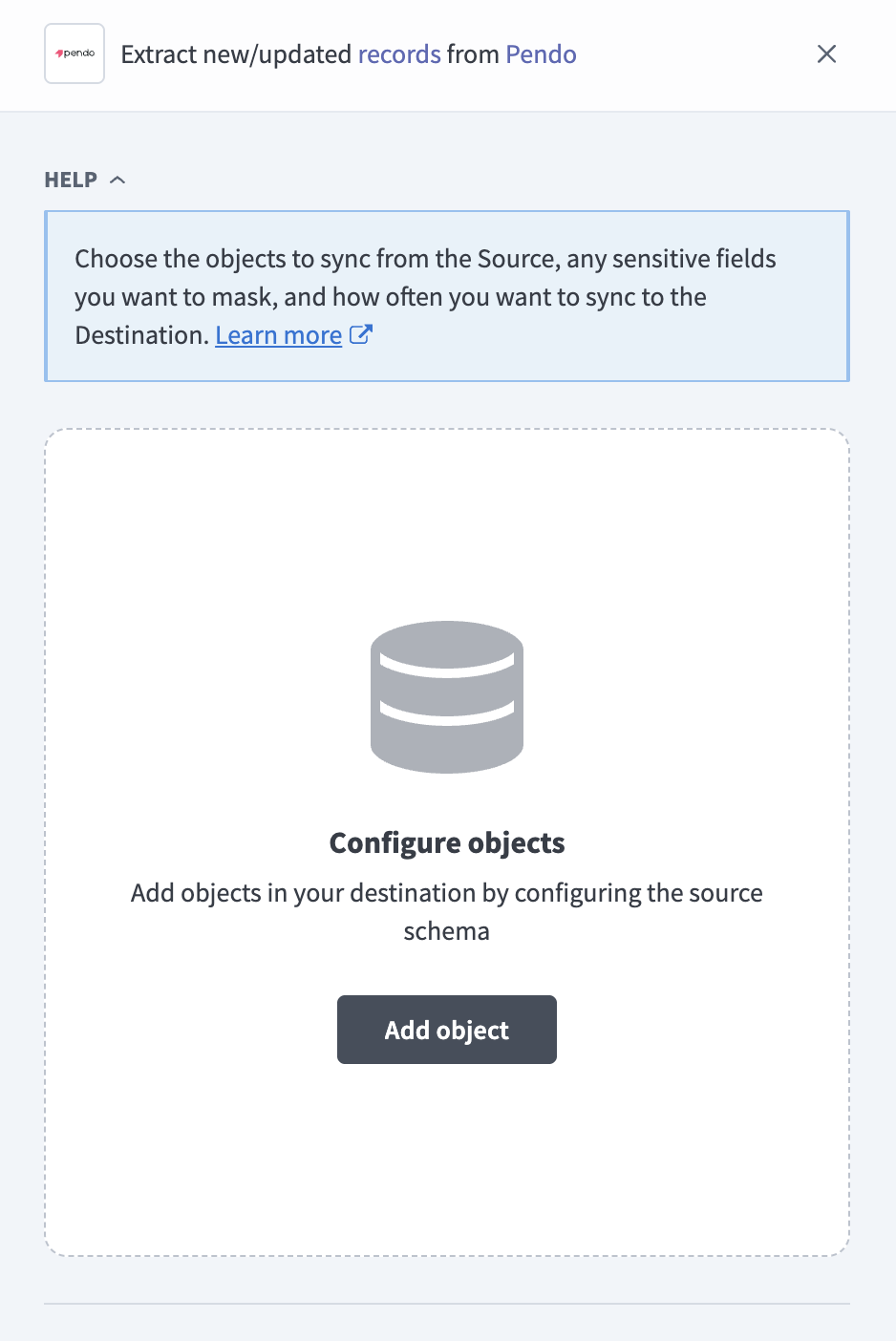
Click Add object to open the Add new objects panel.
 Add objects
Search or browse the list of available Pendo objects, select the objects you plan to sync, and click Add.
All Pendo objects appear with a Full sync tag in the object list. Refer to Sync modes for more information.
Review and customize the schema for each selected object. The pipeline automatically fetches an object's schema when you select it. This ensures the destination matches the source.
Expand an object to view associated fields. Keep all fields selected to extract all available data, or deselect specific fields to exclude them from data extraction and schema replication.
Optional. Configure field-level data protection by expanding an object and choosing how to handle each field:
- Replicate as is: Data values at the source replicate identically to the destination.
- Hash: Hash sensitive data values in the field before syncing to your destination.
Workato recommends hashing personally identifiable information (PII) and other sensitive fields. Refer to Sensitive data handling for a list of fields that commonly contain PII.
Click Add object again to add more objects. Repeat this step to include additional Pendo objects in your pipeline.
Use the Choose how to handle schema changes drop-down menu to select a schema drift handling option:
- Auto-sync new fields: Automatically detects and syncs new fields added in the source.
- Block new fields: Keeps the schema fixed after the pipeline starts. You must add new fields manually. This option may cause the destination to fall out of sync if the source schema updates.
Refer to Schema replication and schema drift management for more information.
Workato recommends Auto-sync new fields for Pendo subscriptions that use custom visitor or account metadata, so new metadata fields sync automatically. Refer to Visitor and account metadata fields for more information.
Optional. Enter a value in the Concurrency limit field to cap the number of concurrent operations. Leave the field blank to use the default limit set by Workato. The maximum value is 100.
Choose either a standard time-based schedule or define a custom cron expression in the Frequency field. This determines how often the pipeline syncs data from Pendo to the destination.
EVENT HISTORY START DATE
The start date applies only to event objects, such as Events and Page Events, and the Visitor Application and Account Application objects, which are built from events. These objects extract the last 91 days of events if you leave the field blank, and events older than 91 days drop out of the destination on each run. Set a start date before the first run if you need to retain older events. Refer to Event history window for more information.
Supported objects
Pendo data pipelines sync data from the Pendo API (v1). The following tables list the supported objects, grouped by category. Each object syncs as a separate table in your destination:
Applications, visitors, and accounts
| Object | Sync modes | Delete tracking |
|---|---|---|
Applications | Full sync | Yes (soft) |
Visitors | Full sync | No |
Accounts | Full sync | No |
Visitor Account | Full sync | Yes |
Visitor Application | Full sync | Yes |
Account Application | Full sync | Yes |
Visitor Account links each visitor to the account IDs in its Pendo visitor metadata. Visitor Application and Account Application are built from events, so they only include pairs with at least one event in the event history window. A pair is marked as deleted when its last event leaves the window.
Product configuration
| Object | Sync modes | Delete tracking |
|---|---|---|
Pages | Full sync | Yes |
Page Rule History | Full sync | No |
Features | Full sync | Yes |
Groups | Full sync | Yes |
Guides | Full sync | Yes |
Guide Step History | Full sync | No |
Polls | Full sync | No |
Track Types | Full sync | Yes |
Segments | Full sync | Yes |
Groups contains Pendo product areas. Page Rule History and Polls sync one row per page rule or guide poll, extracted from the current Pages and Guides records. Guide Step History syncs one row per step in every historical version of each guide.
Events
| Object | Sync modes | Delete tracking |
|---|---|---|
Events | Full sync | No |
Page Events | Full sync | No |
Feature Events | Full sync | No |
Guide Events | Full sync | No |
Poll Events | Full sync | No |
Track Type Events | Full sync | No |
Event objects extract events from complete UTC days within the event history window. Refer to Event history window for more information.
Sync modes
Pendo data pipelines support full sync for all objects. Incremental sync isn't available.
Full sync
A full sync reads all available records from Pendo for the selected object on every run and replaces the record set in the destination table. Event objects and the Visitor Application and Account Application objects read all events within the event history window on every run.
Delete tracking
Applications supports soft delete tracking, marked Yes (soft) in the Supported objects tables. Pendo returns a native isDeleted field on each application, and Workato reads this field to mark applications that Pendo flags as deleted in the destination.
Objects marked Yes in the Supported objects tables have a primary key. Workato compares each full sync against the previous run and marks records that no longer appear in Pendo as deleted in the destination.
Visitors, Accounts, event objects, Page Rule History, Polls, and Guide Step History don't have a primary key, so Workato can't track individual deleted rows for these objects.
Schema and data type handling
The following considerations apply to schema and data types when you sync data from Pendo:
Timestamps
Pendo returns timestamps, such as createdAt and lastUpdatedAt, as Unix epoch integers in milliseconds. Workato preserves the raw integer values in the destination and doesn't convert them to a timestamp format.
Nested objects and arrays
Pendo records can include nested objects and arrays, such as rules on Pages, steps and polls on Guides, items on Groups, and definition on Segments. Workato stores these as JSON string columns in the destination and doesn't flatten them into individual columns.
Visitor and account metadata fields
Workato reads your Pendo visitor and account metadata schemas each time it fetches the schema for Visitors or Accounts. Each metadata field syncs as a separate column named metadata_<group>_<field>, in lowercase. Runs of characters other than letters and numbers become underscores, and leading or trailing underscores are removed. If two fields would have the same column name, Workato adds a suffix to keep them distinct. This includes custom fields and fields from other metadata groups, such as auto and pendo.
Workato maps boolean, integer, and decimal metadata fields to the matching destination types. Date, list, and other metadata field types sync as strings.
New metadata fields appear the next time Workato fetches the object schema. Select Auto-sync new fields when you configure the pipeline so new fields sync automatically.
Sensitive data handling
Pendo objects can contain personally identifiable information (PII), such as visitor identifiers, IP addresses, and location data. The following objects commonly contain sensitive fields:
| Object | Sensitive fields |
|---|---|
Visitors | visitorId, metadata fields (metadata_*), which can include names and email addresses depending on your Pendo configuration |
Accounts | accountId, metadata fields (metadata_*) |
Visitor Account, Visitor Application, Account Application | visitorId, accountId |
Events, Page Events, Feature Events, Guide Events, Poll Events, Track Type Events | visitorId, accountId, accountIds, remoteIp, latitude, longitude, country, region, userAgent |
Poll Events | pollResponse |
Pages, Groups, Guides, Guide Step History, Segments, Track Types | createdByUser, lastUpdatedByUser |
Use the Hash option in field-level data protection during pipeline configuration to protect PII before it reaches your destination. Refer to the Configure the pipeline steps for more information.
Limitations
The following limitations apply when you use Pendo as a data pipeline source:
Event history window
Event objects and the Visitor Application and Account Application objects extract events from the date set in the When first started, this pipeline should pick up records from field through the end of the previous UTC day. These objects extract the last 91 days of events if you leave the field blank. Events from the current UTC day sync on the next run after the day ends.
Every run is a full sync, so a blank start date produces a rolling window. Events older than 91 days drop out of the destination table on the next run. Set a start date before the first run if you need to retain older events, because you can't change the start date after the pipeline runs.
Daily event volume
Workato extracts events one UTC day at a time and requests up to 1,000 rows per day. Pendo doesn't provide a continuation within a one-day window. If a day's response reaches the request limit, the run fails rather than risk omitting rows. This applies to event objects and the Visitor Application and Account Application objects.
Minimum sync frequency
The minimum supported sync interval is 15 minutes.
Last updated: