Configure Pipedrive as a data pipeline source
Set up Pipedrive as a data pipeline source to extract and sync CRM data, such as deals, persons, organizations, activities, and notes to your destination.
Use this guide to get a Pipedrive API token, connect Pipedrive as a data pipeline source, configure the pipeline, and understand the supported objects, sync modes, schema handling, and limitations.
Features supported
The following features are supported when you use Pipedrive as a pipeline source:
- Cloud connectivity: Connects to the Pipedrive API over HTTPS. An on-prem agent isn't required.
- Object-level selection: Select the supported objects you plan to sync when you configure the pipeline.
- Sync modes: Core CRM objects, such as
deals,persons, andactivities, support incremental sync and default to it. You can switch these objects to full sync. All other objects use full sync. Refer to Sync modes for more information. - Delete tracking: Detects deleted records for full-sync objects and for most incremental objects. Refer to Delete tracking for more information.
- Custom field support: Syncs Pipedrive custom fields in a single
custom_fieldsJSON column and syncs field definitions as separate objects. - Schema drift detection and handling: Detect and apply schema changes automatically with Auto-sync new fields, or keep the schema fixed with Block new fields.
- Field-level data protection: Hash or replicate sensitive fields as is before the data reaches your destination.
- Configurable sync frequency: Schedule syncs on a time-based interval or with a cron expression. The minimum supported interval is
15minutes.
Prerequisites
Connecting Pipedrive as a data pipeline source requires:
- A Pipedrive account with access to the data you plan to sync.
- A Pipedrive API token. Refer to Retrieve a Pipedrive API token for steps.
REQUIRED PERMISSIONS
The pipeline reads data with the permissions of the Pipedrive user who owns the API token. Use a user account with privileges to view all records for the objects you plan to sync. Some objects require elevated permissions or a Pipedrive add-on. Refer to Plan and permission requirements for more information.
Supported connection types
Pipedrive data pipelines support API token authentication:
- API token: Authorizes Workato to read the data that the token owner can access in Pipedrive. The token doesn't expire unless you regenerate it. Refer to Retrieve a Pipedrive API token for setup steps.
Retrieve a Pipedrive API token
Complete the following steps to retrieve the API token for your Pipedrive user. Skip this section if you already have the API token you plan to use:
Click your profile icon on your Pipedrive dashboard, then click Personal preferences.
Select the API tab.
Copy and save Your personal API token for use in Workato.
Your Pipedrive permission set may not allow API access if the API tab doesn't appear. Refer to Pipedrive's documentation for more information.
API TOKEN REGENERATION
Each Pipedrive user has one active API token for each Pipedrive company. A regenerated token invalidates the previous one, and pipelines that use the previous token fail until you update the connection.
Connect to Pipedrive
Complete the following steps to connect Pipedrive as a data pipeline source:
Connect to Pipedrive
Click Create > Connection or press C twice.
Search for Pipedrive and select it as your app.
Enter a name for your connection in the Connection name field.
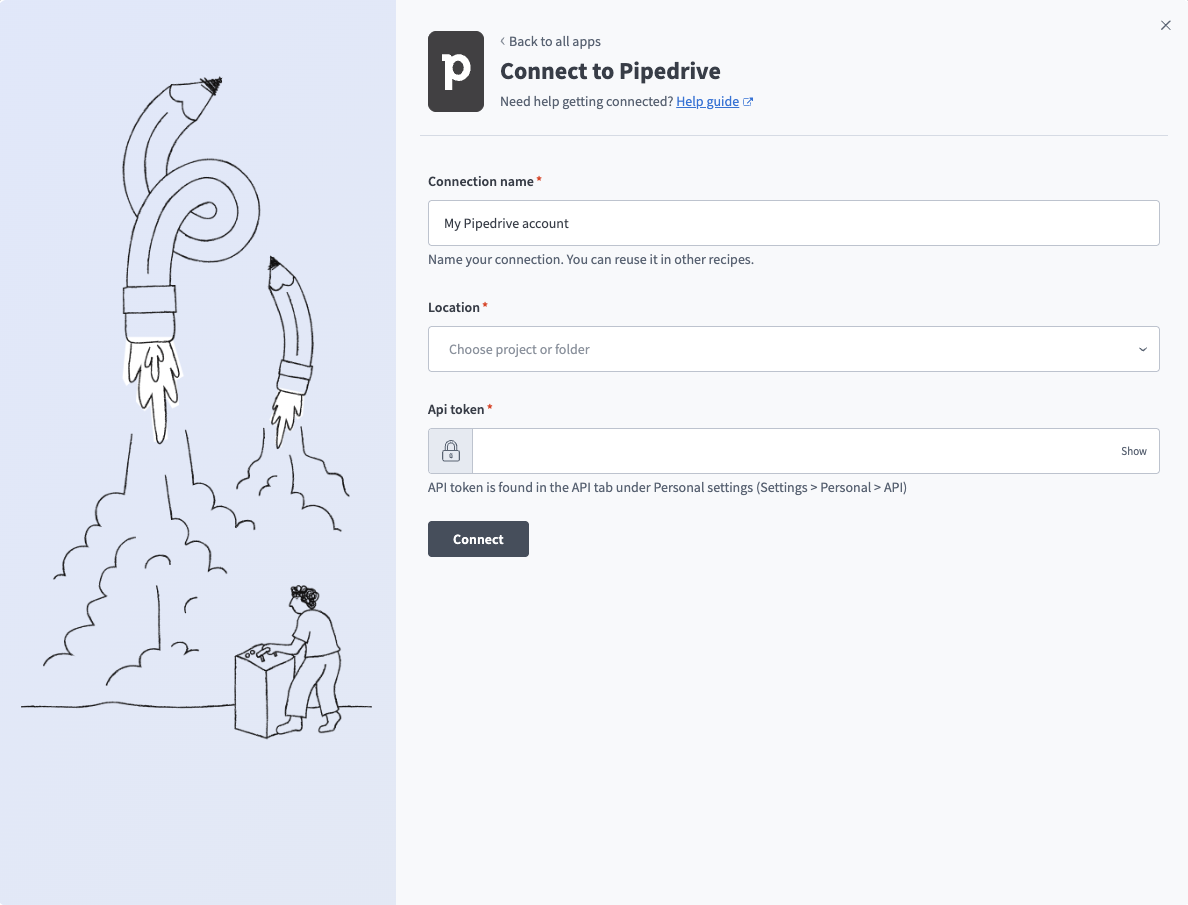 Pipedrive connection
Use the Location drop-down menu to select the project where you plan to store the connection.
Enter the API token. Refer to Retrieve the API token for more information.
Click Connect.
Configure the pipeline
Complete the following steps to configure Pipedrive as your data pipeline source:
Select Create > Data pipeline or press C+I.
Enter a name for the data pipeline in the Data pipeline name field.
 Data pipeline setup
Use the Location drop-down menu to select the project where you plan to store the data pipeline.
Click Start building.
Click the Extract new/updated records from source app trigger. This trigger defines how the pipeline retrieves data from Pipedrive.
 Configure the Extract new/updated records from source app trigger
Use the Your Connected Source Apps drop-down menu to select Pipedrive.
Choose the Pipedrive connection you plan to use for this pipeline. Alternatively, click + New connection to create a new connection.
Click Add object to open the Add new objects panel.
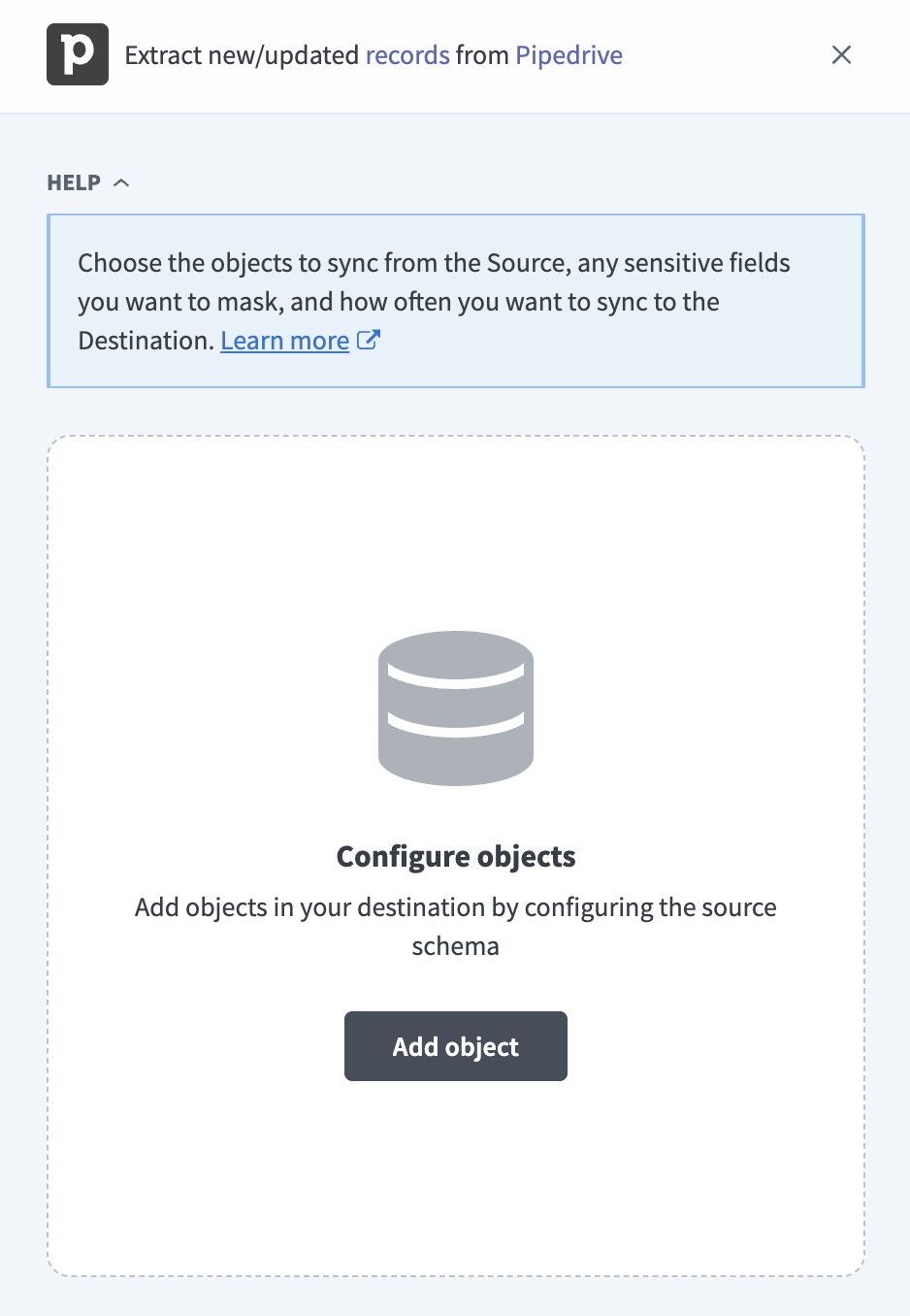 Add objects
Search or browse the list of available Pipedrive objects, select the objects you plan to sync, and click Add.
OBJECTS WITH EXTRA REQUIREMENTS
Some objects consume more of your Pipedrive API budget or require a Pipedrive add-on. Refer to Per-deal requests and Plan and permission requirements before you select deal_products, deal_participants, projects, or tasks.
Review and customize the schema for each selected object. The pipeline automatically fetches an object's schema when you select it. This ensures the destination matches the source.
Expand an object to view associated fields. Keep all fields selected to extract all available data, or deselect specific fields to exclude them from data extraction and schema replication.
Optional. Click the Settings (gear) icon next to the object to configure the sync mode:
Click the Settings (gear) icon next to the object.
Select a Sync mode:
- Incremental: Sync only records created or updated since the previous run.
- Full sync: Reload all records on each run.
Workato disables this field for objects that only support full sync.
Click Save.
Optional. Configure field-level data protection by expanding an object and choosing how to handle each field:
- Replicate as is: Data values at the source replicate identically to the destination.
- Hash: Hash sensitive data values in the field before syncing to your destination.
Workato recommends hashing personally identifiable information (PII) and other sensitive fields. Refer to Sensitive data handling for a list of fields that commonly contain PII.
Click Add object again to add more objects. Repeat this step to include additional Pipedrive objects in your pipeline.
Use the Choose how to handle schema changes drop-down menu to select a schema drift handling option:
- Auto-sync new fields: Automatically detects and syncs new fields added in the source.
- Block new fields: Keeps the schema fixed after the pipeline starts. You must add new fields manually. This option may cause the destination to fall out of sync if the source schema updates.
Refer to Schema replication and schema drift management for more information.
Choose either a standard time-based schedule or define a custom cron expression in the Frequency field. This determines how often the pipeline syncs data from Pipedrive to the destination.
HISTORICAL START DATE
The historical start date applies only to objects that support incremental sync. Objects that only support full sync extract all available records. Refer to Supported objects to view the sync modes for each object.
Supported objects
Pipedrive data pipelines sync data from the Pipedrive API. The following tables list the supported objects, grouped by category. Each object syncs as a separate table in your destination and appears in the pipeline builder as Label (object_name), such as Persons (persons). The sync mode column shows the modes an object supports. Incremental is the default for objects that support it. Pipedrive custom object types aren't supported.
Deals
The following objects describe deals and associated products and persons:
| Object | Sync mode | Delete tracking | Notes |
|---|---|---|---|
deals | Full sync, incremental | Yes (soft) | Excludes archived deals. Refer to deal_archived. |
deal_archived | Full sync | Yes | Deals archived in Pipedrive. |
deal_products | Full sync | Yes | Products attached to each deal. Makes at least one request per deal on every sync. |
deal_participants | Full sync | Yes | Persons associated with each deal. Makes at least one request per deal on every sync. |
Persons and organizations
The following objects describe the contacts and companies in your Pipedrive account:
| Object | Sync mode | Delete tracking | Notes |
|---|---|---|---|
persons | Full sync, incremental | Yes (soft) | The emails and phones fields sync as JSON columns. Contains PII. |
organizations | Full sync, incremental | Yes (soft) | Contains PII. |
Leads
The following objects describe leads and their supporting definitions:
| Object | Sync mode | Delete tracking | Notes |
|---|---|---|---|
leads | Full sync, incremental | No | Excludes archived leads. Refer to lead_archived. |
lead_archived | Full sync | Yes | Leads archived in Pipedrive. |
lead_labels | Full sync | Yes | Lead label definitions. |
lead_sources | Full sync | Yes | Lead source definitions. |
Activities, notes, and files
The following objects describe the work logged against deals, persons, and organizations:
| Object | Sync mode | Delete tracking | Notes |
|---|---|---|---|
activities | Full sync, incremental | Yes (soft) | Contains PII. |
activity_types | Full sync | Yes | Activity type definitions, such as call, meeting, and email. |
notes | Full sync, incremental | Yes (soft) | Free-text notes attached to deals, persons, organizations, and leads. Contains PII. |
files | Full sync, incremental | Yes (soft) | File metadata only. File content doesn't sync. |
Products
The following object describes the products in your Pipedrive product catalog:
| Object | Sync mode | Delete tracking | Notes |
|---|---|---|---|
products | Full sync, incremental | Yes (soft) | Product catalog records. |
Pipelines and account configuration
The following objects describe pipeline stages, users, and account-level settings:
| Object | Sync mode | Delete tracking | Notes |
|---|---|---|---|
pipelines | Full sync | Yes | Sales pipeline definitions. |
stages | Full sync | Yes | Stage definitions for each pipeline. |
users | Full sync, incremental | Yes (soft) | Use to resolve owner_id values on other objects. Contains PII. |
roles | Full sync | Yes | Permission role definitions. Might require elevated permissions. |
goals | Full sync | Yes | Goal definitions. |
currencies | Full sync | Yes | Currencies supported by your account. |
filters | Full sync | Yes | Saved filter definitions. |
Field definitions
The following objects describe the standard and custom fields in your Pipedrive account. Use these fields to resolve the keys in the custom_fields column to field names and types. Refer to Custom fields for more information:
| Object | Sync mode | Delete tracking | Notes |
|---|---|---|---|
deal_fields | Full sync | Yes | Field definitions for deals, deal_archived, leads, and lead_archived. |
person_fields | Full sync | Yes | Field definitions for persons. |
organization_fields | Full sync | Yes | Field definitions for organizations. |
activity_fields | Full sync | Yes | Field definitions for activities. |
product_fields | Full sync | Yes | Field definitions for products. |
note_fields | Full sync | Yes | Field definitions for notes. |
Projects
The following objects require the Pipedrive Projects add-on. Refer to Plan and permission requirements for more information:
| Object | Sync mode | Delete tracking | Notes |
|---|---|---|---|
projects | Full sync | Yes | Requires the Projects add-on. |
tasks | Full sync | Yes | Requires the Projects add-on. |
Sync modes
Pipedrive data pipelines support full sync and incremental sync. The sync mode is configured per object when you add it to your pipeline. Objects that support incremental sync default to it.
Full sync
Full sync reads all available records for an object on each run and replaces the record set in your destination. Incremental objects read only records since the historical start date if you set one. Objects without an incremental filter, such as field definitions, pipelines, and archived deals and leads, use full sync. Incremental objects also use full sync for their first run. You can switch an incremental object to full sync if you need a complete extraction on each run.
Incremental sync
Incremental sync reads only the records created or updated since the previous run. Incremental objects use the update_time field as the cursor, except users, which uses modified. The users and files objects read changes from Pipedrive's recent-changes history, which covers approximately 30 days. Refer to Change history window for more information.
Refer to the Supported objects tables to see the sync mode for each object.
Delete tracking
Delete tracking is per-object and follows sync mode:
- Full-sync objects: Workato compares each full sync against the previous run and marks records that no longer exist in Pipedrive as deleted in your destination. Deletions are detected on the next full sync.
- Incremental objects: Pipedrive reports deletions for
deals,persons,organizations,activities,products,notes,files, andusers. Workato marks these records as deleted in your destination. The marker column depends on the object. Refer to Synthetic columns for more information. - Leads: Pipedrive doesn't report deleted leads, so Workato can't detect them while
leadssyncs incrementally. Deleted leads remain in your destination until you re-sync the object. Switchleadsto full sync to detect deletions.
Delete tracking follows the full-sync behavior if you switch an incremental object to full sync.
Incremental delete tracking depends on Pipedrive's recent-changes history, which covers approximately 30 days. Refer to Change history window for more information.
Schema and data type handling
The following considerations apply to schema and data types when you sync data from Pipedrive:
Custom fields
Pipedrive supports user-defined custom fields. The deals, deal_archived, persons, organizations, products, leads, and lead_archived objects store custom field values in a single custom_fields JSON column. Adding a custom field in Pipedrive doesn't change the table schema, because the column holds all custom field values.
Each key in the custom_fields JSON is a 40-character hash. Join the key with the field_code column in the matching field-definition object to resolve it to a field name and type:
| Object | Field-definition object |
|---|---|
deals, deal_archived, leads, lead_archived | deal_fields |
persons | person_fields |
organizations | organization_fields |
products | product_fields |
Nested fields and data types
Nested objects and arrays, such as label_ids, emails, and phones, sync as JSON strings. Decimal fields, such as value on deals, sync with a precision of 28 and a scale of 12.
Synthetic columns
Workato adds the following columns to destination tables for objects that support soft deletes:
| Column | Type | Purpose |
|---|---|---|
_workato_is_deleted | Boolean | Set to true for records deleted in Pipedrive. Present on persons, organizations, activities, notes, files, and products. |
deleted | Boolean | Set to true for deals deleted in Pipedrive. Present on deals, alongside the is_deleted field from Pipedrive. |
The users object uses the is_deleted field from Pipedrive to mark deleted users.
Sensitive data handling
Pipedrive objects can contain significant personally identifiable information (PII). The following objects commonly contain sensitive fields:
| Object | Sensitive fields |
|---|---|
persons | name, first_name, last_name, emails, phones, birthday, and the postal_address fields |
organizations | name and the address fields |
activities | subject, note, and the location fields |
notes | content |
deals | title |
users | name, email, and phone |
The content field on notes and the note field on activities are free text and carry the highest risk, because users can enter any personal information. Custom fields are defined by your organization and can also contain PII, so review the custom_fields column on the objects that include it.
Use the Hash option in field-level data protection during pipeline configuration to protect PII before it reaches your destination. Refer to the Configure the pipeline steps for more information.
Limitations
The following limitations apply when you use Pipedrive as a data pipeline source:
Change history window
Incremental sync for users and files and delete tracking for deals, persons, organizations, activities, products, notes, files, and users rely on Pipedrive's recent-changes history, which covers approximately 30 days. The sync for these objects fails if the pipeline doesn't run for more than 30 days, because Pipedrive no longer provides the changes and deletions made during the gap.
Use Re-sync on the affected object to recover. A re-sync extracts the object in full, which clears the error. Refer to View synced objects and statuses for more information.
Deleted leads aren't detected
Pipedrive doesn't report deleted leads, and leads syncs incrementally by default. Deleted leads remain in your destination until you re-sync the object. Switch leads to full sync if you need Workato to detect deleted leads.
Rate limits
Pipedrive limits API usage with a daily token budget and a burst limit for each API token. Each request consumes tokens from the budget. The daily budget is 30,000 tokens multiplied by your plan multiplier and the number of seats in your Pipedrive account. All API usage in the account shares the budget.
| Pipedrive plan | Daily token budget (1 seat) | Burst limit for API tokens |
|---|---|---|
| Lite | 30,000 | 20 requests every 2 seconds |
| Growth | 60,000 | 40 requests every 2 seconds |
| Premium | 150,000 | 100 requests every 2 seconds |
| Ultimate | 210,000 | 120 requests every 2 seconds |
The pipeline waits and retries automatically when it reaches the burst limit. The sync fails if the daily budget is exhausted, and you can retry after Pipedrive resets the budget. Reduce the number of selected objects, increase the sync interval, or upgrade your Pipedrive plan to stay within the budget.
Refer to the Pipedrive rate limiting documentation for more information.
Per-deal requests
The deal_products and deal_participants objects make at least one request per deal on every sync, because Pipedrive returns these objects for each deal. The request count grows with the number of deals in your account and consumes your daily token budget. Select these objects only if needed, and sync the objects on a separate pipeline if your account has a large number of deals.
Plan and permission requirements
Certain objects require a Pipedrive add-on or additional permissions:
| Object | Requirement |
|---|---|
projects, tasks | The Pipedrive Projects add-on |
roles | A Pipedrive user with elevated permissions |
The sync for an object fails with a permission error if the API token owner doesn't have access to it. Pipedrive returns only the records the token owner can view for all other objects, so users with restricted permission sets might see fewer records than exist in your account.
File content isn't synced
The files object syncs file metadata, such as the file name and size, and doesn't sync file content.
Minimum sync frequency
The minimum supported sync interval is 15 minutes. You can't trigger syncs more frequently than this.
Last updated: