Configure SAP Table Reader (SAP Data Agent)
The SAP Table Reader enables you to extract SAP table data into data pipelines using the SAP Data Agent.
This integration uses an asynchronous, package-based extraction method to securely and efficiently handle large datasets.
Overview
SAP Table Reader uses the SAP Data Agent to transfer data from SAP to Workato.
The following occurs when a pipeline runs:
- Workato sends an extraction request to SAP.
- SAP Data Agent collects data and stores it in temporary packages.
- Workato retrieves the packages sequentially.
- SAP Data Agent deletes temporary data after completion.
You can monitor logs in SAP using transaction code SLG1.
SAP Data Agent processes extraction requests asynchronously. It stages data temporarily in SAP and transfers it to Workato in controlled packages to handle large datasets efficiently.
Supported source types
SAP Table Reader supports the following source types:
- Transparent tables
- Pool tables
- Cluster tables
- Traditional database views
- CDS views without parameters
SAP Table Reader doesn't support the following:
- Consumption views
- AMDP (ABAP Managed Database Procedures)
- CDS views with parameters
Set up SAP Data Agent
You must install and configure the SAP Data Agent on the SAP application server before creating a data pipeline.
SAP Data Agent installs as an ABAP transport in the SAP system. It exposes OData services under the /WKTO/ namespace and enables secure, package-based data extraction.
Supported SAP systems
The following SAP systems support SAP Data Agent – Table Reader:
| SAP system | Database | NetWeaver version | ABAP version |
|---|---|---|---|
| SAP ECC | Any | 7.4 EHP7 and above | 7.4 and above |
| SAP S/4HANA | SAP HANA | 1610 and above | 7.5 and above |
| SAP BW | Any | 7.4 EHP7 and above | 7.4 and above |
| SAP BW/4HANA | SAP HANA | 2.0 SPS07 and above | 7.5 and above |
Create an SAP user account
You must create a dedicated SAP user with the required authorization. SAP supports the following user types:
- Communication user (type C) for basic authentication
- System user (type B) for OAuth 2.0 (Authorization Code Grant or Client Credentials Grant)
Refer to the SAP OData OAuth 2.0 authentication guide for guidance on how to set up OAuth 2.0.
Provide the SAP username and password of the SAP Communication or System user.
Assign the required SAP roles and authorization objects before testing connectivity.
Install SAP Data Agent
You must install SAP Data Agent by importing the ABAP transport request into the SAP system.
TRANSPORT REQUEST REQUIRED
Contact your Workato Account Executive or Customer Success Manager to obtain the ABAP transport request package.
The installation activates required OData services, assigns runtime components, and enables extraction under the /WKTO/ namespace.
Complete the following steps to install the SAP Data Agent:
Import the SAP transport request provided by Workato.
Assign the required SAP authorizations and roles to the user.
Activate SICF (SAP Internet Communication Framework transaction) services under the /WKTO/ namespace.
Maintain the local alias for services in transaction /IWFND/MAINT_SERVICE.
Configure OAuth settings if you use a system user.
Maintain required parameters in transaction /WKTO/CONFIG:
- Maintain
CSV_SEPto set the CSV separator. Use|(pipe). - Maintain
MSTR_CLEANUPto set the number of days before pipeline cleanup in the internal master table. Use7as the recommended value. - Maintain
FILEPATHto set theAL11path for storing export files. For example,D:\WORKATO\EXPORT\.
Tune package size for large tables using transaction /WKTO/PACK. Very large tables require package size tuning. Refer to the Troubleshooting guide for additional guidance.
Configure SAP role for Table Reader
Assign the required role and authorizations to the SAP user used for SAP Data Agent.
This role grants access to required OData services, background job processing, and table-level permissions for data extraction.
Go to transaction code PFCG.
Open role /WKTO/TABLE_READER, or create a custom role that includes the required authorization objects.
Go to the Authorizations tab and select Change Authorization Data.
Ensure the role includes the following authorization objects and field values:
Summary of authorization included in the role
- S_SERVICE
- Authorizes access to SAP Data Agent OData services under the
/WKTO/namespace. - S_BTCH_ADM
- Controls background job administration permissions.
- S_BTCH_JOB
- Authorizes release and execution of background jobs used during extraction.
- S_TABU_DIS
- Controls access to table authorization groups.
- S_TABU_NAM
- Controls access to specific table names.
Authorization Field Values for S_SERVICE Object
- Program, transaction or Function
- SRV_NAME
- Values:
- 0AE2A6D56834889146773B86C3B4A4 (/WKTO/DA_CM_SRV)
- 9CB49C41E6503E8A3BF6A9CE025B88 (/WKTO/DA_LOG_SRV_0001)
- B80B26B216EE837EDD71ECBCC2A106 (/WKTO/DA_TBL_SRV_0001)
- BF83C9264549804E40E46A704B73A0 (/WKTO/DA_CM_SRV_0001)
- C45237A6760D58CFA80609CAE052B9 (/WKTO/DA_TBL_SRV)
- ECE235D66D4238FC5D4C2F97A16A4F (/WKTO/DA_LOG_SRV)
- Type of check Flag (SRV_TYPE)
- HT
Authorization Field Values for S_BTCH_ADM Object
- Background Administrator
- N
Authorization Field Values for S_BTCH_JOB Object
- Job Operations
- RELE
- Summary of jobs for a group
- ' '
Authorization Field Values for S_TABU_DIS Object
- Activity
- 02, 03
- Table Authorization Group
- VA
Authorization Field Values for S_TABU_NAM Object
- Activity
- 03
- Table Name
- *
Generate the authorization profile and save the role.
Assign the role to the SAP user used for SAP Data Agent.
Establish OData connectivity between Workato and SAP
You must configure connectivity between Workato and the SAP system before creating a data pipeline.
SAP Data Agent exposes OData services that Workato uses for authentication, extraction, and cleanup operations.
Connect to SAP on-premise systems
Deploy a Workato on-prem agent (OPA) if your SAP system doesn't expose OData services to the public internet.
The on-prem agent establishes a secure outbound connection from your network to Workato and enables access to internal SAP OData services.
Complete the following steps to connect to SAP on-premise systems:
Install and register a Workato on-prem agent in your workspace.
Ensure the SAP system exposes the required OData services under the /WKTO/ namespace.
Verify network connectivity between the on-prem agent host and the SAP application server.
Connect without an on-prem agent
Whitelist Workato IP addresses on the SAP HTTPS port to allow inbound traffic from Workato. You can find the HTTPS port in transaction SMICM or SAP Web Dispatcher.
Ensure the SAP OData service endpoint remains externally accessible over HTTPS.
Configure the development environment (on-prem agent)
In development environments, you may disable certificate validation in the on-prem agent configuration to troubleshoot connectivity issues.
Edit the config.yml file in the OPA conf directory:
http:
  trustAll: true
  verifyHost: false
Refer to the On-prem agent HTTP profile documentation for more information about HTTP profile configuration options.
Use this configuration only in non-production environments.
Create and configure a data pipeline
After you install SAP Data Agent and establish connectivity, create a data pipeline to extract SAP table data.
Create the SAP OData connection
Complete the following steps to create the SAP OData connection:
Click Create > Connection or press C twice.
Search for and select SAP OData on the New connection page.
Provide a name for your connection in the Connection name field.
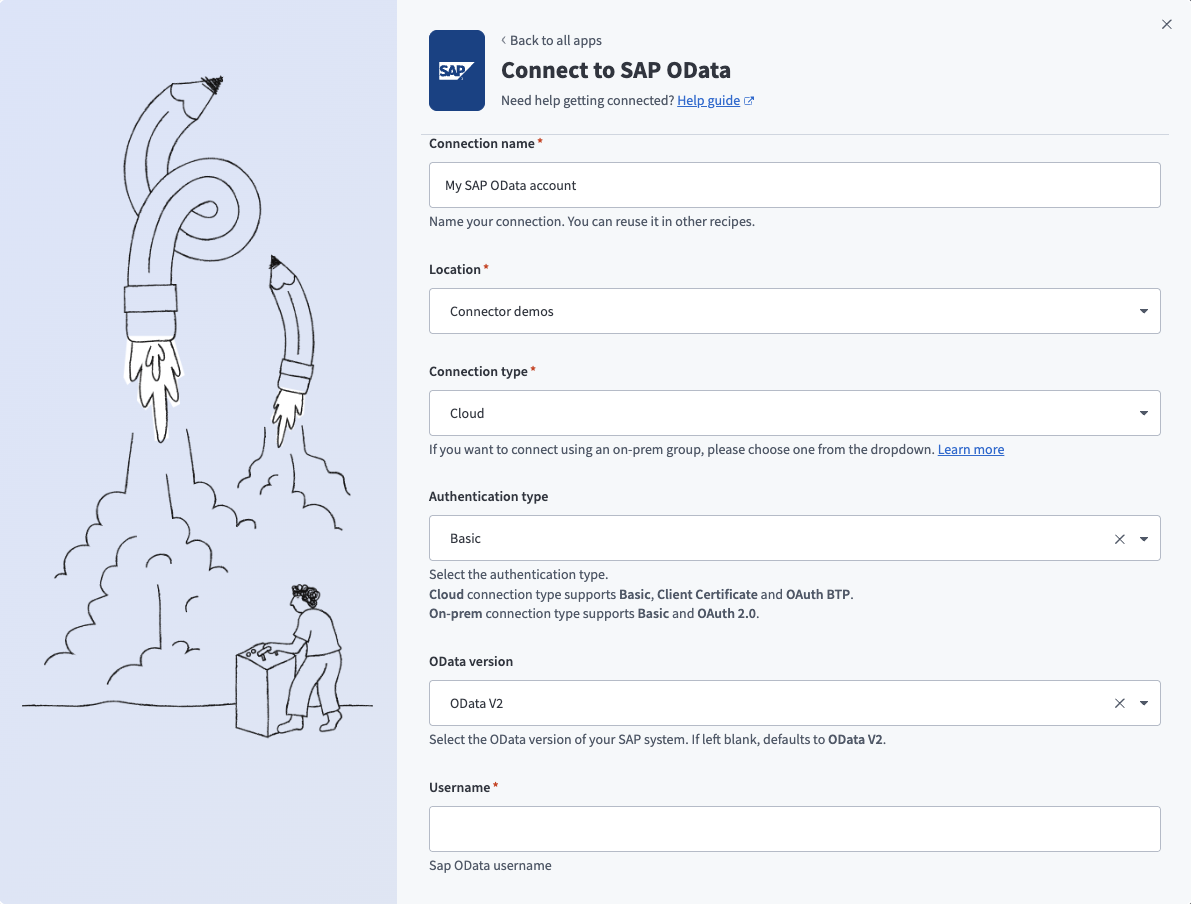 Create an SAP OData connection
Use the Location drop-down menu to select the project where you plan to store the connection.
Complete the following fields in Workato to establish the SAP OData connection:
| Field | Description |
|---|---|
| Connection type | Select the connection type based on your SAP deployment. Choose On-premise (through Secure Gateway) if your SAP instance runs on a network that doesn't allow direct external connections. Ensure you have an active on-prem agent before attempting to connect. Choose Cloud if SAP exposes OData services publicly. Requests are sent directly from Workato servers. |
| Authentication type | Select the authentication method. Supported methods include Basic, OAuth 2.0 Client Credentials, and OAuth 2.0 Authorization Code. Choose the method that matches your SAP user configuration. |
| OData version | Select OData V2. |
| Username | Enter the username of the SAP Communication user (type C) or System user (type B). |
| Password | Enter the corresponding password. |
| Host URL | Enter https://<hostname>/sap/opu/odata/ as the base path of the SAP OData services. |
| Service | Enter WKTO/DA_CM_SRV as the OData service name configured in SAP. |
| SAP Client | Enter the SAP client used for login. For example, if your service URL is https://<hostname>/sap/opu/odata/WKTO/DA_CM_SRV?sap-client=800, enter 800. This field applies only to on-prem SAP systems. |
Click Connect to validate the credentials and connection configuration.
Verify the following if the connection fails:
- SAP credentials
- Host URL format
- Service name
- Network accessibility
Common errors include 401 Unauthorized and Host unreachable.
Create a data pipeline
Complete the following steps to create a new data pipeline:
Select Create > Data pipeline or press C+I.
Enter a name for the data pipeline in the Data pipeline name field.
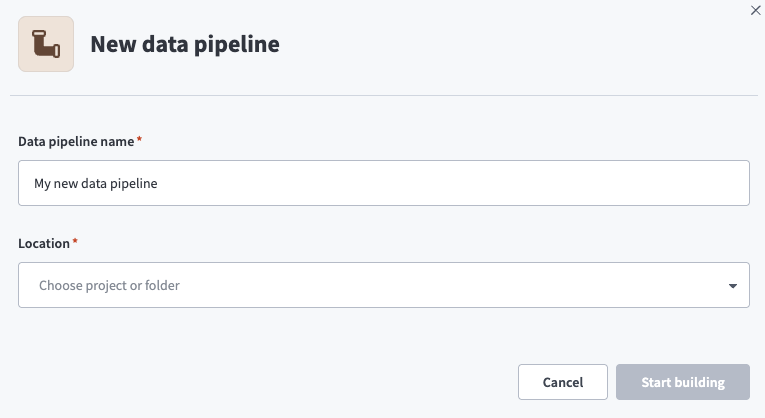 Data pipeline setup
Use the Location drop-down menu to select the project where you plan to store the data pipeline.
Click Start building.
Configure the SAP source
Complete the following steps to configure SAP as the source application:
Click the Extract new/updated records from source app trigger. This trigger defines how the pipeline retrieves data from the source application.
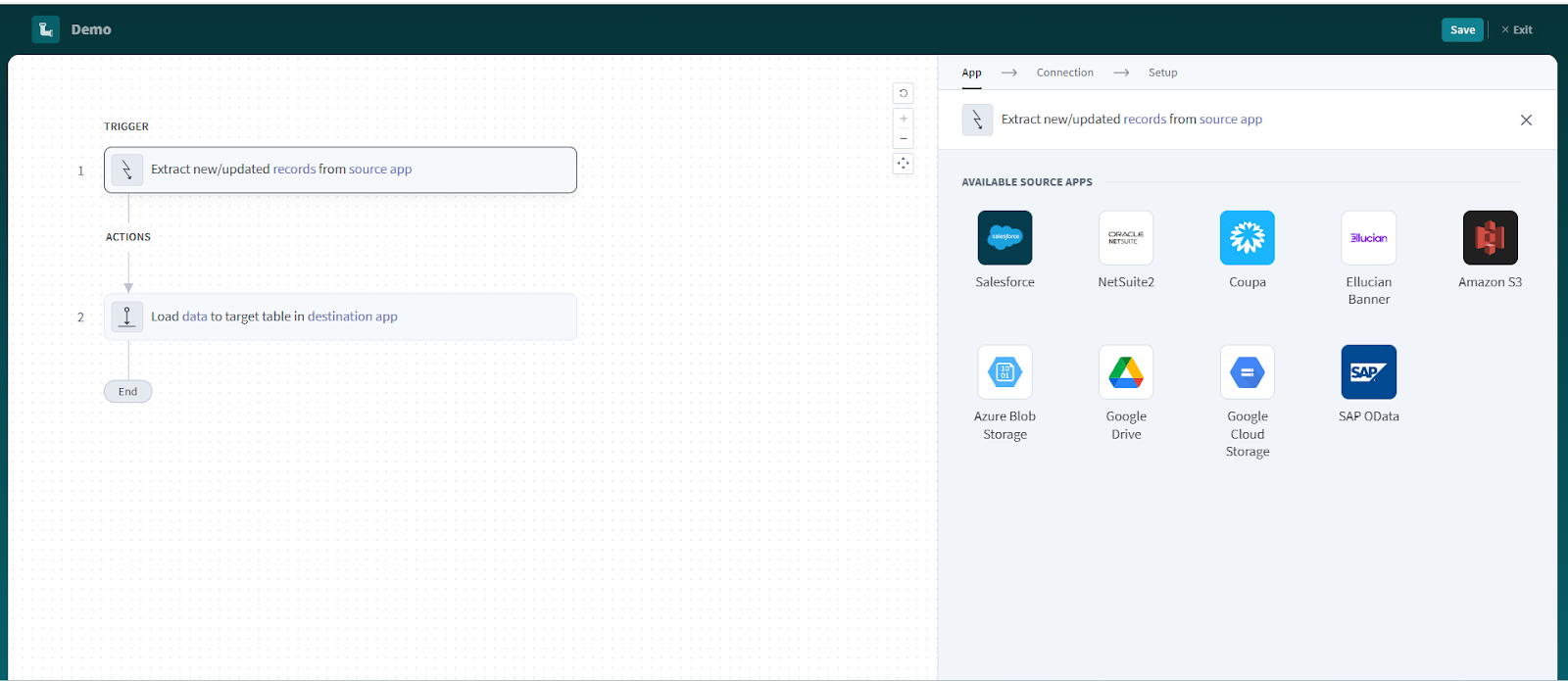 Configure the Extract new/updated records from source app trigger
Select SAP OData as the source application.
Choose the SAP OData connection to use for this pipeline. Alternatively, click + New connection to create a new connection.
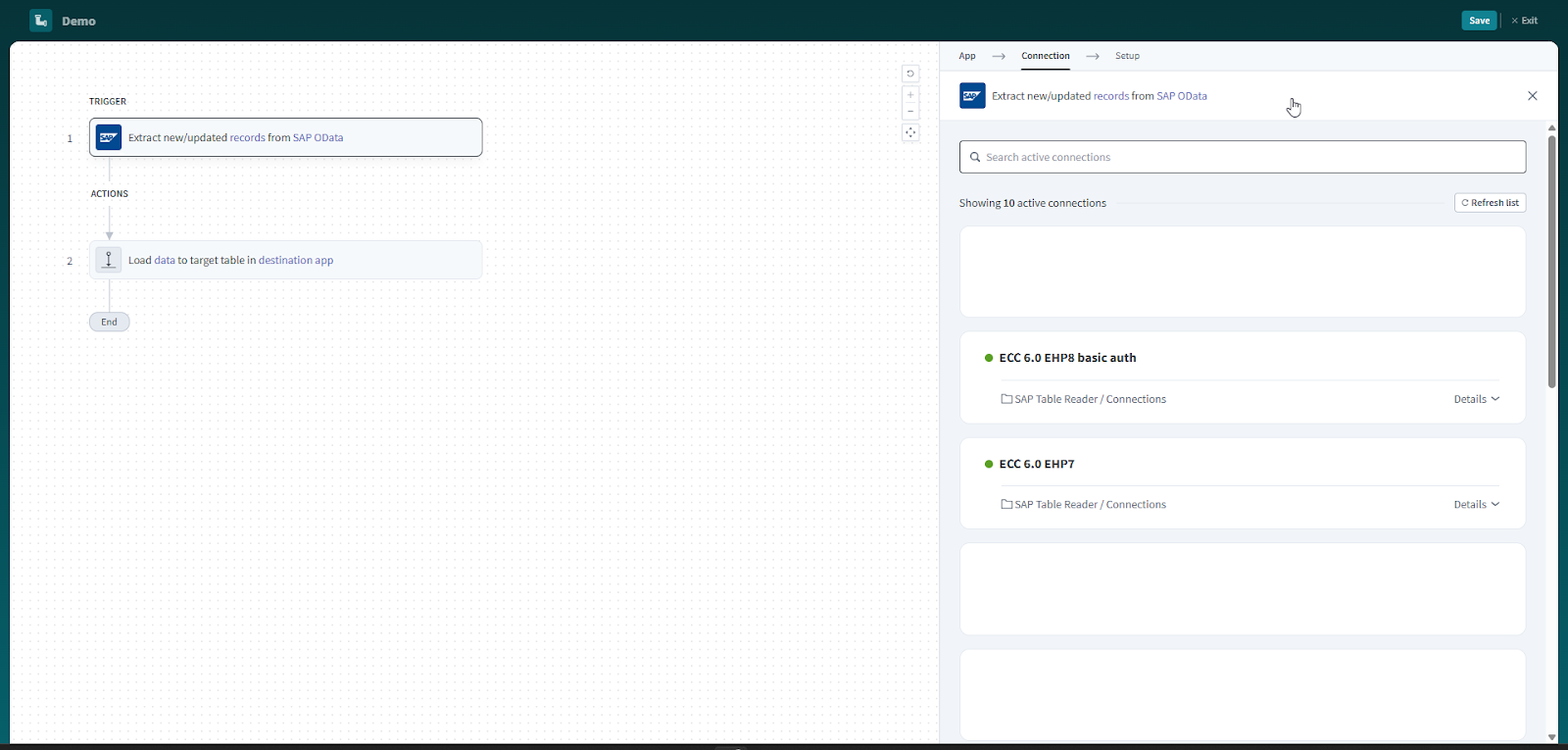 Choose the SAP OData connection
Click Add object to select the SAP table to extract.
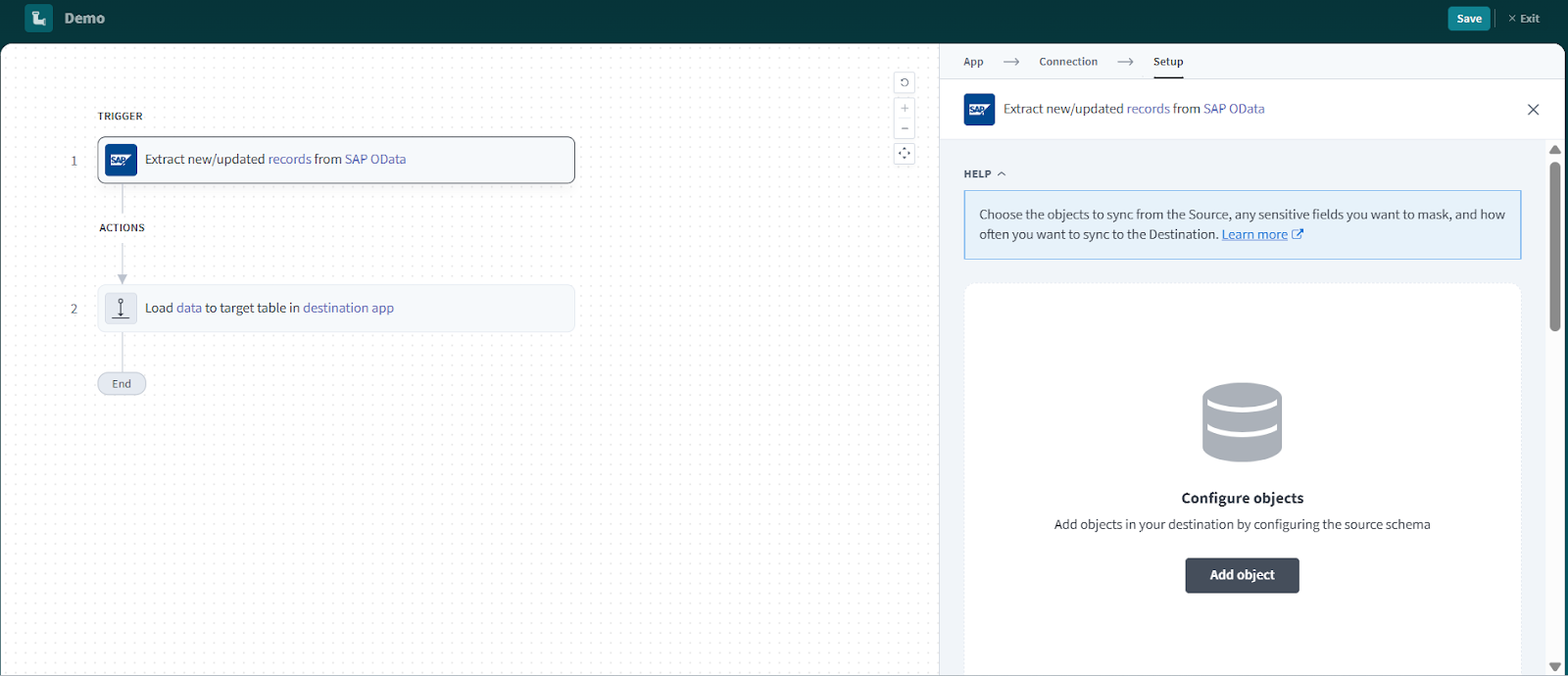 Add object
Enter at least three uppercase characters of the SAP table name in the search field.
SAP table names are case-sensitive and use uppercase letters.
Select the tables from the search results.
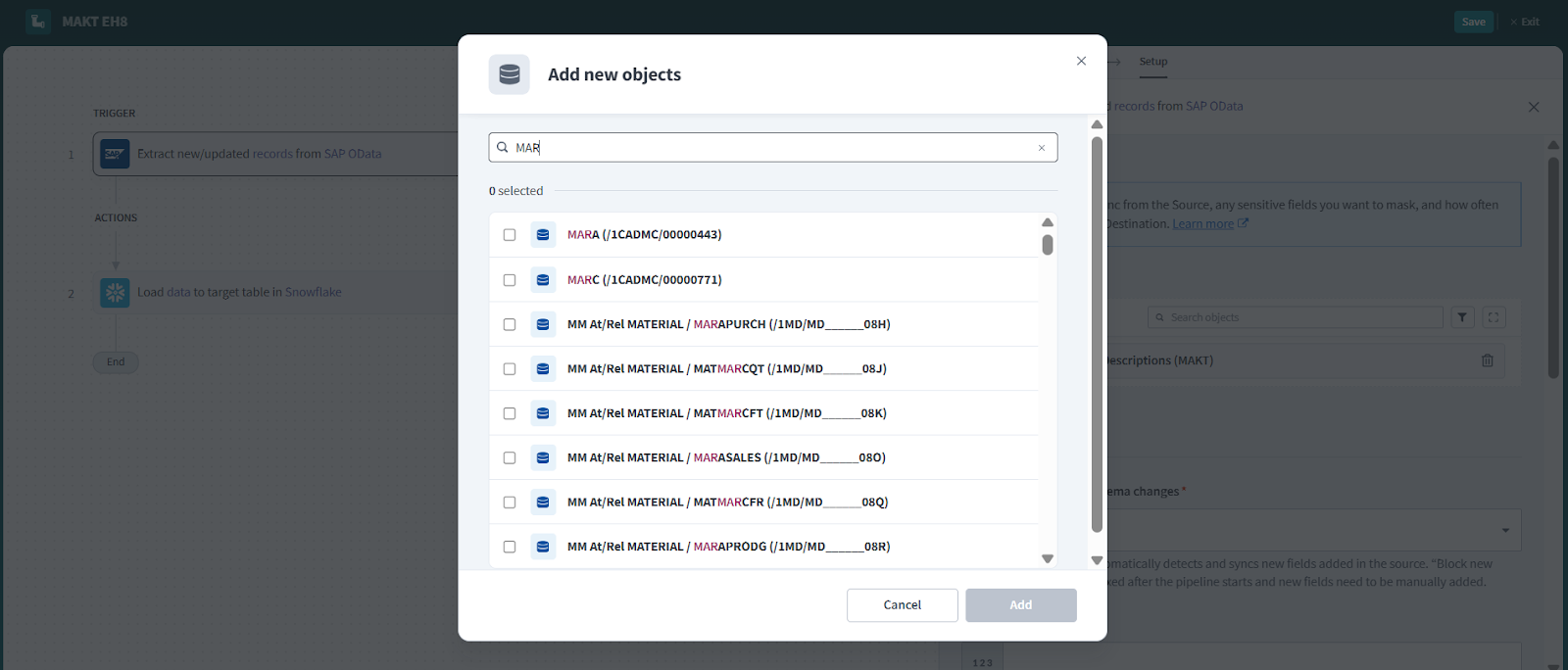 Select SAP tables
Click Add to confirm the selection.
CDS VIEWS
Search the SQL view name instead of the CDS view name for CDS views.
Define the schema
After you add the SAP table, the pipeline automatically fetches the schema for each selected object. Review and customize the schema to ensure the destination matches the source:
Click Get schema to retrieve table metadata.
Expand any table to view the list of available fields.
Keep all fields selected to extract all data, or deselect specific fields to exclude them from extraction and schema replication.
Optional. Configure field-level data protection for each non-key field:
- Replicate as is (default): Data values at the source are replicated identically to the destination.
- Hash: Hash sensitive data values in the column before syncing to your destination.
Click Add object again to add more objects using the same flow. You can repeat this step to include multiple SAP tables in your pipeline.
Choose how to handle schema changes:
- Select Auto-sync new fields to detect and apply schema changes automatically.
- Select Block new fields to manage schema changes manually. This option may cause the destination to fall out of sync if the source schema updates.
Configure advanced settings
Configure pipeline-level settings to control execution behavior and SAP system impact:
Adjust the Concurrency configuration.
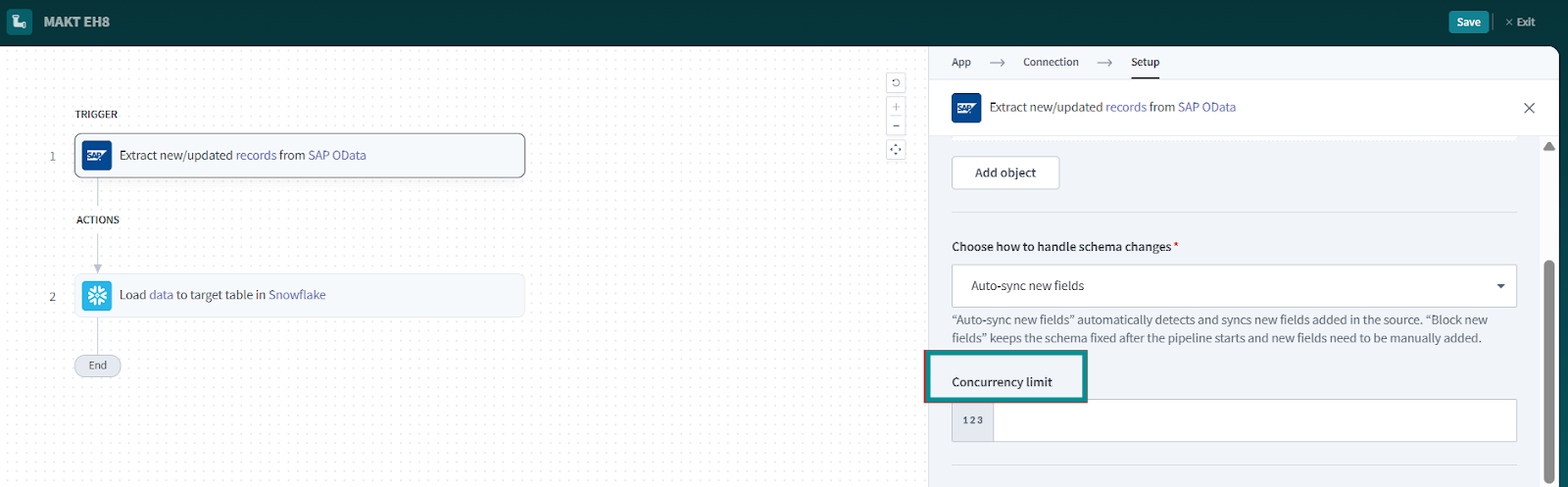 Adjust the concurrency configuration
Concurrency defines how many pipeline jobs run simultaneously:
- Higher values allow parallel executions and increase throughput.
- Lower values reduce load on the SAP system and help prevent table locks or performance issues.
Adjust concurrency carefully to avoid excessive load on the SAP system.
Set the Frequency.
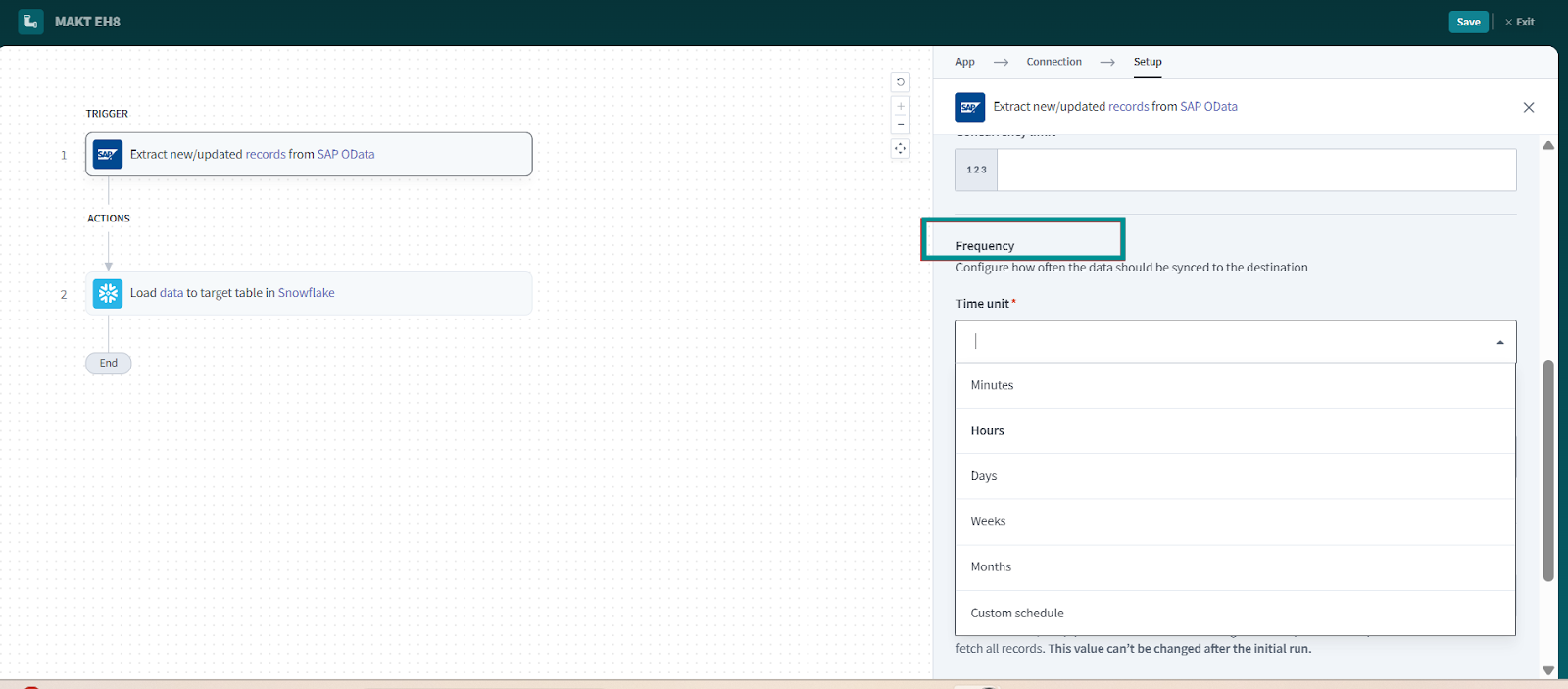 Configure frequency
Frequency defines how often the pipeline runs, such as every few minutes, hourly, or daily. Select a frequency that balances data freshness with SAP system performance and stability.
Choose either a standard time-based schedule or define a custom cron expression.
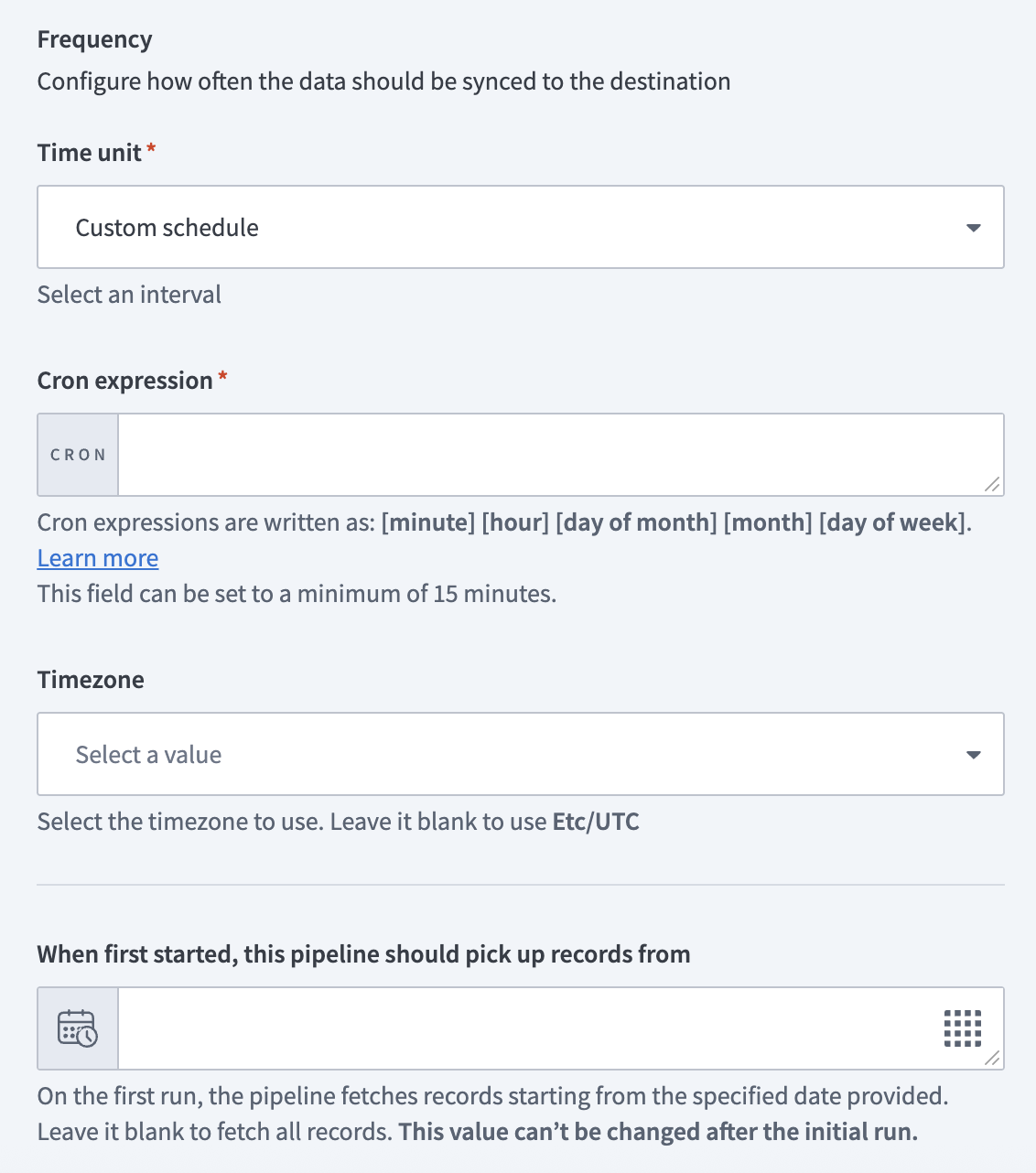 Configure sync frequency
Configure the destination
After you configure the SAP source and advanced settings, select the destination for your data.
Click the Load data to target table in destination app action. This action defines how the pipeline replicates data in the destination.
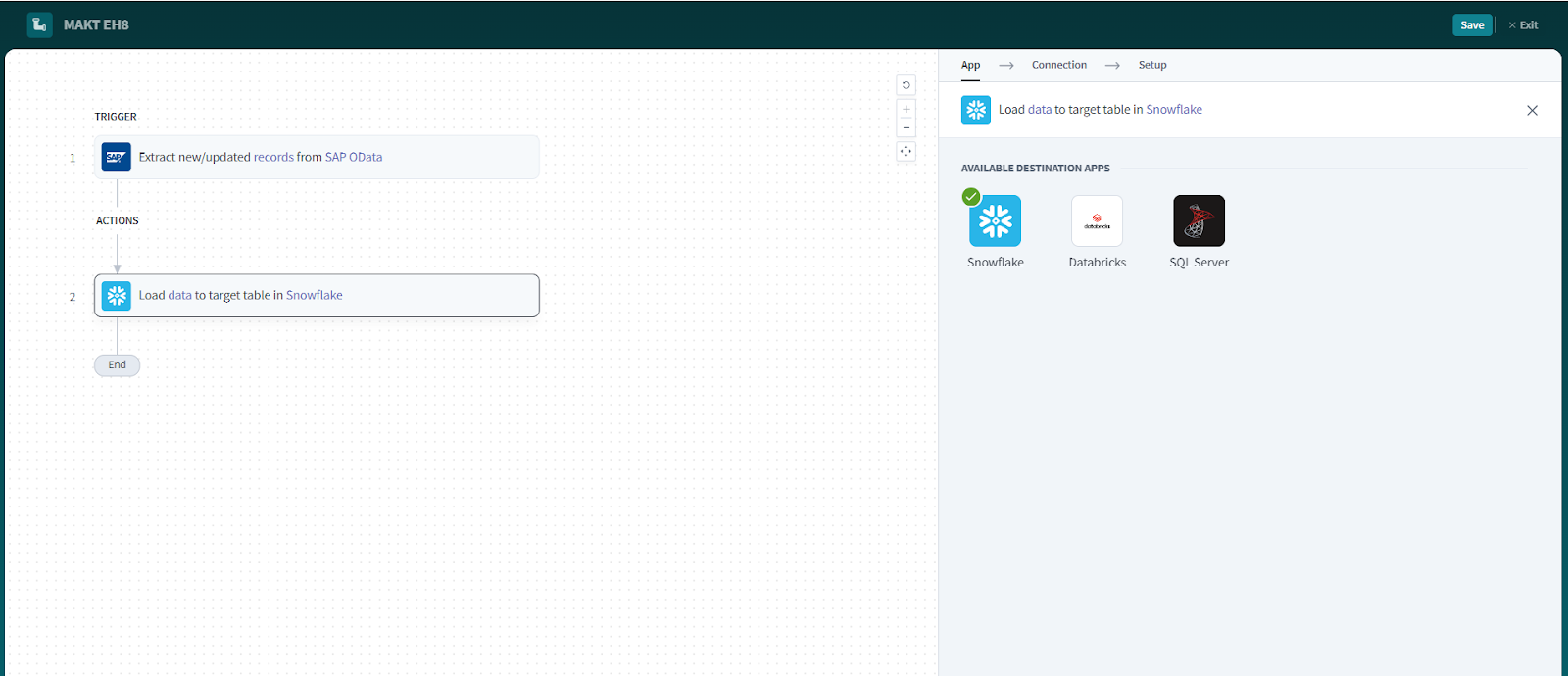 Configure destination
Select the destination application.
Select an existing destination connection, or click + New connection to create one.
Click Save.
Refer to the following guides for destination-specific configuration details:
Start the pipeline
Click Start pipeline to begin data extraction.
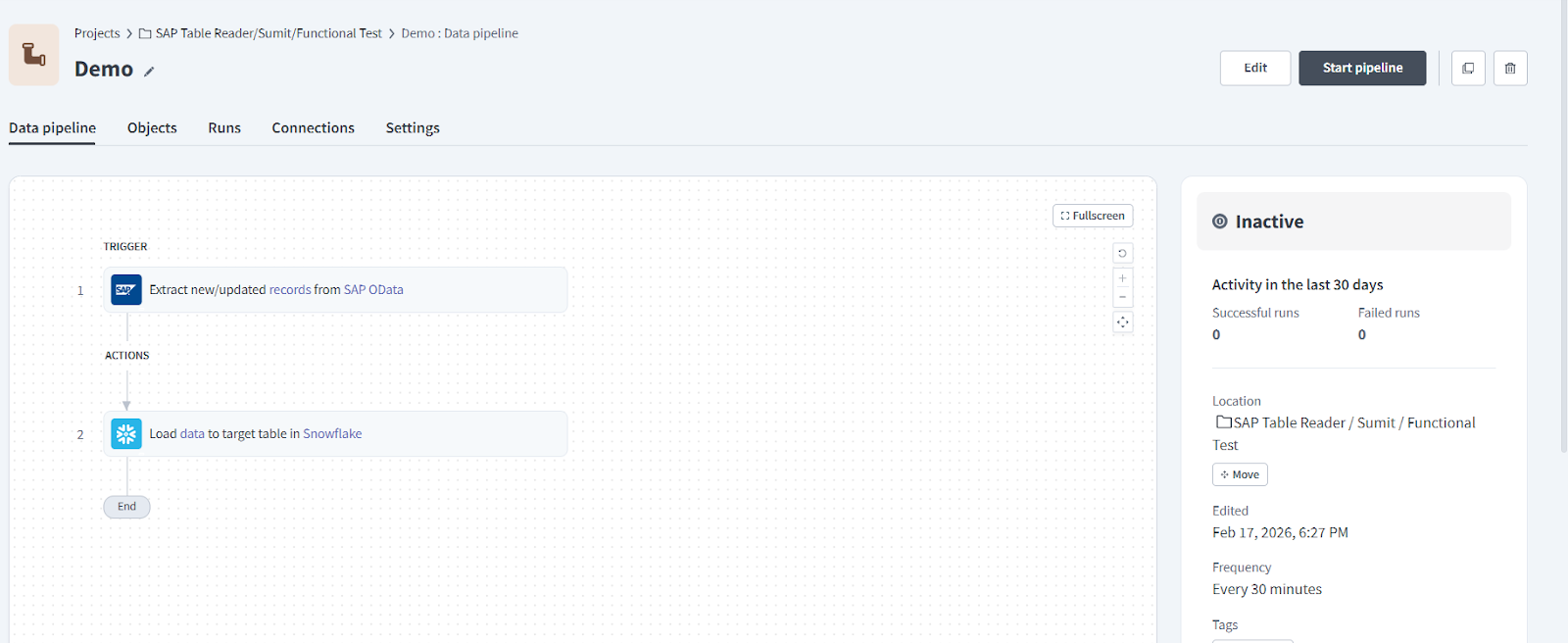 Start pipeline
Workato sends extraction requests to SAP Data Agent, retrieves data in packages, and loads the data into the destination.
Review sync completion
After the pipeline finishes extracting data, SAP Data Agent performs post-extraction cleanup to protect system performance and data security.
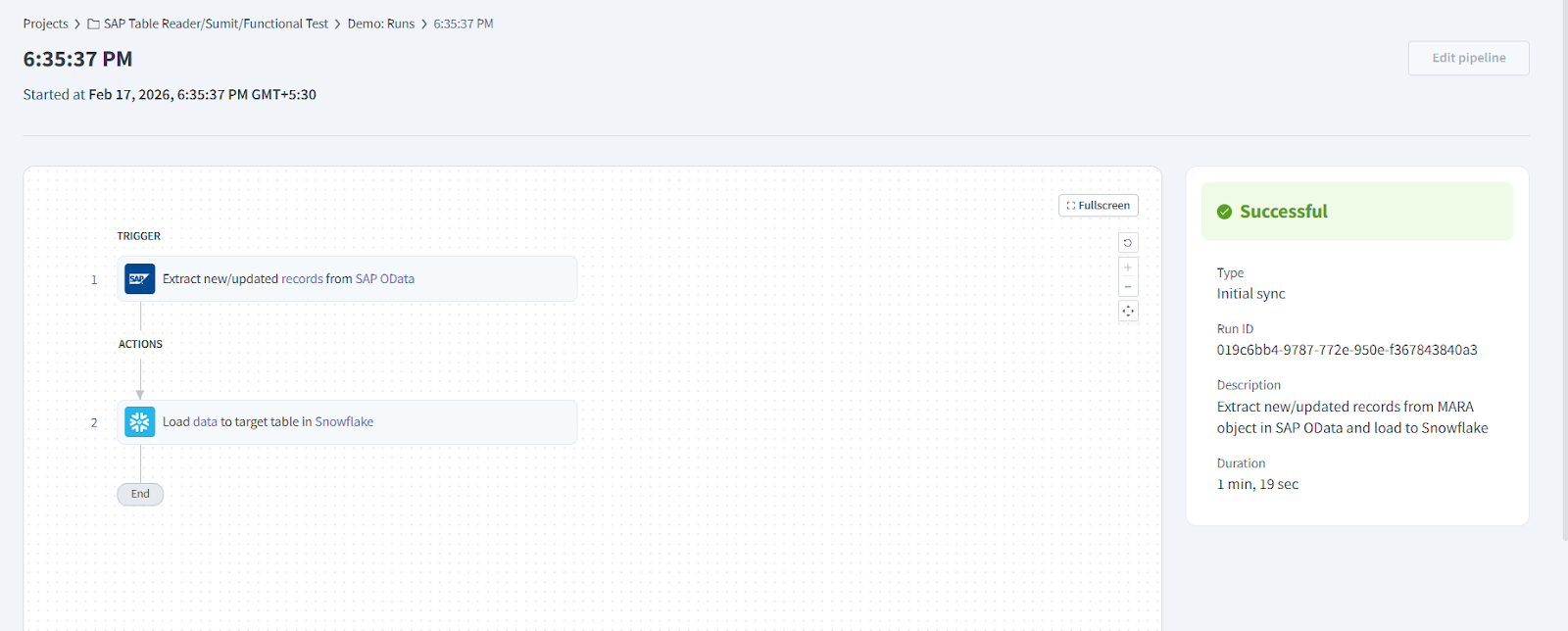 Completed sync
The following occurs:
- Workato makes the full dataset available in the pipeline for downstream processing.
- Workato sends a final cleanup API call to SAP Data Agent.
- The SAP Data Agent flushes pipeline execution memory and deletes temporary staging tables in the SAP system.
This cleanup process ensures efficient resource usage and prevents residual staging data from accumulating in SAP.
Last updated: