Configure Square as a data pipeline source
Set up Square as a data pipeline source to extract payment, order, catalog, customer, and labor records into your destination.
Use this guide to generate a Square access token, set up a connection, configure your pipeline, add objects, review sync behavior, and understand known limitations.
Features supported
The following features are supported when you use Square as a pipeline source:
- Cloud connectivity: Connect to Square over HTTPS through
https://connect.squareup.com/v2. On-prem agents aren't required. - Sandbox and production environments: Connect to either your live production account or a Square Sandbox account for testing. Workato treats each mode as a separate environment.
- Full sync and incremental sync: Supports full sync and incremental sync modes. Incremental sync uses a timestamp filter for objects that support one. Refer to Sync modes for more information.
- Object-level selection: Select Square objects to sync as separate tables in your destination. Refer to Supported objects for the full list.
- Soft-delete tracking: Catalog objects carry a native deleted flag that Workato preserves in your destination. Refer to Delete tracking for more information.
- Custom attributes: Custom attributes that sellers or partner applications define on
Customers,Locations,Orders,Merchants, and catalog objects sync as dedicated columns. Refer to Custom attributes for more information. - Schema drift detection and handling: Detect and apply schema changes automatically with Auto-sync new fields, or keep the schema fixed with Block new fields.
- Field-level data protection: Hash or replicate sensitive fields as is before the data reaches your destination.
- Configurable sync frequency: Schedule syncs on a time-based interval or with a cron expression. The minimum supported interval is 15 minutes.
Prerequisites
Connecting Square as a data pipeline source requires:
- A Square account, or a Square Sandbox account if you want to test your pipeline before you connect to production data
- Credentials for your chosen authentication method:
- Personal access token: A Square personal access token generated from the Square Developer Console. Refer to Generate a Square personal access token for setup steps.
- OAuth 2.0: A Square account user with permission to authorize third-party applications.
REQUIRED PERMISSIONS
A personal access token grants unrestricted read and write access to every resource in your Square account, even though Workato only reads data for a pipeline. OAuth is scoped to read-only access for the objects Workato supports.
Generate a Square personal access token
Generate the token in the Square Developer Console before you create the connection in Workato. Skip this section if you connect with OAuth 2.0.
Sign in to the Square Developer Console and select or create the application you plan to use with Workato.
Go to the application's Sandbox or Production Credentials page, matching the environment you plan to connect to.
Copy the access token. Production tokens begin with sq0atp-. Sandbox tokens use a separate value scoped to your Sandbox account.
Refer to Square's access token documentation for more information about generating and managing tokens.
TOKEN ENVIRONMENT MUST MATCH YOUR INTENDED ENVIRONMENT
A production token returns live data. A Sandbox token returns Sandbox data. The two environments don't share data. Confirm you select the matching Sandbox setting when you create the connection.
Workato requests a read-only scope for each object you can sync, such as PAYMENTS_READ for Payments or CUSTOMERS_READ for Customers for OAuth connections. Refer to Square's OAuth Permissions Reference for more information on the exact scopes requested when you connect.
Supported connection types
Square data pipelines support two authentication methods:
- Personal access token: Provide an access token generated from the Square Developer Console. This token grants unrestricted access to your account and is appropriate for single-account integrations. Refer to Generate a Square personal access token for setup steps.
- OAuth 2.0: Connect through an authorization code grant by authorizing Workato access from your Square account. Recommended if you connect multiple sellers' accounts.
Connect to Square
Complete the following steps to connect to Square:
Connect to Square
Configure the pipeline
Complete the following steps to configure Square as your data pipeline source:
Select Create > Data pipeline or press C+I.
Enter a name for the data pipeline in the Data pipeline name field.
 Data pipeline setup
Use the Location drop-down menu to select the project where you plan to store the data pipeline.
Click Start building.
Click the Extract new/updated records from source app trigger. This trigger defines how the pipeline retrieves data from Square.
 Configure the Extract new/updated records from source app trigger
Use the Your Connected Source Apps drop-down menu to select Square.
Choose the Square connection you plan to use for this pipeline. Alternatively, click + New connection to create a new connection.
Click Add object to open the Add new objects panel.
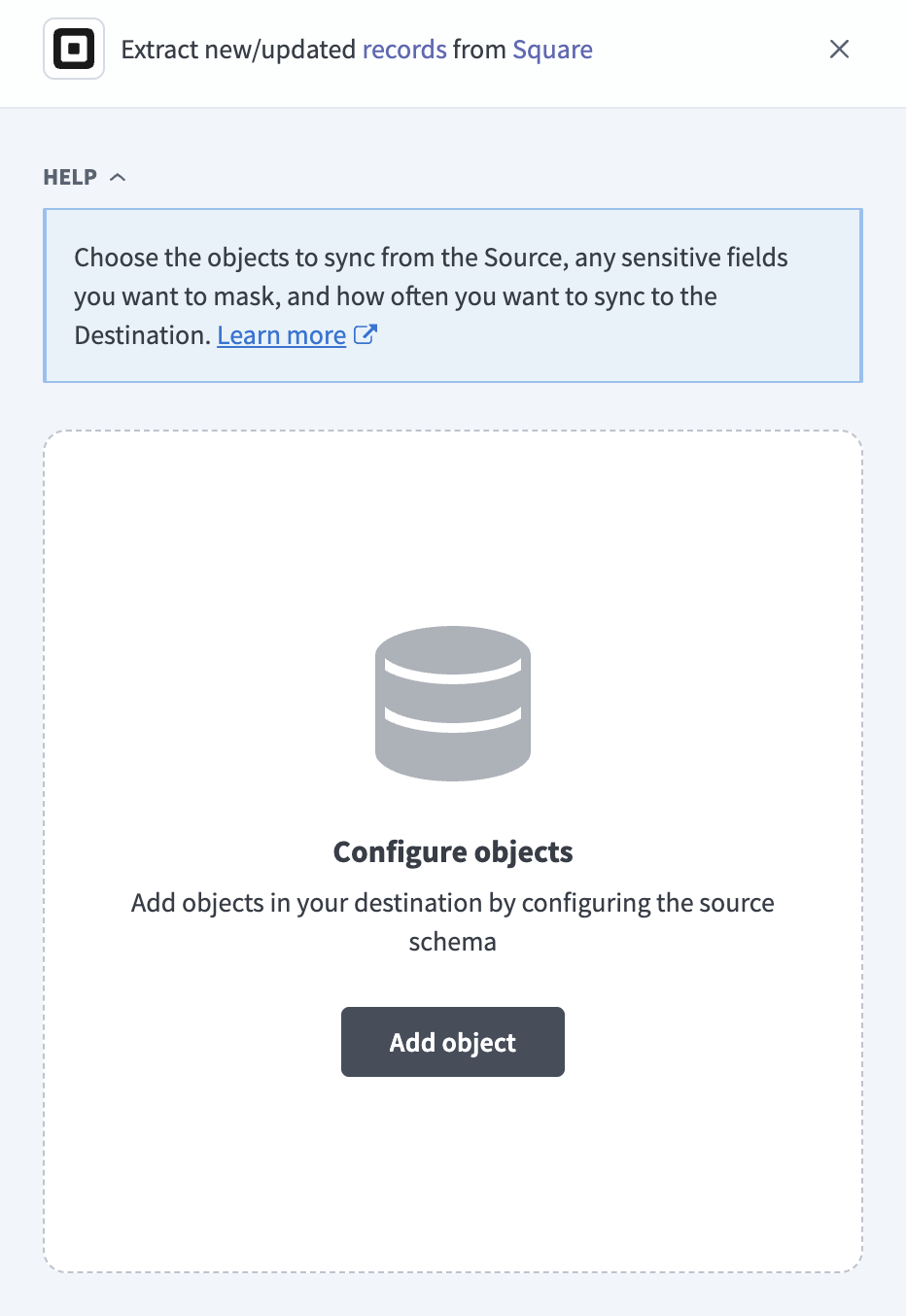 Add objects
Search or browse the list of available Square objects, select the objects you plan to sync, and click Add.
Optional. Click the settings icon next to an object to configure how the object syncs. Use the Sync mode drop-down menu to select Full sync or Incremental.
The object defaults to Full sync if Square doesn't expose a timestamp field for it. This applies to objects such as Locations, Merchants, Team Members, and Vendors, and to the child objects Order Line Items, Catalog Item Variations, and Timecard Breaks. Refer to Supported objects for the sync mode each object supports.
Review and customize the schema for each selected object. The pipeline automatically fetches an object's schema when you select it. This ensures the destination matches the source.
Expand an object to view associated fields. Keep all fields selected to extract all available data, or deselect specific fields to exclude them from data extraction and schema replication.
Optional. Configure field-level data protection by expanding an object and choosing how to handle each field:
- Replicate as is: Data values at the source replicate identically to the destination.
- Hash: Hash sensitive data values in the field before syncing to your destination.
Workato recommends hashing personally identifiable information (PII) and other sensitive fields. Refer to Sensitive data handling for a list of fields that commonly contain PII.
Click Add object again to add more objects. Repeat this step to include additional Square objects in your pipeline.
Use the Choose how to handle schema changes drop-down menu to select a schema drift handling option:
- Auto-sync new fields: Automatically detects and syncs new fields added in the source.
- Block new fields: Keeps the schema fixed after the pipeline starts. You must add new fields manually. This option may cause the destination to fall out of sync if the source schema updates.
Refer to Schema replication and schema drift management for more information.
Optional. Enter a value in the Concurrency limit field to cap the number of concurrent operations. Leave the field blank to use the default quota set by Workato. The maximum value is 100.
Choose either a standard time-based schedule or define a custom cron expression in the Frequency field. This determines how often the pipeline syncs data from Square to the destination.
Supported objects
Square data pipelines sync data from the Square REST API. The following tables list the supported objects, grouped by category. Each object syncs as a separate table in your destination.
Payments and refunds
| Object | Sync mode | Delete tracking |
|---|---|---|
Payments | Full sync, incremental | No |
Refunds | Full sync, incremental | No |
Payouts | Full sync, incremental | No |
Bank Accounts | Full sync | Yes (destination-inferred) |
Disputes | Full sync | Yes (destination-inferred) |
Orders
| Object | Sync mode | Delete tracking |
|---|---|---|
Orders | Full sync, incremental | No |
Order Line Items | Syncs with the parent Orders object | No |
Customers
| Object | Sync mode | Delete tracking |
|---|---|---|
Customers | Full sync, incremental | No |
Catalog and inventory
Catalog objects support custom attributes and carry a native deleted flag. Refer to Custom attributes and Delete tracking for more information. Inventory reflects current stock levels only and doesn't retain a history of past stock counts.
| Object | Sync mode | Delete tracking |
|---|---|---|
Catalog Items | Full sync, incremental | Yes (soft) |
Catalog Item Variations | Syncs with the parent Catalog Items object | Yes (soft) |
Catalog Categories | Full sync, incremental | Yes (soft) |
Catalog Discounts | Full sync, incremental | Yes (soft) |
Catalog Taxes | Full sync, incremental | Yes (soft) |
Catalog Modifier Lists | Full sync, incremental | Yes (soft) |
Catalog Pricing Rules | Full sync, incremental | Yes (soft) |
Inventory | Full sync, incremental | N/A |
Locations and account
| Object | Sync mode | Delete tracking |
|---|---|---|
Locations | Full sync | Yes (destination-inferred) |
Merchants | Full sync | Yes (destination-inferred) |
Labor and team
| Object | Sync mode | Delete tracking |
|---|---|---|
Team Members | Full sync | Yes (destination-inferred) |
Team Member Wages | Full sync | Yes (destination-inferred) |
Timecards | Full sync, incremental | No |
Timecard Breaks | Syncs with the parent Timecards object | No |
Cash Drawer Shifts | Full sync, incremental | No |
Gift cards and loyalty
Syncing Loyalty Accounts or Loyalty Programs requires a Loyalty program configured on your Square account. Refer to Limitations for more information.
| Object | Sync mode | Delete tracking |
|---|---|---|
Gift Cards | Full sync | Yes (destination-inferred) |
Gift Card Activities | Incremental | N/A |
Loyalty Accounts | Full sync | Yes (destination-inferred) |
Loyalty Programs | Full sync | Yes (destination-inferred) |
Invoicing and subscriptions
| Object | Sync mode | Delete tracking |
|---|---|---|
Invoices | Full sync | Yes (destination-inferred) |
Subscriptions | Full sync | Yes (destination-inferred) |
Vendors
| Object | Sync mode | Delete tracking |
|---|---|---|
Vendors | Full sync | Yes (destination-inferred) |
Sync modes
Square data pipelines support full sync and incremental sync. The sync mode is configured per object when you add it to your pipeline.
Full sync
A full sync reads all available records from Square for the selected object and replaces the record set in the destination table. Objects without a reliable modified-time filter in the Square API, such as Locations, Merchants, Team Members, and Vendors, support full sync only.
Incremental sync
An incremental sync extracts only records that changed since the last successful run. Square incremental sync uses the following mechanisms, depending on the object:
Payments,Orders,Customers, and most catalog objects (Catalog Items,Catalog Categories,Catalog Discounts,Catalog Taxes,Catalog Modifier Lists,Catalog Pricing Rules): anupdated_atfilter that captures both new and edited records.Inventory: acalculated_atfilter that reflects the most recent stock adjustment for each item and location.Timecards: astart_atfilter, plus a weekly re-read of the trailing 90 days to catch retroactive edits, because Square doesn't expose anupdated_atfilter for timecards. Refer to Limitations for more information.Refunds,Payouts, andCash Drawer Shifts: a creation-time filter only, so status changes to an already-synced record aren't captured. Refer to Limitations for more information.Gift Card Activities: a creation-time filter. Gift card activities are an append-only log and are never edited after creation.
Refer to the Supported objects tables to see the sync mode for each object.
Delete tracking
Delete tracking depends on the object's sync mode. Full-sync objects are marked Yes (destination-inferred), because Workato compares each run's complete record set against the previous run and flags records that no longer appear. Catalog Items and its related catalog objects carry a native is_deleted field that Square sets when an object is removed, so Workato marks these Yes (soft) instead.
Objects that sync incrementally with no source-driven delete signal are marked No, because an incremental run only reads changed records and Square doesn't emit delete events through its REST list endpoints. Inventory reflects current stock levels rather than discrete records, so delete tracking doesn't apply.
Schema and data type handling
The following considerations apply to schema and data types when you sync data from Square.
Data types
Square returns timestamps as RFC 3339 strings in UTC. Nested objects that don't sync as their own child table, such as card details on a payment, sync as a JSON column instead. Workato extracts Order Line Items, Catalog Item Variations, and Timecard Breaks as separate child tables. Orders don't always include a customer_id. Guest checkouts leave it empty.
Workato syncs JSON fields to the destination's native JSON type, such as VARIANT in Snowflake. Workato serializes JSON fields as strings if the destination doesn't support a native JSON type.
Custom attributes
Square sellers and partner applications can define custom attributes on Customers, Locations, Orders, Merchants, and catalog objects. Workato discovers each definition and adds it as a dedicated cattr_<key> column, which only appears in your destination if you select it. Selecting a custom attribute column on Customers, Locations, Orders, or Merchants adds an API call per record and increases sync time on high-volume objects; catalog objects don't have this cost, because Square returns their custom attribute values inline.
Sensitive data handling
Square objects can contain significant PII and financial data. The following objects commonly contain sensitive fields:
| Object | Sensitive fields |
|---|---|
Customers | given_name, family_name, email_address, phone_number, birthday, address, note |
Payments | billing_address, receipt_url, buyer_email_address, card_brand, last_4, exp_month, exp_year |
Orders | Pickup and shipment recipient display_name, email_address, and phone_number |
Team Members | given_name, family_name, email_address, phone_number |
Bank Accounts | holder_name, account_number_suffix, primary_bank_identification_number |
Vendors | Contact name, email_address, and phone_number |
Locations | address, phone_number |
Square doesn't return raw card numbers or CVV values through the API. Square returns only tokenized and fingerprinted card data for Payments.
Use the Hash option in field-level data protection during pipeline configuration to protect PII before it reaches your destination. Refer to the Configure the pipeline steps for more information.
Limitations
The following limitations apply when you use Square as a data pipeline source:
Some objects only detect new records, not later updates
Refunds, Payouts, and Cash Drawer Shifts filter incremental syncs on creation time only, so a later status change, such as a refund completing or a payout failing, isn't captured after the record's initial sync. Timecards has the same gap beyond its 90-day lookback window. Set the When first started, this pipeline should pick up records from field to a date before the affected records and re-run a full sync to recover a specific date range for any of these objects.
The Loyalty Programs object requires a Square Loyalty program
Square accounts can have at most one Loyalty program. Syncing Loyalty Programs fails if your account doesn't have one configured. Skip this object if you don't use Square's loyalty features.
Minimum sync frequency
The minimum supported sync interval is 15 minutes.
Last updated: