Configure Trello as a data pipeline source
Set up Trello as a data pipeline source to extract boards, cards, and related project data into your destination.
Use this guide to create a connection, configure your pipeline, add objects, review sync behavior, and understand known limitations.
Features supported
The following features are supported when you use Trello as a pipeline source:
- Sign-in authentication: Connect by signing in to your Trello account and authorizing Workato's access. Refer to Supported connection types for more information.
- Full sync and incremental sync: Board and card structure objects use full sync on every run. Board and organization activity objects use incremental sync based on a creation-time cursor. Refer to Sync modes for more information.
- Delete tracking: Detect deletions for full-sync objects by comparing successive syncs. Refer to Delete tracking for more information.
- Object-level selection: Choose which Trello objects to sync into your destination.
- Schema drift detection and handling: Detect and apply schema changes automatically with Auto-sync new fields, or keep the schema fixed with Block new fields.
- Field-level data protection: Hash or replicate sensitive fields as is before the data reaches your destination.
- Configurable sync frequency: Schedule syncs on a time-based interval or with a cron expression. The minimum supported interval is 15 minutes.
Prerequisites
Connecting Trello as a data pipeline source requires:
- A Trello account that's a member of every board you plan to sync. The connected account can only view boards it belongs to, because Trello doesn't expose a workspace-wide listing endpoint. Refer to Membership-scoped extraction for more information.
- Permission to sign in and authorize Workato's access to that account.
ACCESS REQUESTED DURING SIGN-IN
Workato requests read access to your boards, cards, and organizations, plus access to your own account details. Trello may return Member.email only for the account that authorized the connection. The field can be empty for other members and may be unavailable when Trello restricts email access. Refer to Member email is restricted for more information.
Supported connection types
Trello data pipelines connect by signing in to your Trello account and authorizing Workato's access. This grants Workato an access token scoped to your account. Workato pairs this token with a Trello API key for extraction requests, using its own registered key by default or a key from a linked Custom OAuth profile if you use one. Refer to Connect to Trello for setup steps.
Connect to Trello
Connect to Trello
Complete the following steps to connect to Trello in Workato:
Click Create > Connection or press C twice.
Search for Trello and select it as your app.
Enter a name for your connection in the Connection name field.
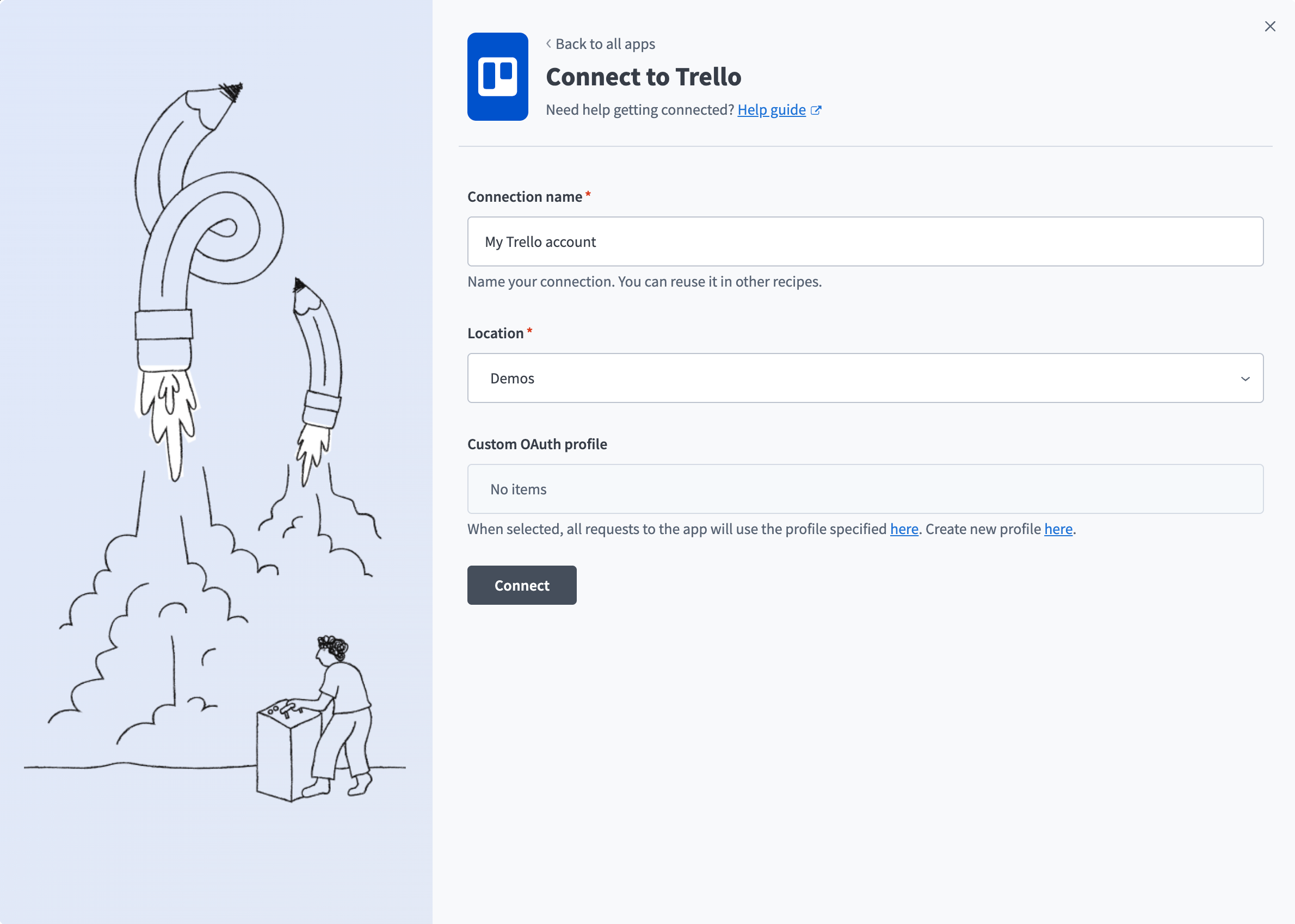 Connect to Trello
Use the Location drop-down menu to select the project where you plan to store the connection.
Optional. Use the Custom OAuth profile drop-down menu to select a custom OAuth profile for your connection.
Click Connect.
Sign in to the Trello account you plan to connect to, then click Allow to grant Workato access and complete the connection.
Configure the pipeline
Complete the following steps to configure Trello as your data pipeline source:
Select Create > Data pipeline.
Enter a name for the data pipeline in the Data pipeline name field.
 Data pipeline setup
Use the Location drop-down menu to select the project where you plan to store the data pipeline.
Click Start building.
Click the Extract new/updated records from source app trigger. This trigger defines how the pipeline retrieves data from Trello.
 Configure the Extract new/updated records from source app trigger
Use the Your Connected Source Apps drop-down menu to select Trello.
Choose the Trello connection you plan to use for this pipeline. Alternatively, click + New connection to create a new connection.
Click Add object to open the Add new objects panel.
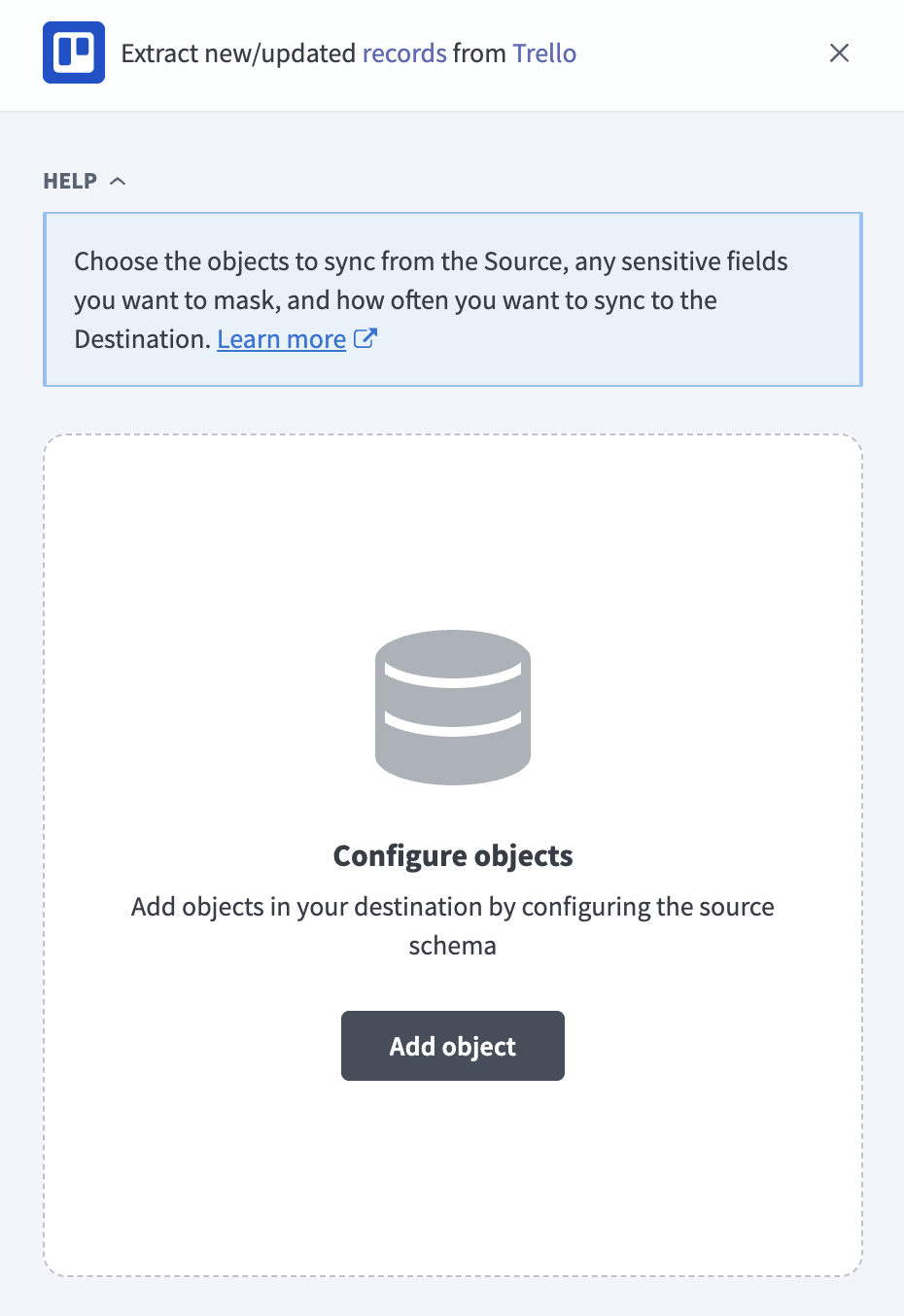 Add objects
Search or browse the list of available Trello objects, select the objects you plan to sync, and click Add.
INCREMENTAL SYNC AVAILABILITY
Only the Action and OrganizationAction objects support incremental sync. Every other Trello object syncs through full sync only. Refer to Sync modes for more information.
Optional. Click the gear icon next to an object to open its Sync mode settings. Use the Sync mode drop-down menu to select Full sync or Incremental, then click Save.
The sync mode defaults to Full sync for objects that don't support incremental sync, including objects without a usable cursor and child objects that sync with a parent. Refer to Sync modes for more information.
Review and customize the schema for each selected object. The pipeline automatically fetches an object's schema when you select it, so the destination matches the source.
Expand an object to view associated fields. Keep all fields selected to extract all available data, or deselect specific fields to exclude them from data extraction and schema replication.
Optional. Configure field-level data protection by expanding an object and choosing how to handle each field:
- Replicate as is: Data values at the source replicate identically to the destination.
- Hash: Hash sensitive data values in the field before syncing to your destination.
Workato recommends hashing personally identifiable information (PII) and other sensitive fields. Refer to Sensitive data handling for a list of fields that commonly contain PII.
Click Add object again to add more objects. Repeat the preceding steps for each additional object to configure its sync mode, schema, and field-level data protection.
Use the Choose how to handle schema changes drop-down menu to select a schema drift handling option:
- Auto-sync new fields: Automatically detects and syncs new fields added in the source.
- Block new fields: Keeps the schema fixed after the pipeline starts. You must add new fields manually.
Optional. Enter a value in the Concurrency limit field to cap the number of concurrent operations. Leave the field blank to use the default quota set by Workato. The maximum value is 100.
Configure how often the pipeline syncs data from Trello to the destination in the Frequency field. Choose either a standard time-based schedule or define a custom cron expression.
Supported objects
Trello data pipelines sync data from the Trello REST API. The following tables list the supported objects, grouped by category. Each object syncs as a separate table in your destination.
Boards and organizations
| Object | Sync modes | Delete tracking |
|---|---|---|
Board | Full sync | Yes |
Organization | Full sync | Yes |
Board structure
| Object | Sync modes | Delete tracking |
|---|---|---|
List | Full sync | Yes |
Label | Full sync | Yes |
Member | Full sync | Yes |
Checklist | Full sync | Yes |
CustomField | Full sync | Yes |
Cards
| Object | Sync modes | Delete tracking |
|---|---|---|
Card | Full sync | Yes |
CardMember | Syncs with the parent Card object | Yes |
CardLabel | Syncs with the parent Card object | Yes |
CheckItem | Syncs with the parent Checklist object | Yes |
CustomFieldItem | Syncs with the parent Card object | Yes |
CardAttachment | Syncs with the parent Card object | Yes |
CustomFieldItem stores custom field values. Join it to CustomField on idCustomField to interpret each value. Refer to Custom fields for more information.
CardAttachment contains attachment metadata only. Workato doesn't replicate attachment file contents. Refer to Card attachments contain metadata only for more information.
Activity
| Object | Sync modes | Delete tracking |
|---|---|---|
Action | Full sync, incremental | No (Yes in full sync) |
OrganizationAction | Full sync, incremental | No (Yes in full sync) |
Action contains board-, list-, and card-level activity, including card comments. OrganizationAction contains organization-level activity. Refer to Comments live in the Action object for more information.
Organization structure
| Object | Sync modes | Delete tracking |
|---|---|---|
OrganizationMember | Syncs with the parent Organization object | Yes |
OrganizationTag | Full sync | Yes |
Sync modes
Trello data pipelines support full sync and incremental sync. The sync mode is configured per object when you add it to your pipeline.
Full sync
A full sync reads all available records from Trello for the selected object and replaces the record set in your destination. Workato re-extracts board, card, and organization structure objects in full on every scheduled run to capture edits, moves, and archival changes, because Trello doesn't expose a reliable last-updated timestamp on these objects. Archived boards, lists, and cards remain included in a full sync and are distinguished from active records through the source closed field, not removed from the sync.
Incremental sync
An incremental sync extracts only records created since the last successful run. The Action and OrganizationAction objects use a creation-time cursor on the source date field. Each run rereads the most recent 1 day of activity in addition to any new activity, so recently edited comments can be picked up again by the same record id. This overlap doesn't guarantee that every historical edit or deletion is captured. Refer to Comments live in the Action object for more information.
Refer to the Supported objects tables to see which objects support incremental sync.
Delete tracking
Workato compares each full sync against the previous run and marks records that no longer appear in Trello as deleted in your destination. This applies to every full-sync object, including Action and OrganizationAction when you run them in full sync mode.
Action and OrganizationAction don't track deletes while running incrementally, because incremental sync only reads new activity and doesn't capture a complete snapshot to compare against. Trello also doesn't provide a native delete signal on these objects. Most delete and remove event types aren't included in the activity feed at all. A record deleted in Trello remains in your destination for these objects until you run a full sync.
Refer to the Supported objects tables to see which objects support delete tracking.
Schema and data type handling
The following considerations apply to schema and data types when you sync data from Trello.
Custom fields
Trello board custom fields sync as two objects. CustomField holds each field's definition (name and type), and CustomFieldItem holds each card's value for that field in a generic value column. Workato doesn't flatten custom field values into individual typed columns, because dropdown values are ID-referenced and the field set can differ per board. Join CustomFieldItem.idCustomField to CustomField.id to interpret a value.
CustomField and CustomFieldItem return no rows for a board rather than an error if the Custom Fields Power-Up isn't enabled on that board.
JSON fields
Trello returns several fields as nested objects or arrays, such as Card.badges, Card.idMembers, Board.prefs, and Action.data. Workato preserves these as JSON columns in your destination rather than flattening them.
Position values
The pos field on List, Card, CardAttachment, and other ordered objects is a decimal number, not a sequential integer. Don't assume a fixed or gap-free sequence, because Trello reassigns pos values when a customer reorders items.
Sensitive data handling
Trello objects can contain personally identifiable information (PII) in free-text fields. The following objects commonly contain sensitive fields:
| Object | Sensitive fields |
|---|---|
Card | desc, name, email, sourceEmail, address, locationName, coordinates |
Member | fullName, username, avatarUrl, bio, email |
Action | data (includes comment text for commentCard events) |
CardAttachment | name, url |
CustomFieldItem | value |
Organization | name, displayName, desc, website |
Customers can paste any PII into Card.desc and comment text in Action.data, because these fields are free text. Member.email may populate only for the account that authorized the connection. Refer to Member email is restricted for more information.
Use the Hash option in field-level data protection during pipeline configuration to protect PII before it reaches your destination. Refer to the Configure the pipeline steps for more information.
Limitations
The following limitations apply when you use Trello as a data pipeline source:
Membership-scoped extraction
This connector discovers boards through the connected member's membership-scoped board list, and organizations the same way. Boards that the connected user cannot access, along with their cards, lists, and other child objects, aren't extracted, with no error raised. Add the connected account to every board you want to sync, or use a dedicated Trello account added to all relevant boards.
Member email is restricted
Trello may return Member.email only for the account that authorized the Workato connection. The field can be empty for other members, regardless of that member's role or permissions, and may be unavailable when Trello restricts email access.
Card attachments contain metadata only
The CardAttachment object syncs file and link metadata, such as name, url, and mimeType. Workato doesn't replicate attachment file contents. Uploaded-file URLs require the original Trello session to access and may not resolve outside it.
Comments live in the Action object
Trello card comments aren't a separate object. They sync as commentCard rows in the Action object, with the comment text in the data field. An edit is only picked up again if it falls inside the incremental sync's 1-day lookback window, because editing a comment doesn't change its Action id or date. Deleting a comment removes it from Trello's activity feed entirely, with no corresponding record in Action to signal the deletion.
Minimum sync frequency
The minimum supported sync interval is 15 minutes.
Last updated: