Configure Typeform as a data pipeline source
Set up Typeform as a data pipeline source to extract and sync forms, responses, and account resources such as workspaces, themes, webhooks, and images from Typeform to your destination.
Use this guide to review the features and prerequisites, connect Typeform as a data pipeline source, configure the pipeline, and understand the supported objects, sync modes, schema handling, sensitive data handling, and known limitations.
Features supported
The following features are supported when you use Typeform as a pipeline source:
- Cloud connectivity: Connects to the Typeform API over HTTPS. An on-prem agent isn't required.
- Data center selection: Connect to an account that stores responses in the US data center or the EU data center. Refer to Supported data centers for more information.
- Object-level selection: Choose from
Forms,Responses,Response Answers, and account resources. Refer to Supported objects for the full list. - Incremental sync: Response objects sync incrementally based on each response's
submitted_atorstaged_attimestamp. Refer to Incremental sync for more information. - Partial and completed responses: Response objects include partial and completed responses. Refer to Partial responses for more information.
- Delete tracking: Mark records you delete in Typeform as deleted in your destination on the next full sync. Refer to Delete tracking for more information.
- Schema drift detection and handling: Detect and apply schema changes automatically with Auto-sync new fields, or keep the schema fixed with Block new fields.
- Field-level data protection: Hash or replicate sensitive fields as is before the data reaches your destination.
- Configurable sync frequency: Schedule syncs on a time-based interval or with a cron expression. The minimum supported interval is 15 minutes.
Prerequisites
Connecting Typeform as a data pipeline source requires:
- A Typeform account with access to the forms you plan to sync.
- A Typeform application and a custom OAuth profile built from that application's client ID and client secret. Refer to Create a Typeform OAuth app and custom OAuth profile for setup steps.
Supported connection types
Typeform data pipelines support OAuth 2.0 authentication:
- OAuth 2.0: Authorize Workato using a custom OAuth profile built from a Typeform application that you create. Refer to Create a Typeform OAuth app and custom OAuth profile for setup steps. Personal access token authentication isn't supported.
Connect to Typeform
Connect to Typeform
- Create a Typeform OAuth app and custom OAuth profile to store your Typeform application's client ID and client secret in Workato.
- Connect to Typeform with OAuth 2.0 using the custom OAuth profile you created.
Create a Typeform OAuth app and custom OAuth profile
You must create a Typeform application and a Workato custom OAuth profile before you connect Typeform as a data pipeline source:
Go to Tools > Custom OAuth profiles in Workato and click + New custom profile.
Use the Application drop-down menu to select Typeform.
Enter a name in the Name field. The name can contain spaces but no special characters, and it must be unique for your account.
Click Create new app. Keep the Workato tab open.
Sign in to Typeform in a new tab and create an application using https://www.workato.com/oauth/callback as the redirect URI. Refer to the Typeform Create an application guide for steps.
Copy the application's client ID and client secret and store them securely.
Return to the Workato tab and enter the values in the Client ID and Client secret fields.
Click Save. Refer to Custom OAuth profiles for more information.
Connect to Typeform with OAuth 2.0
Complete the following steps to create a Typeform connection that uses your custom OAuth profile:
Select Create > Connection or press C twice.
Search for Typeform and select it as your app.
Enter a name in the Connection name field.
Use the Location drop-down menu to select the project where you plan to store the connection.
Use the Data center drop-down menu to select the data center where your Typeform account stores responses. Select EU if the EU Responses Data Center is enabled for your account. Otherwise, select US. The connection uses US if you leave this field blank. Refer to Supported data centers for more information.
Use the Custom OAuth profile drop-down menu to select the custom OAuth profile you created for Typeform. This field is required.
Click Connect.
Log in to your Typeform account in the window that opens to complete the connection. Workato displays a success message when the connection is established.
Configure the pipeline
Complete the following steps to configure Typeform as your data pipeline source:
Select Create > Data pipeline or press C+I.
Enter a name for the data pipeline in the Data pipeline name field.
 Data pipeline setup
Use the Location drop-down menu to select the project where you plan to store the data pipeline.
Click Start building.
Click the Extract new/updated records from source app trigger. This trigger defines how the pipeline retrieves data from Typeform.
 Configure the Extract new/updated records from source app trigger
Use the Your Connected Source Apps drop-down menu to select Typeform.
Choose the Typeform connection you plan to use for this pipeline. Alternatively, click + New connection to create a new connection.
Click Add object to open the Add new objects panel.
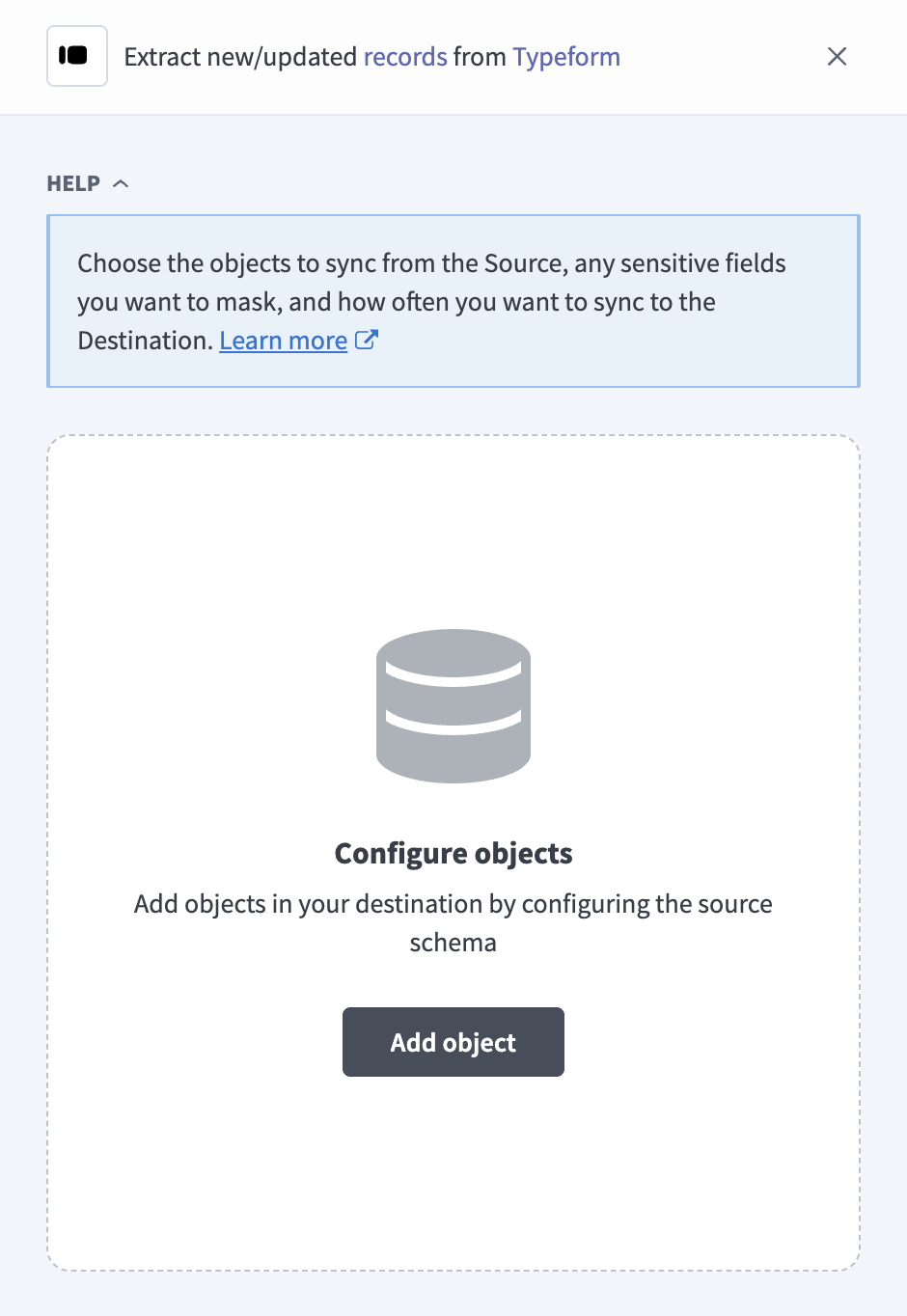 Add objects
Search or browse the list of available Typeform objects, select the objects you plan to sync, and click Add.
Review and customize the schema for each selected object. The pipeline automatically fetches an object's schema when you select it. This ensures the destination matches the source.
Expand an object to view associated fields. Keep all fields selected to extract all available data, or deselect specific fields to exclude them from data extraction and schema replication.
Optional. Configure field-level data protection by expanding an object and choosing how to handle each field:
- Replicate as is: Data values at the source replicate identically to the destination.
- Hash: Hash sensitive data values in the field before syncing to your destination.
Workato recommends hashing personally identifiable information (PII) and other sensitive fields. Refer to Sensitive data handling for a list of fields that commonly contain PII.
Click Add object again to add more objects. Repeat this step to include additional Typeform objects in your pipeline.
Use the Choose how to handle schema changes drop-down menu to select a schema drift handling option:
- Auto-sync new fields: Automatically detects and syncs new fields added in the source.
- Block new fields: Keeps the schema fixed after the pipeline starts. You must add new fields manually. This option may cause the destination to fall out of sync if the source schema updates.
Refer to Schema replication and schema drift management for more information.
Optional. Enter a value in the Concurrency limit field to cap the number of concurrent operations. Leave the field blank to use the default limit set by Workato. The maximum value for Typeform is 1.
Choose either a standard time-based schedule or define a custom cron expression in the Frequency field. This determines how often the pipeline syncs data from Typeform to the destination.
Supported objects
Typeform data pipelines sync data from the Typeform Create, Responses, and Webhooks APIs. The following tables list the supported objects, grouped by category. Each object syncs as a separate table in your destination:
Response objects
Responses contains one row for each form response. Response Answers contains one row for each answer. Response Answer Choices contains one row for each selected choice. Response Variables contains one row for each variable or hidden field. Workato reads all four objects from the responses of every form in your account, so you can select each one independently.
| Object | Sync mode(s) | Delete tracking |
|---|---|---|
Responses | Full sync, incremental | No |
Response Answers | Full sync, incremental | No |
Response Answer Choices | Full sync, incremental | No |
Response Variables | Full sync, incremental | No |
Form and account objects
The following objects sync forms and the resources in your Typeform account. Forms contains summary fields only. Refer to Form definitions aren't synced for more information. Webhooks contains the webhooks configured on each form, without the webhook secret. Images contains image metadata, such as the file name, URL, and dimensions, and doesn't download image files.
| Object | Sync mode(s) | Delete tracking |
|---|---|---|
Forms | Full sync | Yes |
Workspaces | Full sync | Yes |
Themes | Full sync | Yes |
Webhooks | Full sync | Yes |
Images | Full sync | Yes |
Sync modes
Typeform data pipelines support full sync and incremental sync. Refer to the Supported objects tables to see the sync modes for each object.
Full sync
A full sync reads all records for the selected object from Typeform on every run and replaces the record set in your destination table. Forms, Workspaces, Themes, Webhooks, and Images support full sync only, because the Typeform API doesn't offer a way to request only changed records for these objects.
Response objects also support full sync, which reads every response from the start date you configure.
Incremental sync
Response objects filter responses by the submitted_at timestamp for completed responses and the staged_at timestamp for partial responses. The cursor_at column contains the timestamp used for each row.
Each incremental sync reads responses from 60 minutes before the previous successful sync started, because Typeform can take up to about 30 minutes to make new responses available. Your destination deduplicates re-read rows by primary key, so they update existing rows instead of creating duplicates.
Partial responses
Response objects include partial responses alongside completed responses. A partial response contains the answers a respondent submitted before leaving the form. The response_type column contains partial or completed. Responses with the started type aren't synced.
Typeform records partial responses only on plans that support the partial responses feature.
Delete tracking
Delete tracking depends on the object:
- Full-sync objects:
Yes. Workato marks records you delete in Typeform as deleted in your destination on the next full sync. - Response objects:
No. The Typeform API doesn't expose deleted responses.
Answers, choices, and variables can also disappear from a partial response when the respondent edits it. Incremental syncs don't remove these rows, so they remain in Response Answers, Response Answer Choices, and Response Variables. Run a full re-sync to rebuild these tables. A full re-sync reloads every object in the pipeline.
Schema and data type handling
The following considerations apply to schema and data types when you sync data from Typeform:
Fixed schema
Every object has a fixed schema defined by Workato. New questions and hidden fields that you add to a form appear as new rows in Response Answers and Response Variables, not as new columns.
Answer values
Response Answers stores each answer value in the column that matches its type, such as text, email, number, boolean, date, phone_number, url, file_url, choice_label, or choices_labels. The answer_type column identifies the populated column. Answers with a type that doesn't have its own column sync to the raw_answer column.
File upload answers sync the file URL that Typeform returns in file_url. Workato doesn't download the file, and Typeform file URLs expire.
Variables and hidden fields
Response Variables contains one row for each variable and each hidden field on a response. The value_source column contains variable or hidden, which keeps a variable and a hidden field with the same key in separate rows. Text values sync to text_value, numeric values sync to number_value, and other values sync to raw_value.
Timestamps
Timestamp fields, such as created_at, submitted_at, staged_at, and cursor_at, sync as ISO 8601 strings in UTC.
Nested fields
Nested objects and arrays, such as metadata, hidden, and calculated on Responses, colors and screens on Themes, and event_types on Webhooks, sync as JSON objects. Workato stores them in your destination's native JSON type, such as VARIANT in Snowflake, and serializes them to strings only when the destination doesn't have a native JSON type.
Synthetic columns
Workato adds the following columns to destination tables for specific objects:
| Column | Type | Purpose |
|---|---|---|
form_id | String | ID of the form that the row belongs to. Added to Responses, Response Answers, Response Answer Choices, Response Variables, and Webhooks. Part of the primary key on Response Answers, Response Answer Choices, Response Variables, and Webhooks. |
cursor_at | String | Added to response objects. Contains submitted_at for completed responses and staged_at for partial responses. |
choice_index | Integer | Part of the Response Answer Choices primary key. Zero-based position of the choice in the answer. The Other free-text value syncs as the last choice, in the other_text column. |
value_source | String | Part of the Response Variables primary key. Contains variable or hidden. |
Sensitive data handling
Typeform responses often contain personally identifiable information (PII), because respondents can enter any information a form asks for. Treat free-text answers as sensitive, not only fields with obvious names such as email. The following objects commonly contain sensitive fields:
| Object | Sensitive fields |
|---|---|
Responses | hidden, metadata (includes the IP-derived network_id, browser, platform, and referer) |
Response Answers | text, email, phone_number, url, file_url, raw_answer |
Response Answer Choices | other_text |
Response Variables | text_value, raw_value |
Webhooks | url |
Hidden fields often carry a respondent's email address or customer ID.
Use the Hash option in field-level data protection during pipeline configuration to protect PII before it reaches your destination. Refer to the Configure the pipeline steps for more information.
Limitations
The following limitations apply when you use Typeform as a data pipeline source:
Supported data centers
Typeform data pipelines support the US data center at api.typeform.com and the EU data center at api.eu.typeform.com. Accounts hosted in Typeform's newer EU data center at api.typeform.eu aren't supported.
Response objects fail with an error if the Data center you select doesn't match the data center where your account stores responses. Change the Data center setting to match your account, then reconnect to resolve the error.
Form definitions aren't synced
Forms syncs the summary fields that Typeform returns when it lists forms, such as the title, type, timestamps, visibility, and links. Question definitions, logic jumps, and hidden field declarations aren't synced. Use field_id, field_ref, and field_type in Response Answers to identify the question each answer belongs to.
Webhooks limit per form
Webhooks fails with an error if a single form has more than 1,000 webhooks.
Minimum sync frequency
The minimum supported sync interval is 15 minutes.
Last updated: