Monitor data pipelines using recipes
You can use recipes to orchestrate monitoring workflows for your data pipelines. These recipes help you respond to pipeline sync results, automate error handling, and send alerts when syncs fail.
Use case: Monitor pipeline failures
A common use case is error monitoring. You can configure a recipe to notify teams when any object in a pipeline fails to sync.
Workato recommends triggering recipes on every sync completion, rather than failed syncs. This ensures object-level failures are captured. Failed syncs only detect sync-level issues, which may exclude failures within individual objects.
Configure pipeline triggers in recipes
Complete the following steps to build a pipeline monitoring recipe:
Sign in to Workato.
Select the project where you plan to create the recipe.
Create connections for PipelineOps by Workato:
Set up your PipelineOps connection
Set up your PipelineOps connection
Click Create > Connection or press C twice.
Search for and select PipelineOps by Workato on the New connection page.
Provide a name for your connection in the Connection name field.
Use the Location drop-down menu to select the project where you plan to store the connection.
Click Connect.
Set up your Gmail connection
Set up your Gmail connection
Workato supports two types of connections to Gmail:
OAuth 2.0 authentication
Complete the following steps to set up an OAuth 2.0 connection:
Sign in to your Workato account and go to the project where you plan to add your Gmail connection.
Click Create > Connection (or press C twice), then select Gmail as your connection.
Provide a Connection name that uniquely identifies the Gmail connection instance.
Click the Authentication type menu and select OAuth 2.0.
Optional. Click Advanced settings and select additional OAuth 2.0 scopes. If left blank, the following scopes are requested:
- See your primary Google Account email address
- See and edit your email labels
- Send email on your behalf
- View your email messages and settings
- Read, compose, and send emails from your Gmail account
Click Sign in with Google and sign in to your Google account to complete the setup.
Connect to a service account in Workato
Complete the following steps to set up a service account connection:
Sign in to your Workato account and navigate to the project where you plan to add your Gmail connection.
Click Create > Connection (or press C twice), then select Gmail as your connection.
Select the Authentication type drop-down menu.
Click Sign in with Google and sign in to your Google account to complete the setup.
Go back to your project and click Create > Recipe or press C+R.
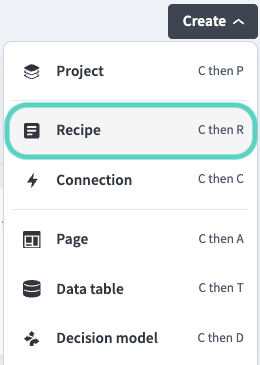 Create a new recipe
Click Pick a starting point, then select Select an app and trigger event.
Set up your data pipeline sync trigger
Set up the data pipeline trigger
This trigger monitors the sync status of a pipeline. It fires every time a sync completes.
Search for PipelineOps by Workato and select it as your app.
Select the Sync completed real-time trigger.
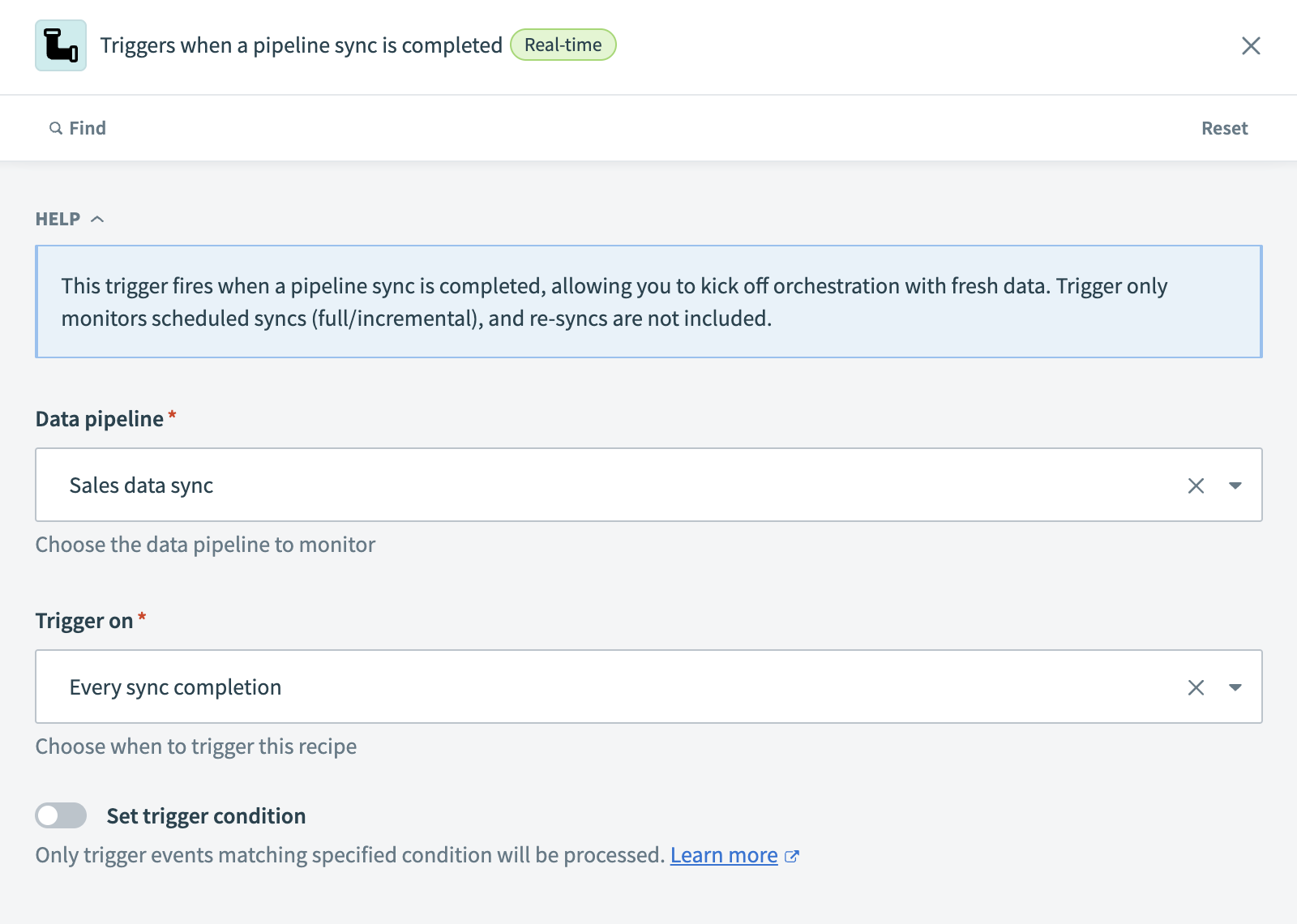 Set up the data pipeline trigger
Choose the Data pipeline you plan to monitor.
Select Every sync completion in the Trigger on field .
Workato recommends selecting Every sync completion instead of Failed syncs. This ensures you capture object-level failures, which may not be tracked under sync-level failures.
Set up your trigger condition
Set up a trigger condition
You can set a trigger condition directly in the trigger setup.
Enable the Set trigger condition toggle.
Map the Sync stateStep 1 datapill to the Trigger data field.
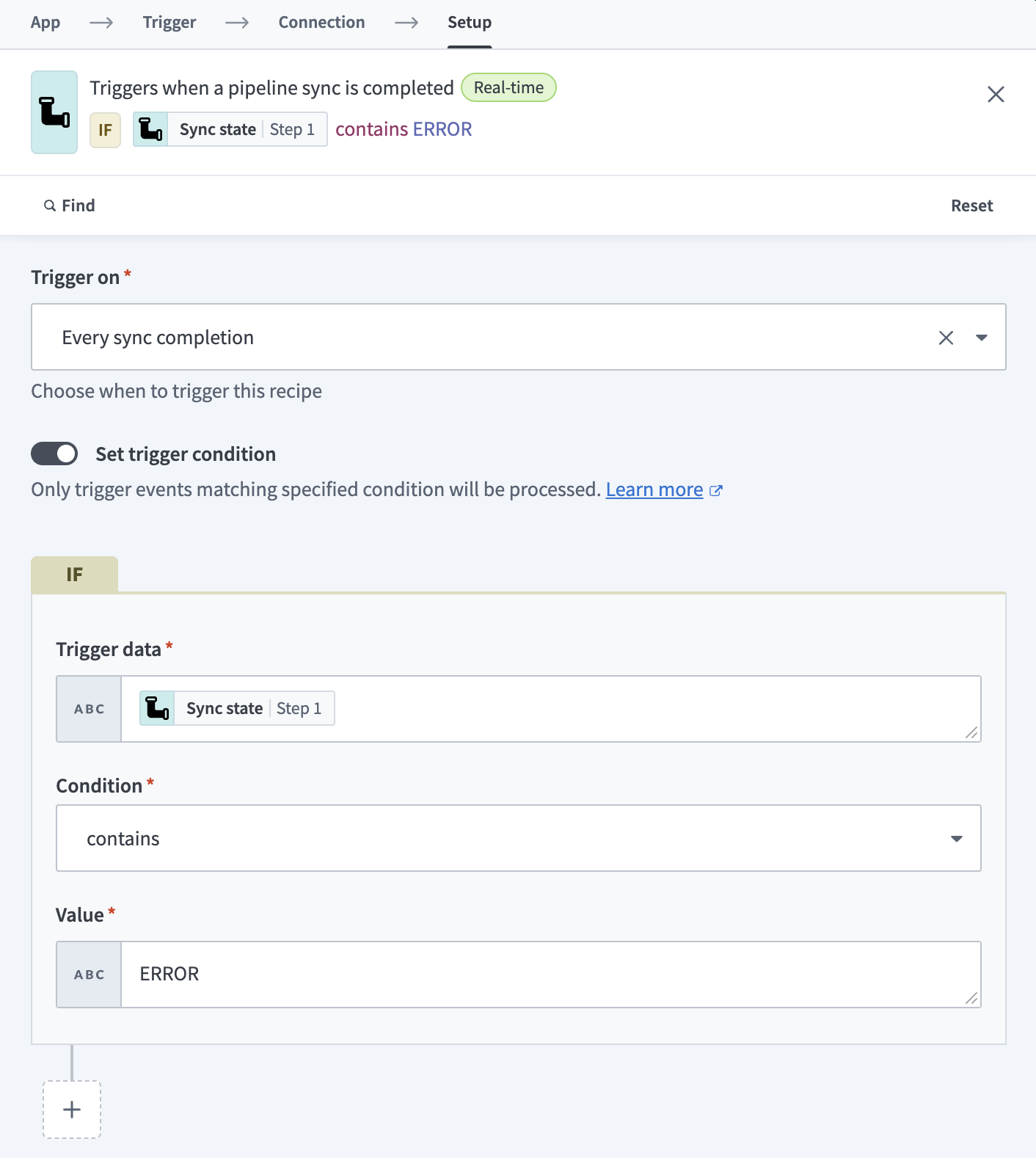 Set up your trigger condition
Set Condition to contains.
Set Value to ERROR.
Click + Add step, then select Action in an app.
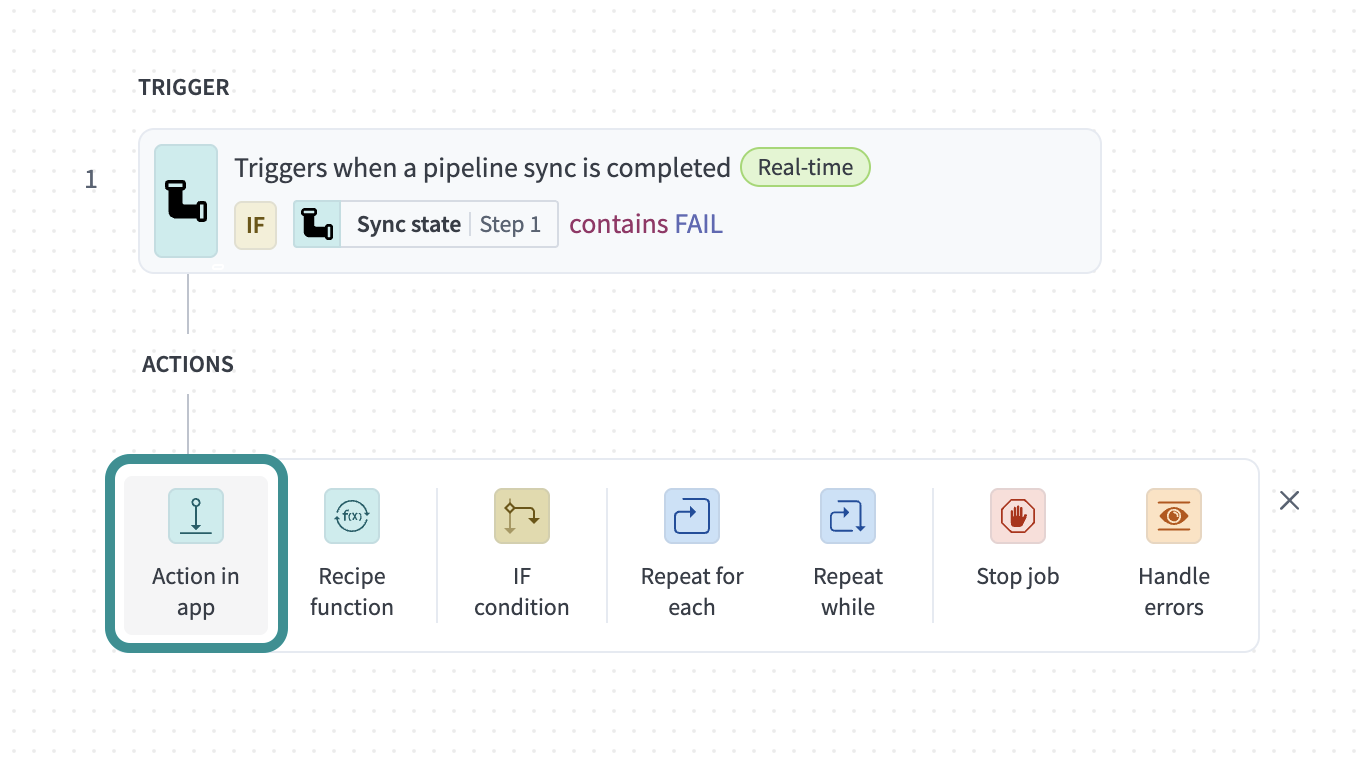 Select Gmail
Search for Gmail and select it as your app.
Set up a Gmail alert
Send an email when a pipeline sync fails
This step sends an email from your connected Gmail account when a pipeline sync fails.
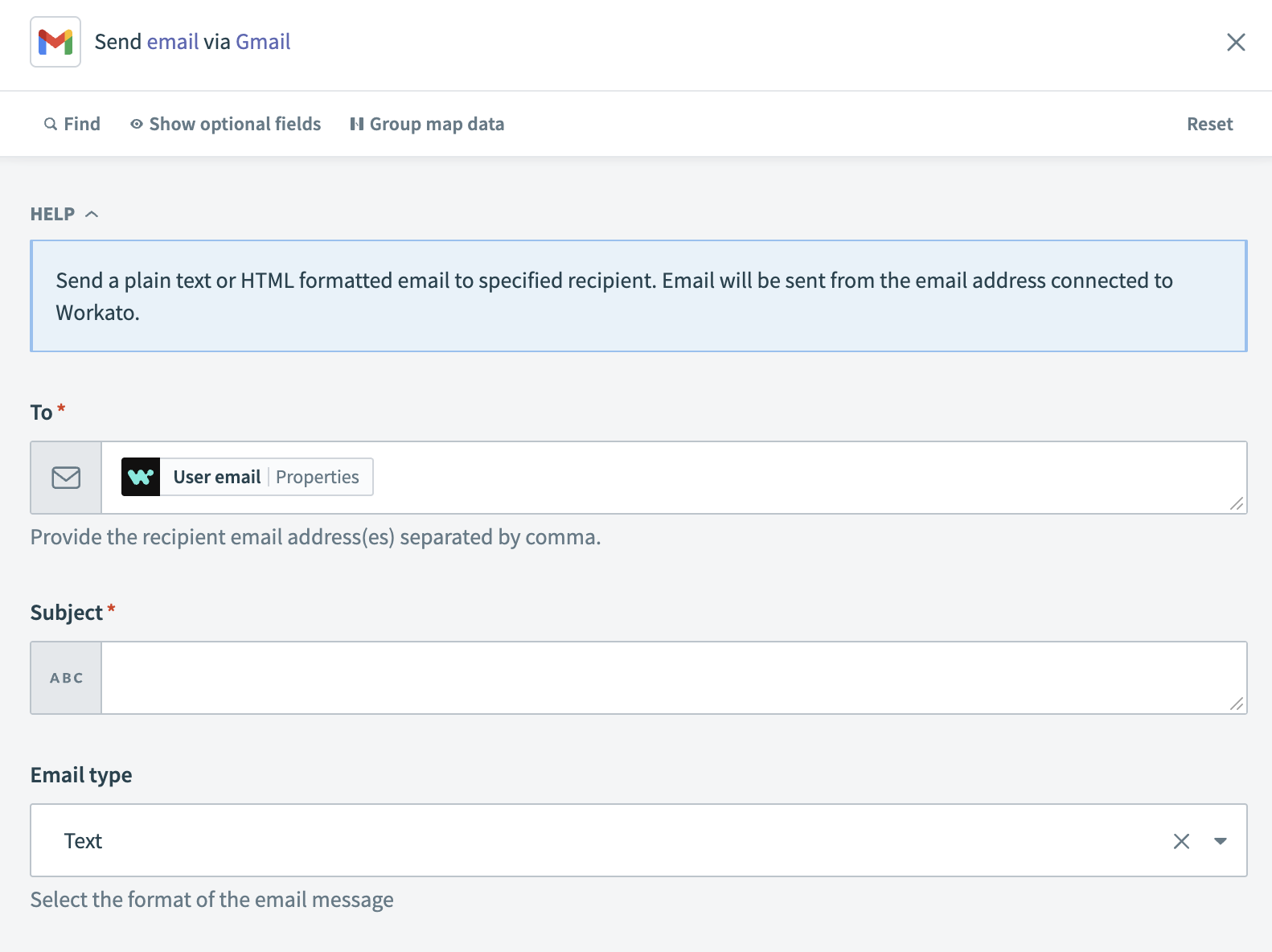
Select the Send email action.
Enter one or more recipients in the To field. Separate multiple email addresses with commas.
 Configure your Gmail action
Enter a subject in the Subject field, such as Pipeline Sync Failure Alert.
Select Text or HTML in the Email type field.
Enter the message body in the Message field.
Last updated: