Prebuilt MCP servers
MCP (Model Context Protocol) servers lets LLMs interact with external tools and services. Workato prebuilt MCP servers provide a trusted framework for integrating AI-enabled tooling into development, automation, and operational workflows, and security and compliance controls. Workato prebuilt MCP servers transform static API models into active agents capable of executing real work.
Many vendor-provided MCP servers are essentially API wrappers that expose a fixed set of actions with no ability to add business logic, enforce custom checks, or adapt tools to your workflows. Workato's prebuilt MCP servers take a different approach. The prebuilt MCP server collection can be deployed in minutes and fully customized to match your specific use cases. You can add, modify, or remove tools, and build in logic such as validation steps, conditional routing, or approval flows using skill recipes. Access is controlled through user provisioning and rate limits, and each agent action is tied to an authenticated user for full traceability.
Use a prebuilt MCP server
Prebuilt MCP servers must be added in Workato and in your MCP client, such as Cursor, ChatGPT, or Claude.
Custom connector prerequisites
Prebuilt MCP servers that use custom connectors must be installed in your workspace before you install the prebuilt MCP server.
Complete the following steps to install an MCP server custom connector:
Go to AI Hub > MCP servers and click + Create MCP server.
Go to the Start with pre-built MCP Servers using your connected apps section and select the prebuilt MCP server you plan to use.
Click Use this server.
Go to the Installations section. This section only appears for prebuilt MCP servers that use a custom connector.
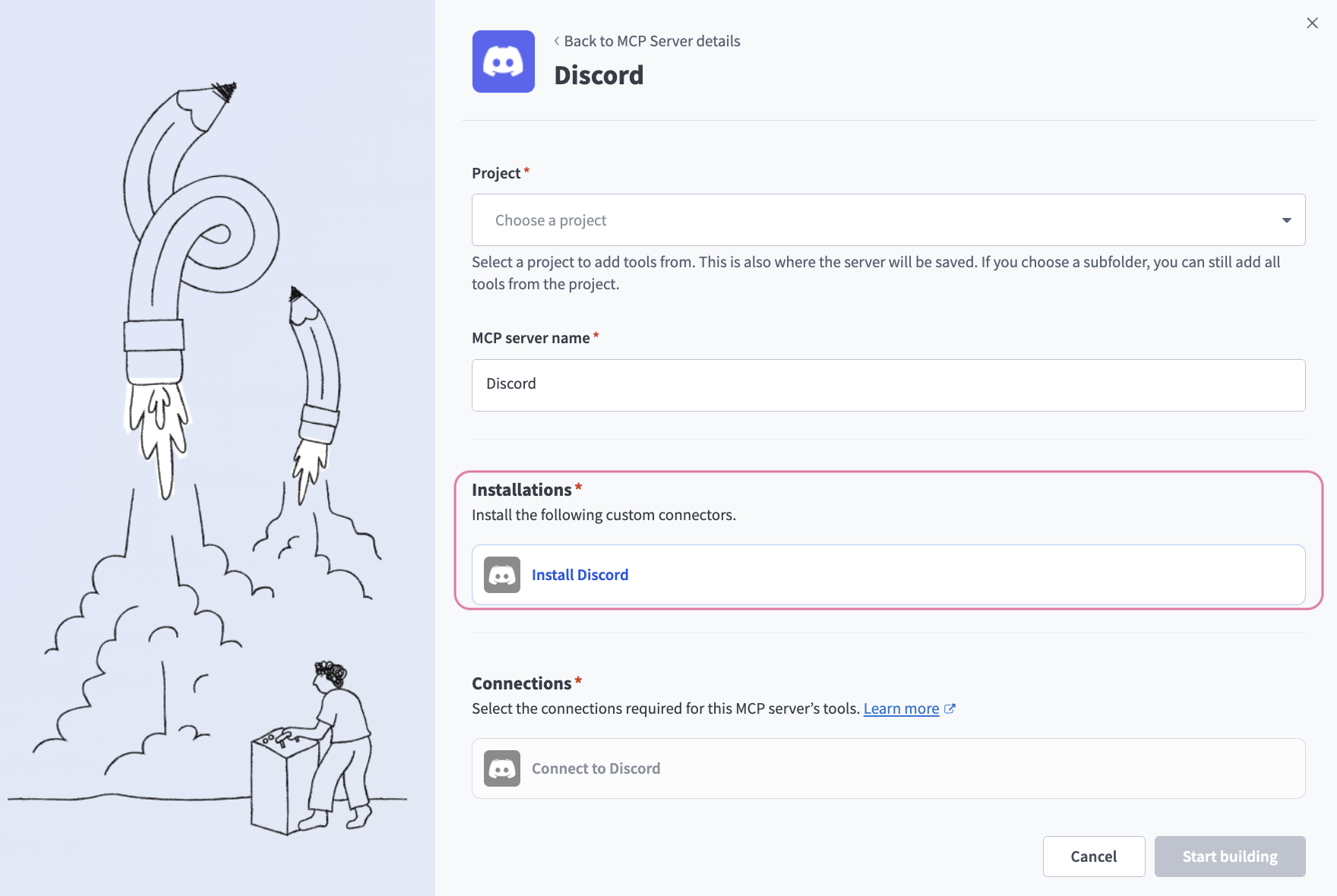 Go to the Installations section
Click Install. A blue checkmark appears when the custom connector installs successfully.
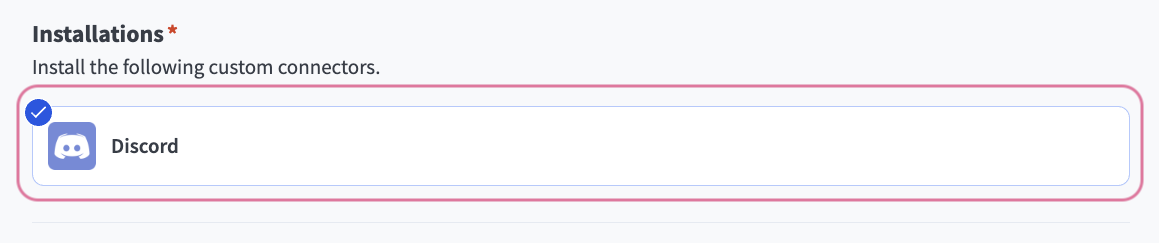 Click Install
Complete the remaining configuration steps in the Install a prebuilt MCP server in Workato section.
Install a prebuilt MCP server in Workato
Complete the following steps to install a prebuilt MCP server in your Workato project:
Sign in to your Workato account.
Go to AI Hub > MCP servers.
Click + Create MCP server.
Go to the Start with pre-built MCP Servers using your connected apps section and select the template you plan to use.
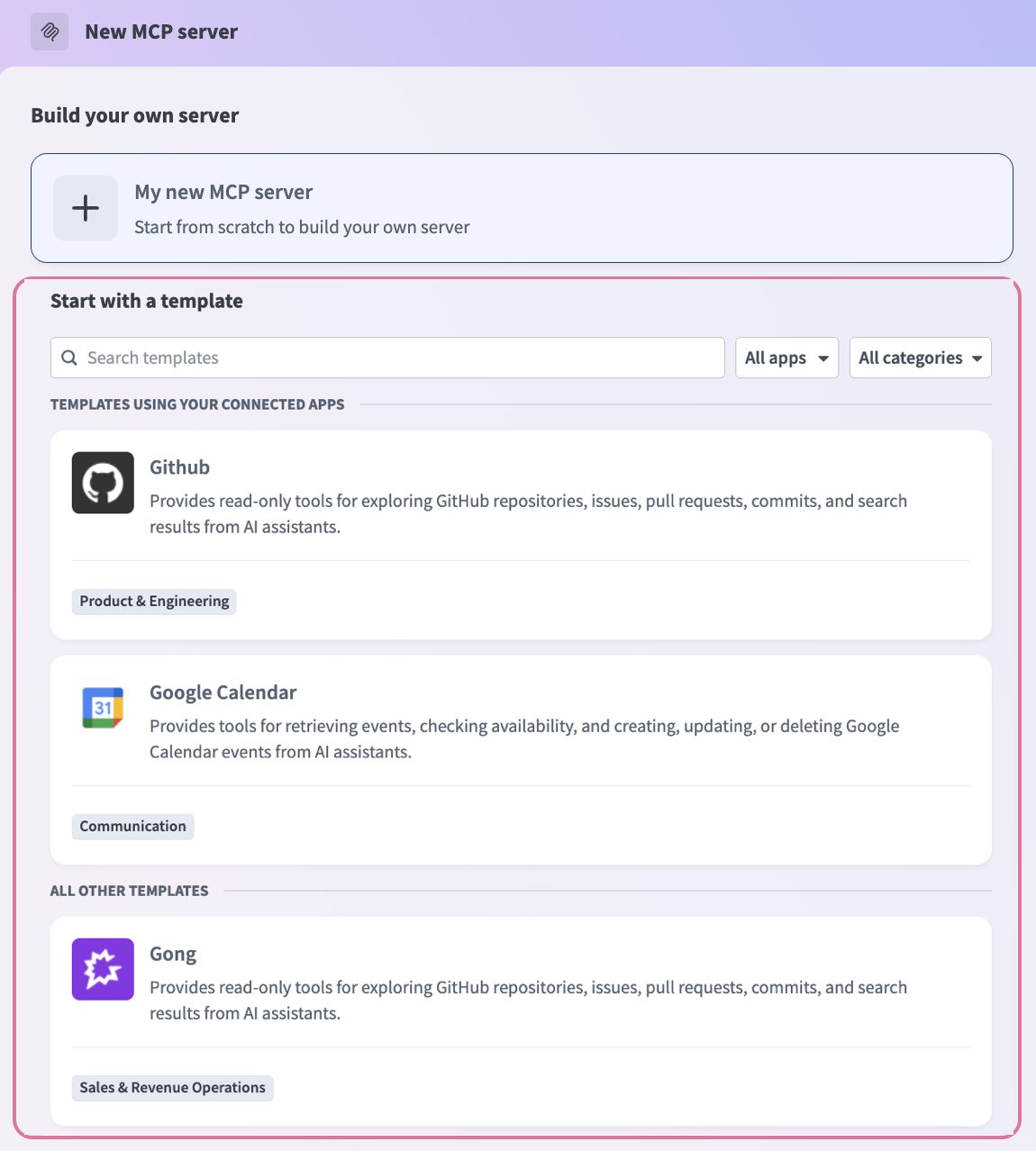 Go to the Start with pre-built MCP Servers using your connected apps section
Click Use this server.
Use the Project drop-down menu to select the project where you plan to add your prebuilt MCP server.
Provide a name for your MCP server in the MCP Server name field.
CUSTOM CONNECTOR INSTALLATION
The Installations section appears for prebuilt MCP servers that require a custom connector. Complete the custom connector prerequisites steps before going to Connections.
Go to the Connections section and connect to your app account.
Select the connection type you plan to use for the prebuilt MCP server.
- User's connection: MCP server tools perform actions based on the identity and permissions of the user who connects to the application. Users authenticate with their own credentials to execute the skill.
- Your connection: This option uses the connection established by the recipe builder and follows the same principles as normal app connections.
VERIFIED USER ACCESS AUTHENTICATION REQUIREMENTS
Only app connections that use OAuth 2.0 authorization code grant are available for user's connection. Refer to Verified user access for more information.
Use the Prebuilt MCP servers page to find app-specific connection documentation.
LLM-facing MCP server description
Prebuilt MCP servers include a default MCP server description with detailed information. This description is automatically shared with your LLM when you connect the MCP server. You can update the description for your specific use cases and to include any tool customization you perform.
Edit LLM-facing MCP server description
Complete the following steps to edit the MCP server description shared with your LLM:
Sign in to your Workato account.
Go to AI Hub > MCP servers.
Select the MCP server where you plan to edit the LLM-facing MCP server description.
Go to the Description section and click the edit icon.
Update the description.
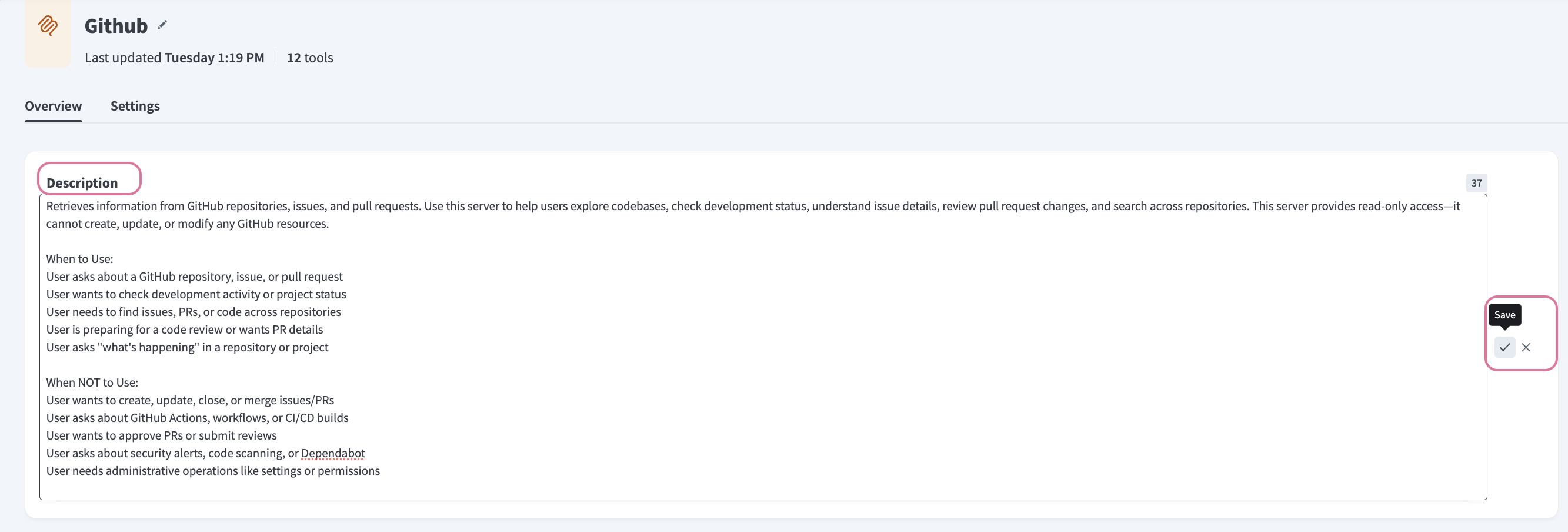 Update the LLM-facing description
Click the save icon.
Add a prebuilt MCP server to an AI model
Refer to AI model configuration for instructions on how to add and configure your MCP server in an AI model, such as Cursor, Claude, or ChatGPT.
Manage MCP server tools
View and manage your MCP server tools in the Overview page Tools section. Tool management provides the following capabilities:
TOOLS MUST BE STARTED
Your LLM can only access active tools in your MCP server connector.
Add users to an MCP server
You can provision end users with access to your MCP server. Refer to Workato Identity for more information.
Configure MCP server limits
You can add custom rate limits, usage quotas, and IP restrictions for your MCP server.
Rate limits control request frequency and prevent traffic bursts.
Refer to Configure MCP server limits for more information.
Last updated: