HubSpot CRM MCP server
The HubSpot CRM MCP server enables LLMs to interact with HubSpot for core CRM record management through natural conversation. It provides tools to resolve owners, pipeline stages, and field properties and manage contacts, companies, deals, tickets, and activity timelines without requiring direct interaction with the HubSpot interface.
Uses
Use the HubSpot CRM MCP server to perform the following actions:
- Find contacts, companies, deals, and tickets
- Create new contacts, companies, deals, and tickets, or update fields on existing records
- Move deals and tickets through pipeline stages
- Link and unlink related records
- Log notes, calls, emails, meetings, and tasks to a record's activity timeline
- Review recent activity logged against a contact, company, deal, or ticket
- Archive records that are no longer needed
- Resolve the right owner to assign to a record or activity
- Look up pipeline stages and field properties before writing a record
Example prompts
Use the following example prompts to invoke HubSpot CRM MCP server tools:
Find the contact for Kiran Patel at Acme Corp.Create a new deal for the Acme Corp renewal.Move this deal to Closed Won.Update the phone number on this contact.Log the call I just had with Acme Corp.Link this contact to their company.Show me open deals owned by Jade Chen.What tickets are associated with Acme Corp?Who are the available owners I can assign this deal to?List the stages in the sales pipeline.
HubSpot CRM MCP server tools
The HubSpot CRM MCP server provides the following tools:
| Tool | Description |
|---|---|
| search_records | Searches CRM records of an object type you provide using property filters, a text query, or both. |
| get_record | Retrieves a single CRM record's fields by ID. |
| list_records | Lists recent records for an object type you provide with cursor pagination. |
| create_record | Creates a new CRM record for an object type and properties you provide. |
| update_record | Updates writable properties on an existing CRM record. |
| archive_record | Archives a CRM record by ID. |
| create_association | Links two CRM records with a default or labeled association. |
| list_associations | Lists linked records of an object type you specify. |
| delete_association | Unlinks two associated CRM records. |
| log_activity | Creates a note, call, email, meeting, or task and associates it with records. |
| list_activities | Lists a record's recent activities of a type you specify. |
| list_owners | Lists CRM owners to resolve a hubspot_owner_id for record and activity attribution. |
| list_pipelines | Lists pipelines and stages for deals or tickets. |
| list_properties | Lists property (field) definitions for a CRM object type. |
Install the HubSpot CRM MCP server
Complete the following steps to install a prebuilt MCP server to your project:
Sign in to your Workato account.
Go to AI Hub > Enterprise MCP > Custom servers.
Click + Create MCP server.
Go to the Start with pre-built MCP Servers using your connected apps section and select the prebuilt MCP server you plan to use.
Click Use this server.
Provide a name for your MCP server in the Server name field.
Use the Location drop-down menu to select the project for the MCP server.
Go to the Connections section and connect to your app account.
Select the connection type you plan to use for the MCP server template.
- User's connection: MCP server tools perform actions based on the identity and permissions of the user who connects to the application. Users authenticate with their own credentials to execute the skill.
- Your connection: This option uses the connection established by the recipe builder and follows the same principles as normal app connections.
 Select your connection type
VERIFIED USER ACCESS AUTHENTICATION REQUIREMENTS
Only app connections that use OAuth 2.0 authorization code grant are available for user's connection. Refer to Verified user access for more information.
Complete the app-specific connection setup steps in the following section.
HubSpot CRM connection setup
View HubSpot CRM connection setup steps
API version
The HubSpot connector uses the HubSpot REST API v3.
How to connect to HubSpot on Workato
Complete the following steps to authenticate with HubSpot using OAuth 2.0:
Click Create > Connection or press C twice.
Search for HubSpot and select it as your app.
Enter a name for your connection in the Connection name field.
Use the Location drop-down menu to select the project or folder to store your connection.
Optional. Go to the Advanced settings section and select the scopes to provide to Workato. The connector requests the minimum set of scopes for its recipe triggers and actions by default. Refer to the complete list of available scopes for more information.
Optional. Use the Custom OAuth profile drop-down menu to select a custom OAuth profile for your connection.
Click Connect.
Select the HubSpot account where you plan to authorize Workato and click Choose Account.
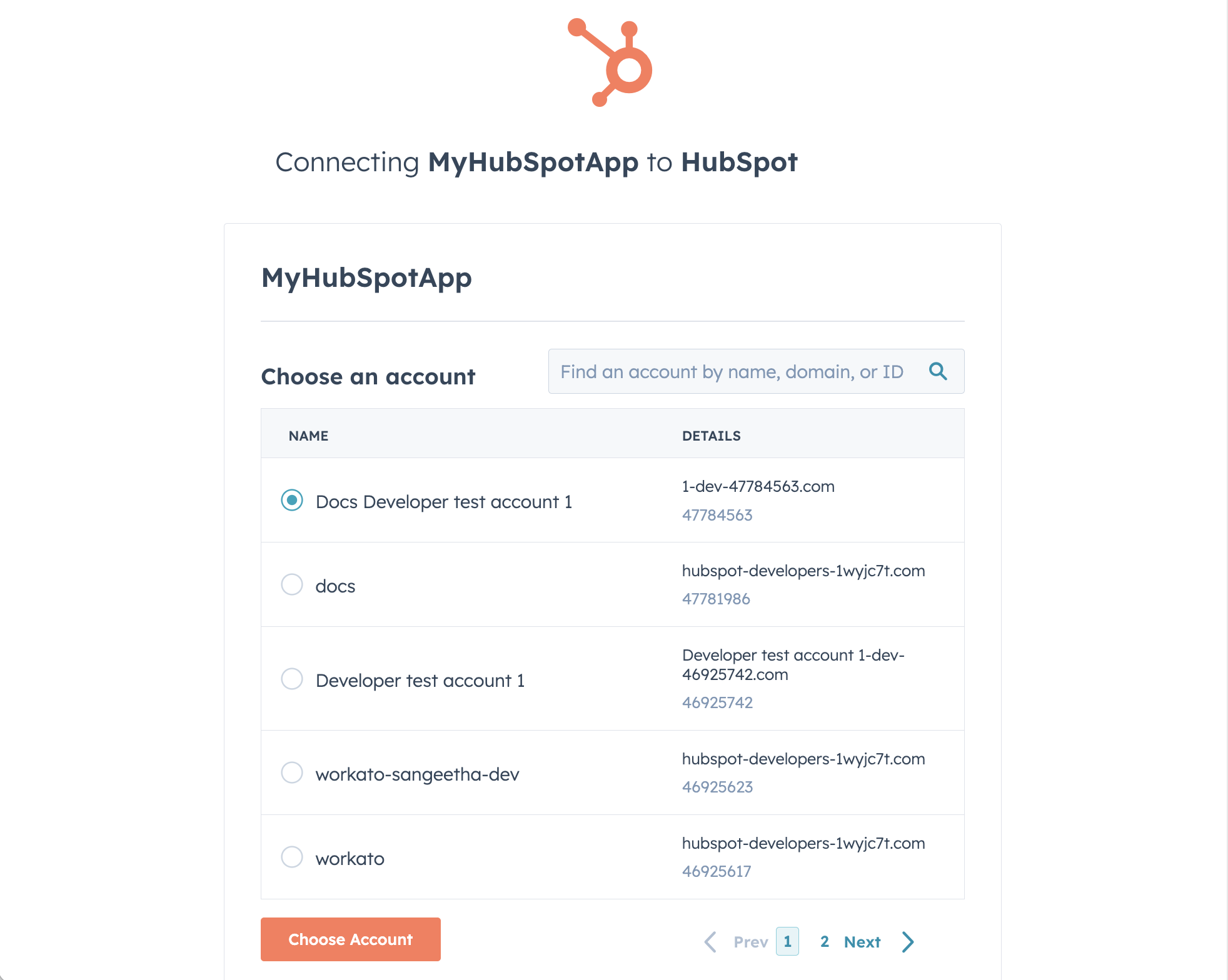 Select an account
HubSpot role requirements
Each tool's availability depends on the CRM scopes granted to the connected account. HubSpot doesn't support per-user authentication for this connector, so every tool runs under a single connected account. You can use the list_owners tool to resolve an owner, then set it with create_record or update_record. A request made without the required scope returns a permission-denied outcome rather than a partial result. Refer to the HubSpot Scopes documentation for the complete list of scope requirements.
How to use HubSpot CRM MCP server tools
Refer to the following sections for detailed information on available tools:
search_records tool
The search_records tool searches CRM records for an object type you provide using property filters and/or a text query. Your LLM uses this tool to find contacts, companies, deals, or tickets by name, email, domain, stage, or owner before reading, updating, or linking records.
Try asking:
Find the contact for Kiran Patel at Acme Corp.Show me deals in the negotiation stage.Search for tickets owned by Jade Chen.Find companies with a domain of acmecorp.com.
get_record tool
The get_record tool retrieves a single CRM record's fields by its ID. Your LLM uses this tool to inspect a record before acting on it, or to confirm a write it just made.
Try asking:
Show me the full details for this contact.What are the current fields on this deal?Confirm the deal amount after I just updated it.Get the details for ticket 4821.
list_records tool
The list_records tool lists recent records for an object type you provide with cursor pagination. Your LLM uses this tool to browse a recent set of records when you don't provide specific search criteria.
Try asking:
Show me some recent deals.List the most recently created contacts.Browse recent support tickets.Show me the next page of companies.
create_record tool
The create_record tool creates a new CRM record for an object type and properties you provide. Your LLM uses this tool to add a new contact, company, deal, or ticket after a conversation, meeting, or inbound request.
Try asking:
Create a new contact for Ariel Green at Acme Corp.Add a deal for the Acme Corp renewal, owned by Jade Chen.Create a support ticket for this issue.Add a new company record for Acme Corp.
update_record tool
The update_record tool updates writable properties on an existing CRM record. Your LLM uses this tool to change fields, reassign an owner, or move a deal or ticket to a new stage.
Try asking:
Update the phone number on this contact.Move this deal to Closed Won.Reassign this ticket to Kiran Patel.Change the deal amount to $50,000.
archive_record tool
The archive_record tool archives a CRM record by ID. Archiving a record performs a recoverable soft-delete. Your LLM uses this tool to archive a duplicate, test, or otherwise unneeded contact, company, deal, or ticket.
Try asking:
Archive this duplicate contact.Remove this test deal from the pipeline.Archive the ticket we no longer need to track.Get rid of this outdated company record.
create_association tool
The create_association tool links two CRM records with a default or labeled association. Your LLM uses this tool to connect a contact, ticket, or deal to a company.
Try asking:
Link this contact to their company.Associate this deal with these two contacts.Connect this ticket to Acme Corp.Link this contact as the decision maker on this deal.
list_associations tool
The list_associations tool lists a record's linked records of an object type you specify. Your LLM uses this tool to view a company's contacts, a contact's deals, or a deal's tickets before connecting or disconnecting associations.
Try asking:
What contacts are linked to this company?Show me the deals associated with this contact.List the tickets linked to Acme Corp.What companies is this deal associated with?
delete_association tool
The delete_association tool unlinks two associated CRM records. Your LLM uses this tool to remove a relationship without affecting either record.
Try asking:
Unlink this contact from that company.Remove the association between this deal and this contact.Disconnect this ticket from Acme Corp.Take this contact off this deal.
log_activity tool
The log_activity tool creates a note, call, email, meeting, or task and associates it with records. Your LLM uses this tool to record an interaction on a contact, company, deal, or ticket's timeline after a call, email, or meeting.
Try asking:
Log the call I just had with Acme Corp.Add a note to this deal about the renewal discussion.Log a meeting with Kiran Patel for tomorrow.Create a task to follow up with this contact next week.
list_activities tool
The list_activities tool lists a record's recent activities of a type you specify. Your LLM uses this tool to review a contact, company, deal, or ticket's recent calls, notes, emails, meetings, or tasks.
Try asking:
Show me the recent calls logged on this contact.What notes have been added to this deal?List the tasks on this ticket.What meetings are logged for Acme Corp?
list_owners tool
The list_owners tool lists CRM owners to resolve a hubspot_owner_id for record and activity attribution. Your LLM uses this tool to find the correct owner to assign when creating or updating a record, or logging an activity.
Try asking:
Who are the available owners I can assign this deal to?Find the owner ID for Jade Chen.List all the owners in this account.Which owner matches [email protected]?
list_pipelines tool
The list_pipelines tool lists pipelines and stages for deals or tickets. Your LLM uses this tool to find valid stage IDs before creating or moving a deal or ticket to a new stage.
Try asking:
List the stages in the sales pipeline.What are the valid stages for a support ticket?Show me the stage IDs for the deal pipeline.What stage comes after Negotiation in this pipeline?
list_properties tool
The list_properties tool lists property (field) definitions for a CRM object type. Your LLM uses this tool to discover writable fields and valid values before creating or updating a record.
Try asking:
What fields can I set on a contact?List the properties available for deals.What are the valid values for the ticket priority field?Show me the writable fields for a company record.
Getting started
View and manage your MCP server tools in the Details tab Tools section. Tool management provides the following capabilities:
TOOLS MUST BE STARTED
Your LLM can only access active tools in your MCP server connector.
Last updated: