HubSpot Marketing MCP server
The HubSpot Marketing MCP server enables LLMs to interact with HubSpot for marketing asset and audience management through natural conversation. It provides tools to create, clone, read, and update marketing emails and forms, organize campaigns and their assets, curate contact lists, and manage marketing events and attendance without requiring direct interaction with the HubSpot interface.
Uses
Use the HubSpot Marketing MCP server to perform the following actions:
- Draft new marketing emails or clone existing emails into variants
- Create and maintain lead-capture forms
- Create marketing campaigns and organize which emails, forms, and events belong to them
- Build, search, and modify contact lists
- Create marketing events and register attendees
- Track attendance state for marketing events
- Retrieve marketing emails, forms, campaigns, and events
Example prompts
Use the following example prompts to invoke HubSpot Marketing MCP server tools:
Clone last month's newsletter and rename it.Create a new lead-capture form for the landing page.Create a campaign for our Q3 product launch.Add these contacts to the VIP list.Find the list of contacts for our webinar send.Register Kiran Patel for the product demo webinar.What assets are attached to the Q3 campaign?Show me the recent marketing emails.Mark this attendee as having attended the webinar.Create a new dynamic list of contacts in the trial lifecycle stage.
HubSpot Marketing MCP server tools
The HubSpot Marketing MCP server provides the following tools:
| Tool | Description |
|---|---|
| create_marketing_email | Creates a new marketing email asset as a draft. |
| clone_marketing_email | Clones an existing marketing email into a new named copy. |
| update_marketing_email | Updates editable fields on an existing marketing email. |
| get_marketing_email | Lists marketing emails, or retrieves a specific marketing email by ID. |
| create_form | Creates a new marketing lead-capture form. |
| update_form | Updates fields, name, or settings of an existing form. |
| get_form | Lists forms, or retrieves a specific form by ID. |
| create_campaign | Creates a new marketing campaign. |
| get_campaign | Lists campaigns, or retrieves a specific campaign by GUID. |
| manage_campaign_assets | Associates, removes, or lists assets belonging to a campaign. |
| create_list | Creates a new marketing contact list. |
| search_lists | Searches contact lists by name and processing type, or retrieves a specific list by ID. |
| manage_list_members | Adds or removes contacts on a static list. |
| create_marketing_event | Creates, retrieves, or lists external marketing events. |
| record_event_attendance | Sets a subscriber's attendance state for a marketing event. |
Install the HubSpot Marketing MCP server
Complete the following steps to install a prebuilt MCP server to your project:
Sign in to your Workato account.
Go to AI Hub > Enterprise MCP > Custom servers.
Click + Create MCP server.
Go to the Start with pre-built MCP Servers using your connected apps section and select the prebuilt MCP server you plan to use.
Click Use this server.
Provide a name for your MCP server in the Server name field.
Use the Location drop-down menu to select the project for the MCP server.
Go to the Connections section and connect to your app account.
Select the connection type you plan to use for the MCP server template.
- User's connection: MCP server tools perform actions based on the identity and permissions of the user who connects to the application. Users authenticate with their own credentials to execute the skill.
- Your connection: This option uses the connection established by the recipe builder and follows the same principles as normal app connections.
 Select your connection type
VERIFIED USER ACCESS AUTHENTICATION REQUIREMENTS
Only app connections that use OAuth 2.0 authorization code grant are available for user's connection. Refer to Verified user access for more information.
Complete the app-specific connection setup steps in the following section.
HubSpot Marketing connection setup
View HubSpot Marketing connection setup steps
API version
The HubSpot connector uses the HubSpot REST API v3.
How to connect to HubSpot on Workato
Complete the following steps to authenticate with HubSpot using OAuth 2.0:
Click Create > Connection or press C twice.
Search for HubSpot and select it as your app.
Enter a name for your connection in the Connection name field.
Use the Location drop-down menu to select the project or folder to store your connection.
Optional. Go to the Advanced settings section and select the scopes to provide to Workato. The connector requests the minimum set of scopes for its recipe triggers and actions by default. Refer to the complete list of available scopes for more information.
Optional. Use the Custom OAuth profile drop-down menu to select a custom OAuth profile for your connection.
Click Connect.
Select the HubSpot account where you plan to authorize Workato and click Choose Account.
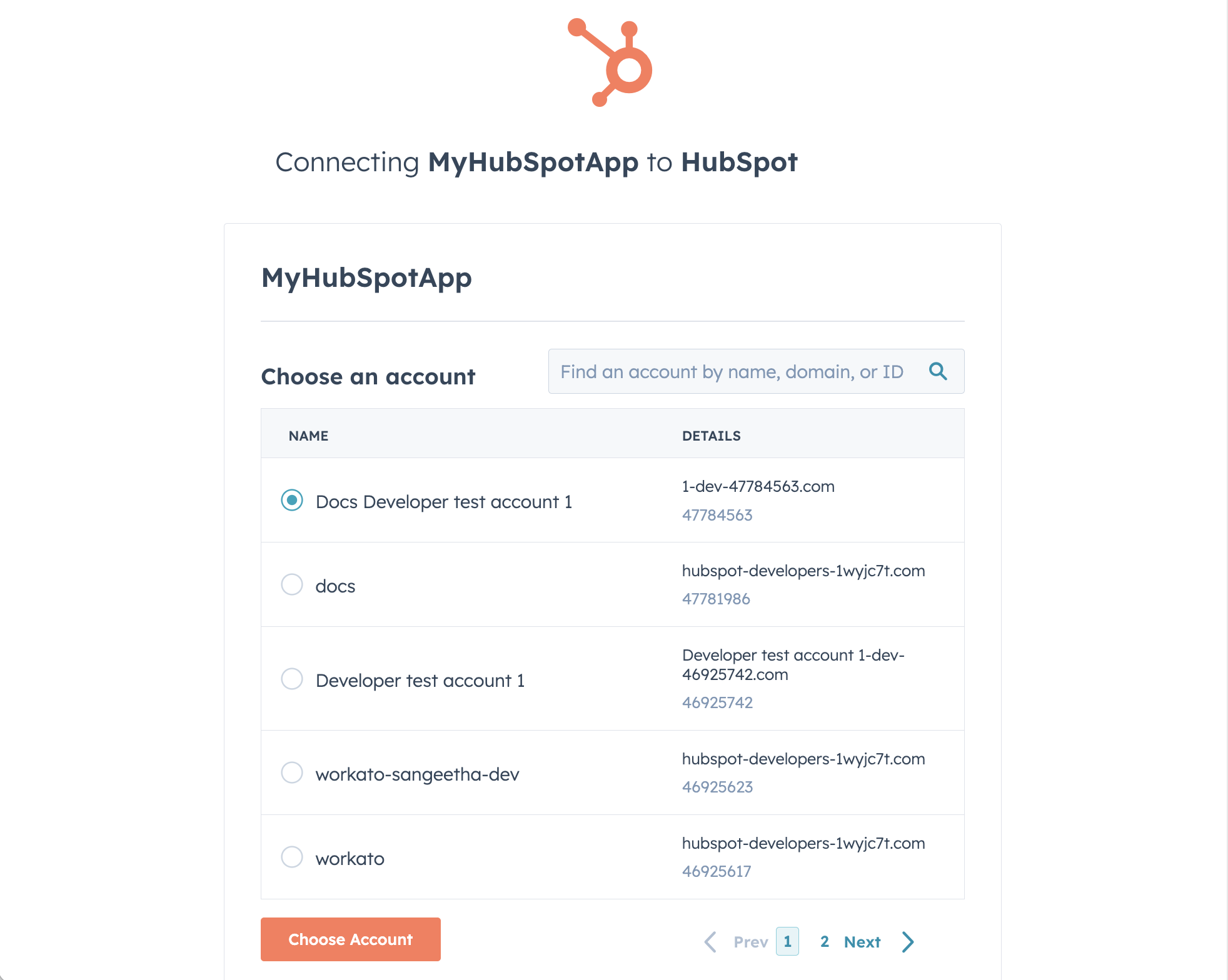 Select an account
HubSpot role requirements
Each tool's availability depends on the scopes granted to the connected account and the HubSpot Marketing Hub tier to which the account belongs. Forms, contact lists, and marketing events are available on the Free tier, while marketing emails and campaigns require Marketing Hub Professional or above. HubSpot doesn't support per-user authentication for this connector, so every tool runs under a single connected account. A request made without the required scope or tier returns a permission-denied outcome rather than a partial result. Refer to the HubSpot Scopes documentation for the complete list of scope requirements.
How to use HubSpot Marketing MCP server tools
Refer to the following sections for detailed information on available tools:
create_marketing_email tool
The create_marketing_email tool creates a new marketing email asset as a draft. Your LLM uses this tool to start a new email for an upcoming send, leaving it as a draft for you to finish and send in HubSpot.
Try asking:
Create a new marketing email for our fall product launch.Draft an email announcing the webinar.Start a new marketing email named "October Newsletter."Create a marketing email with the subject "You're invited."
clone_marketing_email tool
The clone_marketing_email tool clones an existing marketing email into a new named copy. Your LLM uses this tool to build a variant of an email without recreating the content from scratch.
Try asking:
Clone last month's newsletter and rename it.Make a copy of this email for our EMEA audience.Duplicate the welcome email as a Spanish version.Clone this email and call it "October Newsletter - Variant B."
update_marketing_email tool
The update_marketing_email tool updates editable fields on an existing marketing email. Your LLM uses this tool to change a draft email's name, subject, or type.
Try asking:
Change the subject line on this draft email.Rename this marketing email to "November Newsletter."Update this email's type to automated.Fix the subject on the webinar invite email.
get_marketing_email tool
The get_marketing_email tool lists marketing emails, or retrieves a specific email by ID. Your LLM uses this tool to inspect a specific email or browse recent emails for discovery.
Try asking:
Show me the recent marketing emails.Find the draft email named "October Newsletter."What's the subject line on this email?List all draft emails I haven't sent yet.
create_form tool
The create_form tool creates a new marketing lead-capture form. Your LLM uses this tool to build a form for a landing page or campaign from the fields and configuration you describe.
Try asking:
Create a lead-capture form for the landing page.Build a form with fields for name, email, and company.Make a new form for our webinar signup.Create a contact form with reCAPTCHA enabled.
update_form tool
The update_form tool updates fields, name, or settings of an existing form. Your LLM uses this tool to add a field, rename a form, or change the configuration.
Try asking:
Add a phone number field to this form.Rename this form to "Webinar Signup - Q3."Change the submit button text on this form.Update the thank-you message on this form.
get_form tool
The get_form tool lists forms, or retrieves a specific form by ID. Your LLM uses this tool to inspect a form's fields or browse forms for discovery.
Try asking:
Show me the fields on this form.Find the form for the landing page.List the forms I've created this quarter.What forms do we have set up?
create_campaign tool
The create_campaign tool creates a new marketing campaign. You can specify a name, start and end dates, a currency, notes, and a UTM value. Your LLM uses this tool to start a campaign with the attributes you provide.
Try asking:
Create a campaign for our Q3 product launch.Start a new campaign named "Fall Webinar Series," running from October 1 to October 31.Create a campaign with the UTM value "fall-webinar-series."Add a note to this campaign about the target audience.
get_campaign tool
The get_campaign tool lists campaigns, or retrieves a specific campaign by GUID. Your LLM uses this tool to find a campaign's GUID or browse existing campaigns.
Try asking:
Find the campaign named "Fall Webinar Series."Show me our active campaigns.What's the GUID for the Q3 product launch campaign?List the campaigns created this year.
manage_campaign_assets tool
The manage_campaign_assets tool associates, removes, or lists assets belonging to a campaign. Your LLM uses this tool to attach an email, form, or event to a campaign, remove an attached asset, or see what's currently attached.
Try asking:
Attach this email to the Q3 product launch campaign.What assets are on the Fall Webinar Series campaign?Remove this form from the campaign.Add the webinar event to this campaign.
create_list tool
The create_list tool creates a new marketing contact list. Your LLM uses this tool to build a static or dynamic contact list to use as an audience for a campaign.
Try asking:
Create a static list called "VIP Customers."Make a dynamic list of contacts in the trial lifecycle stage.Create a new list for our webinar attendees.Build a snapshot list of this quarter's leads.
search_lists tool
The search_lists tool searches contact lists by name and processing type, or retrieves a specific list by ID. Your LLM uses this tool to locate a list before curating its membership.
Try asking:
Find the VIP Customers list.Show me our static contact lists.Search for lists with "webinar" in the name.Find the list I need to add these contacts to.
manage_list_members tool
The manage_list_members tool adds or removes contacts on a static list. Your LLM uses this tool to curate a list by adding or removing specific contacts.
Try asking:
Add these contacts to the VIP list.Remove this contact from the webinar attendee list.Add Kiran Patel to the "Fall Webinar Series" list.Take these five contacts off the newsletter list.
create_marketing_event tool
The create_marketing_event tool creates a new external marketing event when you provide event details, retrieves a single event when you provide an external event ID, or lists events when you give neither. Your LLM uses this tool to set up a new marketing event or to browse and inspect existing events. The connection that creates an event is the only one that can update it.
Try asking:
Create a webinar event for next Thursday.Show me our upcoming marketing events.Find the event named "Product Demo Webinar."Create a marketing event organized by Jade Chen.
record_event_attendance tool
The record_event_attendance tool sets a subscriber's attendance state for a marketing event. Your LLM uses this tool to register, check in, or cancel an attendee for a marketing event. Only the connection that created the event can record attendance for it. A permission-denied response means this connection doesn't own the event.
Try asking:
Register Kiran Patel for the product demo webinar.Mark this attendee as having attended the webinar.Cancel this registrant's spot in the event.Check in [email protected] to today's webinar.
Getting started
View and manage your MCP server tools in the Details tab Tools section. Tool management provides the following capabilities:
TOOLS MUST BE STARTED
Your LLM can only access active tools in your MCP server connector.
Last updated: