Waterfall Lead Enrichment MCP server
The Waterfall Lead Enrichment MCP server enables LLMs to enrich lead records with ZoomInfo, Apollo.io, and LeadIQ through natural conversation. It provides tools to run an enrichment waterfall across all three providers, call a single provider directly, merge results into a confidence-scored lead, and review a merged record in an MCP app before storing it.
Uses
Use the Waterfall Lead Enrichment MCP server to perform the following actions:
- Enrich a lead by running the full waterfall across ZoomInfo, Apollo.io, and LeadIQ in that order, and merging the results into one confidence-scored record
- Enrich a lead through a single named provider without running the full waterfall
- Look up a lead by email or LinkedIn URL, and optionally add a name or company to improve match accuracy
- Override the default provider priority for the whole merged record or for individual fields
- Re-enrich a lead whose previous enrichment result is no longer available
Additionally, use the server's built-in Waterfall Lead Enrichment MCP app to review and edit results.
Example prompts
Use the following example prompts to invoke Waterfall Lead Enrichment MCP server tools:
Enrich this lead: [email protected].Run the full enrichment waterfall for [email protected].Enrich this contact using only ZoomInfo.Look up this lead in Apollo.io: [email protected].Get this person's mobile number from LeadIQ.Enrich the lead at this LinkedIn URL: linkedin.com/in/example-name.Why did this lead come back as low confidence?Enrich this lead and use company name and domain to improve the match: Acme Corp, acme.com.Show me the confidence score and providers used for this enriched lead.Re-enrich this lead. The last enrichment result expired.
Waterfall Lead Enrichment MCP server tools
The Waterfall Lead Enrichment MCP server provides the following tools:
| Tool | Description |
|---|---|
| enrich_via_zoominfo | Calls ZoomInfo to enrich a lead by email or LinkedIn URL and writes the normalized result to the shared enrichment record. |
| enrich_via_apollo | Calls Apollo.io to enrich a lead by email or LinkedIn URL and writes the normalized result to the shared enrichment record. |
| enrich_via_leadiq | Calls LeadIQ to enrich a lead by email or LinkedIn URL and writes the normalized result to the shared enrichment record. |
| enrich_lead | Merges the ZoomInfo, Apollo.io, and LeadIQ results for a lead into one confidence-scored record and evaluates it against the enrichment threshold, without calling the provider APIs itself. |
Don't call the manage_enriched_lead_data tool directly. The Waterfall Lead Enrichment MCP app uses it to fetch, normalize, and store records on your behalf.
Install the Waterfall Lead Enrichment MCP server
Complete the following steps to install a prebuilt MCP server to your project:
Sign in to your Workato account.
Go to AI Hub > Enterprise MCP > Custom servers.
Click + Create MCP server.
Go to the Start with pre-built MCP Servers using your connected apps section and select the prebuilt MCP server you plan to use.
Click Use this server.
Provide a name for your MCP server in the Server name field.
Use the Location drop-down menu to select the project for the MCP server.
Go to the Connections section and connect to your app account.
Select the connection type you plan to use for the MCP server template.
- User's connection: MCP server tools perform actions based on the identity and permissions of the user who connects to the application. Users authenticate with their own credentials to execute the skill.
- Your connection: This option uses the connection established by the recipe builder and follows the same principles as normal app connections.
 Select your connection type
VERIFIED USER ACCESS AUTHENTICATION REQUIREMENTS
Only app connections that use OAuth 2.0 authorization code grant are available for user's connection. Refer to Verified user access for more information.
Complete the app-specific connection setup steps in the following section.
Waterfall Lead Enrichment connection setup
View Waterfall Lead Enrichment connection setup steps
This MCP server requires three separate connections: ZoomInfo, Apollo.io, and LeadIQ. Each connection uses its own credentials. The waterfall continues if a provider's connection fails or the account isn't found, and that provider contributes a null result to the merged record.
ZoomInfo connection
View ZoomInfo connection setup steps
Complete the following steps to set up your ZoomInfo connection:
REQUIRED ZOOMINFO PERMISSIONS
Your ZoomInfo account must have ZoomInfo API access permissions to connect to Workato.
Enter a name for your connection in the Connection name field.
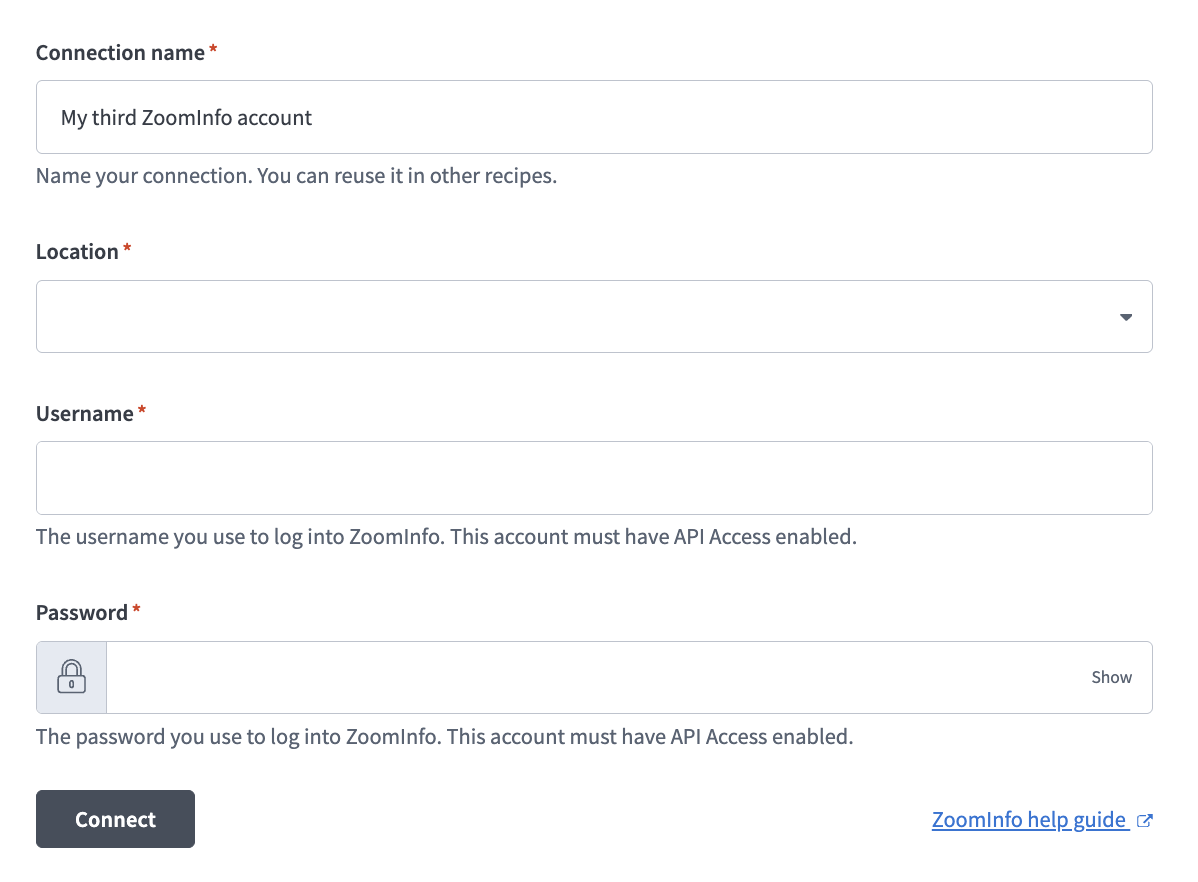 Set up your ZoomInfo connection
Use the Location drop-down menu to select the project where you plan to store your connection.
Enter your ZoomInfo username in the Username field.
Enter your ZoomInfo password in the Password field.
Click Connect.
Apollo.io connection
View Apollo.io connection setup steps
Complete the following steps to set up your Apollo.io connection:
Enter a name for your connection in the Connection name field.
Use the Location drop-down menu to select the project where you plan to store your connection.
Sign in to the Apollo Developer portal and select API Keys. Copy an existing key or create a new one.
Paste the value into the API key field.
Click Connect.
LeadIQ connection
View LeadIQ connection setup steps
Complete the following steps to set up your LeadIQ connection:
Enter a name for your connection in the Connection name field.
Use the Location drop-down menu to select the project where you plan to store your connection.
Sign in to LeadIQ and go to Settings > API Keys.
Copy the Secret base64 value.
Paste the value into the Secret base64 API Key (from LeadIQ) field.
Click Connect.
Configuration options
Use the following resources to configure the Waterfall Lead Enrichment MCP server:
- The project properties control how the server processes a record's fields.
- The Provider waterfall order data table sets the default order providers run in.
Project property configuration
Edit the following project properties to control how the server processes a record's fields:
| Project-level property | Description |
|---|---|
lead_enrichment_required_fields | Enter a comma-separated list of fields that must be present for a record to reach enriched status. Defaults to work_email, first_name, last_name, job_title, company_name. |
lead_enrichment_desired_fields | Enter a comma-separated list of fields that count toward confidence scoring but aren't required for enriched status. Defaults to company_size, direct_phone, mobile_phone, linkedin_url, industry, company_revenue_range, company_domain, seniority_level. |
View project-level property configuration steps
Complete the following steps to configure your project-level properties:
Sign in to your Workato account and go to Projects.
Go to the project that contains your MCP server.
Click the Settings tab.
 Click the Settings tab.
Select Project properties.
Go to the project property you plan to update and click the Edit (pencil) icon.
Go to the Value field and make your changes. For example, set lead_enrichment_required_fields to work_email, company_name.
Data table configuration
Edit the Provider waterfall order data table to configure the default provider order:
| Column | Description |
|---|---|
priority | Enter this row's position in the waterfall call sequence. For example, enter 1 to call this row first. |
provider | Enter the default provider to use for the row's priority level. Options include: ZoomInfo, Apollo, or LeadIQ. |
work_email, first_name, last_name, job_title, company_name, company_size, direct_phone, mobile_phone, linkedin_url, industry, company_revenue_range, company_domain, seniority_level | Enter the name of a provider to use for this field and priority level. Leave a column blank to use the row's provider. |
View data table configuration steps
Complete the following steps to configure settings using the MCP's data table:
Sign in to your Workato account and go to Projects.
Go to the project that contains your MCP server.
Select the Provider waterfall order data table.
Edit a row's priority to reorder the providers. For example, set the priority for LeadIQ to 1 to call it first.
How to use Waterfall Lead Enrichment MCP server tools
Refer to the following sections for detailed information on available tools. All three provider tools accept a first name, last name, company name, or company domain to speed up or improve the match, and a provider error or missing match contributes a null result instead of stopping the waterfall.
enrich_via_zoominfo tool
The enrich_via_zoominfo tool calls ZoomInfo to enrich a lead by email or LinkedIn URL and writes the normalized result to the shared enrichment record. Your LLM calls this tool first in a waterfall enrichment, or calls it alone and returns the result directly when you name ZoomInfo specifically.
Try asking:
Enrich this lead: [email protected].Look up this contact in ZoomInfo only.Run the full enrichment waterfall for this lead.Enrich this lead in ZoomInfo and add company name and domain to improve the match: Acme Corp, acme.com.
enrich_via_apollo tool
The enrich_via_apollo tool calls Apollo.io to enrich a lead by email or LinkedIn URL and writes the normalized result to the shared enrichment record. Your LLM calls this tool second in a waterfall enrichment, after enrich_via_zoominfo, or calls it alone and returns the result directly when you name Apollo.io specifically.
Try asking:
Get this lead's details from Apollo.io only.Enrich [email protected] using Apollo.io.Run the enrichment waterfall for this contact.Enrich this lead in Apollo.io and add a first and last name to improve the match.
enrich_via_leadiq tool
The enrich_via_leadiq tool calls LeadIQ to enrich a lead by email or LinkedIn URL and writes the normalized result to the shared enrichment record. Your LLM calls this tool third in a waterfall enrichment, after enrich_via_zoominfo and enrich_via_apollo, or calls it alone and returns the result directly when you name LeadIQ specifically.
Try asking:
Find this person's mobile number through LeadIQ.Enrich this lead using only LeadIQ.What's this contact's job title according to LinkedIn?Enrich this lead in LeadIQ and add the company name to improve the match: Acme Corp.
enrich_lead tool
The enrich_lead tool merges the ZoomInfo, Apollo.io, and LeadIQ results for a lead into one confidence-scored record and evaluates it against the enrichment threshold, without calling the provider APIs itself. Your LLM calls this tool last, after all three provider tools have run with the same email or LinkedIn URL, and only when you haven't named a specific provider. The Waterfall Lead Enrichment MCP app opens for review after the tool returns.
Enrichment threshold and record status
The enrichment threshold is a confidence-score cutoff that contributes to a record's status. Records can have the following statuses:
enriched: The score meets the threshold and all required fields are present.low_confidence: The score falls short or a required field is missing.not_found: No provider returned a match.
Default field-level merge precedence
Each field falls back to a default winning provider unless you override it:
| Field | Default winning provider |
|---|---|
work_email | ZoomInfo |
direct_phone | ZoomInfo |
mobile_phone | LeadIQ |
job_title | LeadIQ (LinkedIn-sourced) |
company_name | ZoomInfo |
company_size | ZoomInfo |
seniority_level | Inferred from job_title |
| All other fields | First non-null value found during the waterfall |
Try asking:
Merge the provider results and give me the enriched lead.Enrich this lead and prioritize LeadIQ over ZoomInfo for the phone number.What's the confidence score and status for this lead?Why did this lead come back as low confidence?
Waterfall Lead Enrichment MCP app
The Waterfall Lead Enrichment MCP app opens for review after enrich_lead returns. It displays the results from each provider, the merged enrichment record, and a normalized version of the merged record so you can review and modify each value. Accept the record to store it back to the shared enrichment record.
RECORD RETENTION PERIOD
The server automatically deletes stored enrichment records after 30 days, so a lead whose previous result has expired needs re-enrichment.
Getting started
View and manage your MCP server tools in the Details tab Tools section. Tool management provides the following capabilities:
TOOLS MUST BE STARTED
Your LLM can only access active tools in your MCP server connector.
Last updated: