Box MCP server
The Box MCP server enables LLMs to interact with Box to retrieve, organize, and share files through natural conversation. It provides tools to search content, browse folders, retrieve file metadata and text, create and reorganize folders, and generate shared links without requiring direct interaction with the Box interface.
Uses
Use the Box MCP server to perform the following actions:
- Search for files and folders by keyword, file type, owner, or modification date
- List the files and subfolders within a folder
- Retrieve metadata for a specific file or folder
- Pull the extracted text content of a file into the conversation
- Create new folders to organize content
- Rename a file or folder or update its description
- Move a file or folder to a different parent folder
- Move a file or folder to Trash
- Create, update, or remove a shared link on a file with configurable access settings
Example prompts
Use the following example prompts to invoke Box MCP server tools:
Find the Acme renewal proposal from last quarter.What's inside my Marketing folder?Get the details for this file before I move it.Pull the contents of this report so I can summarize it.Create a new folder called Client Deliverables.Rename this file to the final version name.Move this document into the Archive folder.Delete this old draft.Share a view-only link to this file with the finance team.Turn off the shared link for this document.
Box MCP server tools
The Box MCP server provides the following tools:
| Tool | Description |
|---|---|
| search_box_content | Searches for files and folders matching keywords and filters. |
| list_folder_items | Lists the files and subfolders within a folder. |
| get_item | Retrieves metadata for a file or folder. |
| get_file_content | Retrieves the extracted text content of a file for supported formats. |
| create_folder | Creates a new folder under a specified parent folder. |
| update_item | Renames or updates the description of a file or folder. |
| move_item | Moves a file or folder to a different parent folder. |
| delete_item | Moves a file or folder to Trash. |
| create_shared_link | Creates or updates a shared link on a file with configurable access settings. |
| remove_shared_link | Removes the shared link from a file, disabling link-based access. |
Install the Box MCP server
Complete the following steps to install a prebuilt MCP server to your project:
Sign in to your Workato account.
Go to AI Hub > Enterprise MCP.
Click + Create MCP server.
Go to the Start with pre-built MCP Servers using your connected apps section and select the prebuilt MCP server you plan to use.
Click Use this server.
Provide a name for your MCP server in the Server name field.
Use the Location drop-down menu to select the project for the MCP server.
Go to the Connections section and connect to your app account.
Select the connection type you plan to use for the MCP server template.
- User's connection: MCP server tools perform actions based on the identity and permissions of the user who connects to the application. Users authenticate with their own credentials to execute the skill.
- Your connection: This option uses the connection established by the recipe builder and follows the same principles as normal app connections.
 Select your connection type
VERIFIED USER ACCESS AUTHENTICATION REQUIREMENTS
Only app connections that use OAuth 2.0 authorization code grant are available for user's connection. Refer to Verified user access for more information.
Complete the app-specific connection setup steps in the following section.
Box connection setup
View Box connection setup steps
The Box connector supports the following authentication methods:
- Authorization code grant authentication (OAuth 2.0)
- Client credentials-based authentication (OAuth 2.0)
API version
The Box connector uses Box Rest API v2.
Supported editions and versions
The Box connector works with all Box plans.
Roles and permissions required to connect
View roles and permissions required to connect
The Box connector only allows you to perform actions you been granted privileges for in the Box account used to make the connection to Workato. The following table describes the available Box role privileges:
| Levels | Access |
|---|---|
| Uploader | Can only upload content and see names of items in the folder. Can't view or download any content. |
| Previewer | Can only preview items in the folder. Can't upload, edit, delete, or share any content. |
| Viewer | Can preview/download content, make comments, and generate shared links. Can't add tags, invite new collaborators, edit shared links, or upload, edit, or delete items in the folder. |
| Previewer uploader | Can preview content, add comments, add tasks, and upload content to the folder. Can't add tags, generate shared links, invite new collaborators, or edit/delete items in the folder. |
| Viewer uploader | Can preview content, download content, add comments, generate shared links, and upload content to the folder. Can't add tags, invite new collaborators, or delete items in the folder. Can still download, edit, and re-upload files under the same name manually or using Box Edit. |
| Editor | Can view, download, upload, edit, delete, copy, move, and rename content. Can also generate/edit shared links, make comments, assign tasks, create tags, and invite/remove collaborators. Can't delete or move root level folders. |
| Co-owner | Has all permissions of an editor. Can also manage users in the folder: add new collaborators, change access levels of collaborators, remove collaborators. |
| Owner | Full access. |
BOX REFRESH TOKEN
Box Refresh Tokens enable you to acquire a new Access Token for Box. However, each Box Refresh Token is valid for only one use within a 60-day period. Consequently, if you maintain an active connection to Box but refrain from using any Box actions for 60 days, an error occurs when you try to perform a Box action.
Refer to the Box documentation to learn how to manage your access using Box Refresh Tokens.
Authorization code grant authentication (OAuth 2.0)
View authorization code grant authentication steps
Complete the following steps to set up your Box connection using authorization code grant authentication:
Provide a name that identifies which Box instance Workato is connected to in the Connection name field.
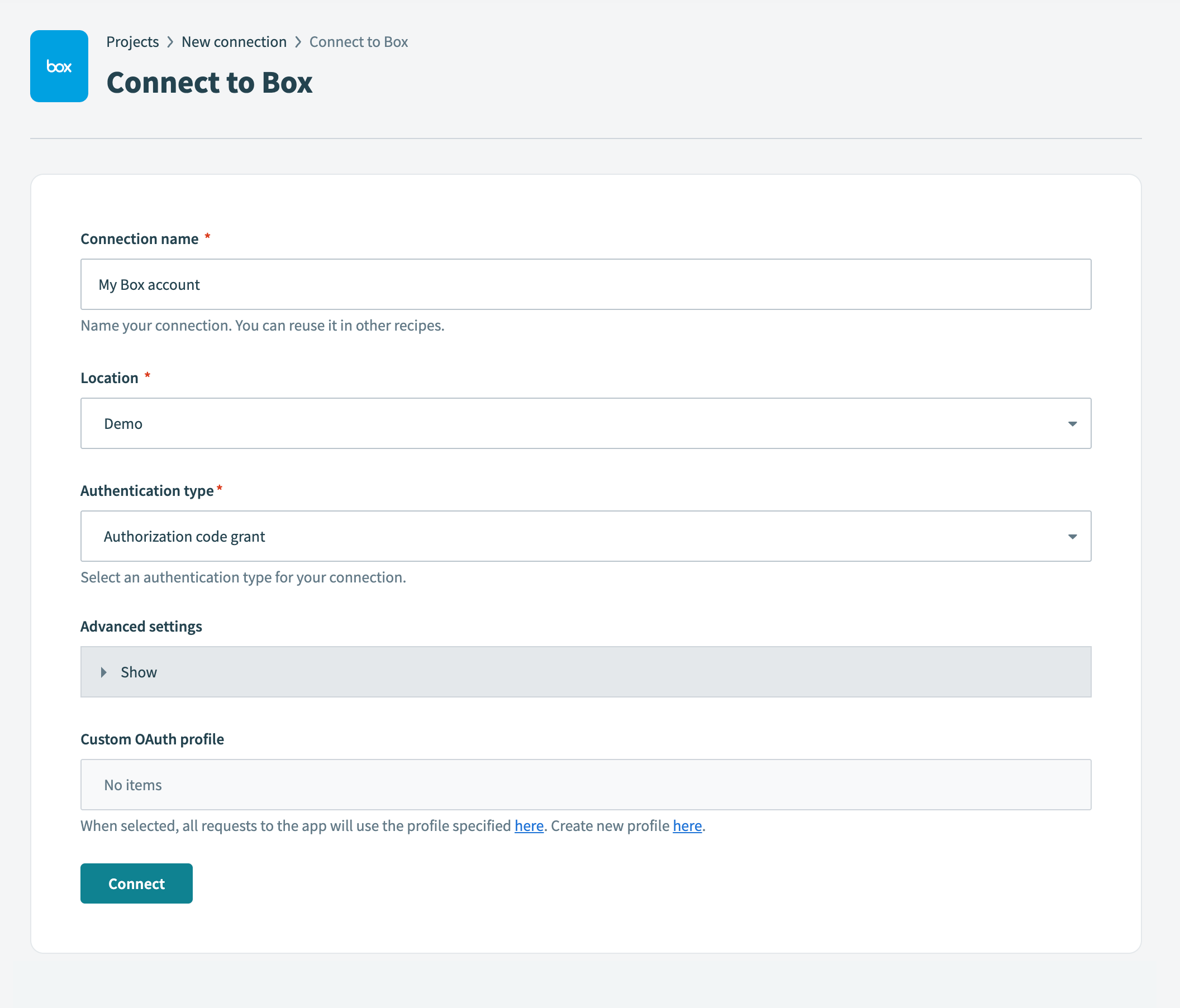 Create your connection
Use the Authentication type drop-down menu to select Authorization code grant.
Optional. Expand Advanced settings to select Requested permissions (Oauth scopes) options.
You can select from the following scopes:
- Read files and folders
- Read and write files and folders
- Manage app users
- Manage managed users
- Manage groups
- Manage webhooks
- Manage enterprise properties
- Manage retention policies
- Global content manager
- Admin can make calls on behalf of users
- Manage signature requests
- Manage Box Relay
Click Connect. This opens the Box sign in dialog.
Enter your Box account email address and password.
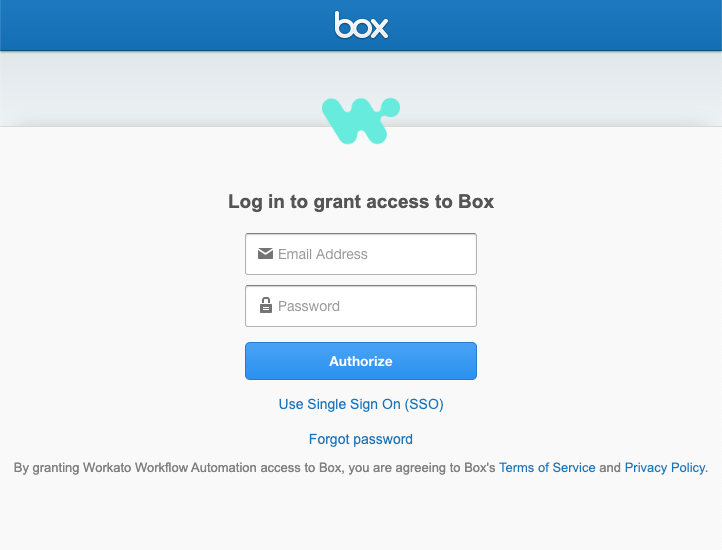 Log in to Box
Click Authorize.
Review the requested permissions and click Grant access to Box.
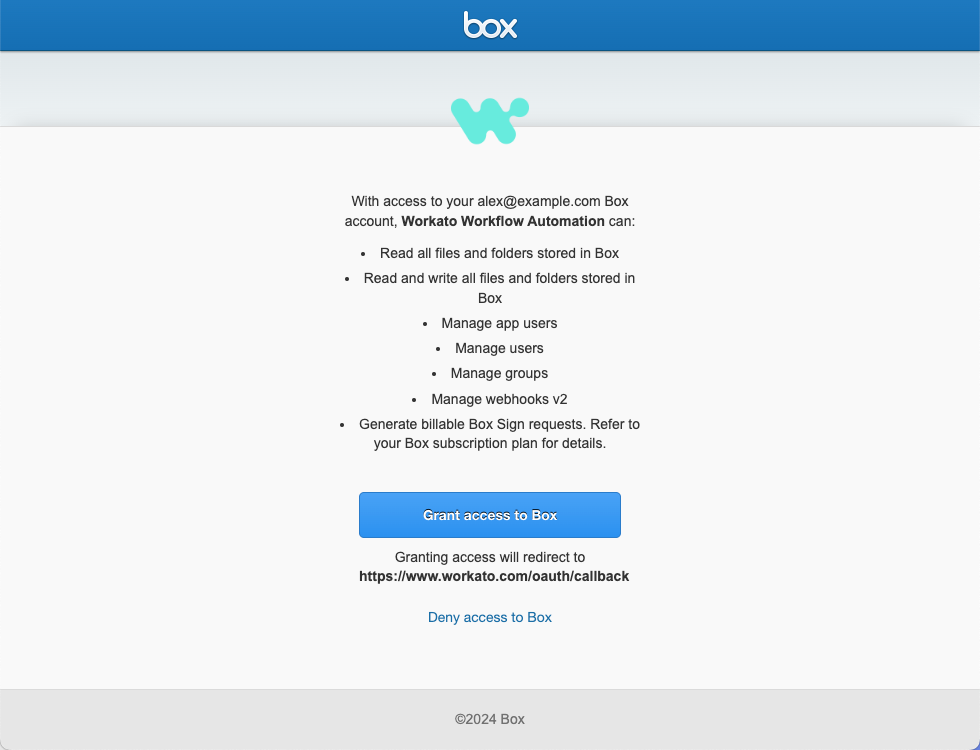 Grant access to Box
Client credentials-based authentication (OAuth 2.0)
View client credentials-based authentication steps
Complete the following steps to set up your Box connection using client credentials authentication:
Create a custom app.
Sign in to your Box account.
Go to Dev Console > My Apps.
Click Create New App.
Select Custom App as the app type to create.
Enter your app name in the App Name field.
Enter your app description in the Description field.
Use the Purpose drop-down menu to select Automation.
Click Next.
Select Server Authentication (Client Credentials Grant) as your authentication method.
Click Create App. This opens the Configuration tab.
Get required values.
You must enable App + Enterprise Access and Generate User Access Tokens in the Box Developer Console if you plan to authenticate as an admin or a managed user.
Scroll to the OAuth 2.0 Credentials section and copy the Client ID. Store this value securely, as it is required to configure your Box connection in Workato.
Click Fetch Client Secret. This opens a 2-Step Verification page.
Enter the 6-digit code from your authenticator app in the Authentication Code field. This reveals the Client Secret field.
Click Copy to retrieve the client secret. Store this value securely, as it is required to configure your Box connection in Workato.
Scroll to the App Access Level section and select App + Enterprise Access.
Click Save Changes.
Click the General Settings tab and copy either the User ID or the Enterprise ID. Use the User ID if the authentication subject type is a managed user, or the Enterprise ID if it is a service account. Store this value securely, as it is required to configure your Box connection in Workato.
Go to Advanced Features, select the Generate user access tokens checkbox, and click Save changes if the authentication subject type is a managed user.
ADVANCED FEATURE CHANGES REQUIRE REAUTHORIZATION
You must re-authorize your app in the Admin Console if you make changes in Advanced Features after the app is authorized. Go to Authorization > Review and Submit > Admin Console > Authorize App.
Submit the app for authorization.
Go to the Authorization tab and click Review and Submit.
Review your app authorization submission and click Submit.
Click Back to My Account.
Authorize the app.
Go to Admin Console > Integrations > Platform Apps Manager.
Hover over the app you submitted for authorization and click … More.
Select Authorize App.
Review the information and click Authorize.
SKIPPED AUTHORIZATION RESULTS IN ERROR
The connection returns a 403 Forbidden error if you skip this step or the authorization hasn't been approved by your Box admin. Make sure the app status shows Authorized and Enabled in the Platform Apps Manager before you attempt to connect to Workato.
Sign in to Workato and create a new Box connection.
Provide a name that identifies which Box instance Workato is connected to in the Connection name field.
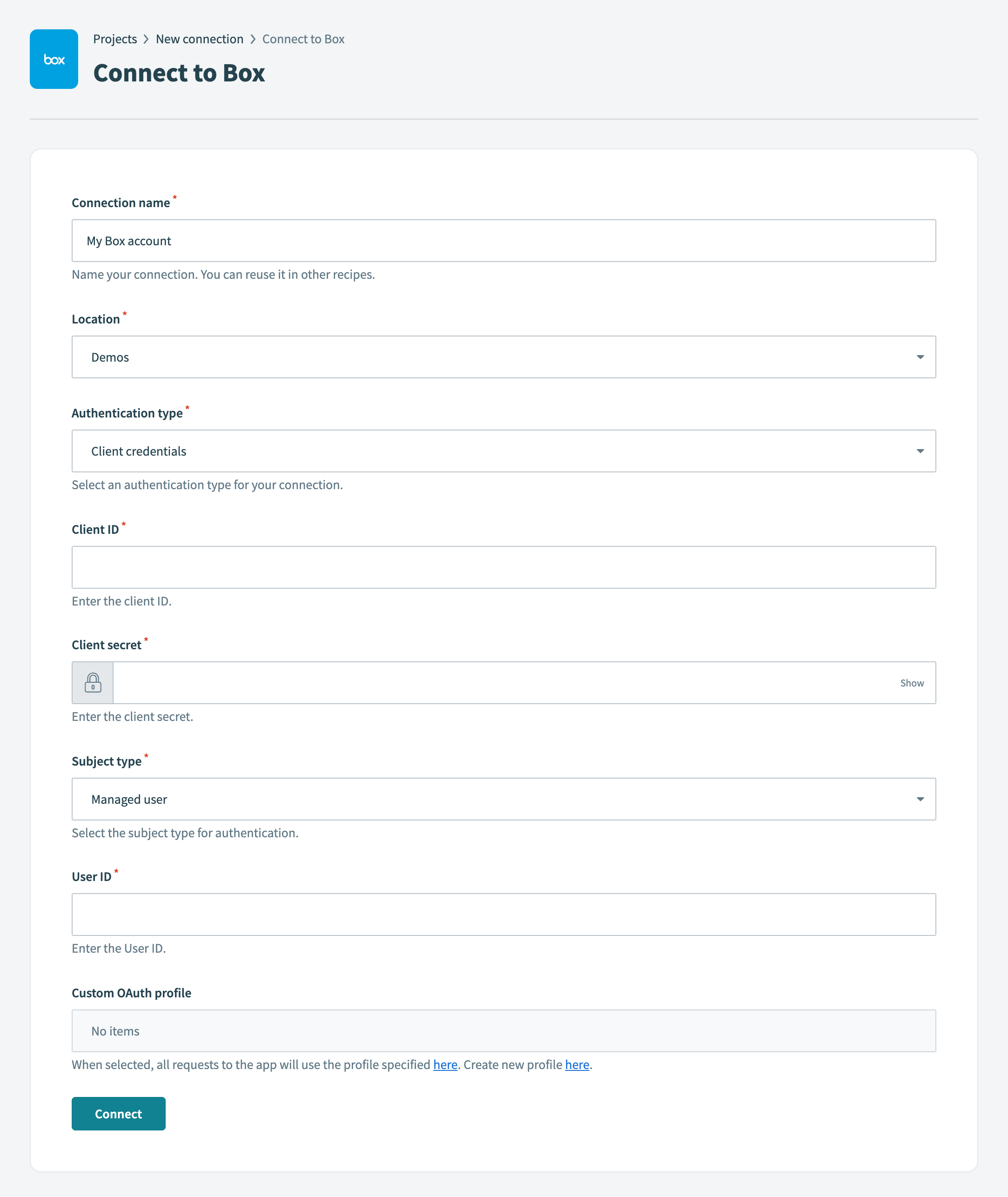 Connect to Box using client credentials authentication
Use the Location drop-down menu to select the project or folder where you plan to store your connection.
Use the Authentication type drop-down menu to select Client credentials.
Enter the client ID from the Get required values step in the Client ID field.
Enter the client secret from the Get required values step in the Client secret field.
Use the Subject type drop-down menu to select your subject type. Available options include Managed user and Service account.
- Managed user: Enter the user ID from the Get required values step in the User ID field.
- Service account: Enter the enterprise ID from the Get required values step in the Enterprise ID field.
Optional. Specify the custom OAuth profile you plan to use for this connection in the Custom OAuth profile field.
Click Connect.
Project property configuration
The Box MCP server supports the following project-level properties to control behavior and defaults:
| Project-level property | Description |
|---|---|
max_search_results | Hard ceiling on results returned by the search_box_content tool. The default value is 25, and the maximum is 100. |
max_folder_page_size | Hard ceiling on items returned per list_folder_items call. The default value is 100, and the maximum is 500. |
max_extracted_chars | Maximum characters returned by get_file_content per call. This is the size of one content window. The default value is 100,000. Files larger than this are read across multiple calls. |
allowed_share_scopes | Subset of collaborators, company, and open scopes allowed by the deployment. Defaults to all. Enterprise deployments may restrict it. |
default_search_order | Default ordering for search_box_content. Defaults to relevance and can be set to modified_at. |
View project-level property configuration steps
Complete the following steps to configure your project-level properties:
Sign in to your Workato account and go to Projects.
Go to the project that contains your MCP server.
Click the Settings tab.
 Click the Settings tab.
Select Project properties.
Go to the project property you plan to update and click the Edit (pencil) icon.
Go to the Value field and make your changes.
How to use Box MCP server tools
Refer to the following sections for detailed information on available tools:
search_box_content tool
The search_box_content tool searches Box for files and folders matching keywords and filters. Your LLM uses this tool to find or locate an item by name, topic, file type, owner, or recency, and to resolve a folder path the user mentions before moving items.
Try asking:
Find the Acme renewal proposal from last quarter.Search for any PDFs about the product launch.Look for spreadsheets modified in the last month.Find the board deck in my Finance folder.
list_folder_items tool
The list_folder_items tool lists the files and subfolders within a Box folder. Your LLM uses this tool to browse a folder's contents when the folder ID is known or to resolve a folder path one level at a time.
Try asking:
What's inside my Marketing folder?Show me the contents of this folder.List the files in my Box root.What subfolders are in the Campaigns directory?
get_item tool
The get_item tool retrieves metadata for a Box file or folder. Your LLM uses this tool to confirm an item before modifying it, check whether a shared link already exists, or display item details to the user.
Try asking:
Get the details for this file before I move it.When was this document last modified?Does this file already have a shared link?Who owns this folder?
get_file_content tool
The get_file_content tool retrieves the extracted text content of a Box file for supported formats. Your LLM uses this tool to pull a file's text into the conversation so it can summarize, answer questions about it, or use it as input to a new artifact.
Try asking:
Pull the contents of this report so I can summarize it.Read this document and tell me the key points.Open this spreadsheet so I can review the data.Compare the contents of these two files.
create_folder tool
The create_folder tool creates a new folder under a specified parent folder in Box. Your LLM uses this tool to set up a new location for organizing files.
Try asking:
Create a new folder called Client Deliverables.Set up a folder for the new project.Add a subfolder inside the Q2 directory.Create an Archive folder to store old files.
update_item tool
The update_item tool renames or updates the description of a Box file or folder. Your LLM uses this tool to give an item a new name or to set its description.
Try asking:
Rename this file to the final version name.Update the description on this folder.Rename this folder to match the new project name.Change the name of this document to Q4 Report.
move_item tool
The move_item tool moves a Box file or folder to a different parent folder. Your LLM uses this tool to reorganize content into a new location.
Try asking:
Move this document into the Archive folder.Move all draft files into the Drafts directory.Relocate this folder under the 2026 directory.Move this report to the Finance folder.
delete_item tool
The delete_item tool moves a Box file or folder to Trash. Your LLM uses this tool only when you explicitly request deletion. The LLM requires confirmation before it deletes items.
Try asking:
Delete this old draft.Move this folder and its contents to Trash.Remove the duplicate files from this directory.Delete this outdated document.
create_shared_link tool
The create_shared_link tool creates or updates a shared link on a Box file with configurable access settings. Your LLM uses this tool to share a file with someone. The LLM can configure the link's access scope, permission level, expiration, and password.
Try asking:
Share a view-only link to this file with the finance team.Create a company-only link for this document.Generate a link to this file that expires next week.Make a password-protected link for this report.
remove_shared_link tool
The remove_shared_link tool removes the shared link from a Box file, disabling link-based access. Your LLM uses this tool to stop sharing a file through a link.
Try asking:
Turn off the shared link for this document.Revoke access to this shared file.Unshare this file.
Getting started
View and manage your MCP server tools in the Overview page Tools section. Tool management provides the following capabilities:
TOOLS MUST BE STARTED
Your LLM can only access active tools in your MCP server connector.
Last updated: