Calendly MCP server
The Calendly MCP server enables LLMs to interact with Calendly for external-facing scheduling through natural conversation. It provides tools to access event types, scheduled events, invitee data, and the availability rules governing each event type, so AI-driven workflows can book, modify, and gather context on customer-facing meetings without requiring direct interaction with the Calendly interface.
Uses
Use the Calendly MCP server to perform the following actions:
- Schedule a meeting with an external party directly, instead of sending a booking link
- Cancel an existing Calendly booking through the Calendly notification lifecycle
- Pull invitee details and intake-question responses before a call
- See who's booked time with you this week, including cancellations and no-shows
- Grab the right Calendly link for an outbound email or message, or generate a single-use link
- Block or open availability on your Calendly event types without logging into Calendly
- List scheduled events and filter by time range, status, event type, or invitee
- Retrieve full booking-level detail, including location specifics and cancellation reason
Example prompts
Use the following example prompts to invoke Calendly MCP server tools:
Book a 30-minute intro call with [email protected] for next Tuesday afternoon.Cancel my call with Sarah Chen on Thursday.What do I know about my 2pm meeting tomorrow?Who's booked time with me this week?Did anyone cancel on me this week?Give me my intro call booking link.Generate a single-use scheduling link for my enterprise demo event type.Turn off my Calendly availability next week.I'm traveling to London next month — update my available hours to UK business hours.Show me my upcoming Calendly meetings, grouped by event type.
Calendly MCP server tools
The Calendly MCP server provides the following tools:
| Tool | Description |
|---|---|
| list_event_types | Returns the authenticated user's Calendly event types with names, durations, descriptions, scheduling URLs, and active status. |
| get_event_type_available_times | Returns the bookable time slots for a specific event type within a given time range, honoring the host's availability schedule, existing bookings, buffers, daily limits, and minimum notice period. |
| create_booking | Creates a Calendly booking on behalf of an invitee for a given event type and time slot, flowing through the full Calendly lifecycle including calendar invites, reminders, workflow notifications, and integrations. |
| list_calendly_bookings | Returns the authenticated user's Calendly bookings matching the provided filters, including time range, status, event type, and invitee. |
| get_calendly_booking | Returns booking-level details for a single Calendly booking: event type, start/end times, host(s), location, status, cancellation reason, and no-show marker. |
| cancel_calendly_booking | Cancels the specified Calendly booking through the Calendly cancellation flow, triggering invitee notifications and downstream workflows. |
| get_invitee_details | Returns invitee-level data for a Calendly booking: name, email, time zone, custom question responses, status, and per-invitee reschedule and cancel URLs. |
| get_event_type_availability | Returns the availability rules currently attached to a specific event type: time zone, the recurring weekly schedule, and date-specific overrides. |
| update_event_type_availability | Updates the availability rules attached to a specific event type with overwrite semantics, supporting time zone changes, weekly hours adjustments, and date-specific overrides. |
| create_single_use_scheduling_link | Generates a single-use scheduling URL tied to a specific event type that expires after one booking, for use in high-velocity outbound workflows. |
Install the Calendly MCP server
Complete the following steps to install a prebuilt MCP server to your project:
Sign in to your Workato account.
Go to AI Hub > MCP servers.
Click + Create MCP server.
Go to the Start with pre-built MCP Servers using your connected apps section and select the prebuilt MCP server you plan to use.
Click Use this server.
Provide a name for your MCP server in the Server name field.
Use the Location drop-down menu to select the project for the MCP server.
Go to the Connections section and connect to your app account.
Select the connection type you plan to use for the MCP server template.
- User's connection: MCP server tools perform actions based on the identity and permissions of the user who connects to the application. Users authenticate with their own credentials to execute the skill.
- Your connection: This option uses the connection established by the recipe builder and follows the same principles as normal app connections.
 Select your connection type
VERIFIED USER ACCESS AUTHENTICATION REQUIREMENTS
Only app connections that use OAuth 2.0 authorization code grant are available for user's connection. Refer to Verified user access for more information.
Complete the app-specific connection setup steps in the following section.
Calendly connection setup
View Calendly connection setup steps
The Calendly connector supports the following authentication types:
Personal access token setup
View personal access token setup steps
Complete the following steps to create a personal access token in Calendly:
Sign in to your Calendly account.
Select Integrations & apps.
Search for and select API and webhooks.
Generate a new token. If you don't have an existing personal access token, select Get a token now. If you already have one, select Generate new token.
Enter a token name and click Create token.
Click Copy token to retrieve the token.
Connect to Calendly with personal access token authentication
View connect to Calendly with personal access token authentication steps
Complete the following steps to set up a personal access token authentication connection to { $frontmatter.connector_name }} in Workato:
Click Create > Connection or press C twice.
Search for Calendly and select it as your app.
Enter a name for your connection in the Connection name field.
Use the Location drop-down menu to select the project where you plan to store the connection.
Use the Authentication type drop-down menu to select Personal access token.
Enter the Personal access token.
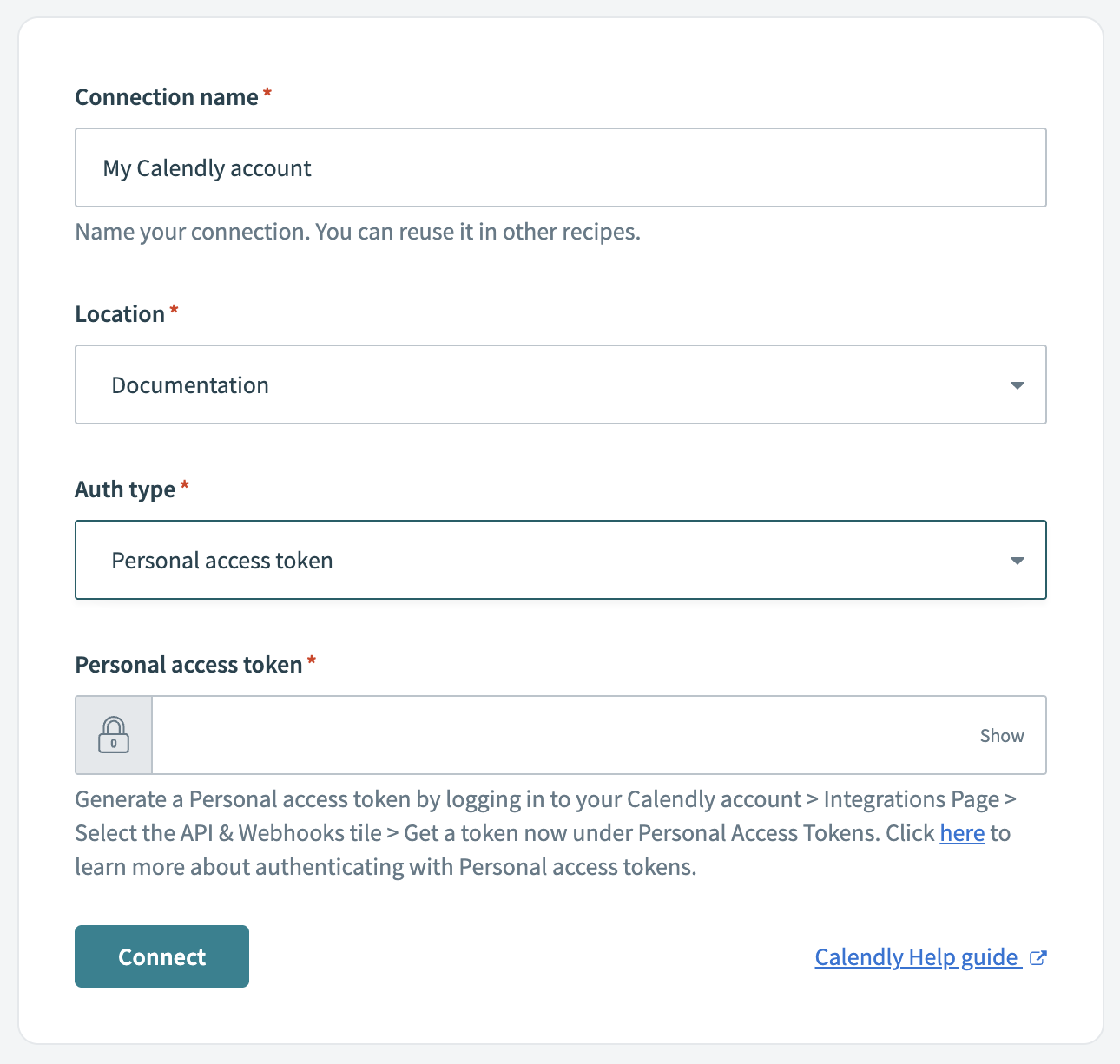 Connect to Calendly using personal access token authentication
Click Connect.
OAuth client ID and secret setup
View OAuth client ID and secret steps
Complete the following steps to generate your OAuth credentials in Calendly:
Go to the Calendly Developer page.
Sign in to your developer account or create a new one.
DEVELOPER ACCOUNTS
Calendly developer accounts are separate from your Calendly user account.
Select your profile icon and go to My apps.
Click Create new app to create an OAuth application.
Enter the name of your application in the Name of app field. For example, Workato.
Select Web in the Kind of app field.
Select the environment you plan to associate your application with:
- Sandbox
- Production
Enter https://www.workato.com/oauth/callback in the Redirect URI field.
Click Save & continue.
Copy your Client ID, Client Secret, and Webhook signing key. Store these values securely, as you won't be able to access the Client ID and Client Secret again.
Connect to Calendly with OAuth 2.0 authentication
View connect to Calendly with OAuth 2.0 authentication steps
Complete the following steps to set up an OAuth 2.0 authentication connection to Calendly in Workato:
Click Create > Connection or press C twice.
Search for Calendly and select it as your app.
Enter a name for your connection in the Connection name field.
Use the Location drop-down menu to select the project where you plan to store the connection.
Use the Authentication type drop-down menu to select OAuth 2.0.
Enter the Client ID and associated Client secret.
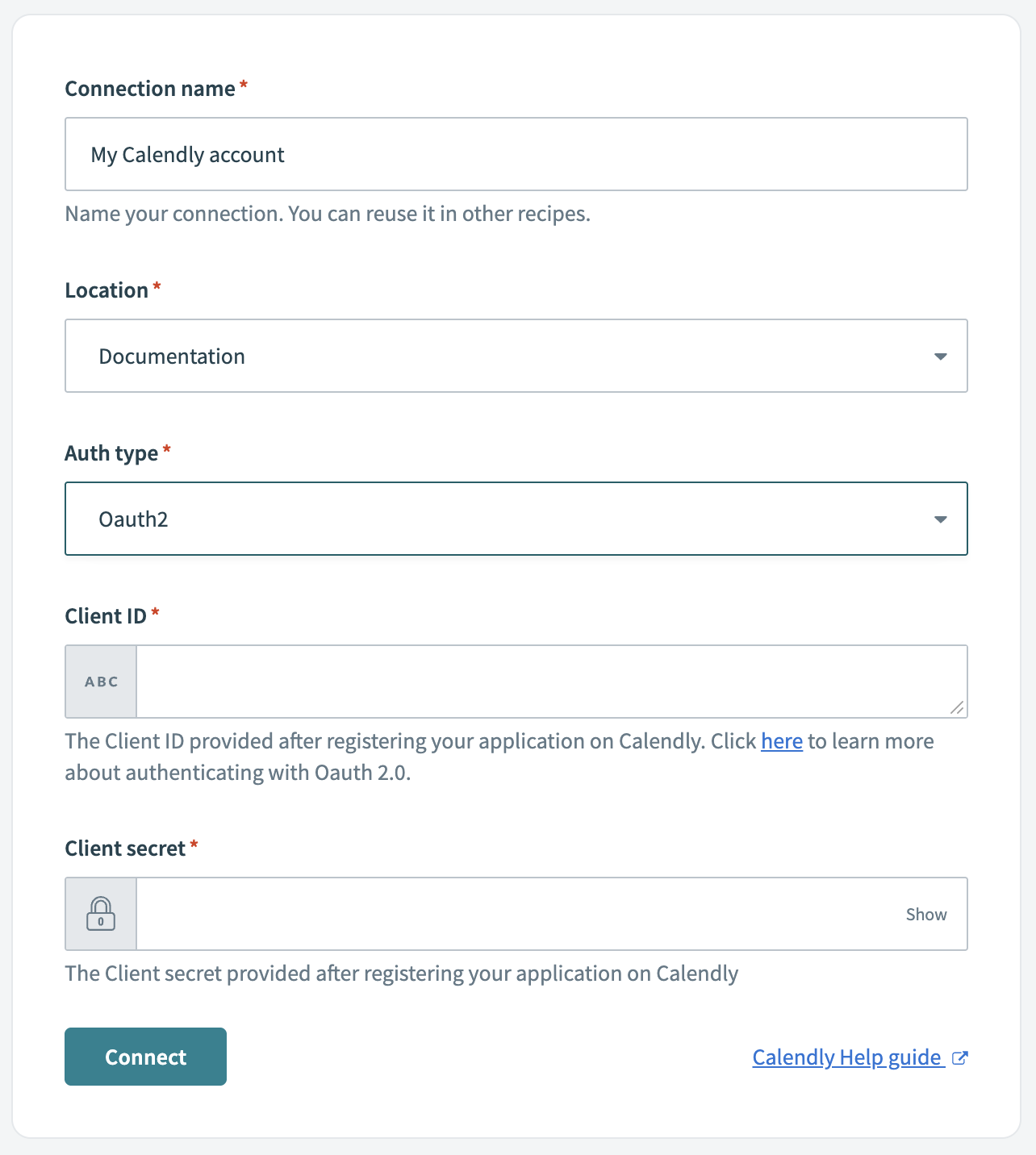 Connect to Calendly using OAuth 2.0 authentication
Click Connect.
How to use Calendly MCP server tools
Refer to the following sections for detailed information on available tools:
list_event_types tool
The list_event_types tool returns the authenticated user's Calendly event types with names, durations, descriptions, scheduling URLs, and active status. Your LLM uses this tool to see what meeting types are configured, to find the right booking URL to share, or as the first step before booking on an invitee's behalf.
Try asking:
What Calendly event types do I have set up?What's my booking link for enterprise demos?Show me all my active event types.Find my discovery call event type so I can book with a prospect.
get_event_type_available_times tool
The get_event_type_available_times tool returns the bookable time slots for a specific event type within a given time range, honoring the host's availability schedule, existing bookings, buffers, daily limits, and minimum notice period. Your LLM uses this tool to find open slots before booking on an invitee's behalf.
Try asking:
What times am I free for a 30-minute intro call this week?Find an open slot for a demo call next Tuesday afternoon.Show me my available times for a partnership discussion in the next 7 days.
create_booking tool
The create_booking tool creates a Calendly booking on behalf of an invitee for a given event type and time slot, flowing through the full Calendly lifecycle including calendar invites, reminders, workflow notifications, and integrations. Your LLM uses this tool to lock in a meeting immediately instead of sending a link and waiting for the invitee to self-schedule.
Try asking:
Book a 30-minute intro call with [email protected] for next Tuesday at 2pm.Schedule a demo with the contact I just met at the conference for this Thursday morning.Book my 3pm discovery call slot with [email protected].
list_calendly_bookings tool
The list_calendly_bookings tool returns the authenticated user's Calendly bookings matching the provided filters, including time range, status, event type, and invitee. Your LLM uses this tool to answer questions about upcoming or past bookings. list_calendly_bookings provides a top-level overview of each booking, while get_calendly_booking provides more detailed information about a specific booking.
Try asking:
Who's booked time with me this week?Show me my canceled meetings from last week.How many demo requests came in this month?List my upcoming bookings with [email protected].
get_calendly_booking tool
The get_calendly_booking tool returns booking-level details for a single Calendly booking, including event type, start and end times, host(s), location, status, cancellation reason, and no-show marker. Your LLM uses this tool when a question needs more than the summary fields list_calendly_bookings provides.
Try asking:
What's the meeting link for my 2pm call with Sarah Chen?Why did the prospect cancel their call yesterday?Did my 10am meeting today get marked as a no-show?
cancel_calendly_booking tool
The cancel_calendly_booking tool cancels the specified Calendly booking through the Calendly cancellation flow, triggering invitee notifications and downstream workflows. Your LLM uses this tool when a rep needs to cancel a meeting rather than simply deleting the calendar event.
Try asking:
Cancel my call with Sarah Chen on Thursday.Cancel my 2pm tomorrow — the deal fell through.Cancel my meeting with [email protected] and let her know I had a scheduling conflict.
get_invitee_details tool
The get_invitee_details tool returns invitee-level data for a Calendly booking, including name, email, time zone, custom question responses, status, and per-invitee reschedule and cancel URLs. Your LLM uses this tool to build pre-meeting context or to retrieve a reschedule link.
Try asking:
What do I know about my 2pm meeting tomorrow?Who am I meeting with on Thursday, and what did they say they wanted to discuss?Get me the reschedule link for my call with [email protected].
get_event_type_availability tool
The get_event_type_availability tool returns the availability rules currently attached to a specific event type, including time zone, the recurring weekly schedule, and date-specific overrides. Your LLM uses this tool as the required read step before updating availability, because the update operation overwrites the full rule set.
Try asking:
What are my current availability hours for my discovery call event type?Show me the availability rules on my demo event type before I make changes.What time zone is my intro call event type using?
update_event_type_availability tool
The update_event_type_availability tool updates the availability rules attached to a specific event type with overwrite semantics, supporting time zone changes, weekly hours adjustments, and date-specific overrides. Your LLM uses this tool to block off time, adjust working hours, or change time zone. The update_event_type_availability tool uses the get_event_type_availability tool to read rules before updating them.
Try asking:
Turn off my Calendly availability next week.Block off my Calendly for Monday through Wednesday.I'm traveling to London next month — update my available hours to UK business hours.I'm back from PTO, turn my availability back on.
create_single_use_scheduling_link tool
The create_single_use_scheduling_link tool generates a single-use scheduling URL tied to a specific event type that expires after one booking, for use in high-velocity outbound workflows. Your LLM uses this tool when each prospect should get a personalized, non-shareable link.
Try asking:
Generate a single-use scheduling link for my demo event type.Give me a one-time booking link for this prospect's intro call.Create a personalized scheduling link for my outbound email to [email protected].
Getting started
View and manage your MCP server tools in the Overview page Tools section. Tool management provides the following capabilities:
TOOLS MUST BE STARTED
Your LLM can only access active tools in your MCP server connector.
Last updated: