Docusign MCP server
The Docusign MCP server enables LLMs to manage the lifecycle of agreements sent for electronic signature within Docusign through natural conversation. It provides tools to create agreements from templates, send agreements for signature, track the progress of agreement documentation, and retrieve completed documents without requiring direct interaction with the Docusign interface.
Uses
Use the Docusign MCP server to perform the following actions:
- List and search envelopes filtered by status, date range, sender, or recipient
- Retrieve summary details and status for a specific envelope
- Check recipient-level signing status to identify who has signed or is pending
- List documents attached to an envelope
- List available templates and retrieve template structure and required fields
- Create a draft envelope from a template
- Send a draft envelope to recipients for signature
- Cancel an in-progress envelope
- Resend signing notifications to remind recipients
Example prompts
Use the following example prompts to invoke Docusign MCP server tools:
Show me all agreements awaiting signature.List envelopes sent to this recipient in the last 30 days.Get the status of this agreement.Who still needs to sign this envelope?List the documents attached to this envelope.What templates are available for sending agreements?Show me the required fields for this template.Create a draft agreement from the NDA template.Send this draft envelope to the recipients.Cancel this in-progress agreement.Remind the recipients who haven't signed yet.
Docusign MCP server tools
The Docusign MCP server provides the following tools:
| Tool | Description |
|---|---|
| list_envelopes | Lists envelopes filtered by status, date range, sender, or recipient. |
| get_envelope | Retrieves summary details and status for an envelope you specify. |
| get_envelope_recipients | Retrieves recipient-level signing status for an envelope. |
| get_envelope_documents | Lists documents attached to an envelope. |
| list_templates | Lists available templates for agreement creation. |
| get_template | Retrieves structure and required fields for a template. |
| create_envelope_from_template | Creates a draft envelope using a selected template. |
| send_envelope | Sends a draft envelope to recipients for signature. |
| void_envelope | Cancels an in-progress envelope. |
| resend_envelope | Resends signing notifications for an envelope. |
Install the Docusign MCP server
Complete the following steps to install a prebuilt MCP server to your project:
Sign in to your Workato account.
Go to AI Hub > Enterprise MCP.
Click + Create MCP server.
Go to the Start with pre-built MCP Servers using your connected apps section and select the prebuilt MCP server you plan to use.
Click Use this server.
Provide a name for your MCP server in the Server name field.
Use the Location drop-down menu to select the project for the MCP server.
Go to the Connections section and connect to your app account.
Select the connection type you plan to use for the MCP server template.
- User's connection: MCP server tools perform actions based on the identity and permissions of the user who connects to the application. Users authenticate with their own credentials to execute the skill.
- Your connection: This option uses the connection established by the recipe builder and follows the same principles as normal app connections.
 Select your connection type
VERIFIED USER ACCESS AUTHENTICATION REQUIREMENTS
Only app connections that use OAuth 2.0 authorization code grant are available for user's connection. Refer to Verified user access for more information.
Complete the app-specific connection setup steps in the following section.
Docusign connection setup
View Docusign connection setup steps
The Docusign connector supports the following authentication methods:
AUTHENTICATION AND SENDING
JWT Token authentication with the impersonation scope lets you send documents from different users' email addresses using the Send On Behalf Of field. This field requires both admin consent for the JWT app and individual user consent.
OAuth 2.0 (Authorization Code Grant) sends all documents from the email address of the user who authorized the connection. The Send On Behalf Of field isn't available with OAuth 2.0 authentication.
ROLES AND PERMISSIONS
Docusign users who can sign in to Docusign can connect to Docusign from Workato. Users have the same permissions and capabilities to view, manage, and send envelopes on Workato as in Docusign.
The Docusign connector works with the following Docusign plans:
- Personal
- Standard
- Business Pro
View JWT Token steps
JWT Token
Use JWT Token authentication to connect to Docusign using a private key for server-to-server authentication. This method supports the Send On Behalf Of field, which allows sending documents from different users' email addresses.
JWT Token setup
Complete the following to set up JWT Token authentication:
- Retrieve your User ID
- Create an integration key
- Generate an RSA keypair
- Add the redirect URI
- Optional: Obtain consent for Send On Behalf Of
Retrieve your User ID
View retrieve your User ID steps
Complete the following steps to retrieve your User ID (API Username):
Sign in to Docusign.
Go to Admin > Apps and Keys.
Locate the API Username on this page and record this value in a secure location. This value is required as the User ID when establishing the JWT Token connection in Workato.
Create an integration key
View create an integration key steps
Complete the following steps to create an integration key in your Docusign instance:
Go to the Apps and Keys page and click Add App and Integration Key.
Enter a name for your application, such as Workato Integration.
Click Create App.
Record your Integration Key (also known as Client ID) in a secure location. This value is required to establish the connection in Workato.
Generate an RSA keypair
View generate an RSA keypair steps
Complete the following steps to generate an RSA keypair for JWT authentication:
Go to the Service Integration section in your integration app settings.
Click Generate RSA to create a new RSA keypair.
Copy the Private Key and save it in a secure location. This value is required to establish the connection in Workato.
SAVE YOUR PRIVATE KEY
The private key is only displayed once. After you close this dialog, you won't be able to retrieve it again. If you lose it, you must generate a new keypair.
Click Close to save the keypair to your integration.
Add the redirect URI
View add the redirect URI steps
Complete the following steps to add the redirect URI:
Go to the Additional settings > Redirect URIs section in your integration app settings.
Click + Add URI.
Enter https://www.workato.com/oauth/callback in the Redirect URIs field.
Click Save.
Obtain consent for Send On Behalf Of
View obtain consent for Send On Behalf Of steps
The Send On Behalf Of field enables you to send envelopes from different users' email addresses when using JWT Token authentication.
This field is available in the following actions:
This field requires two types of consent:
- Admin consent for the JWT app (one-time setup for the organization)
- Individual user consent for each user you plan to send on behalf of
Obtain admin consent
View obtain admin consent steps
Use the Docusign Admin panel to grant consent to your JWT app on behalf of all users within your organization's claimed domains. This authorization grants app access to all domain users, with access limited by the permissions you specify. This is a one-time configuration.
PREREQUISITES FOR ADMIN CONSENT
- Your organization must have the Docusign Admin feature enabled.
- Your organization must have at least one claimed domain. Refer to Claim a domain in the Docusign documentation.
- You must have created an integration key for your app.
Complete the following steps to obtain admin consent:
Sign in to Docusign as an organization administrator.
Open your Organization home page in Docusign Admin.
Select Connected Apps from the left navigation.
Select Authorize Application and choose your application from the drop-down menu. This menu lists every integration key by name (for example, Workato Integration).
Enter the signature impersonation permissions in the Add New Application dialog.
These permissions apply to every user who is a member of the organization's claimed domains.
Click Add to confirm and authorize the application.
Refer to How to obtain admin consent for internal applications in the Docusign documentation for more information.
Obtain individual user consent
View obtain individual user consent steps
Each user whose email address you plan to use in the Send On Behalf Of field must grant individual consent to your JWT app. This allows the app to act on their behalf when sending envelopes.
INTEGRATION KEY AND REDIRECT URI
Ensure you complete the integration key and redirect URI steps from the JWT Token setup section before you set up individual consent.
Complete the following steps to obtain individual user consent:
CONSENT DURING CONNECTION
When you connect using JWT Token authentication, Docusign prompts you to grant consent. This grants individual consent for the user who authenticates the connection. You only need to follow the steps above for additional users you plan to send on behalf of.
Refer to How to obtain individual consent in the Docusign documentation for more information.
Connect to Docusign using JWT Token
Complete the following steps to connect to Docusign using JWT Token authentication:
Click Create > Connection.
Search for Docusign and select it as your app.
Enter a name for your connection in the Connection name field.
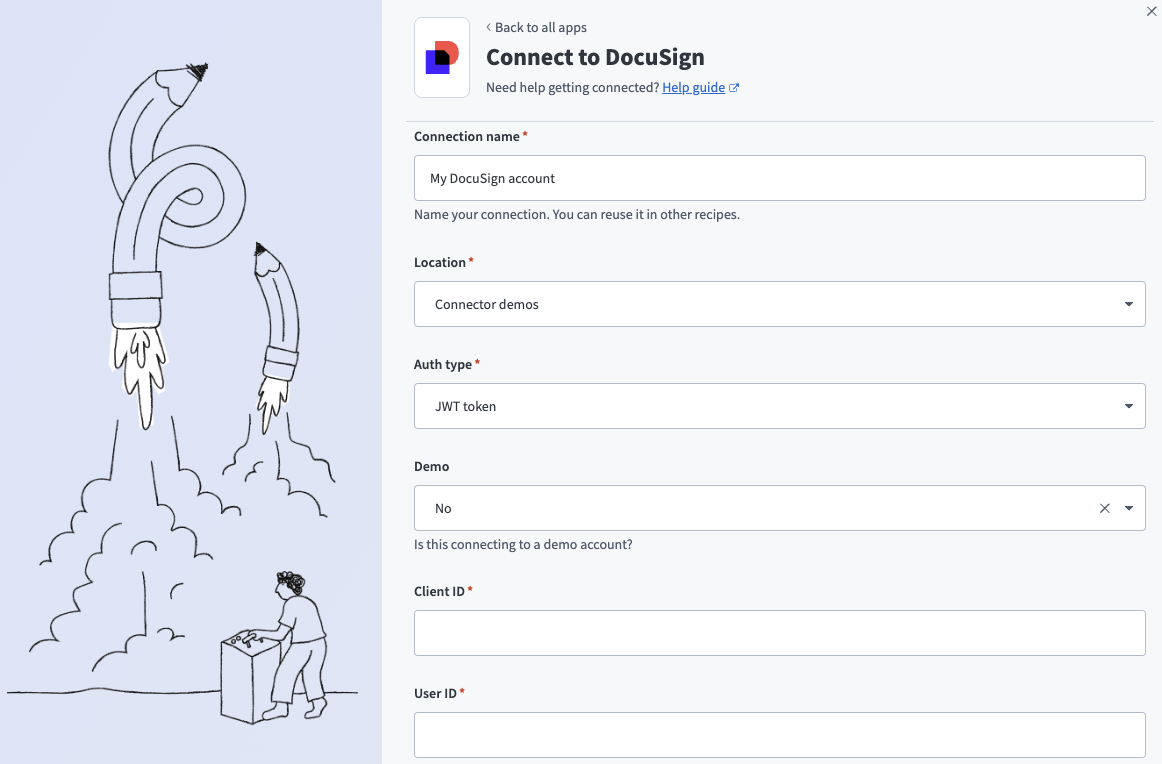 Connect to Docusign using JWT Token authentication
Use the Location drop-down menu to select the project or folder where you plan to store your connection.
Use the Auth type drop-down menu to select JWT Token.
Use the Demo drop-down menu to indicate if this is a demo Docusign account. Select Yes for demo/sandbox accounts or No for production accounts.
Enter the integration key from your Docusign application in the Client ID field.
Enter the User ID (API Username) from the JWT Token setup steps in the User ID field.
Enter the RSA private key from the JWT Token setup steps in the Private key field. Include the complete private key including the -----BEGIN RSA PRIVATE KEY----- and -----END RSA PRIVATE KEY----- headers.
Optional. Enter the Account ID to specify a specific Docusign account if you have multiple accounts. You can find the account ID by navigating to Admin > Apps and Keys > API Account ID. The connection selects your first Docusign account by default.
Optional. Enter the Connect key in the Connect key field to validate your webhook requests. Refer to Add HMAC keys for your app in the Docusign documentation for more information.
Optional. Use the Custom OAuth profile drop-down menu to select a custom OAuth profile for your connection.
Click Connect. Workato redirects you to Docusign to authorize the connection.
Click Allow Access to grant the Workato integration permission to access your account.
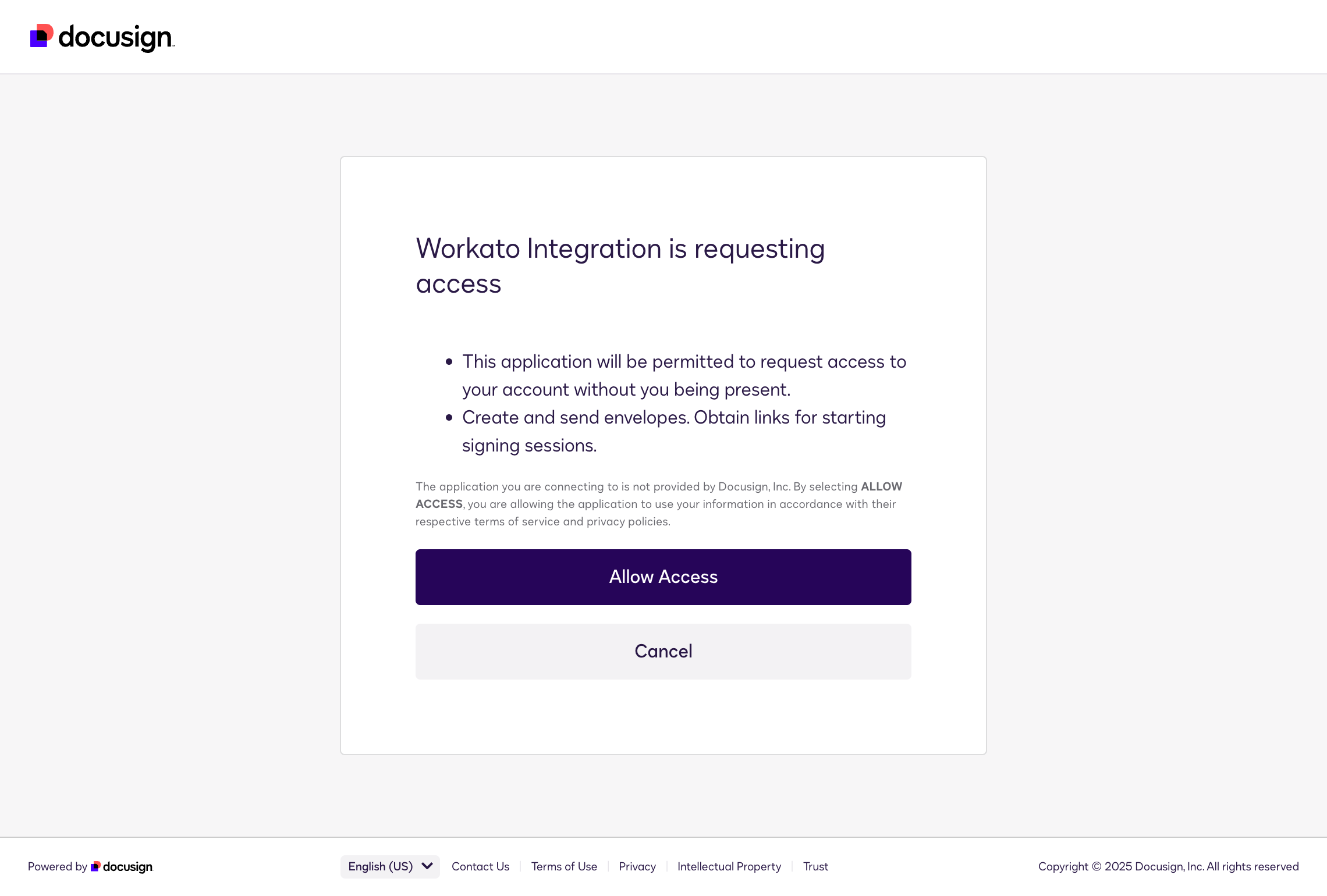 JWT consent screen
View OAuth 2.0 (Authorization Code Grant) steps
OAuth 2.0 (Authorization Code Grant)
Use OAuth 2.0 (Authorization Code Grant) to connect to Docusign by signing in and granting access through Docusign's authorization flow. All documents are sent from the email address of the user who authorized the connection.
Connect to Docusign using OAuth 2.0 (Authorization Code Grant)
Complete the following steps to connect to Docusign using OAuth 2.0 authentication:
Click Create > Connection.
Search for and select Docusign on the New connection page.
Enter a name for your connection in the Connection name field.
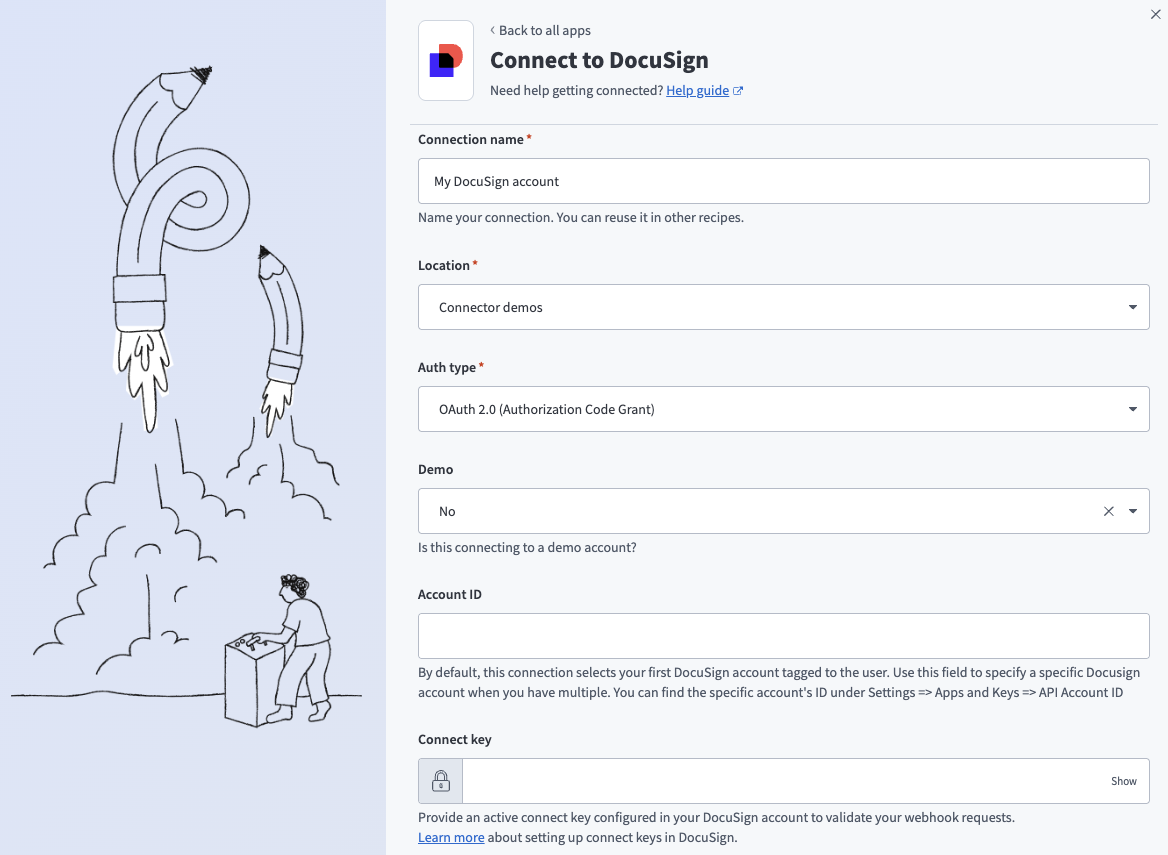 Connect to Docusign using OAuth 2.0 (Authorization Code Grant) authentication
Use the Location drop-down menu to select the project or folder where you plan to store your connection.
Use the Auth type drop-down menu to select OAuth 2.0 (Authorization Code Grant).
Use the Demo drop-down menu to indicate if this is a demo Docusign account. Select Yes for demo/sandbox accounts or No for production accounts.
Optional. Enter the Account ID to specify a specific Docusign account when you have multiple accounts. You can find the account ID by navigating to Admin > Apps and Keys > API Account ID. The connection selects your first Docusign account by default.
Optional. Enter the Connect key in the Connect key field to validate your webhook requests. Refer to Add HMAC keys for your app in the Docusign documentation for more information.
Optional. Use the Custom OAuth profile drop-down menu to select a custom OAuth profile for your connection.
Click Connect.
How to use Docusign MCP server tools
Refer to the following sections for detailed information on available tools:
list_envelopes tool
The list_envelopes tool lists envelopes filtered by status, date range, sender, or recipient. Your LLM uses this tool to search and surface agreements matching the criteria you provide.
Try asking:
Show me all agreements awaiting signature.List envelopes sent to this recipient in the last 30 days.Show me completed agreements from this month.Find envelopes sent by this team member.
get_envelope tool
The get_envelope tool retrieves summary details and status for an envelope you specify. Your LLM uses this tool to return its current state, sent date, and recipient summary.
Try asking:
Get the status of this agreement.Show me the details for this envelope.What's the current state of this agreement?Pull up the summary for this envelope.
get_envelope_recipients tool
The get_envelope_recipients tool retrieves recipient-level signing status for an envelope. Your LLM uses this tool to return each recipient's current status, identifying who has signed and who is still pending.
Try asking:
Who still needs to sign this envelope?Show me the signing status for each recipient on this agreement.Which recipients have completed signing?Who is holding up this agreement?
get_envelope_documents tool
The get_envelope_documents tool lists documents attached to an envelope. Your LLM uses this tool to return available documents.
Try asking:
List the documents attached to this envelope.What documents are included in this agreement?Show me the files associated with this envelope.What documents are available for this completed agreement?
list_templates tool
The list_templates tool lists available templates for agreement creation. Your LLM uses this tool to match template references and help select the right starting point before creating an envelope.
Try asking:
What templates are available for sending agreements?Show me all Docusign templates I can use.Find a template for an NDA.List available templates before I create a new agreement.
get_template tool
The get_template tool retrieves the structure and required fields for a template. Your LLM uses this to provide required roles and fields before creating an envelope from the template.
Try asking:
Show me the required fields for this template.What roles and fields does the NDA template require?Get the structure of this template before I create an agreement.What information do I need to fill in for this template?
create_envelope_from_template tool
The create_envelope_from_template tool creates a draft envelope using a template you select. Your LLM uses this tool to apply the template structure and the recipient and field information you provide to build the draft before sending.
Try asking:
Create a draft agreement from the NDA template.Set up a new envelope using the MSA template for this recipient.Draft an agreement from this template with these signer details.Create an envelope from the SOW template before I send it.
send_envelope tool
The send_envelope tool sends a draft envelope to recipients for signature. Your LLM uses this tool to send an envelope to the recipients you specify.
Try asking:
Send this draft envelope to the recipients.Deliver this agreement for signature.Send the NDA I just created to this contact.Dispatch this envelope now that it's ready.
void_envelope tool
The void_envelope tool cancels an in-progress envelope. The tool uses the envelope ID to stop the agreement and notify recipients that it has been voided. This tool is only used when you explicitly ask to cancel or stop an agreement.
Try asking:
Cancel this in-progress agreement.Void this envelope — we're using a different version.Stop this agreement from being signed.Cancel and void this envelope.
resend_envelope tool
The resend_envelope tool resends signing notifications for an envelope. Your LLM uses this tool to re-notify recipients who haven't completed signing.
Try asking:
Remind the recipients who haven't signed yet.Resend the signing notification for this envelope.Send a reminder to the pending signers on this agreement.Nudge the recipients who are holding up this agreement.
Getting started
View and manage your MCP server tools in the Overview page Tools section. Tool management provides the following capabilities:
TOOLS MUST BE STARTED
Your LLM can only access active tools in your MCP server connector.
Last updated: