Self-service (Workato Free and Workato Pro) billing
Self-service (Workato Free and Workato Pro) lets you sign up online to access Workato's Orchestrate, AI, and Agentic capabilities for free, or with a credit card.
Workato Free and Workato Pro use the same usage-based model as the rest of Workato, measured in Workato credits, a shared billing unit that covers every capability.
Plans
Workato Free and Workato Pro give you access to the same platform capabilities, but they differ in credit volume, billing cadence, and cost.
| Plan | Credits | Billing |
|---|---|---|
| Workato Free | 50,000-credit one-time grant | Free |
| Workato Pro | 2,500–50,000 credits/month, recurring | Monthly, paid by credit card |
Credit limits
Workato Pro offers several monthly credit limit options. You can select your credit limit when you sign up for a Workato Pro account.
| Monthly price | Credit limit |
|---|---|
| $75/month | 2,500 credits/month |
| $100/month | 3,500 credits/month |
| $275/month | 10,000 credits/month |
| $780/month | 30,000 credits/month |
| $1,275/month | 50,000 credits/month |
NO CREDIT ROLLOVER
Unused Workato Pro credits expire at the end of the billing month and don't roll over.
Refer to Workato Enterprise editions for capabilities beyond what Workato Free and Workato Pro include.
Usage
Self-service uses the same usage-based billing model as other Workato plans, which measures usage in Workato credits. Usage reflects the amount of activity across your workspace.
A Workato credit is a single, common billing unit used across every capability. Any capability you use draws from your credit balance, whether you're running workflows, processing documents, or running an agent.
Refer to How usage is measured for the shared billing model, and Understand usage for the full list of metrics and calculation rules.
Sign up for a Workato Free or Pro plan
Complete the following steps to sign up for Workato Free or Workato Pro:
Go to workato.com.
Click Start for free to sign up for a Self-service account.
 Click Start for free
If Start for free isn’t visible, go to https://app.trial.workato.com/users/sign_up_trial directly.
Sign up using one of the following authentication methods.
Email and password
Enter your name in the Full name field.
Enter your email in the Work email field.
Create a password in the Password field. Your password must be at least 12 characters, include both upper and lower case letters, a number, and a special character.
Click Google to sign in using your Google account.
Sign in to your Google account.
Click Allow to authorize Workato to access your Google account information.
Google redirects you back to Workato.
GitHub
Click GitHub to sign in using your GitHub account.
Sign in to your GitHub account.
Click Allow to authorize Workato to access your GitHub account information.
GitHub redirects you back to Workato.
Office 365
Click Office 365 to sign in using your Office 365 account.
Sign in to your Office 365 account.
Click Allow to authorize Workato to access your Office 365 account information.
Office 365 redirects you back to Workato.
Select from the Workato Free, Pro, or Enterprise plans to determine your platform feature access and credit limits. Workato Free is selected by default and available when you sign up for Workato.
ENTERPRISE
Contact Workato for more information about Workato Enterprise.
Workato Pro
Select Upgrade to Pro to sign up for Workato Pro.
Use the slider to select the monthly credit limit for your Workato Pro plan.
Enter your payment information for Workato Pro.
Click Subscribe.
Manage Self-service accounts
You can upgrade to Workato Pro, downgrade to Workato Free, and cancel your Workato subscription in Workato.
Upgrade to Workato Pro
You can upgrade from Workato Free to Workato Pro directly in the Workato platform. Complete the following steps to upgrade your Workato Free subscription to Pro:
Click Free in the navigation bar in Workato.
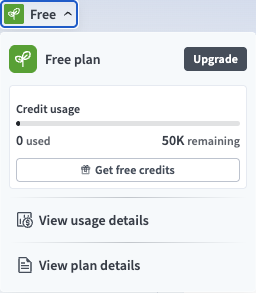 Upgrade your Workato subscription
Select Upgrade to upgrade your subscription.
Use the slider to select your monthly credit limit. Refer to Credit limits for more information about credit limits.
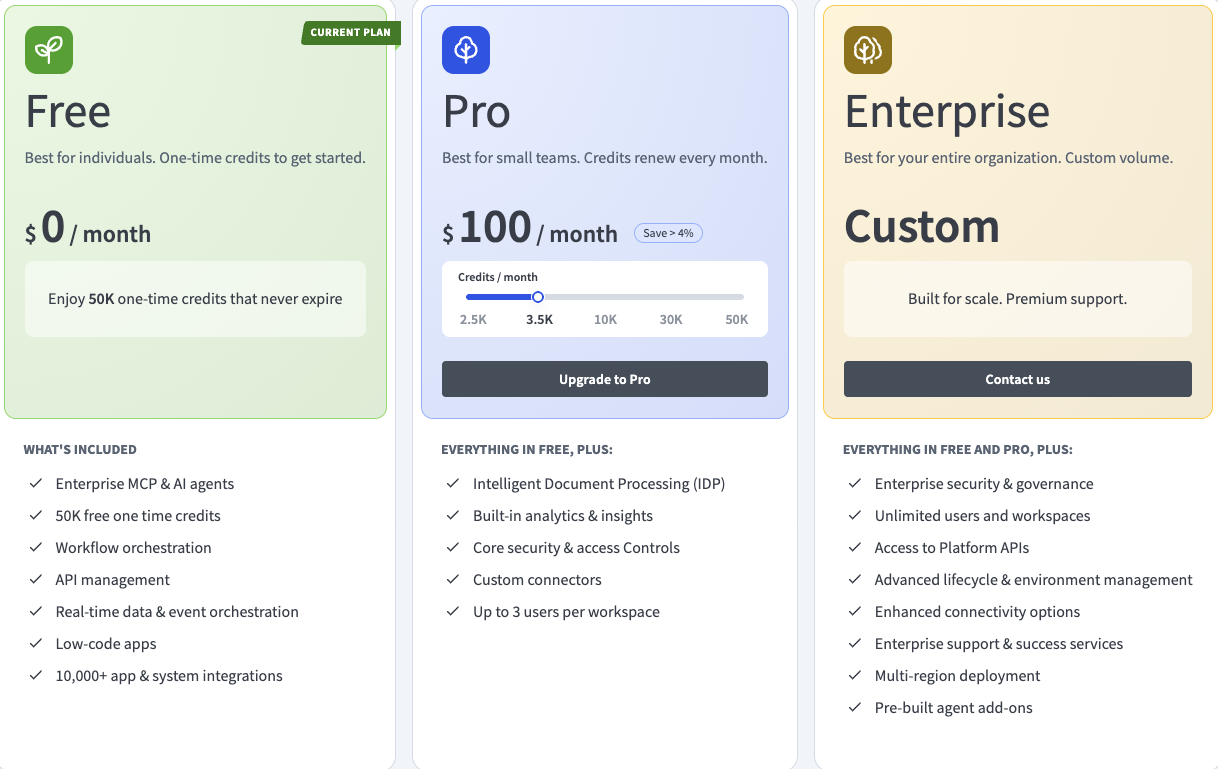 Select your Workato Pro credit limit
Click Upgrade to Pro to select your subscription.
Enter your payment information, such as card information, cardholder name, and billing address.
Click Subscribe to purchase your Workato Pro subscription.
Cancel your subscription
You can cancel your Workato Pro subscription directly in the Workato platform. Canceling your Workato Pro subscription downgrades your subscription to Workato Free. Complete the following steps to cancel your subscription:
Click Pro in the navigation bar in Workato.
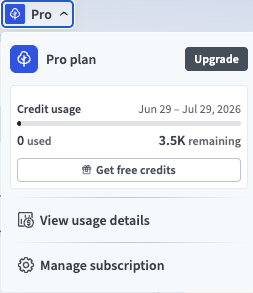 Manage Workato Pro subscription
Click Manage subscription.
Click Cancel subscription to cancel your Workato Pro subscription and downgrade to Workato Free.
Use the drop-down menu to select your reason for canceling and click Continue to cancellation.
Click Cancel subscription to confirm your cancellation.
Click Return to Self-service sandbox to return to your workspace.
Monitor credit use
You can monitor credit use in Workato, including the current month's credit limit and usage, to track and manage capacity. You can view metrics, such as purchased quota, remaining credits, and total month spend. Refer to Billing and Usage for more information.
The Usage dashboard can also provide additional information about your credit utilization.
ADMIN ROLE ACCESS REQUIRED
You need Admin system role in the workspace to access usage and billing information.
Billing
You can manage your billing for Workato Free and Workato Pro directly in the platform, including updating your billing information and accessing invoices.
Update billing information
Complete the following steps to update your billing information:
Click Free or Pro in the top navigation bar in Workato, depending on your subscription type.
Manage Workato Pro subscription
Click Manage subscription.
Click Update information (pencil icon) to change your billing information, such as the email address associated with the account.
Access your invoice
Complete the following steps to access your invoice:
Click Free or Pro in the top navigation bar in Workato, depending on your subscription type.
Manage Workato Pro subscription
Click Manage subscription.
Click the invoice you plan to view or download in the Invoice History section. A new tab opens with your invoice.
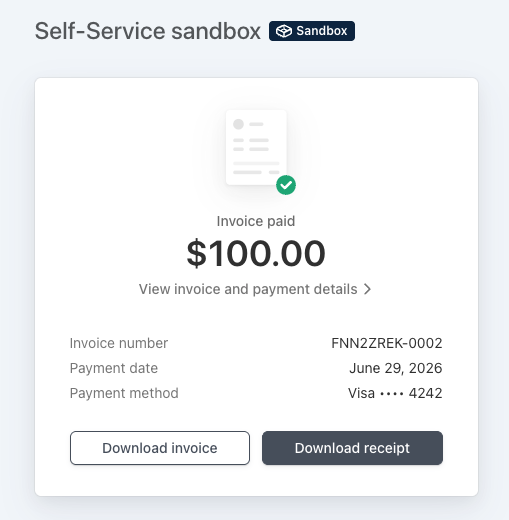 View your invoice
Click Download invoice to download a copy of your invoice.
Click Download receipt to download a copy of your receipt.
Last updated: