Use Google Secret Manager secrets in connections
This guide explains how to use secrets from Google Secret Manager in your connections instead of storing credentials directly in Workato.
Prerequisites
Ensure you have the following before you begin:
In Workato:
- Secrets Manager configured: You must have successfully set up Google Secret Manager at either the workspace level or project level.
- Create/Edit Connections privilege: You need the Create/Edit Connections privilege in your Workato project.
In Google Cloud:
- Secret Manager access: You need permissions to create and manage secrets in your GCP project's Secret Manager.
- Service account permissions: The service account used by Workato must have the Secret Manager Secret Accessor (
roles/secretmanager.secretAccessor) role to read the secrets you create.
Add a secret to Google Secret Manager
Complete the following steps to create a secret in Google Cloud Secret Manager:
Sign in to the Google Cloud Console.
Go to Security > Secret Manager.
Click Create secret.
Enter a unique identifier for your secret in the Name field. For example, salesforce-api-key or workato-db-password.
Enter your secret data in the Secret value field, such as an API key, password, or token. Alternatively, you can click Upload file to provide a text file containing the secret data.
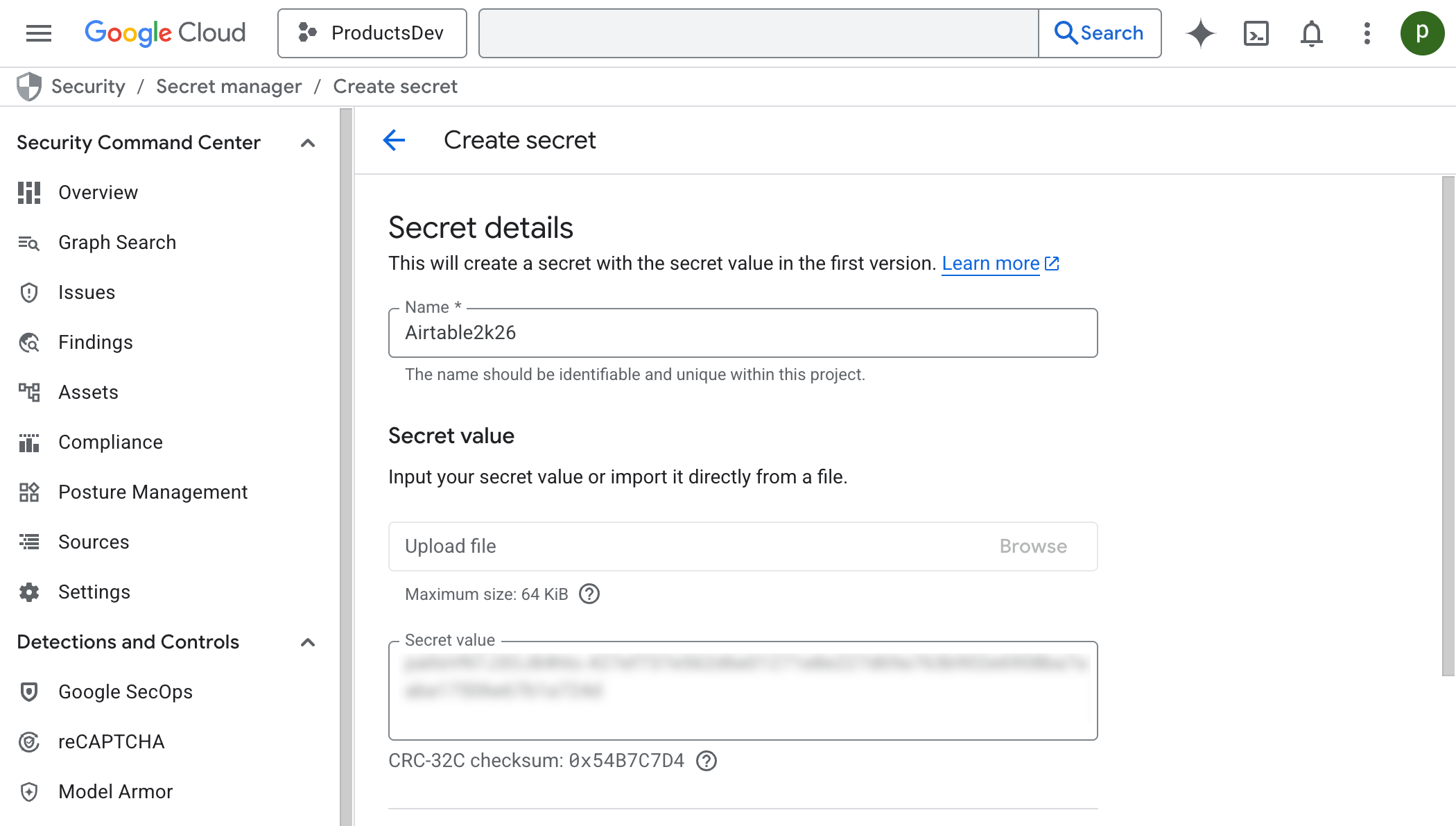 Create secret
Click Create secret.
Refer to Create a secret in the Google Cloud documentation for information about advanced configuration options such as replication policies, rotation schedules, and expiration settings.
SECRET VERSIONS
Google Secret Manager automatically versions secrets. When you update a secret value, a new version is created. Workato retrieves the latest enabled version but caches the value for 60 minutes. If the latest version is disabled or destroyed, Workato won't fall back to an older enabled version and the connection will fail. Make sure the version you want Workato to use is set to Enabled in Google Cloud.
You can wait for the cache to expire or clear the cache manually to use the updated value.
Reference secrets in Workato connections
Complete the following steps to reference your Google Secret Manager secret in a Workato connection:
Sign in to Workato.
Select the project where you plan to create or edit a connection.
Create a new connection or edit an existing one.
Click Add external secret for any sensitive field (for example, API key, password, or client secret).
Enter the exact name of your secret from Google Secret Manager in the Secret name field and click Done.
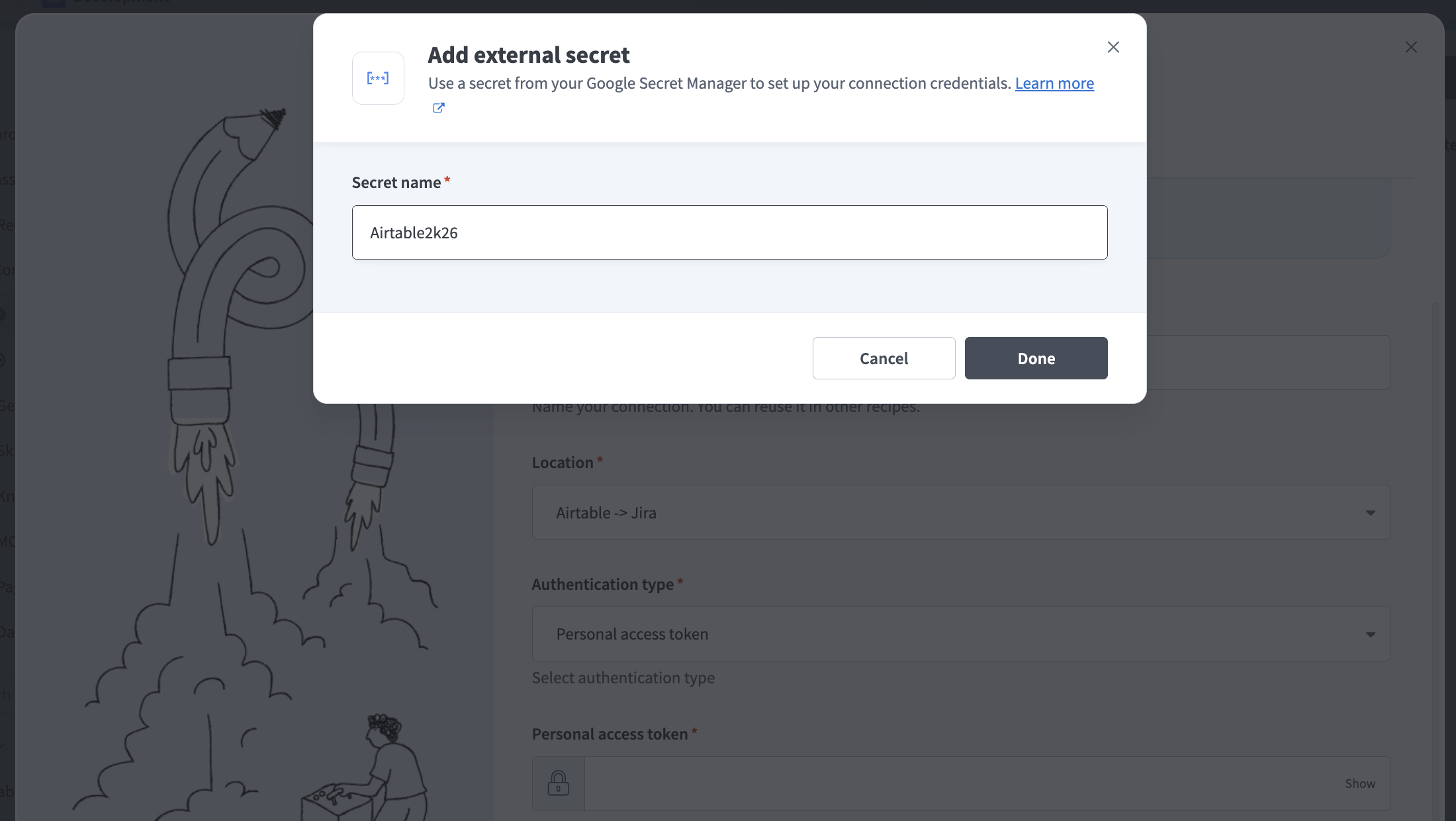 Enter the secret name from Google Secret Manager
Complete the remaining connection fields.
Click Connect.
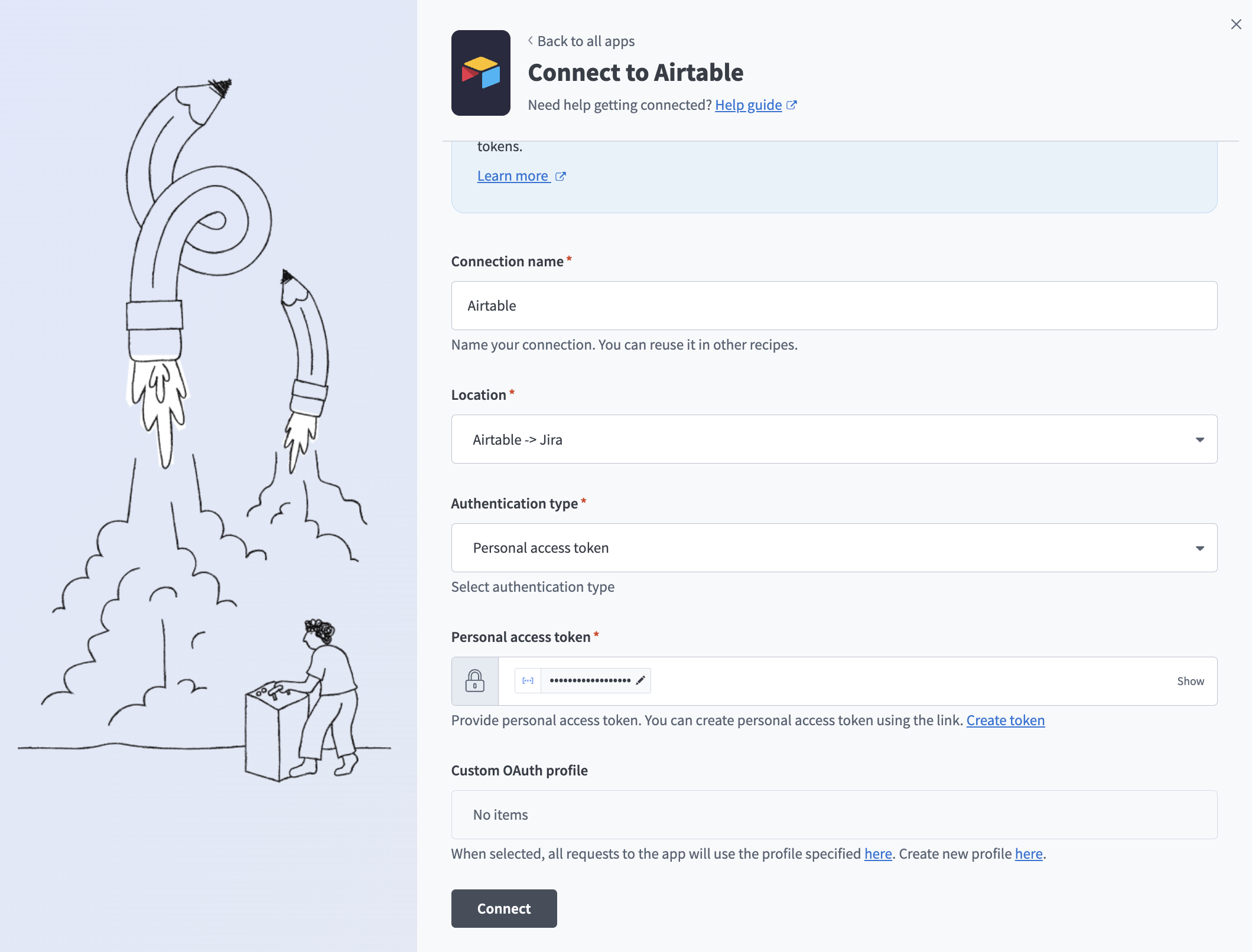 Connect using a secret from Google Secret Manager
Secrets cache behavior
Workato caches credentials retrieved from Google Secret Manager for 60 minutes. During this period, recipes continue to use the cached value, even if you update or rotate the secret.
After the cache expires, the next recipe execution retrieves the latest value from Google Secret Manager. You can call the Clear secrets management cache endpoint to apply changes immediately. This forces Workato to fetch the latest credentials without requiring you to disconnect and reconnect the connection.
Troubleshoot connection errors
If a connection that uses Google Secret Manager secrets fails, check the error message against the following:
| Error message | Fix |
|---|---|
| The secret version is disabled. Enable it in your Google Cloud project. | In Google Cloud Console, go to Security > Secret Manager, find the secret, and enable a version. |
| Secret not found. Verify the secret exists and has enabled versions. | Confirm the name exactly matches the secret name in Google Cloud (case-sensitive), and confirm at least one version is enabled. |
| Secret version is destroyed. Create a new version. | Create a new version with the correct value in Google Cloud. |
| Secret Manager API not enabled. Enable it in Google Cloud Console. | Go to APIs & Services > Library in Google Cloud Console, search for Secret Manager API, and click Enable. |
| The service account requires Secret Manager Secret Accessor role to be granted. | In Google Cloud IAM, assign the Secret Manager Secret Accessor (roles/secretmanager.secretAccessor) role to the service account. |
Further reading
Last updated: