Manage environment access
You can manage collaborator access to environments using role-based access control. Roles provide maintainable and consistent access control by allowing you to configure permissions for multiple collaborators at once.
This guide covers the following topics:
WHO CAN USE THIS FEATURE?
This guide is applicable to accounts with the Environments feature enabled. Environments is available for direct and Embedded users. Learn more about Environments for Embedded customers.
You must have one of the following in your main workspace (DEV) to perform the tasks in this guide:
- The Environment admin role or legacy Admin system role
- Admin privileges
Manage roles across environments
In the new permissions model, you manage collaborator access using environment roles and project roles. Roles are assigned per environment, so the same collaborator can have different levels of access based on their responsibilities in DEV, TEST, and PROD environments.
For example, a member of the center of excellence team might need:
- Environment admin in the main environment (DEV) to access workspace management features such as SAML authentication.
- Environment manager in TEST to configure platform tools like OAuth profiles or message templates, without workspace-wide access.
- Member in PROD, since they don't need to manage any environment-level tools or settings there.
Here's how this would look in Workato for that collaborator:
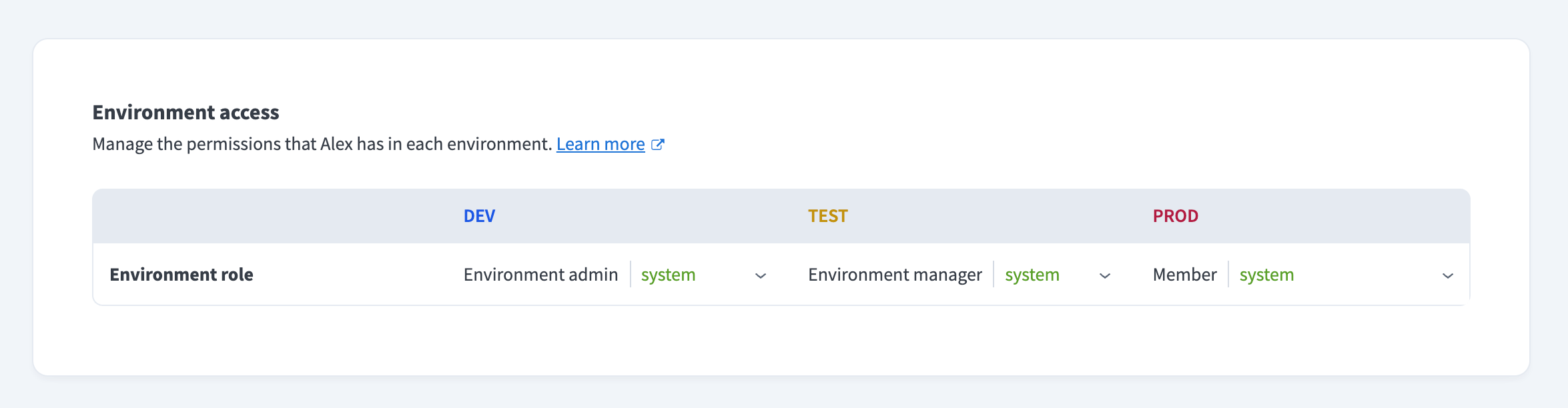
If a role needs to be updated or deleted, you'll do so in the main environment (DEV). Collaborators with the Environment admin role in DEV can also see the Workspace admin page in TEST and PROD, regardless of their role in those environments.
Grant environment access
Assigning a role for an environment to a collaborator also grants them access to the environment.
To grant access to an environment for a collaborator:
Go to Workspace admin > Access control > Collaborators in the (DEV) environment of your Workato account.
Click on the collaborator you want to modify. This will open the Edit collaborator page.
Locate the environment you want to grant access to. For example: TEST
In the Role menu below the environment, select the collaborator's role for that environment. To prevent or remove access to the environment, select No access.
Click Update.
Revoke environment access
To revoke access to an environment for a collaborator:
Go to Workspace admin > Access control > Collaborators in the (DEV) environment of your Workato account.
Click on the collaborator you want to modify. This will open the Edit collaborator page.
Locate the environment you want to revoke access from. For example: TEST
In the Role menu below the environment, select No access.
Click Update.
Resources
Last updated: