QuickBooks Online Billing and AR MCPサーバー
QuickBooks Online Billing and AR MCPサーバーを使用すると、LLMは自然な会話を通じてQuickBooks Onlineの請求ワークフローを管理できます。 このMCPサーバーは売掛金ワークフローをサポートするため、請求済み金額の追跡、未払い請求書の確認、請求書の生成と送信を行うことができます。 QuickBooks Onlineインターフェースを直接操作しなくても、請求書の一覧表示、請求書詳細の取得、請求書の作成と送信を行うツールを提供します。
用途
QuickBooks Online Billing and AR MCPサーバーを使用して、次のアクションを実行します:
- 日付範囲や顧客などのオプションフィルターを使用して請求書を一覧表示
- 明細項目、合計、支払いステータスなど、特定の請求書の詳細情報を取得
- 指定したアイテムと価格を使用して、既存の顧客向けに新しい請求書を作成
- 既存の請求書を関連付けられた顧客に送信
- 名前または部分識別子で顧客を検索
- 名前または部分識別子でアイテム(製品またはサービス)を検索
- 特定の顧客の完全な詳細を取得
- 特定のアイテムの完全な詳細を取得
プロンプト例
次のプロンプト例を使用して、QuickBooks Online Billing and AR MCPサーバーツールを呼び出します:
Show me all invoices from the past 30 days.List overdue invoices for this customer.Get the details for invoice #1042.Create an invoice for Acme Corp for 10 hours of consulting.Send invoice #1042 to the customer.Find the customer record for Riverside Catering.Search for the item called Monthly Retainer.Get the full details for this customer before I create the invoice.Look up this item's pricing before I add it to the invoice.
QuickBooks Online Billing and AR MCPサーバーのツール
QuickBooks Online Billing and AR MCPサーバーは、次のツールを提供します:
| ツール | 説明 |
|---|---|
| list_invoices | 日付範囲や顧客などのオプションフィルターを使用して、請求書のリストを取得します。 |
| get_invoice | 明細項目、合計、支払いステータスなど、指定した請求書の詳細情報を取得します。 |
| create_invoice | 指定したアイテムと価格を使用して、既存の顧客向けに新しい請求書を作成します。 |
| send_invoice | 既存の請求書を関連付けられた顧客に送信します。 |
| search_customers | 名前または部分識別子を使用して顧客を検索します。 |
| search_items | 名前または部分識別子を使用して、製品やサービスなどのアイテムを検索します。 |
| get_customer | 指定した顧客の完全な詳細を取得します。 |
| get_item | 指定したアイテムの完全な詳細を取得します。 |
QuickBooks Online Billing and AR MCPサーバーのインストール
構築済みMCPサーバーをプロジェクトにインストールするには、次の手順を完了します:
Workatoアカウントにサインインします。
AI Hub > Enterprise MCPに移動します。
+ Create MCP serverをクリックします。
接続済みアプリを使用して構築済みMCPサーバーを開始するセクションに移動し、使用する構築済みMCPサーバーを選択します。
Use this serverをクリックします。
サーバー名フィールドにMCPサーバーの名前を入力します。
場所ドロップダウンメニューを使用して、MCPサーバーのプロジェクトを選択します。
Connectionsセクションに移動し、アプリアカウントに接続します。
MCPサーバーテンプレートで使用するコネクションタイプを選択します。
- User's connection: MCPサーバーツールは、アプリケーションに接続するユーザーのIDと権限に基づいてアクションを実行します。ユーザーは自分の認証情報で認証し、スキルを実行します。
- Your connection: このオプションでは、レシピビルダーによって確立されたコネクションを使用し、通常のアプリコネクションと同じ原則に従います。
 コネクションタイプを選択
検証済みユーザーアクセスの認証要件
OAuth 2.0認可コードグラントを使用するアプリコネクションのみが、ユーザーのコネクションで利用できます。詳細については、検証済みユーザーアクセスを参照してください。
次のセクションで、アプリ固有のコネクション設定手順を完了します。
QuickBooks Onlineコネクション設定
QuickBooks Onlineコネクション設定手順を表示
サポートされているエディションとバージョン
サポートされているエディションとバージョンを表示
QuickBooksコネクターは、次のQuickBooks Onlineバージョンで動作します:
- QuickBooks Self-Employed
- QuickBooks Simple Start
- QuickBooks Essentials
- QuickBooks Plus
WorkatoはQuickBooks Desktop/Enterpriseバージョンをサポートしていません。
WorkatoでQuickBooksに接続する方法
WorkatoでQuickBooksに接続する方法の手順を表示
WorkatoでQuickBooks Onlineへのコネクションを確立するには、次の手順を実行します。
Workatoが接続するQuickBooksインスタンスを識別するConnection nameを指定します。
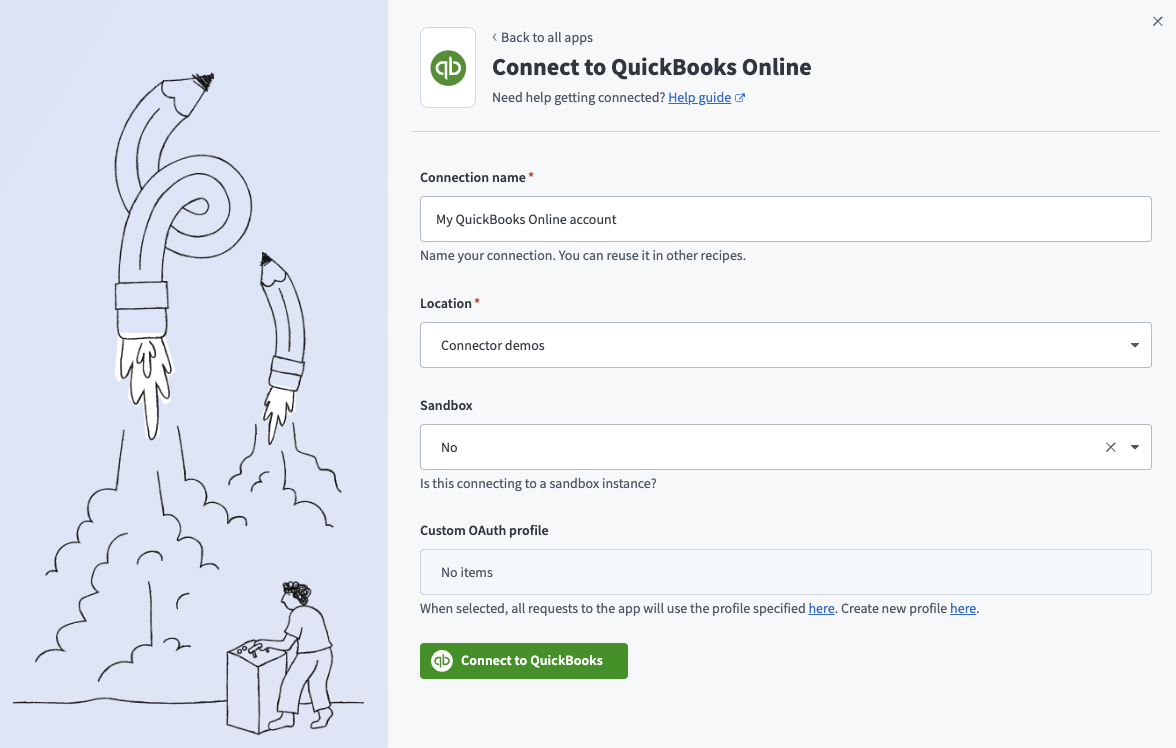 QuickBooks onlineコネクション
ロケーションドロップダウンメニューを使用して、コネクションを保存するプロジェクトを選択します。
Sandboxドロップダウンメニューを使用して、QuickBooks Onlineアカウントがサンドボックスアカウントかどうかを指定します。
任意。 Custom OAuth profileドロップダウンメニューを使用して、コネクション用のCustom OAuth profileを選択します。
Connect to QuickBooksをクリックして、QuickBooksのサインインウィンドウを開きます。
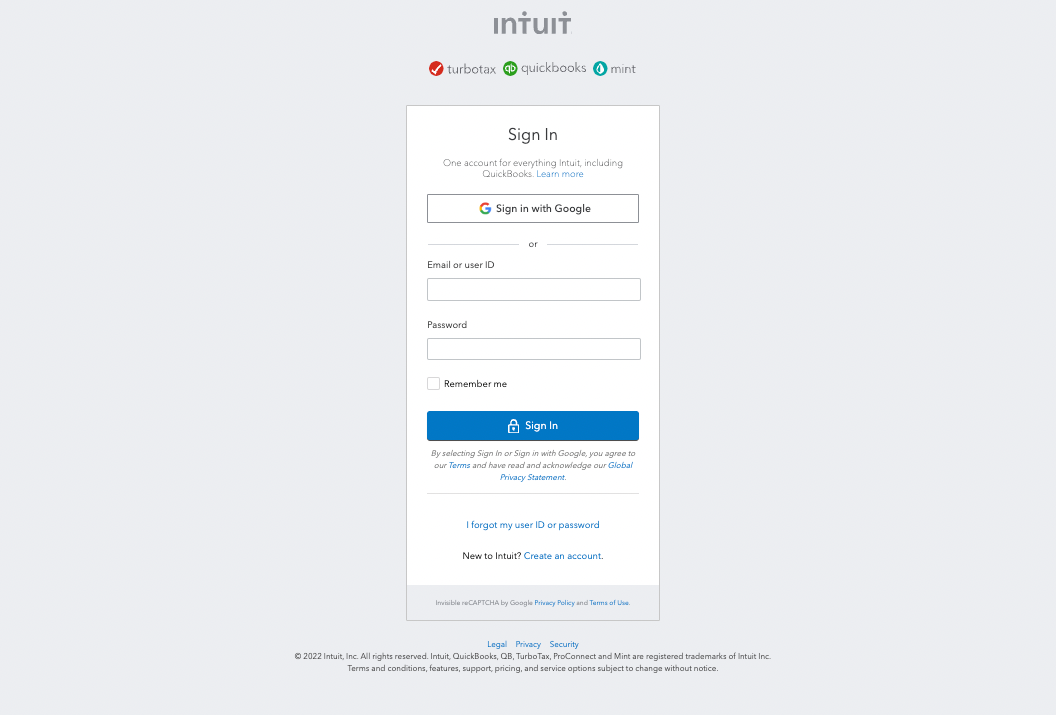 QuickBooks Onlineに接続
QuickBooks Onlineアカウントのメールアドレスとパスワードを入力します。
Sign inをクリックしてコネクションを完了します。
QuickBooks Online Billing and AR MCPサーバーのツールの使用方法
利用可能なツールの詳細については、次のセクションを参照してください:
list_invoicesツール
list_invoicesツールは、日付範囲や顧客などのオプションフィルターを使用して、請求書のリストを取得します。 LLMはこのツールを使用して、最近の請求書、期限超過の請求書、特定の日付範囲内の請求書に関するリクエストを含め、請求書を表示、一覧表示、確認します。
質問例:
Show me all invoices from the past 30 days.List overdue invoices for this customer.Show me all open invoices from last quarter.Which invoices are still outstanding?
get_invoiceツール
get_invoiceツールは、明細項目、合計、支払いステータスなど、指定した請求書の詳細情報を取得します。 LLMはこのツールを使用して、請求書の詳細を取得します。
質問例:
Get the details for invoice #1042.Show me the line items and total for this invoice.What is the payment status of this invoice?Pull up the full details for the invoice I sent last week.
create_invoiceツール
create_invoiceツールは、指定したアイテムと価格を使用して、既存の顧客向けに新しい請求書を作成します。 LLMは請求書を作成する前に顧客参照とアイテム参照を解決し、顧客、アイテム、数量、価格など、欠落している必須詳細を要求します。
質問例:
Create an invoice for Acme Corp for 10 hours of consulting.Generate an invoice for the Monthly Retainer service.Bill Riverside Catering for the items from last week's order.Create a new invoice for this customer with these line items.
send_invoiceツール
send_invoiceツールは、既存の請求書を関連付けられた顧客に送信します。 LLMはこのツールを使用して、請求書を送信または再送信します。
質問例:
Send invoice #1042 to the customer.Resend the invoice I created for Acme Corp.Email this invoice to the customer now.Send the outstanding invoice for this account.
search_customersツール
search_customersツールは、名前または部分識別子を使用して顧客を検索します。 LLMはこのツールを使用して、名前または部分識別子で請求書ワークフロー用の顧客参照を取得します。
質問例:
Find the customer record for Riverside Catering.Search for a customer named Acme.Look up this customer before I create their invoice.Find all customers matching this partial name.
search_itemsツール
search_itemsツールは、名前または部分識別子を使用して、製品やサービスなどのアイテムを検索します。 LLMはこのツールを使用して、指定した製品名またはサービス名の請求書を検索します。
質問例:
Search for the item called Monthly Retainer.Find the consulting hours product in QuickBooks.Look up this service item before I add it to the invoice.Search for items matching this product name.
get_customerツール
get_customerツールは、指定した顧客の完全な詳細を取得します。 LLMはこのツールを使用して、請求書ワークフロー用の顧客IDまたは完全な顧客詳細を返します。
質問例:
Get the full details for this customer before I create the invoice.Show me all information for this customer record.Retrieve the billing details for this customer.Pull up this customer's full profile.
get_itemツール
get_itemツールは、価格や説明など、指定したアイテムの完全な詳細を取得します。 LLMはこのツールを使用して、請求書の明細項目を作成するためのアイテム詳細を取得します。
質問例:
Look up this item's pricing before I add it to the invoice.Get the full details for this product.Show me the description and rate for this service item.Retrieve this item's details before I include it on the invoice.
はじめに
MCP serverのツールは、Overviewページのツールセクションで表示および管理できます。ツール管理では、次の機能を利用できます:
ツールを開始する必要があります
LLMは、MCP server connector内のアクティブなツールにのみアクセスできます。
最終更新日: