AIRO Connect
AIRO Connect brings AIRO to MCP-compatible AI clients, including Claude Code, Claude Desktop, Cursor, ChatGPT, and Codex CLI. It lets you build and manage Workato assets from those clients using natural-language prompts.
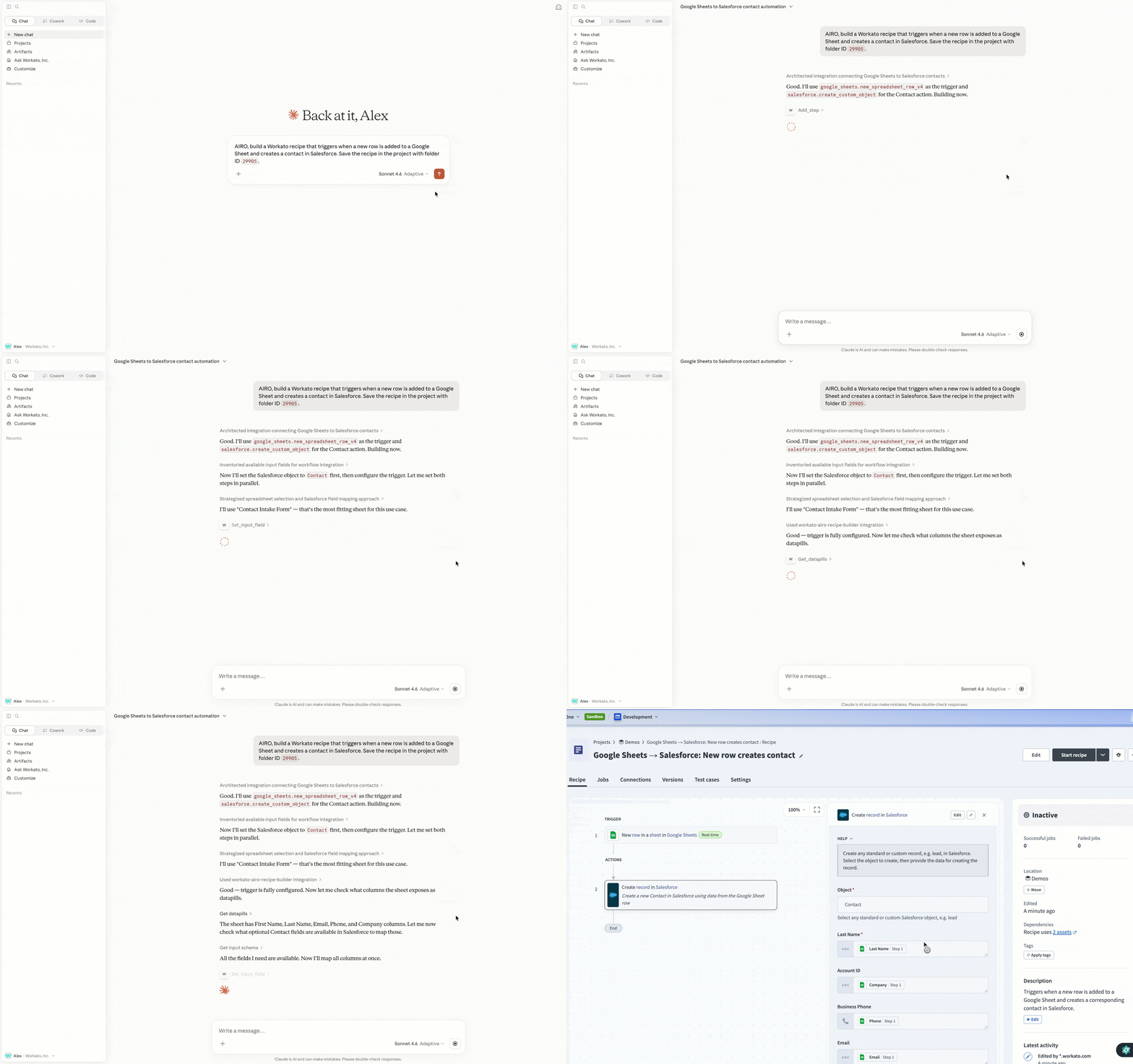 AIRO as an MCP server
Refer to Connect an MCP client to AIRO Connect for the setup steps.
Authentication and access
AIRO Connect supports OAuth 2.0 and API token authentication. The method you choose determines who the client acts as and what it can access.
Choose an authentication method
| Method | Best for | Client acts as | Access boundary |
|---|---|---|---|
| OAuth 2.0 | Interactive connections that use browser sign-in | The authenticated user | The user's permissions in the active workspace and environment |
| API token | Headless or configuration-driven connections | The workspace owner | All AIRO Connect tools and projects in the API client's environment |
Refer to Connect an MCP client to AIRO Connect for the setup steps for each method.
API TOKENS HAVE ENVIRONMENT-WIDE ACCESS
API token connections act as the workspace owner within the API client's environment. The AIRO MCP Server permission on an API client role gives the token access to all AIRO Connect tools and projects in that environment. Other privileges assigned to the role, and the API client's project access settings, don't limit that access.
Use OAuth 2.0 when the connection should respect an individual user's permissions.
Review AIRO Connect activity in the audit log
The activity audit log attributes actions that AIRO Connect takes to the authenticated user for OAuth 2.0 connections, or to the workspace owner for API token connections, with a (via AIRO) label.
What can you do with AIRO Connect?
The following categories describe the work AIRO Connect supports. Available capabilities depend on your workspace features and connection access.
| Category | Typical work |
|---|---|
| Recipes | Create, edit, search, and manage recipes, including step-level operations, field mapping, conditions, and connections |
| Skills and MCP | Convert recipes to skills and create or manage MCP servers |
| Custom connectors | Build, edit, and save custom connector SDK code |
| Genies and knowledge bases | Create and configure Genies, manage knowledge bases, and assign knowledge sources |
| Blueprints and assets | Work with blueprints, asset maps, and asset metadata |
| Data | Create and manage data table schema |
| Jobs and tests | Inspect job history and manage test cases |
You can prompt your AI client to call docs_get for current tools and task guidance.
Example workflows
Use the following prompts as starting points for common AIRO Connect workflows.
Build and test a recipe
Use AIRO to create a multi-step recipe from a natural language description, then save and test it.
Create a recipe that syncs new Salesforce opportunities to Jira issues.
Add an OpenAI step to summarize the opportunity before creating the Jira issue.
Save the recipe and show me the test cases.
Create a genie with knowledge sources
Set up a genie and connect it to relevant knowledge bases so it can answer domain-specific questions.
Create a new genie called "Sales Intelligence" and assign the CRM knowledge base to it.Build an MCP server
Create an MCP server from your workspace assets so other AI clients can connect to your tools.
Build an MCP server called "Sales Tools" using the lead enrichment and deal scoring skills from the Sales Automation project.Investigate job failures
Inspect recent job history to diagnose errors in production recipes. The agent calls job_list to find a failed job, then job_get to analyze the job's status and suggest a fix for the recipe.
List the last 10 jobs for recipe 1555928 and show me any errors.Manage a data table
Create a data table and define its schema.
Create a data table to store approver thresholds by region.Build a custom connector
Build a connector for an API that isn't available as a platform connector.
Build a connector for the National Weather Service API at https://www.weather.gov/documentation/services-web-api.
Add an action that retrieves active weather alerts for a state or territory.
Refer to Build custom connectors with AIRO for the full workflow, including how saving and releasing changes work.
Last updated: