Map fields with AIRO
AIRO enhances text manipulation in your recipes by providing AI-powered assistance directly within the recipe editor. You can use this feature to compose text that incorporates datapills, such as drafting emails, Slack notifications, or descriptions for invoices. This page details how to use AIRO to handle regular inputs and manipulate English text effectively. Additionally, AIRO allows you to quickly search and select from thousands of datapills in a recipe for accurate data handling.
TEXT MODE ASSISTANCE
Text mode enables AIRO to focus on text composition, data mappings, and general content suggestions. Switch to formula mode for formula-specific help like data transformations and calculations.
Prerequisites
- Ensure that you have AIRO enabled for your workspace. Enabling AIRO requires an Admin system role. If you are not assigned this role, contact your workspace administrator to enable this feature. For more information, refer to our AIRO documentation.
PERMISSIONS
AIRO does not have granular permission settings. When you enable it in your workspace, all collaborators within your workspace can access it, regardless of their role.
Get started with AIRO
AIRO allows you to generate and manipulate input fields within your recipes. Complete the following steps to activate and use AIRO:
Navigate to any recipe action or trigger step where you require text manipulation.
Click the Text tab in the input field where you plan to insert or edit text. An icon displays indicating that you can activate input suggestions if AIRO is enabled.
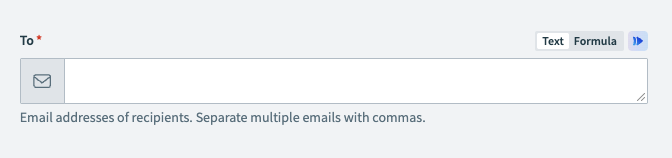 Navigate to the Text tab
Activate AIRO by clicking the suggested icon.
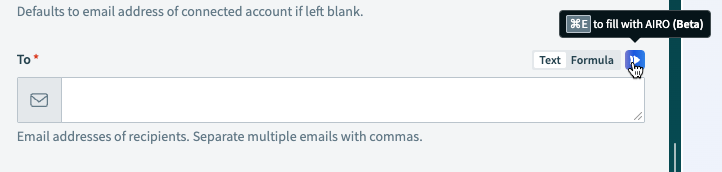 Activate AIRO
Select input suggestions
Click an input field where you plan to insert data to display a suggested input menu with options based on the preceding actions in your recipe.
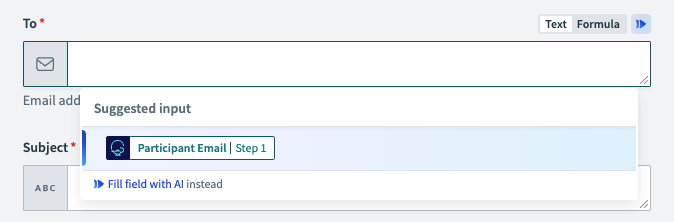 Select suggested input
You can choose an option from the suggested input menu to map relevant datapills. Click Fill field with AI instead at the bottom of the input menu if the suggestions are not suitable. This option activates AIRO to generate new, customized input suggestions.
Generate input suggestions
You can start generating specific text prompts after you activate AIRO in text mode.
HOW AIRO INTERPRETS DATA
AIRO adjusts its approach when generating input suggestions based on the data present in the text field:
- No input or generation: AIRO only takes into account the prompt and the recipe.
- Input present: AIRO takes into account the existing input, the prompt, and the recipe.
- Generation present: AIRO takes into account the generation, the prompt, and the recipe.
- Input and generation present: AIRO only takes into account the generation, the prompt, and the recipe.
Type your text requirements or a description of the transformation you require directly into the prompt. Select the Back option if you plan to revise your input or view previous suggestions.
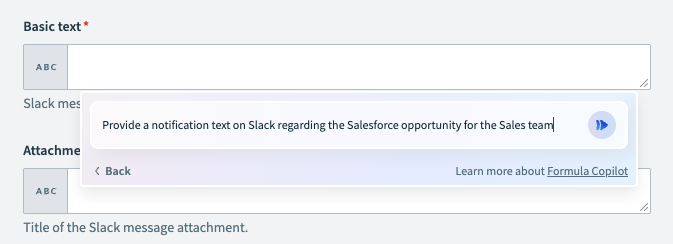 Generate a text prompt in AIRO
Click the send button to begin the input generation process. The system begins to display Generating input…, indicating that it is processing your input for suggestions. You can also select Stop to cancel the process.
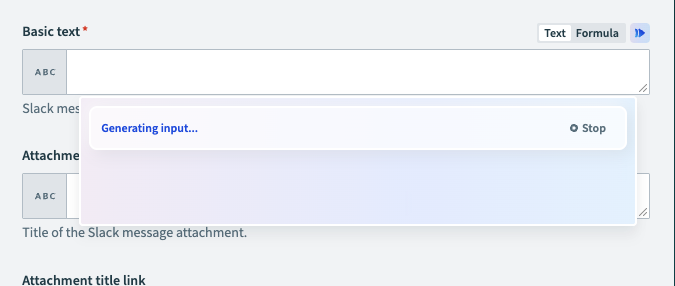 Generate the input suggestion in AIRO
Examine the input suggestion that AIRO generates to ensure that it meets your transformation requirements.
Insert the suggestion directly into your input field or click Copy to clipboard to use it in another part of your recipe.
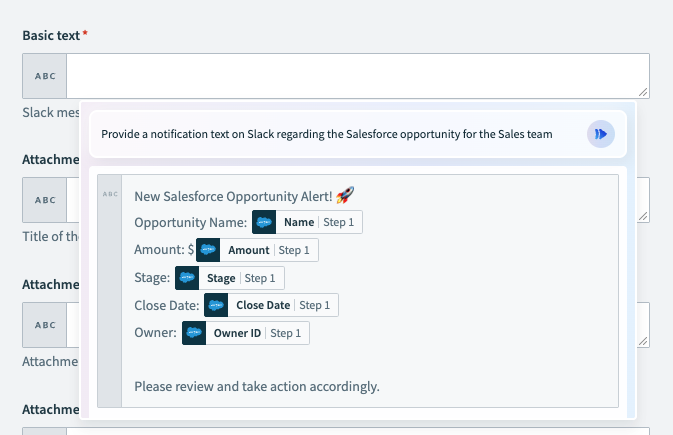 Insert the generated suggestion into the input field
Use the provided suggestion or refine it to ensure it aligns with your specific data needs and preferred output format.
Refine existing input or AIRO-generated suggestions
You can tailor existing input in the text field or refine an input suggestion generated by AIRO. Complete the following steps to update AIRO suggestions to meet your requirements:
Click the AIRO icon again in the text box. This action allows you to update the prompt for a new suggestion.
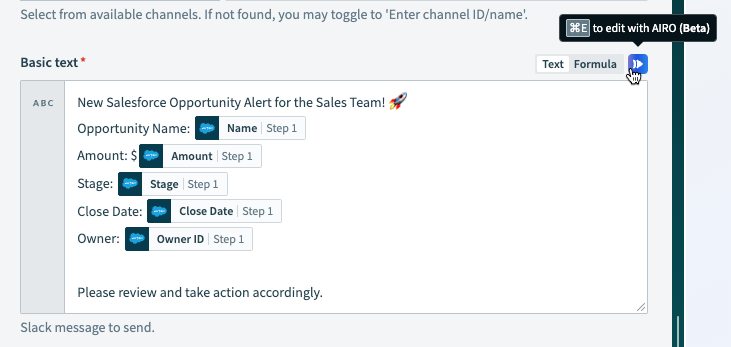 Activate AIRO to update the input suggestion
Type your updated prompt to refine the suggestion.
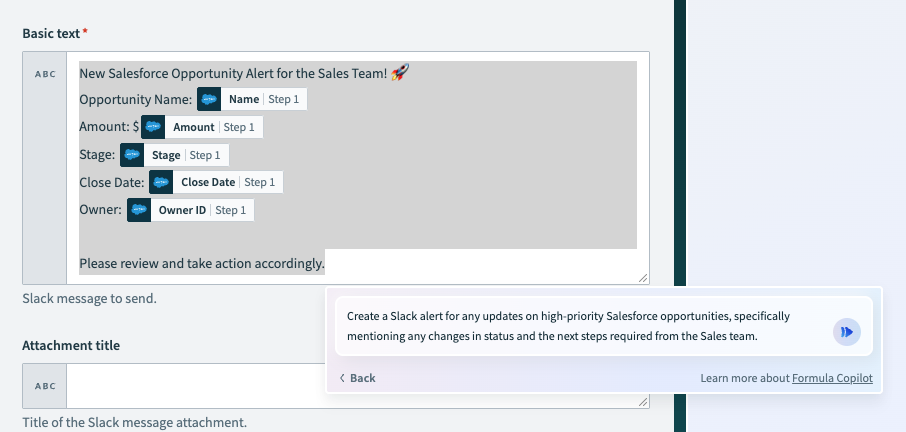 Type the new requirements for the text
Examine the input suggestion to ensure it matches your intended output.
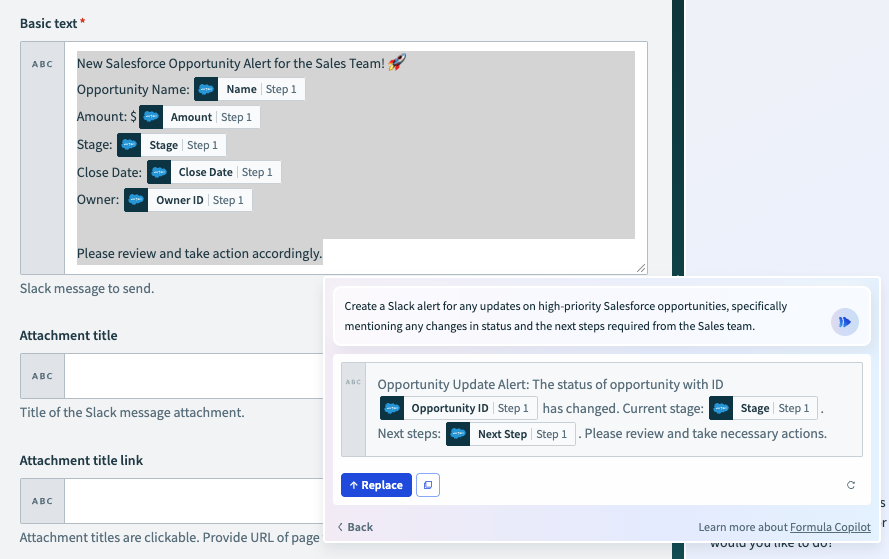 Review the updated formula suggestion
Select Replace to replace the previous suggestion with the new suggestion.
Map datapills in text mode
AIRO simplifies the process of locating and using datapills within your recipes, making it an essential tool for managing large datasets:
Switch to Text mode in the input field where you plan to insert datapills.
Type your datapill requirements in the prompt. AIRO dynamically suggests relevant datapills based on your input.
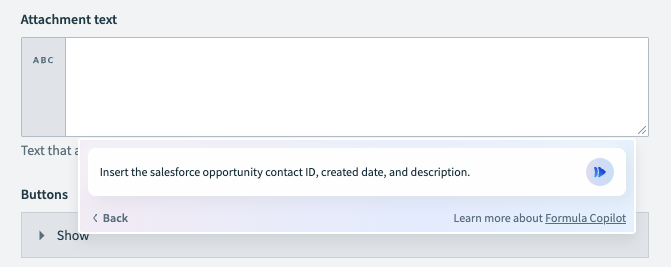 Find datapills in AIRO
Click Insert to map the datapills to your current step’s field or click Copy to clipboard to use the datapills in another part of your recipe.
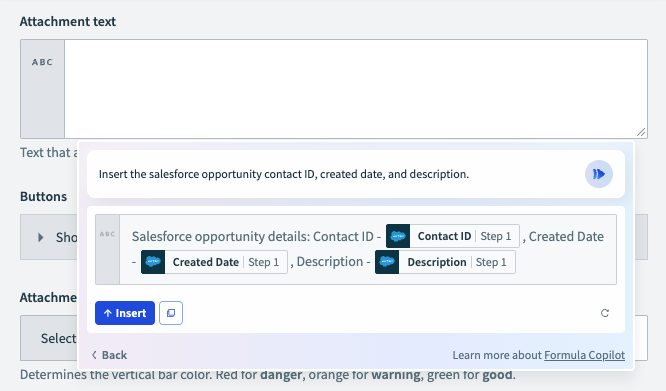 Insert datapills
Use AIRO's text manipulation features to modify or format the datapills within the input field.
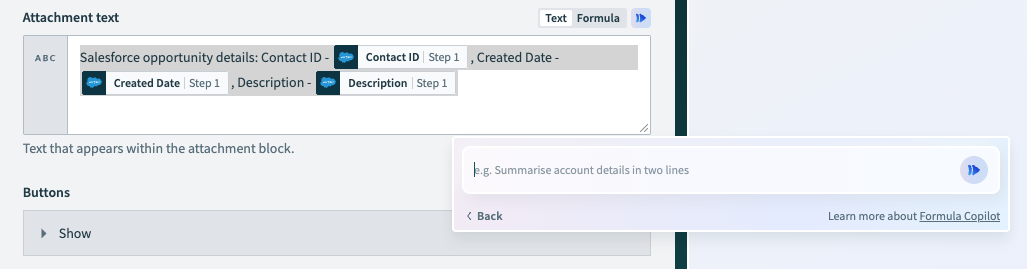 Refine and use datapills
Remap unknown suggestions
You can remap unknown suggestions if AIRO cannot find similar datapills for your input. Complete one of the following options to remap unknown suggestions:
- Delete the unmatched datapill and manually select a replacement from the data tree.
- Select Ask AIRO for help to receive AI-assisted suggestions for remapping the datapills.
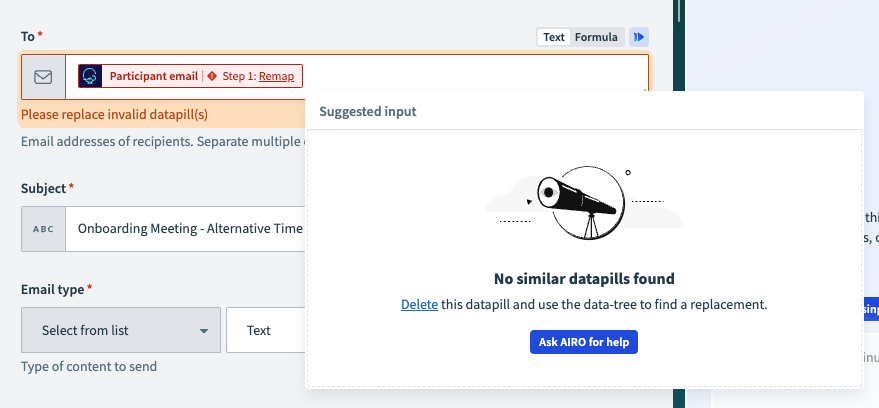 Remap unknown datapills in AIRO
Following these steps ensures that your input accurately references the correct datapills within your recipes.
Tips for effective use
Include relevant datapills: Include the necessary datapills in the input field for accurate suggestions. The datapills you select provide AIRO with context, enabling you to generate precise text transformations.
Be specific in prompts: Provide clear and specific instructions in your prompt for AIRO to generate more accurate suggestions. Specify the format or transformation you plan to use explicitly.
Leverage contextual data: Use related data from preceding steps to give AIRO comprehensive context for generating accurate and relevant suggestions.
Limitations
AIRO is designed to support a wide range of automation tasks, but complex scenarios may require manual setup. Refer to Workato's datapills documentation for these cases.
Last updated: