Create recipes with AIRO
You can build and modify any recipe type with AIRO directly in the recipe editor, including skills, API recipes, recipe functions, and knowledge base recipes. Start by describing your automation in plain language, and AIRO configures the steps, connections, and field mappings from there. You can track what AIRO changed and restore any recorded state.
Write your prompt
Write a prompt that includes the apps involved, the trigger condition, and the expected outcome. The more specific you are, the more accurately AIRO configures the recipe.
Open a new or existing recipe in the recipe editor and use the AIRO chat panel, or start from the AIRO chat on the homepage. If you start from the homepage, AIRO asks you to select a project to store the recipe before building.
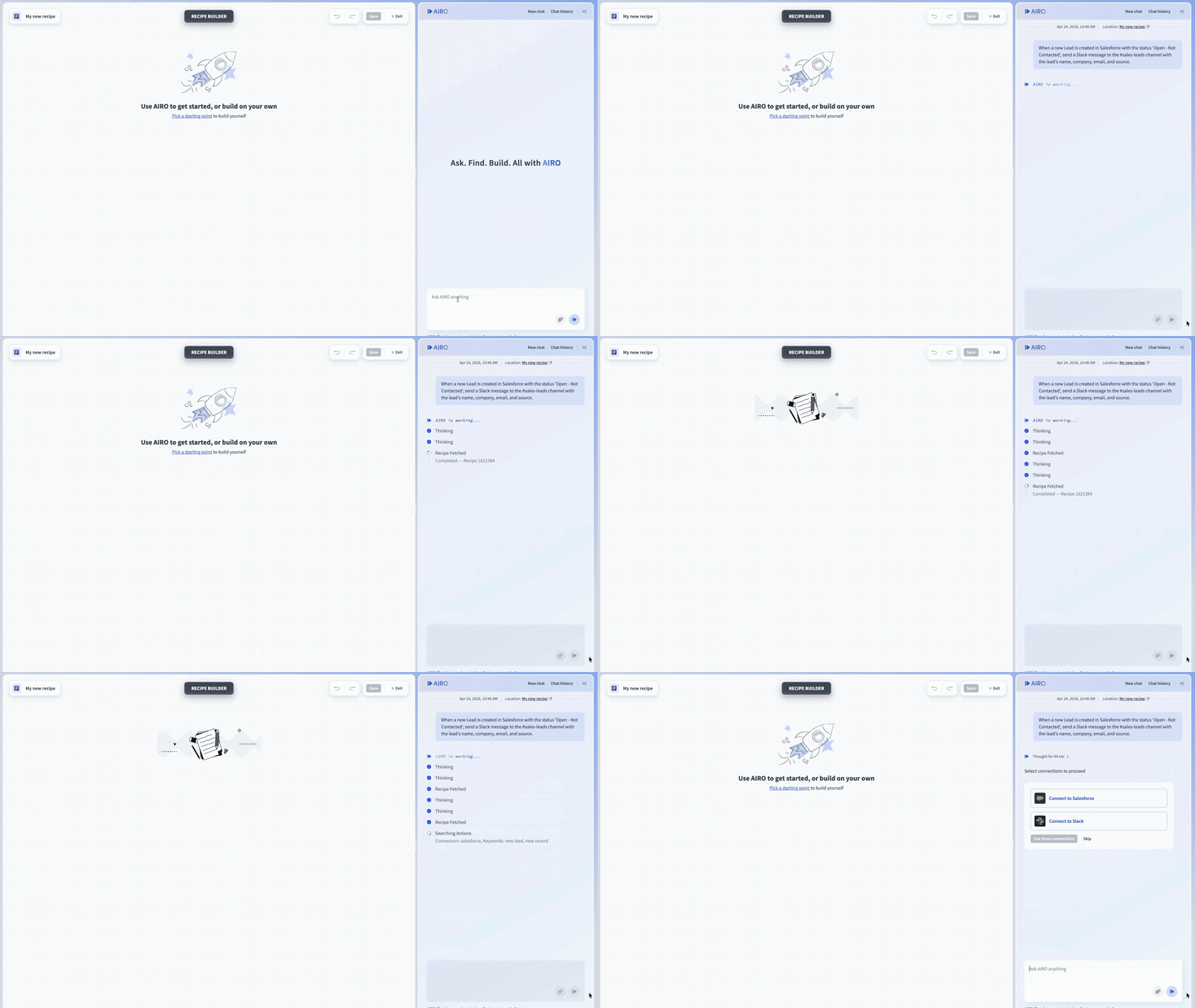 Type your automation description in the AIRO chat panel
Example prompts
The following examples show what makes an effective AIRO prompt.
Connect your apps
Connect your apps so AIRO can access your account data and configure the recipe accurately. AIRO supports both platform connectors and custom connectors installed in your workspace.
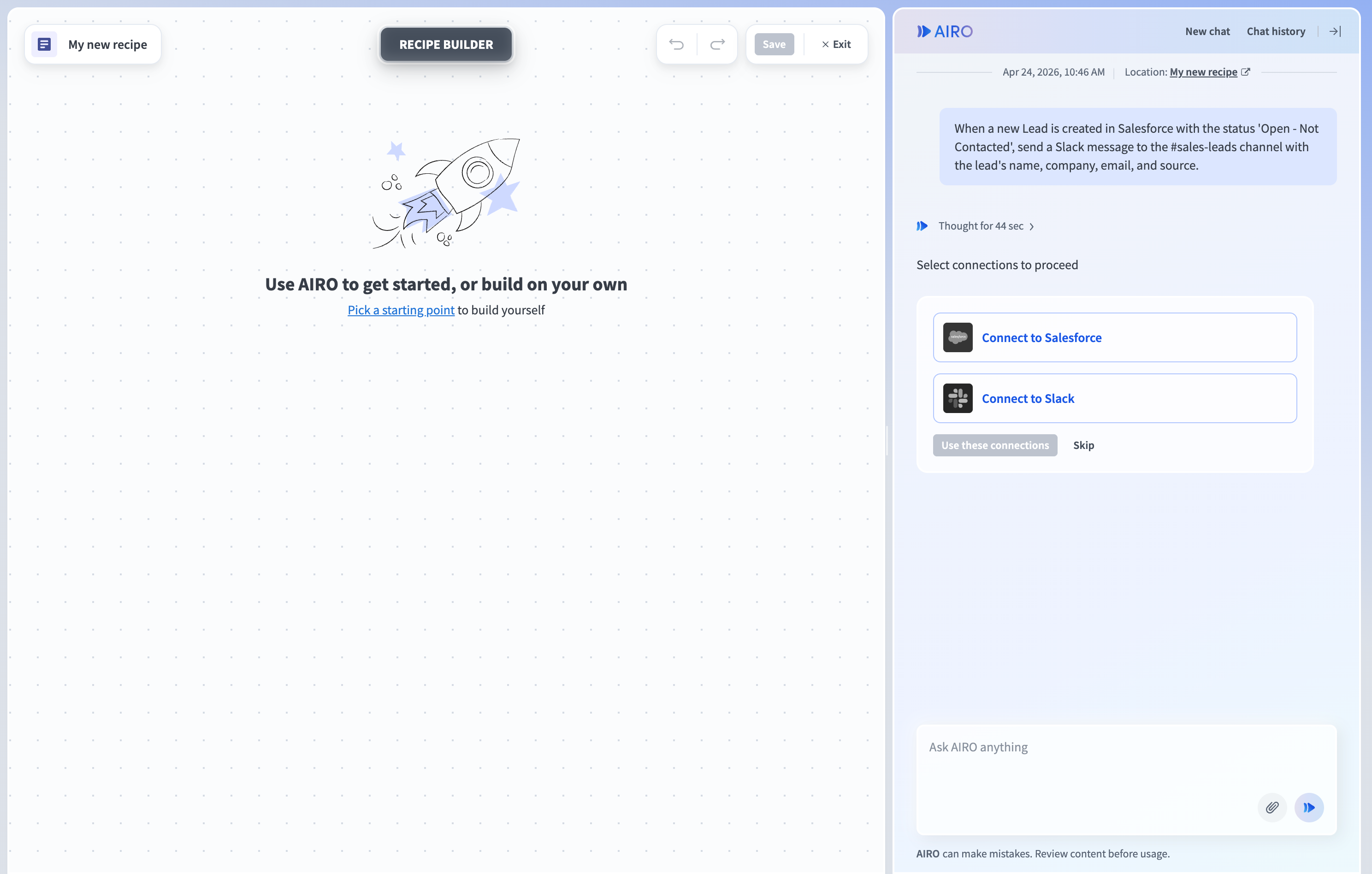 AIRO lists the apps that need a connection before building
If you click Skip, AIRO still creates the recipe but some field mappings may be incomplete or use placeholder text instead of datapills.
Select an existing connection or create a new one for each app listed. After selecting connections for each app, click Use these connections to proceed.
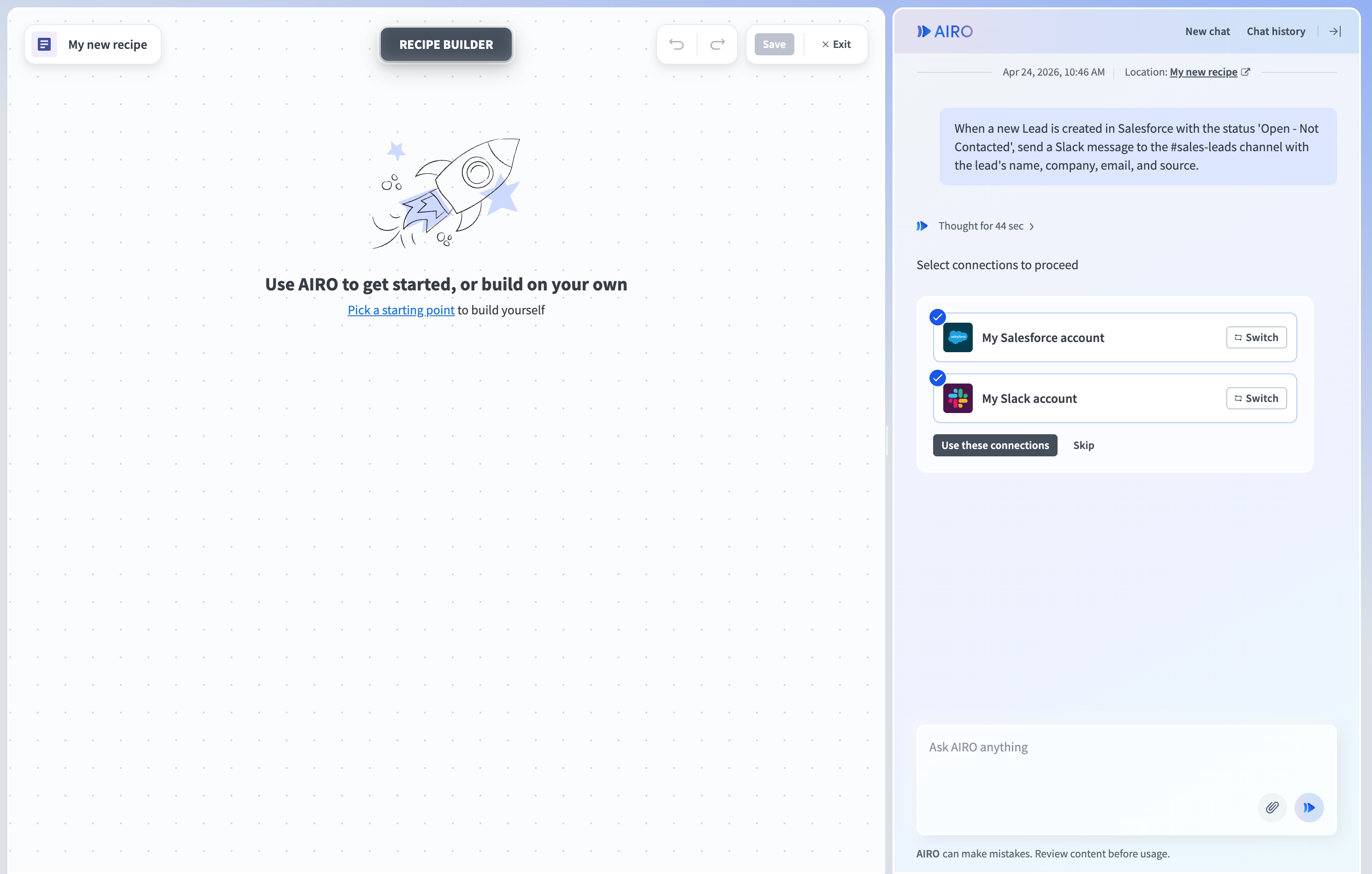 Click Use these connections to confirm your selections and proceed
While AIRO builds
AIRO configures each step directly in the editor based on your description. While AIRO is working, the canvas is hidden and the chat is locked. When AIRO finishes, it posts a summary in the chat and reveals the canvas.
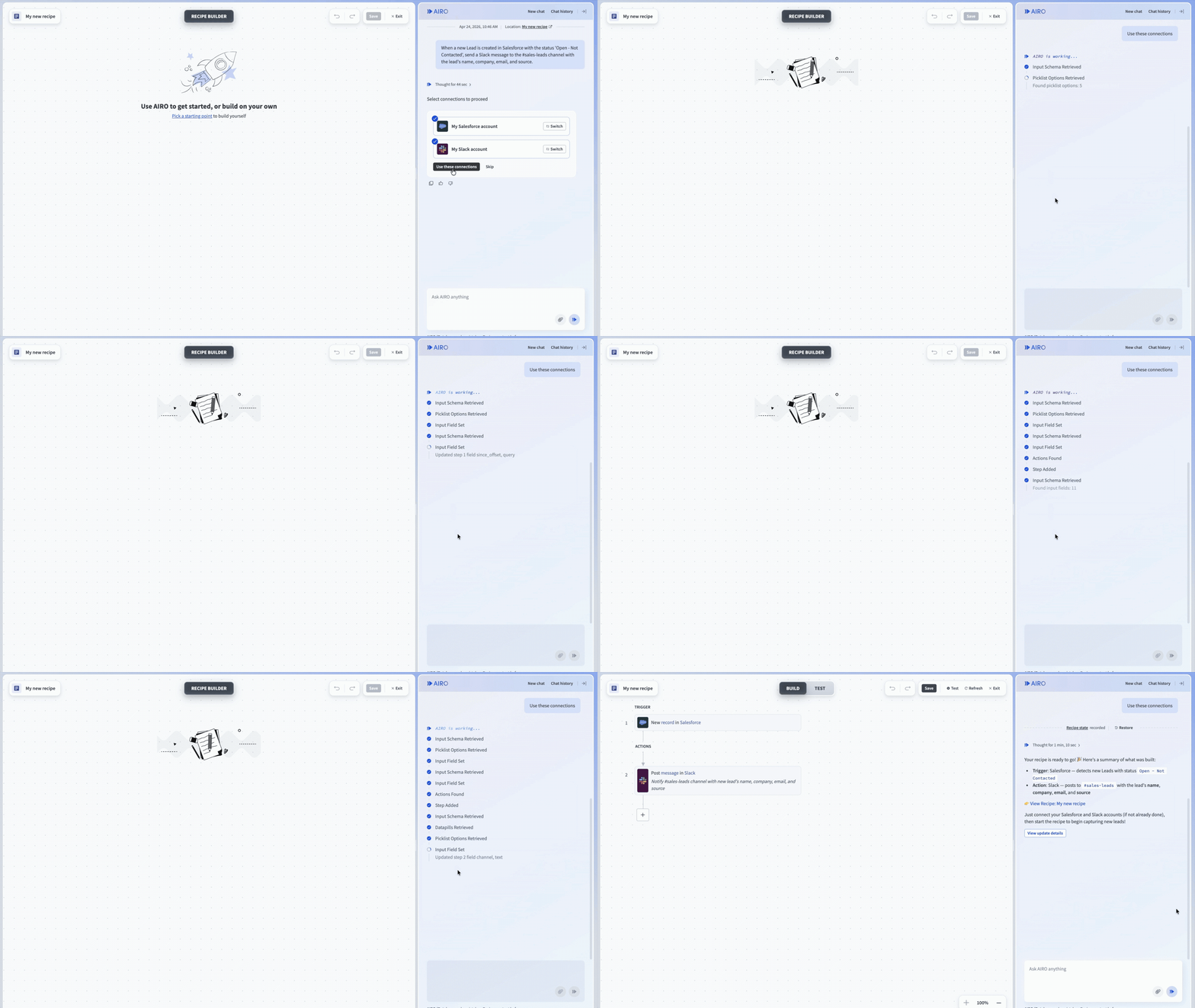 AIRO configures the recipe while the canvas is hidden
Track what AIRO changed
Each time AIRO makes a change, the following appear in the chat:
- Recipe state marker: Shows everything that changed between that recorded state and the current recipe, including steps AIRO configured and any edits you made manually.
- View update details button: Shows only what AIRO changed in that specific update. The button appears each time AIRO makes a change and is replaced when AIRO makes another change.
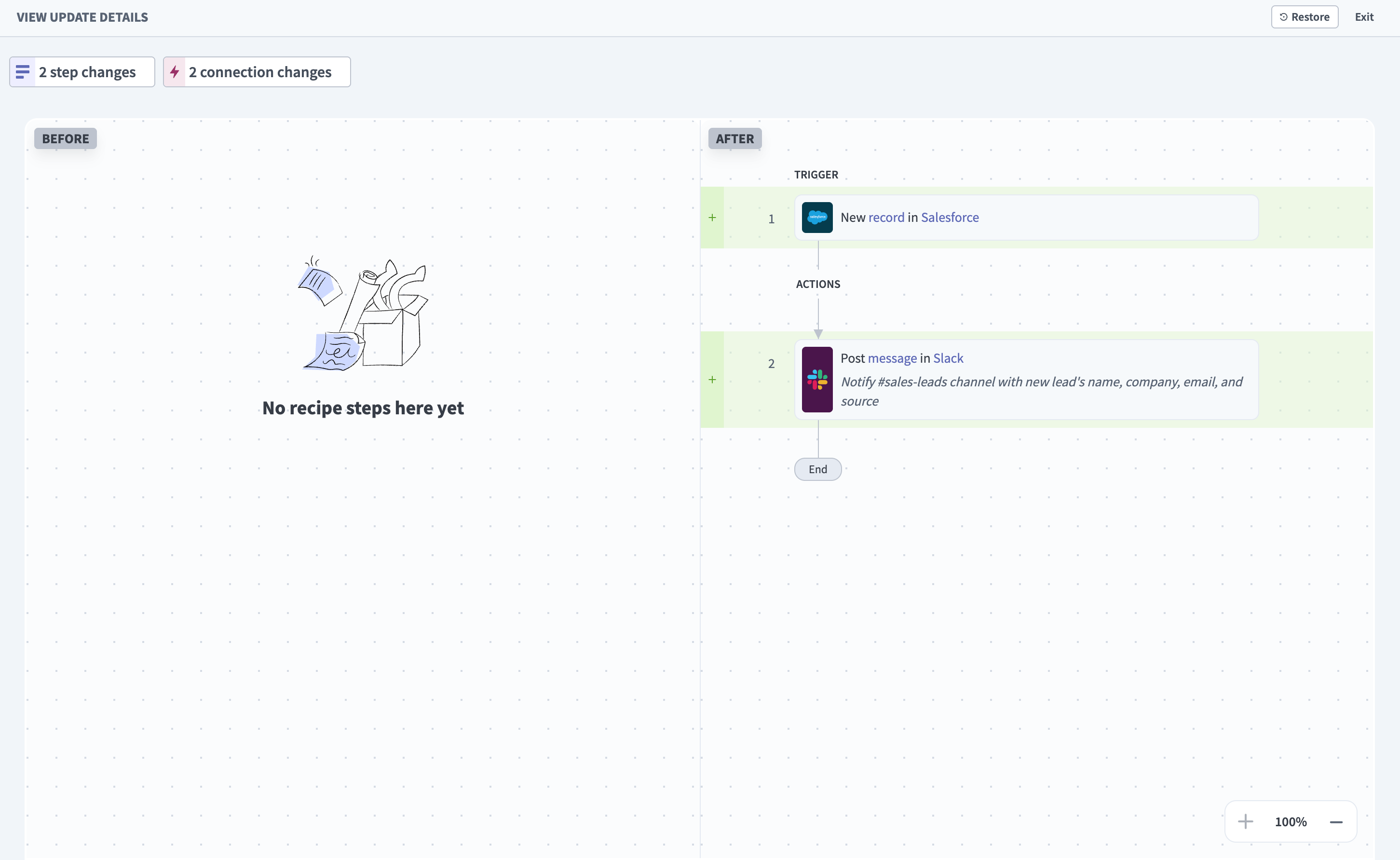 Click View update details to see what AIRO changed in that specific update
To return the recipe to any recorded state, click Restore in the chat or in the top-right corner of either diff screen. You can go to an earlier or later state, and AIRO asks you to confirm before restoring the recipe. All changes made after the selected state are discarded, including any you made manually.
RECIPE STATES AND RECIPE VERSIONS
Recipe states are not the same as recipe versions. AIRO's recorded states don't appear in the recipe's version history. A new recipe version is only created when you click Save.
The activity audit log attributes the change to your user account with a (via AIRO) label. The recipe's Latest activity panel shows the same label.
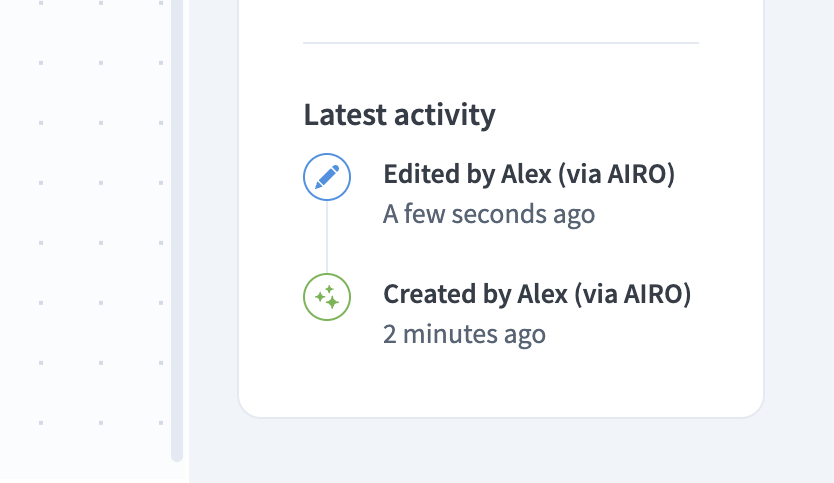 The recipe's Latest activity panel labels AIRO-driven changes
Refine the recipe
Ask AIRO to change the recipe at any point in the chat. Example requests:
- "Modify the Slack message to also include the lead's phone number and the name of the lead owner."
- "Add a step to send the lead's name, email, and company to the assigned Salesforce sales rep via Slack DM."
- "Delete the Slack step and replace it with an email to the sales team distribution list."
You can also edit any steps manually.
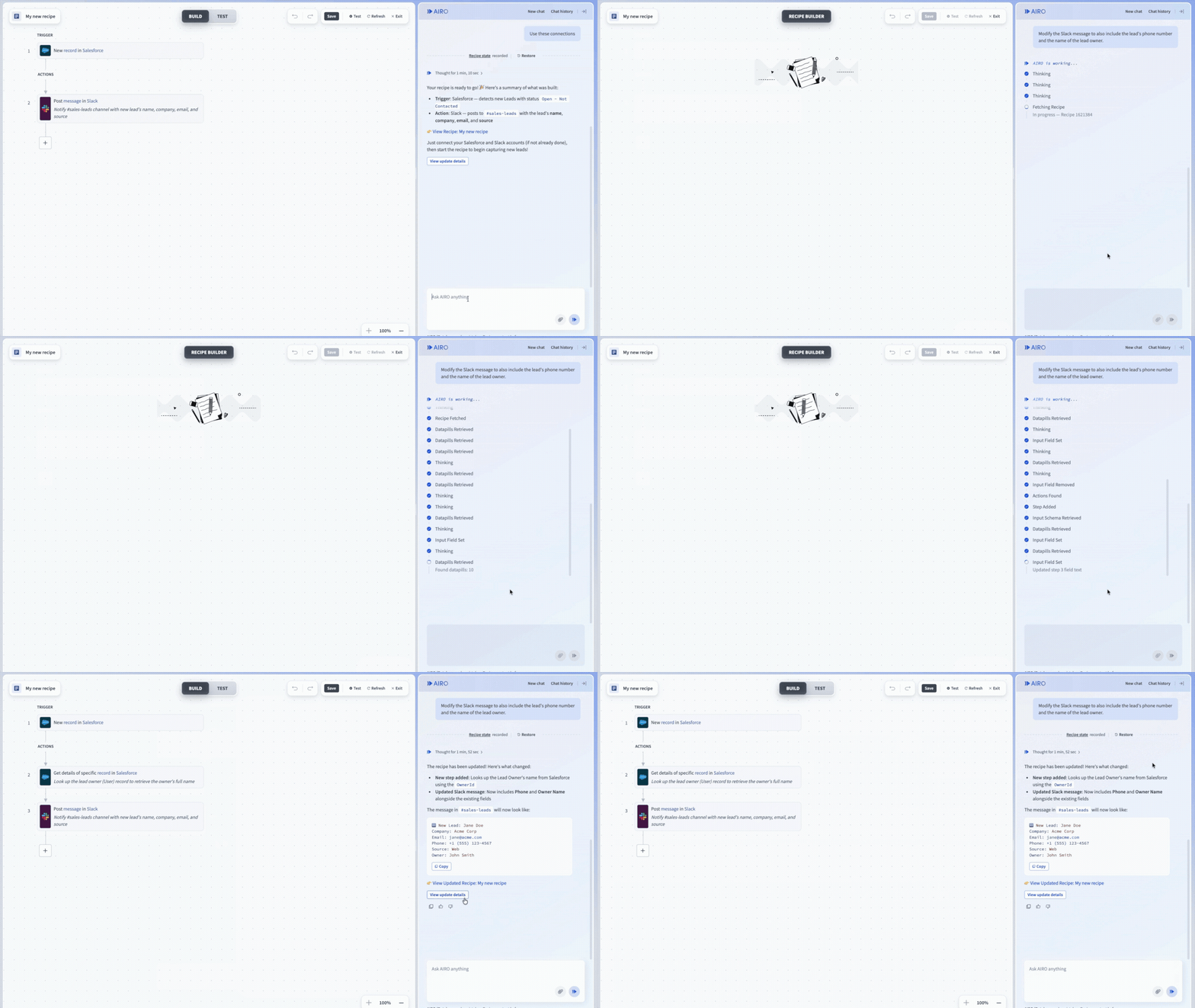 Ask AIRO to make a change in the chat at any point
Manage conversations
Select New chat to start a new session. Your recipe content is preserved, but AIRO loses context from the previous session. Select Chat history to switch back to an earlier session.
Refreshing the page returns you to the same session.
Test the recipe
Test the recipe after AIRO finishes building. The following guides cover testing, security, and error handling:
Save the recipe
Click Save to create a new recipe version.
Last updated: