BambooHR - New employee trigger (real-time)
This trigger picks up employees that are created in your BambooHR instance. Each employee is processed as a separate job.
This trigger picks up events as soon as they occur. To set up this trigger, you have to configure webhooks in your BambooHR instance. Learn how to configure a webhook in BambooHR.
Enable Webhooks on BambooHR
Webhooks are not enabled by default. Contact BambooHR support to enable this feature.
Input
After defining the Event name, a webhook endpoint URL will be generated. This will be needed to configure a webhook in BambooHR.
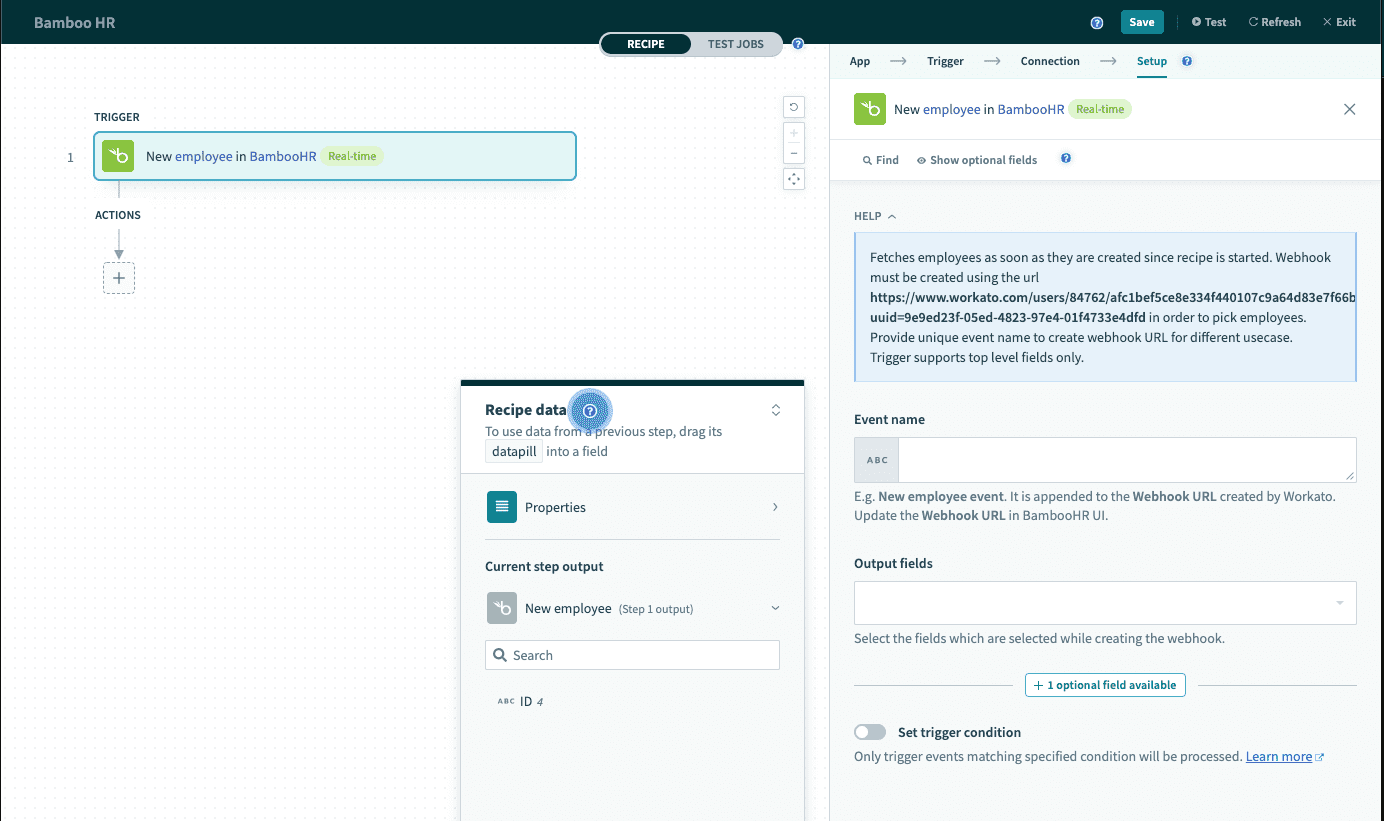 New employee trigger (real-time)
| Input field | Description |
|---|---|
| Event name | Provide a descriptive name for this event. It will be appended to the webhook endpoint URL. |
| Output fields | Select the fields that will be posted from BambooHR. Ensure that the fields selected are identical. Find out more about BambooHR employee fields. |
Output
The output of this action are fields defined by the BambooHR webhook. By default, Workato will retrieve the Employee ID.
| Output field. | Description |
|---|---|
| Employee ID | The employee ID assigned by BambooHR. |
| Output fields | Output fields as defined in the BambooHR webhook. |
For a full list of employee fields, see field names.
How to set up a webhook in BambooHR
Complete the following steps to set up a webhook in BambooHR:
Set up the Workato trigger and select the event to generate an endpoint URL.
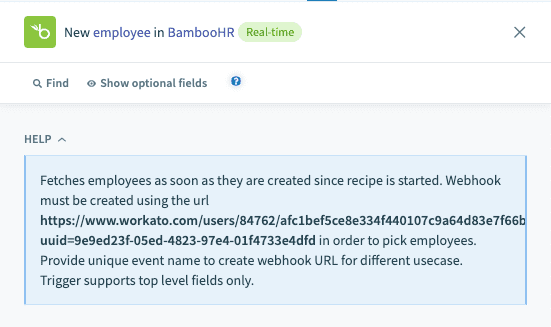 Retrieve Workato webhook endpoint URL
Sign in to your BambooHR instance and go to Account > Webhooks > + Add Hooks.
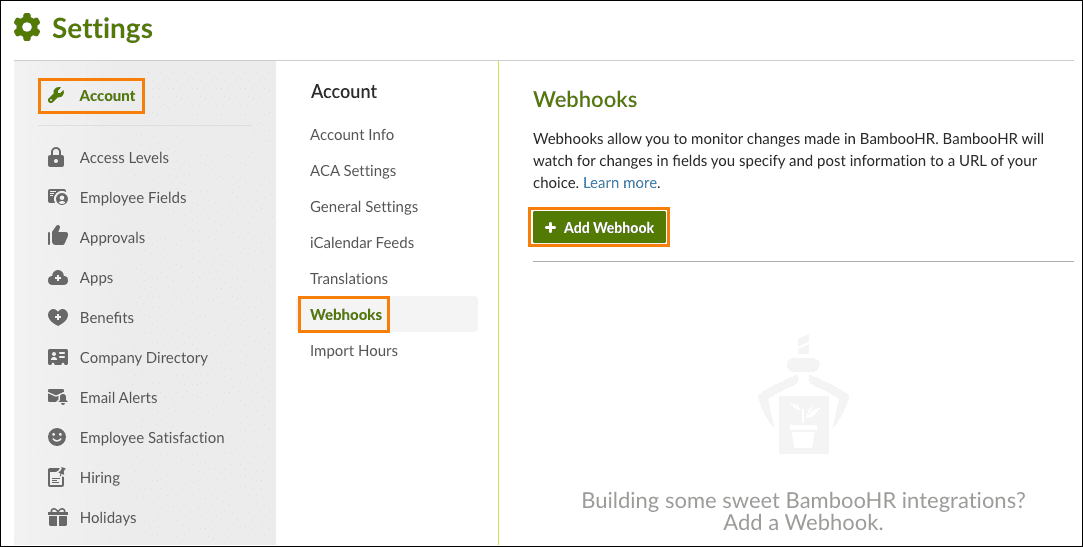 BambooHR Webhooks
Select which Webhook fields to monitor. Updates to this field create a trigger event. Refer to the BambooHR webhook fields documentation for more information.
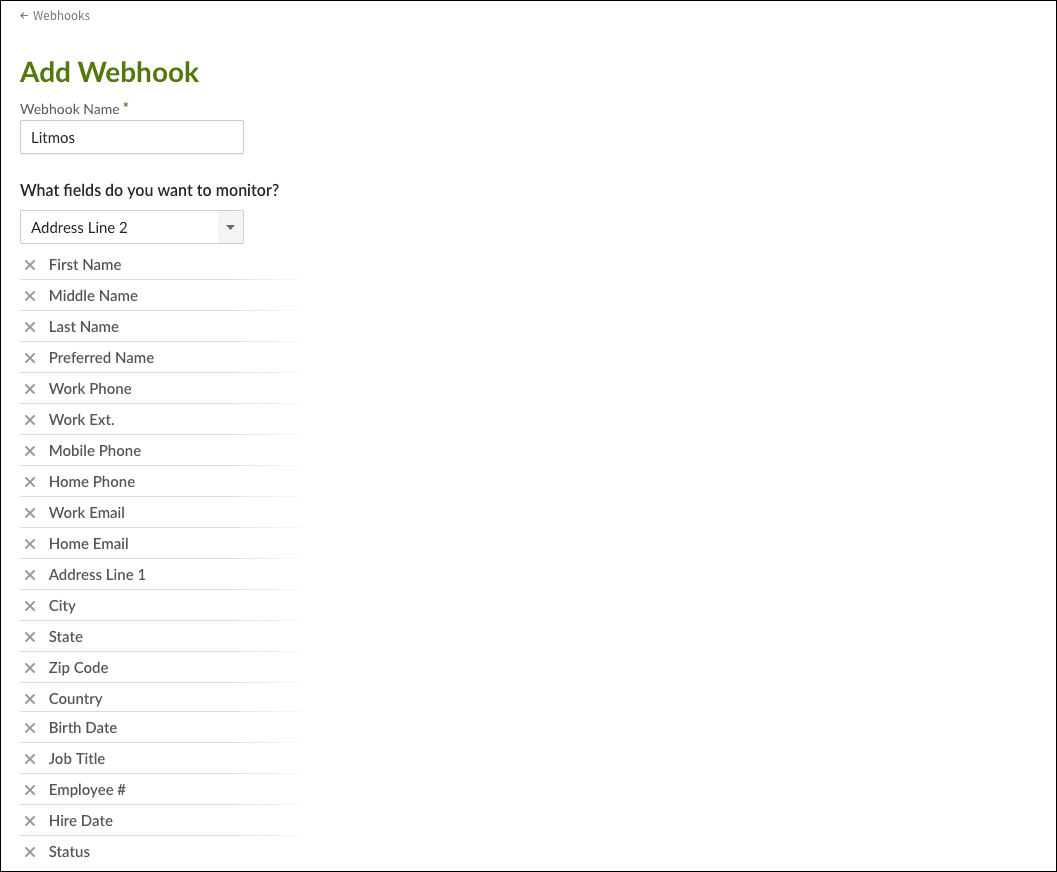 Select fields to monitor
Select which Webhook fields to post. These fields are sent to Workato as datapills. Refer to the BambooHR webhook fields documentation for more information.
Ensure that the fields to post are identical to the fields configured in the trigger input.
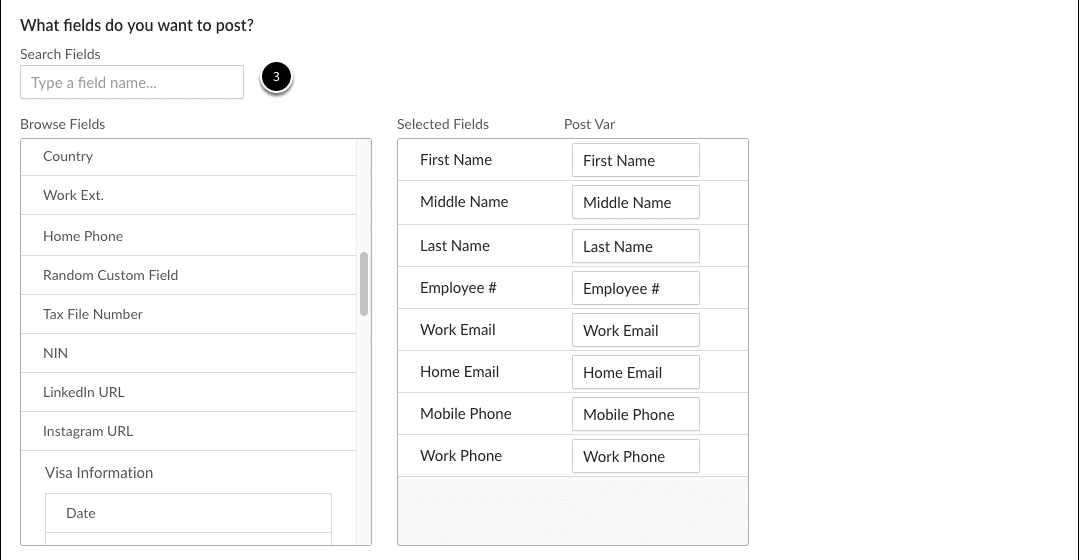 Select fields to post
Select JSON as the format.
 Select JSON format
Fill Post to URL with the endpoint provided by Workato.
 Provide webhook endpoint URL
Select Save.
Refer to the BambooHR Webhooks documentation for more information.
Last updated: