# dbt Cloud
dbt Cloud (opens new window) is a hosted platform that enables you to run, schedule, and manage dbt (data build tool) projects. You can use the dbt Cloud connector in Workato to trigger dbt jobs, track job status, and interact with your data transformation workflows.
# Install dbt Cloud from the community library
Complete the following steps to install the dbt Cloud connector from the community library (opens new window):
Open the recipe editor and search for a connector. Alternatively, you can search for a connector in the community library (opens new window).
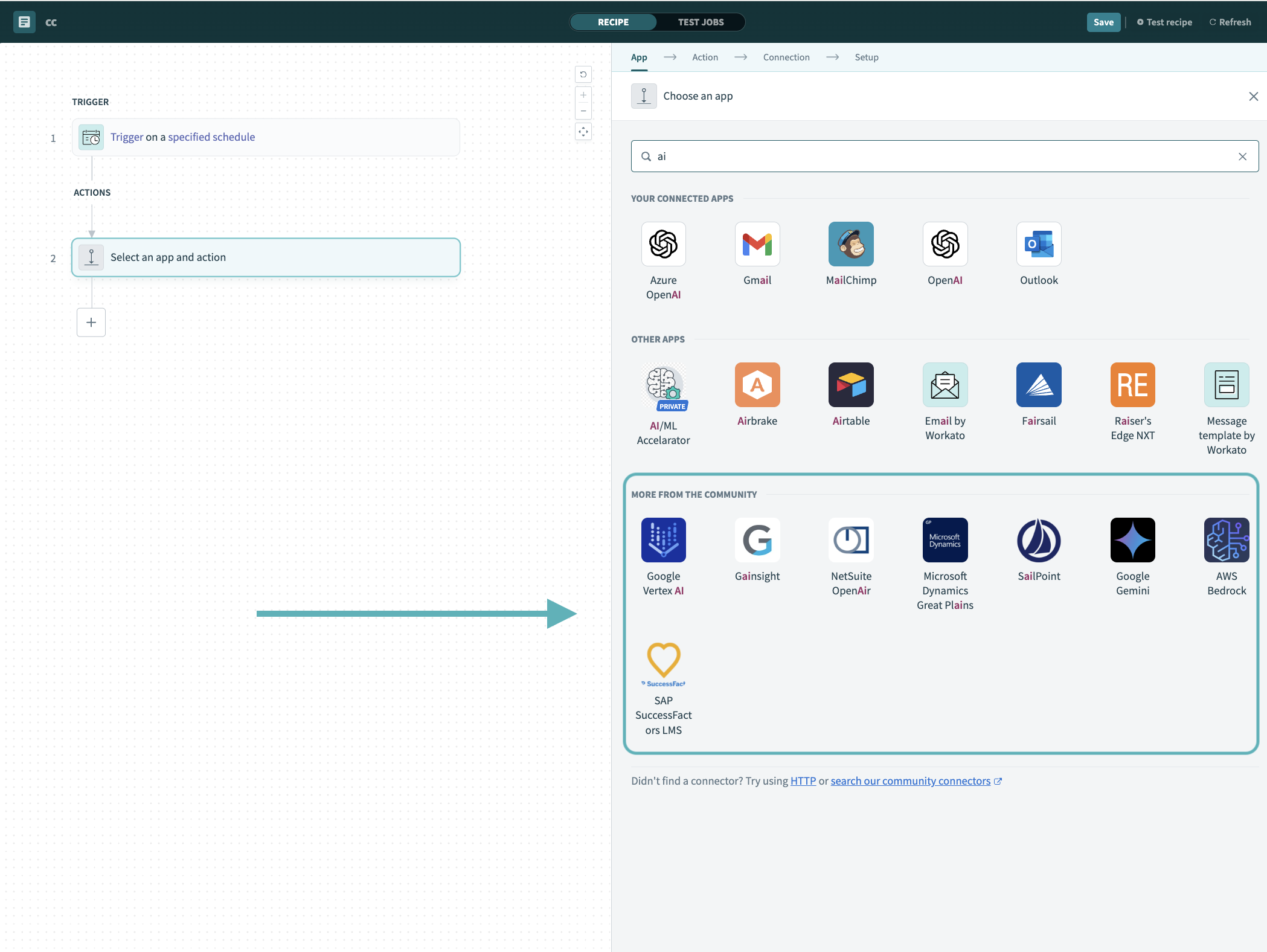 Search for community connectors in the recipe editor
Select the community connector you plan to install.
Click Install to install the connector from the community library.
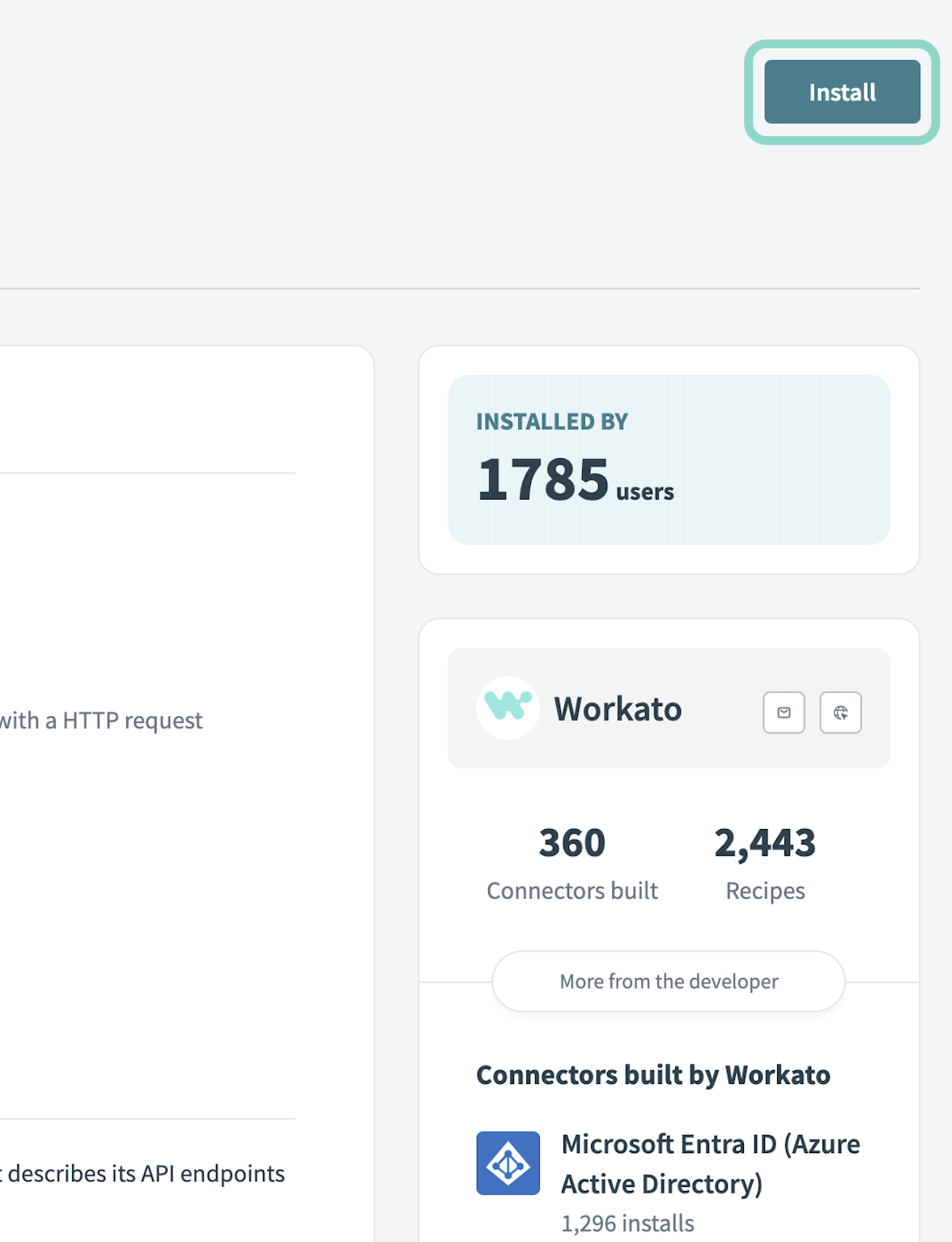 Click Install
Select Release connector. Alternatively, select Review code to review and modify the connector code before releasing it to the workspace.
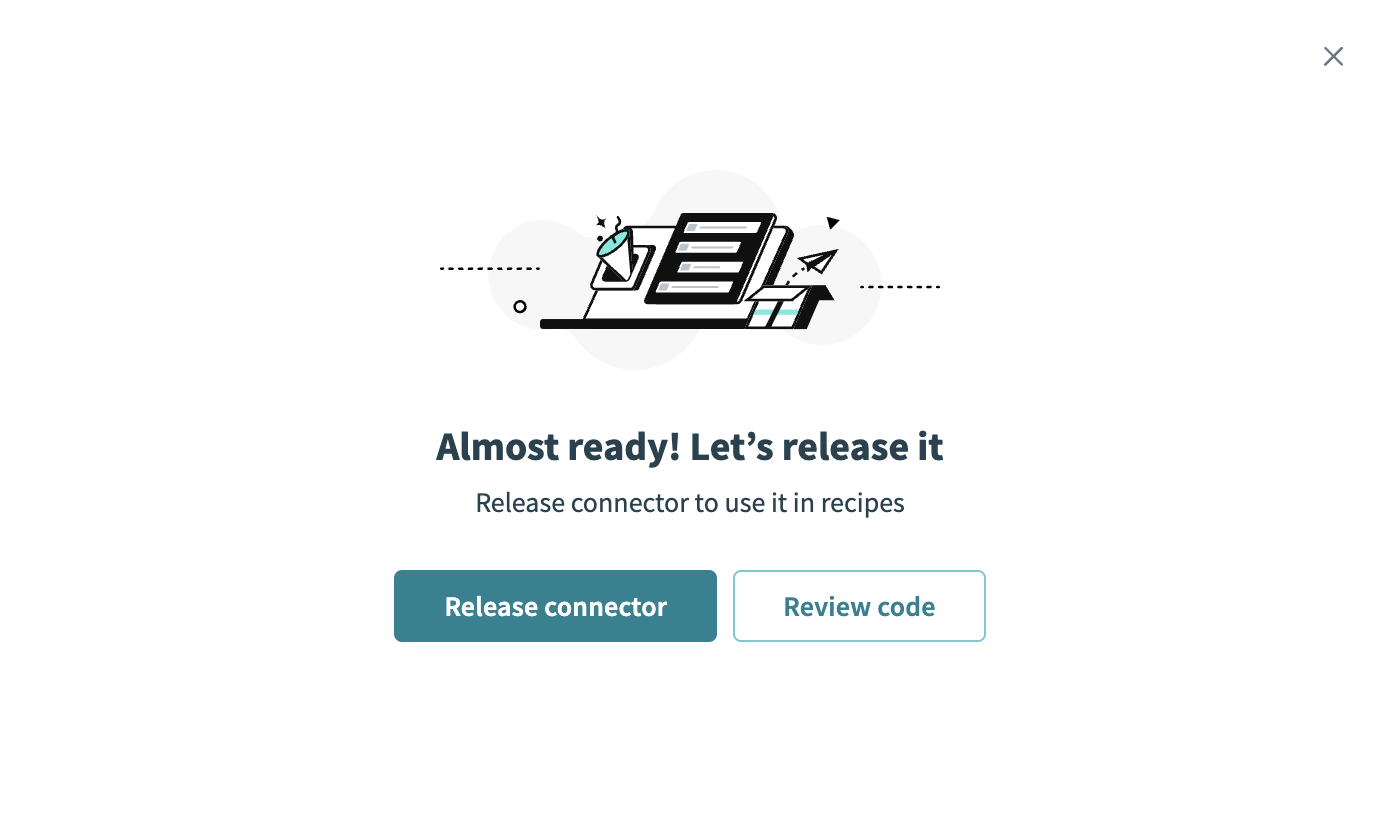 Release the connector
Summarize any changes you made to the connector, then click Release to allow workspace collaborators to use the connector in recipes.
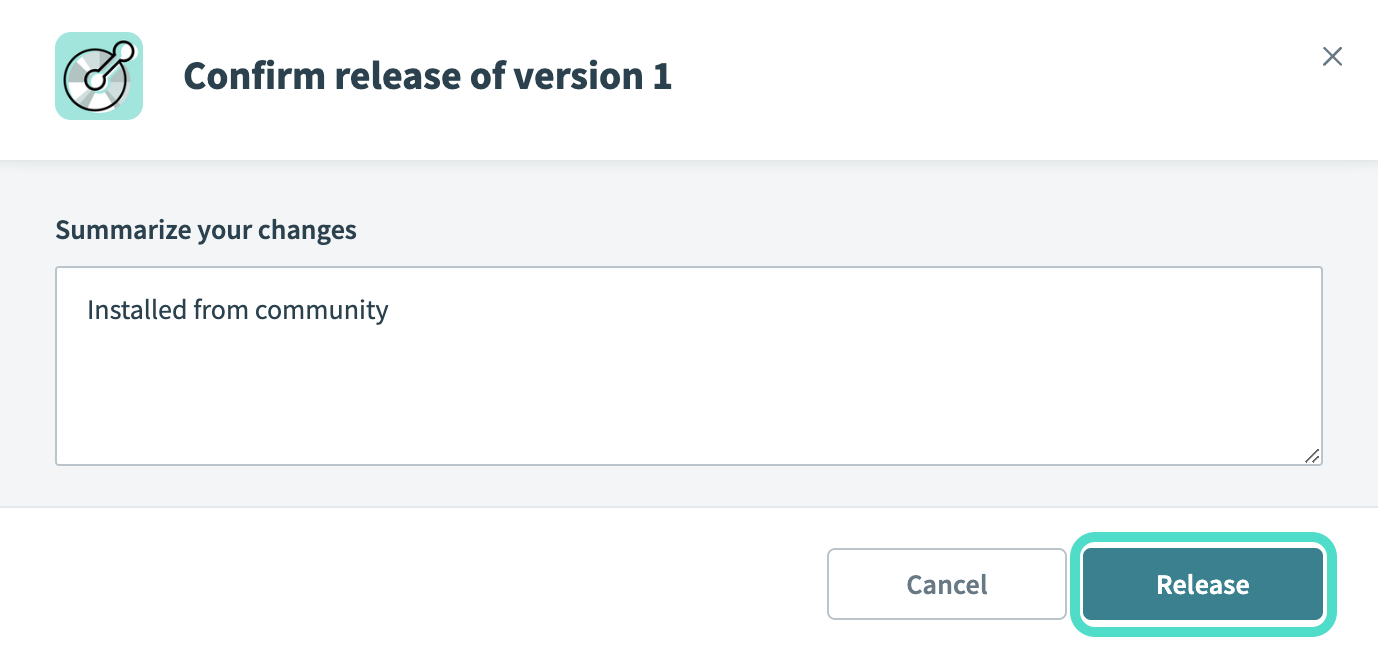 The Confirm release dialog
# Connection setup
Complete the following steps to connect your dbt Cloud account in Workato:
Sign in to your Workato account.
Create a new connection and select the dbt Cloud connector.
Enter a Connection name to identify the connection.
Select the Location where you plan to store the connection.
Use the API version drop-down menu to select the API version for your dbt Cloud account.
Use the Datacenter drop-down menu to select the data center associated with your dbt Cloud account.
Enter your API key in the API key field. Retrieve your API key from Account Settings > Service Tokens > Create Service Token in your dbt Cloud account.
Enter your account ID in the Account ID field.
Click Connect to complete the setup.
Last updated: 4/10/2026, 8:25:23 PM