# Salesforce - Upsert records in bulk from CSV file action
This action upserts Salesforce records in bulk from a CSV file and a primary key. Matching records are updated and new records are created if matching records aren't found.
POLLING BEHAVIOR
Recipes that contain an action with polling must be in a running state for asynchronous polling to function as expected.
Refer to the Salesforce bulk operations guide for more information about bulk operations.
API VERSIONS
This action exists in both API v1.0 and API v2.0 versions. Workato recommends using the bulk API v2.0 for optimal performance. This version reduces the impact on Salesforce API limits by batching records more efficiently.
RETRY FAILED RECORDS
You can use the Retry bulk job for failed records from CSV file action to resubmit failed records to Salesforce as a new bulk job.
# Input
| Input fields | Description |
|---|---|
| Salesforce object to upsert | Select the standard or custom object type to upsert. |
| Relationship fields | Optional. Select how to map the CSV data columns into Salesforce object fields. Relationship fields are required for polymorphic columns. Refer to the Relationship fields section for more information about this field or the Salesforce API documentation (opens new window) for more information about polymorphic fields. |
| Primary key | Select an external ID to use as the primary key. Alternatively, you can use the drop-down menu to switch this field to Enter primary key and enter the API name of an indexed field. If multiple records match the provided primary key, the action throws an error. Refer to the Primary key section for more information. |
| CSV file input | Define the schema of the CSV files containing Salesforce bulk load data. Refer to the CSV file section for an example. |
| File contents (CSV file input) | Enter the contents of the file. You can obtain a File datapill from the Download file action. |
| Column separator (CSV file input) | Use the drop-down menu to select the column separator to use. For example, comma (,) or pipe (|). |
| Contains header line? (CSV file input) | Select whether the CSV file content contains a header line. This tells Workato whether to skip the first line to avoid processing it as data. |
| Column names (CSV file input) | Enter information about the data columns in your CSV file. |
| Use CSV column names as Salesforce field names | Select whether to map CSV columns to Salesforce object fields automatically. This option requires a header containing column names matching the Salesforce object fields. |
| CSV to Salesforce object field mapping | Enter CSV column names and the Salesforce object to upsert in bulk. |
# Primary key
This action requires you to specify a primary key to uniquely identify each Salesforce record. The Salesforce bulk API supports both the External ID field and indexed fields, for example the internal Record ID, as primary keys.
The External ID field is a custom field that has the External ID attribute. It contains unique record identifiers from a system outside of Salesforce. External ID fields must be custom text, number, or email fields.
Use the drop-down menu to switch the Primary key field to Enter primary key and enter the API name of an indexed field to use it as a primary key.
The action's behavior while using an external ID and other indexed fields differ as follows:
| Input value | External ID | Indexed fields |
|---|---|---|
| Match found | Updates record | Updates record |
| No match found | Creates record | MALFORMED_ID:Id in upsert is not valid error |
| No value | MISSING_ARGUMENT:External_ID__c not specified error | Creates records |
This action throws an error if multiple Salesforce records match the provided primary key.
MULTIPLE PRIMARY KEYS
You can’t use more than one primary key in a single operation. To handle scenarios where multiple fields identify a record, first perform a search action using one of the keys. Then, add a conditional action to check whether the number of results is greater than one.
If you need to search using two fields (for example, Full Name and Account), use a search action that includes both fields as filters. Then retrieve the results and use a conditional check to verify the number of matching records before updating or creating records.
Create a primary key in Salesforce
Complete the following steps to create an External ID field to use as your primary key:
Go to the Salesforce Setup menu and select the Object Manager tab.
Select the object where you plan to add the custom field. For example, Contact.
Go to the Fields & Relationships tab and select New.
Select the Data Type for the custom field. This example uses Text.
Click Next.
Configure the following fields:
Field Label
Enter a label to use for displays, page layouts, reports, and list views. This example uses
Test id.Length
Enter the maximum length for the field. This example uses
25.Field Name
The Field Name is an internal reference for integration purposes, such as custom links, custom s-controls, and the API. Changing the Field Name may affect existing integrations. The Field Name can only contain alphanumeric characters. It must begin with a letter, cannot end with an underscore, cannot contain two consecutive underscore characters, and must be unique across all
Contactfields.Unique
Select the Unique checkbox to disallow duplicate values.
External ID
Select the External ID checkbox to set the field as the unique identifier from an external system.
Click Next.
Select the profiles to provide edit access for this field through field-level security. The field is hidden from all users if you don’t assign it to any profiles.
Click Next.
Select the page layouts to include this field in. Salesforce adds the field to the end of the first two-column section in each selected layout. The field doesn't appear on any pages if you don't select a layout.
You can customize the page layout to change the location of this field on the page.
Click Save. The custom field for the Contact object appears as an option in the Primary key drop-down menu in the Workato recipe editor.
Return to Workato and use the Primary key field to select the new custom field.
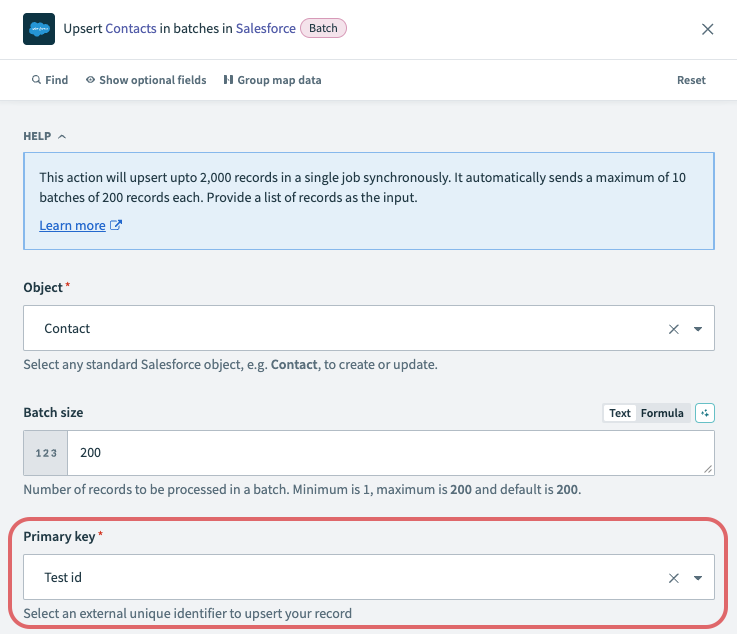 Primary key
# Relationship fields
Salesforce uses relationships and relationship fields to associate data between two objects. For example, the Account and Contact objects have a relationship where each contact stores a reference to one account, while each account can link to many contacts. You can view all contacts associated with an account directly from the account record. Some objects have relationships to other objects of the same type. For example, the Reports To field for a contact is a reference to a different contact.
Relationship fields also allow polymorphic column mapping. Workato cannot infer this mapping automatically, so you must specify it manually. If you don't configure the Relationship fields input, no data maps into Salesforce.
To configure this field, select which column of the CSV file to pull data from for each field that you plan to write to in Salesforce. This action doesn't allow datapills or data transformation using formula mode as it streams the CSV file data directly into Salesforce. Refer to the Salesforce object relationships guide for more information about object relationships or the Salesforce CSV field header documentation (opens new window) for information about relationship fields in CSV headers.
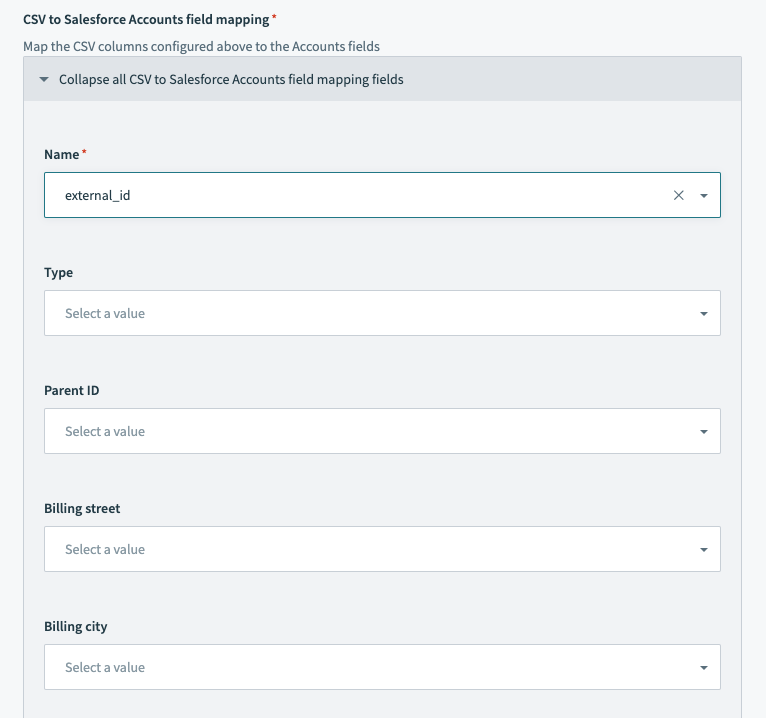 Salesforce bulk upsert action - field mapping section
# CSV file
The following example shows how to format the CSV file input for a CSV:
external_id,last_name,value
"a0K1h000003fXSS","Minnes","54"
"a0K1h000003fehx","Lecompte","12"
"a0K1h000003fjnv","Fester","28"
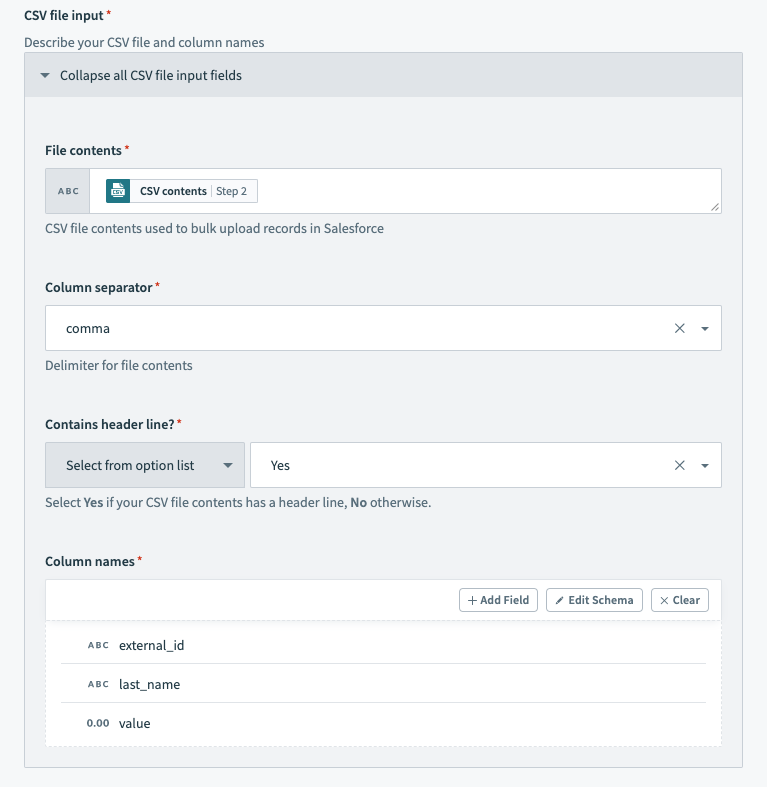 Salesforce bulk action - configured CSV file input section
# Output
| Output fields | Description |
|---|---|
| All records successfully processed? | Indicates whether all CSV rows across Salesforce bulk jobs processed successfully. |
| Number of records succeeded | The total number of CSV rows that were successfully processed in Salesforce. |
| Number of records failed | The total number of CSV rows that encountered issues and were not processed in Salesforce. |
| Number of retried records | The total number of CSV rows that retried processing in Salesforce. This field is relevant for the Retry objects bulk job in Salesforce from CSV file action. |
| Number of records processed | The total number of CSV rows processed in Salesforce, excluding the header row. |
| CSV contents with failed records | CSV file content containing CSV rows that encountered issues and were not processed. Two additional columns are added to this CSV file: sf__Error and sf__Id. Refer to the Salesforce documentation (opens new window) for more information. |
| CSV content with success records | CSV file content containing CSV rows that were successfully processed in Salesforce. Two additional columns are added to this CSV file: sf__Created and sf__Id. Refer to the Salesforce documentation (opens new window) for more information. |
| Failed records report header | Header information of failed record reports. |
| Success records report header | Header information of successful record reports. |
| Salesforce bulk jobs | An object containing information about each Salesforce bulk job. Refer to the Salesforce bulk jobs section for more information. |
# Salesforce bulk jobs
Workato splits large CSV files into chunks and processes them as separate Salesforce bulk jobs to comply with Salesforce API size limits. Bulk operations output a Salesforce bulk jobs datatree that contains information about each chunk processed.
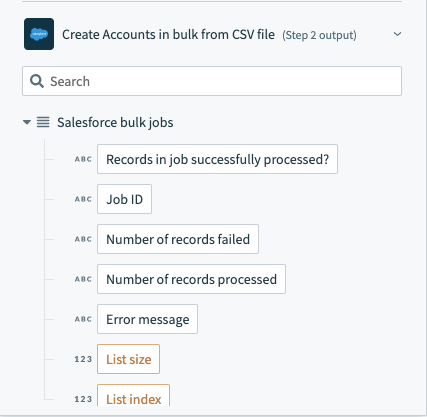 Salesforce bulk operation output datatree - list of bulk jobs
Workato includes the aggregated results across all bulk jobs at the top of the output, outside of the Salesforce bulk jobs datatree.
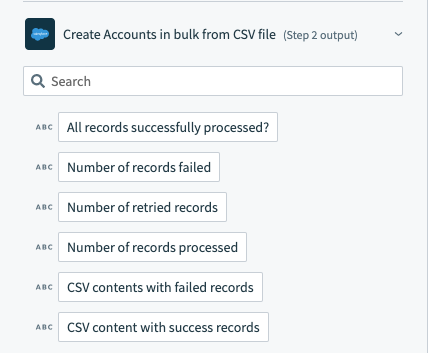 Salesforce bulk operation output datatree - aggregated results across bulk jobs
Last updated: 4/15/2026, 3:44:32 PM