# Salesforce - Upsert records in batches action (batch)
This action upserts Salesforce records in batches. Each batch can upsert up to 2,000 records in 10 batches of 200. If matching records are found, they are updated. If matching records aren't found, they are created.
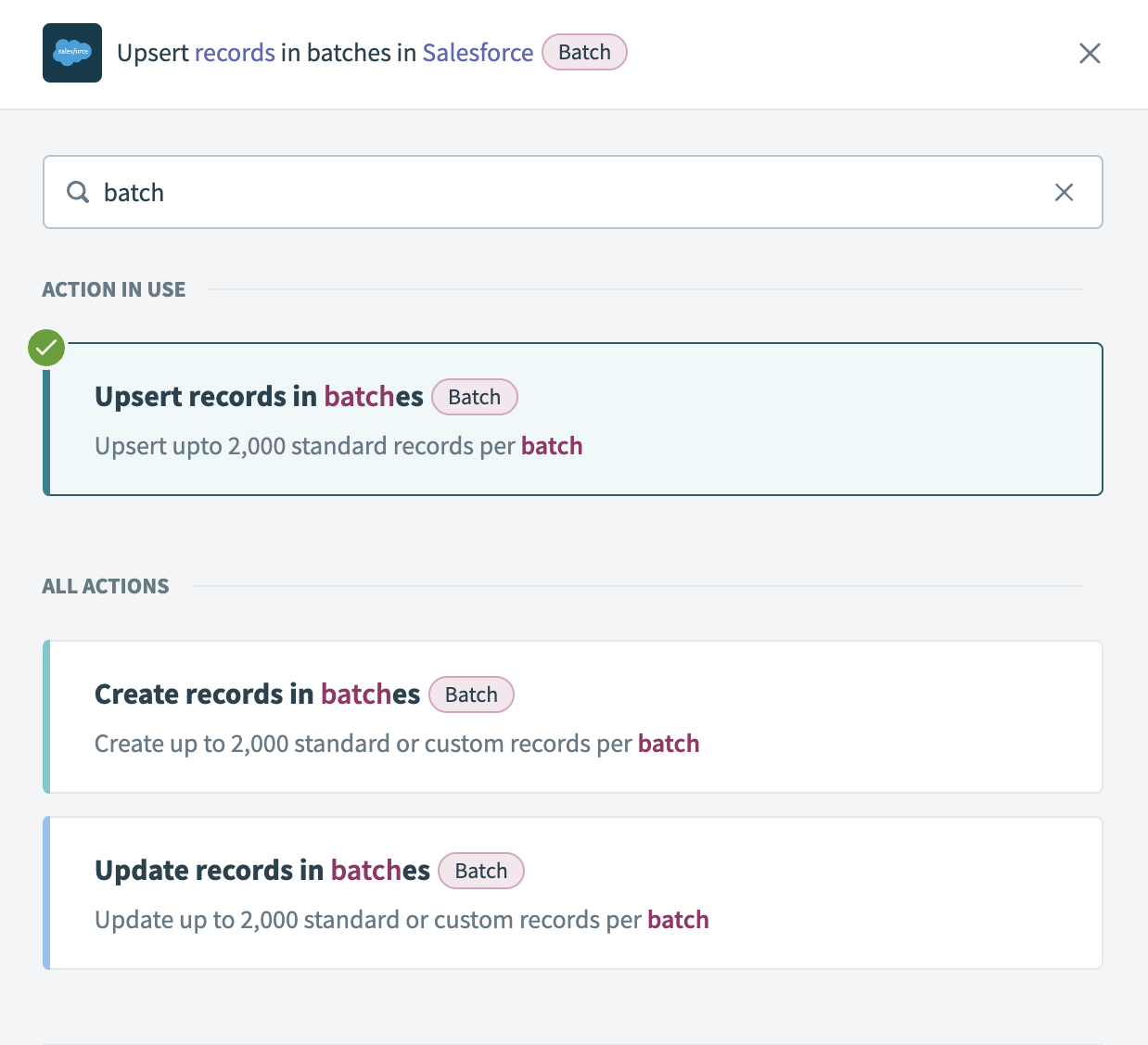 Upsert records in batches action
# Input
| Input fields | Description |
|---|---|
| Object | Select the standard or custom object type to upsert. |
| Batch size | Enter the number of records to process in each batch. The minimum value is 1, the maximum and default is 200. |
| Primary key | Select an external ID to use as the primary key. If multiple records match the provided primary key, the action throws an error. Refer to the Primary key section for more information. |
| Relationship fields | Optional. Select how to map the CSV data columns into Salesforce object fields. Relationship fields are required for polymorphic columns. Refer to the Relationship fields section for more information about this input or the Salesforce API documentation (opens new window) for more information about polymorphic fields. |
| Advanced configuration | Select whether to roll back records if an operation fails. Refer to the Advanced configuration section for more information. |
| On-behalf-of user email | Optional. Enter the email of a Salesforce user to impersonate. Contact your Workato Customer Success Manager to enable this field. This field only supports JWT connections. |
Additional fields load dynamically based on the selected object. Use these fields to enter a source list and configure the new records.
You can obtain a source list from various locations, such as a new CSV file in a file storage app, including Box, Amazon S3, and On-prem files. Refer to the List management documentation for more information about list inputs.
# Primary key
This action requires you to specify an External ID field as a primary key to uniquely identify each Salesforce record.
The External ID field is a custom field that has the External ID attribute. It contains unique record identifiers from a system outside of Salesforce. External ID fields must be custom text, number, or email fields.
If an External ID value you provide already exists in a Salesforce record, Workato updates that record. If no matching External ID exists in Salesforce, Workato creates a new record. This action throws an error if multiple Salesforce records match the provided External ID.
MULTIPLE PRIMARY KEYS
You can’t use more than one primary key in a single operation. To handle scenarios where multiple fields identify a record, first perform a search action using one of the keys. Then, add a conditional action to check whether the number of results is greater than one.
If you need to search using two fields (for example, Full Name and Account), use a search action that includes both fields as filters. Then retrieve the results and use a conditional check to verify the number of matching records before updating or creating records.
Create a primary key in Salesforce
Complete the following steps to create an External ID field to use as your primary key:
Go to the Salesforce Setup menu and select the Object Manager tab.
Select the object where you plan to add the custom field. For example, Contact.
Go to the Fields & Relationships tab and select New.
Select the Data Type for the custom field. This example uses Text.
Click Next.
Configure the following fields:
Field Label
Enter a label to use for displays, page layouts, reports, and list views. This example uses
Test id.Length
Enter the maximum length for the field. This example uses
25.Field Name
The Field Name is an internal reference for integration purposes, such as custom links, custom s-controls, and the API. Changing the Field Name may affect existing integrations. The Field Name can only contain alphanumeric characters. It must begin with a letter, cannot end with an underscore, cannot contain two consecutive underscore characters, and must be unique across all
Contactfields.Unique
Select the Unique checkbox to disallow duplicate values.
External ID
Select the External ID checkbox to set the field as the unique identifier from an external system.
Click Next.
Select the profiles to provide edit access for this field through field-level security. The field is hidden from all users if you don’t assign it to any profiles.
Click Next.
Select the page layouts to include this field in. Salesforce adds the field to the end of the first two-column section in each selected layout. The field doesn't appear on any pages if you don't select a layout.
You can customize the page layout to change the location of this field on the page.
Click Save. The custom field for the Contact object appears as an option in the Primary key drop-down menu in the Workato recipe editor.
Return to Workato and use the Primary key field to select the new custom field.
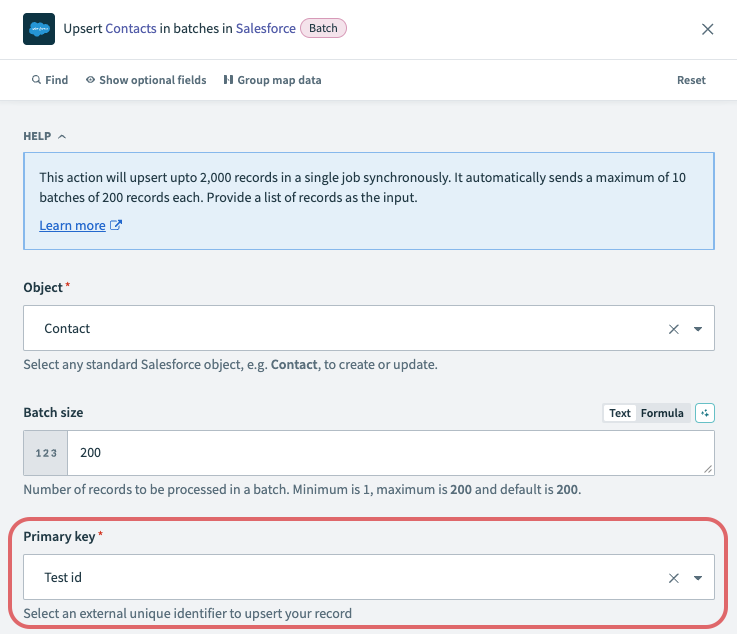 Primary key
# Relationship fields
Salesforce uses relationships and relationship fields to associate data between two objects. For example, the Account and Contact objects have a relationship where each contact stores a reference to one account, while each account can link to many contacts. You can view all contacts associated with an account directly from the account record. Some objects have relationships to other objects of the same type. For example, the Reports To field for a contact is a reference to a different contact.
Relationship fields also allow polymorphic column mapping. Workato cannot infer this mapping automatically, so you must specify it manually. If you don't configure the Relationship fields input, no data maps into Salesforce.
To configure this field, select which column of the CSV file to pull data from for each field that you plan to write to in Salesforce. This action doesn't allow datapills or data transformation using formula mode as it streams the CSV file data directly into Salesforce. Refer to the Salesforce object relationships guide for more information about object relationships or the Salesforce CSV field header documentation (opens new window) for information about relationship fields in CSV headers.
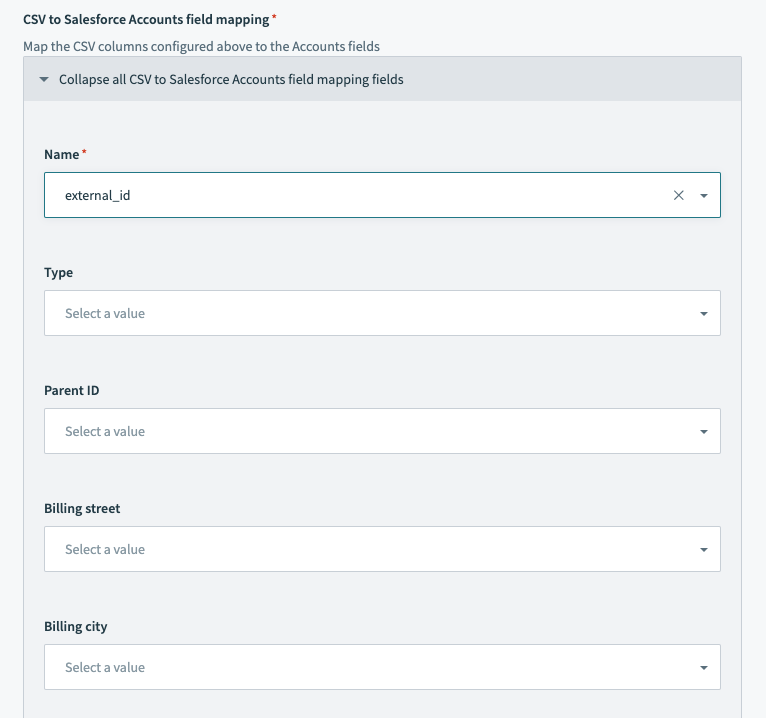 Salesforce bulk upsert action - field mapping section
# Advanced configuration
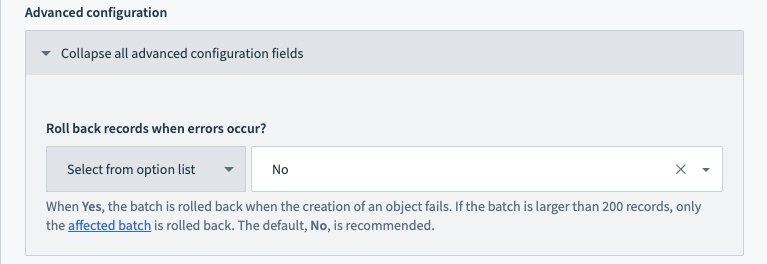 Advanced configuration
The Advanced configuration settings configure whether batch operations roll back when a record fails.
Workato processes records in batches of up to 200 records each. If a single record in a batch fails, the entire batch rolls back, while other batches remain unaffected.
For example, when processing 1,000 records, they are divided into 5 batches of 200 records each. If any record in the first batch fails, the entire first batch of 200 records rolls back. The remaining four batches proceed as normal.
The default and recommended setting is No. This allows successful records to remain processed. You can use additional logic in subsequent recipe steps to handle the failed records.
# Output
This action outputs two objects:
- Successful records contains information about records successfully upserted in Salesforce.
- Failed records contains information about records that encountered issues and were not upserted in Salesforce.
# Successful records
| Output fields | Description |
|---|---|
| Salesforce ID | The internal Salesforce ID of the upserted record. |
| Success | Indicates whether a record was successfully upserted in Salesforce. |
| List size | The number of successfully upserted records. |
| List index | The position of each successfully processed record within a batch. |
Additional outputs load dynamically based on the selected object type.
# Failed records
| Output fields | Description |
|---|---|
| Success | Indicates whether a record was successfully upserted in Salesforce. |
| Errors | An array containing the Status code, Error message and Fields. Use the information here to determine why the records failed. |
| List size | The number of records that failed and were not upserted. |
| List index | The position of each failed record within a batch. |
Additional outputs load dynamically based on the selected object type.
Last updated: 3/4/2026, 5:59:58 PM