Homepage
The homepage is your primary launchpad into AIRO's chat-first experience and serves as the default landing page when AIRO is enabled in your workspace.
You can return to the homepage anytime by selecting Home in the sidebar.
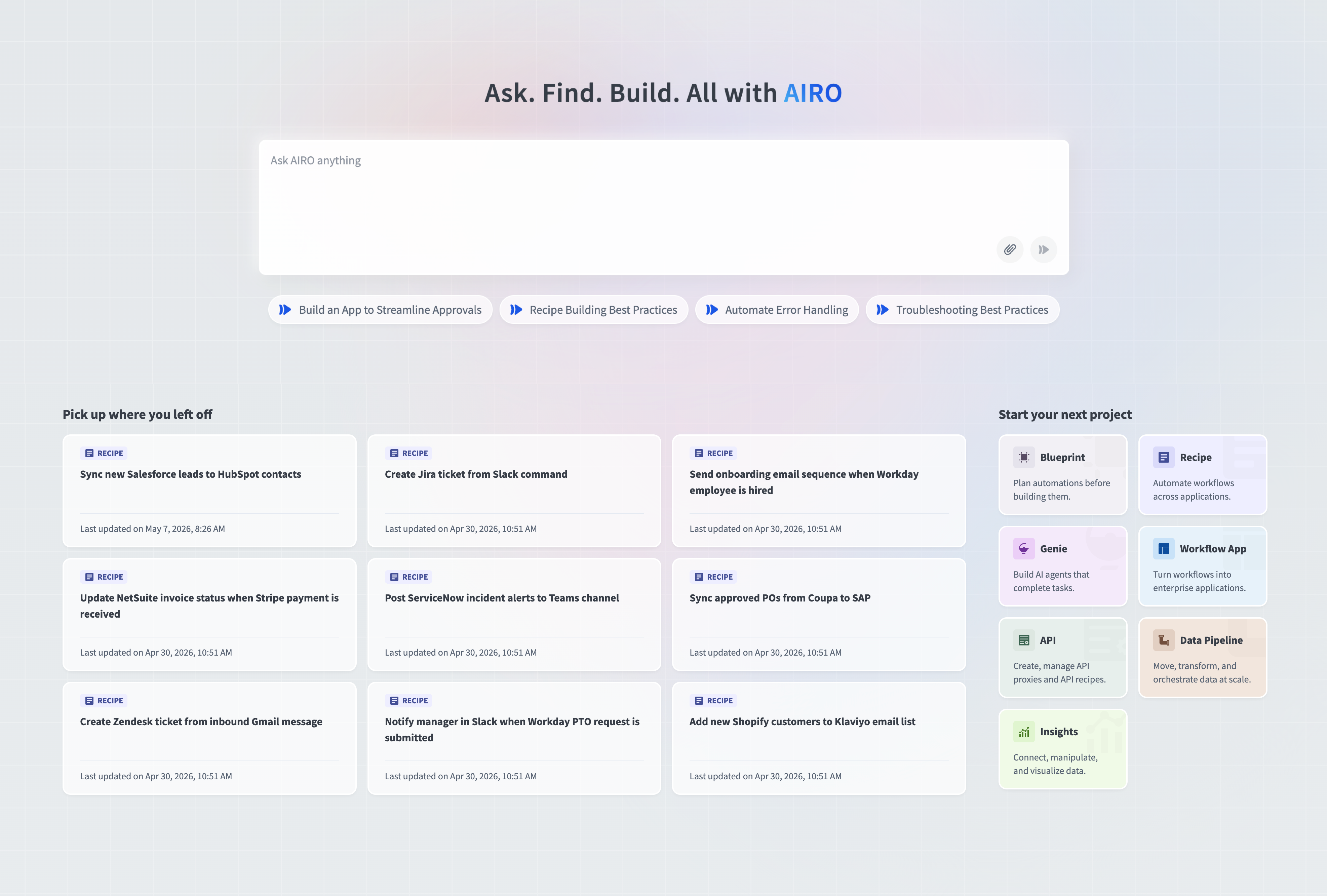 Homepage
The homepage features four main components:
Input bar
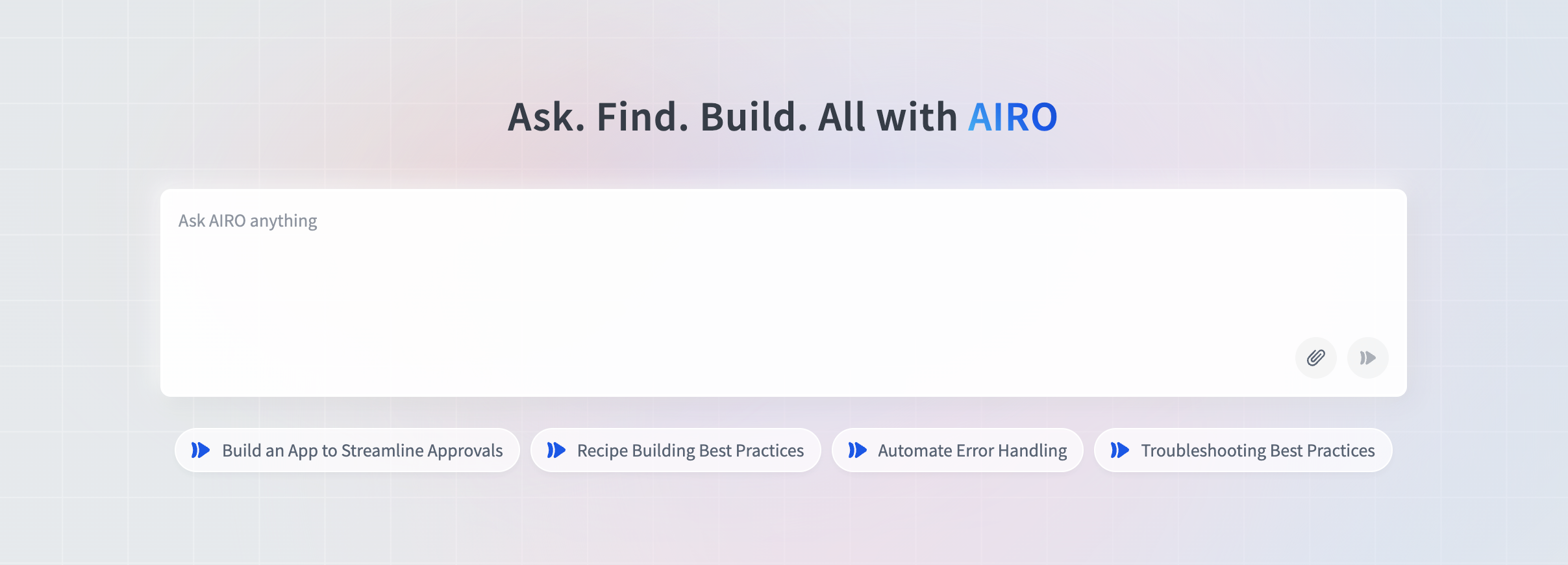
The input bar is a single, intent-based entry point for all AIRO interactions. You can ask questions, search assets, or start new projects from here.
Provide input as text, or attach files by clicking the attach button or dragging and dropping them directly onto the input bar. Refer to Supported file types and size for what AIRO accepts.
 Input bar
Beneath the input bar, suggested prompt chips help you get started quickly.
Each new conversation with AIRO starts a dedicated chat thread. Refer to Manage AIRO chat history to return to previous conversations.
What can AIRO help me with?
Here are some example queries to help you get started:
Learn and explore
- "What relevant new Workato features were released in the last 30 days?"
- "What are best practices when building recipes on Workato?"
- "What do other teams use Workato for?"
Build and troubleshoot
- "Help me migrate my integration workflows from another platform to Workato"
- "How do I debug a failing recipe?"
- "Build a workflow that helps handle recipe errors"
Create applications
- "Build an app to streamline approvals"
- "Build a genie for IT support"
Active incidents
The Active incidents section is where Acumen surfaces issues across your workspace that need attention right now. Rather than waiting for a business user to report that something is wrong, Acumen continuously monitors your recipes and groups related signals into incidents — each one summarizing what's affected, when it started, and the likely root cause — so your team can act before issues escalate into tickets.
This section only appears in production environments when issues are detected. Incidents are grouped by recipe and ranked by business impact.
Select View incident to investigate an incident through AIRO's chat interface, or Acknowledge to remove it from your view.
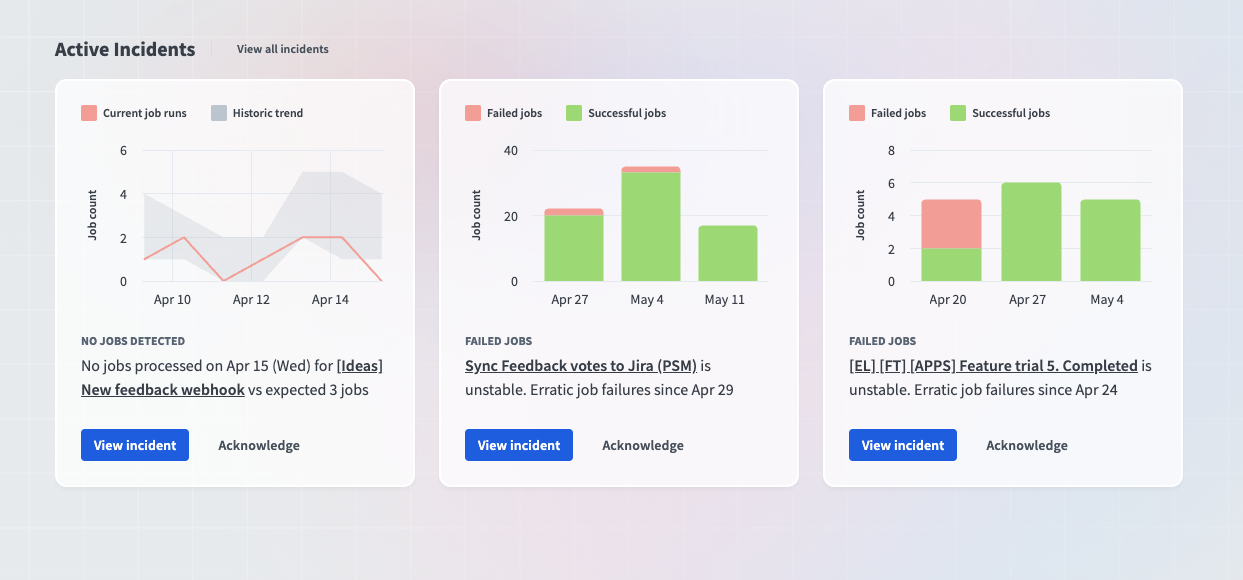 Active incidents
What Acumen monitors
Acumen monitors the genies, MCP servers, APIs, and recipes in your workspace for:
- Silent failures — when an automation suddenly stops processing jobs even though no error has been thrown (for example, a trigger has stalled, a webhook has rejected an incorrect schema, or an upstream system has stopped sending events).
- Failure patterns — bursts of job errors, repeated connection failures, retry storms, or schema mismatches affecting your recipes.
- Unusual volume — sudden spikes or drops in job throughput compared to historical baselines.
View all incidents
Click View all incidents to see all active incidents for your workspace in a dedicated panel. Filter incidents by time period, status, and incident type, or use the search bar to find specific incidents.
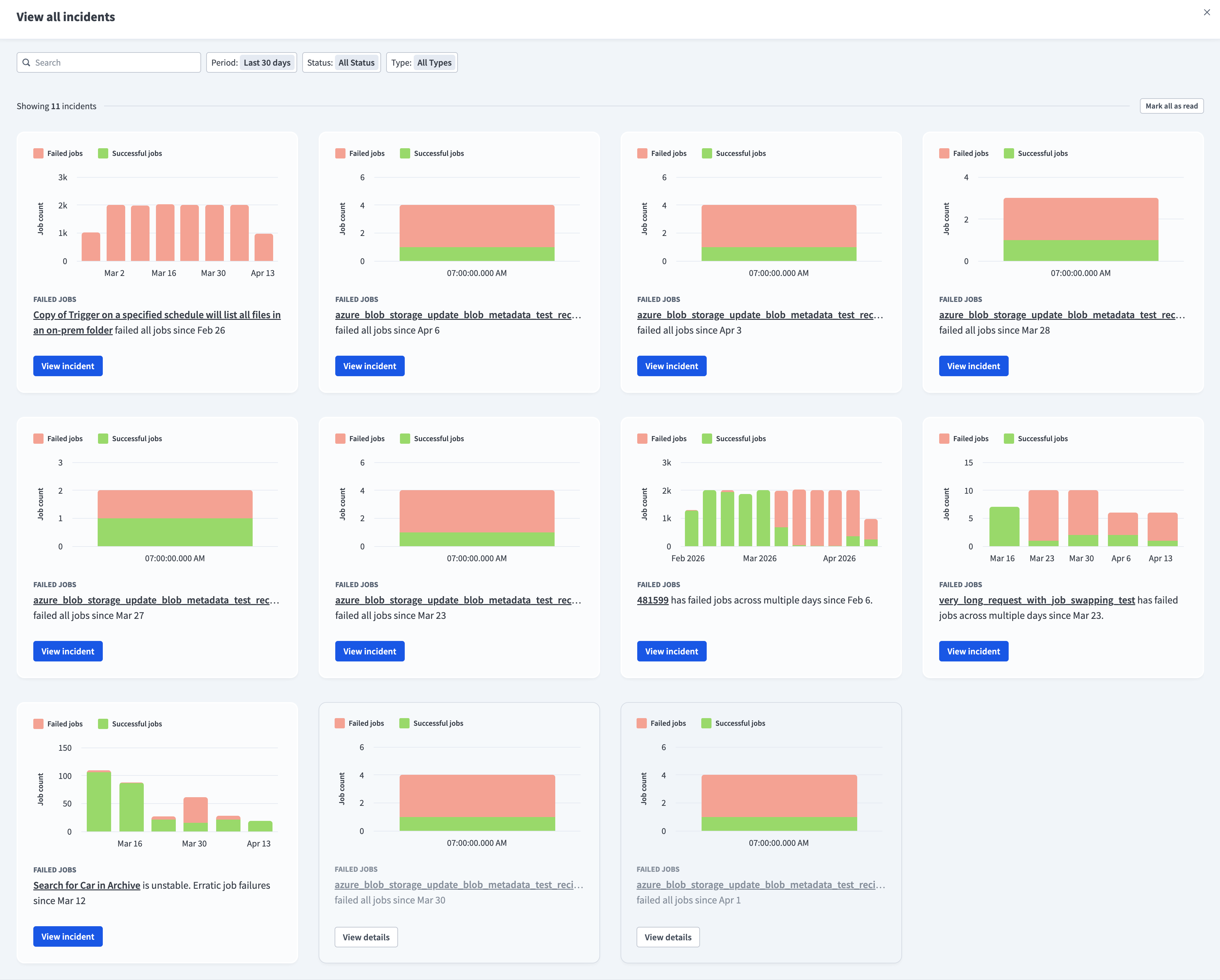 View all incidents
Acknowledged incidents are marked as read. You can filter by read status to view them, then click View details to investigate.
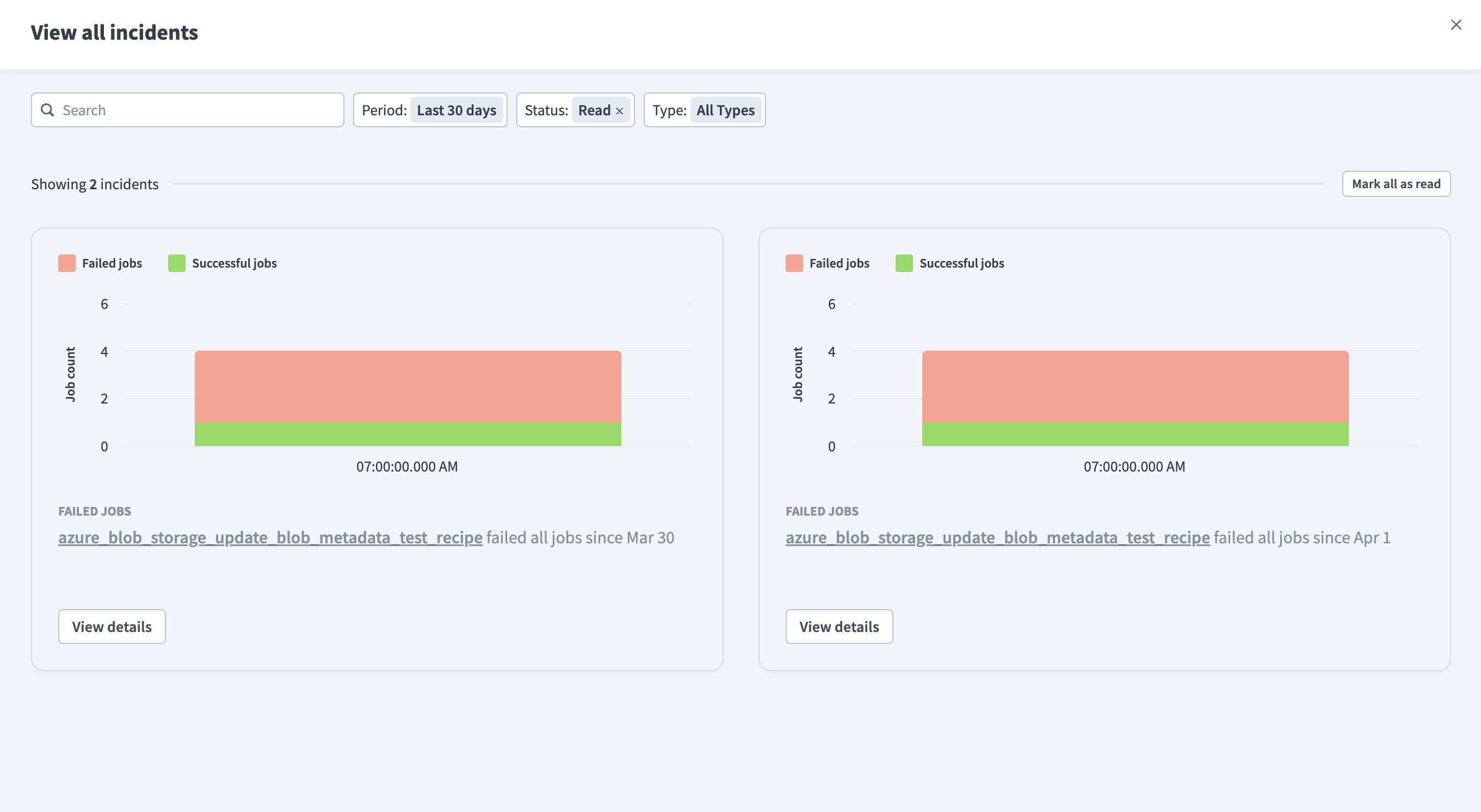 Viewing acknowledged incidents
Select Mark all as read to mark all incidents as read.
Pick up where you left off
The Pick up where you left off section shows assets you've worked on in the last 30 days within your current workspace and environment.
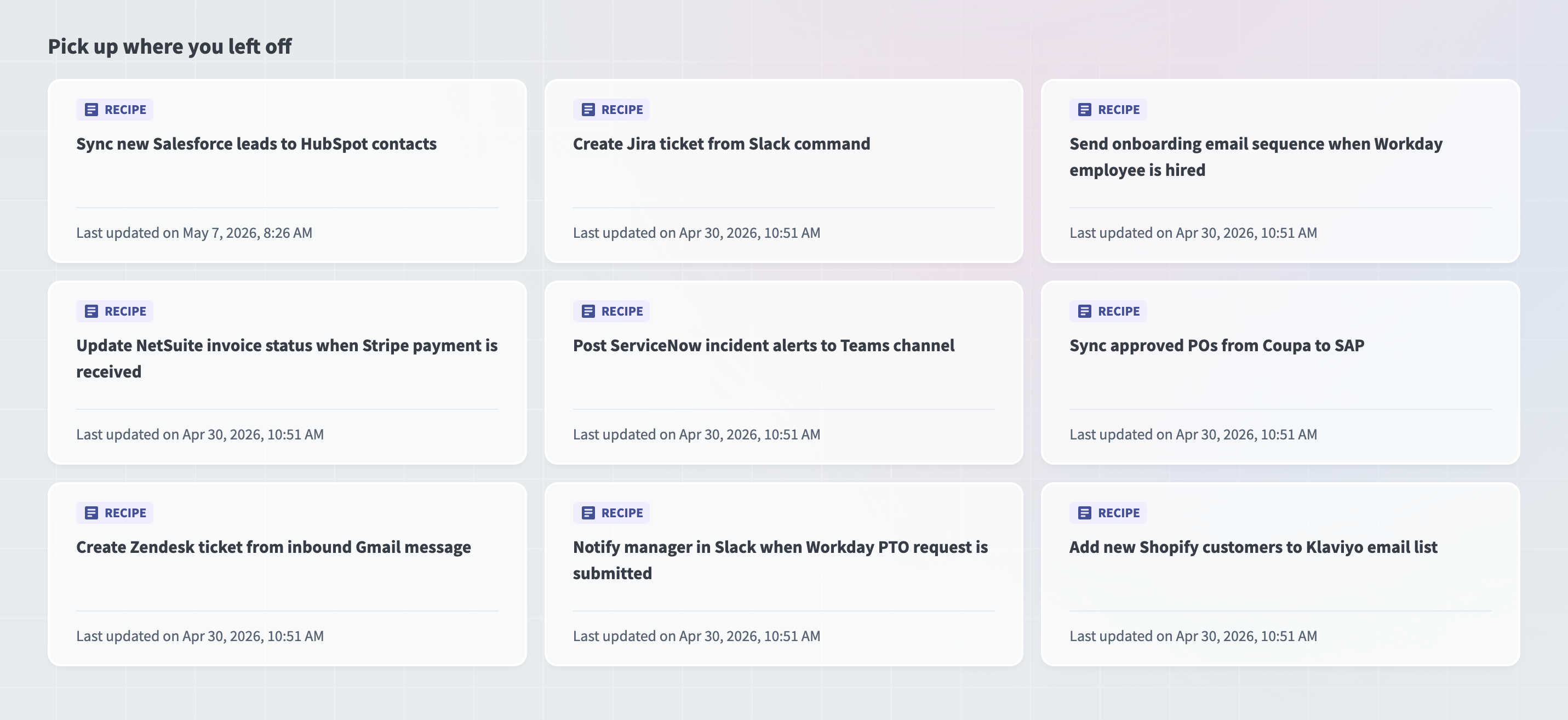 Pick up where you left off
Whether you were building a recipe, setting up a connection, or working on a workflow app, this section helps you quickly return to what you were doing without having to search for it.
Start your next project
The Start your next project section provides one-click starters for creating platform assets.
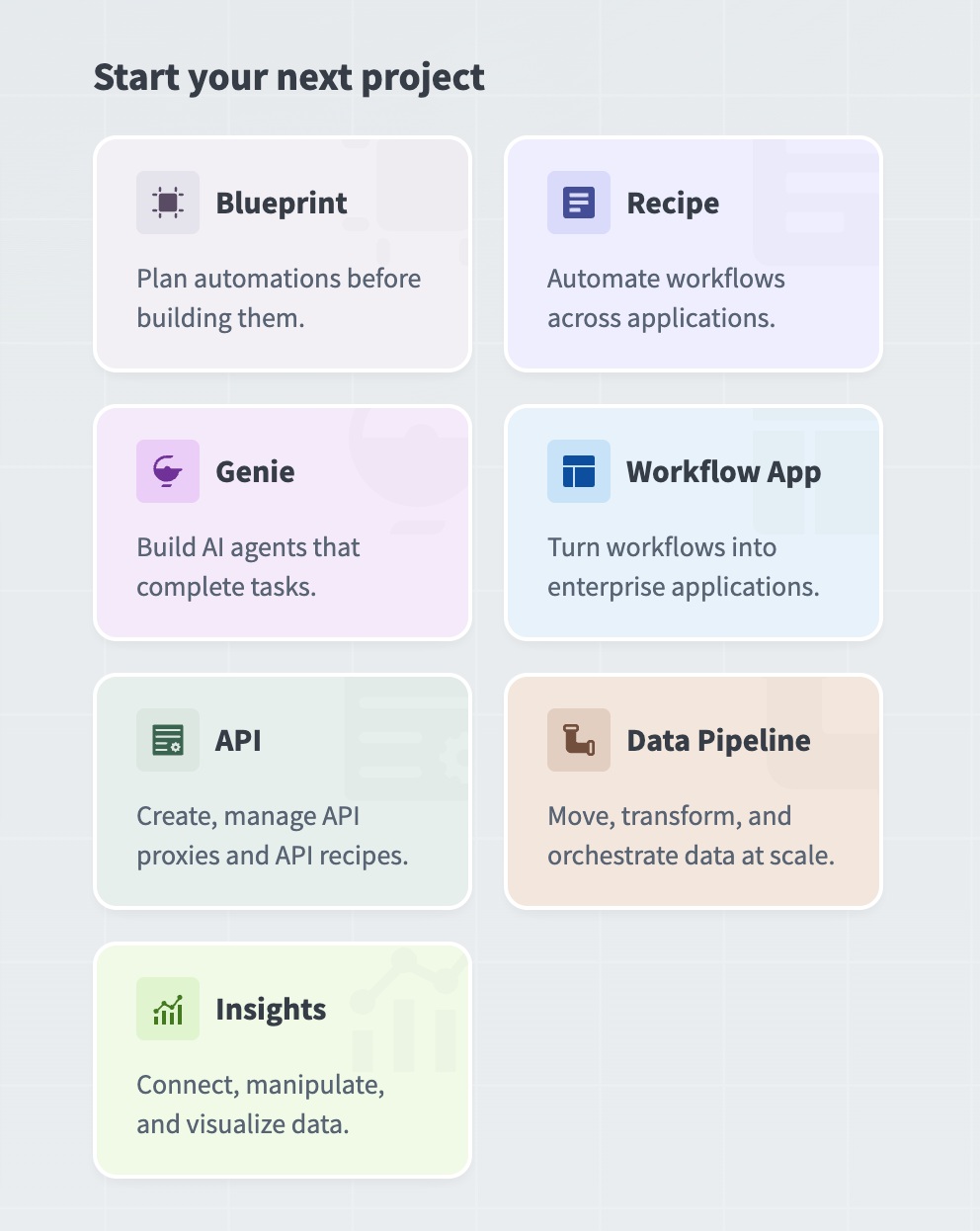 Start your next project
You can create the following assets from this section:
- Blueprints
- Genies
- APIs
- Insights
- Recipes
- Workflow apps
- Data pipelines
The available options reflect your workspace permissions, which means that you can only see assets you can create.
Last updated: