Chat with AIRO
You can get help, build automations, and manage workflows by chatting with AIRO in the Workato platform.
Start a new chat
In the sidebar, click AIRO to see your recent chats, or click + New chat to start a new conversation. You can also press A+I to start a new chat from anywhere in the platform. Type your message in the input bar and click Send or press Enter to begin.
Press Shift+Enter to insert a line break without sending, so you can write a multi-line prompt.
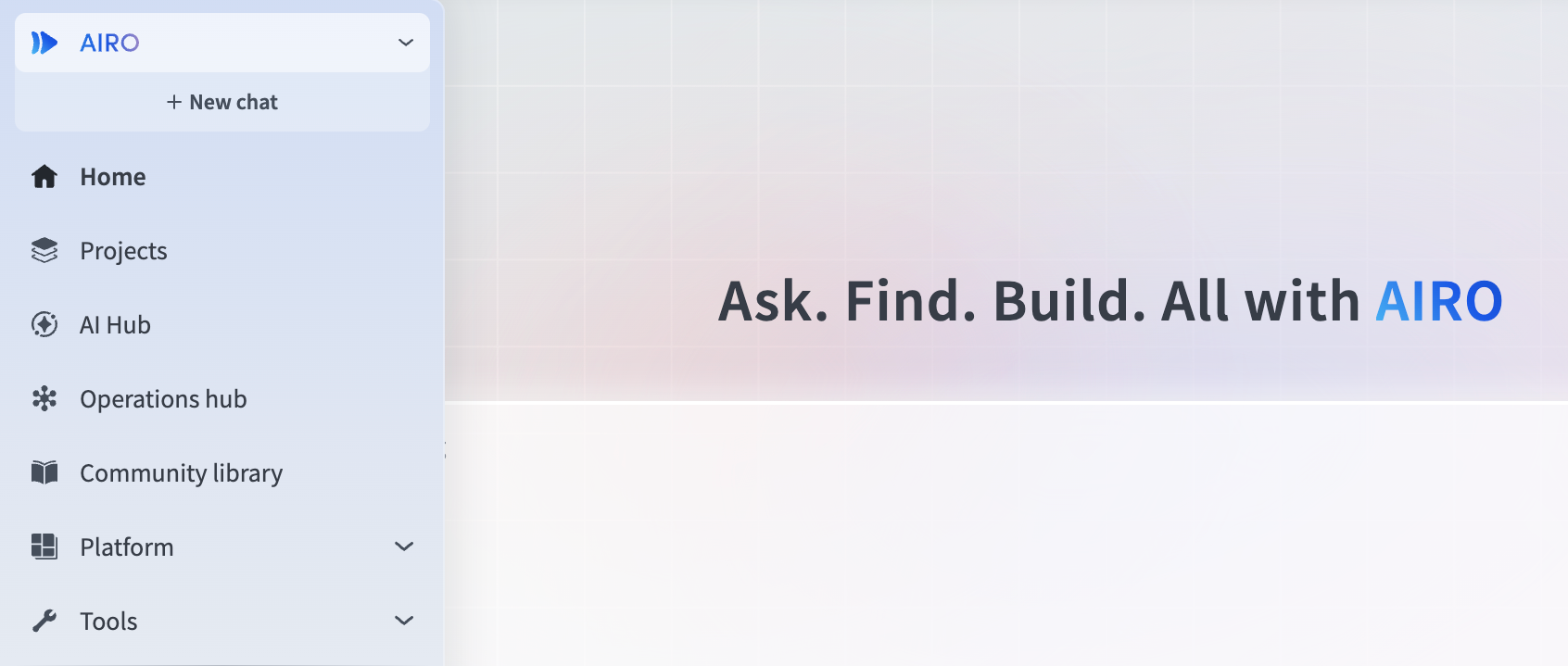 AIRO in the sidebar
Context-aware conversations
AIRO automatically understands your context based on what you're currently viewing or working on.
Examples of conversations you can have with AIRO include:
- On a project page: "What's this about?" → AIRO explains the project and its assets
- On the homepage: "Where is my Hire to Retire project?" → AIRO locates the project and provides a link that you can follow to go to it
- While viewing a connection: "What projects are using this connection?" → AIRO lists the projects using the connection
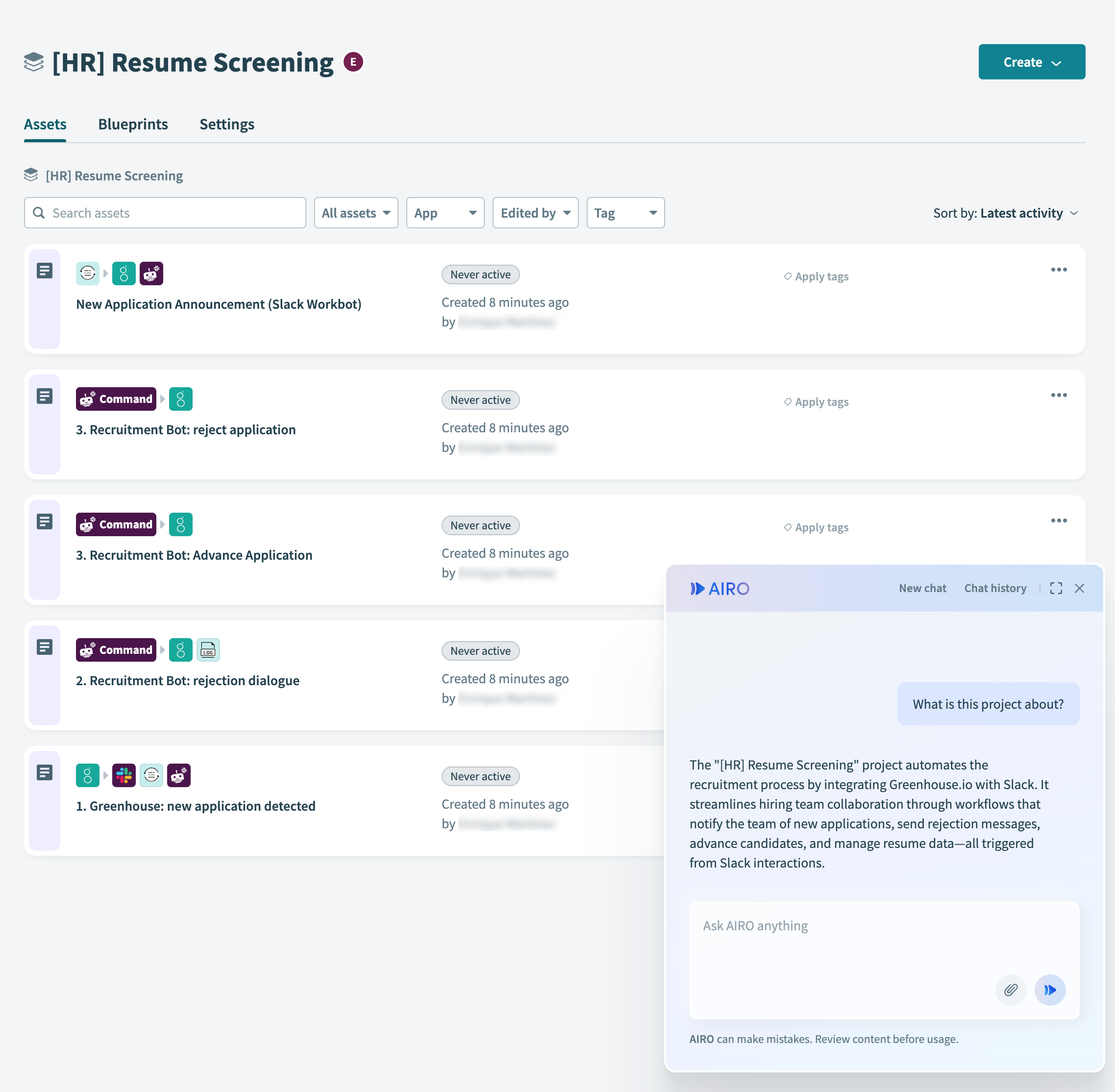 Context-aware conversations
Chat persists across the platform
Your conversation continues as you move between pages. You can start on the homepage, navigate to a project, then jump to a recipe editor while keeping your chat thread active.
AIRO automatically creates section separators when you navigate to new pages and send messages. These appear as timestamped headers that help you track what you discussed and when.
This lets AIRO understand what "this" refers to when you ask questions like "Why is this failing?" without re-explaining. The result is natural conversations about your work with a clear record of your workflows.
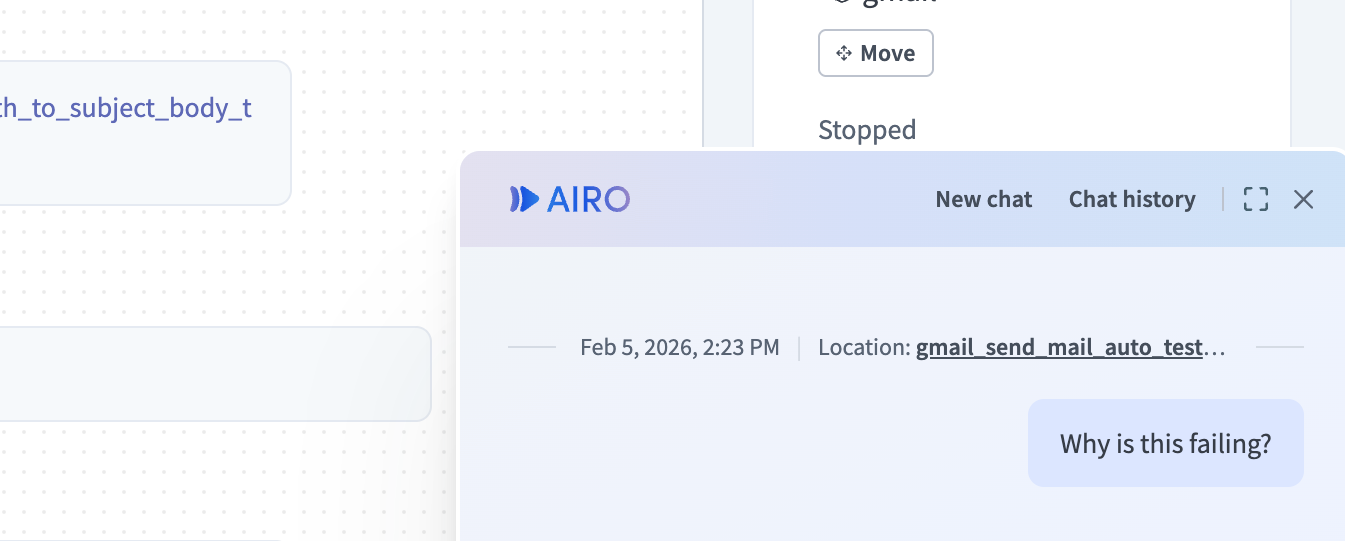 Chat persists across the platform
Manage multiple conversations
You can create separate chats to keep different topics organized. Click + New chat (or press A+I) to start a fresh conversation with its own context and history. By default, one conversation continues across all your Workato tabs, but you can switch between chats as needed.
Start a new chat when:
- Working on different projects simultaneously
- Exploring different solutions to the same problem
- Learning about new features while troubleshooting existing work
- Building multiple unrelated assets
This keeps your conversation history organized and makes it easier to find specific discussions later.
When AIRO is processing
While AIRO works on a request, it displays an "AIRO is working..." message. You can't send another message in this conversation until AIRO responds, but you can:
- Stop the response. Click the stop button, which replaces the send button while AIRO works. AIRO stops within a few seconds.
- Start a new chat to work on something else in parallel, without interrupting the current task.
- Wait for AIRO to finish.
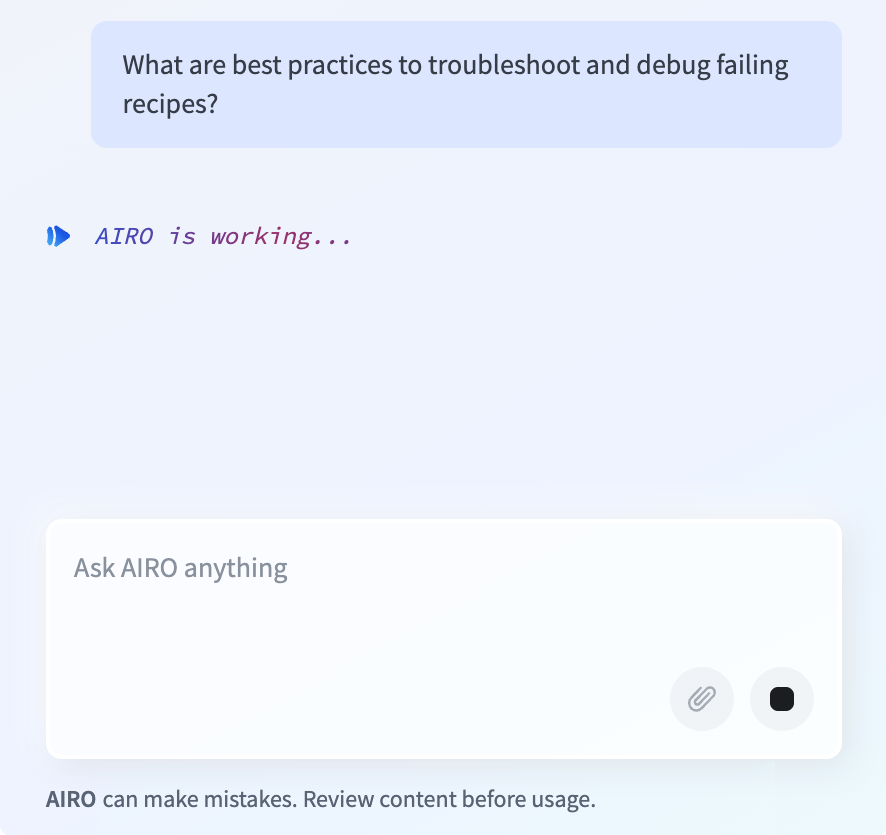 AIRO working on a request, with the stop button available to halt the response
Chat notifications
AIRO lets you know when a response arrives in a chat you're not currently viewing.
- A gray dot next to a chat in your chat history means you've read the latest response. A blue dot means you haven't.
- AIRO notifies you with an alert, even if you've closed the chat panel. Click Jump in to open that conversation, or click the X to dismiss it.
- The AIRO icon in the sidebar shows the number of unread chats you have.
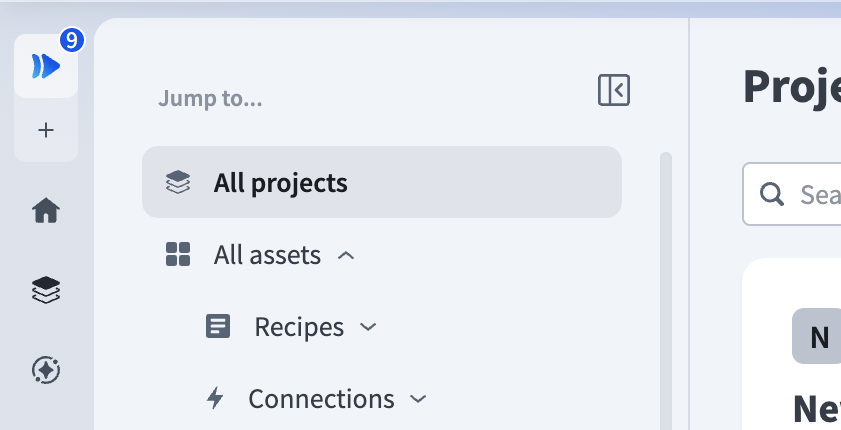 Chat notifications
Rate and copy responses
You can rate each AIRO response and copy it to your clipboard. Rating responses helps Workato improve AIRO's accuracy over time.
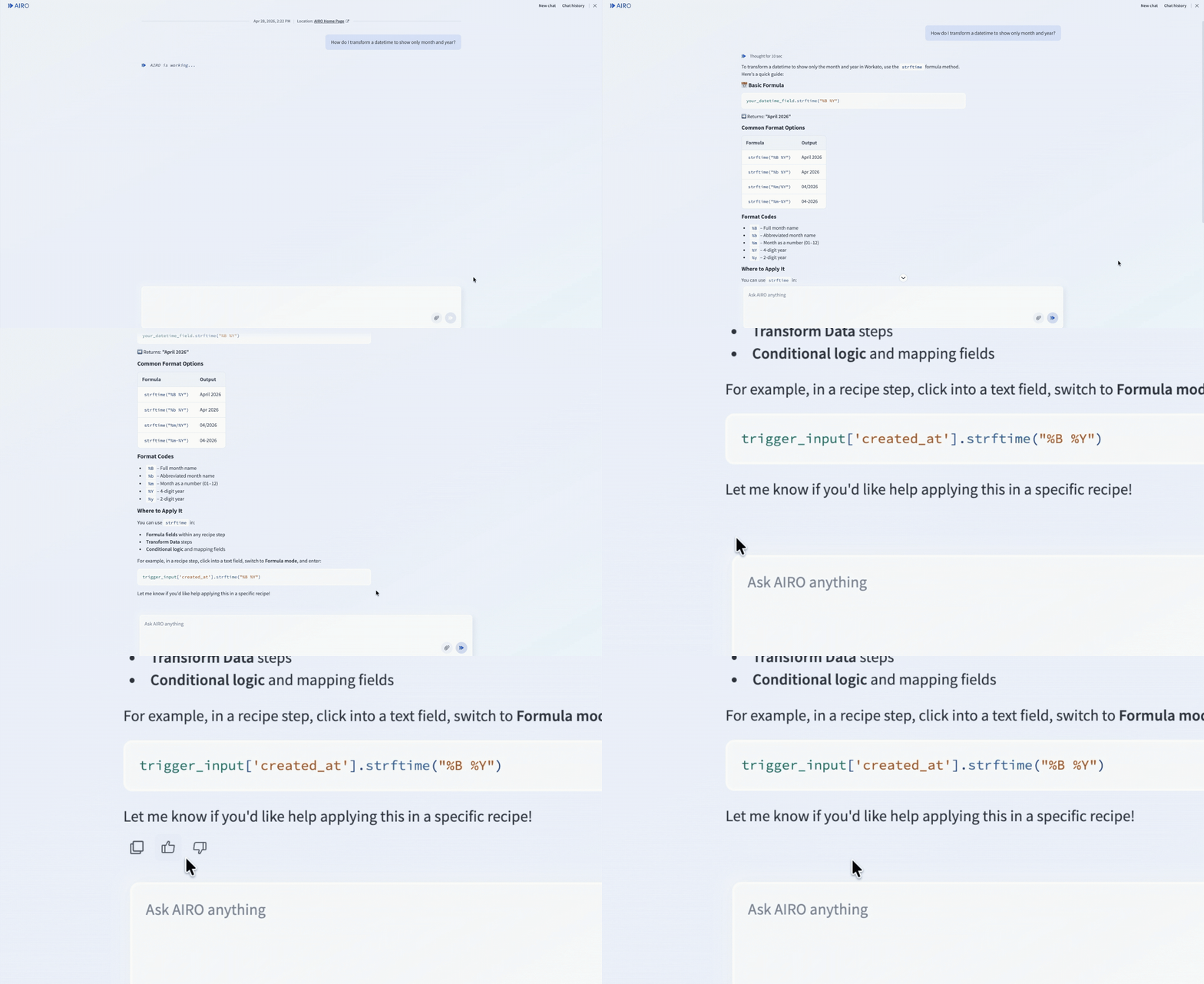 Rate or copy an AIRO response
Click Good response to mark a response as helpful, or Bad response to open a dialog where you can select a reason and add optional notes. You can change or clear your rating at any time. Click Copy to copy the response text to your clipboard.
Rich responses in chat
AIRO organizes information such as job success and failure counts or usage breakdowns into headings, tables, and lists, making it easier to scan than plain text.
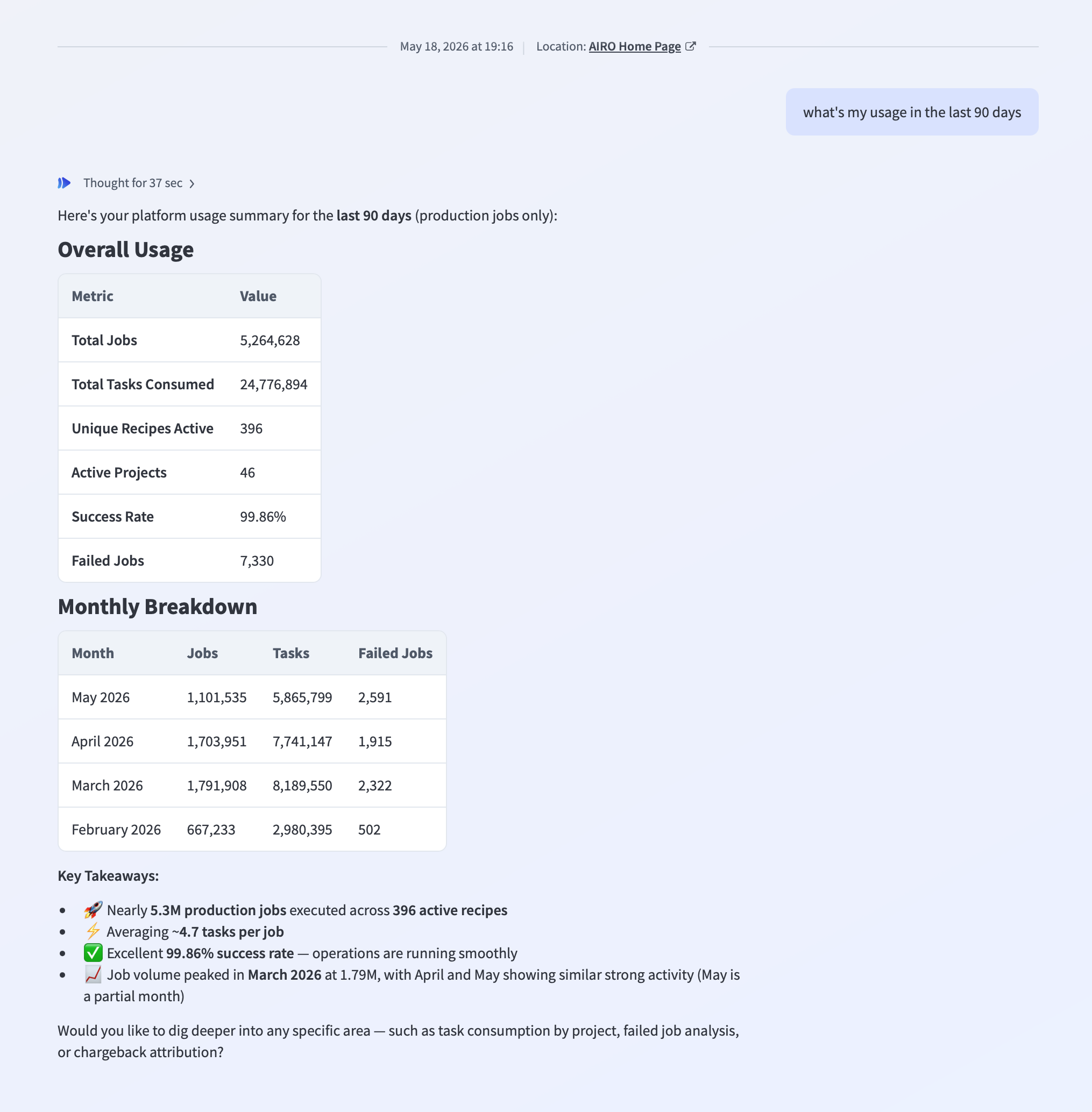 A 90-day usage summary displayed as headings and tables in chat
Assets created by AIRO include a direct link, so you can open a new recipe, generated blueprint, or other asset from the conversation.
AIRO asks for any information it needs directly in chat, such as which connection to use for each app in a build.
You can review the work before committing to it—for example, by checking a diff of recipe changes or reviewing the generated blueprint before building its assets.
Upload files in chat
You can upload files for AIRO to analyze and reference throughout the conversation. Click Attach files in the input bar, or drag and drop files onto the input bar on the homepage or in the chat panel.
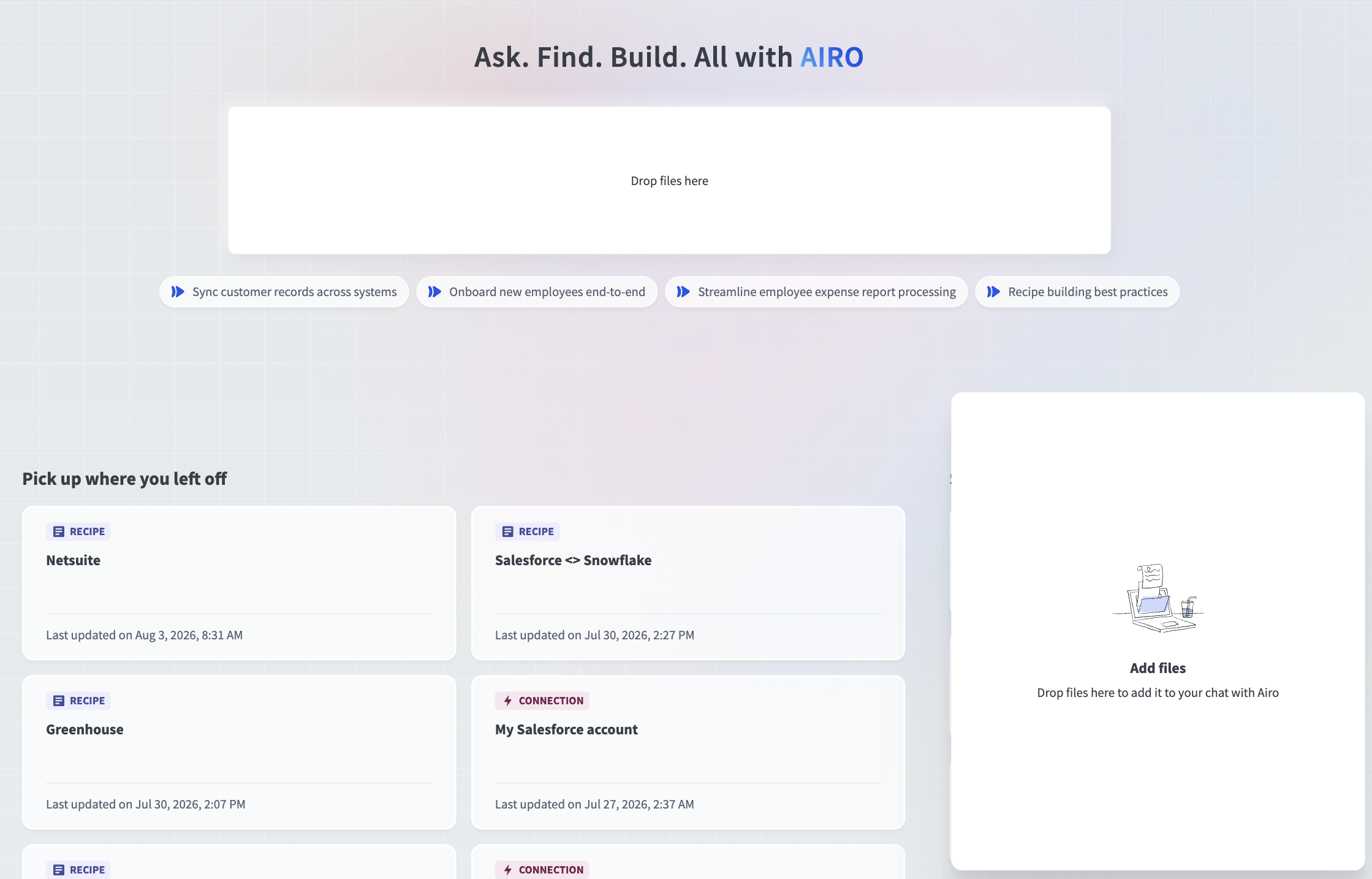 Drag and drop files onto the input bar to upload them
Supported file types and size
AIRO accepts the following file types, up to 500 MB each:
- Documents: PDF, DOC, DOCX, MD, TXT
- Images: PNG, JPG, JPEG
- Videos: MP4, MOV, WEBM
Support tickets in chat
You can ask AIRO to file a support ticket when its answers don't resolve your request or you're stuck.
AIRO drafts the ticket with relevant context from the conversation, shows you a summary to review or edit, and submits the ticket after you confirm the summary.
You can also ask AIRO to list open tickets, check a ticket's status, or update its details in chat.
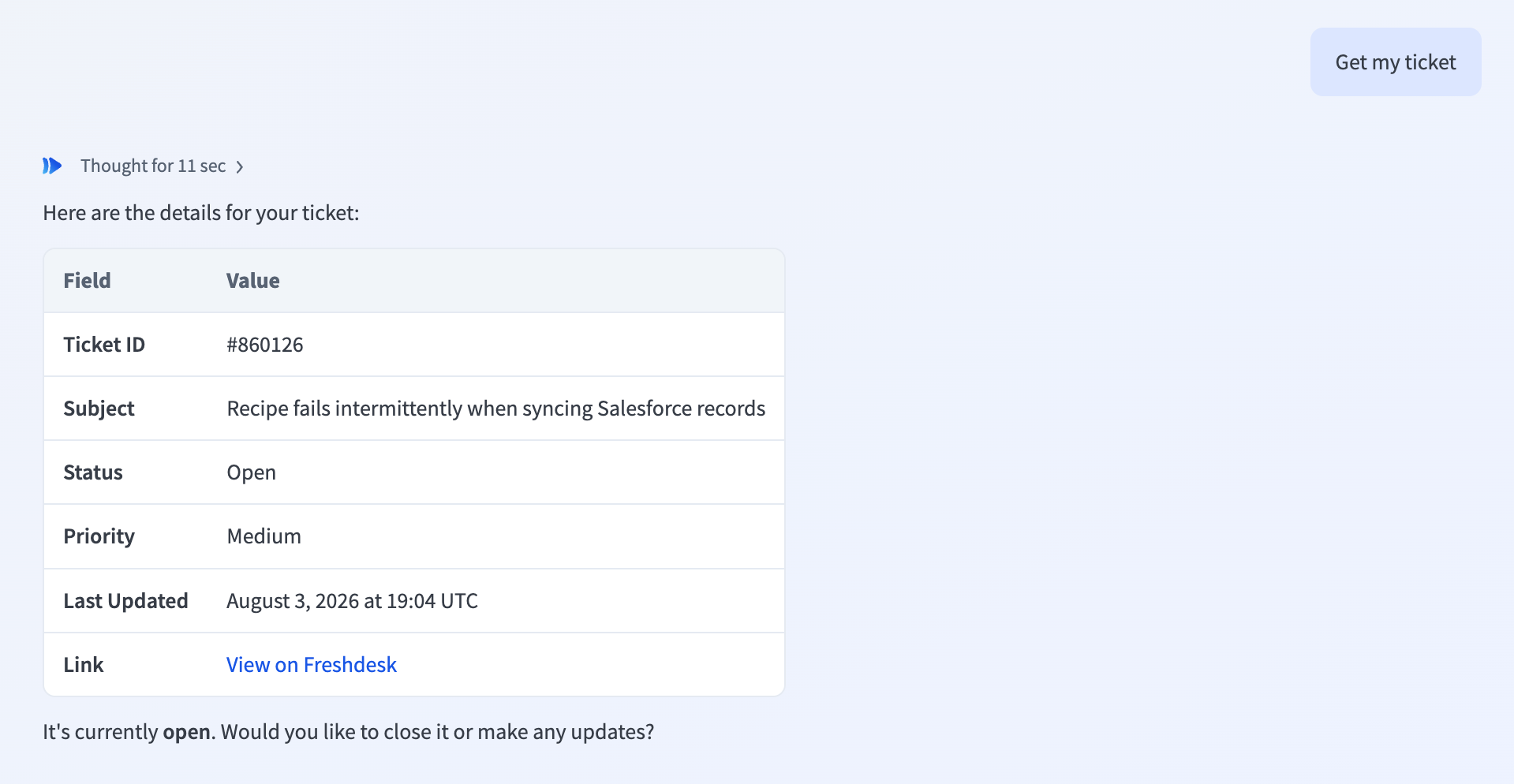 Ticket status and details shown in chat
Use the Workato support portal to file a ticket manually if AIRO can't create one.
Last updated: