# Ironclad
Ironclad (opens new window) is a Contract Lifecycle Management (CLM) platform used by legal, sales, and business teams to automate, manage, and gain insights from digital contracts. This connector enables you to integrate Ironclad's contract management capabilities with Workato to automate contract creation, track acceptance of legal terms, and manage contract data.
# Prerequisites
To establish a connection to Ironclad, you must have an Ironclad app.
# Register your Ironclad app
Complete the following steps to create an app in Ironclad:
Go to your Ironclad registration page in your client application.
Click your user profile icon and select Company settings.
Click API in the sidebar.
Click Create new app.
Enter a Name for your app in the dialog.
Click Create app.
Copy and save the Client ID and Client secret. These values are required to complete the connection setup in Workato.
Fill out any remaining client application details.
Click Save changes.
# How to connect to Ironclad
Workato supports the following types of connections to Ironclad:
# Authorization code grant authentication (OAuth 2.0)
To create an Ironclad connection using authorization code grant authentication, you must:
# Verify your instance URL and request a token
Complete the following steps to verify your instance URL and request a token:
Sign in to your Ironclad account and verify the Instance URL you plan to use. Save the Instance URL to use to complete setup in Workato.
Request an authorization code grant token. Refer to the Ironclad documentation (opens new window) for detailed instructions about requesting, refreshing, and scoping for an authorization code grant token.
# Complete setup in Workato
Complete the following steps to set up your Ironclad connection in Workato:
Click Create > Connection.
Search for and select Ironclad as your connection in the New connection page.
Provide a unique name for the connection in the Connection name field.
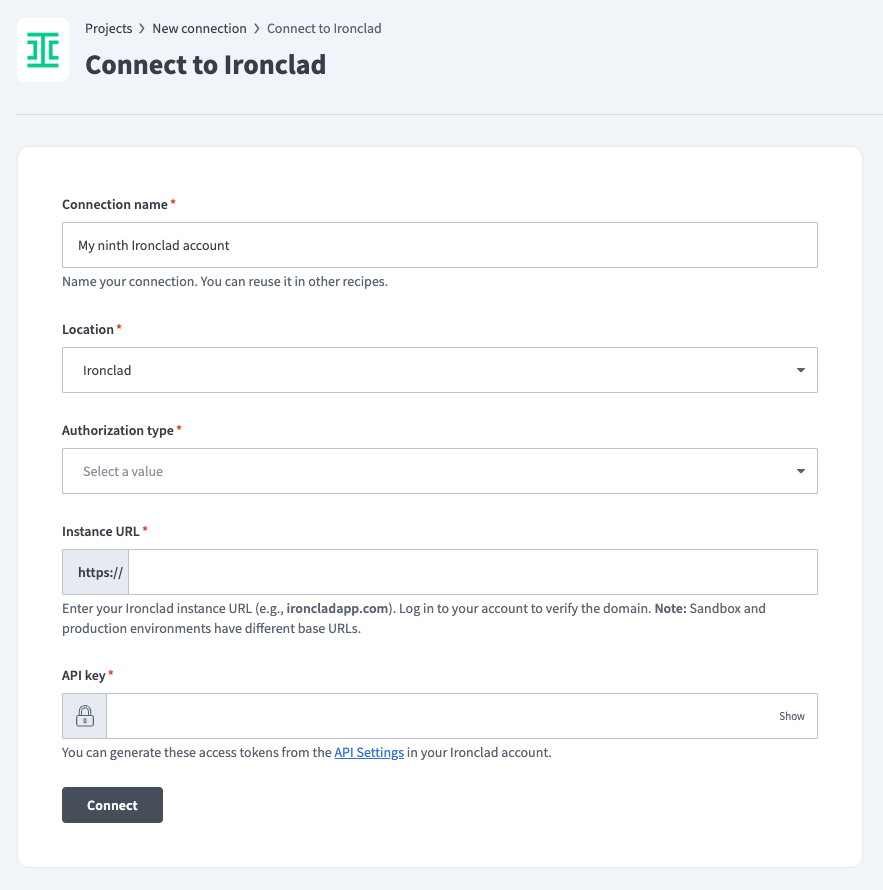 Create your Ironclad connection
Use the Location drop-down menu to select the project where you plan to store the connection.
Select OAuth 2.0 Authorization code as the
Authorization type you plan to use.
Enter the Instance URL.
Enter the Client ID.
Enter the Client secret from your Ironclad app.
Select any Scopes you plan to request. The scopes must be equal to, or a subset of, the scopes of the Ironclad app.
Click Connect.
# Client credentials-based authentication (OAuth 2.0)
To create an Ironclad connection using client credentials authentication, you must:
# Verify your instance URL and request a token
Complete the following steps to verify your instance URL and request a token:
Sign in to your Ironclad account and verify the Instance URL you plan to use. Save the Instance URL to use to complete setup in Workato.
Request a client credentials grant token. Refer to the Ironclad documentation (opens new window) for detailed instructions about requesting, refreshing, and scoping for a client credentials grant token.
# Complete setup in Workato
Complete the following steps to set up your Ironclad connection in Workato:
Click Create > Connection.
Search for and select Ironclad as your connection in the New connection page.
Provide a unique name for the connection in the Connection name field.
Create your Ironclad connection
Use the Location drop-down menu to select the project where you plan to store the connection.
Select OAuth 2.0 client credentials as the
Authorization type you plan to use.
Enter the Instance URL.
Enter the Client ID.
Enter the Client secret from your Ironclad app.
Select any Scopes you plan to request. The scopes must be equal to, or a subset of, the scopes of the Ironclad app.
Enter the Impersonate user ID/email to specify a user to impersonate.
Click Connect.
# Scopes
Any scopes you request in your Workato connection must be equal to or a subset of the Ironclad client application's registered scopes.
DEFAULT SCOPE
The scim.users.readUsers scope is added by default in Workato. Ensure that scim.users.readUsers is configured in your Ironclad app to avoid connection failures.
Last updated: 2/18/2026, 6:44:49 PM