# Microsoft Dynamics Business Central
Microsoft Dynamics Business Central (opens new window) is an enterprise resource planning (ERP) software solution used for managing finances, operations, sales, and customer service. It includes business management capabilities such as financial management, supply chain management, and project management.
# Prerequisites
Complete the following steps before establishing a Microsoft Dynamics Business Central connection in Workato:
- Get your tenant ID
- Get your environment name
- Register an application in the Azure portal
- Get your client ID
- Generate a client secret: This is required for OAuth2 (Authorization code) authentication and optional for OAuth2 (Client credentials) authentication.
# Get your tenant ID
Complete the following steps to retrieve your tenant ID:
Sign in to the Microsoft Azure portal (opens new window) using an account with administrator permissions.
Search for and select Microsoft Entra ID. Alternatively, you can select it from the menu.
Go to the Basic information section and locate the Tenant ID.
Copy the Tenant ID.
Alternatively, you can select Properties from the Microsoft Entra ID menu. The Tenant ID is listed as the Directory ID.
# Get your environment name
Complete the following steps to retrieve your environment name:
Go to Admin Center. The Environments section displays a list of available environments.
Copy the Environment name from the list of available environments.
# Register an application in the Azure portal
Complete the following steps to register an application in the Azure portal:
Sign in to the Microsoft Azure portal (opens new window) using an account with administrator permissions.
Go to Microsoft Entra ID > App registrations.
Click New registration.
Enter a Name for your application and select the appropriate Supported account types.
Click Register.
Go to API permissions and click Add a permission.
Select Dynamics 365 Business Central and add the required permissions, such as Financials.ReadWrite.All or Financials.Read.All.
Click Grant admin consent to approve the permissions.
Refer to the Register an application with the Microsoft identity platform (opens new window) documentation for more information.
# Get your client ID
Complete the following steps to get your client ID:
In the Azure portal, go to Microsoft Entra ID > App registrations and select your application.
Go to the Overview page.
Copy the Application (client) ID. This is your Client ID.
# Generate a client secret
The client secret is required when using OAuth2 (Authorization code) authentication and optional for OAuth2 (Client credentials) authentication. Complete the following steps to generate a client secret:
In the Azure portal, go to Microsoft Entra ID > App registrations and select your application.
Go to Certificates & secrets.
Go to the Client secrets section and click New client secret.
Enter a Description and select an Expiration period, such as 190 days (6 months), 365 days(12 months), or 740 days (24 months).
Click Add.
Copy and save the client secret Value immediately. You can't view it later.
# How to connect to Microsoft Dynamics Business Central
Complete the following steps to connect Workato to Microsoft Dynamics Business Central:
Select your Authentication method. You can choose OAuth2 (Client credentials) or OAuth2 (Authorization code).
Enter your Tenant ID. For example, xxxxxxxx-xxxx-xxxx-xxxx-xxxxxxxxxxxx.
Enter your Environment name.
Enter your Client ID from your Azure application registration.
Enter your Client secret from your Azure application registration. This is required for Authorization code grant and optional for Client credentials authentication.
Optional. Enter your Base URI to use a custom base URI. Leave blank to use the default: https://api.businesscentral.dynamics.com/v2.0/{environment}/api.
Optional. Enter your Company ID to use a default Company ID for all actions and triggers that require it. You can override this value using the Company ID field in individual actions or triggers.
Click Connect to establish the connection.
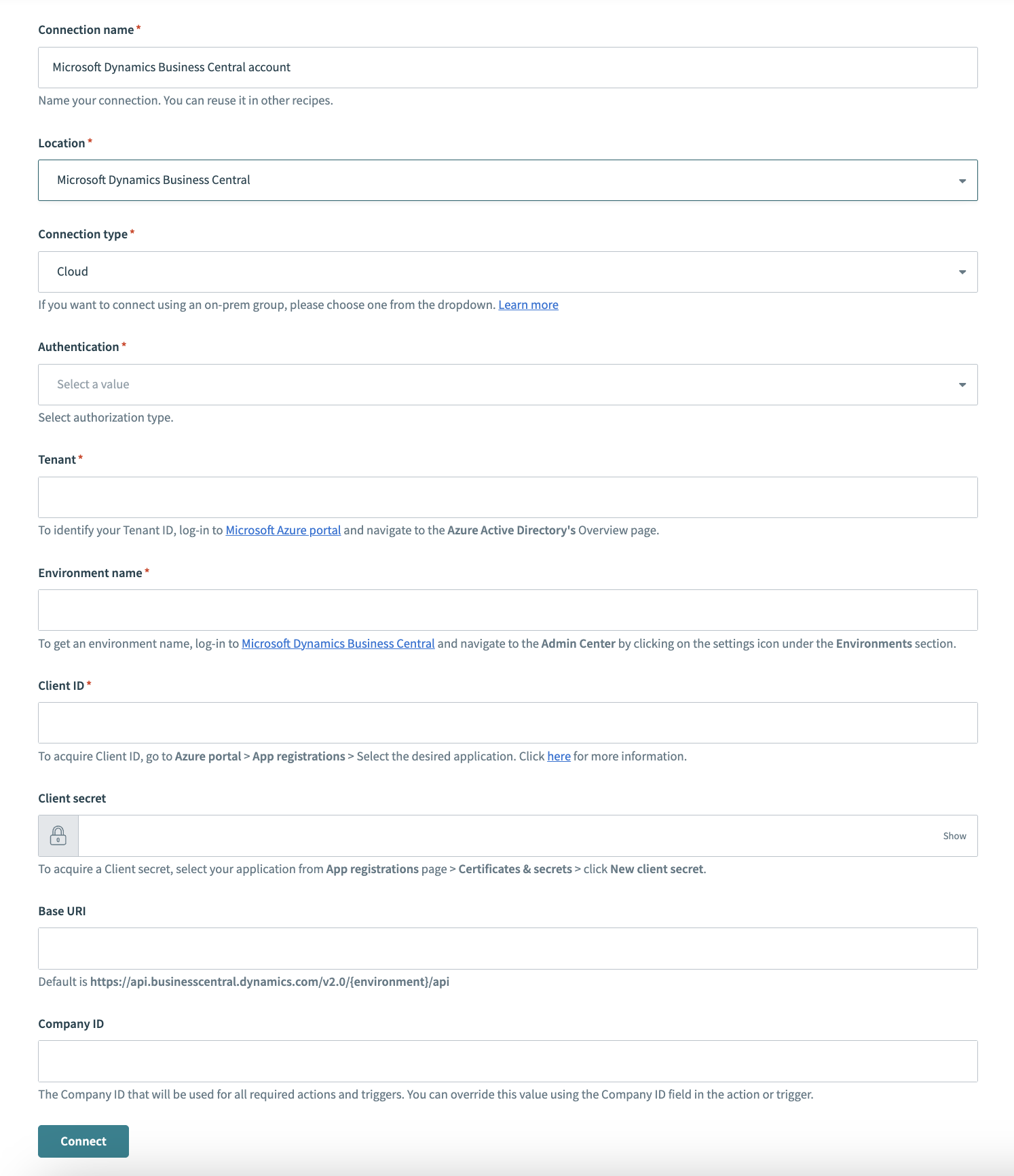 Create a Microsoft Dynamics Business Central connection
Last updated: 12/11/2025, 4:37:13 AM