# OneDrive
OneDrive (opens new window) is a cloud storage and file hosting service by Microsoft, fully integrated with Microsoft Office. Workato's OneDrive connector enables you to seamlessly integrate and automate workflows between OneDrive and third-party applications, supporting a wide range of file processing use cases.
FEATURE AVAILABILITY
The OneDrive connector isn't available to workspaces in the CN data center. This reflects local regulatory requirements and applies to our multi-tenant and Virtual Private Workato (VPW) offerings.
# API version
The OneDrive connector uses the Microsoft Graph API v1.0 for OneDrive (opens new window).
# How to connect to OneDrive
Workato supports the following types of connections to OneDrive:
- Authorization code grant authentication (OAuth 2.0)
- Client credentials-based authentication (OAuth 2.0)
MICROSOFT MFA ENFORCEMENT
Microsoft is rolling out mandatory multifactor authentication (MFA) gradually to different applications and accounts in phases. This enforcement continues throughout 2025 and beyond. Refer to the Microsoft Mandatory multifactor authentication for Azure and admin portals (opens new window) documentation for more information.
We strongly recommend enabling MFA now for all Microsoft accounts used with Workato to avoid service disruptions from short-notice enforcement changes.
Complete the following steps to maintain uninterrupted service:
Enable MFA for your Microsoft organization following the Microsoft MFA setup guide. Refer to Set up multifactor authentication for Microsoft 365 (opens new window) for more information.
Reconnect your Microsoft connection in Workato.
Complete the OAuth flow with MFA when prompted.
Test your recipes to ensure they work with the updated connection.
# Authorization code grant authentication (OAuth 2.0)
Authorization code grant authentication consists of the following steps:
This authentication method requires the following value for tenant-specific account types:
- Tenant ID/Domain
# Register the Workato App in Azure portal
Complete the following steps to register the Workato app and assign it permissions for authorization code grant connections:
Register the Workato app in the Azure Portal
Complete the following steps to register the Workato app in the Azure portal:
Sign in to the Azure portal (opens new window).
Select App registrations > + New registration.
Enter a unique name for the application.
Use the Supported account types drop-down menu to select an account type.
Select Web from the Select a platform drop-down menu.
Use the following URI for the Redirect URI:
https://www.workato.com/oauth/callback
Select Register.
Assign permissions to your app
Select Manage > API permissions in the navigation sidebar.
Click + Add a permission and select Microsoft Graph APIs.
Add the required permissions as outlined in the Permissions required to connect section. Depending on your connection type, you must assign Application or Delegated permissions.
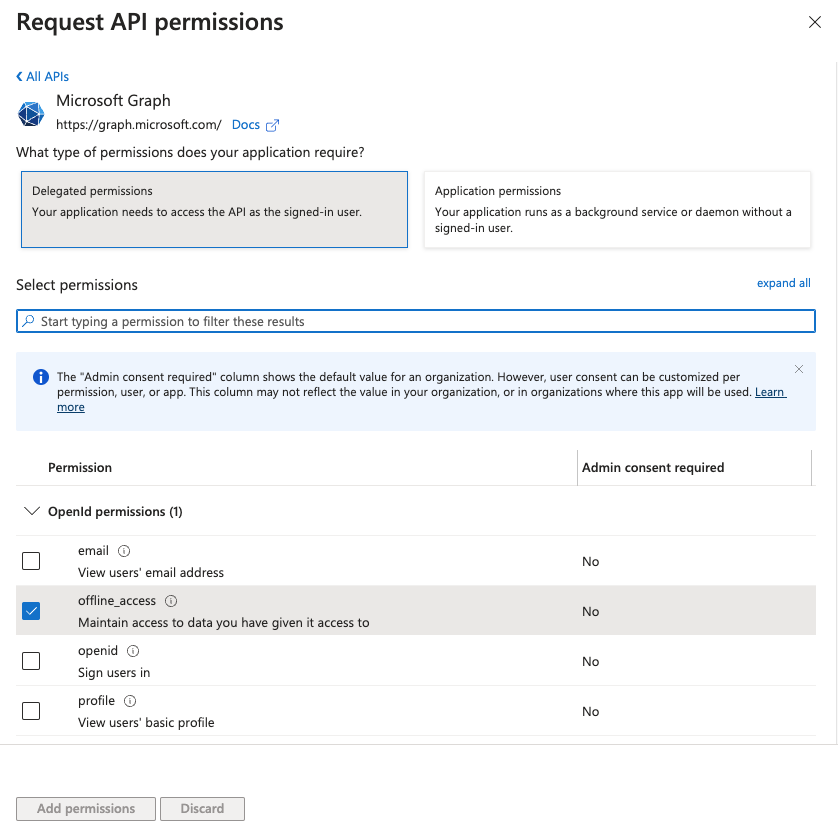 Add permissions
Click Add permissions. If specific permissions require admin consent, refer to the Granting admin consent (opens new window) section for guidance.
Obtain the Directory (tenant ID) from the Azure portal
Complete the following steps to obtain the Directory (tenant) ID from the Azure portal:
Go to the Overview > Essentials section.
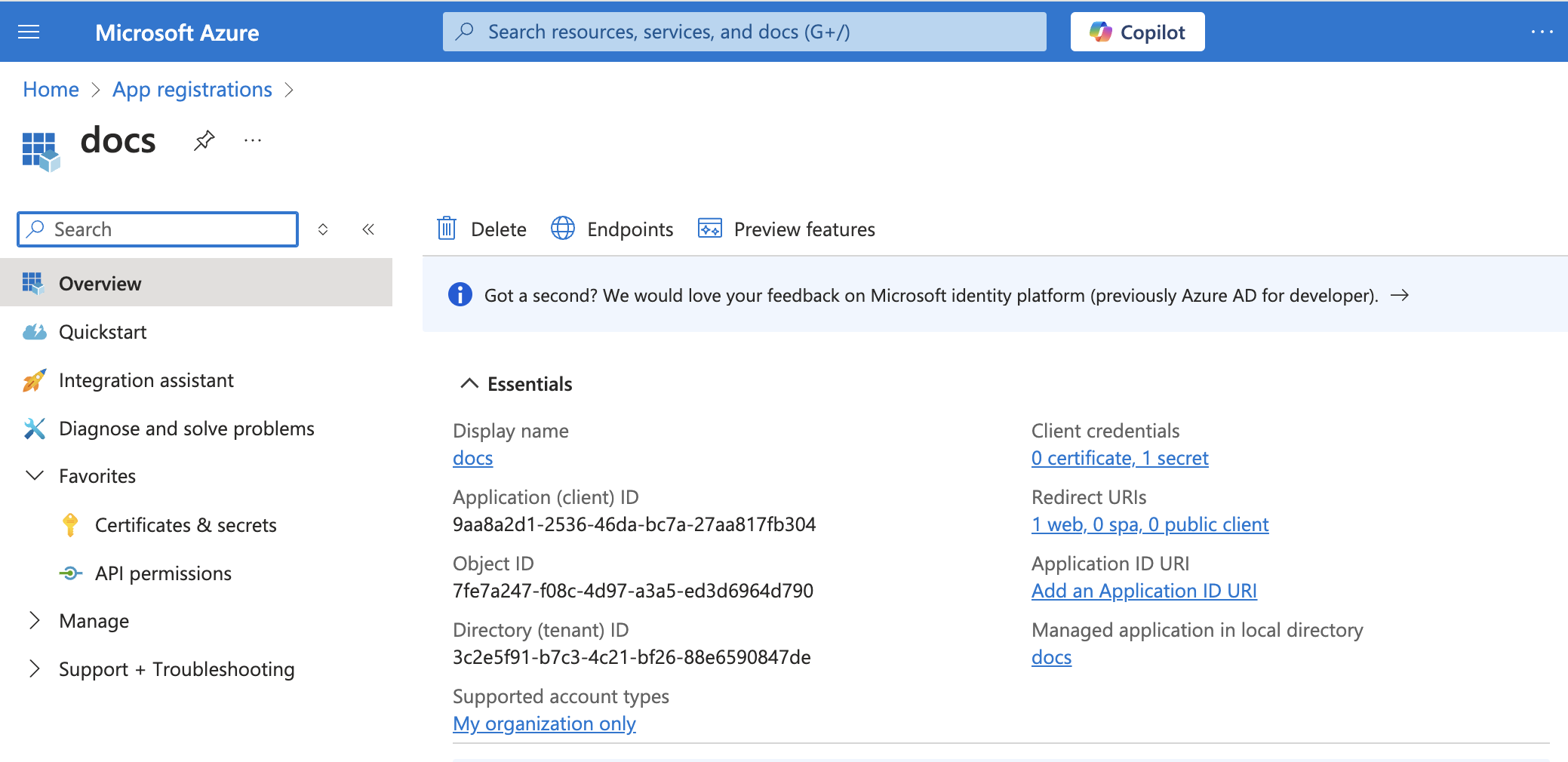 App details
Copy and save the Directory (tenant) ID for use in Workato.
# Complete setup in Workato
Click Create > Connection.
Search for and select OneDrive as your connection on the New connection page.
Provide a name for your connection in the Connection name field.
Use the Location drop-down menu to select the project where you plan to store the connection.
Use the Connection account type drop-down menu to select the type of account you plan to use. The available choices are Personal, Business, and Tenant-specific.
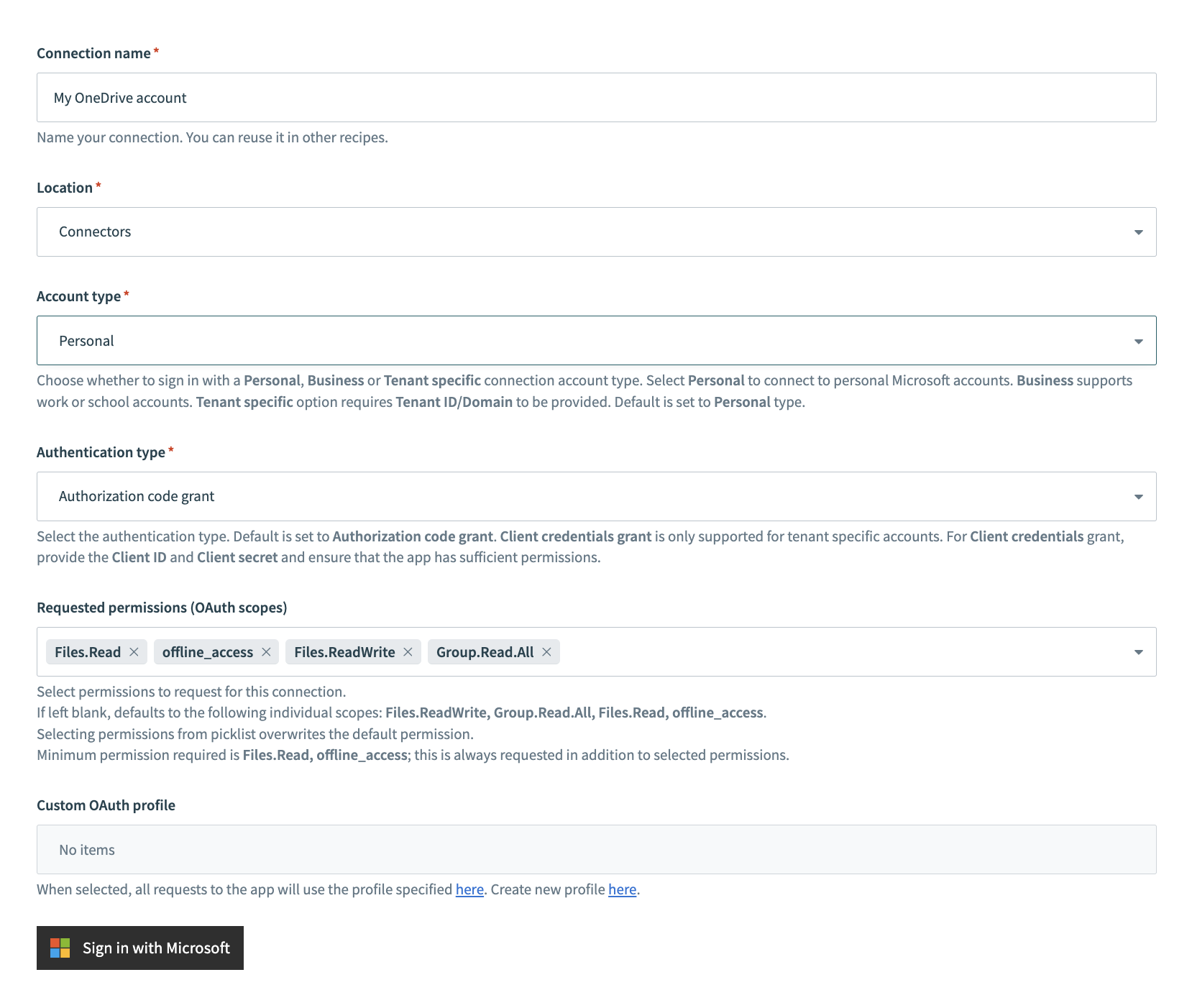 Personal connections
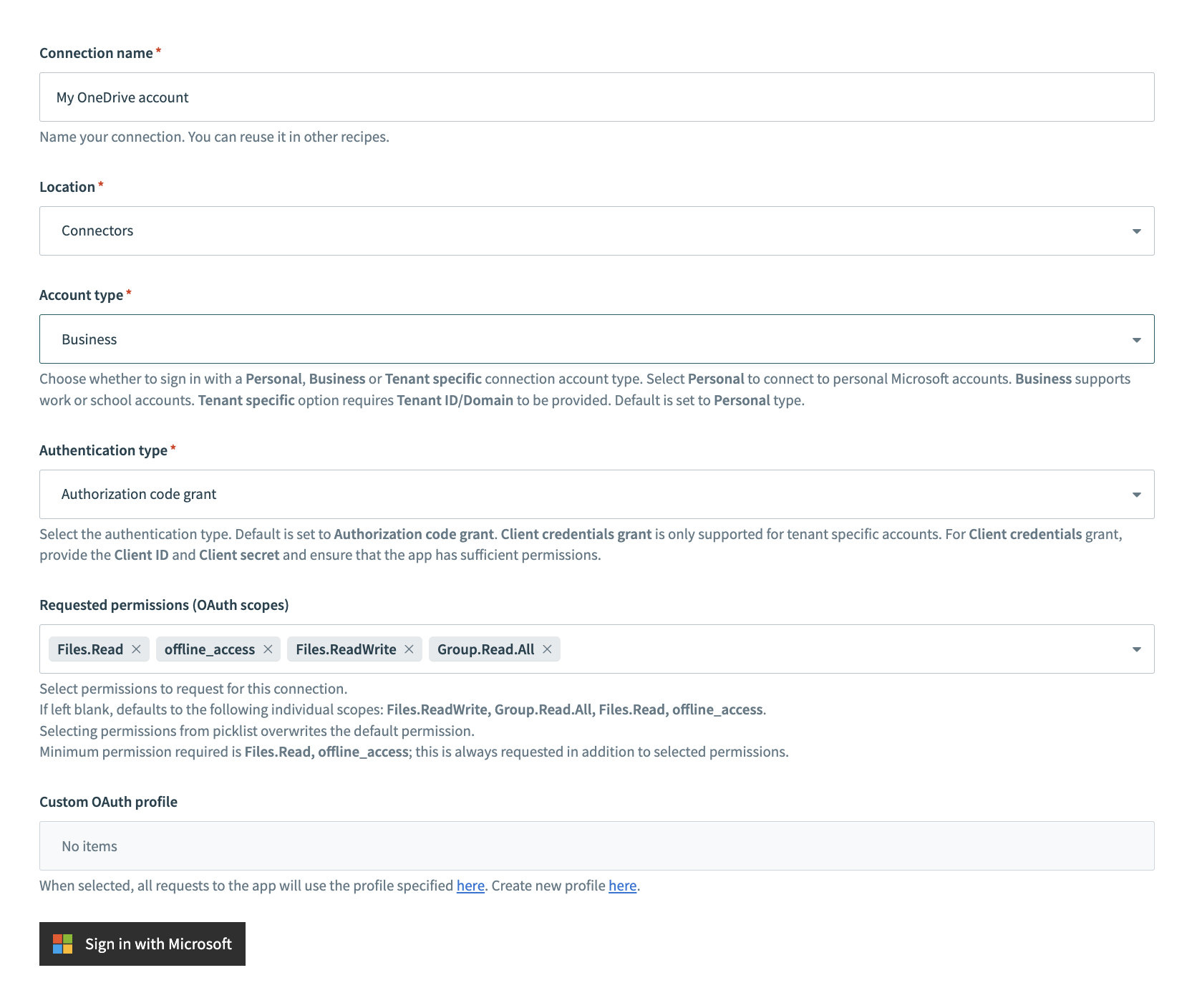 Business connections
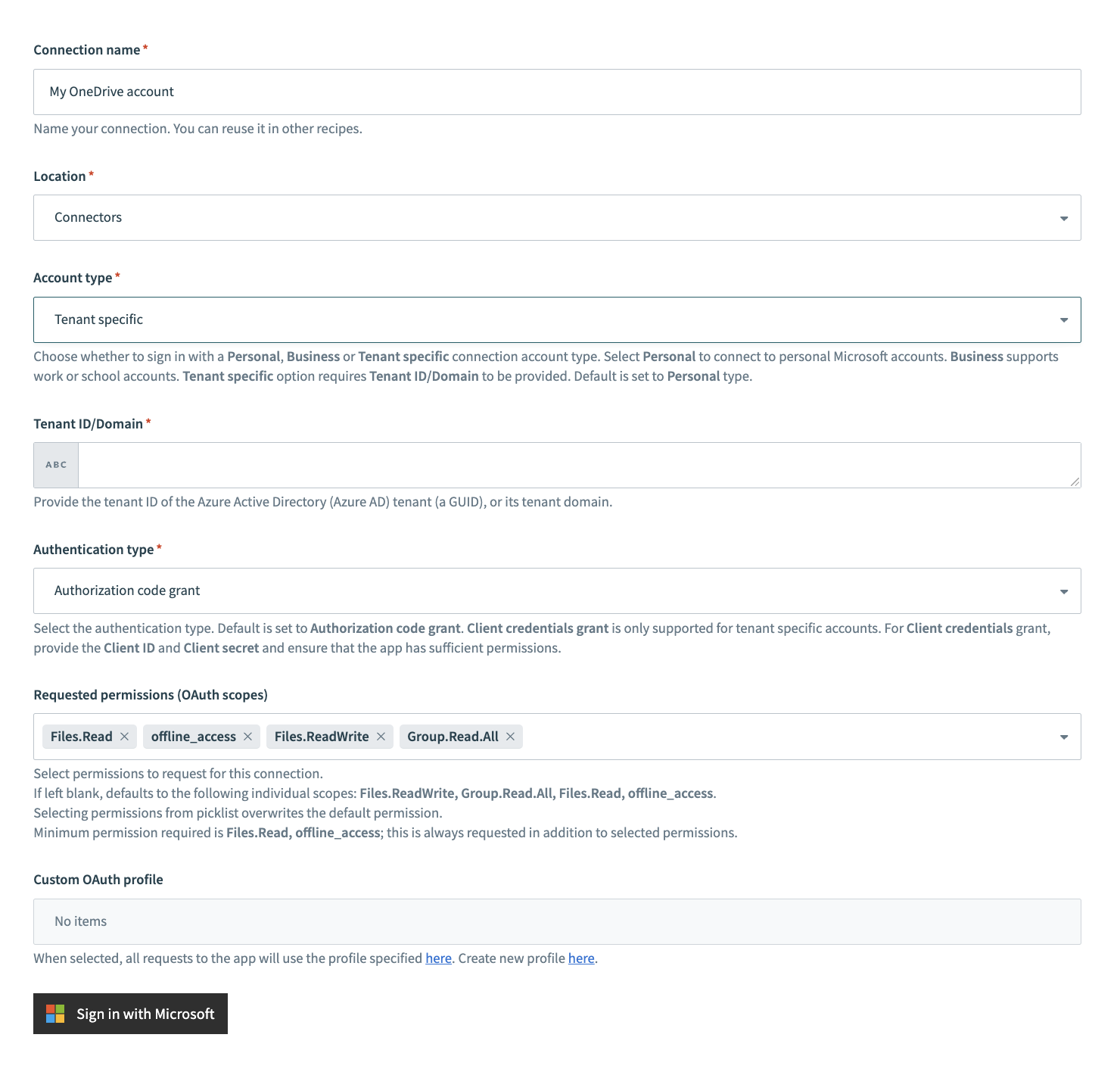 Tenant specific connections
Select Authorization code grant as the Authentication type.
Optional. Configure permissions in Advanced settings. The connector requests all required scopes by default.
The following scopes are required to establish a connection:
Files.Readoffline_access
Workato always requests these scopes. Refer to the permissions section for more information.
Optional. Use the Custom OAuth profile drop-down menu to select a custom OAuth profile for your connection.
Click Sign in with Microsoft.
# Client credentials-based authentication (OAuth 2.0)
This authentication method consists of the following steps:
COMPATIBLE AUTHENTICATION
Client credentials-based authentication is only compatible with tenant-specific connections.
This method requires the following fields:
- Tenant ID/Domain
- User ID
- Client ID
- Client Secret
# Register the Workato App in the Azure Portal
Complete the following steps to register the Workato app and assign it permissions for client credentials-based connections.
Register the Workato App in the Azure Portal
Complete the following steps to register the Workato app in the Azure portal:
Sign in to the Azure portal (opens new window).
Select App registrations > + New registration.
Enter a unique name for the application.
Use the Supported account types drop-down menu to select an account type.
Select Web from the Select a platform drop-down menu.
Use the following URI for the Redirect URI:
https://www.workato.com/oauth/callback
Select Register.
Assign permissions to your app
Select Manage > API permissions in the navigation sidebar.
Click + Add a permission and select Microsoft Graph APIs.
Add the required permissions as outlined in the Permissions required to connect section. Depending on your connection type, you must assign Application or Delegated permissions.
Add permissions
Click Add permissions. If specific permissions require admin consent, refer to the Granting admin consent (opens new window) section for guidance.
Generate a client secret
Complete the following steps to generate a client secret:
Go to Manage > Certificates & Secrets > Client secrets.
Click + New client secret.
Provide a Description for the client secret and specify an Expires date.
Click Add.
Copy and save the client secret Value—not the Secret ID—for use in Workato.
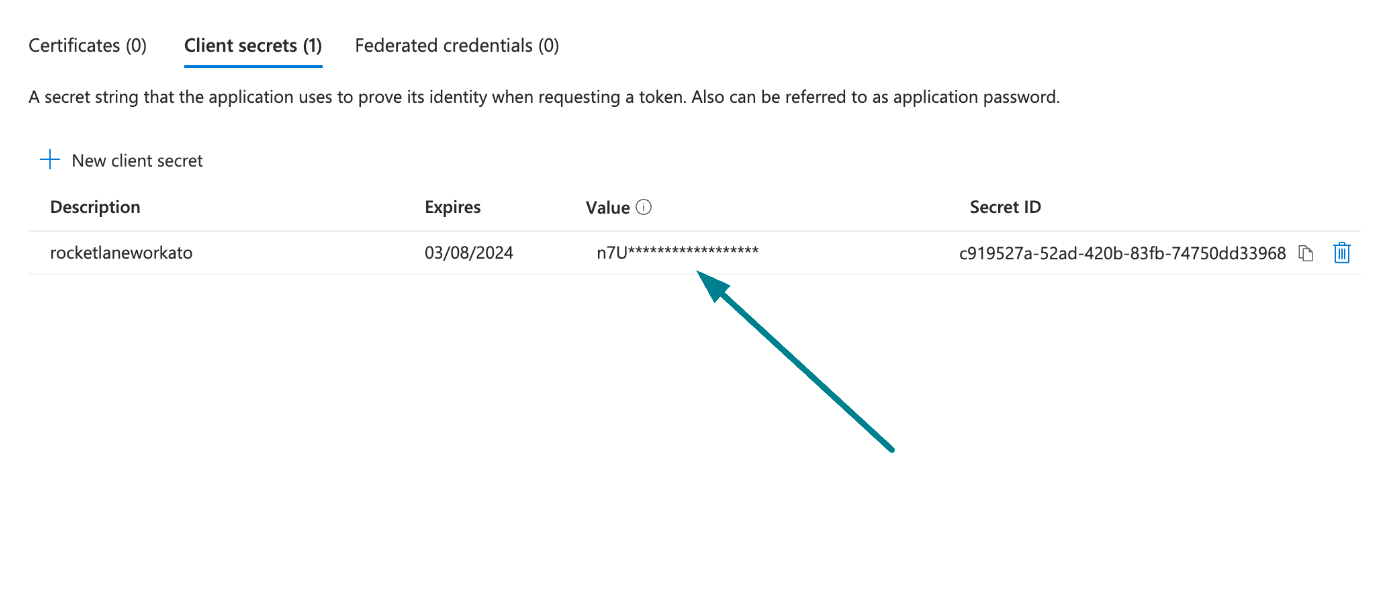 Copy and save the client secret value
Obtain the Application (client) ID, Object ID, and Directory (tenant) ID from the Azure Portal
Complete the following steps to obtain the Application ID, Object ID, and Directory (tenant) ID from the Azure portal:
Go to the Overview > Essentials section.
App details
Copy and save the Application (client) ID, Object ID, and Directory (tenant) ID for use in Workato.
Obtain the User ID from the Azure Portal
Complete the following steps to obtain the User ID from the Azure portal:
Go to Home > Users to obtain the User ID.
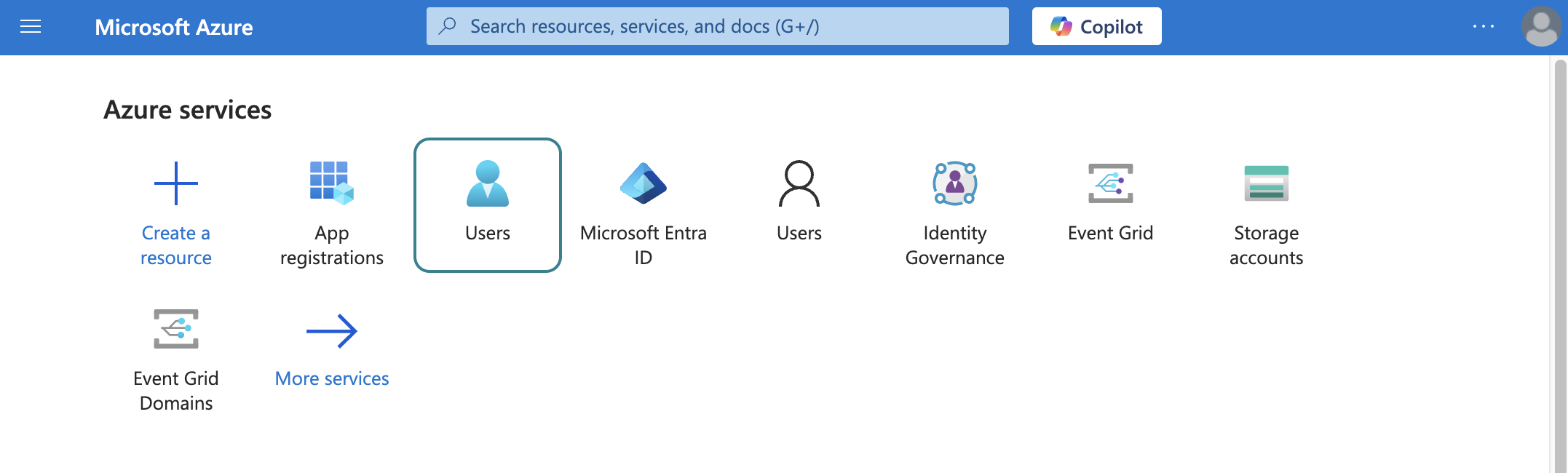 Select users
Search for and select the default user you plan to use to perform operations. This user doesn't establish the connection but is required for performing certain operations that an app can't perform. It's also required in picklists to pull user data. For example, the folder picklist populates folders belonging to the default user.
Copy and save the User principal name. Use this value as the User ID in Workato.
# Complete setup in Workato
Click Create > Connection.
Search for OneDrive and select it as your app on the New connection page.
Provide a name for your connection in the Connection name field.
Use the Location drop-down menu to select the project where you plan to store the connection.
Select Tenant specific as the Connection account type. This option supports accounts tied to a specific organization (tenant).
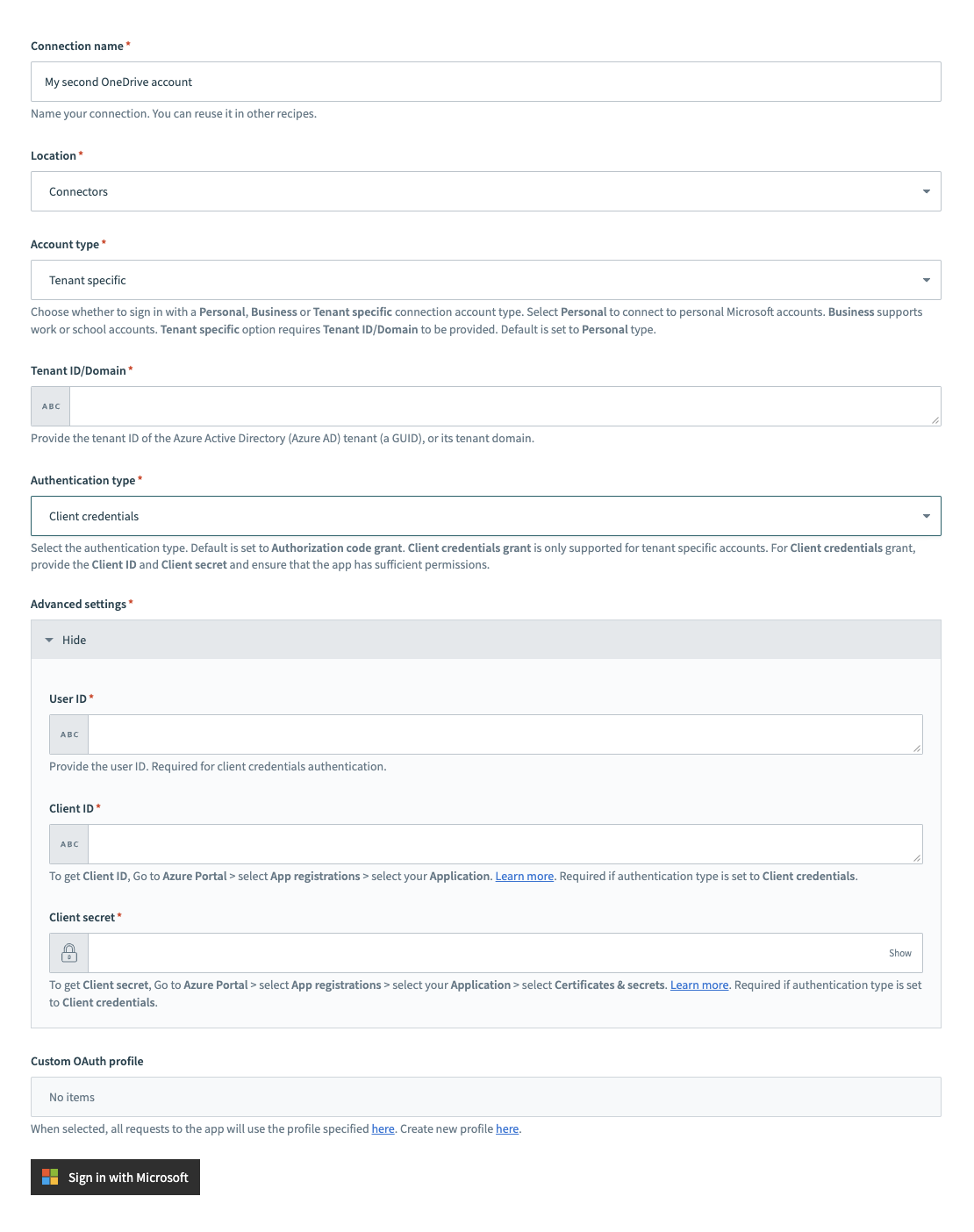 Tenant specific account connection type
Provide your Tenant ID/Domain. This is the Directory (tenant) ID for your app. Refer to the Register an app in Azure section to learn how to obtain this value.
Select Client credentials as the Authentication type.
Provide the User ID, Client ID, and Client secret for your app. Refer to the Register an app in Azure section to learn how to obtain these values.
Optional. Use the Custom OAuth profile drop-down menu to select a custom OAuth profile for your connection.
Click Sign in with Microsoft.
# Permissions required to connect
Permissions control access to OneDrive resources. This section outlines the default and minimum scopes for each authentication type.
# Default scopes for authorization code grant connections
The OneDrive connector requests the following scopes by default. These scopes support all triggers and actions. You must assign these as Delegated permissions in the Azure portal:
Files.ReadWriteGroup.Read.AllFiles.Readoffline_access
# Minimum scopes for authorization code grant connections
The following minimum scopes are required to establish a connection to OneDrive using authorization code grant authentication:
Files.Readoffline_access
# Default scopes for client credential connections
We recommend the following scopes for client credentials connections. These scopes support all triggers and actions. You must assign these permissions as Application permissions in the Azure portal:
Files.Read.AllFiles.ReadWrite.AllGroup.Read.AllSites.ReadWrite.All
# Minimum scopes for client credential connections
The following minimum scopes are required to establish a connection to OneDrive using client credentials-based authentication:
Files.Read.All
# Connect Microsoft Entra ID to the OneDrive connector
To connect to the OneDrive connector using a Microsoft Entra ID account, ensure that all the consent requests are granted by admins.
Complete the following steps to grant admin consent using an admin account:
Sign in to your Azure portal and navigate to Enterprise Applications > Activity > Admin consent requests.
Approve the necessary consent requests.
Last updated: 4/22/2026, 4:28:00 PM