# PagerDuty
PagerDuty (opens new window) is an incident response platform and on-call management service.
# API version
This connector uses the PagerDuty REST API (opens new window).
# Prerequisites
You must have the following to establish a connection to PagerDuty:
- API key
- Write and read permissions
# Create an API key
You must create an API key (PagerDuty integration key) to connect to Workato. PagerDuty supports the following types of API keys:
- General access API key: This API key has access to all objects in your PagerDuty instance.
- Personal API key: This API key is restricted according to the user's permissions. This requires PagerDuty advanced permissions (opens new window).
Complete the following steps to create a PagerDuty API key:
Go to Apps & Add-Ons > API Access and click Create New API Key.
Alternatively, go to Profile > User settings to create a Personal API key.
Enter a description that helps identify the key, such as Workato integration key. Ensure that you don't select Read-only API Key. This connector requires read and write permissions to function properly.
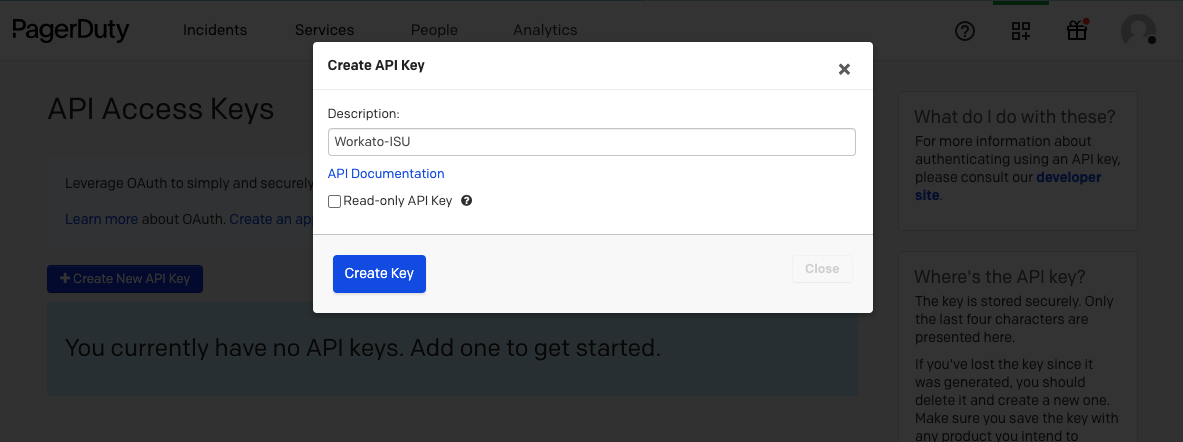 Provide the API key with write permissions
Store the API key in a secure location. Use this API key to authenticate with Workato.
# Permissions
You must have an Admin, Global Admin, or Account Owner role within PagerDuty to access General Access REST API keys.
Contact an Admin or Account Owner within your organization to create this API key if you don't have one of these roles.
# How to connect to PagerDuty on Workato
Complete the following steps to connect to PagerDuty in Workato:
Click Create > Connection or press C twice.
Search for and select PagerDuty as your connection on the New connection page.
Enter a unique Connection name to identify the connected PagerDuty instance.
Use the Location drop-down menu to select the project where you plan to store the connection.
Enter the API key for your PagerDuty account.
Click Connect.
Last updated: 4/30/2026, 3:06:08 PM