Troubleshoot Salesforce connection setup
Use this guide to troubleshoot errors when you connect to the Salesforce connector in Workato.
Salesforce connection failed: Action failed due to server error
The action failed due to server error message displays when you click Connect to establish a Salesforce connection and it fails.
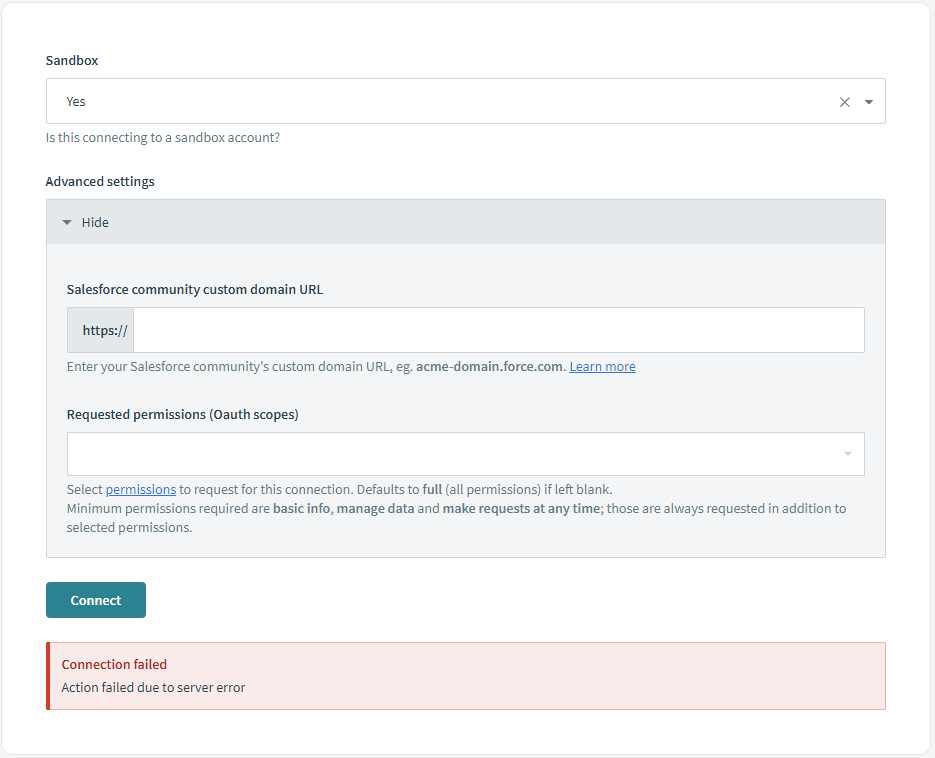 Salesforce connection fails with an
 action failed due to server error message
Complete the following steps to resolve this error and successfully establish a Salesforce connection:
Verify the domain. Use the correct Salesforce domain or custom domain:
- Set the Sandbox field to Yes if your Salesforce domain ends with
.sandbox.my.salesforce.com, or No if it ends with.my.salesforce.com.
If you're using a custom OAuth profile, confirm your external client app's OAuth and security settings match the configuration in Create a custom OAuth profile for Salesforce, including the Flow Enablement and Security settings.
Add Workato IPs to your allowlist. Refer to IP allowlists for more information.
Confirm that Salesforce doesn't block Workato. If the Workato connector is blocked, go to Manage Apps > Connected Apps OAuth Usage, then click Unblock next to the app name.
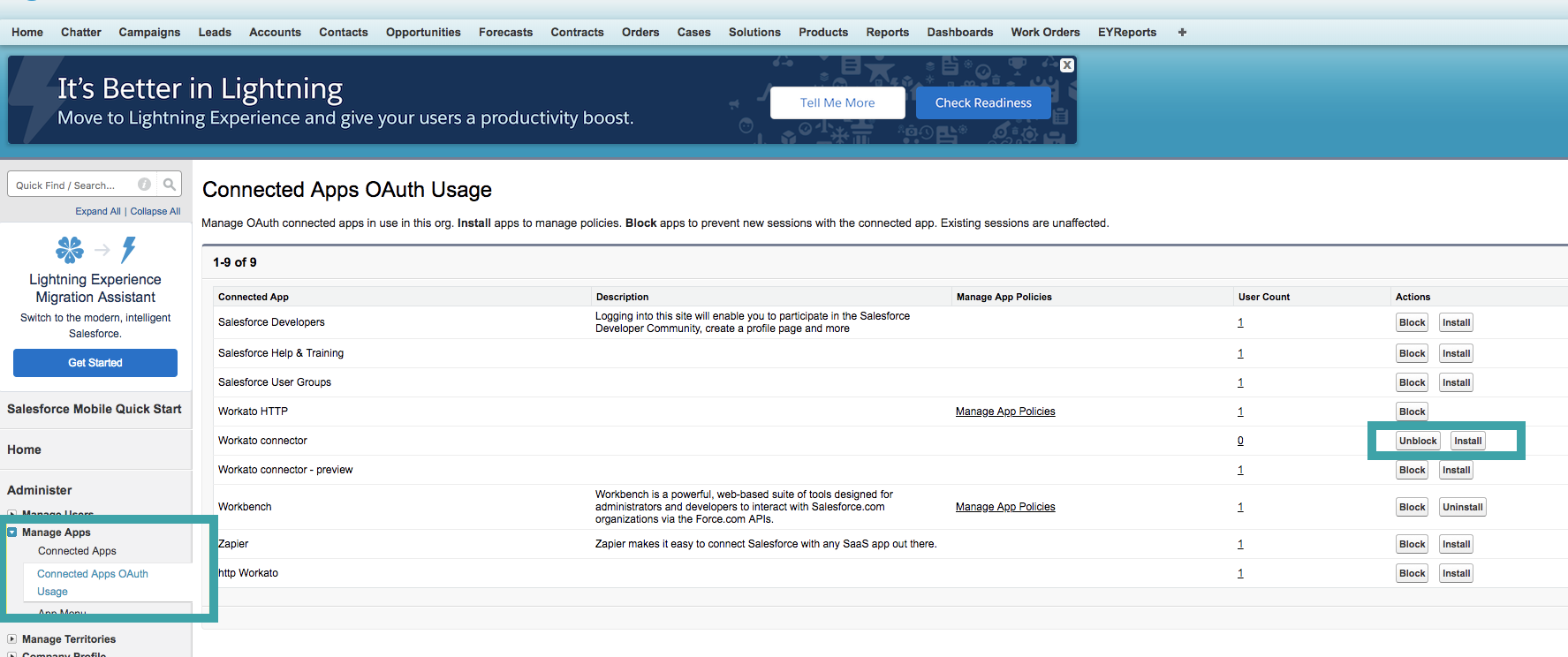 Unblock Workato in SFDC
Salesforce connection disconnects repeatedly
A connection that repeatedly shows Connection lost and requires reconnecting usually means Salesforce isn't returning a refresh token. A Refresh Token Policy or IP Relaxation setting can cause the same symptom.
 Connection lost banner on a Salesforce connection
Salesforce only issues a refresh token when your Salesforce app's OAuth policies explicitly grant the Perform requests at any time scope. Full access doesn't include this scope by default. Refer to Token expiration for how this works.
Add Perform requests at any time (refresh_token, offline_access) to your external client app's Selected OAuth Scopes if you're using a custom OAuth profile.
Complete the following steps for the default OAuth 2.0 connection:
Sign in to Salesforce and go to Setup > Apps > App Manager.
Open the Connected App named Workato connector. Salesforce creates it automatically, or an admin installs it, the first time your org connects. Refer to OAuth restrictions if you don't see the Connected App.
Select Manage.
Check the OAuth Policies > Application Permissions list for the Perform requests at any time scope.
Check the following settings on the same app if disconnections continue:
- Refresh Token Policy (Idle Expiration Time Limit Enforced): avoid Immediately expire refresh token, and set any idle-expiration window longer than how often your recipes actually use the connection.
- IP Relaxation: set to Relax IP restrictions, or add Workato's IPs to Setup > Security > Network Access or the integration user's Login IP Ranges instead if you need to keep Enforce IP restrictions. Workato connects from a rotating range of IPs, so an enforced policy without an allowlist can revoke the session in a way that looks like a disconnect.
- Lock sessions to the IP address from which they originated (Setup > Security > Session Settings) can cause the same symptom if set too strictly alongside IP Relaxation.
Refer to Salesforce's Manage OAuth Access Policies for a Connected App and OAuth Tokens and Scopes for additional token expiration options and configuration steps.
Last updated: