# Salesforce - Update records in bulk from CSV file action
This action updates Salesforce records in bulk from a CSV file using the Salesforce bulk API.
POLLING BEHAVIOR
The recipe that contains this action must be in a running state for asynchronous polling to function as expected.
Refer to the Salesforce bulk operations guide for more information about bulk operations.
API VERSIONS
This action exists in both API v1.0 and API v2.0 versions. Workato recommends using the bulk API v2.0 for optimal performance. This version reduces the impact on Salesforce API limits by batching records more efficiently.
RETRY FAILED RECORDS
You can use the Retry bulk job for failed records from CSV file action to resubmit failed records to Salesforce as a new bulk job.
# Input
| Input fields | Description |
|---|---|
| Salesforce object to update | Select the standard or custom object type to update. |
| Relationship fields | Optional. Select how to map the CSV data columns into Salesforce object fields. Relationship fields are required for polymorphic columns. Refer to the Relationship fields section for more information about this input or the Salesforce API documentation (opens new window) for more information about polymorphic fields. |
| CSV file input | Define the schema of the CSV files containing Salesforce bulk load data. Refer to the CSV file section for an example. |
| File contents (CSV file input) | Enter the contents of the file. You can obtain a File datapill from the Download file action. |
| Column separator (CSV file input) | Use the drop-down menu to select the column separator to use. For example, comma (,) or pipe (|). |
| Contains header line? (CSV file input) | Select whether the CSV file content contains a header line. This tells Workato whether to skip the first line to avoid processing it as data. |
| Column names (CSV file input) | Enter information about the data columns in your CSV file. The columns you enter become available in the CSV to Salesforce object field mapping section. |
| Use CSV column names as Salesforce field names (CSV file input) | Select whether to map CSV columns to Salesforce object fields automatically. This requires the CSV file to have a header line with column names matching the object fields. |
| CSV to Salesforce object field mapping | Enter CSV column names and the Salesforce object to update in bulk. |
| Advanced configuration | Configure advanced settings for the action. |
| Wait for Salesforce to process all CSV rows? (Advanced configuration) | Select whether to run the action synchronously. Select Yes to wait until Salesforce processes all rows in the CSV file before starting the next action. Select No to start the next action after the CSV file is uploaded to Salesforce. Bulk operations are asynchronous by default. |
| CSV chunk size for each Salesforce bulk job (in MB) (Advanced configuration) | Enter the CSV chunk size in megabytes for each Salesforce bulk job. If the CSV file is larger than the chunk size, the action automatically creates multiple Salesforce bulk jobs. This field defaults to 100 MB. |
| Return success report without header line (Advanced configuration) | Select whether to exclude header lines from returned success reports. |
| Return failed rows report without header line (Advanced configuration) | Select whether to exclude header lines from returned failed rows reports. |
# Relationship fields
Salesforce uses relationships and relationship fields to associate data between two objects. For example, the Account and Contact objects have a relationship where each contact stores a reference to one account, while each account can link to many contacts. You can view all contacts associated with an account directly from the account record. Some objects have relationships to other objects of the same type. For example, the Reports To field for a contact is a reference to a different contact.
Relationship fields also allow polymorphic column mapping. Workato cannot infer this mapping automatically, so you must specify it manually. If you don't configure the Relationship fields input, no data maps into Salesforce.
To configure this field, select which column of the CSV file to pull data from for each field that you plan to write to in Salesforce. This action doesn't allow datapills or data transformation using formula mode as it streams the CSV file data directly into Salesforce. Refer to the Salesforce object relationships guide for more information about object relationships or the Salesforce CSV field header documentation (opens new window) for information about relationship fields in CSV headers.
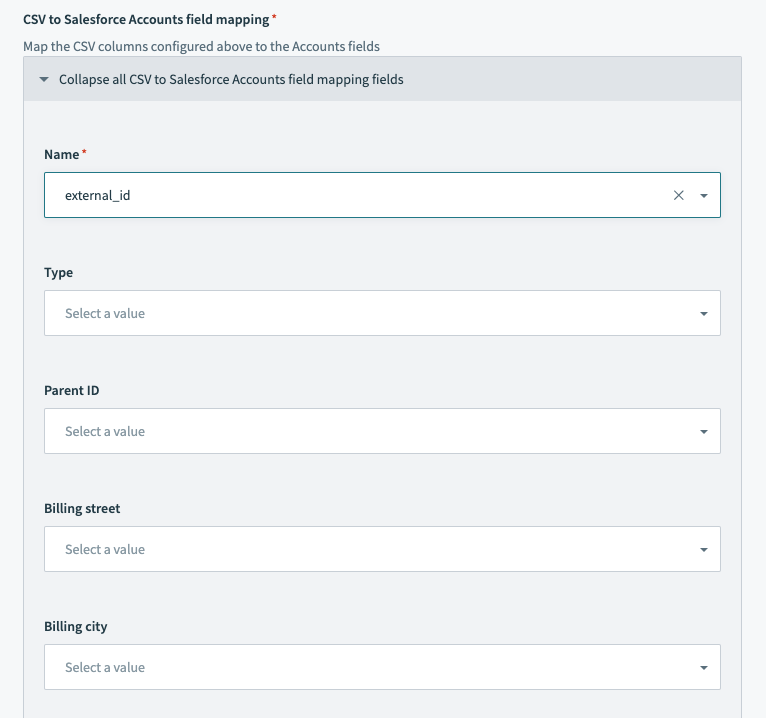 Salesforce bulk upsert action - field mapping section
# CSV file
The following example shows how to format the CSV file input for a CSV:
external_id,last_name,value
"a0K1h000003fXSS","Minnes","54"
"a0K1h000003fehx","Lecompte","12"
"a0K1h000003fjnv","Fester","28"
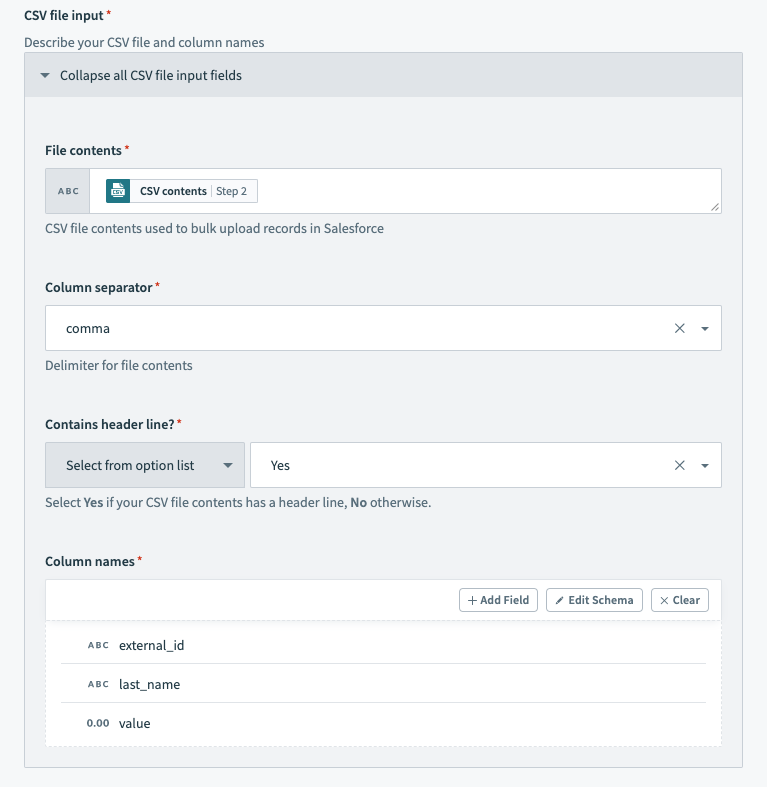 Salesforce bulk action - configured CSV file input section
# Output
| Output fields | Description |
|---|---|
| All records successfully processed? | Indicates whether all CSV rows across Salesforce bulk jobs processed successfully. |
| Number of records succeeded | The total number of CSV rows that were successfully processed in Salesforce. |
| Number of records failed | The total number of CSV rows that encountered issues and were not processed in Salesforce. |
| Number of retried records | The total number of CSV rows that retried processing in Salesforce. This field is relevant for the Retry objects bulk job in Salesforce from CSV file action. |
| Number of records processed | The total number of CSV rows processed in Salesforce, excluding the header row. |
| CSV contents with failed records | CSV file content containing CSV rows that encountered issues and were not processed. Two additional columns are added to this CSV file: sf__Error and sf__Id. Refer to the Salesforce documentation (opens new window) for more information. |
| CSV content with success records | CSV file content containing CSV rows that were successfully processed in Salesforce. Two additional columns are added to this CSV file: sf__Created and sf__Id. Refer to the Salesforce documentation (opens new window) for more information. |
| Failed records report header | Header information of failed record reports. |
| Success records report header | Header information of successful record reports. |
| Salesforce bulk jobs | An object containing information about each Salesforce bulk job. Refer to the Salesforce bulk jobs section for more information. |
# Salesforce bulk jobs
Workato splits large CSV files into chunks and processes them as separate Salesforce bulk jobs to comply with Salesforce API size limits. Bulk operations output a Salesforce bulk jobs datatree that contains information about each chunk processed.
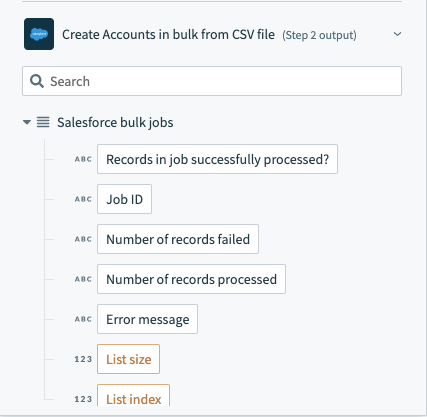 Salesforce bulk operation output datatree - list of bulk jobs
Workato includes the aggregated results across all bulk jobs at the top of the output, outside of the Salesforce bulk jobs datatree.
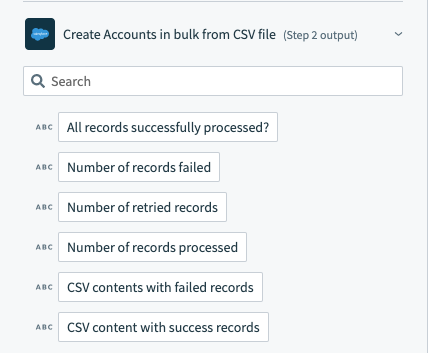 Salesforce bulk operation output datatree - aggregated results across bulk jobs
Last updated: 4/15/2026, 3:44:32 PM