SOQL
You can use Salesforce Object Query Language (SOQL) to search your Salesforce data for specific records. SOQL is similar to the SELECT statement in Structured Query Language (SQL), but is designed specifically for Salesforce data. The following Salesforce connector operations support SOQL:
Actions:
- Search records using SOQL query
- Search records in bulk using SOQL query
- Search records using SOQL query WHERE clause
Triggers:
- Export new records
- Export new/updated records
- Monitor changes in a record
- New platform event
- New records
The following query shows the basic syntax of a SOQL query:
SELECT(list of fields)FROM(an object)WHERE(filter statements and optional sorting)
Refer to the Salesforce Fields Reference for a list of standard fields for major Salesforce objects.
SOQL WHERE conditions (Syntax)
The SOQL WHERE clause follows field expression syntax. A fieldExpression is defined as <fieldName> <comparisonOperator> <value>. The following sections show examples of valid SOQL WHERE queries.
Comparison operators
The following list contains all SOQL comparison operators:
=!=<<=>>=LIKEINNOT ININCLUDESEXCLUDES
The following example uses fieldExpression syntax with a valid SOQL comparison operator:
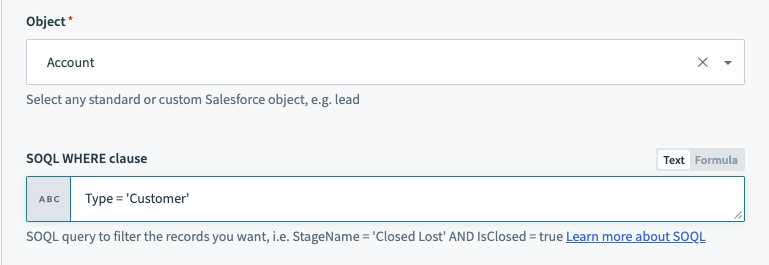 Example of using fieldExpression syntax with a comparison operator
For detailed information on how to use each comparison operator, see Comparison Operators.
Logical operators
Multiple field expressions can be joined using logical operators. These include: AND, OR, and NOT. The following list contains basic syntax for each operator:
fieldExpressionX AND fieldExpressionYfieldExpressionX OR fieldExpressionYNOT fieldExpressionX
The following example uses two fieldExpressions joined by a logical operator:
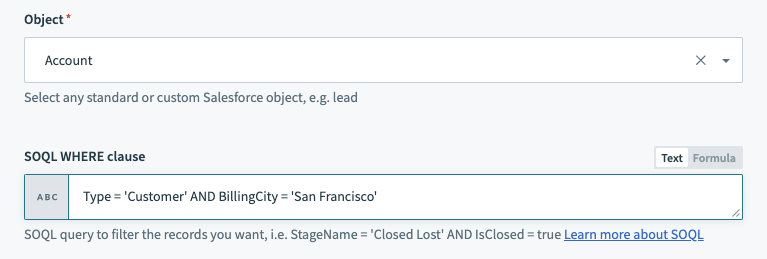 Example of joining two fieldExpressions using a logical operator
For more information on logical operators, see Logical Operators.
Other SOQL clauses
LIMIT: Limits the number of results returned in the search.OFFSET: Skips a specified number of rows before returning results.
The maximum value for both clauses is 2,000. Requesting an offset greater than 2,000 results in a NUMBER_OUTSIDE_VALID_RANGE error.
Date formats and date literals
You must use formula mode to query a date or dateTime field. Formula mode converts your timestamp to the ISO8601 format expected in SOQL.
To filter on date fields in a query, you must use Date only format. The syntax for this is YYYY-MM-DD.
To filter on dateTime fields in a query, you must use a format including date, time, and time zone offset. There are three possible dateTime formats:
YYYY-MM-DDThh:mm:ss+hh:mmYYYY-MM-DDThh:mm:ss-hh:mmYYYY-MM-DDThh:mm:ssZ
FORMAT FOR DATE AND DATETIME VALUES
Single quotes around date or dateTime values are not required. For date fields, add .to_date at the end of your date formula to convert your date or timestamp to the correct format.
The following two examples demonstrate how to use .to_date in SOQL queries.
 Example of using .to_date in a query
 Example of using .to_date in a query
For dateTime fields, the YYYY-MM-DDThh:mm:ssZ format is the preferred format to use in queries. After using the formula to get your desired timestamp, such as now or 2.weeks.ago.beginning_of_day, add .strftime("%Y-%m-%dT%H:%M:%S%z") to the end of the query.
 Example of using .strftime in a query
For more information on date formats and date literals, see Date Formats and Date Literals.
Triggers and actions that use SOQL
Query with a WHERE clause
Use one of the following triggers or actions to set up a SOQL query where SOQL input is automatically configured using the fields you provide in the Workato UI. To quickly set up a SOQL query with the input configured using fields available in the Workato UI, use one of the triggers or actions below:
Triggers
- Scheduled record search using SOQL query
WHEREclause
Actions
- Search records in bulk using SOQL query (API 1.0)
- Search records using SOQL query
WHEREclause
When using triggers or actions that require a WHERE clause, the recipe automatically handles the SELECT FROM portion of your query. The recipe uses the object you chose in the Fields to retrieve picklist to SELECT all fields FROM the object.
You can also specify values for the LIMIT and OFFSET fields, if available. The LIMIT and OFFSET fields are not supported in bulk actions.
Escape special characters
Salesforce marks a query as malformed if the SOQL WHERE clause contains unescaped " or ' characters. You can add a backslash (\) before the special character to escape it. For example, O\'glenn Johnson.
You can also use the gsub function in Ruby to replace specific characters. For example:
gsub(/'/, "\\:'").gsub(/:/, "")Query with a full SOQL query
To use a full SOQL query in Workato, use one of the triggers or actions below:
Triggers
- Scheduled record search using SOQL query
Actions
- Search records in bulk using SOQL query (API 2.0)
- Search for records using SOQL query
Use a full SOQL query
The following example shows a SOQL query for the Search records in bulk using SOQL query (API 2.0) or Search for records using SOQL query actions.
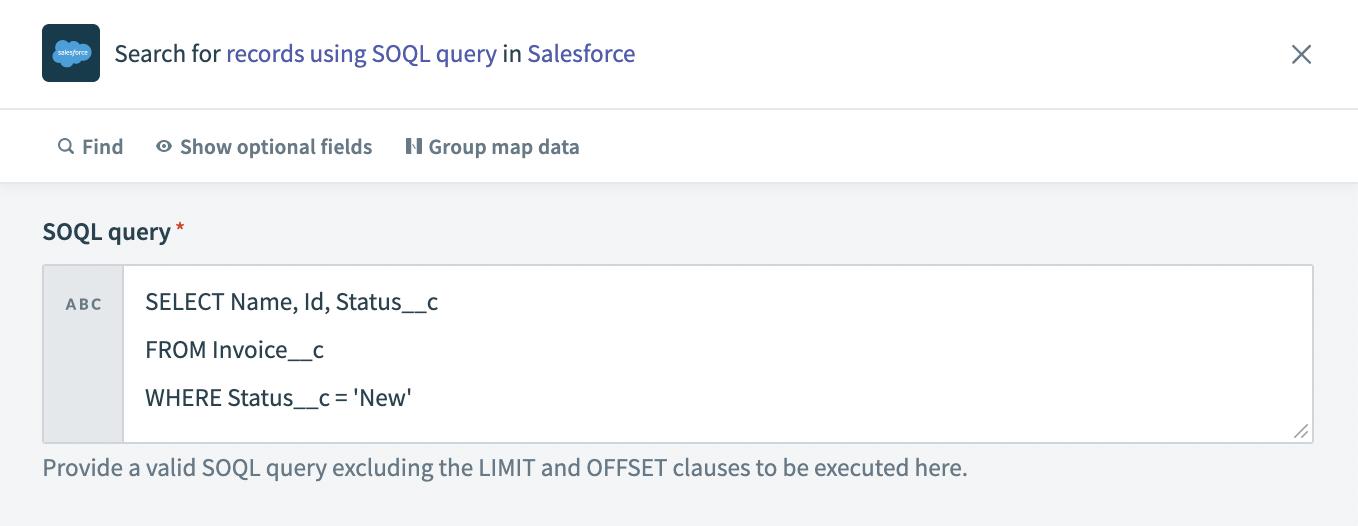 Example SOQL query for actions
To generate the output schema, select Use SOQL. Use the same SOQL that you entered in the SOQL Query field in the Provide SOQL Query field. In the Review data stage of the Output schema section, the query runs and returns sample rows. Select Generate schema to generate the output schema.
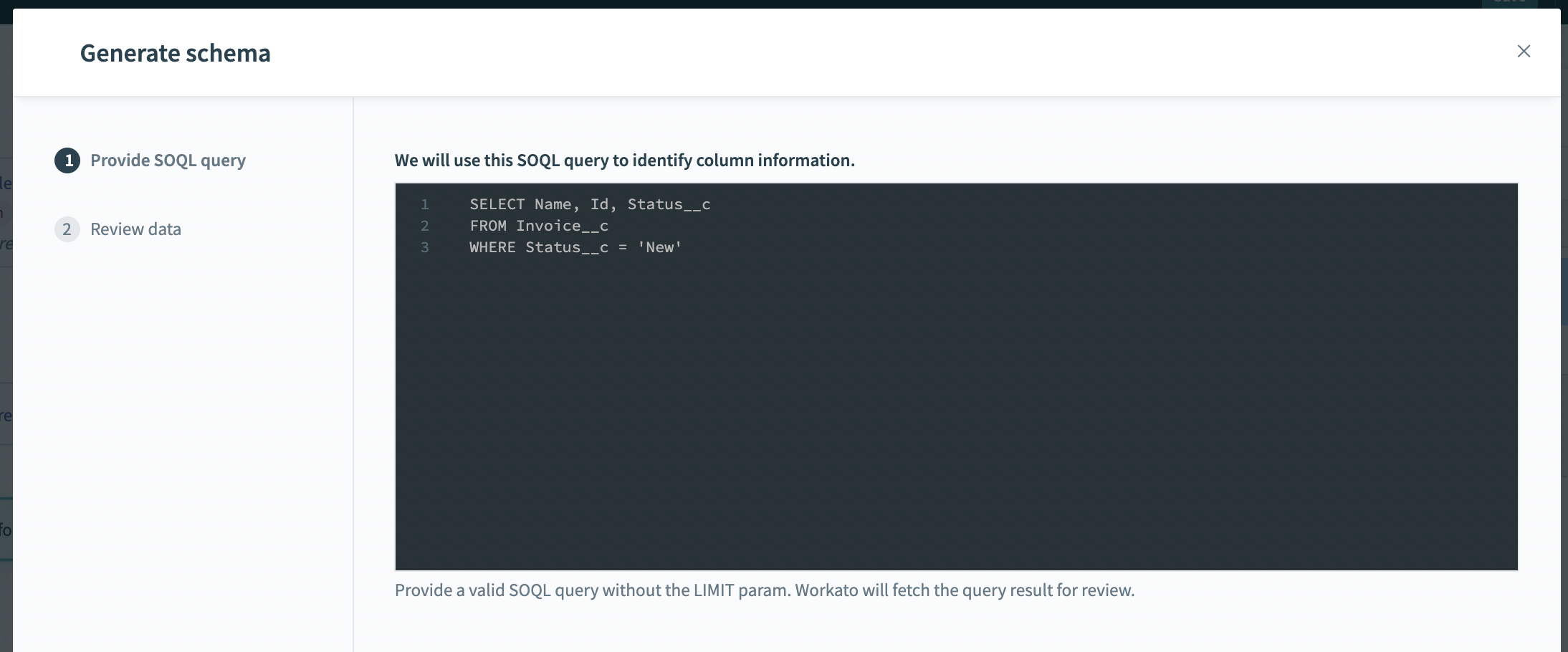 Example of generating schema
In subsequent recipe steps, the SOQL query output is accessible in the data tree.
MAXIMUM LENGTH OF SOQL QUERY
The maximum length of a SOQL query is 16,000 characters.
SOQL queries that exceed this length trigger a Connection reset by peer error. You can shorten the query to prevent the error.
Additional documentation
For additional SOQL resources, see the following Salesforce documentation:
Last updated: